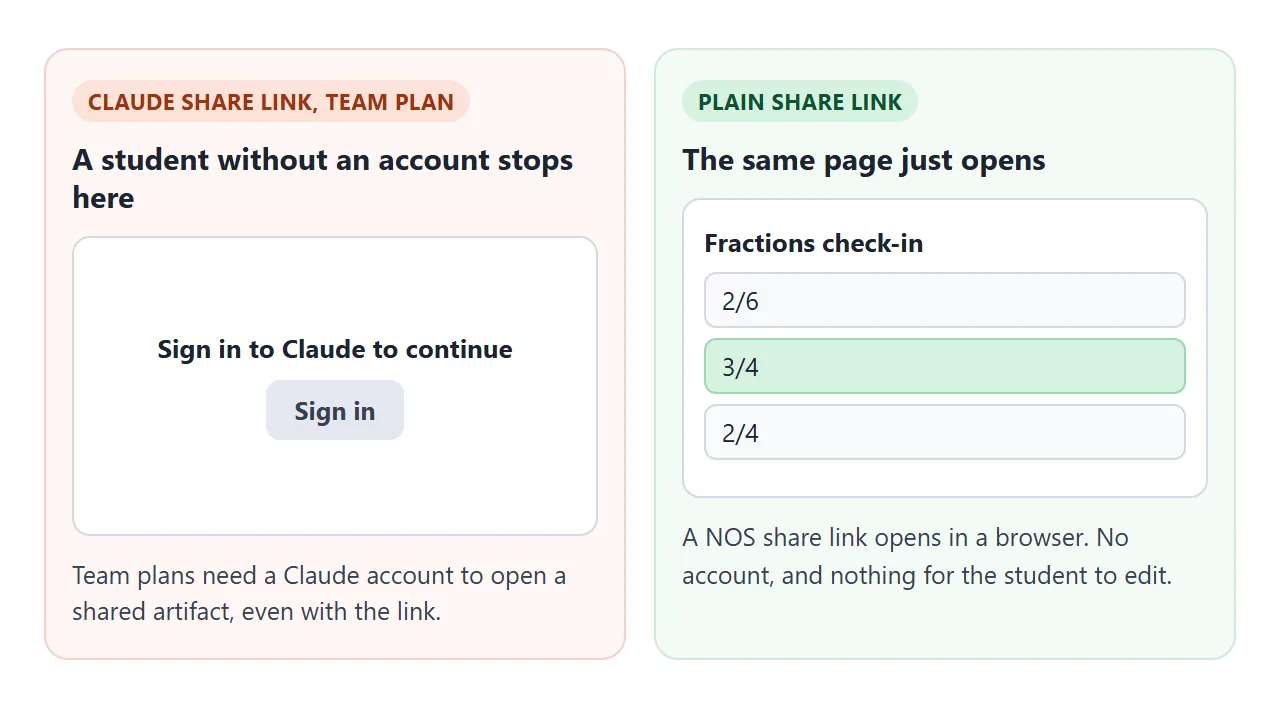
A Claude for Teachers account is a free Claude for Teams plan, and student accounts are not part of it. On a Team plan, people without a Claude account cannot open a shared artifact, even with the link (as of October 2026).
So a quiz or study page you build with Claude will not open for your students from Claude's own share link. Copy the page out as HTML instead, and send it as a plain link that opens in any browser, with no account.
Some classroom guides say students never need a Claude account for artifacts. That holds for the Publish button on Free, Pro and Max plans. Claude for Teachers sits on a different plan, so check which one you are on.
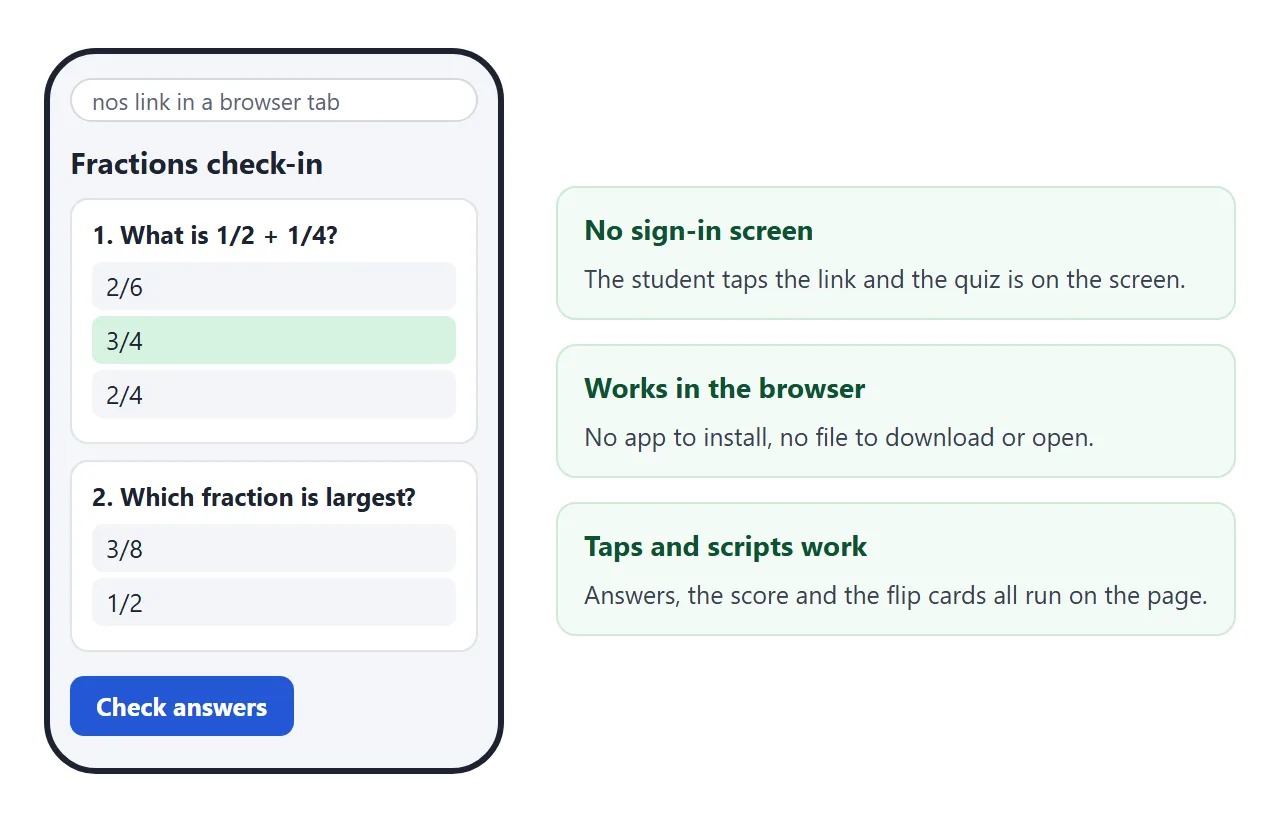
Here is a page you can copy. It is a four-question quiz that scores itself in the browser. Try it.
<!doctype html>
<html lang="en">
<head>
<meta charset="utf-8">
<meta name="viewport" content="width=device-width, initial-scale=1">
<title>Fractions check-in</title>
<style>
  * { box-sizing: border-box; }
  body { margin: 0; padding: 16px; font-family: system-ui, sans-serif; background: #f4f6fa; color: #1d2330; }
  .wrap { max-width: 560px; margin: 0 auto; }
  h1 { font-size: 20px; margin: 0 0 4px; }
  .sub { margin: 0 0 14px; color: #5b6475; font-size: 14px; }
  .q { background: #fff; border: 1px solid #dfe3ea; border-radius: 10px; padding: 12px 14px; margin-bottom: 10px; }
  .q.right { border-color: #5fb97a; background: #f3fbf5; }
  .q.wrong { border-color: #e08a6a; background: #fff6f2; }
  .q p { margin: 0 0 8px; font-weight: 600; }
  label { display: block; padding: 6px 8px; border-radius: 6px; cursor: pointer; }
  label:hover { background: #eef2f8; }
  .note { margin: 8px 0 0; font-size: 13px; }
  .row { display: flex; gap: 8px; align-items: center; flex-wrap: wrap; margin-top: 12px; }
  button { font: inherit; font-weight: 600; padding: 10px 16px; border: 0; border-radius: 8px; cursor: pointer; background: #2457d6; color: #fff; }
  button.alt { background: #e4e8f0; color: #1d2330; }
  #score { font-weight: 700; }
</style>
</head>
<body>
<div class="wrap">
  <h1>Fractions check-in</h1>
  <p class="sub">Pick one answer for each question, then press Check answers.</p>
  <form id="quiz"></form>
  <div class="row">
    <button type="button" id="check">Check answers</button>
    <button type="button" id="reset" class="alt">Start again</button>
    <span id="score" aria-live="polite"></span>
  </div>
</div>

<script>
  // Edit this list: question text, options, and the index of the right option.
  const questions = [
    { q: 'What is 1/2 + 1/4?', options: ['2/6', '3/4', '2/4'], answer: 1 },
    { q: 'Which fraction is the largest?', options: ['3/8', '1/2', '2/5'], answer: 1 },
    { q: 'What is 2/3 of 12?', options: ['6', '8', '9'], answer: 1 },
    { q: 'What is 6/8 in simplest form?', options: ['2/3', '3/4', '6/8'], answer: 1 }
  ];

  const form = document.getElementById('quiz');
  const score = document.getElementById('score');

  function build() {
    form.innerHTML = '';
    score.textContent = '';
    questions.forEach((item, i) => {
      const box = document.createElement('div');
      box.className = 'q';
      let html = '<p>' + (i + 1) + '. ' + item.q + '</p>';
      item.options.forEach((opt, j) => {
        html += '<label><input type="radio" name="q' + i + '" value="' + j + '"> ' + opt + '</label>';
      });
      html += '<div class="note"></div>';
      box.innerHTML = html;
      form.appendChild(box);
    });
  }

  document.getElementById('check').addEventListener('click', () => {
    let right = 0;
    questions.forEach((item, i) => {
      const box = form.children[i];
      const picked = form.querySelector('input[name="q' + i + '"]:checked');
      const note = box.querySelector('.note');
      const ok = picked && Number(picked.value) === item.answer;
      if (ok) right++;
      box.className = 'q ' + (ok ? 'right' : 'wrong');
      note.textContent = ok ? 'Correct.' : (picked ? 'Not quite. ' : 'No answer. ') + 'The answer is ' + item.options[item.answer] + '.';
    });
    score.textContent = 'Score: ' + right + ' of ' + questions.length;
  });

  document.getElementById('reset').addEventListener('click', build);
  build();
</script>
</body>
</html>
The whole page is one HTML file, with the questions in a short list near the bottom. Change the topic, the wording and the right answers there. Nothing a student picks is saved or sent to you, which matters later in this guide.
Make it with AI
You do not have to write the code. Paste this into Claude, ChatGPT or Gemini, and fill in the brackets.
Make a [6]-question multiple-choice quiz on [topic] for [grade level].
Give me one complete HTML file in a single code block: doctype, head
with charset, viewport and title, all CSS in a style tag, all JavaScript
in a script tag. No external images, fonts or libraries. Show a score
and the right answer for each question when I press Check answers.
Make it work on a phone. Use made-up names only.
Then check the result before you send it anywhere:
- The answers. Read every question and the marked answer yourself. A page that looks finished can still have a wrong key.
- One complete file. It should start with the doctype line and end with the closing html tag. A fragment shows as plain text elsewhere.
- Nothing from outside. No image links, and no libraries from sites other than the common ones. Ask for inline SVG instead of pictures.
- Phone width. Open it narrow and make sure nothing runs off the edge.
The same approach works for study pages. This one flips vocabulary cards.
<!doctype html>
<html lang="en">
<head>
<meta charset="utf-8">
<meta name="viewport" content="width=device-width, initial-scale=1">
<title>Water cycle vocabulary</title>
<style>
  * { box-sizing: border-box; }
  body { margin: 0; padding: 16px; font-family: system-ui, sans-serif; background: #eef6f4; color: #1d2330; }
  .wrap { max-width: 440px; margin: 0 auto; text-align: center; }
  h1 { font-size: 20px; margin: 0 0 4px; }
  .sub { margin: 0 0 14px; color: #4b5f5a; font-size: 14px; }
  .card { min-height: 170px; display: flex; flex-direction: column; justify-content: center; align-items: center; padding: 18px; background: #fff; border: 2px solid #9fcfc3; border-radius: 14px; cursor: pointer; font-size: 22px; font-weight: 700; user-select: none; }
  .card.back { background: #e6f6f1; font-size: 17px; font-weight: 500; }
  .hint { font-size: 12px; font-weight: 400; color: #5b6e69; margin-top: 10px; }
  .row { display: flex; gap: 8px; justify-content: center; margin-top: 12px; flex-wrap: wrap; }
  button { font: inherit; font-weight: 600; padding: 10px 16px; border: 0; border-radius: 8px; cursor: pointer; background: #1f7a68; color: #fff; }
  button.alt { background: #e0e8e6; color: #1d2330; }
  .count { margin-top: 12px; font-size: 14px; color: #34524c; }
</style>
</head>
<body>
<div class="wrap">
  <h1>Water cycle vocabulary</h1>
  <p class="sub">Tap the card to flip it. Then say whether you knew it.</p>
  <div class="card" id="card" role="button" tabindex="0"></div>
  <div class="row">
    <button type="button" class="alt" id="again">Again</button>
    <button type="button" id="gotit">Got it</button>
  </div>
  <p class="count" id="count"></p>
</div>

<script>
  // Edit this list: the word on the front, the meaning on the back.
  const cards = [
    ['Evaporation', 'Liquid water turns into water vapor, usually because the sun warms it.'],
    ['Condensation', 'Water vapor cools and turns back into tiny drops of liquid water.'],
    ['Precipitation', 'Water falls from clouds as rain, snow, sleet or hail.'],
    ['Runoff', 'Water that flows over the ground into streams, rivers and lakes.'],
    ['Groundwater', 'Water that soaks into the soil and is stored underground.']
  ];

  const card = document.getElementById('card');
  const count = document.getElementById('count');
  let order = cards.slice();
  let index = 0, known = 0, flipped = false;

  function show() {
    if (index >= order.length) {
      card.className = 'card';
      card.innerHTML = 'Round done';
      count.textContent = 'You knew ' + known + ' of ' + cards.length + ' cards.';
      return;
    }
    const c = order[index];
    card.className = 'card' + (flipped ? ' back' : '');
    card.innerHTML = flipped ? c[1] : c[0] + '<span class="hint">Tap to flip</span>';
    count.textContent = 'Card ' + (index + 1) + ' of ' + order.length + ' · knew ' + known;
  }

  function flip() { if (index < order.length) { flipped = !flipped; show(); } }
  function next(wasKnown) {
    if (index >= order.length) { order = cards.slice(); index = 0; known = 0; }
    else { if (wasKnown) known++; index++; }
    flipped = false;
    show();
  }

  card.addEventListener('click', flip);
  card.addEventListener('keydown', (e) => { if (e.key === 'Enter' || e.key === ' ') { e.preventDefault(); flip(); } });
  document.getElementById('gotit').addEventListener('click', () => next(true));
  document.getElementById('again').addEventListener('click', () => next(false));
  show();
</script>
</body>
</html>
Send it as a link
Copy the HTML from Claude's reply. If you built the page as an artifact, Claude's help page says legacy artifacts have controls at the top of the panel to view the code, copy it or download it.
Paste it into a NOS document and choose Create share link. HTML to link walks through it. The page renders as written and its scripts run.
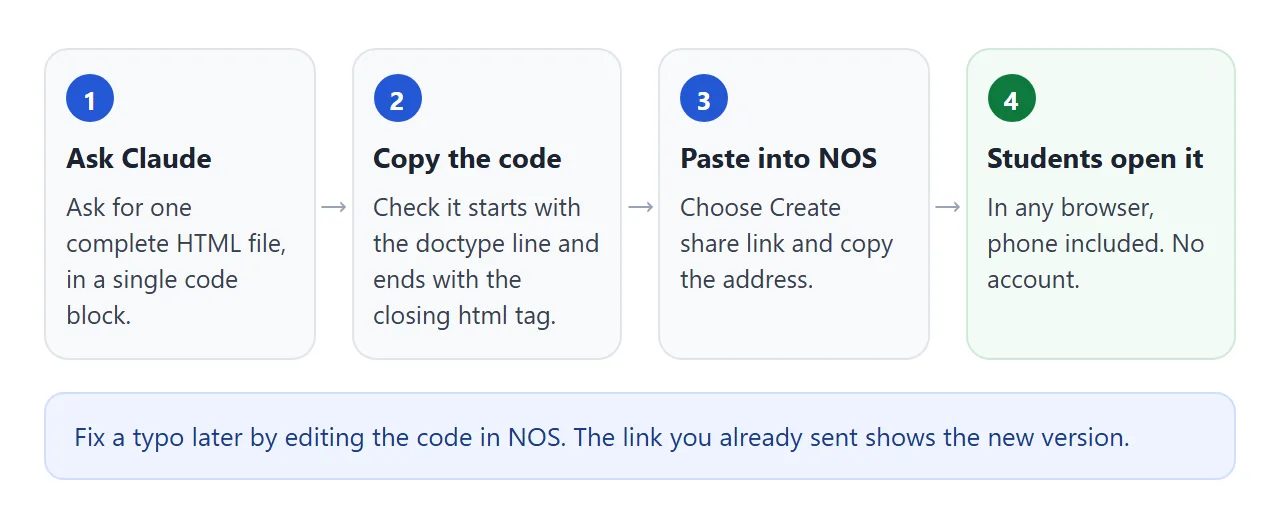
Whoever has the link opens the page in a browser, a phone included, with no account. They cannot edit it. If you change the code later, the same link shows the new version.
For Google Classroom, Google's help page says teachers can attach links to an assignment, so the address can go there (as of October 2026). It works anywhere else you can paste text, such as an email or a class website.
For the Claude side of this, see sharing Claude artifacts, two ways and sharing HTML from Claude.
Why a Claude link asks students to sign in
Claude's help page describes two buttons. Free, Pro and Max plans have Publish, which makes a public link anyone can open without an account. Team and Enterprise plans have Share instead.
On those plans, artifacts stay inside your organization by default, and an owner decides whether people can share outside it. Even when an owner allows "Anyone with the link", viewers still need a Claude account.
The help page adds a warning for teachers. When you share an artifact made in a chat, viewers also get access to the attachments and files in that chat. If you uploaded a class list to build the page, keep that in mind.
Ways to share compared
| Claude Share (Team plan) | Claude Publish (Free, Pro, Max) | NOS share link | |
|---|---|---|---|
| Student needs a Claude account | Yes | No | No |
| Listed on Claude for Teachers plan | Yes, as a Team plan | Listed under other plans | Not tied to any plan |
| Files from the chat | Viewers can also see them | Not stated | Only the page you pasted |
| Change it, keep the same link | Not stated | Not stated | Yes |
The first row decides the most. If your students will never have Claude accounts, only the right-hand column reaches all of them.
Keep student information off the page
Anyone who has the link can open the page. There is no password in NOS, so treat the link like a flyer on a notice board. Do not put student names, grades or contact details in the page.
The reverse also holds. What a student taps on the page is not saved, and sending a form to a server is blocked, so the page cannot collect answers for you. You also cannot see who opened it.
That makes it a good fit for practice quizzes, vocabulary cards and review pages. For graded work, Google's help page describes attaching materials such as a Google Forms survey to a Classroom assignment.
When it does not work
| What you see | Cause | Fix |
|---|---|---|
| A student sees a Claude sign-in screen | The link is a Share link from a Team plan | Copy the HTML out and send a NOS share link |
| The page works for you, not for students | You are signed in to Claude and they are not | Test the link in a browser where you are not signed in to Claude |
| The page is blank or half styled | The code was a fragment, or loads from a blocked site | Ask Claude for one complete file with nothing external |
| Pictures are missing | Outside images are blocked | Ask for inline SVG or CSS shapes |
| Answers vanish after a refresh | A visitor's changes are not saved | Treat it as practice, not a record |
| A form does nothing when sent | Sending a form to a server is blocked | Keep the form inside the page, or use a Google Form |
| You spot a typo after sending | The page needs a fix | Edit the code in NOS. The same link updates |