A Claude portfolio website is a normal web page. Ask Claude for one HTML file, check it in the artifact panel, paste the code into NOS and choose Create share link. The link opens in any browser, a phone included, with no account.
The sending part is where it goes wrong. A phone may not open an attached .html file as a page, so the thing you were proud of arrives as code or as a download. A link skips that.
Here is a portfolio page of the kind Claude writes. Filter the projects with the buttons, then view it at phone width.
<!doctype html>
<html lang="en">
<head>
<meta charset="utf-8">
<meta name="viewport" content="width=device-width, initial-scale=1">
<title>Nora Whitfield - Portfolio</title>
<style>
* { box-sizing: border-box; }
body { margin: 0; font-family: system-ui, sans-serif; color: #1f2430; background: #f6f7f9; line-height: 1.5; }
.wrap { max-width: 760px; margin: 0 auto; padding: 22px 18px 30px; }
header { display: flex; gap: 16px; align-items: center; flex-wrap: wrap; }
.avatar { width: 64px; height: 64px; border-radius: 50%; background: linear-gradient(135deg, #6d5ef0, #38bdf8); color: #fff; display: grid; place-items: center; font-weight: 700; font-size: 22px; flex: none; }
h1 { margin: 0; font-size: 24px; }
.sub { margin: 2px 0 0; color: #5b6475; font-size: 14px; }
.about { margin: 18px 0 8px; font-size: 15px; }
.filters { display: flex; gap: 8px; flex-wrap: wrap; margin: 16px 0 12px; }
.filters button { font: inherit; font-size: 13px; padding: 6px 14px; border-radius: 999px; border: 1px solid #cfd4de; background: #fff; color: #1f2430; cursor: pointer; }
.filters button.on { background: #1f2430; color: #fff; border-color: #1f2430; }
.grid { display: grid; grid-template-columns: repeat(auto-fill, minmax(150px, 1fr)); gap: 12px; }
.card { background: #fff; border-radius: 12px; overflow: hidden; box-shadow: 0 2px 8px rgba(0, 0, 0, .07); }
.card[hidden] { display: none; }
.thumb { height: 60px; }
.t1 { background: linear-gradient(135deg, #fde68a, #fb923c); }
.t2 { background: linear-gradient(135deg, #a7f3d0, #34d399); }
.t3 { background: linear-gradient(135deg, #bfdbfe, #6366f1); }
.t4 { background: linear-gradient(135deg, #fbcfe8, #ec4899); }
.body { padding: 12px 14px 14px; }
.body h3 { margin: 0 0 4px; font-size: 15px; }
.body p { margin: 0 0 8px; font-size: 13px; color: #5b6475; }
.tag { display: inline-block; font-size: 11px; padding: 2px 8px; border-radius: 999px; background: #eef0f6; color: #4b5563; }
footer { margin-top: 20px; padding: 14px 16px; background: #fff; border-radius: 12px; font-size: 14px; }
footer a { color: #4338ca; }
</style>
</head>
<body>
<div class="wrap">
<header>
<div class="avatar">NW</div>
<div>
<h1>Nora Whitfield</h1>
<p class="sub">Second-year design student · Open to summer internships</p>
</div>
</header>
<p class="about">I like turning messy information into clear screens. Below are four course projects, each with the brief I was given.</p>
<div class="filters" id="filters">
<button class="on" data-f="all">All</button>
<button data-f="web">Web</button>
<button data-f="data">Data</button>
<button data-f="print">Print</button>
</div>
<div class="grid" id="grid">
<div class="card" data-k="web"><div class="thumb t1"></div><div class="body"><h3>Library app redesign</h3><p>Brief: make late-fee info findable in two taps.</p><span class="tag">Web</span></div></div>
<div class="card" data-k="data"><div class="thumb t2"></div><div class="body"><h3>Campus energy dashboard</h3><p>Brief: show one month of usage to non-experts.</p><span class="tag">Data</span></div></div>
<div class="card" data-k="print"><div class="thumb t3"></div><div class="body"><h3>Festival poster series</h3><p>Brief: three posters, one grid, two inks.</p><span class="tag">Print</span></div></div>
<div class="card" data-k="web"><div class="thumb t4"></div><div class="body"><h3>Recipe site, mobile first</h3><p>Brief: a page a person can read while cooking.</p><span class="tag">Web</span></div></div>
</div>
<footer>Contact: <a href="mailto:nora.whitfield@example.com">nora.whitfield@example.com</a></footer>
</div>
<script>
const buttons = document.querySelectorAll('#filters button');
const cards = document.querySelectorAll('#grid .card');
buttons.forEach((b) => b.addEventListener('click', () => {
buttons.forEach((x) => x.classList.toggle('on', x === b));
// show only the cards whose data-k matches the chosen filter
cards.forEach((c) => { c.hidden = b.dataset.f !== 'all' && c.dataset.k !== b.dataset.f; });
}));
</script>
</body>
</html>
Make it with AI
Paste this into Claude and replace the brackets with your details. The wording that matters is "one complete file" and "nothing loaded from other websites".
Make my portfolio as ONE complete HTML file (doctype to closing html tag).
Put all CSS in a style tag and all JavaScript in a script tag.
Do not load images, fonts or libraries from other websites;
draw pictures with CSS gradients or inline SVG.
It must read well on a phone (add the viewport meta tag).
Sections: short intro, 4 project cards with a filter, contact email.
Me: [name], [course], looking for [internship / first job].
Projects: [title + one-line brief for each].
Then check four things before you copy anything:
- Every name, date and number is yours. A draft can contain placeholder or wrong details.
- No project you did not do. Delete anything you cannot explain.
- It reads on a narrow window. Drag the panel smaller, or open it on your phone.
- No form that sends data. A form that posts to a server will not work on a shared page.
If something is wrong, ask Claude to fix that one thing and regenerate the file. Claude artifacts: Publish vs your own page goes deeper on the copy step.
Send it as a link
Claude's help centre says to use the controls at the top of the artifact panel to view the code, copy it or download it. Copy the whole file.
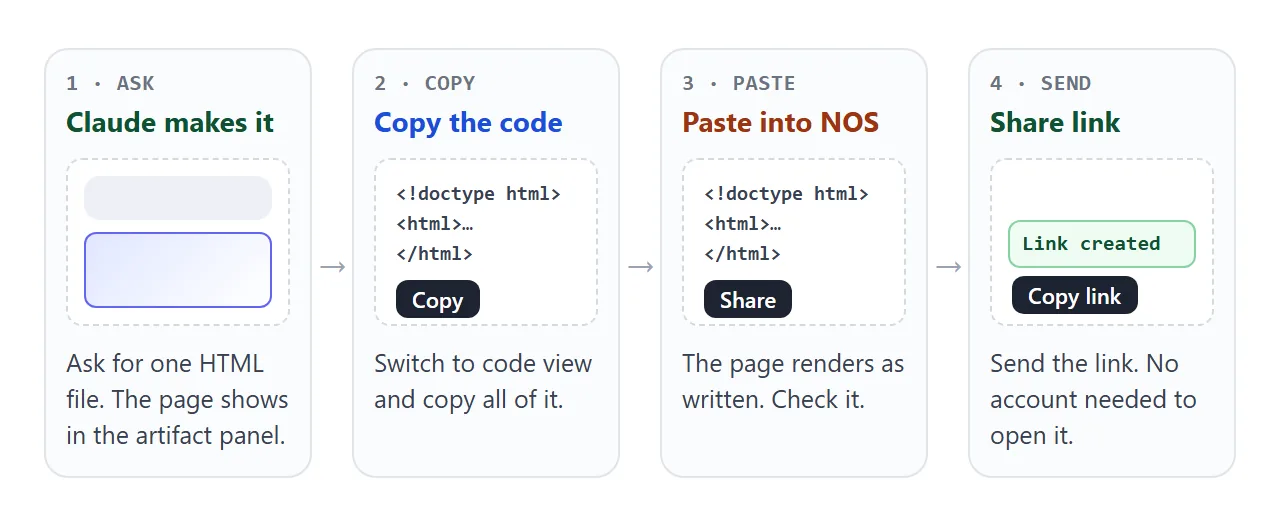
Paste it into a NOS document. The page renders as written, and its scripts run, so the filter buttons work. Then choose Create share link. HTML to link walks through it.
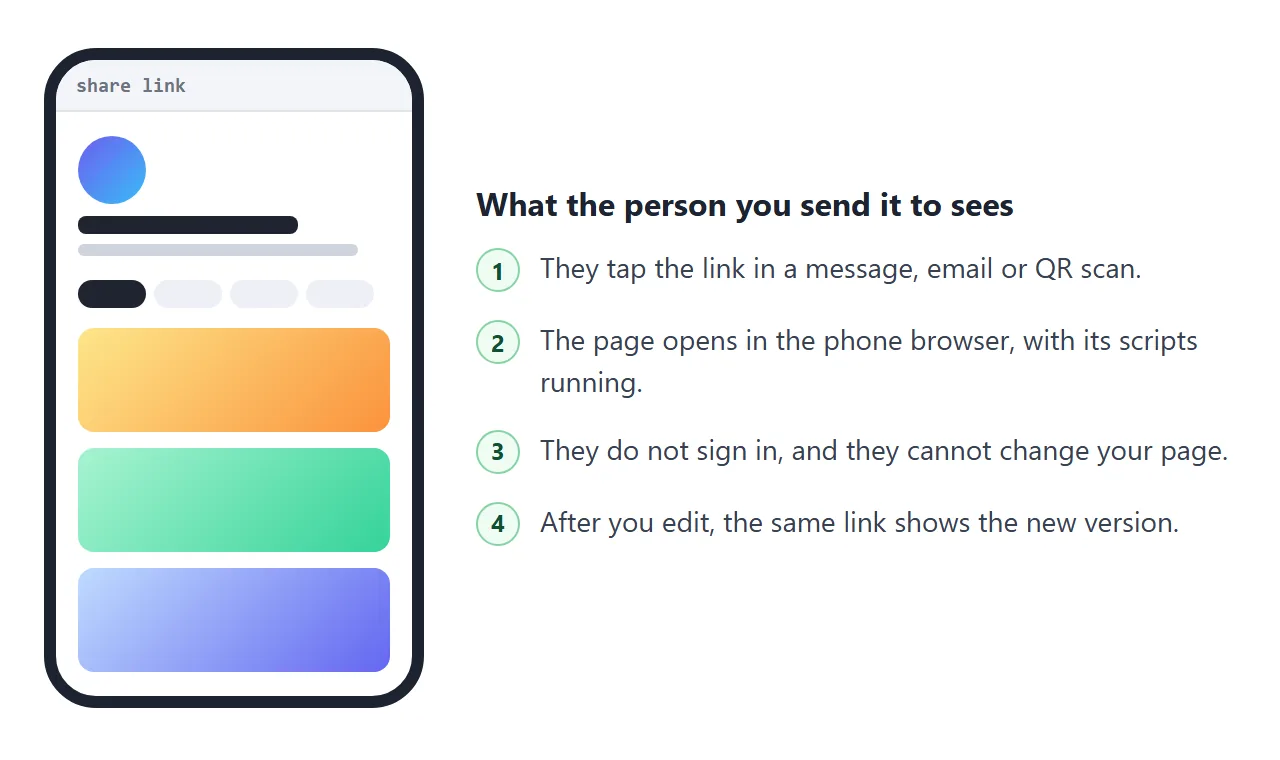
Anyone with the link can open the page without an account. They cannot edit it. When you change the code later, the same link shows the new version, so you never resend.
NOS has a free plan that includes three documents, as its HTML to link page says today (October 2026). A portfolio is one document.
Publish in Claude, attach a file, or use a link
You have three ways to get the page to someone. They do different jobs.
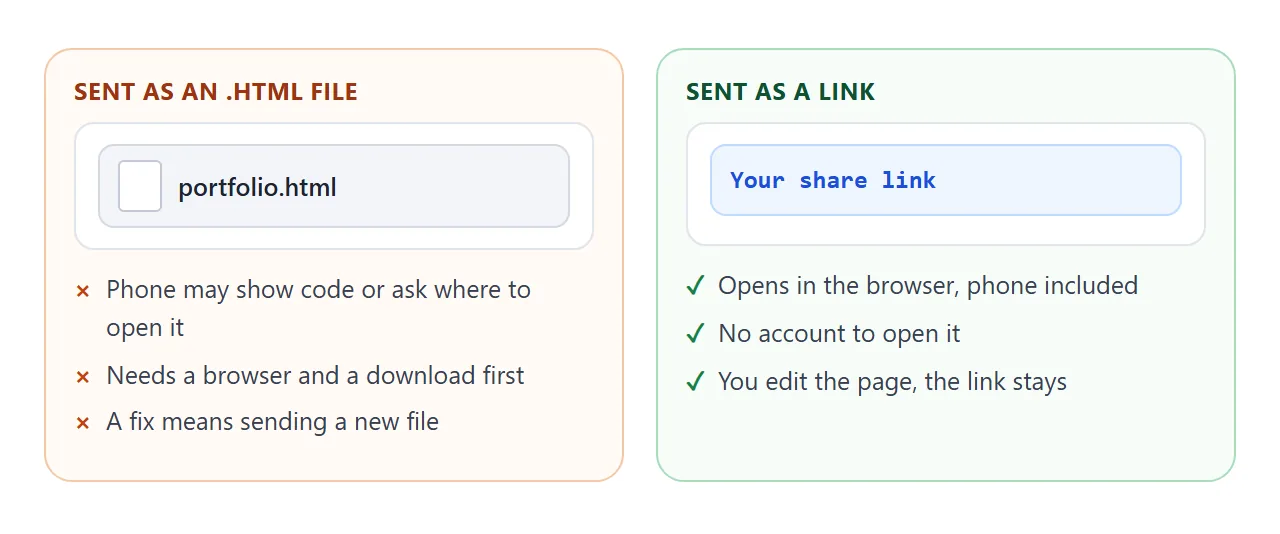
| Attach the .html file | Publish in Claude | NOS share link | |
|---|---|---|---|
| Opens as a page on a phone | May show code or need a download | Yes, from a link | Yes |
| Viewer needs an account | No | No, for published chat artifacts | No |
| Where the page lives | Your inbox or phone | Claude, in your Artifacts list | A NOS document |
| After you fix a typo | Send a new file | Check Claude's current help page | Edit, same link |
| Works on a free plan | Yes | Yes, on Claude Free | Yes, the free plan has three documents |
Button names differ by plan and by artifact age. Claude's help centre says legacy artifacts show Publish on Free, Pro and Max, and Share & copy link on Team and Enterprise.
That is as of October 2026, so read the current page before you rely on a button name.
Publishing has one rule worth knowing: once you unpublish an artifact you cannot publish it again. A portfolio changes all year, so that matters.
Put the link where people will look
A link only helps if it is somewhere a reader finds it. Three places students use:
- LinkedIn. The Featured section accepts links to external websites, such as a personal portfolio. Paste the URL and LinkedIn builds a preview.
- Google Classroom. Under Your work, choose Add or create, then Link, and enter the URL, as Google's Classroom help describes.
- A printed page. Make a QR code from the link; HTML file to QR code shows how.
Putting it on a CV is the same idea; see how to link a portfolio in a resume.
Show how you think, not only what you made
Reviewers of student work look for reasoning, which a student portfolio should make visible. Ask Claude for one project page with the brief, what you tried, why you chose one direction and what you would change.
<!doctype html>
<html lang="en">
<head>
<meta charset="utf-8">
<meta name="viewport" content="width=device-width, initial-scale=1">
<title>Case study - Campus energy dashboard</title>
<style>
* { box-sizing: border-box; }
body { margin: 0; font-family: system-ui, sans-serif; color: #1f2430; background: #fff; line-height: 1.55; }
.wrap { max-width: 680px; margin: 0 auto; padding: 22px 18px 30px; }
.kicker { font-size: 12px; letter-spacing: .06em; text-transform: uppercase; color: #6b7280; margin: 0; }
h1 { margin: 4px 0 6px; font-size: 24px; }
.lead { margin: 0 0 16px; color: #4b5563; font-size: 15px; }
.facts { display: grid; grid-template-columns: repeat(3, 1fr); gap: 8px; margin-bottom: 18px; }
.facts div { background: #f3f4f8; border-radius: 10px; padding: 8px 10px; font-size: 12px; color: #6b7280; }
.facts b { display: block; font-size: 14px; color: #1f2430; }
h2 { font-size: 16px; margin: 20px 0 6px; }
p { margin: 0 0 8px; font-size: 14.5px; }
details { border: 1px solid #e1e4ea; border-radius: 10px; padding: 10px 12px; margin-bottom: 8px; background: #fafbfc; }
summary { cursor: pointer; font-weight: 600; font-size: 14px; }
details p { margin: 8px 0 0; color: #4b5563; }
.chosen { border-color: #34d399; background: #f0fdf6; }
.bars { display: grid; gap: 8px; margin-top: 8px; }
.bar { display: grid; grid-template-columns: 76px 1fr 38px; gap: 8px; align-items: center; font-size: 13px; }
.track { height: 14px; background: #eef0f6; border-radius: 7px; overflow: hidden; }
.fill { height: 100%; background: #6366f1; border-radius: 7px; width: 0; transition: width .6s ease; }
button { font: inherit; font-size: 13px; margin-top: 10px; padding: 6px 14px; border-radius: 8px; border: 1px solid #cfd4de; background: #fff; cursor: pointer; }
</style>
</head>
<body>
<div class="wrap">
<p class="kicker">Course project · Information design</p>
<h1>Campus energy dashboard</h1>
<p class="lead">One month of building electricity use, shown so a first-year student can read it.</p>
<div class="facts">
<div><b>4 weeks</b>Time</div>
<div><b>Solo</b>Team</div>
<div><b>Sample data</b>Data</div>
</div>
<h2>The brief</h2>
<p>The course asked for one screen that explains energy use to people who are not experts. I added my own limit: no number may appear without a comparison.</p>
<h2>What I tried</h2>
<details>
<summary>Direction A: a line chart per building</summary>
<p>Accurate, but readers had to compare six lines. Rejected.</p>
</details>
<details class="chosen" open>
<summary>Direction B: one bar per building (chosen)</summary>
<p>One glance shows which building uses the most. Chosen because the comparison is the whole message.</p>
</details>
<h2>Result (sample numbers)</h2>
<div class="bars" id="bars">
<div class="bar"><span>Library</span><div class="track"><div class="fill" data-v="82"></div></div><span>82</span></div>
<div class="bar"><span>Labs</span><div class="track"><div class="fill" data-v="64"></div></div><span>64</span></div>
<div class="bar"><span>Dorms</span><div class="track"><div class="fill" data-v="47"></div></div><span>47</span></div>
<div class="bar"><span>Gym</span><div class="track"><div class="fill" data-v="29"></div></div><span>29</span></div>
</div>
<button id="replay">Replay the bars</button>
<h2>What I would do differently</h2>
<p>Test it with two people outside the course before the deadline, not after.</p>
</div>
<script>
const fills = document.querySelectorAll('.fill');
function grow() {
fills.forEach((f) => { f.style.width = '0'; });
// wait one frame so the width change from 0 is animated
requestAnimationFrame(() => requestAnimationFrame(() => {
fills.forEach((f) => { f.style.width = f.dataset.v + '%'; });
}));
}
document.getElementById('replay').addEventListener('click', grow);
grow();
</script>
</body>
</html>
Keep the facts true. If Claude invented a number, replace it with yours or delete it.
When it does not work
| What you see | Cause | Fix |
|---|---|---|
| Page shows plain text with no style | You copied only part of the code | Copy from doctype to the closing html tag |
| Pictures are missing | They load from other websites, which NOS blocks | Ask for CSS gradients or inline SVG |
| A form does nothing | Sending a form to a server is blocked | Show your email as a link instead |
| Looks wide and empty on a laptop | The artifact panel was narrow | Ask for a max-width on the content |
| Chart or font is missing | It loads from a site that NOS does not allow | Ask for a version with nothing from other sites |
| Friend sees an old version | They opened a file you sent earlier | Send the link, not a file |
For more on why single-file pages travel well, see self-contained HTML. If the file will not open on a phone at all, opening an HTML file on a phone explains the cause.