To save HTML from ChatGPT, copy the whole code block, paste it into a plain text editor, and save the file with a name ending in .html and nothing after it.
Then open it in a browser to confirm it draws a page rather than a wall of tags.
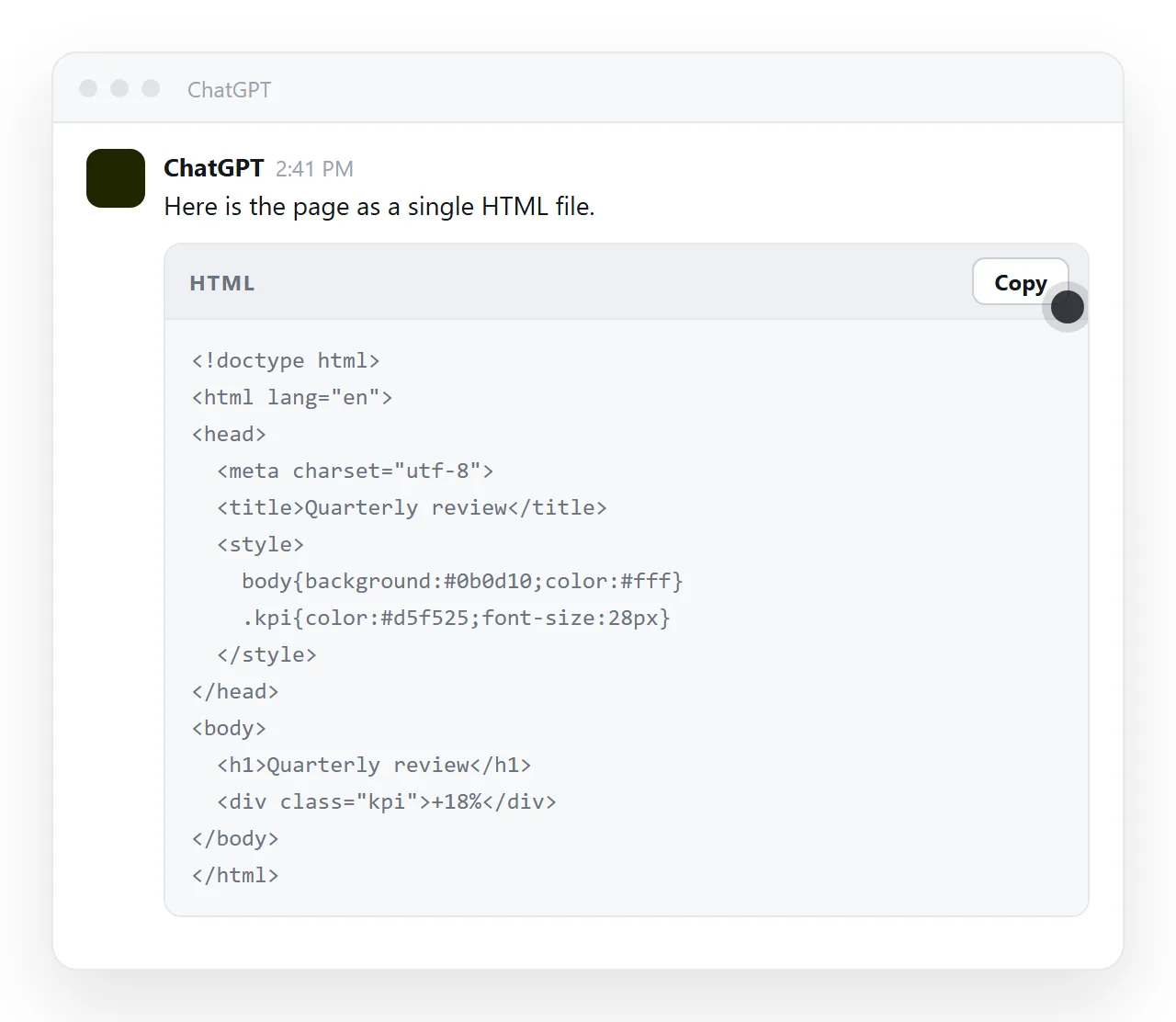
That is all there is to how to save HTML from ChatGPT, and it goes wrong in two predictable places. The editor adds .txt to the name you typed, or the block you copied was only part of the page.
What you are actually saving
An HTML file is a text file. There is no export format, no conversion, and no build step. The characters in the chat window are the characters that belong in the file.
So the save has three requirements, and nothing else:
- The text is complete, from
<!DOCTYPE html>down to</html>. - The name ends in a real
.htmlextension, not a display name that looks like one. - The content is stored as plain text, not as rich text or a document format.
How to save HTML from ChatGPT: five steps
- Copy the entire code block. Use the copy button on the block rather than dragging with the mouse. A drag selection tends to stop at the edge of the visible scroll area and takes half the file with it.
- Open a plain text editor. Notepad on Windows, TextEdit on macOS, or any code editor. In TextEdit, switch to plain text first under Format, then Make Plain Text, or it saves styling instead of markup.
- Paste, then read both ends. The first line should be the doctype or an opening
<html>tag. The last line should be</html>. If either end is missing, ask for the rest before you save. - Save it as
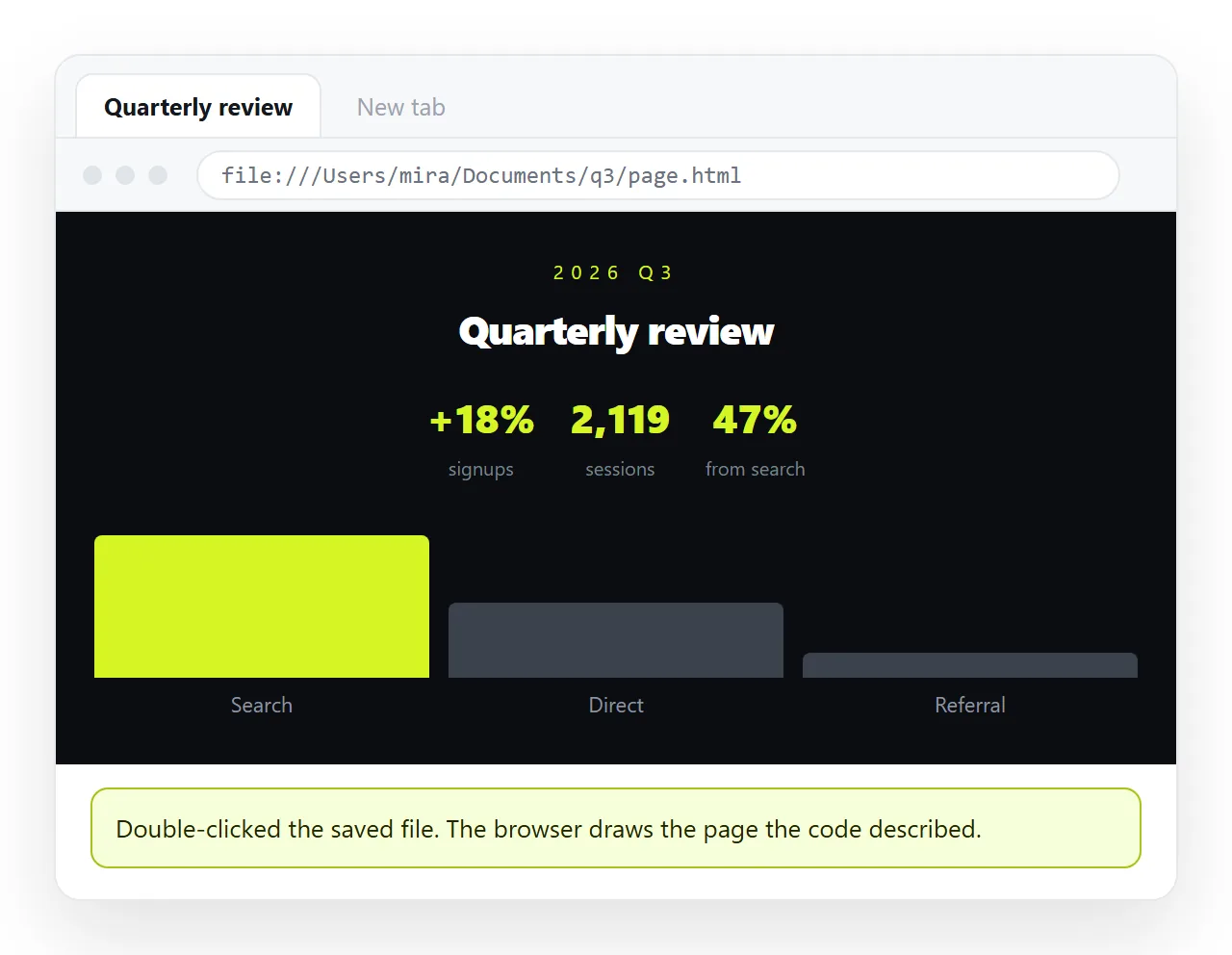
page.html. In the save dialog, set Save as type to All Files before you type the name. On Windows you can also wrap the name in quotes, as in"page.html", which forces the extension you typed. - Double-click the file. A browser window with a rendered page means you are finished. Tags printed as text mean the name or the format is wrong.
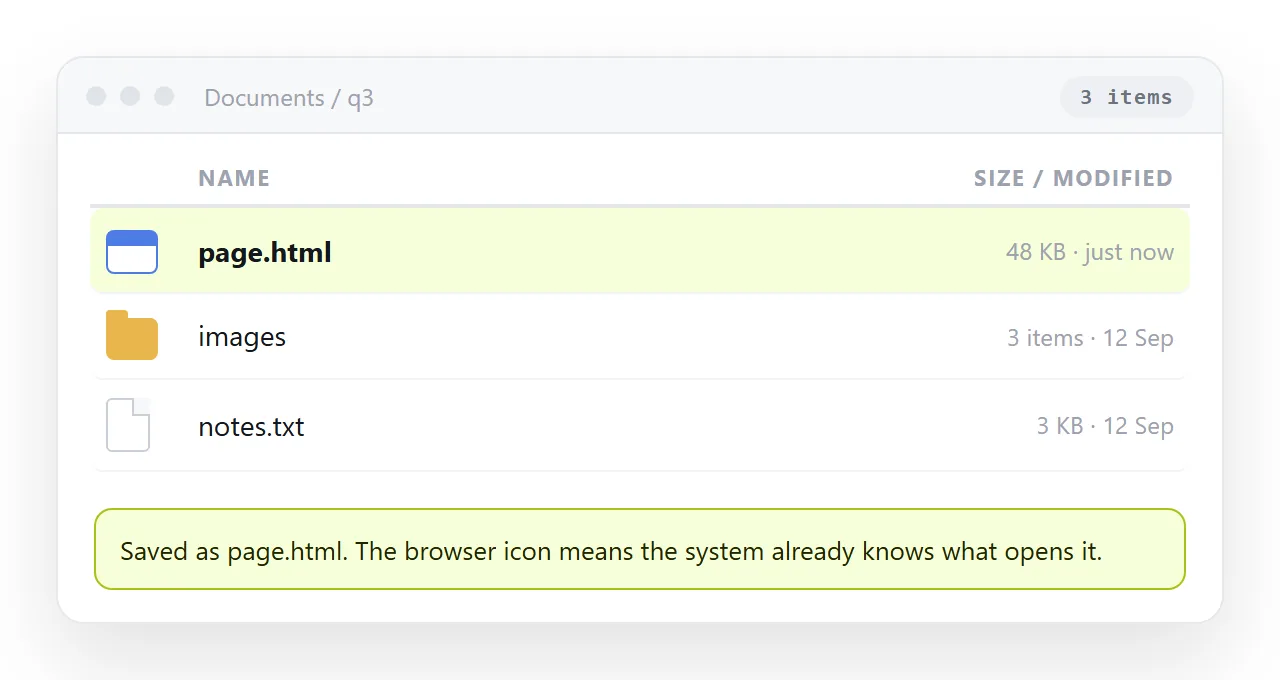
Trap one: the file is really page.html.txt
This is the most common failure by a distance. Notepad defaults Save as type to Text Documents, so it takes the page.html you typed and stores page.html.txt. Windows hides known extensions, so the folder still reads page.html.
The file then opens in a text editor, or in a browser tab that prints your markup as visible text.
To see the real name, open Explorer, go to the View menu and tick File name extensions. On macOS, TextEdit has a preference called If no extension is provided, use .txt, and its save dialog has a Hide extension checkbox worth unticking.
| What you see | What happened | What to do |
|---|---|---|
| Tags printed on screen as text | The file is .html.txt, or it was saved as rich text |
Save again with All Files selected and plain text mode on |
| Page opens with no styling | The CSS lived in a second code block you did not copy | Paste it into a <style> tag in the head |
| Page is blank below the header | The file is cut off before </html> |
Ask for the remainder and append it |
| File icon is a notepad, not a browser | The extension is wrong or unregistered | Turn on extensions and rename the file |
| Pictures show as broken boxes | The markup points at files next to the original | Embed them or use full addresses |
Trap two: the block was only part of the page
Long answers get split. You may be handed one block of HTML, a second of CSS and a third of JavaScript, or a single block that stops partway and continues after you ask it to keep going.
Read the bottom of your pasted text before you save. If the last line is not </html>, you are holding a fragment.
To fold separate blocks into one file:
- Put the CSS between
<style>and</style>inside the<head>. - Put the script between
<script>and</script>immediately before</body>. - Keep the order the answer gave you. A script that runs before the markup it touches fails with nothing visible on screen.
A shorter route is to ask for the page again as one self-contained file with the styles and script inline. That also removes the folder dependency that breaks pages the moment they leave your machine.
Confirming it opens as a page, not as code
Your own machine is a generous test. It has the fonts, the folder and the images sitting next to the file.
Open the saved file in the HTML file opener, which has never seen your folder. What survives there survives for a reader.
Two results are worth naming. If pictures come through as broken boxes, the markup is pointing at neighbouring files. That is covered in images not showing in HTML.
If the browser offers a download instead of drawing the page, the file is being served with the wrong type, covered in downloads instead of opening.
Getting the saved page to an address
The file works on your desk. Handing it to someone else is where the work disappears. Mail gateways strip .html attachments, phones file the download away with nothing offering to open it, and drive previews show the source instead of the page.
Paste the same HTML into a NOS document instead. It renders as written, dark theme, charts and scripts included, and the document carries its own address. That paste is what turning HTML into a link does.
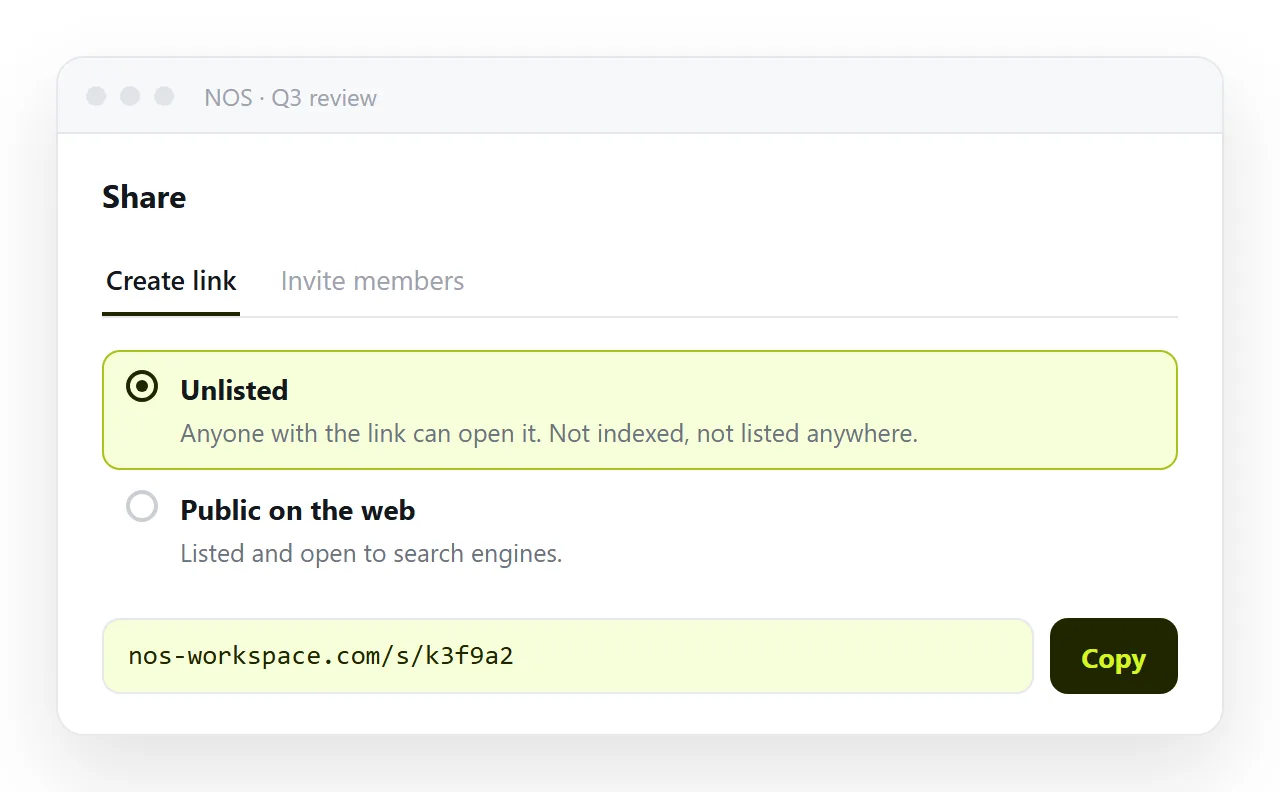
To create the address: Share, then Share link, then Create link. The link is unlisted by default, so it opens for whoever holds it without being listed anywhere. Tick Public on the web only if you want search engines to index the page.
Editing the document does not change the address, so a correction reaches everyone who already has the link. The free plan covers three documents, which is enough to test the route before you commit to it.
When you do not need the file at all
If the only reason you are saving is to show the page to somebody, the file is a detour. Paste the markup into a document and send the link.
Keeping a copy on disk still matters when the page has to work with no network, or when it belongs in version control. Everything else is better served by an address.
Sharing assistant output walks through that route, and the chat preview explains why what you saw in the conversation may not match the file you saved.