A ChatGPT HTML code preview renders your markup inside the chat page, in a small restricted frame, so what you see there is a partial answer about your file rather than the whole one.
A blank or misaligned preview is often the frame talking, not your code.
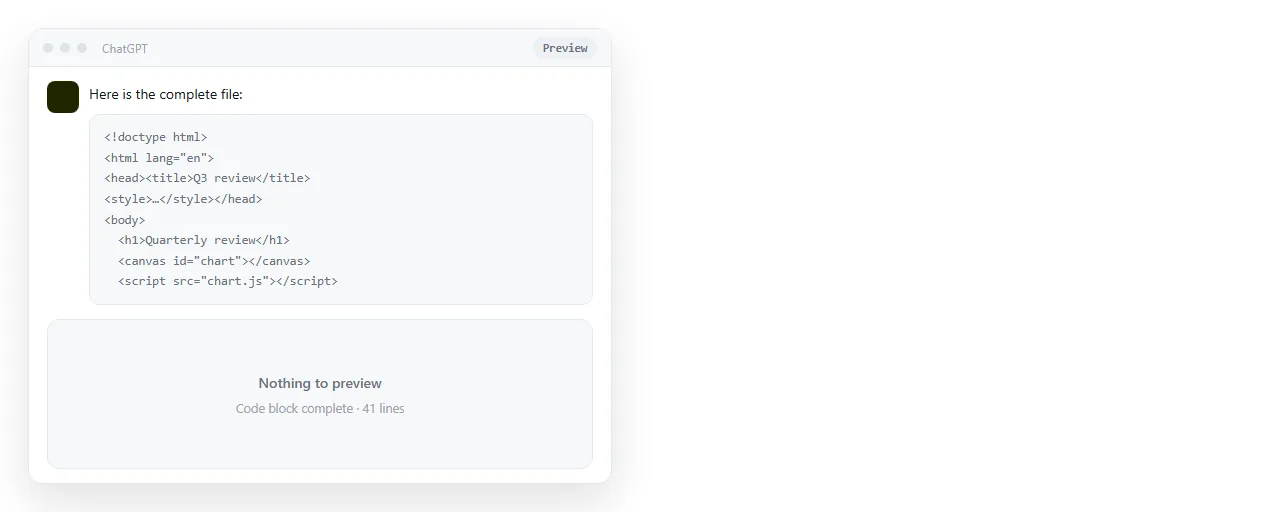
The practical rule: before you rewrite anything because of a preview, render the same markup once in a real browser window. That single check separates a broken page from a boxed-in one.
What a preview inside a chat is actually running
The chat is a web page. A preview embedded in it is a page inside a page, and the outer page decides how wide the inner one gets, how tall it can grow and what it is permitted to reach for.
That framing changes four things you will notice immediately.
- Width. The frame is a column, not a window. A layout that switches to its phone arrangement below a set width will show that arrangement, even on a wide monitor.
- Fonts. A web font has to be fetched. If the fetch does not happen, the page falls back to a default face and the spacing shifts.
- Scripts. Code that runs on load may run, or may be stopped. You cannot see which from the outside.
- External files. Charts, icon sets and stylesheets pulled from other addresses each need a request that may or may not be allowed.
Treat all four as unknown rather than as failures of your markup.
Why the chatgpt html code preview does not appear at all
An empty preview has a short list of causes, and they are separable in about a minute.
| Symptom | Most likely cause | Check |
|---|---|---|
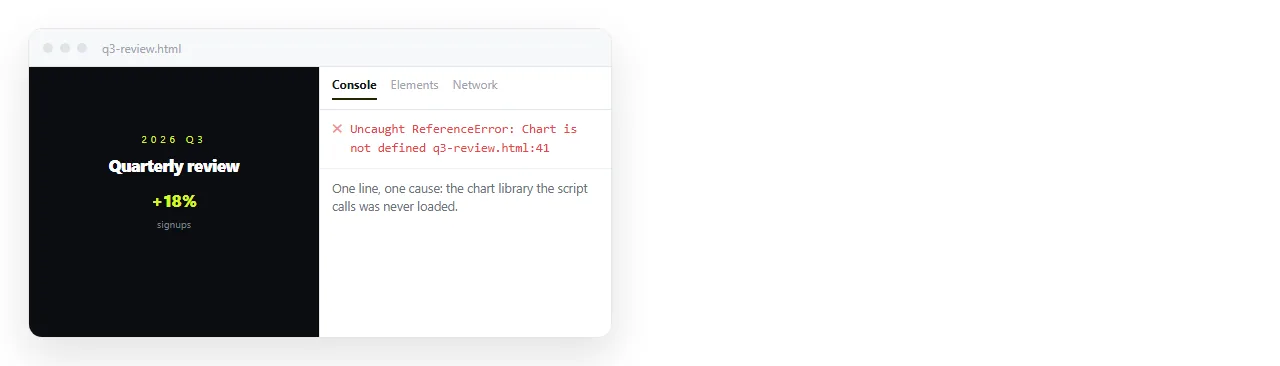
| Preview area is blank, code block looks complete | A script error stopped the page early | Open the file in a browser and read the console |
| Preview is blank and the code ends mid-tag | The answer was cut off | Look for a closing </html> at the end |
| Page draws, but unstyled | A stylesheet on another address did not load | Move the CSS inline and retry |
| Page draws, but no chart | The chart library was not fetched | Render it in a full browser window |
| Page draws squashed into a column | Frame width, not your CSS | Compare against a maximised browser window |
The check column is the point. Every row resolves the same way, by taking the markup out of the chat and running it somewhere with normal browser behaviour.
Preview looks right, saved file looks wrong
The reverse case is more annoying, because you believe the page works.
Two causes cover most of it. First, the saved file is not the same text as the previewed markup, usually because the copy stopped short or a second code block with the CSS was left behind.
Second, the file is not saved as HTML at all, which is the .html.txt trap covered in saving HTML from ChatGPT.
Compare the two ends of your file before you blame the renderer. The doctype at the top and </html> at the bottom rule out the truncation case in seconds.
If the page draws but looks plain, the missing part is usually style. AI HTML that will not render covers the specific markup patterns that fail outside the chat.
Where to render the same HTML and see the truth
You want a normal browser environment: full width, your own fonts, a visible console, no outer page imposing rules.
Three routes, in order of effort:
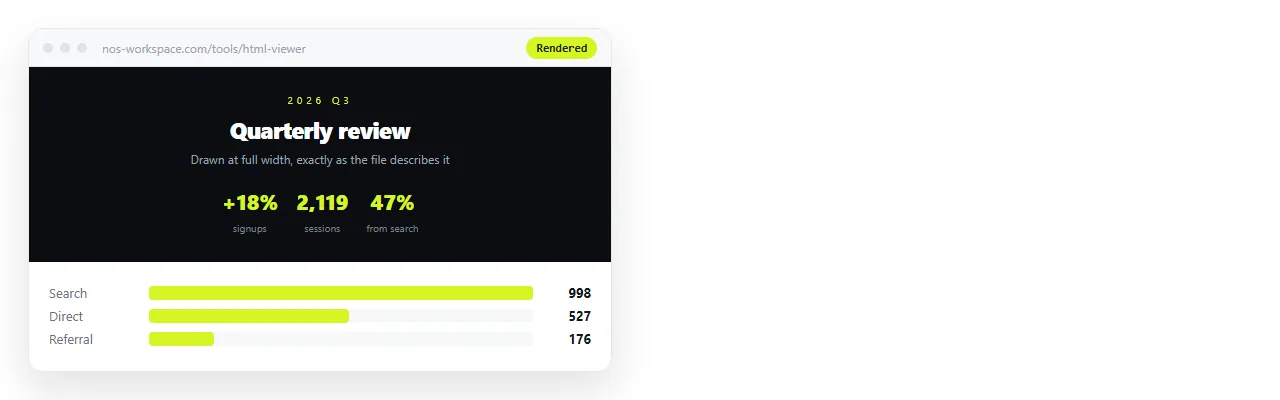
- Paste it into an HTML viewer. The HTML viewer takes the markup and draws the page at full width. No file, no save dialog.
- Save the file and open it locally. Slower, but it gives you a console and a network panel, which is what you need when a script or a fetch is the suspect.
- Paste it into a document that renders HTML. This gives you the page plus an address, which matters the moment someone else needs to look at it.
Reading the difference instead of guessing
When the full-window render and the chat preview disagree, the disagreement itself is information.
- The page is fine in a browser and blank in the chat. The frame blocked something. Leave the markup alone.
- The page is broken in both. The markup has a real problem. Start with the console error.
- The page is fine in the chat and broken in your file. The file is not what you previewed. Re-copy the whole block.
- Both draw, but the layout differs. Width. Check your media queries against a real window before changing them.
Keeping the rendered page at an address
Once the page renders the way you want, the next question is how anyone else sees it. A screenshot of a preview loses everything below the fold, and the file itself travels badly through mail and phones.
Paste the HTML into a NOS document. It renders as written, dark theme, charts and scripts included, which makes it both your check and your delivery in one paste.
The document has its own address. Open Share, then Share link, then Create link. The link is unlisted by default and works for whoever holds it. Tick Public on the web if the page should be findable in search.
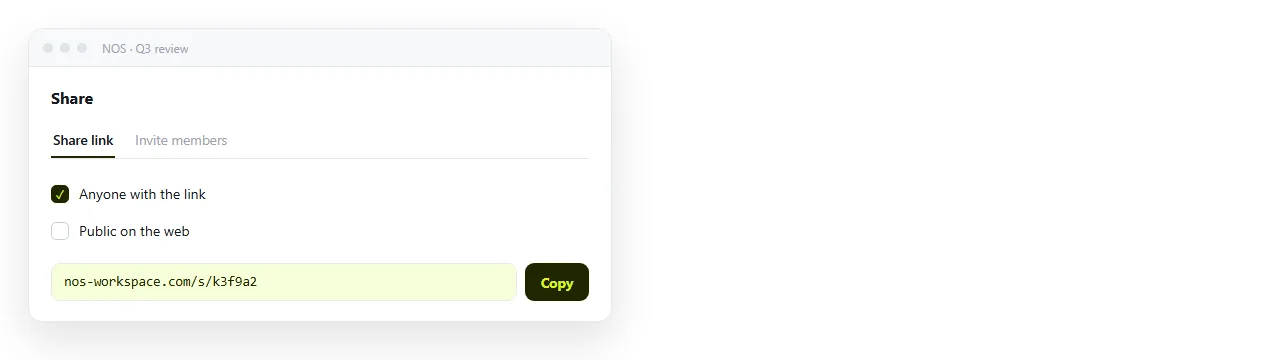
Editing the page does not move the address, so the next correction reaches the same link. The free plan covers three documents, which is enough to see whether the route fits your work.
What to do next
Keep the sequence short. Render the markup in a full window, read the console once, fix what the console names, then give the page an address.
Turning HTML into a link is the address step, and sharing assistant output covers what to send when the page is finished.