To convert HTML to Word, open the .html file in Word with File, then Open, then save it as a .docx. Word reads the markup and lays it out as a document, keeping headings, paragraphs, lists, tables, links and images.
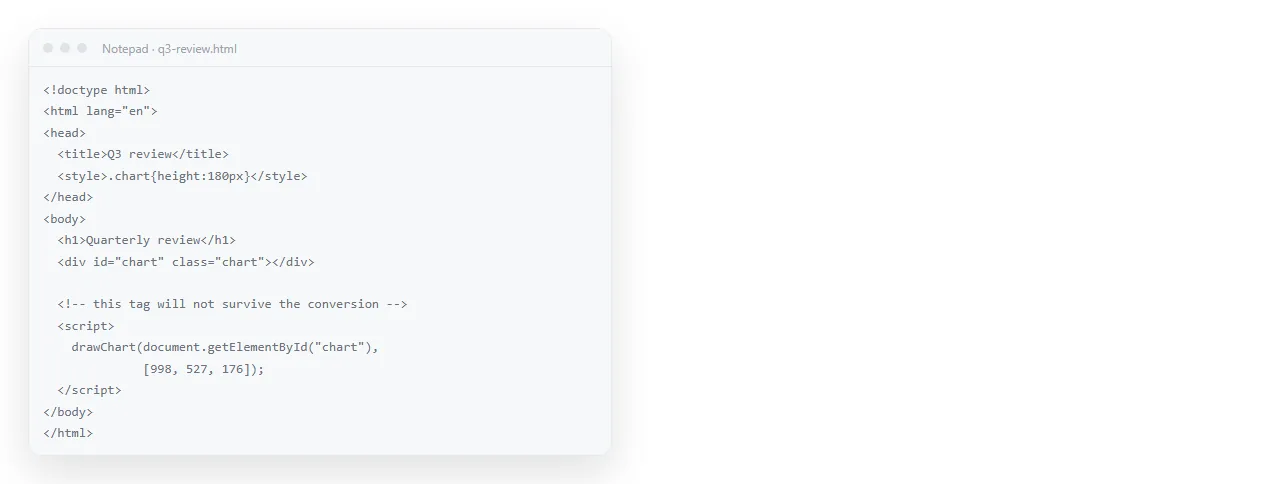
That covers the common case. Pandoc, copy and paste, and a round trip through Google Docs cover the rest. All four share one limitation: a Word document does not run code, so anything drawn by JavaScript arrives empty.
Decide first whether you actually need a document. If people are going to read it and nothing else, a link to the page keeps everything the conversion destroys.
Four ways to convert HTML to Word
| Route | Layout fidelity | Styles you can edit | Charts | Needs installing |
|---|---|---|---|---|
| Open the file in Word | Fair | Yes | No | Nothing |
| Browser, select all, paste | Closest to the page | Partly, as direct formatting | No, unless the chart is an image | Nothing |
| Pandoc | Structural, not visual | Yes, clean styles | No | Pandoc |
| Google Docs import, download as docx | Fair | Yes | No | Nothing |
There is no route that keeps a live chart, because the format has no way to hold one.
Route one: open it in Word
- Open the file in a browser first. If images or styling are missing there, they will be missing in Word. The HTML file opener is a window that has never seen your project, so it shows exactly what travels.
- Capture each chart as an image. Do this while the page still renders. Turning HTML into an image covers the capture.
- File, then Open, then pick the
.htmlfile. Word converts on open. - Save As, and choose Word Document. Skip this and you are editing an HTML file in Word, which silently breaks tracked changes and comments later.
- Repair what flattened. Usually wide tables, multi column sections, and anything positioned with CSS.
Route two: paste from the browser
Open the page in a browser, select all, copy, paste into Word. No installation, no menu diving, and it takes about ten seconds.
This often looks closest to the original, because the browser has already computed the CSS and hands Word the resolved result. Colours, fonts and table borders tend to come through.
The cost is that everything arrives as direct formatting rather than as named styles, so applying a corporate template afterwards is messy. Use it when the output is a one off.
It is also the route that handles pages built with modern layout properties best, because grid and flexbox positions have already been computed into a visual result. Word never sees the CSS, only the outcome.
Route three: pandoc
Best route when you care about structure rather than appearance, or when the conversion has to run without a person.
pandoc report.html -o report.docx
pandoc report.html --reference-doc=template.docx -o report.docx
The second form applies your own template, so headings land on your heading styles. Pandoc ignores your CSS, which is the point. It reads the markup as structure and renders it through the template.
That makes it the only route you can put in a script. If a report is regenerated every week, the conversion can run alongside it without anyone opening Word.
What never survives
Five categories, regardless of route:
- Scripted charts. Drawn at load time into a canvas. A document has no load time.
- Interactive tables. Sorting, filtering and expanding rows all depend on script.
- Hover and animation. There is no pointer state in a printed page.
- Media queries. A document has one fixed width, so responsive rules collapse to whichever branch applies.
- Web fonts. A font loaded from a web address is not embedded in the document. Word substitutes whatever is installed, which changes line breaks and page counts.
Plan for the chart images and the font substitution before you convert, not after you have circulated the file.

Dark backgrounds are a trap
Pages written for the web often have a dark background and light text. Converted into a document and sent to a printer, that becomes either a solid block of ink or, if the background is dropped, light grey text on white.
Check the result in Print Preview before circulating it. If the page is dark, it is usually quicker to restyle for print than to fight the conversion.
The quickest restyle is a print stylesheet on the original page: white background, dark text, no shadows. Convert after that and the document arrives ready to print.
PDF versus an HTML page covers the same decision from the other end.
When to send the page instead
Convert when the destination genuinely requires a document: tracked changes, a signature, a template, a printer, or an archive that only accepts .docx.
Otherwise the conversion trades away the things the page was built for. A NOS document renders the pasted HTML exactly as written, charts and scripts included, and gives it an address through Share, then Share link, then Create link.
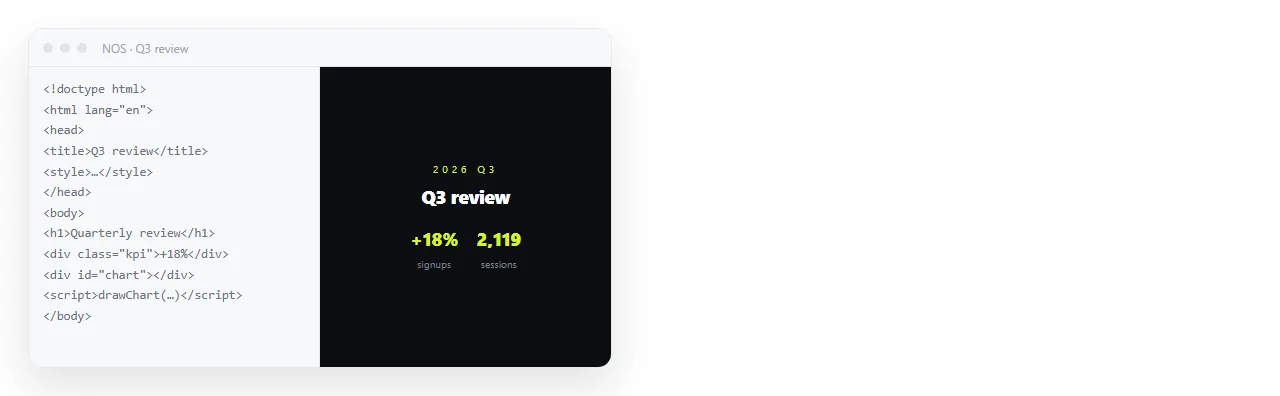
Corrections are made by clicking the text, and the address does not change, so the link you sent still points at the current version. A .docx sent last week is a separate copy that nobody can update from here.

If the source of truth is a Word file and the web version is the derivative, you want the opposite conversion. Converting Word to HTML covers that direction, and Word tables to HTML tables covers the part that goes wrong most often.