To convert a Word table to an HTML table, export the document as filtered HTML or run it through pandoc, then remove the fixed widths and mark the header row with <th>.
The raw export is valid markup that behaves badly on anything narrower than a printed page.
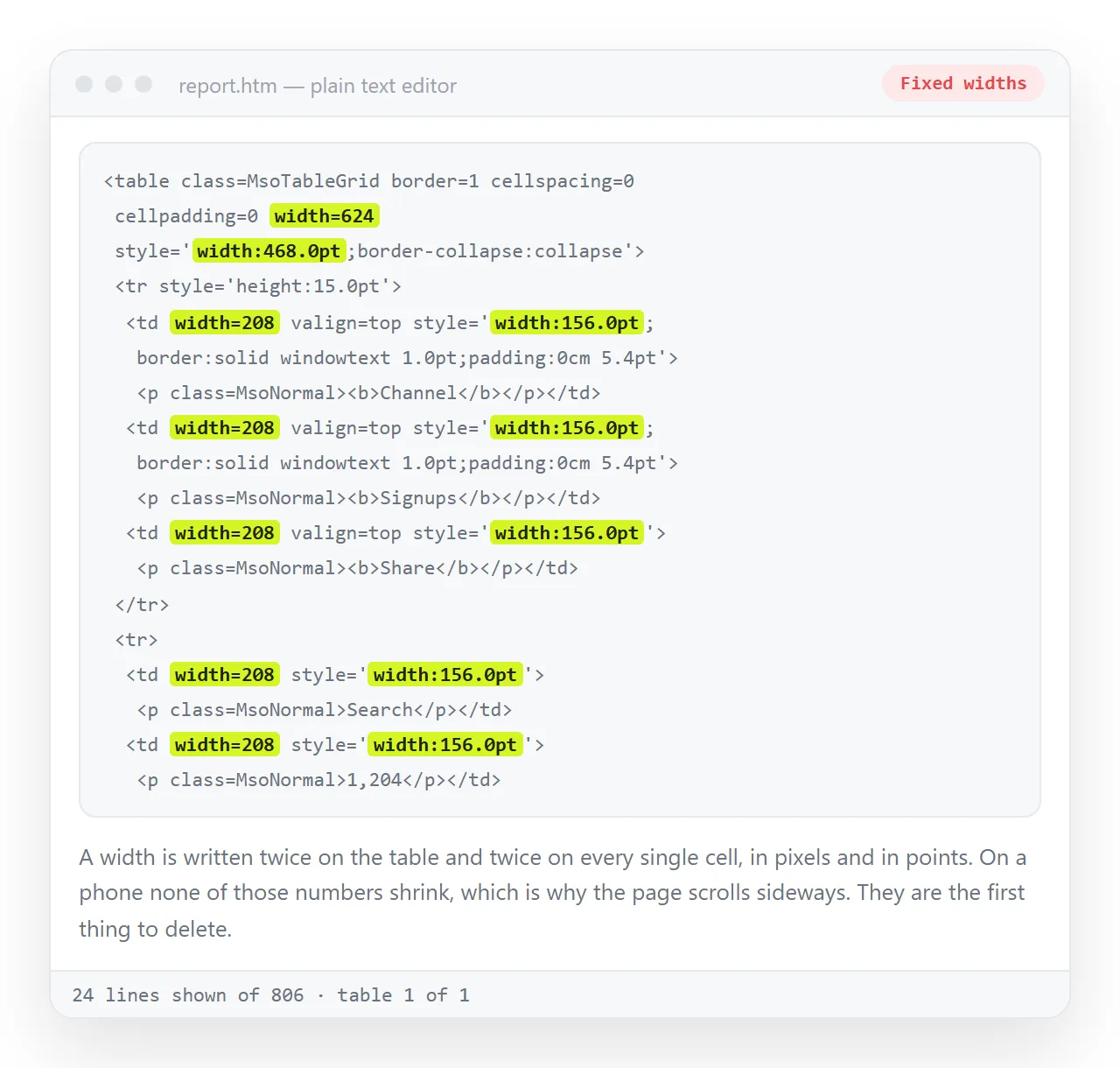
Word writes tables for a page that is always 21 centimetres wide. The web has no such guarantee, so the pixel widths it records are the first thing to remove.
This guide covers the three conversion routes, the four repairs each one needs, and what to do when people will keep editing the numbers.
Ways to convert a Word table to an HTML table
| Route | Markup quality | Keeps merged cells | Keeps Word styling | Speed |
|---|---|---|---|---|
| Save as Web Page, Filtered | Verbose, workable | Yes | Yes, as inline styles | Fast |
| Pandoc | Clean and semantic | Simple merges only | No | Fast, needs installing |
| Copy and paste into an editor | Varies by editor | Usually | Partly | Fastest for one table |
Pick pandoc when the table is going into a site with its own stylesheet. Pick the filtered export when the Word appearance is what people expect to see.
pandoc report.docx -o report.html
The paste route deserves a note. Pasting into an editor that accepts rich content usually keeps the grid and drops most of the Word attributes, which makes it the shortest path for a single table.
What you get depends entirely on the editor doing the receiving, so check the result rather than assuming.
The four repairs
Remove the fixed widths. Word writes width attributes on the table and on every cell. Delete them and set the table itself to width:100%. The browser then distributes the columns by content, which is what you want on an unknown screen.
Mark the header row. Change the first row cells from <td> to <th> and wrap that row in <thead>. Put the remaining rows in <tbody>.
<table>
  <thead>
    <tr><th>Channel</th><th>Signups</th><th>Share</th></tr>
  </thead>
  <tbody>
    <tr><td>Search</td><td>1,204</td><td>41%</td></tr>
  </tbody>
</table>
Strip the Office attributes. Class names beginning Mso, conditional comments, and per cell font declarations. None of them mean anything outside Word, and they make the file several times longer than the content.
Converting Word to HTML covers the same cleanup across the whole document.
Give the table somewhere to scroll. A genuinely wide table should scroll inside its own box rather than pushing the page sideways.
<div style="overflow-x:auto">
  <table> ... </table>
</div>
Making it readable on a phone
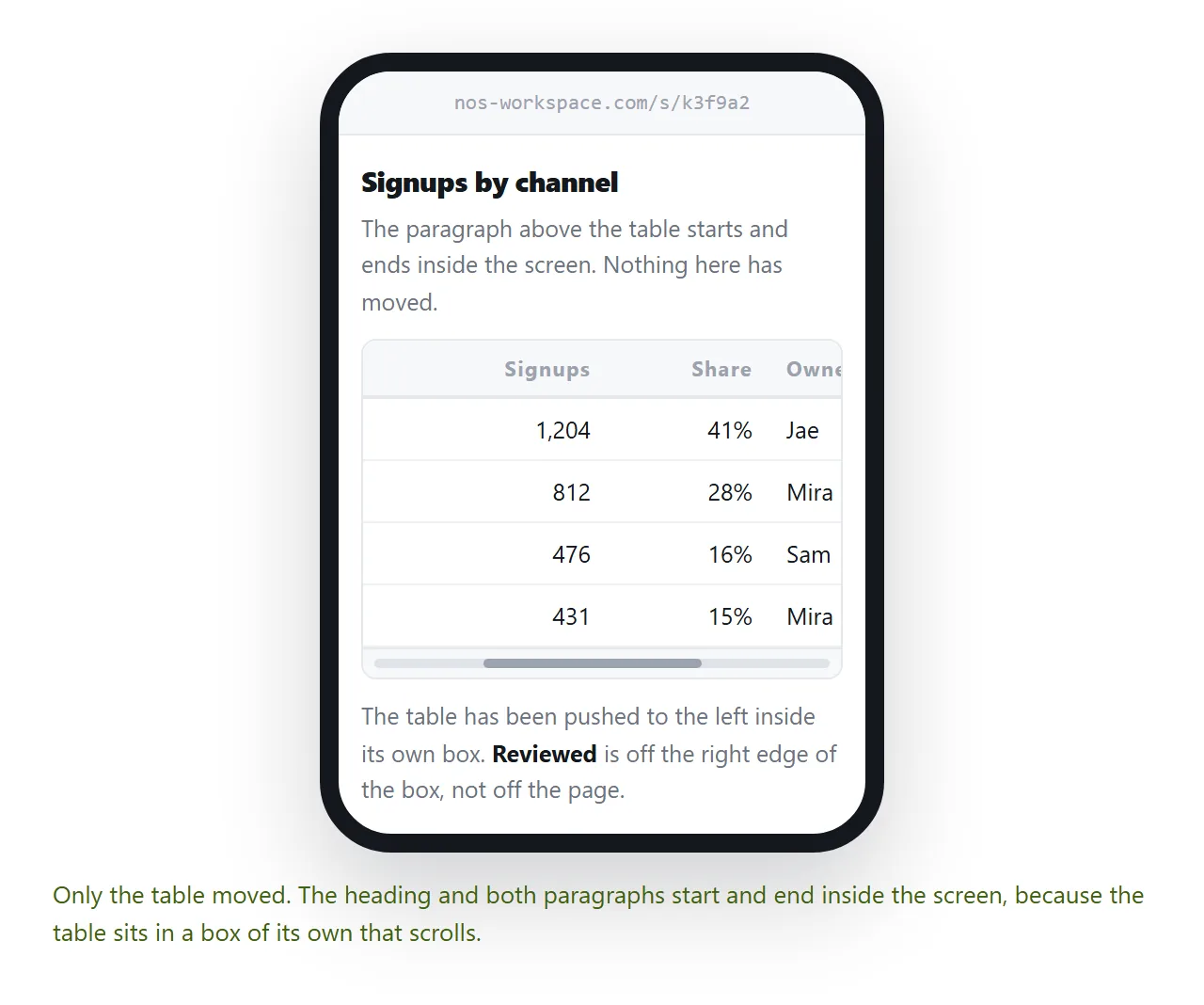
Four adjustments that do most of the work:
- Right align the numbers, left align the text. Digits line up by place value and become comparable at a glance.
- Cut the column count. Six columns is usually two tables, or one table and a note.
- Shorten the headers. "Signups" rather than "Total number of signups in period".
- Do not centre body text. Centred columns of different lengths are hard to scan down.
A table that needs more than horizontal scrolling to work on a phone is usually a table with too many columns rather than a formatting problem.
Accessibility, briefly
A <th> is not decoration. A screen reader announces the relevant header as it reads each cell, so the listener knows which column a number belongs to.
Add scope="col" on column headers and scope="row" on row headers when a table has both. Semantic HTML has the wider set of tags that carry this kind of meaning.
Merged cells are where conversions and screen readers both struggle. If the Word table has merged cells purely for visual grouping, splitting it into two tables is usually the better answer.
A caption helps too. A <caption> element directly inside the table gives it a name that is read out before the contents, which matters when a page holds several tables.
When the numbers will keep changing
Conversion is a one way trip. Correcting a figure afterwards means editing the markup, or going back to Word and converting again, which discards every repair you had made.
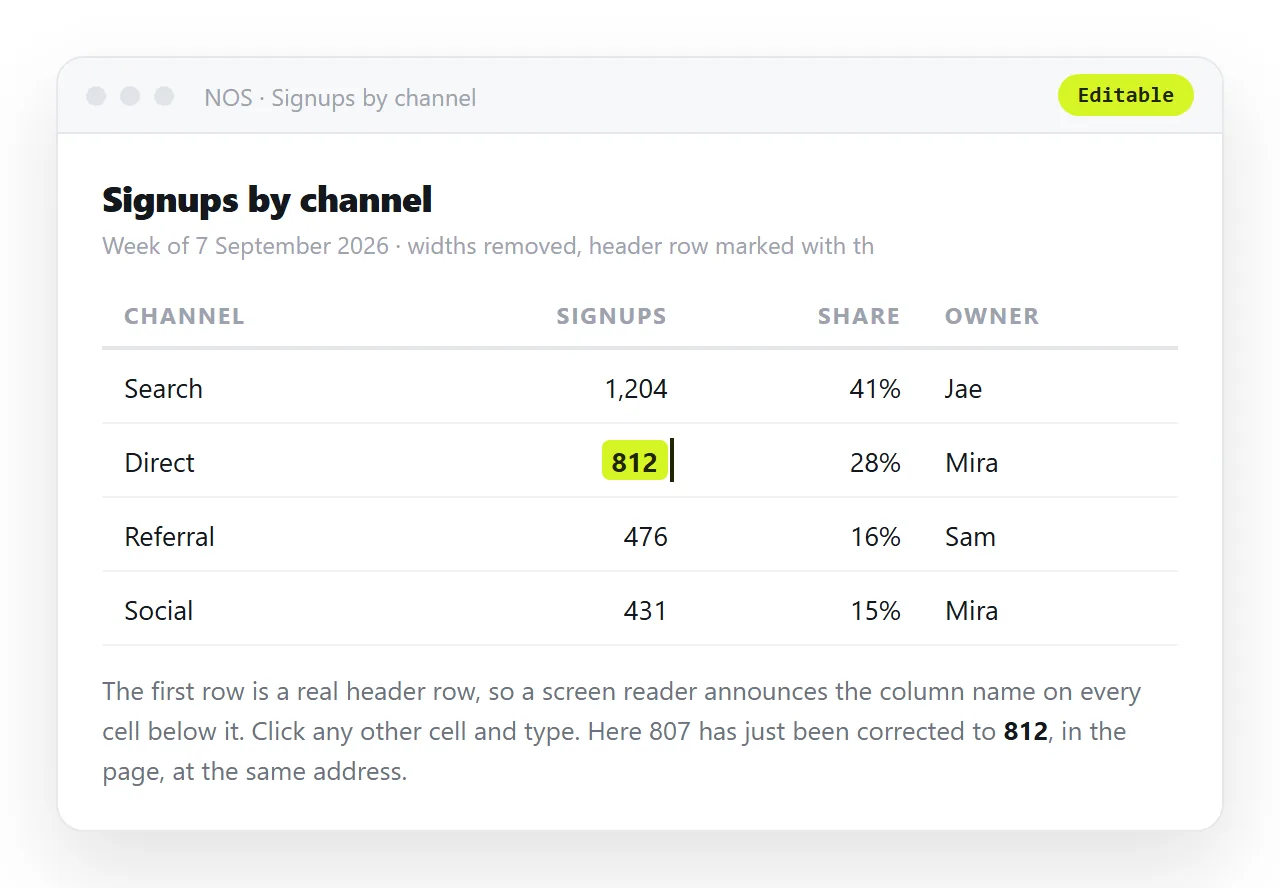
Pasting the table into a NOS document renders it as a real table on a page of its own, and the cells stay clickable. A wrong figure is corrected by typing over it.
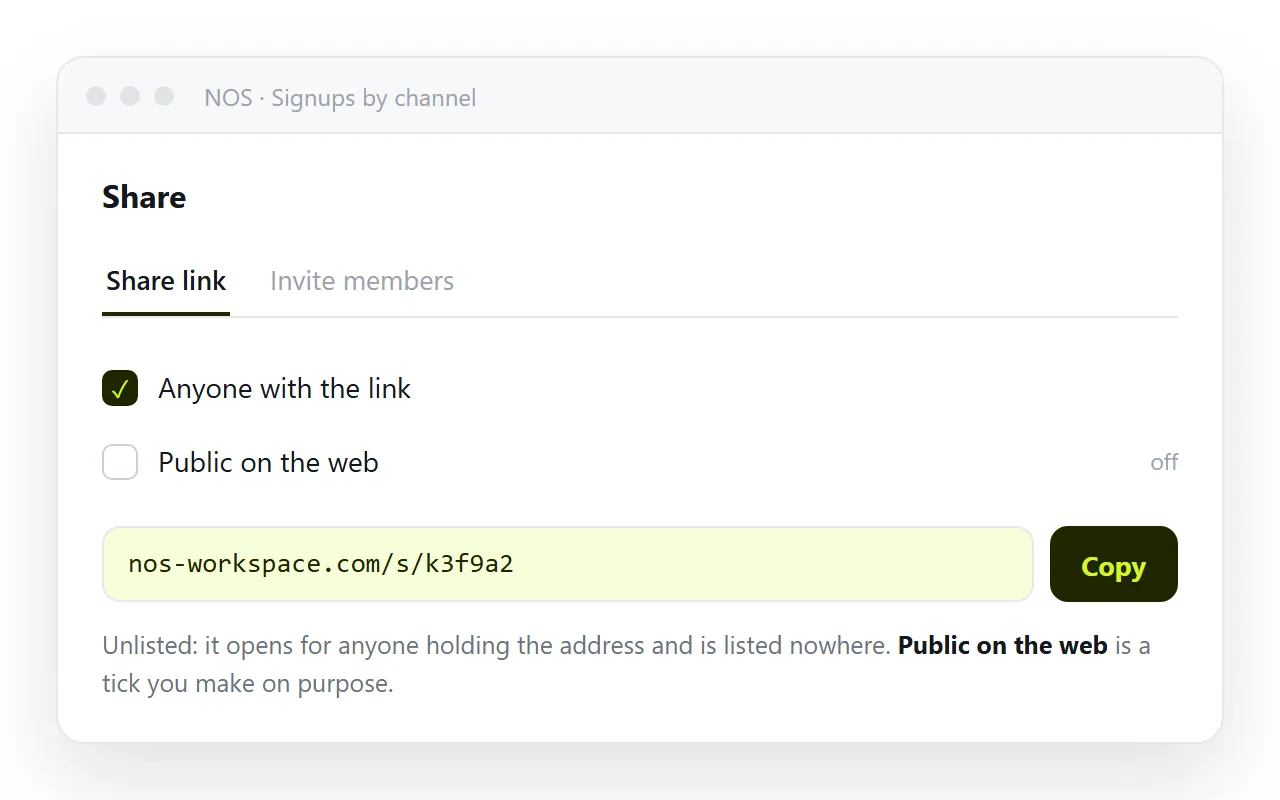
Then Share, then Share link, then Create link. The link is unlisted by default, so it opens for anyone holding it and is not indexed. The address does not change when the numbers do.
The editable HTML table tool does the same job on a table you already have, and turning a table into a link covers the sharing side once the table is right.
Short checklist
- Fixed widths removed.
- Header row using
<th>inside<thead>. - Office class names and conditional comments gone.
- Table wrapped in a scrolling container.
- Numbers right aligned.
- Checked at phone width before sending.
- A caption if the page holds more than one table.
Run through it once and the table works on every screen it lands on. Skip it and the failure shows up on a phone, which is where most readers will open the page.
If the table is going into an email rather than onto a page, the constraints are different and stricter. Word to HTML email covers what mail clients do to table markup.