Search for an HTML to PDF extension Chrome users recommend and you will find dozens. Before you install one, note that Chrome already does the job: Ctrl+P, destination Save as PDF, written by the same engine that drew the page.
That baseline is unmarked, has no page limit, costs nothing, and uploads nothing. Any extension has to beat it to be worth the permissions it asks for.

What an HTML to PDF extension Chrome install actually buys you
| Need | Built in | Needs an extension |
|---|---|---|
| One page to PDF | Yes | No |
| No watermark | Yes | No |
| Clickable links kept | Yes | No |
| Background colours | Yes, tick the box | No |
| Custom page size | Yes, via @page CSS |
No |
| Twenty pages in one pass | No | Yes |
| Same header on every file | No | Yes |
| Full capture of a scrolling app view | Sometimes | Often |
The top six rows are the reason most people who install an extension did not need one. They hit the washed out colours problem, assumed the export was broken, and went looking for a tool.
The actual fix is a checkbox. More settings, then Background graphics. Exporting without losing formatting covers the rest of the dialog.
The three cases where an extension helps
Batch. You have a folder of files or a list of addresses and need a PDF of each. Doing that by hand is the wrong shape of work, and an extension that queues them is a real saving.
Signed in pages. A server side converter fetches the address anonymously and gets a login screen. An extension runs in your browser, where the session already exists, so it sees what you see.
Consistent stamping. If every export needs the same footer, a tool that applies it beats editing the source of each file.
Outside these, the built in dialog is equal or better.
One more consideration favours the extension in a large organisation. If the export has to be identical across a team, a shared tool with fixed settings removes the chance of someone forgetting a checkbox.
That is a process problem rather than a technical one, and a written two line instruction solves it just as well.
The permission question
Almost all of these extensions request read and change all your data on all websites. They need the page content, so the request is not unreasonable, and it is still a broad grant.
Two things to check before installing.
- Where conversion happens. Local means the content stays on your machine. Server side means your page is uploaded. For an internal report with figures or client names, that difference matters.
- What happens to the file afterwards. Some services keep converted files for a period. Read the listing rather than assuming.

Why extension output sometimes looks wrong
This surprises people. The extension output differs from the print preview, and the page is blamed.
The cause is usually that the extension captures the rendered page rather than running the print pipeline. Your @media print rules never fire.
@media print {
  .nav, .sidebar { display: none; }
  table, figure { break-inside: avoid; }
}
Under the built in export, navigation disappears and tables stay whole. Under a capture based extension, the navigation is still there and the page breaks fall wherever they land.
If the output looks unlike your preview, that is the mechanism. Print stylesheets explains what you are losing.
Capture based tools are producing an image
A related distinction. Some extensions wrap a full page screenshot in a PDF container. The file opens, it looks fine, and then nobody can select the text.
Check by trying to select a word in the result. If you cannot, links are dead too, and the file is not searchable.
That is acceptable for a picture of a dashboard and unacceptable for a document. If an image is genuinely what you want, HTML to image produces one directly without a PDF wrapper around it.
The command line alternative to batch extensions
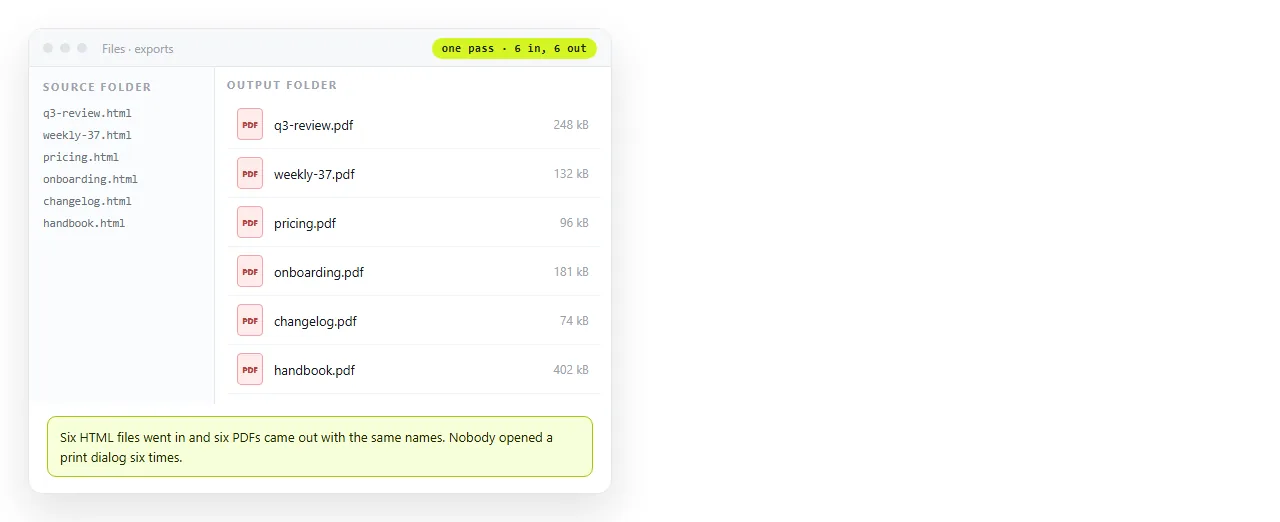
If batch was your reason, headless Chrome does it without installing anything.
chrome --headless --disable-gpu \
  --print-to-pdf=out/q3.pdf \
  --no-pdf-header-footer \
  file:///C:/reports/q3.html
Wrap it in a loop over the folder. Same engine, same output, no permissions granted to anyone. Flag names shift between Chrome versions, so check them against your build.
The question underneath
People reach for a converter because the PDF is how the page gets to someone else. That is worth examining separately from the tooling.
A PDF freezes the page. Charts stop responding, sorting stops working, and the file starts going out of date the moment a number changes.
Where the content will be read more than once, put the page at an address instead. Paste the HTML into a NOS document, then Share, Share link, Create link. Edits do not move the address.
Then export the PDF for whoever needs a file in a folder, and send the link to everyone else. Turning HTML into a link is the first half, and PDF versus a live page is the comparison in full.