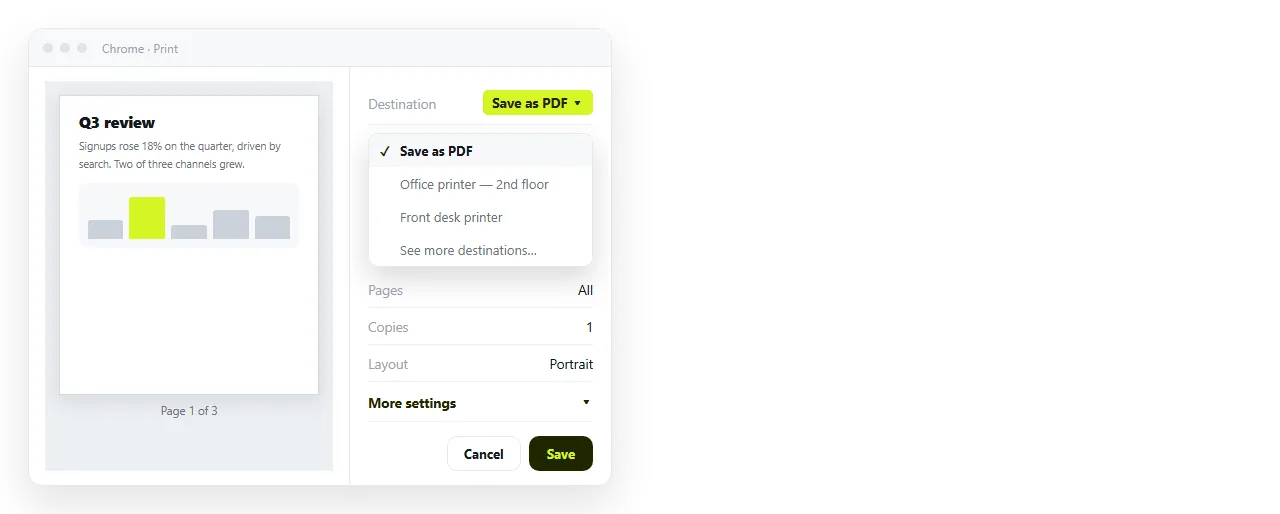
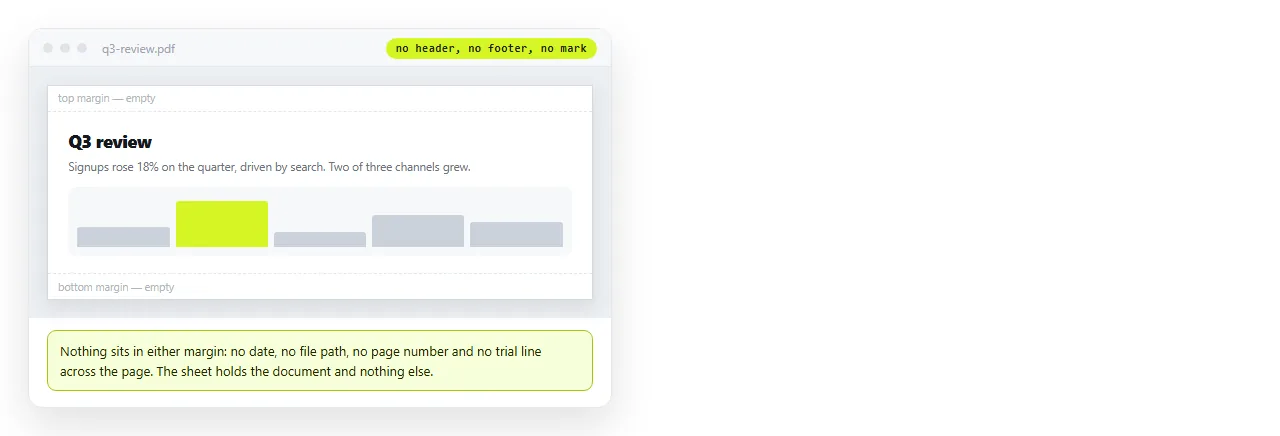
For HTML to PDF no watermark output, open the file in any browser and print it to PDF. No browser stamps anything on its own output.
Watermarks are a business model, not a technical property of the format. A free online converter has to cover its bandwidth, so it marks the file and offers to remove the mark for money.
Since the browser produces a cleaner result for nothing, the whole category is usually avoidable.
Where the mark comes from
| What you see | What it is | How to remove |
|---|---|---|
| Logo or "created with" band | Converter free tier watermark | Export from a browser instead |
| Page title and date in the corner | Browser header and footer | Untick Headers and footers |
| Faint diagonal text like DRAFT | An element in the page itself | Hide it with a print rule |
| A trial notice on every page | PDF tool trial limitation | Export from a browser instead |
Rows two and three catch people out, because neither is a watermark and neither needs a different tool.
The browser route, in full
- Open the
.htmlfile in the browser. Dragging it onto a window is enough. - Press Ctrl+P, or Cmd+P on a Mac.
- Set Destination to Save as PDF.
- Open More settings.
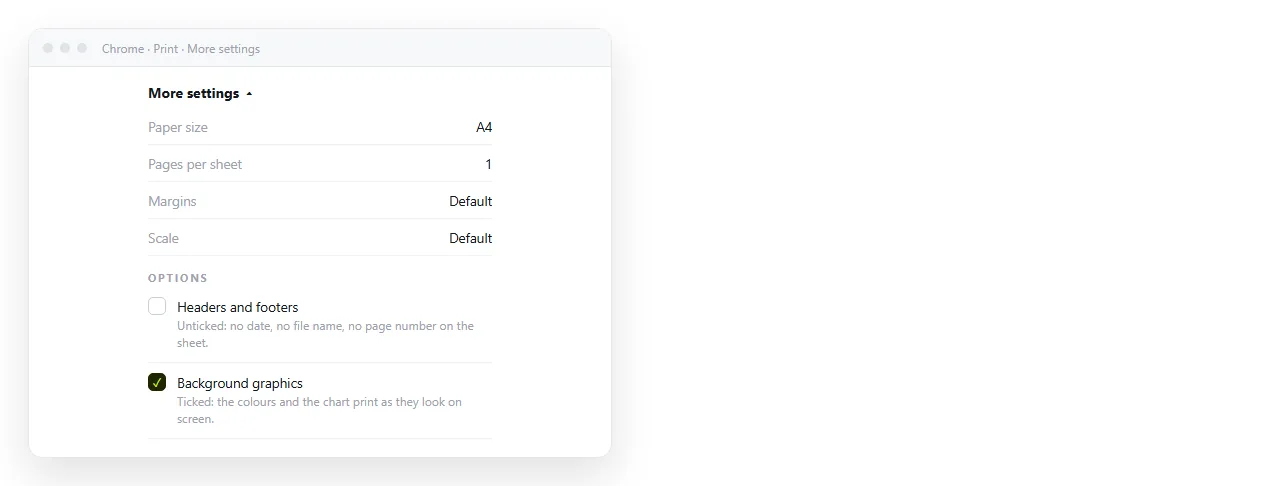
- Untick Headers and footers. This removes the title, address and date line.
- Tick Background graphics. The dialog drops colour and shading by default.
- Save.
Steps five and six are the ones that decide whether the file looks finished. Exporting without losing formatting covers the rest of the dialog.
When the mark is in your own page
Occasionally the diagonal text really is part of the document, left over from a template or added deliberately at an earlier stage.
Look for an element with a class like watermark or draft and hide it for print.
@media print {
  .watermark, .draft-banner { display: none; }
}
If you cannot edit the source, the browser developer tools let you delete the element from the live page before printing. The change lasts until you reload, which is long enough.
Check for the same thing in a background image. Some templates draw the draft marking as a repeating background rather than as text, so searching the markup for the word finds nothing.
In that case the mark only appears when Background graphics is on, which is also the setting you need for the colours. Remove the background rule rather than the checkbox.
Why the browser is the best HTML to PDF no watermark route
Avoiding the mark is the obvious gain. The quality difference is the bigger one.
The browser rendered your page. When it prints, it uses the same engine, the same fonts and the same CSS it already resolved. There is no second interpretation to go wrong.
An external converter re-renders the markup in its own environment. Web fonts it cannot fetch fall back. Scripts that drew your charts may not have run. Local images referenced by relative path are simply missing.
- Fonts. Already loaded in your browser. Not guaranteed anywhere else.
- Charts. Already drawn. A converter may capture the page before the script finished.
- Local images. Visible to your browser. Invisible to a remote service.
- Privacy. The file never leaves your machine.
That last point deserves weight. Uploading an internal report to a free conversion site sends the contents to a third party, which is a straightforward problem for anything with client names or figures in it.
There is one case where an external tool earns its place. If the page needs a header or a footer applied consistently across dozens of files, a tool that stamps them saves real time.
Even then, check whether the stamping is done locally. A local tool and an upload service look identical in a browser tab and are very different in what leaves your machine.
Doing it in bulk
If you have many files, headless Chrome does the same export from the command line, unmarked.
chrome --headless --disable-gpu \
  --print-to-pdf=out.pdf \
  --no-pdf-header-footer \
  file:///C:/reports/q3.html
The flag names have moved between Chrome versions, so check them against your build. The principle holds: the same engine, no upload, no mark.
Chrome extensions for PDF export covers when an extension adds something the built in dialog does not, which is less often than the extension listings suggest.
On a Mac specifically
The Mac print dialog hides the PDF option in a dropdown at the bottom left rather than as a destination, and Safari has its own quirks. HTML to PDF on a Mac covers the differences.
If the file keeps changing
A watermark free PDF is still a frozen copy. Send it twice and two versions exist with no way for the reader to tell which is current.
Where that matters, put the page at an address and send the link instead. Paste the HTML into a NOS document, then Share, Share link, Create link. Editing the page later does not move the address.
Keep the PDF for the archive copy and the link for the version people actually read. Turning HTML into a link and why links beat attachments cover the reasoning.