What the first screen should tell a reviewer
For a frontend role, the portfolio is both a summary of your work and a small sample of it. Whoever opens the link sees your layout, your type choices, and how the page behaves on their screen before reading a single project description.
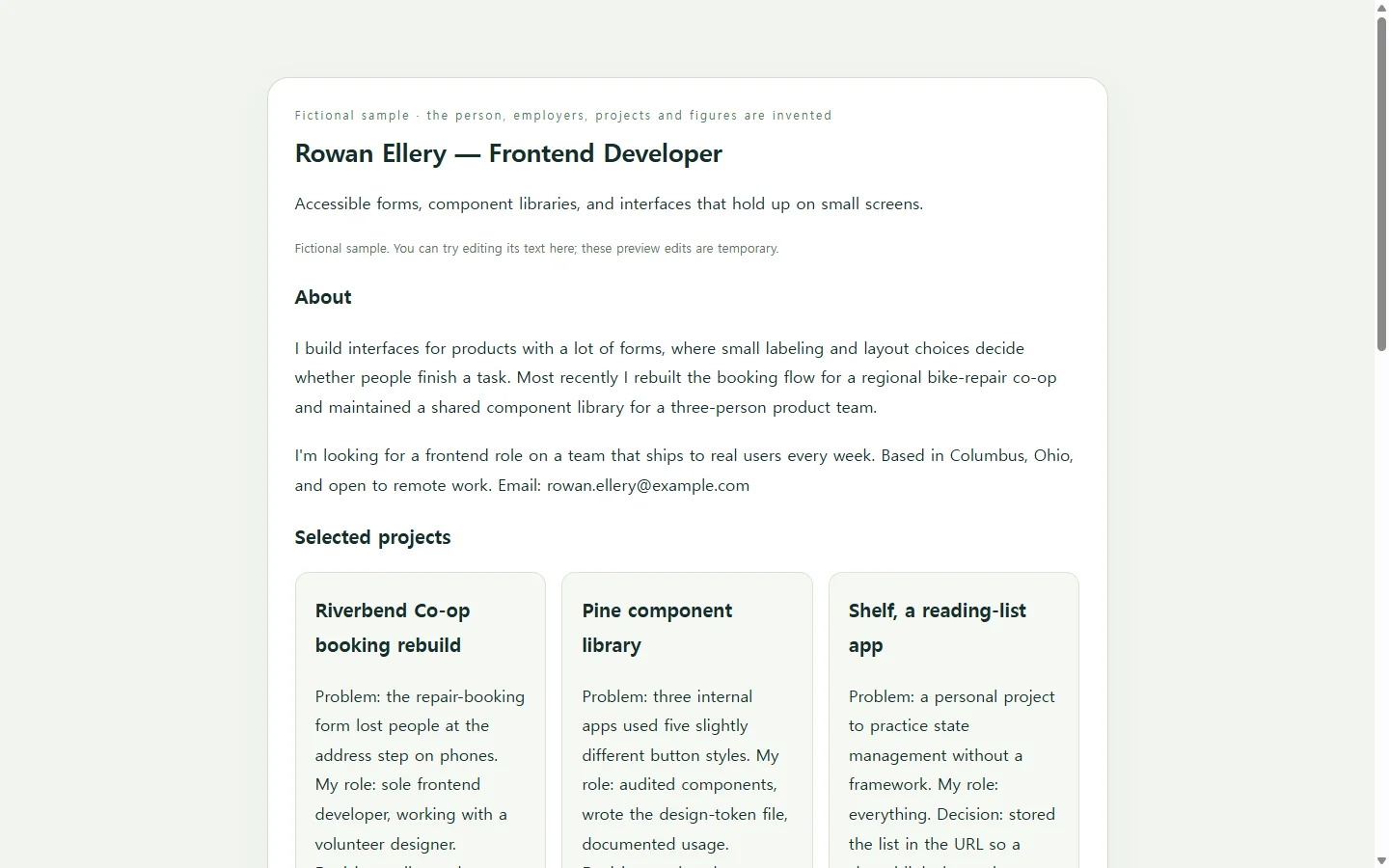
One workable plan: write a one-line headline that names your focus, then give each project the same four parts — the problem, your part in it, one decision you made and why, and links to the live version and the code. A headline such as “Frontend developer focused on accessible forms and design systems” tells a reader more than a list of every framework you've tried.
The sample uses three projects so each one gets room for a real explanation. Choose the number that lets you explain every project properly, rather than aiming for a fixed count.
A sample page: one developer, three projects
The example belongs to Rowan Ellery, a fictional frontend developer; the name, employers, projects, and numbers are invented to show the structure and are not drawn from a real person.
The line worth copying is the decision. “Replaced a custom dropdown with a native select after keyboard testing showed focus getting trapped” says more about how someone works than “Built with React and TypeScript.” The tools still appear, but in a small table that ties each one to the project where it was used, so a reader can check the claim.
The sample also has no contact form. An email address shown as a plain mail link gives people a way to reach you without a form that has to send anything.
Three ways to build your version
Hand-coding the page is a sensible choice for a frontend developer, because the source becomes another work sample. The trade-off is time, plus the temptation to keep polishing instead of sending.
Starting from a template is faster. Restyle it enough that it reflects your own choices, and read the code before sharing, since a reviewer may open the source.
An AI draft is a third option when you would rather spend your effort on the project write-ups. Ask for a single HTML file — one document holding the page structure and its styles, which a browser can open directly — and give it only facts you have written yourself. The AI can arrange and style the page; it cannot know what you built or why. Review the result the way you would review a pull request: headings in order, visible focus when you press Tab, and a layout that fits a phone without sideways scrolling.
A prompt you can adapt
Replace each bracketed item with your own details. The values after “e.g.” come from the fictional sample and only show the level of detail that works; delete them once yours are in. The prompt tells the AI to leave a visible placeholder instead of filling gaps, so nothing invented slips into an application.
Create a one-page portfolio for a frontend developer as a single, self-contained HTML file with all CSS in a <style> tag. Use no external libraries, fonts, images, or scripts, and make sure the page works fully without JavaScript.

Use only the facts below. Do not invent employers, metrics, dates, or links. If something is missing, leave a visible [TODO] placeholder.

Name: [YOUR NAME] (e.g., Rowan Ellery)
Headline: [ONE-LINE FOCUS] (e.g., Frontend developer focused on accessible forms and design systems)
Location / work preference: [CITY, REMOTE OR HYBRID]
Contact: [EMAIL] — show it as a mailto link. Do not add a contact form.
Other links: [GITHUB PROFILE URL], [LINKEDIN OR OTHER URL]

Projects (repeat for 2–4):
- Name: [PROJECT NAME]
- Problem: [ONE OR TWO SENTENCES]
- My role: [WHAT YOU PERSONALLY DID]
- Key decision: [ONE CHOICE AND WHY] (e.g., replaced a custom dropdown with a native select after keyboard testing showed focus getting trapped)
- Result: [ONLY A FIGURE YOU CAN BACK UP, OR LEAVE BLANK]
- What I'd change: [OPTIONAL]
- Live URL: [URL]  Code URL: [URL]

Stack: [TOOL — PROJECT WHERE USED — HOW DEEPLY] for each tool
Experience: [ROLE, ORGANIZATION, YEARS], most recent first

Layout and style:
- Order: header with name and headline, projects, stack table, experience, contact.
- [STYLE NOTE] (e.g., generous white space, one accent color, system font stack).

Accessibility:
- Use header, main, and footer landmarks, exactly one h1, and headings in order without skipped levels.
- Give every link a visible focus style and descriptive link text (never “click here”).
- Keep text contrast at least 4.5:1 against its background, and don't rely on color alone to convey meaning.
- Respect prefers-reduced-motion; no autoplaying animation.
- Mark up the stack as a real <table> with header cells.

Mobile:
- Write mobile-first CSS; the page must be readable at 360px wide with no horizontal scrolling.
- Body text at least 16px; links and buttons at least 44px tall as tap targets.
- Project cards stack in a single column on narrow screens.

Return only the complete HTML file, starting with <!DOCTYPE html>.
Where the link goes, and where a file is still required
A portfolio link adds to an application; it doesn't replace what the form asks for. If a posting requires a resume as a PDF or Word file, submit that file, and put the portfolio URL in the resume header and in any website or portfolio field the form offers.
One career-services resume guide advises checking that formatting translates correctly when converting to PDF. After exporting your resume, click the portfolio link inside the PDF to confirm it opens the page you expect.
After you send it: correct the page, keep the link
Suppose you send the page to three openings on Monday, and on Wednesday you notice a project card still carries an old role description, or you finish the write-up for your third project. The URL is already sitting in those applications.
NOS keeps HTML pages like this one in a workspace. You can edit the text directly on the rendered page, without asking an AI to regenerate it. The published sharing link stays the same after the edit, so the address already in those applications shows the corrected wording, and reviewers can open it without creating an account.
This applies to wording: a sharper project summary, an updated role, a fixed typo. If you change how something on the page works, such as an interactive demo, treat it as a code change and test it again before relying on it.
Write the three project explanations first, put them on one page, and keep that single link up to date as your projects change.