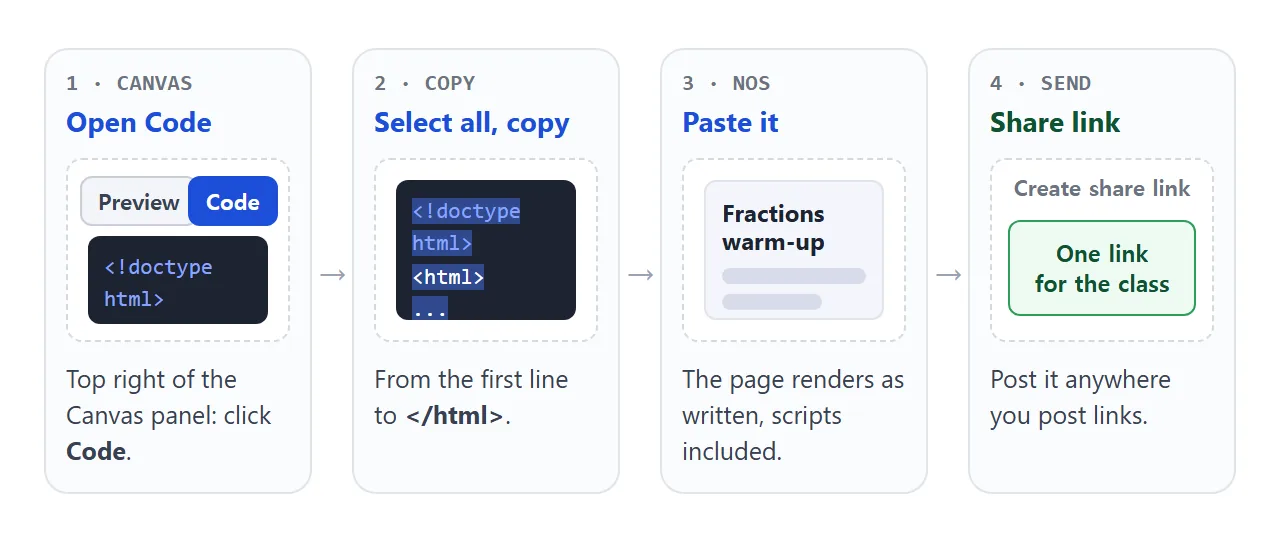
To give students a Gemini Canvas activity when they have no Gemini access, copy its HTML from the Canvas Code view, paste it into a NOS document, and send the share link. It opens in an ordinary browser, phone included, with no account.
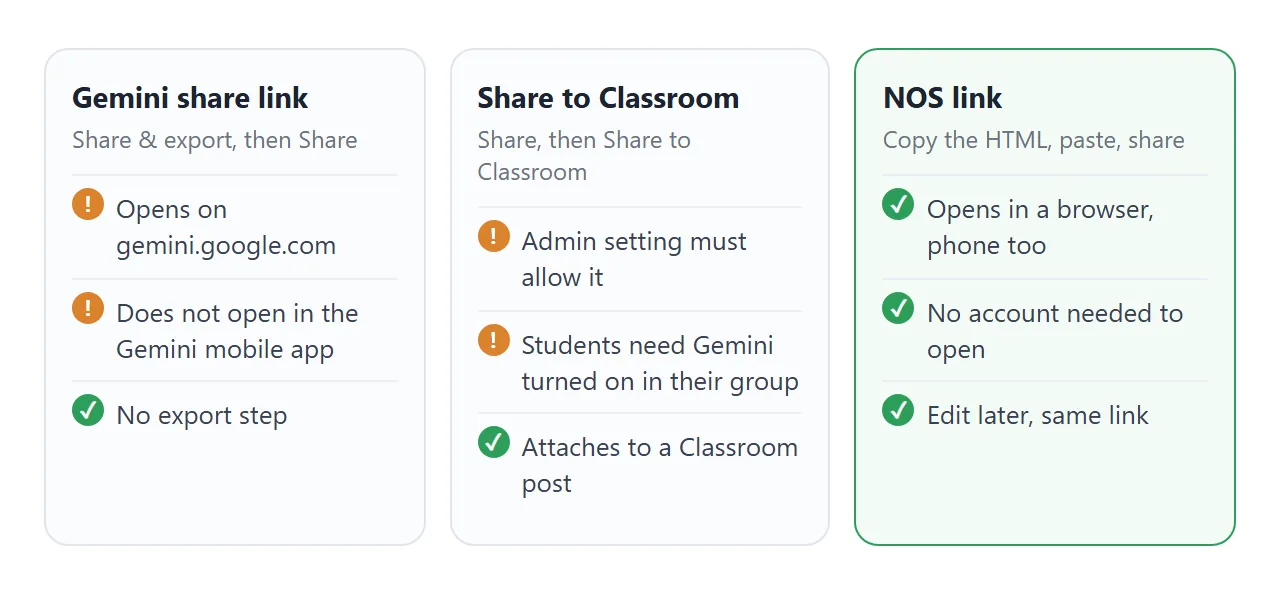
Google has its own sharing routes, and which one you can use depends on your school's settings. As of October 2026, a shared Canvas link opens only on gemini.google.com, and Share to Classroom needs an admin setting plus Gemini turned on for the students' group.
Below is a ready-made activity of the kind Canvas produces. Answer the questions, press Check, then try Start again.
<!doctype html>
<html lang="en">
<head>
<meta charset="utf-8">
<meta name="viewport" content="width=device-width, initial-scale=1">
<title>Fractions warm-up</title>
<style>
* { box-sizing: border-box; }
body { margin: 0; padding: 18px; font-family: system-ui, sans-serif; background: #f4f6fb; color: #1d2330; }
.wrap { max-width: 620px; margin: 0 auto; }
h1 { font-size: 22px; margin: 0 0 4px; }
.sub { margin: 0 0 14px; color: #5b6475; font-size: 14px; }
.q { background: #fff; border: 1px solid #e1e4ea; border-radius: 12px; padding: 12px 14px; margin-bottom: 10px; }
.q p { margin: 0 0 8px; font-weight: 600; }
.q label { display: block; padding: 7px 10px; margin: 4px 0; border: 1px solid #e1e4ea; border-radius: 8px; cursor: pointer; }
.q label:hover { background: #f4f6fb; }
.q.right { border-color: #2e9e5b; background: #f0faf4; }
.q.wrong { border-color: #d9822b; background: #fff7ee; }
.note { margin: 8px 0 0; font-size: 14px; display: none; }
.q.right .note, .q.wrong .note { display: block; }
.bar { display: flex; gap: 10px; align-items: center; flex-wrap: wrap; margin-top: 12px; }
button { font: inherit; padding: 10px 18px; border-radius: 8px; border: 0; background: #2457d6; color: #fff; cursor: pointer; }
button.ghost { background: #fff; color: #2457d6; border: 1px solid #2457d6; }
#score { font-weight: 700; }
</style>
</head>
<body>
<div class="wrap">
<h1>Fractions warm-up</h1>
<p class="sub">Class 5B · pick one answer for each question, then press Check.</p>
<form id="quiz">
<div class="q" data-answer="b" data-note="Both fractions are the same amount: 2 out of 4 is half.">
<p>1. Which fraction is the same as 1/2?</p>
<label><input type="radio" name="q1" value="a"> 1/3</label>
<label><input type="radio" name="q1" value="b"> 2/4</label>
<label><input type="radio" name="q1" value="c"> 3/5</label>
<div class="note"></div>
</div>
<div class="q" data-answer="c" data-note="Same denominator, so the bigger top number wins: 5/8.">
<p>2. Which is larger?</p>
<label><input type="radio" name="q2" value="a"> 3/8</label>
<label><input type="radio" name="q2" value="b"> 4/8</label>
<label><input type="radio" name="q2" value="c"> 5/8</label>
<div class="note"></div>
</div>
<div class="q" data-answer="a" data-note="1/4 + 2/4 = 3/4. Add the tops, keep the bottom.">
<p>3. What is 1/4 + 2/4?</p>
<label><input type="radio" name="q3" value="a"> 3/4</label>
<label><input type="radio" name="q3" value="b"> 3/8</label>
<label><input type="radio" name="q3" value="c"> 2/4</label>
<div class="note"></div>
</div>
</form>
<div class="bar">
<button type="button" id="check">Check answers</button>
<button type="button" id="reset" class="ghost">Start again</button>
<span id="score" aria-live="polite"></span>
</div>
</div>
<script>
const questions = document.querySelectorAll('.q');
const score = document.getElementById('score');
document.getElementById('check').addEventListener('click', () => {
let right = 0;
questions.forEach((q) => {
const picked = q.querySelector('input:checked');
const ok = picked && picked.value === q.dataset.answer;
q.classList.toggle('right', !!ok);
q.classList.toggle('wrong', !ok);
q.querySelector('.note').textContent = ok ? 'Correct. ' + q.dataset.note : (picked ? 'Not yet. ' : 'No answer yet. ') + q.dataset.note;
if (ok) right++;
});
score.textContent = 'Score: ' + right + ' of ' + questions.length;
});
document.getElementById('reset').addEventListener('click', () => {
document.getElementById('quiz').reset();
questions.forEach((q) => q.classList.remove('right', 'wrong'));
score.textContent = '';
});
</script>
</body>
</html>
Make it with AI
Ask for the activity in Canvas, or in ChatGPT or Claude, and ask for one HTML file. The wording of the prompt matters more than the tool. Paste this and change the topic:
Make a single-file HTML page for a class activity.
Topic: adding and comparing fractions, grade 5.
Three multiple-choice questions, a Check answers
button, a score, and one sentence of feedback
after each question. Add a Start again button.
Put all CSS and JavaScript inside the one file.
Do not load anything from other websites: no
images, fonts or scripts. Do not call any AI
service or server. It must work on a phone
screen and have large tap targets.
Before you copy it, check four things in the result:
- The answers are right. AI can get facts and arithmetic wrong, so test every question yourself.
- It runs on a narrow screen. Resize the preview to phone width and tap everything once.
- It is self-contained. Search the code for http. Links to other sites are the usual cause of a page that works in Canvas and breaks elsewhere.
- It does not use Gemini features. If Canvas added them, ask it to remove them.
Copy the code out of Canvas
Canvas shows a preview by default. The page itself is in the code view.
- Open the chat that holds your Canvas activity.
- At the top right of the Canvas panel, click Code.
- Click inside the code, select all (Ctrl+A, or Cmd+A on a Mac), and copy.
- Scroll to the end. The first line should be
<!DOCTYPE html>and the last should be</html>.
Google's help describes Copy contents for text and Export to Docs for documents. For an app or web page, the Code view is where the HTML lives, and it is also where you can edit it by hand.
If the code does not start with a doctype line, go back to the chat and ask: "Rewrite this as one plain HTML file with the CSS and JavaScript inside it." Then copy again.
Saving a Gemini chat as HTML covers other ways to get code out.
Send it as a link
Open a NOS document, paste the HTML, and the page renders as written, with its scripts running. Choose Create share link. HTML to link walks through it.
Students open that link in a browser. It works on a phone, needs no account, and they cannot edit your page. Nothing they tap is sent back to you.
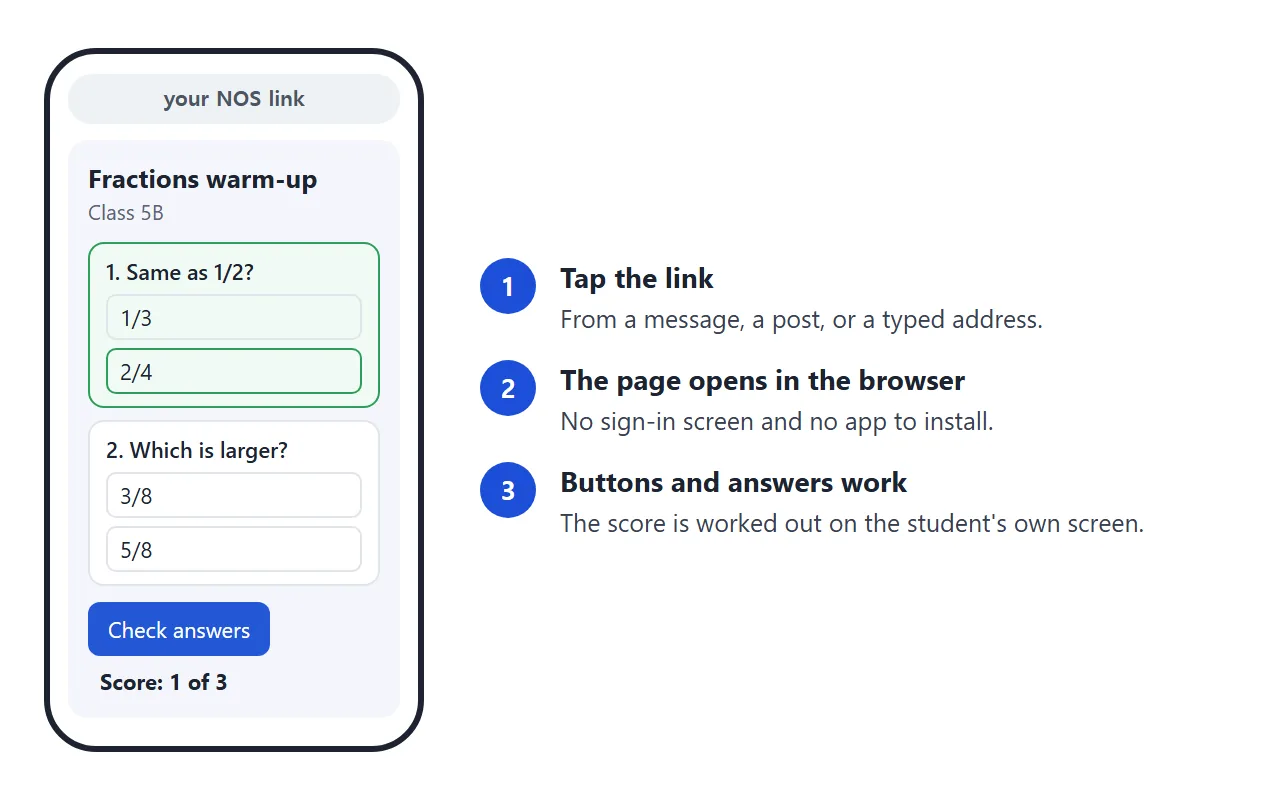
If you spot a wrong answer later, change the code in your NOS document. The link you already sent shows the new version, so there is nothing to resend.
Platform notes, all from Google's own help pages as of October 2026:
- Google Classroom. When you create an assignment, the Attach menu has a Link option for attaching a link. Paste your NOS link there.
- Share to Classroom. Canvas also has its own button. Google says it needs an admin setting turned on, Gemini turned on for both teachers and students, and an Education Fundamentals, Standard or Plus edition.
- A worksheet on paper. Turn the link into a code with HTML file to QR code.
Which way to share a Canvas activity
| Way | Who can open it | What it needs |
|---|---|---|
| Gemini share link | A browser on gemini.google.com. Not the Gemini mobile app | Sharing allowed for your account. Copy Canvas is not available under 18 |
| Share to Classroom | Students in the class | Admin setting on, Gemini on for the group, an Education edition |
| Export to Docs or Slides | Anyone you share the file with | Text and slides only. Not interactive |
| HTML file as an attachment | Anyone who saves it and opens it in a browser | A download and a browser. See opening HTML on a phone |
| NOS share link | Anyone with the link, in any browser, phone included | Nothing from the student. You paste the HTML once |
Pick the Google routes when your school has them switched on and every student has a school account. Pick the NOS link when students use personal devices or have no Gemini access, or when your sharing button is unavailable.
A second page: flashcards
The same copy-and-paste route works for any single-page activity. Here is a set of flashcards. Tap to flip, then use Next and Back.
<!doctype html>
<html lang="en">
<head>
<meta charset="utf-8">
<meta name="viewport" content="width=device-width, initial-scale=1">
<title>Water cycle flashcards</title>
<style>
  * { box-sizing: border-box; }
  body { margin: 0; padding: 18px; font-family: system-ui, sans-serif; background: #eef6f8; color: #14303a; }
  .wrap { max-width: 460px; margin: 0 auto; text-align: center; }
  h1 { font-size: 22px; margin: 0 0 4px; }
  .sub { margin: 0 0 14px; color: #4b6a74; font-size: 14px; }
  .card {
    width: 100%; min-height: 190px; padding: 22px; border-radius: 16px; border: 0;
    background: #fff; box-shadow: 0 6px 20px rgba(20, 48, 58, .14);
    font: inherit; font-size: 20px; line-height: 1.35; color: inherit; cursor: pointer;
    display: flex; flex-direction: column; align-items: center; justify-content: center; gap: 10px;
  }
  .card small { font-size: 12px; letter-spacing: .08em; text-transform: uppercase; color: #4b6a74; }
  .card.back { background: #14303a; color: #fff; }
  .card.back small { color: #a9d3df; }
  .nav { display: flex; align-items: center; justify-content: space-between; margin-top: 14px; }
  .nav button { font: inherit; padding: 10px 18px; border-radius: 8px; border: 1px solid #14303a; background: #fff; color: #14303a; cursor: pointer; }
  #count { font-size: 14px; color: #4b6a74; }
</style>
</head>
<body>
<div class="wrap">
  <h1>Water cycle flashcards</h1>
  <p class="sub">Tap the card to flip it.</p>
  <button class="card" id="card" type="button" aria-live="polite"></button>
  <div class="nav">
    <button type="button" id="prev">Back</button>
    <span id="count"></span>
    <button type="button" id="next">Next</button>
  </div>
</div>

<script>
  const cards = [
    ['Evaporation', 'Heat from the sun turns liquid water into water vapour.'],
    ['Condensation', 'Water vapour cools and turns into tiny droplets, which form clouds.'],
    ['Precipitation', 'Water falls from clouds as rain, snow, sleet or hail.'],
    ['Collection', 'Water gathers in rivers, lakes, oceans and underground.'],
  ];
  let i = 0, showBack = false;
  const card = document.getElementById('card');

  function draw() {
    const [front, back] = cards[i];
    card.classList.toggle('back', showBack);
    card.innerHTML = '<small>' + (showBack ? 'Meaning' : 'Word') + '</small><span></span>';
    card.querySelector('span').textContent = showBack ? back : front;
    document.getElementById('count').textContent = (i + 1) + ' of ' + cards.length;
  }
  function go(step) {
    i = (i + step + cards.length) % cards.length;
    showBack = false;
    draw();
  }

  card.addEventListener('click', () => { showBack = !showBack; draw(); });
  document.getElementById('prev').addEventListener('click', () => go(-1));
  document.getElementById('next').addEventListener('click', () => go(1));
  draw();
</script>
</body>
</html>
To change the content, ask for it in the chat: "Add four more cards about the rock cycle." Copy the code again, replace the old code in the same NOS document, and the students' link stays the same.
Quizzes follow the same pattern; building an HTML quiz goes deeper on scoring.
When it does not work
| What you see | Cause | Fix |
|---|---|---|
| The page is blank after pasting | The copy stopped before the closing html tag | Copy again from the Code view and check the last line |
| Text from the chat appears around the page | Lines from the chat came along with the code | Paste only the HTML, from the doctype line to the closing html tag |
| The Canvas share button is greyed out | Your account or school settings do not allow it | Ask your admin, or use the copy-and-paste route |
| Students cannot open the Gemini link on a phone | Shared Canvas links open only on gemini.google.com | Send the NOS link |
| AI-written text or images are missing | The page calls an AI service, and NOS blocks requests to other sites | Ask Canvas for a version with the content written in |
| Pictures do not show | The page loads images from another site | Ask for inline SVG or CSS shapes instead |
| A Submit button does nothing | Sending a form to a server is blocked | Show the result on the page instead |
| Answers disappear after a reload | A visitor's changes are not saved | Expected. Students start fresh each time |
If the page looks wrong only after pasting, the Gemini preview and a real browser explains the usual differences.