A quiz made in Gemini Canvas is a small web page, so it can become a link that opens in any browser. Open the Code view in Canvas and copy all of it. Paste it into a NOS document and choose Create share link.
Students open that address on a phone, tablet or laptop. The Canvas share link has limits that matter in a classroom, covered below. Here is a self-checking quiz of the kind Canvas produces, running as a plain page. Answer it and press the button.
<!doctype html>
<html lang="en">
<head>
<meta charset="utf-8">
<meta name="viewport" content="width=device-width, initial-scale=1">
<title>Water cycle quiz</title>
<style>
  * { box-sizing: border-box; }
  body { margin: 0; padding: 14px; font-family: system-ui, sans-serif; background: #eef3f8; color: #1d2330; }
  .quiz { max-width: 560px; margin: 0 auto; background: #fff; border-radius: 14px; padding: 18px 18px 20px; box-shadow: 0 2px 10px rgba(0,0,0,.08); }
  h1 { font-size: 20px; margin: 0 0 4px; }
  .sub { margin: 0 0 14px; font-size: 14px; color: #5b6472; }
  fieldset { border: 0; padding: 0; margin: 0 0 16px; }
  legend { font-weight: 700; font-size: 16px; line-height: 1.35; padding: 0; margin-bottom: 8px; }
  label { display: block; padding: 10px 12px; margin-bottom: 6px; border: 1px solid #d5dbe4; border-radius: 8px; font-size: 15px; cursor: pointer; }
  label:has(input:checked) { border-color: #2563eb; background: #eff5ff; }
  label.right, label.right:has(input:checked) { border-color: #16a34a; background: #e8f7ee; }
  label.wrong, label.wrong:has(input:checked) { border-color: #ea580c; background: #fff1e6; }
  input { margin-right: 8px; }
  .why { display: none; font-size: 14px; color: #374151; margin: 2px 0 0; }
  .why.show { display: block; }
  button { font: inherit; font-weight: 700; padding: 11px 18px; border: 0; border-radius: 8px; background: #2563eb; color: #fff; cursor: pointer; }
  button.ghost { background: #e5e9f0; color: #1d2330; margin-left: 8px; }
  #result { margin-top: 14px; font-size: 17px; font-weight: 700; min-height: 24px; }
</style>
</head>
<body>
<main class="quiz">
  <h1>Water cycle: quick check</h1>
  <p class="sub">Pick one answer for each question, then press Check answers.</p>
  <form id="quiz"></form>
  <button type="button" id="check">Check answers</button>
  <button type="button" id="reset" class="ghost">Start again</button>
  <p id="result" aria-live="polite"></p>
</main>

<script>
  // To fix a question, edit its text below. "answer" is the position of the right option, counting from 0.
  const QUESTIONS = [
    { q: 'What do we call water turning from liquid into vapour?',
      options: ['Condensation', 'Evaporation', 'Precipitation'], answer: 1,
      why: 'Heat from the sun turns liquid water into vapour.' },
    { q: 'Clouds form when water vapour cools and becomes tiny droplets. This is called...',
      options: ['Condensation', 'Evaporation', 'Collection'], answer: 0,
      why: 'Cooling vapour condenses into droplets.' },
    { q: 'Which of these is a form of precipitation?',
      options: ['Fog on a window', 'Snow', 'A puddle drying'], answer: 1,
      why: 'Rain, snow, sleet and hail fall from clouds.' }
  ];

  const form = document.getElementById('quiz');

  function build() {
    form.innerHTML = '';
    QUESTIONS.forEach((item, i) => {
      const set = document.createElement('fieldset');
      const legend = document.createElement('legend');
      legend.textContent = (i + 1) + '. ' + item.q;
      set.appendChild(legend);
      item.options.forEach((text, j) => {
        const label = document.createElement('label');
        const input = document.createElement('input');
        input.type = 'radio';
        input.name = 'q' + i;
        input.value = j;
        label.appendChild(input);
        label.appendChild(document.createTextNode(text));
        set.appendChild(label);
      });
      const why = document.createElement('p');
      why.className = 'why';
      why.textContent = item.why;
      set.appendChild(why);
      form.appendChild(set);
    });
    document.getElementById('result').textContent = '';
  }

  document.getElementById('check').addEventListener('click', () => {
    let score = 0;
    let unanswered = 0;
    QUESTIONS.forEach((item, i) => {
      const set = form.children[i];
      const picked = form.querySelector('input[name="q' + i + '"]:checked');
      set.querySelectorAll('label').forEach((l) => l.classList.remove('right', 'wrong'));
      if (!picked) { unanswered++; return; }
      const labels = set.querySelectorAll('label');
      labels[item.answer].classList.add('right');
      if (Number(picked.value) === item.answer) score++;
      else picked.parentNode.classList.add('wrong');
      set.querySelector('.why').classList.add('show');
    });
    const out = document.getElementById('result');
    out.textContent = unanswered
      ? 'Answer all ' + QUESTIONS.length + ' questions first (' + unanswered + ' left).'
      : 'You got ' + score + ' of ' + QUESTIONS.length + '.';
  });

  document.getElementById('reset').addEventListener('click', build);
  build();
</script>
</body>
</html>
Make it with AI
Ask Canvas for a page that stands on its own. The prompt below keeps the questions in one list, which makes fixing them easy later. You can paste it into ChatGPT or Claude too.
Make a self-checking quiz as one HTML page.
Topic: [your topic], [number] multiple-choice questions for [age or level].
Put all questions in one JavaScript list at the top: question text,
the options, the number of the right option, and a one-line explanation.
Show a Check answers button, mark each question right or wrong,
and show the score. Mobile friendly, large tap targets.
Do not use any outside libraries, images, fonts or sign-in.
Do not save data anywhere.
Then check the result before you send anything:
- Every answer key. Read each question and confirm the marked answer is the right one. An AI quiz can be confidently wrong.
- Phone width. Resize the preview narrow. Options should be easy to tap.
- No extras. Canvas apps can use Gemini-powered features and shared data. A copied page cannot, so the quiz must run on its own.
A one-question-at-a-time version. A long page of questions is a lot to scroll on a phone. Change one line of the prompt: "Show one question at a time with a Next button and a progress bar." The result looks like this.
<!doctype html>
<html lang="en">
<head>
<meta charset="utf-8">
<meta name="viewport" content="width=device-width, initial-scale=1">
<title>One question at a time</title>
<style>
  * { box-sizing: border-box; }
  body { margin: 0; padding: 14px; font-family: system-ui, sans-serif; background: #f3efe8; color: #1d2330; }
  .card { max-width: 520px; margin: 0 auto; background: #fff; border-radius: 14px; padding: 18px; box-shadow: 0 2px 10px rgba(0,0,0,.08); }
  .bar { height: 8px; border-radius: 4px; background: #e5e9f0; overflow: hidden; margin-bottom: 14px; }
  .bar i { display: block; height: 100%; width: 0; background: #2563eb; transition: width .25s; }
  .count { font-size: 13px; color: #5b6472; margin: 0 0 6px; }
  h1 { font-size: 19px; line-height: 1.35; margin: 0 0 12px; }
  .opt { display: block; width: 100%; text-align: left; font: inherit; font-size: 16px; padding: 13px 14px; margin-bottom: 8px; border: 1px solid #d5dbe4; border-radius: 10px; background: #fff; cursor: pointer; }
  .opt.right { border-color: #16a34a; background: #e8f7ee; }
  .opt.wrong { border-color: #ea580c; background: #fff1e6; }
  .opt:disabled { cursor: default; color: inherit; }
  .note { min-height: 40px; font-size: 14px; color: #374151; margin: 4px 0 10px; }
  .next { font: inherit; font-weight: 700; padding: 11px 20px; border: 0; border-radius: 8px; background: #2563eb; color: #fff; cursor: pointer; }
  .next[hidden] { display: none; }
  .final { font-size: 22px; font-weight: 700; margin: 8px 0; }
</style>
</head>
<body>
<main class="card" id="card"></main>

<script>
  // Fix a question here: change the text, keep the quotes and commas.
  const CARDS = [
    { q: 'A fraction with the same top and bottom number equals...', options: ['0', '1', '10'], answer: 1, note: 'Three thirds is one whole.' },
    { q: 'Which fraction is the largest?', options: ['1/2', '1/4', '1/8'], answer: 0, note: 'The smaller the bottom number, the bigger each piece.' },
    { q: '2/4 is the same amount as...', options: ['1/2', '1/4', '2/2'], answer: 0, note: 'Divide top and bottom by 2.' }
  ];

  const card = document.getElementById('card');
  let i = 0, score = 0;

  function show() {
    if (i >= CARDS.length) {
      card.innerHTML = '<div class="bar"><i style="width:100%"></i></div><p class="final"></p><button class="next" id="again">Try again</button>';
      card.querySelector('.final').textContent = 'You got ' + score + ' of ' + CARDS.length + '.';
      document.getElementById('again').addEventListener('click', () => { i = 0; score = 0; show(); });
      return;
    }
    const c = CARDS[i];
    card.innerHTML = '<div class="bar"><i></i></div><p class="count"></p><h1></h1><div id="opts"></div><p class="note" aria-live="polite"></p><button class="next" hidden>Next</button>';
    card.querySelector('.bar i').style.width = (i / CARDS.length * 100) + '%';
    card.querySelector('.count').textContent = 'Question ' + (i + 1) + ' of ' + CARDS.length;
    card.querySelector('h1').textContent = c.q;
    const opts = card.querySelector('#opts');
    const next = card.querySelector('.next');
    c.options.forEach((text, j) => {
      const b = document.createElement('button');
      b.type = 'button';
      b.className = 'opt';
      b.textContent = text;
      b.addEventListener('click', () => {
        opts.querySelectorAll('.opt').forEach((o) => { o.disabled = true; });
        opts.children[c.answer].classList.add('right');
        if (j === c.answer) score++; else b.classList.add('wrong');
        card.querySelector('.note').textContent = c.note;
        next.hidden = false;
        next.textContent = i === CARDS.length - 1 ? 'See my score' : 'Next';
      });
      opts.appendChild(b);
    });
    next.addEventListener('click', () => { i++; show(); });
  }
  show();
</script>
</body>
</html>
Why the Canvas link may not reach every student
Google's help page for Canvas says that when you share, you copy a g.co/gemini/share link. It also says shared links only open in gemini.google.com, and that shared Canvas content cannot be opened in the Gemini mobile app.
Accounts matter too. Google's Workspace announcement said business and education users cannot share Canvas content. Google's admin help says public link sharing is off by default until an administrator turns it on. As of October 2026, check with your Google admin.
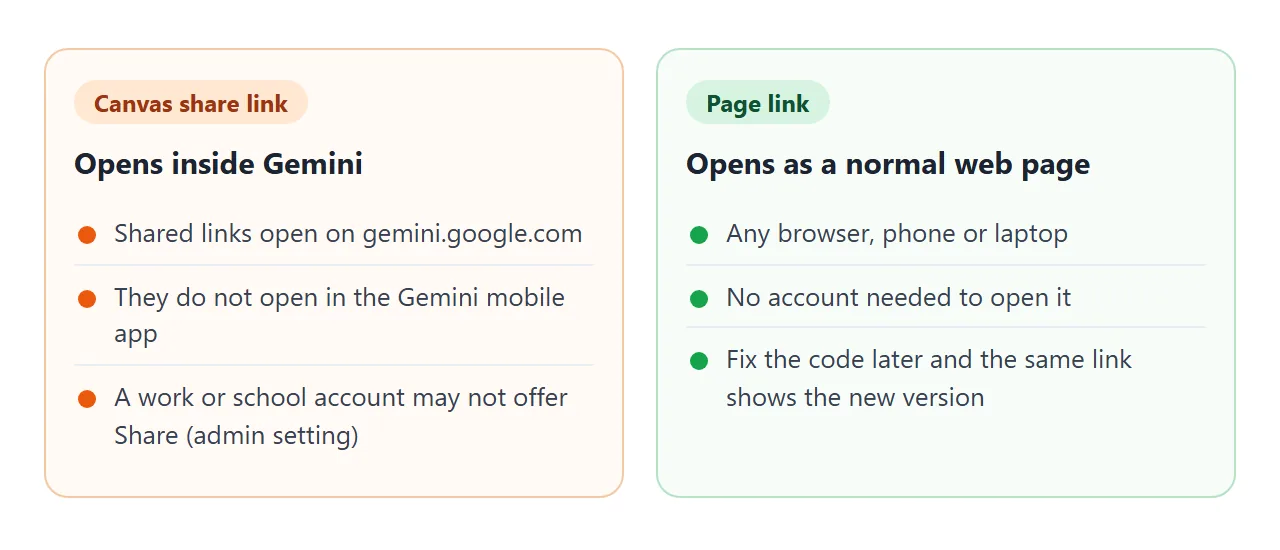
A page link sidesteps both points. It is a normal web address, so a phone browser opens it directly.
Send it as a link
- In the Canvas panel, click Code, select all the text and copy it.
- Paste it into a NOS document. The quiz renders and its script runs, so try it yourself first.
- Choose Create share link and copy the address. HTML to link walks through it.
- Post the link where your students already look.
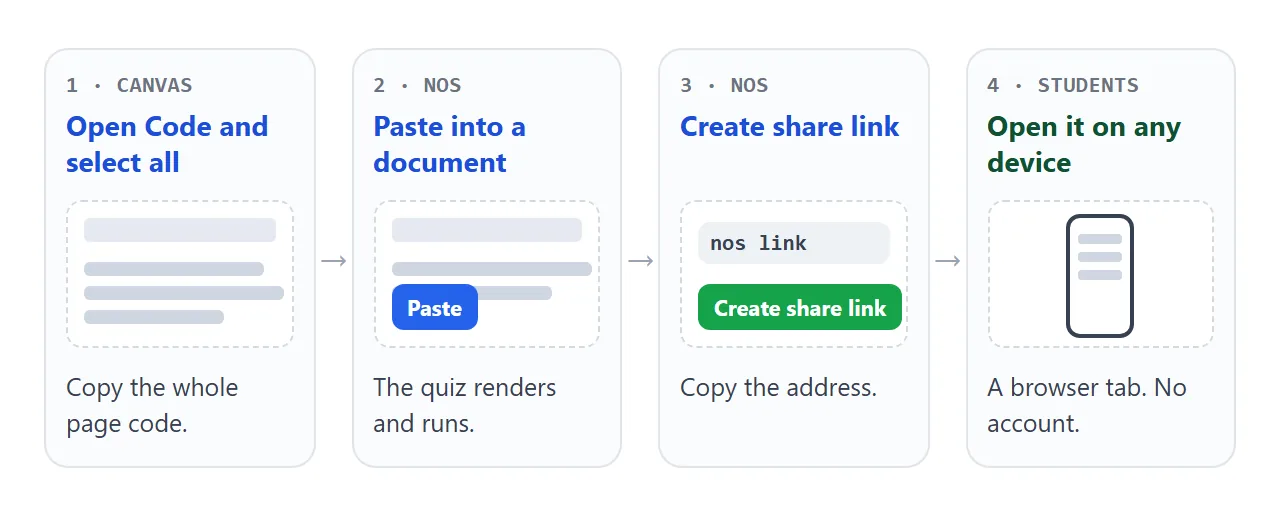
Anyone with the link can open the page without an account, and nobody can edit it by opening it. If a phone shows an attached file as text instead of a quiz, see opening an HTML file on a phone.
Google Classroom's help says teachers can attach links to assignments, so the same address can go in an assignment. For paper handouts, put the link in a QR code. QR code link explains why that stays easy to update.
Fix a question without starting over
Quizzes get fixed: a typo, a wrong answer key, a question that is too hard. Two ways work, and neither changes the link.
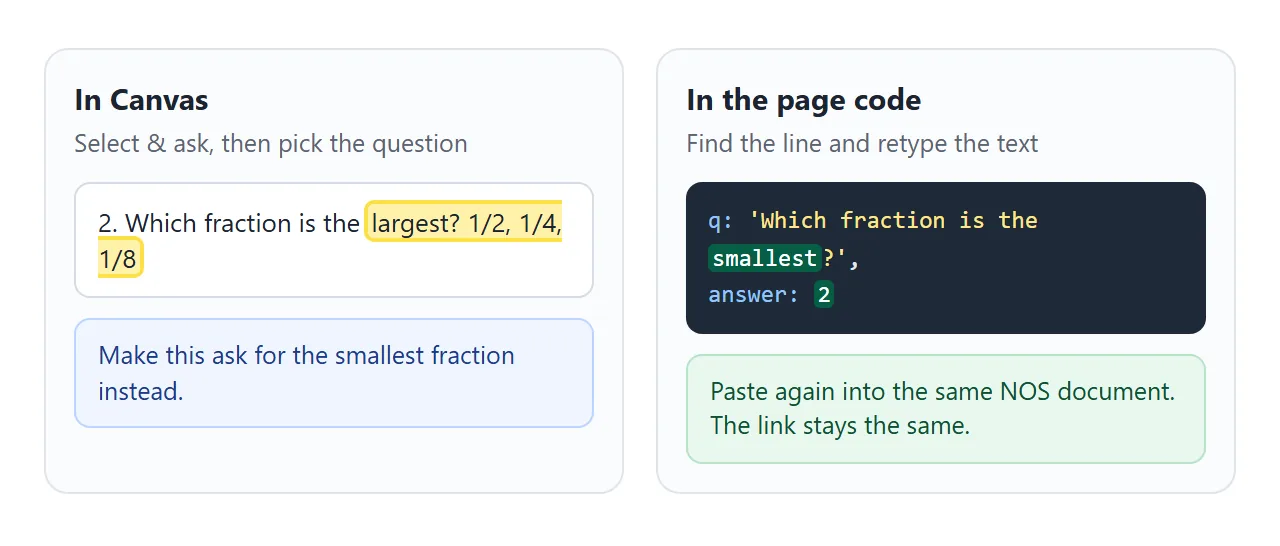
In Canvas. Click Select & ask at the bottom right of the Canvas panel, select the question text with the cursor, type what you want changed and press Enter. Google's help describes this for apps. Then copy the new code.
In the code. If your quiz keeps questions in one list, find the question and retype it. Fix the answer number as well. Then paste the code into the same NOS document. The same link shows the new version.
Ways to share the quiz compared
| Canvas share link | HTML file attached | Page link | |
|---|---|---|---|
| Opens in | gemini.google.com in a browser | Depends on the phone | Any browser |
| Work or school account | Depends on the admin setting | Not involved | Not involved |
| Fix a question later | Edit in Canvas | Send a new file | Edit, paste again, same link |
As of October 2026. Google can change Canvas sharing, so check its help page.
When it does not work
| Symptom | Cause | Fix |
|---|---|---|
| Share is greyed out or missing in Canvas | Work or school account, or the admin has not turned on public links | Ask your admin, or copy the code and use a page link |
| Students see code, not a quiz | The file was sent as an attachment and opened as text | Send the link, not the file |
| Quiz shows right answers on a wrong pick | The answer number is off by one | Answer numbers start at 0, so fix the number |
| Nothing happens on the button | A line was lost when copying | Copy all of the Code view again |
| Images or fonts are missing | They came from another website, which the page blocks | Ask for a version without outside images |
| Score is not recorded anywhere | The quiz marks itself in the browser only | Ask students to tell you the score, or use a tool for graded tests |
If you want to build the quiz by hand instead, HTML quiz shows the structure, and HTML quiz code with score gives a full working example. For the preview you see inside Gemini, Gemini HTML code preview explains how it differs from a real browser.