A gemini html code preview shows a rendering of the code block inside the chat, and that rendering is not the same thing as your browser opening the saved file.
The two agree most of the time. When they disagree, the preview is the optimistic one, because it runs with support your file will not have.
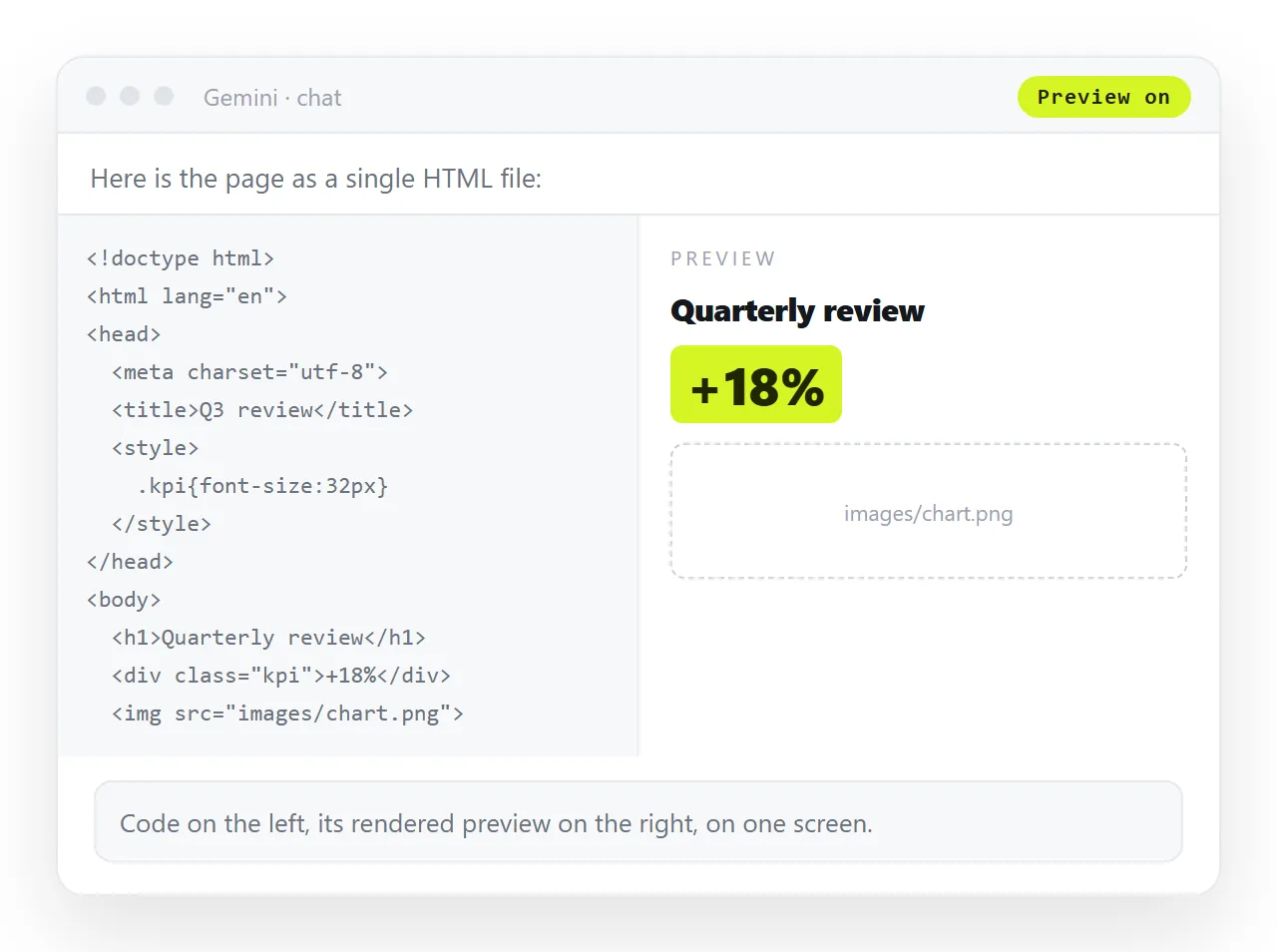
The preview draws the page in a frame the chat controls. That frame has its own width, its own fonts already loaded, and its own rules about which outside requests are allowed. A file on your desktop starts with none of that.
Below: what the preview genuinely proves, the five things that move once the page becomes a file, and a check that takes under a minute.
What the gemini html code preview actually proves
The preview parses the markup in the block and paints it in a sandboxed frame. That is a real test, and it covers three things worth knowing.
- The markup parses. No unclosed tag is swallowing the second half of the page.
- The styles written inside the file apply, so your colours and spacing are not typed wrong.
- The layout holds at the width of that one frame.
What it does not cover is everything the page reaches for from outside itself, and everything that depends on the size and behaviour of a real window. Those are the parts that break in front of a reader.
Paste it into the HTML viewer first if you want to see the finished page.
Five things that move once you save the file
Width. The preview column is narrow. A desktop window is not. A layout built on fixed pixel widths can look composed at 600 pixels and fall apart at 1600. Resize the window before you decide the page is finished.
Phone width. The same page on a phone needs the viewport meta tag. Without that line the phone renders a desktop page and shrinks it, so the text arrives unreadable. The preview frame hides this completely.
Fonts. A font named in the CSS but never loaded still looks correct in an environment that happens to have it. On another machine the browser falls back, line lengths change, and a table that fitted now wraps. Name a fallback stack behind it.
Files next to the page. Any <img src="chart.png"> or <link href="style.css"> points at a neighbour file. Saved on its own, the page has no neighbours, so images stop showing and the styling disappears. A self-contained file folds those in.
A copy that stopped short. Long answers get truncated, and a truncated HTML file often renders a convincing top half. Scroll to the end of your saved file. The last line should be the closing </html> tag.
Preview, local file, shared link
| What you are looking at | Fonts and styles | Outside requests | Window width | Tells you it works for the reader |
|---|---|---|---|---|
| Preview inside the chat | The frame's own | The frame's rules | One fixed column | No |
| The saved file on your desktop | Your machine's | Your browser's | Real, resizable | Partly, your machine is not theirs |
| A page served at its own address | The page's own | Normal browser rules | Real, resizable | Yes |
The third row is the only one where you and the reader look at the same thing. That is the reason to move the page to an address before you decide it is finished.
How to check it in a window that has never seen the project
Five steps, under a minute.
- Copy the complete block. Use the copy control on the code block rather than dragging with the mouse, then confirm the file ends with
</html>. - Open it somewhere neutral. The HTML file opener has never seen your folder, and neither has a second browser profile. Whatever survives there survives for the reader.
- Resize the window. Drag it narrow, then wide. Fixed widths and missing wrapping show up immediately.
- Open the browser console. Failed requests for fonts, images and script libraries are listed there by name. That list is the shortest route to the cause when AI generated HTML is not rendering.
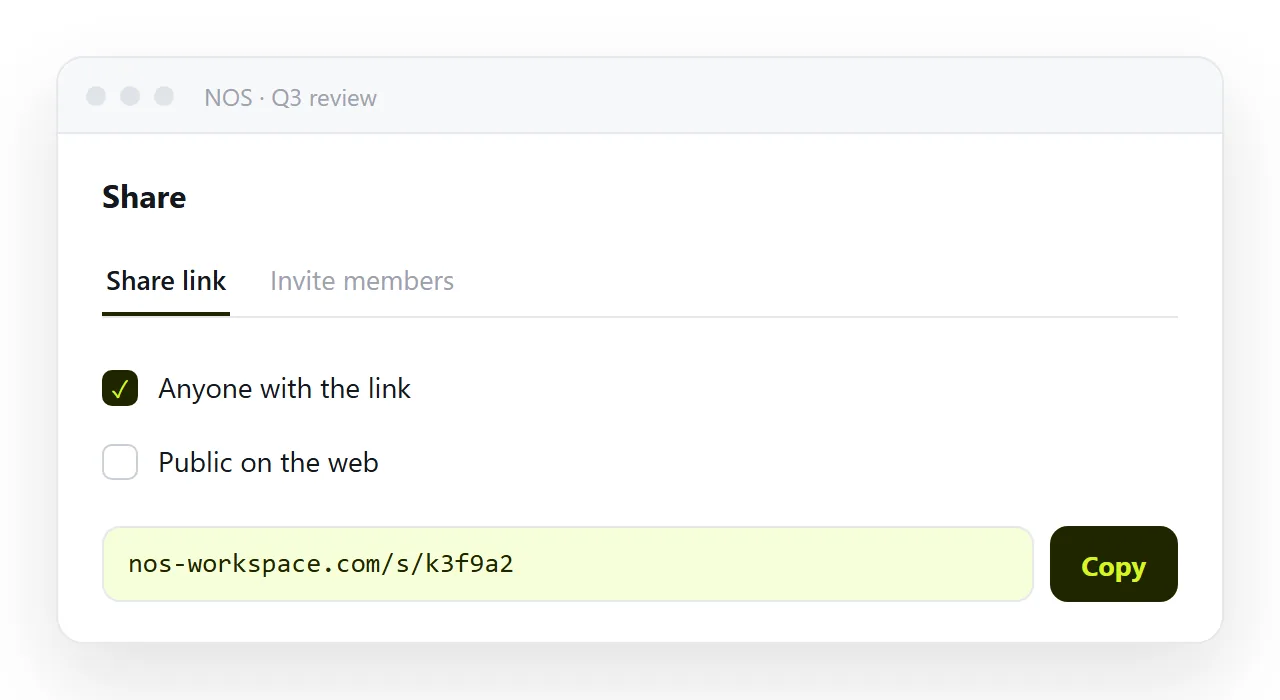
- Give it an address and open the link yourself. Paste the HTML into a NOS document, create the share link, and open that link on your phone before sending it to anyone.
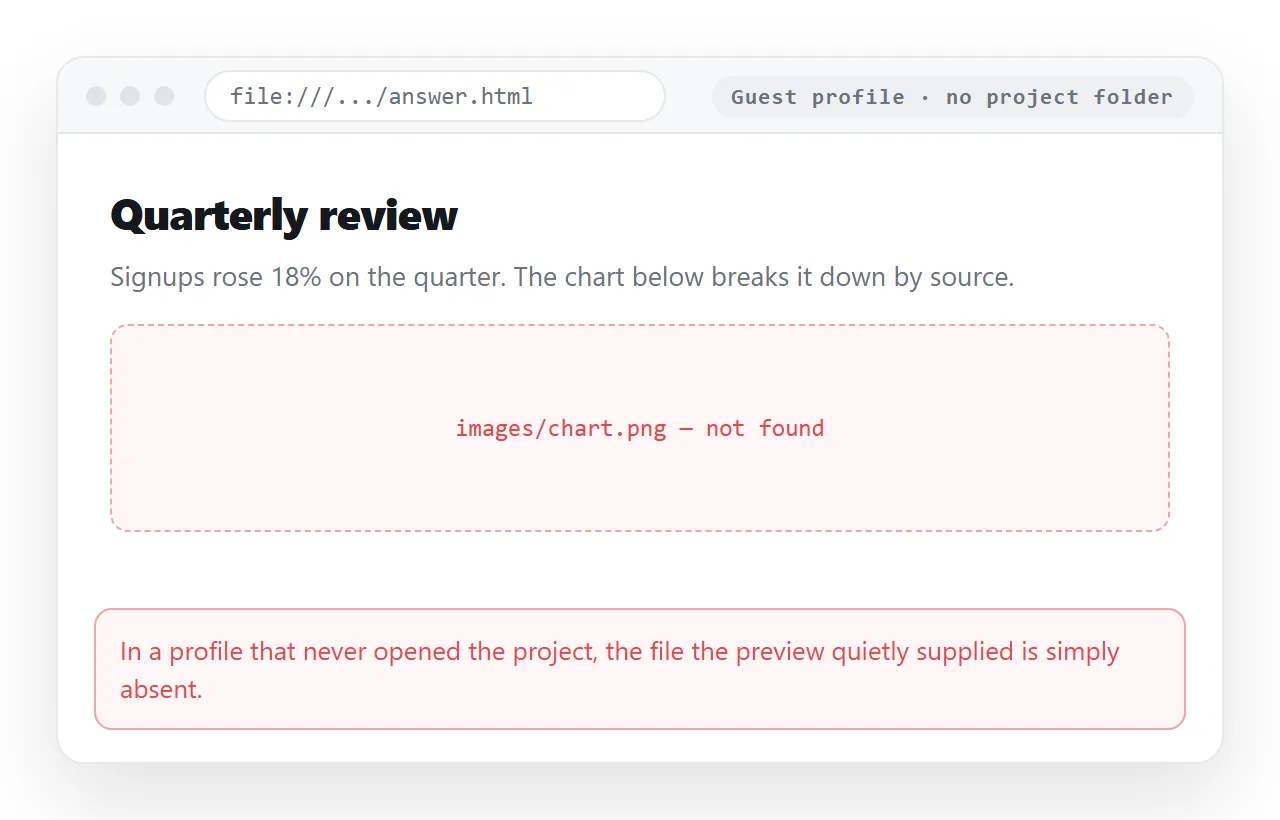
What to do when the two disagree
Trust the browser and fix the file, rather than regenerating and hoping for a better draft. Each difference above has a named cause, and each cause has a fix that takes a line or two.
Missing images become embedded ones. A missing viewport line gets added. A font loaded from outside gets a fallback stack behind it, so a machine without that font still produces a readable page.
If the page is otherwise correct and you only need people to see it, put it at an address.
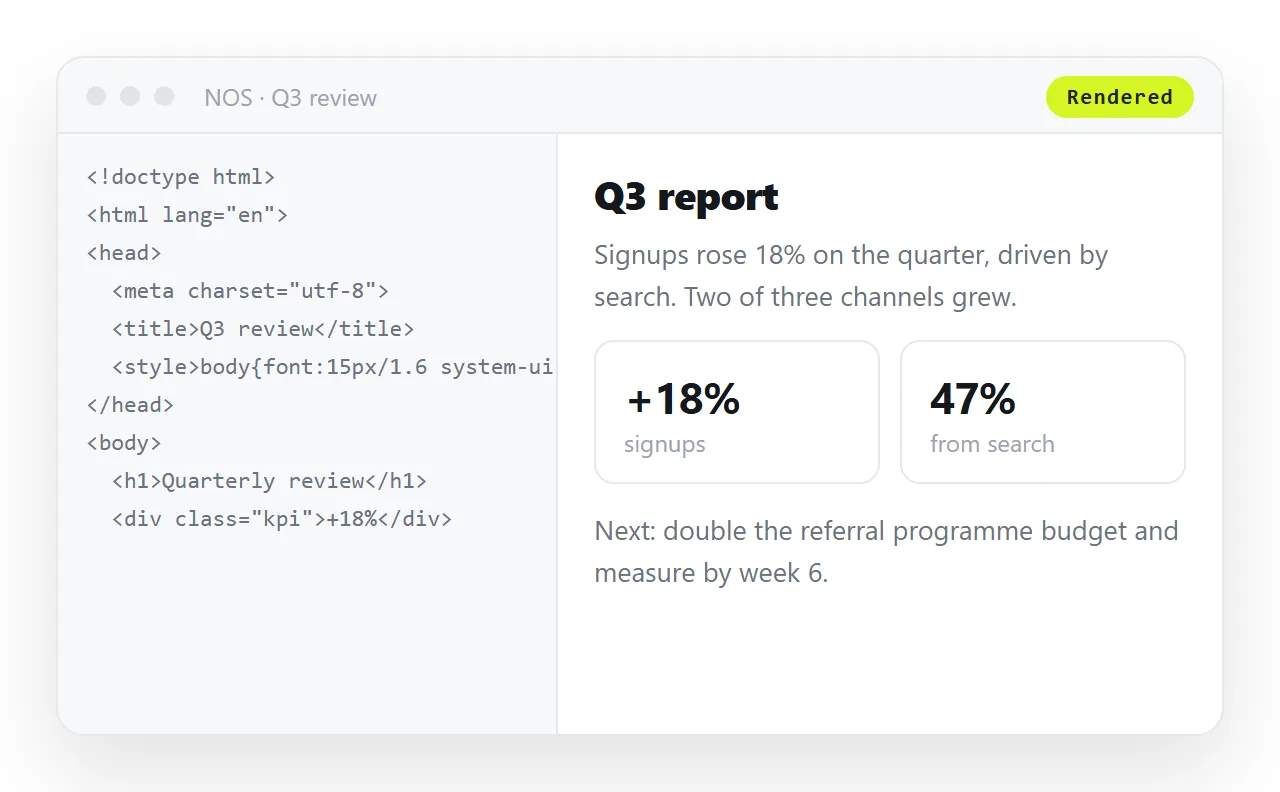
Pasted HTML renders in a NOS document as written, dark theme, charts and scripts included, and the document has its own link through Share, then Share link, then Create link.
Links are unlisted by default, which means they work for whoever holds them and are not listed anywhere. Tick Public on the web only if you want search engines to index the page.
Why an address beats a second round of previews
Once the page has an address, the preview question stops mattering. You are looking at the same rendering the reader gets, on the same terms, and you can open it on a phone to confirm that.
Editing does not move the address either. You click the text in the document and correct it, and the link you already sent points at the corrected page. Turning HTML into a link is that single step.
That also removes the version problem that comes with sending files. A file is frozen at the moment you send it, so a correction means a second send, and two copies are now circulating. An address has one current state.
When the preview is enough
It is enough while you are drafting. If you are checking whether a table has the right columns, or whether a heading reads well, the frame answers in a second and saving the file adds nothing to that.
Switch to a real window at the point where someone else is going to see the page. The check above is short, and it catches nearly all of the "it looks broken on my side" replies before they happen.