In short
- Share button in AI Studio: the app stays private. People you share with can read and copy your code, and their use counts against your limits.
- Publish: AI Studio hosts the app on Google Cloud Run and gives you a public URL. The free Starter Tier allows two apps and is not open to Google Workspace accounts.
- No Gemini calls while people use it (a quiz, checklist or calculator)? Keep it as one HTML file and put it at a share link. Anything that waits on the app's server will stop working there.
- Before you send it: open the link in a signed-out browser and press every button once.
We wanted a five-question trivia warm-up for a library game night to open on anyone's phone from one link. So we wrote it the way AI Studio web apps work in the browser: a quiz screen, plus a hint button that asks the app's own server for help. Then we put it on a share link, found the hint button dead, fixed it, moved the night from Thursday to Friday, and opened the same link again. The library and the quiz are made up. We did not build this inside an AI Studio account, so every AI Studio step below comes from Google's own docs.
Can you share a Google AI Studio app?
Yes, and Google gives you three ways out of Build mode. They are not the same thing, so pick by who will open the link.
- Share inside AI Studio. Apps start private. When you share one, the other people can use it, see its code and fork it. If you allow editing, they can change your code too. Their Gemini calls count toward your usage limits, and paid models can cost you money. AI Studio warns you before sharing when that could happen.
- Publish to Cloud Run. This gives the app a public address that anyone with the link can open. Your Gemini key stays on the server, and every visitor's calls run on that key.
- Download a ZIP or sync to GitHub. You get the code and host it yourself. The web app is a React front end plus a Node.js server, so a plain file host is not enough when the app talks to Gemini. You must set
GEMINI_API_KEYwherever it runs.
Source: Google's Build mode guide and publishing guide, both read on Nov 27, 2026.
Which route fits your app?
Ask one question: does the app need Gemini after it loads?
- Yes, it writes answers, reads photos or chats with the visitor. That work happens on a server holding your key. Use Publish, or host the ZIP on a service that runs Node.js.
- No, Gemini only helped you build it. The finished app is fixed text, buttons and a little logic. That fits in one HTML file, and one file can live at a share link with no Google project, no billing setup and no sign-in for viewers.
Our trivia warm-up belonged in the No group, except for one button. That button is where it broke.
How we shared the trivia app as a page
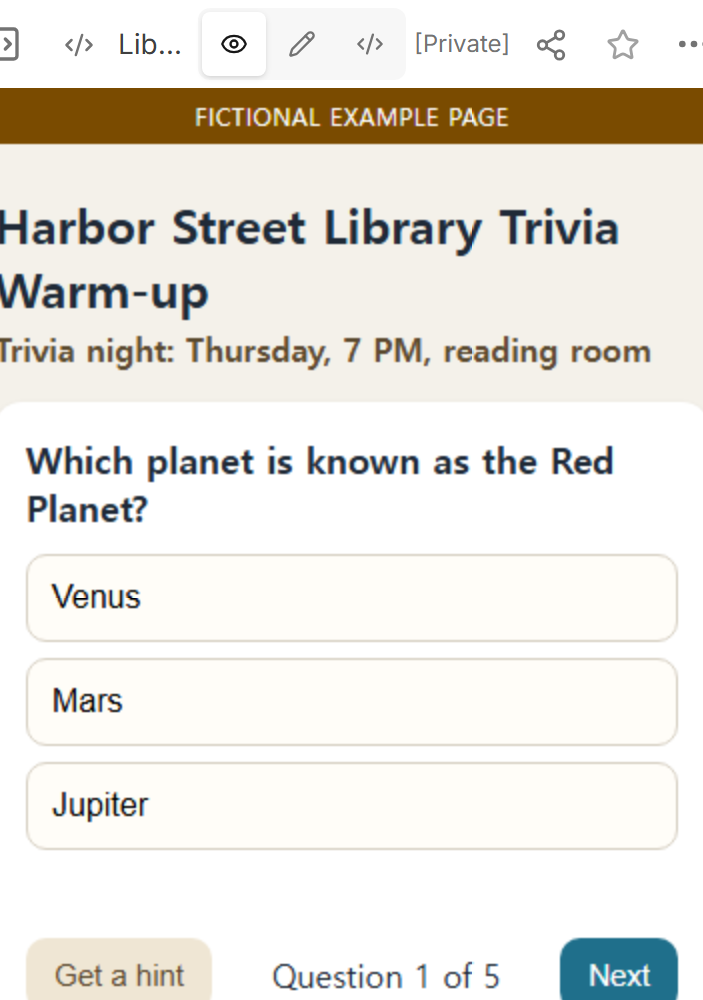
1. Paste the HTML and look at it
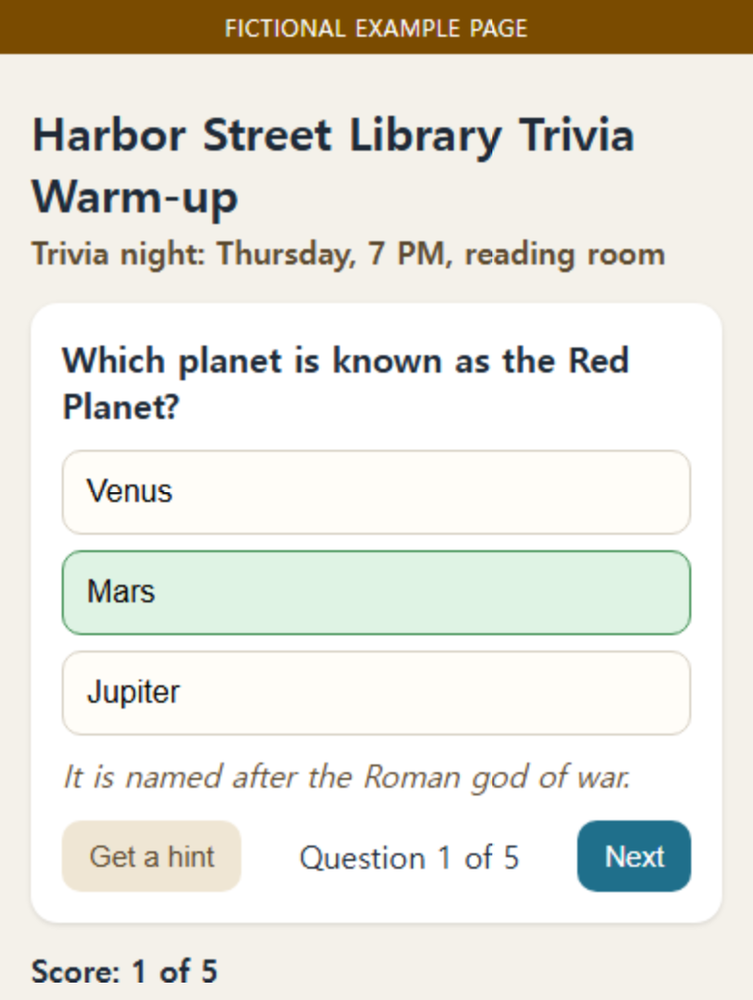
In our first test, NOS showed an Outside network request notice because the hint button called a server. The screenshot shows the same starting quiz with that call removed. The button still needs hint text to display.
2. Make the share link
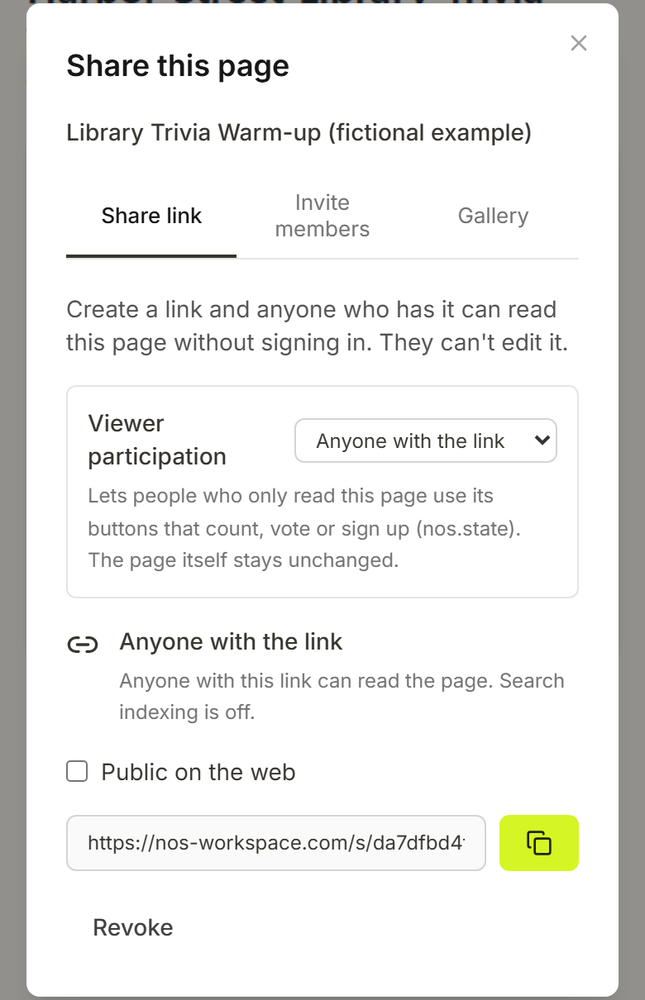
Share opens a panel with a link anyone can read without signing in. The panel also notes that search indexing is off.
3. Press every button on the link
We opened the share link and played the first question. Picking Mars turned green and the score went to 1 of 5. Then we pressed Get a hint. Nothing appeared, and no error showed either. A visitor would just think the button was broken.
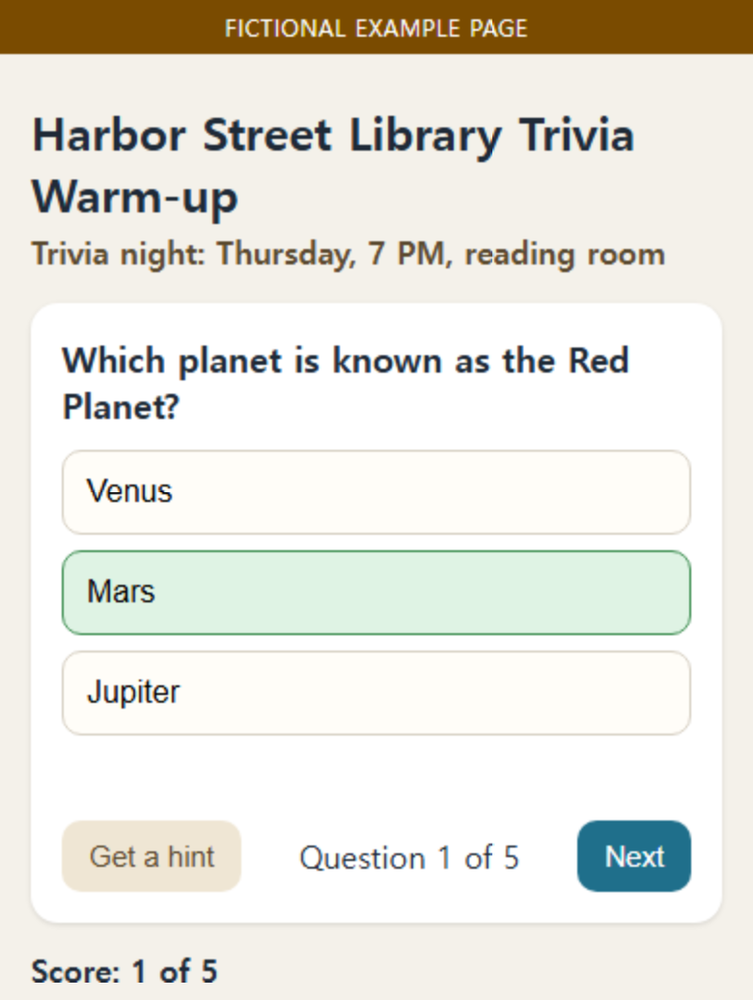
The reason is simple. In AI Studio, a server sits behind the page and answers that request. On a share link there is only the page. We saw the same blank result when we opened the file straight from disk, and the browser logged a failed fetch.
4. Fix it in the Code view
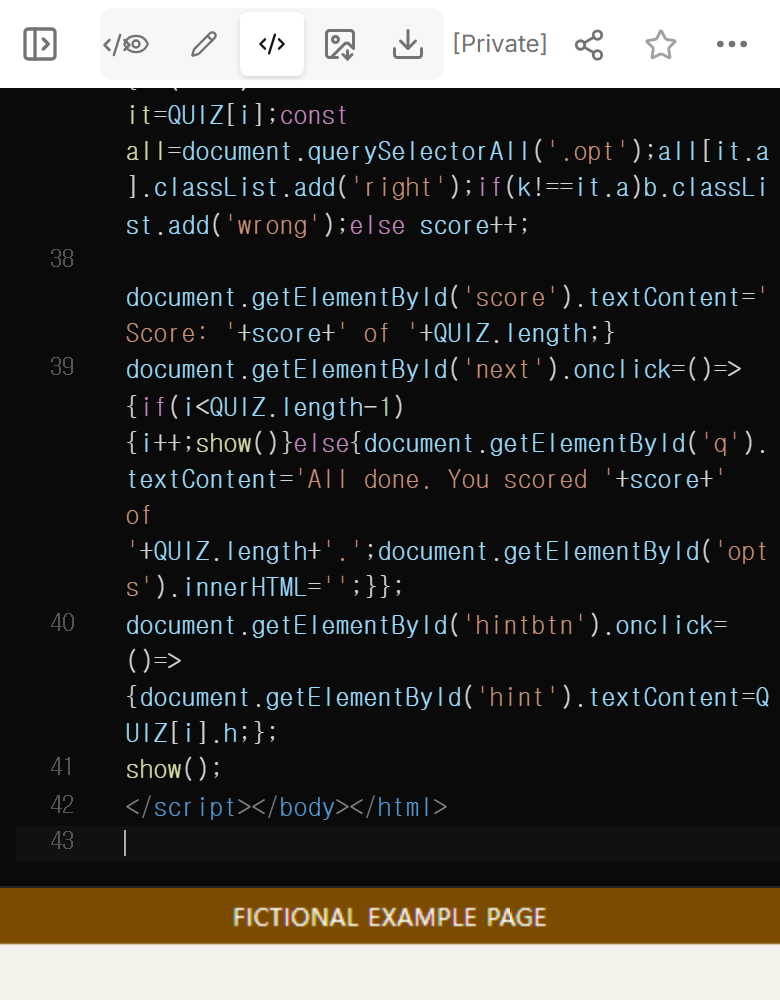
The hints never needed Gemini. They are five fixed lines. So in Code view we replaced the file with a version that stores one hint next to each question and shows it on click. NOS saved this as a new version, and the outside-request notice went away.
5. Reopen the same link
We did not make a new link. The old one now showed the hint under the answers.
6. Change the day without touching code
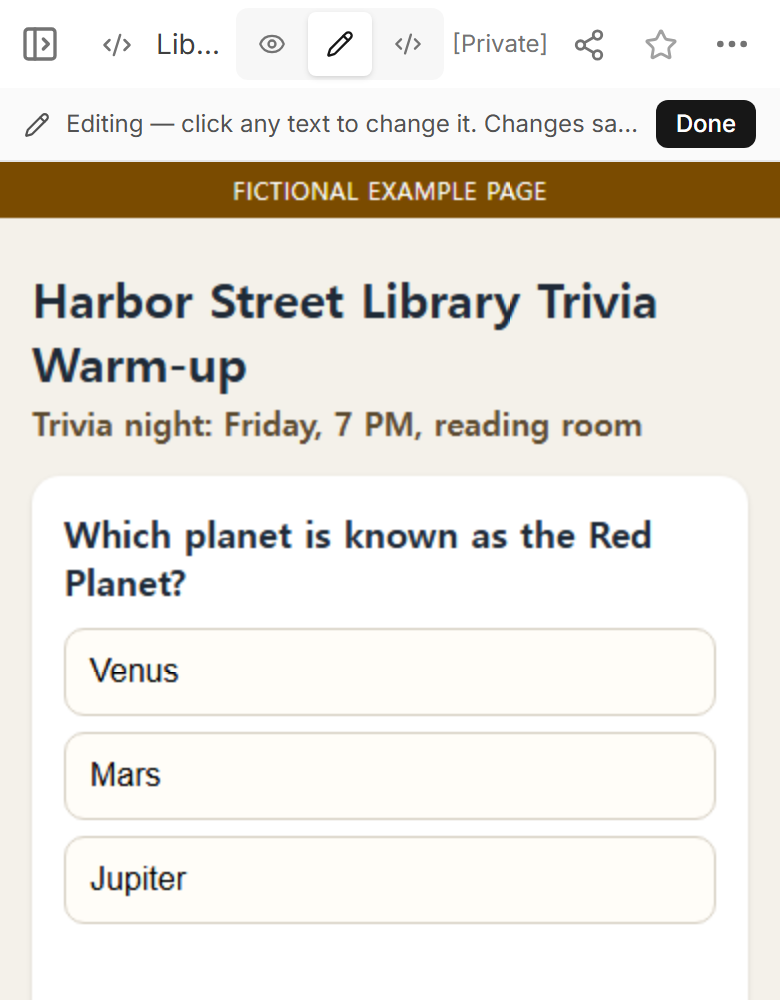
Then the game night moved. In Edit mode we clicked the line that said Thursday, typed Friday over it and pressed Done.
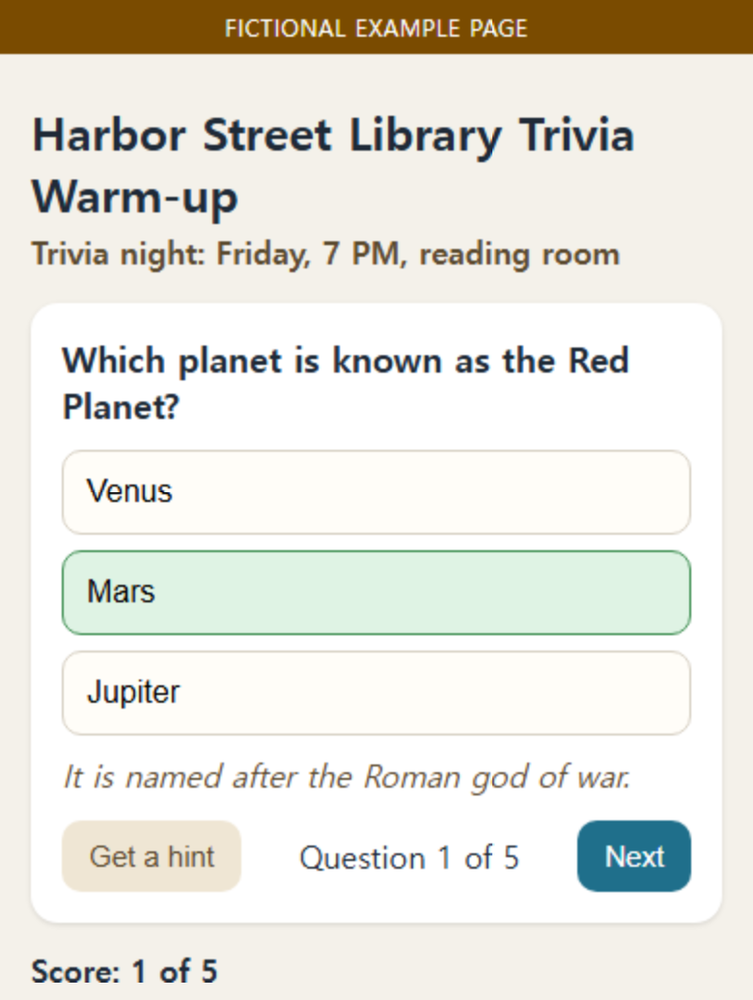
The link we had already sent now showed Friday, and the hint still worked.
Want to try the same steps? Download the finished trivia file and paste it into any HTML host.
Why is Google AI Studio share not working?
Google's guide names two causes for a 403 Access Restricted error on a shared app. A privacy extension such as Privacy Badger can block it, so the viewer should turn the extension off. Or the current code has build problems. Ask the agent to fix any build issues, then share the URL again.
A different complaint shows up on Google's developer forum: people open a shared link and get a Google sign-in, or a page asking them to request access. One forum thread describes exactly that in a signed-out window. If your audience has no Google account, the in-app Share button is the wrong tool. Publish, or use a static page.
Can you deploy a Google AI Studio app for free?
Sometimes. Click Publish, and an eligible account gets the Google Cloud Starter Tier. It hosts up to two apps in one region, with a free your-app.ai.studio address. Three things make an account ineligible: signing in with any Google Workspace account (school and nonprofit ones count), having a paid Google Cloud billing account now or in the past, or too little account history. Google says its support team cannot override that. Otherwise you link a paid Cloud project, and Cloud Run pricing may apply.
Can you export the code from Google AI Studio?
Yes. Build mode lets you download a ZIP or sync with a GitHub repository. The ZIP is a project folder, not a page. If the app does not call Gemini, build it into one HTML file. Our guide to putting a React app on a page covers that step. Then check that images and styles are inside the file, as in making one self-contained HTML file.
Does sharing expose your Gemini key?
Not in AI Studio. Google stores the key as a server-side secret and keeps it out of the code that reaches the browser. People you share with can use the app but cannot see the key. The risk moves when you copy code out. Never paste a key into an HTML file you plan to share, because anyone who opens the page can read its source.
When not to do this
- The app talks to Gemini while people use it. A static page has no server to hold your key. Publish to Cloud Run instead.
- It must save what visitors type for you to read later. Sign-ups, uploads and shared scores need a database. Our quiz keeps no record of anyone's score, which was fine for a warm-up.
- Only teammates who build with you should see it. The AI Studio Share button or a shared GitHub repository keeps the code and the chat history together.
Where NOS fits
NOS Workspace holds HTML pages at share links, and viewers never sign in. You can fix a word in Edit mode or swap the file in Code view, and the link you already sent stays the same. The Free plan keeps three share links active at once, with up to 2 MB per page. See current plans before you rely on more. If your app started in a Gemini chat rather than AI Studio, read sharing a Gemini Canvas page.