On a work or school Google account, Gemini does not give you a share link for Canvas content. Google's announcement says Google Workspace business and education users cannot share content created in Canvas, as of October 2026.
The way around it is to copy the code out of Canvas, paste it into NOS, and share the normal link NOS gives you.
This is about Canvas inside Gemini, the panel where Gemini builds a page next to the chat. Here is the kind of page you would copy out, a quiz that students can open on a phone. Try it.
<!doctype html>
<html lang="en">
<head>
<meta charset="utf-8">
<meta name="viewport" content="width=device-width, initial-scale=1">
<title>Fractions check-in</title>
<style>
* { box-sizing: border-box; }
body { margin: 0; padding: 16px; font-family: system-ui, sans-serif; background: #f4f6fb; color: #1f2937; }
main { max-width: 560px; margin: 0 auto; }
h1 { font-size: 22px; margin: 0 0 4px; }
.sub { margin: 0 0 14px; color: #5b6475; font-size: 14px; }
.q { background: #fff; border-radius: 12px; padding: 12px 14px; margin-bottom: 10px; box-shadow: 0 1px 4px rgba(0, 0, 0, .08); }
.q p { margin: 0 0 8px; font-weight: 600; font-size: 15px; }
.q label { display: block; padding: 7px 10px; margin: 4px 0; border: 1px solid #d6dbe6; border-radius: 8px; cursor: pointer; font-size: 15px; }
.q label:hover { background: #eef2ff; }
.q.right { border-left: 5px solid #16a34a; }
.q.wrong { border-left: 5px solid #ea580c; }
.note { font-size: 13px; margin: 6px 0 0; min-height: 1em; }
.right .note { color: #166534; }
.wrong .note { color: #9a3412; }
.bar { display: flex; gap: 10px; align-items: center; flex-wrap: wrap; margin-top: 12px; }
button { font: inherit; font-weight: 600; padding: 10px 18px; border: 0; border-radius: 8px; background: #2563eb; color: #fff; cursor: pointer; }
button.ghost { background: #e5e7eb; color: #1f2937; }
#score { font-weight: 700; font-size: 16px; }
</style>
</head>
<body>
<main>
<h1>Fractions check-in</h1>
<p class="sub">Grade 4 · 5 questions · pick one answer for each</p>
<form id="quiz"></form>
<div class="bar">
<button type="button" id="check">Check my answers</button>
<button type="button" id="reset" class="ghost">Start again</button>
<span id="score" aria-live="polite"></span>
</div>
</main>
<script>
// Edit this list: question, the choices, the number of the right choice (0 = first), a hint.
const questions = [
{ q: 'Which fraction is the same as one half?', a: ['2/4', '1/3', '3/5'], right: 0, hint: '2/4 simplifies to 1/2.' },
{ q: 'Which is bigger?', a: ['1/4', '1/2', 'They are equal'], right: 1, hint: 'Fewer pieces means each piece is bigger.' },
{ q: '1/5 + 2/5 = ?', a: ['3/10', '3/5', '2/10'], right: 1, hint: 'Same bottom number: add the tops only.' },
{ q: 'A pizza has 8 slices and you eat 2. What fraction is left?', a: ['2/8', '6/8', '8/6'], right: 1, hint: '8 - 2 = 6 slices left out of 8.' },
{ q: 'Which fraction is equal to 1 whole?', a: ['4/4', '1/4', '0/4'], right: 0, hint: 'When top and bottom match, it is a whole.' }
];
const quiz = document.getElementById('quiz');
const score = document.getElementById('score');
function build() {
quiz.innerHTML = '';
score.textContent = '';
questions.forEach((item, i) => {
const box = document.createElement('div');
box.className = 'q';
let html = '<p>' + (i + 1) + '. ' + item.q + '</p>';
item.a.forEach((text, j) => {
html += '<label><input type="radio" name="q' + i + '" value="' + j + '"> ' + text + '</label>';
});
html += '<div class="note"></div>';
box.innerHTML = html;
quiz.appendChild(box);
});
}
document.getElementById('check').addEventListener('click', () => {
let correct = 0;
questions.forEach((item, i) => {
const box = quiz.children[i];
const picked = quiz.querySelector('input[name="q' + i + '"]:checked');
const ok = picked && Number(picked.value) === item.right;
if (ok) correct++;
box.className = 'q ' + (ok ? 'right' : 'wrong');
box.querySelector('.note').textContent = ok ? 'Correct!' : (picked ? 'Not quite. ' : 'No answer yet. ') + item.hint;
});
score.textContent = 'Score: ' + correct + ' / ' + questions.length;
});
document.getElementById('reset').addEventListener('click', build);
build();
</script>
</body>
</html>
Why the share link is missing on a school account
Google's own announcement for Canvas says that Workspace business and education users cannot share content created in Canvas, and that a person with a personal account can share a link which Workspace users are able to open.
Google's community help answers say the same thing for work or school accounts: no links to Canvas content.
Google Workspace admins can allow public links for Gemini chat conversations. That setting is off by default, and the announcement about it is about chats. It does not mention Canvas, so do not count on it to bring the button back.
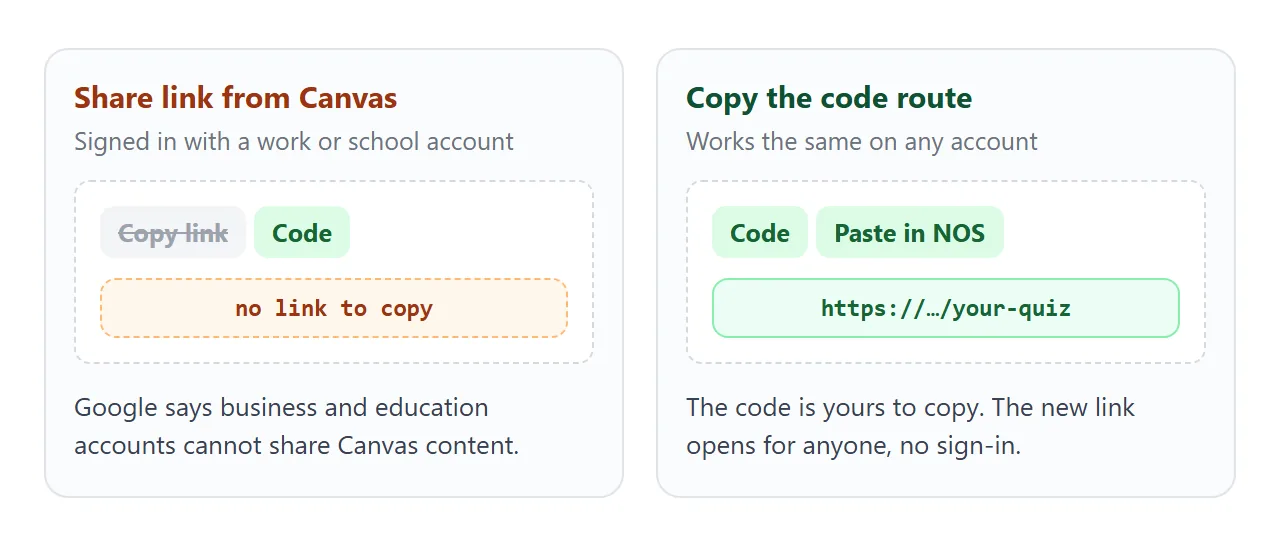
The code is still on your screen, and nothing stops you from copying it. That is the whole trick. A Canvas page is ordinary HTML, so any place that can show HTML can show it.
Make it with AI
You can ask Gemini for the page in a way that makes it easy to copy out. The prompt below asks for one self-contained file, with no outside images and nothing that needs a server.
Make a 5-question multiple-choice quiz for 4th-grade fractions as ONE
HTML file. Put all CSS and JavaScript inside the file. No external
images, no external data, no sign-in. Make it readable on a phone.
Show a score and a short hint for each wrong answer when I press
"Check my answers".
Swap the topic and grade for your own. When Gemini answers, check four things before you copy anything.
- The answers. Read every question yourself. AI quizzes can contain a wrong key.
- One file. The code should start with a doctype or an html tag and end with the closing html tag.
- No outside images. Pictures loaded from other sites are blocked in a NOS page, so ask for drawn shapes or emoji.
- Phone width. Open it in the preview and make the panel narrow. Buttons should still be tappable.
Here is a second page the same kind of prompt can make. Tap the card to flip it.
<!doctype html>
<html lang="en">
<head>
<meta charset="utf-8">
<meta name="viewport" content="width=device-width, initial-scale=1">
<title>Weather words flashcards</title>
<style>
  * { box-sizing: border-box; }
  body { margin: 0; padding: 16px; font-family: system-ui, sans-serif; background: #eef6fb; color: #1f2937; text-align: center; }
  main { max-width: 420px; margin: 0 auto; }
  h1 { font-size: 20px; margin: 0 0 4px; }
  .sub { margin: 0 0 14px; color: #5b6475; font-size: 14px; }
  .card {
    width: 100%; min-height: 190px; padding: 20px; border: 0; border-radius: 16px;
    background: #fff; box-shadow: 0 6px 20px rgba(0, 0, 0, .12);
    display: flex; flex-direction: column; align-items: center; justify-content: center; gap: 10px;
    font: inherit; color: inherit; cursor: pointer;
  }
  .card .word { font-size: 30px; font-weight: 700; }
  .card .meaning { font-size: 18px; line-height: 1.4; }
  .card .tip { font-size: 13px; color: #6b7280; }
  .card.back { background: #fff7ed; }
  .bar { display: flex; gap: 8px; justify-content: center; margin-top: 14px; flex-wrap: wrap; }
  .bar button { font: inherit; font-weight: 600; padding: 10px 16px; border: 0; border-radius: 8px; background: #2563eb; color: #fff; cursor: pointer; }
  .bar button.ghost { background: #e5e7eb; color: #1f2937; }
  #count { margin-top: 12px; font-size: 14px; color: #374151; }
</style>
</head>
<body>
<main>
  <h1>Weather words</h1>
  <p class="sub">Tap the card to flip it</p>
  <button class="card" id="card" type="button" aria-live="polite"></button>
  <div class="bar">
    <button type="button" class="ghost" id="prev">Back</button>
    <button type="button" id="know">I know this one</button>
    <button type="button" class="ghost" id="next">Next</button>
  </div>
  <div id="count"></div>
</main>

<script>
  // Edit this list: the word on the front, its meaning on the back.
  const cards = [
    { word: 'Evaporation', meaning: 'Water turns into a gas and rises into the air.' },
    { word: 'Condensation', meaning: 'Water vapor cools and turns back into tiny drops.' },
    { word: 'Precipitation', meaning: 'Water that falls from clouds: rain, snow, sleet or hail.' },
    { word: 'Humidity', meaning: 'How much water vapor is in the air.' },
    { word: 'Front', meaning: 'The line where two different air masses meet.' }
  ];

  const card = document.getElementById('card');
  const count = document.getElementById('count');
  let i = 0, flipped = false;
  const known = new Set();

  function show() {
    const c = cards[i];
    card.className = 'card' + (flipped ? ' back' : '');
    card.innerHTML = flipped
      ? '<div class="meaning">' + c.meaning + '</div><div class="tip">tap to flip back</div>'
      : '<div class="word">' + c.word + '</div><div class="tip">card ' + (i + 1) + ' of ' + cards.length + '</div>';
    count.textContent = 'Known: ' + known.size + ' of ' + cards.length;
  }

  function go(step) {
    i = (i + step + cards.length) % cards.length;
    flipped = false;
    show();
  }

  card.addEventListener('click', () => { flipped = !flipped; show(); });
  document.getElementById('next').addEventListener('click', () => go(1));
  document.getElementById('prev').addEventListener('click', () => go(-1));
  document.getElementById('know').addEventListener('click', () => { known.add(i); go(1); });
  show();
</script>
</body>
</html>
Copy the code and send it as a link
Five steps, about a minute. Nothing here needs an admin.
- Open the code. In the chat that holds your Canvas, click Code at the top right of the Canvas panel. Google's help page uses this button to open and edit the code.
- Copy all of it. Select everything in the code area and copy it.
- Paste it into NOS. Paste into a new NOS document. The page renders as written, and its scripts run.
- Create the link. Choose Create share link. HTML to link shows the step by step.
- Test it yourself. Open the link on your phone before you send it to anyone.
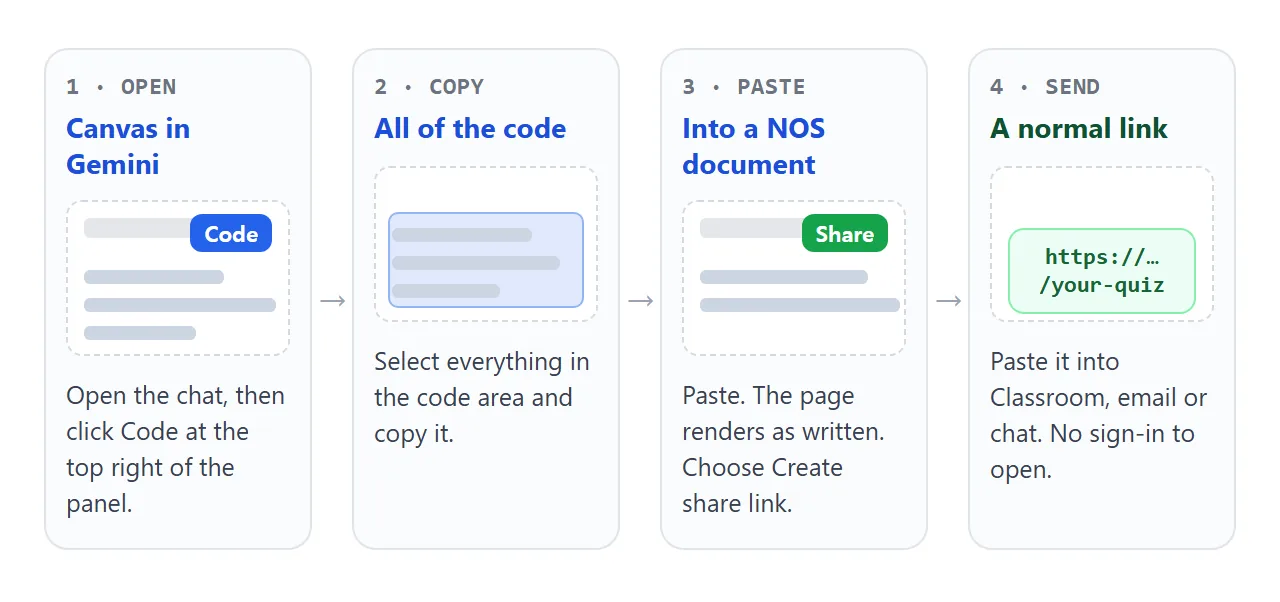
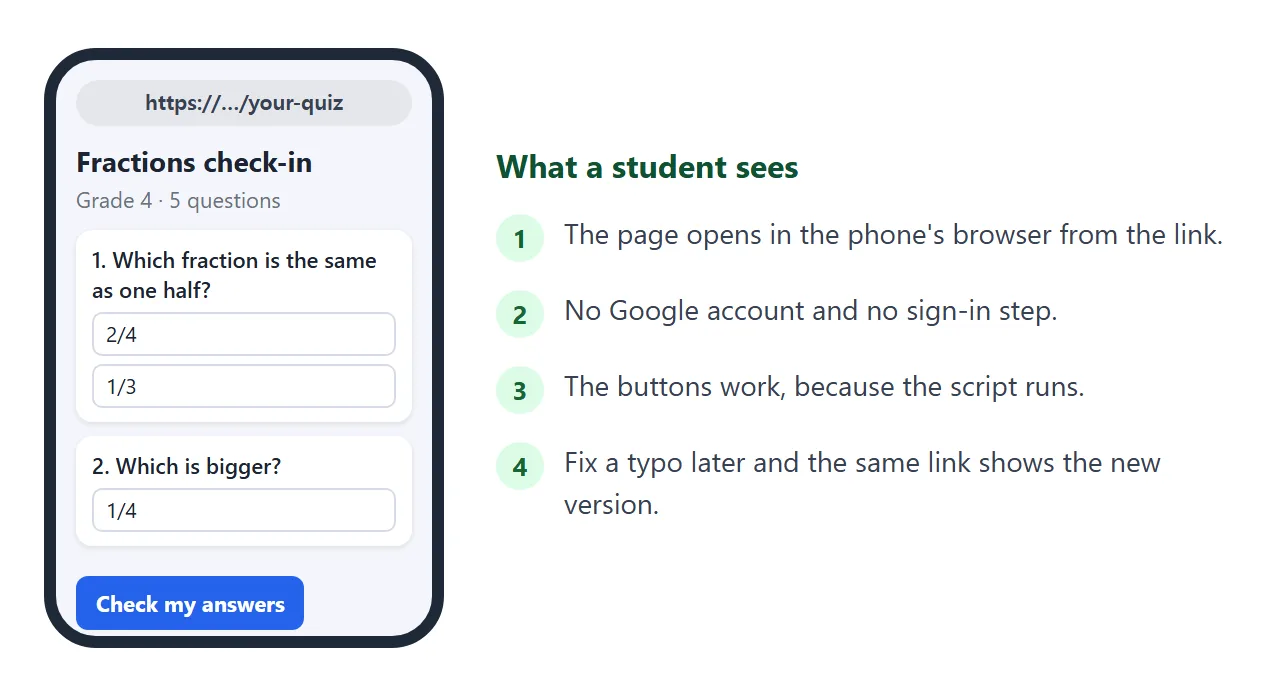
The link opens in a browser, on a phone too, and nobody needs an account. Visitors can use the page but cannot edit it. If you fix a typo later, change the code in your NOS document and the same link shows the new version.
Where to put the link
A link is plain text, so it goes wherever text goes: an email, a chat message, a slide. Google Classroom has a place for it. When you create an assignment, below Attach, choose Link and paste the address.
For paper, turn the link into a QR code. QR code link covers printing one, and the code keeps working after you edit the page, because the address stays the same.
NOS does not tell you who opened the link, and it does not save a visitor's answers.
If you need scores back, collect them another way, for example with a form you already use. A page that sends data to another server is blocked in NOS.
Ways to share a Canvas page, compared
| Way to share | What you need | What the other person gets |
|---|---|---|
| Canvas public link | A personal Google account | A link. Google says anyone with it can view and edit data associated with the app |
| Export to Docs | A Canvas that holds text | A Google Doc, made for text, not an interactive page |
| Send the code as an .html file | Nothing | A file they must open in a browser. See opening an HTML file on a phone |
| NOS share link | The copied code | A link anyone can open without an account. They cannot edit it |
Pick the NOS link when the page has buttons or a score and your readers are students on phones. Pick Export to Docs when it is really a text handout.
When it does not work
| What you see | Cause | Fix |
|---|---|---|
| No link to copy in Gemini | School account, as of October 2026 | Copy the code and use a NOS link |
| The page looks cut off or broken | The copy missed lines or included chat text | Copy again from Code. It should end with the closing html tag |
| Pictures are missing | Outside images are blocked | Ask Gemini for drawn shapes or inline pictures |
| Buttons work in Gemini, not in the link | The page asks another site for data | Ask for all data written inside the file |
| The code is not one HTML page | It is split into several files or parts | Ask Gemini to rewrite it as one HTML file |
| A form does nothing when sent | Sending a form to a server is blocked | Show the result on the page instead |
More on getting Gemini's HTML out of the chat is in saving a Gemini chat as HTML. To make more pages like the quiz, see HTML quiz.