In short
A useful HTML cheat sheet covers about 30 tags in five groups: page structure, text, links and images, lists and tables, and forms. That is enough to build a first one-page site.
Each entry should show four things: the tag, one line on what it is for, the code, and what that code looks like in a browser. Most lists stop at the first two.
Make it one HTML file with a filter box and jump links, put it at a share link, and you can still fix the text later without sending a new link.
We made a one-page HTML cheat sheet for a fictional beginner group, Riverside Coding Club. It has 30 cards, a filter box and five jump links. We pasted it into NOS, shared it, and opened the link on a phone-sized screen. Then we changed the handout line from Week 1 to Week 2 on the NOS screen and reopened the same link. Every picture below comes from that run.
What should an HTML cheat sheet include?
The tags a beginner types in the first week, and nothing else. We picked 30 by asking one question per tag: does a first one-page site need it? Here is the list, by group.
| Group | Tags | The one thing to remember |
|---|---|---|
| Page structure (8) | html, head, title, meta, body, header, main, footer | Only what sits inside body shows on the page. |
| Text (8) | h1 to h6, p, strong, em, br, span, blockquote, code | One h1 per page. Then h2, h3 in order, never picked for size. |
| Links and images (4) | a, img, figure, svg | Every img needs alt text, plus width and height. |
| Lists and tables (5) | ul with li, ol, table, details, div | Use a table for rows of data, not for page layout. |
| Forms (5) | form, label, input, button, select | A form needs somewhere to send answers. A plain page has none. |
The last column is what most cheat sheets leave out. A tag name is easy to look up. The rule that stops a mistake is the part people forget.
What are the basic HTML tags?
Every page starts with the same skeleton. If you learn only one block by heart, make it this one:
<!doctype html>
<html lang="en">
<head>
  <meta charset="utf-8">
  <meta name="viewport" content="width=device-width,initial-scale=1">
  <title>My page</title>
</head>
<body>
  <h1>Hello</h1>
  <p>My first paragraph.</p>
</body>
</html>
The viewport line is the one beginners skip. Without it, phones draw the page at desktop width and shrink it, so the text gets tiny.
How many HTML tags are there?
MDN's element reference lists 111 current elements, plus a separate list of obsolete ones that you should not use (MDN, checked Nov 27, 2026). You will not need most of them for a while. Tags like base, slot and template matter later, once you build bigger sites. The 30 above cover a first page.
How do I make my own HTML cheat sheet page?
Build one file, then put it at a link. Here is the order we used.
1. Write one card per tag. Each card holds the tag name, a one-line use, the code in a dark box, and a Result box that runs the same code. In the code box, write < instead of <. Otherwise the browser treats your sample as real markup and shows the result where the code should be.
2. Paste the file into NOS. Open Code view and paste the whole file. The live page shows under the code, so you can spot a broken card right away.
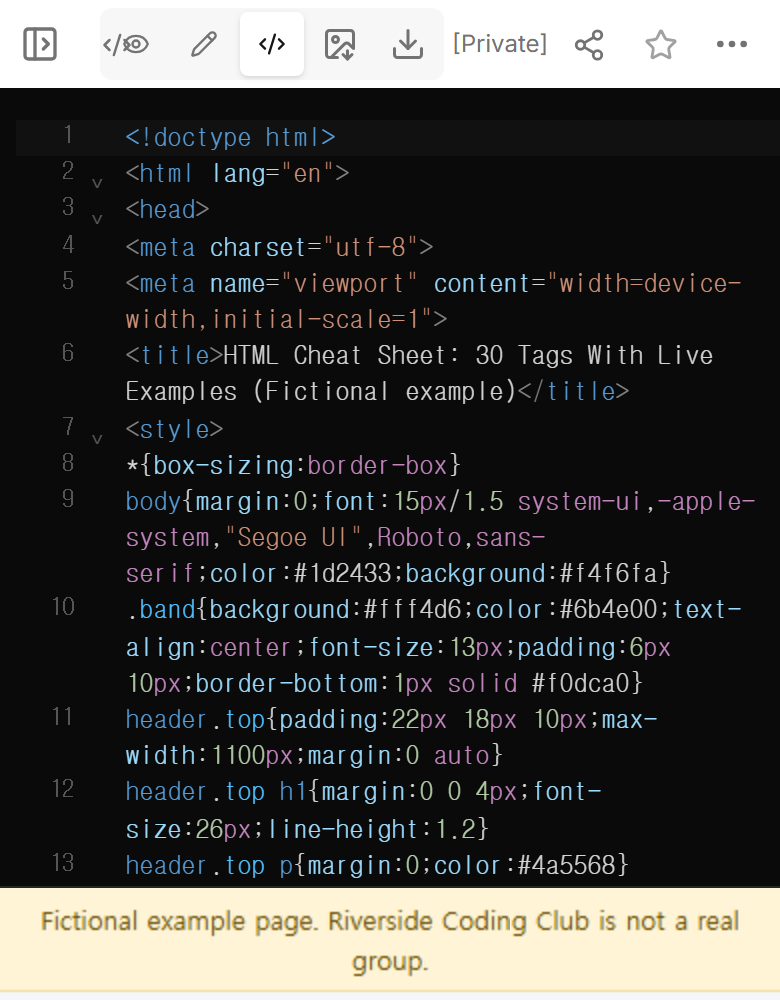
3. Check it in View mode. This is what people with the link will see. Make sure the tag count next to the filter box matches your title.
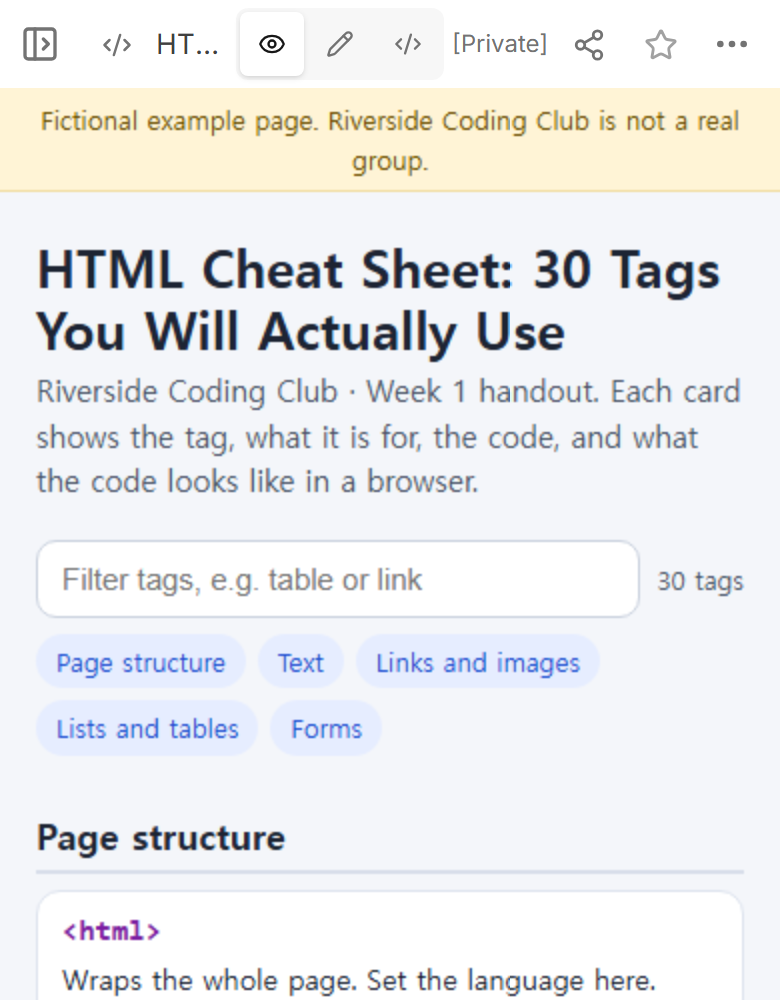
That counter caught a real mistake. Our first draft had 31 cards under a title that promised 30. The page counts its own cards, so the number on screen gave it away. We cut one card before uploading.
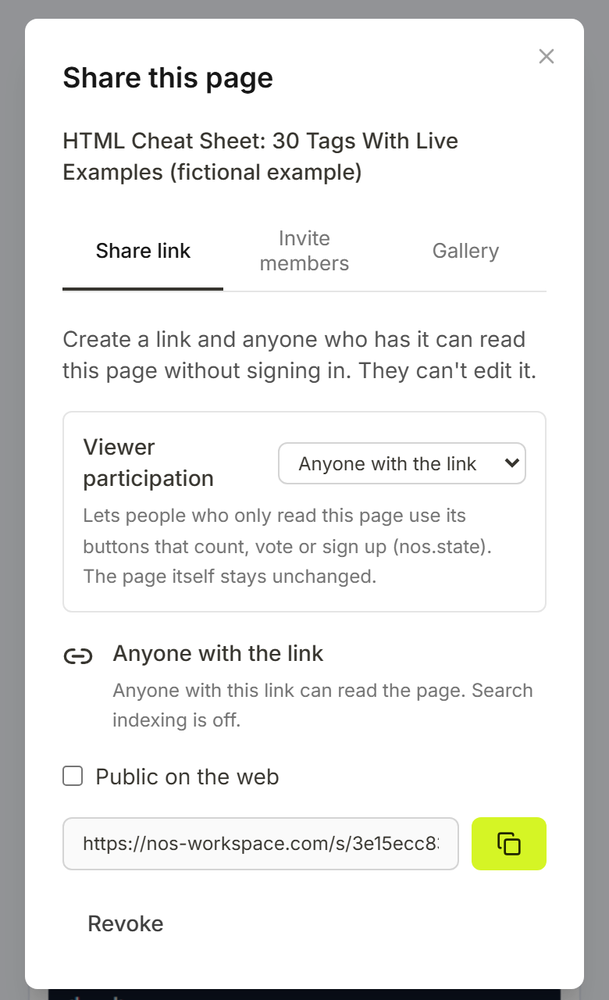
4. Make a share link. Click Share. The panel says anyone with the link can read the page without signing in, and can't edit it. The panel also notes that search indexing is off for this link.
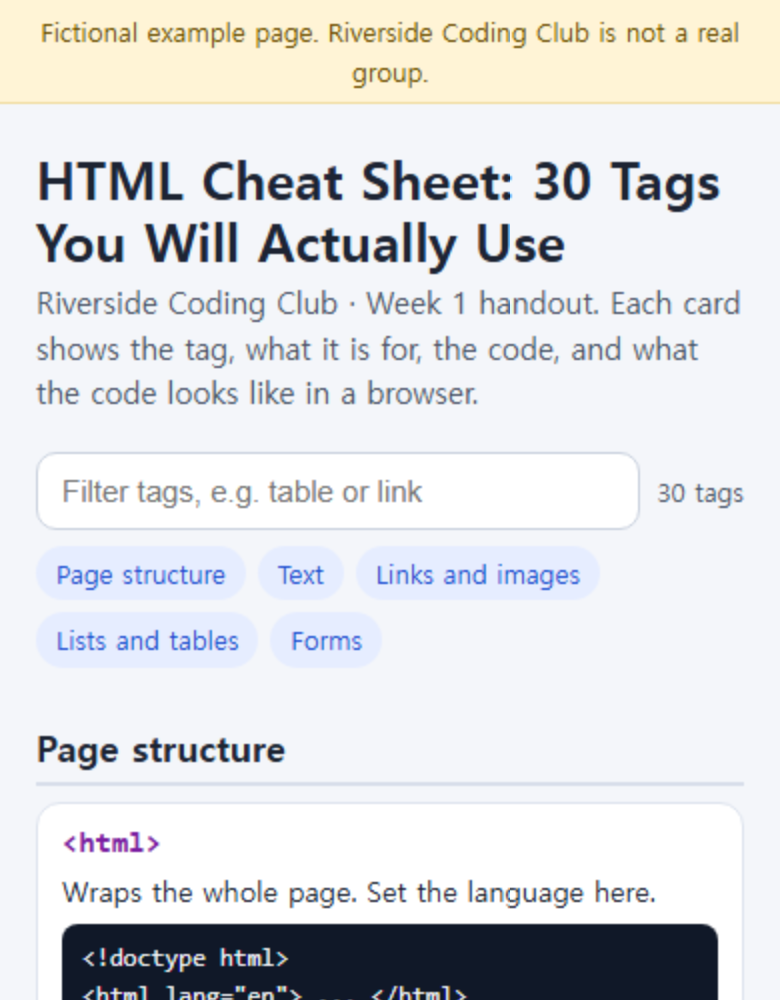
5. Open the link on a phone. The cards stack into one column on a narrow screen. A reader sees the same page you checked in View mode.
6. Try the jump links. Tapping Forms on the shared page scrolls straight to the form cards. The Result boxes are live, so the text box and checkbox work.
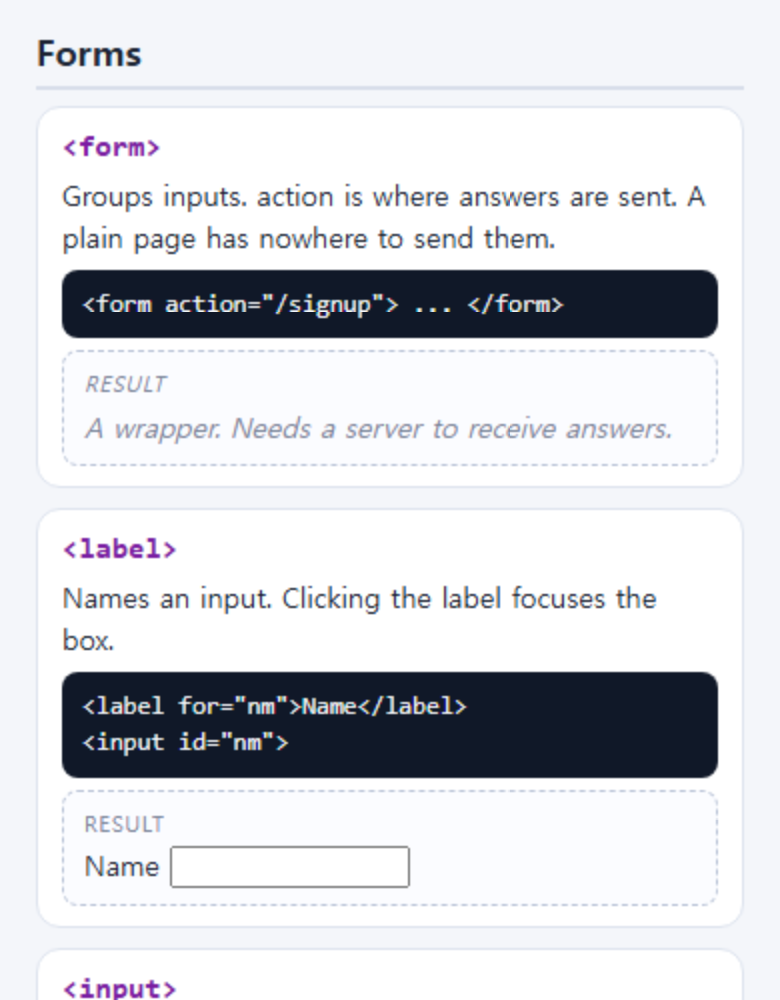
How do I find a tag fast on a long cheat sheet?
Add a filter box. Ours checks the tag name and a few plain words saved on each card, such as "link" for the a tag or "dropdown" for select. Typing "table" on the shared link left one card and hid the empty sections.
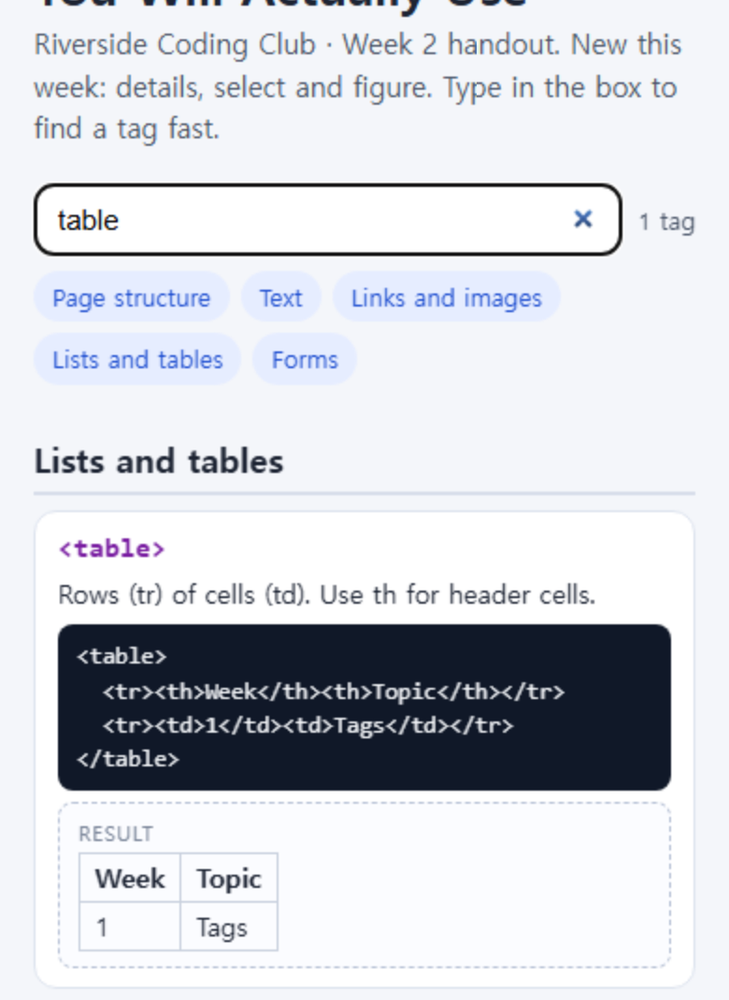
Pick those extra words with care. A beginner searching "dropdown" will not know the tag is called select. The words a reader would type matter more than the tag names.
Can I update a cheat sheet after I share it?
Yes, and the link stays the same. In NOS, click Edit, then click the text you want to change. We clicked the handout line, replaced it with the Week 2 text, and clicked Done.
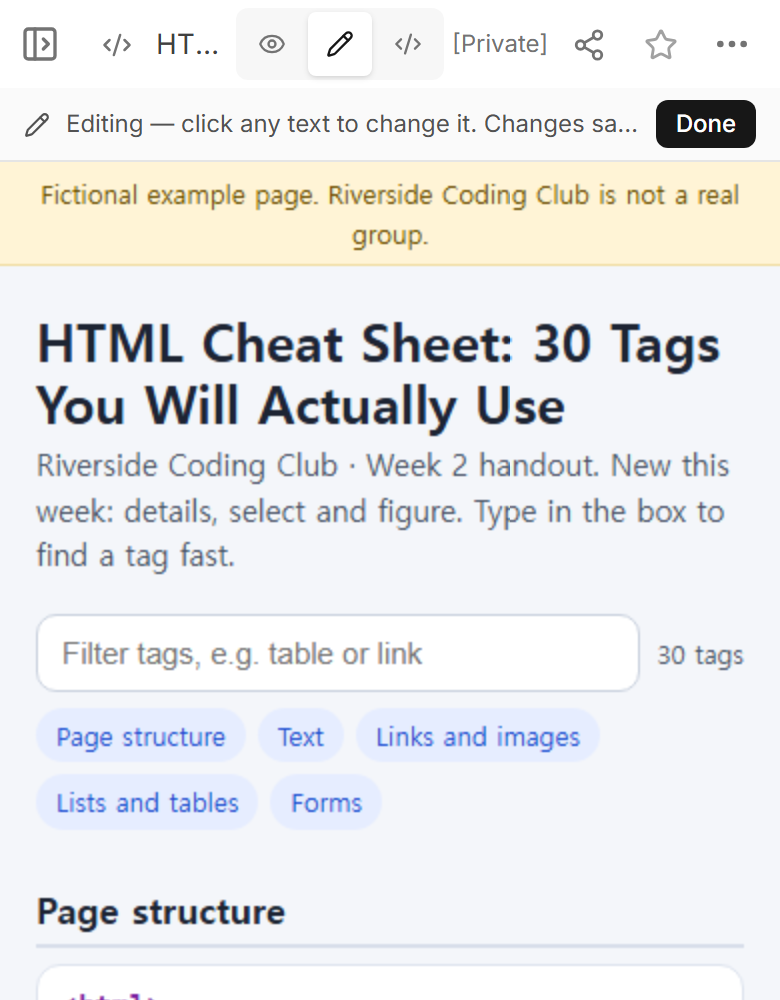
Then we opened the old link again. It showed the Week 2 line. The filter box still worked after the edit, which is how we took picture 6.
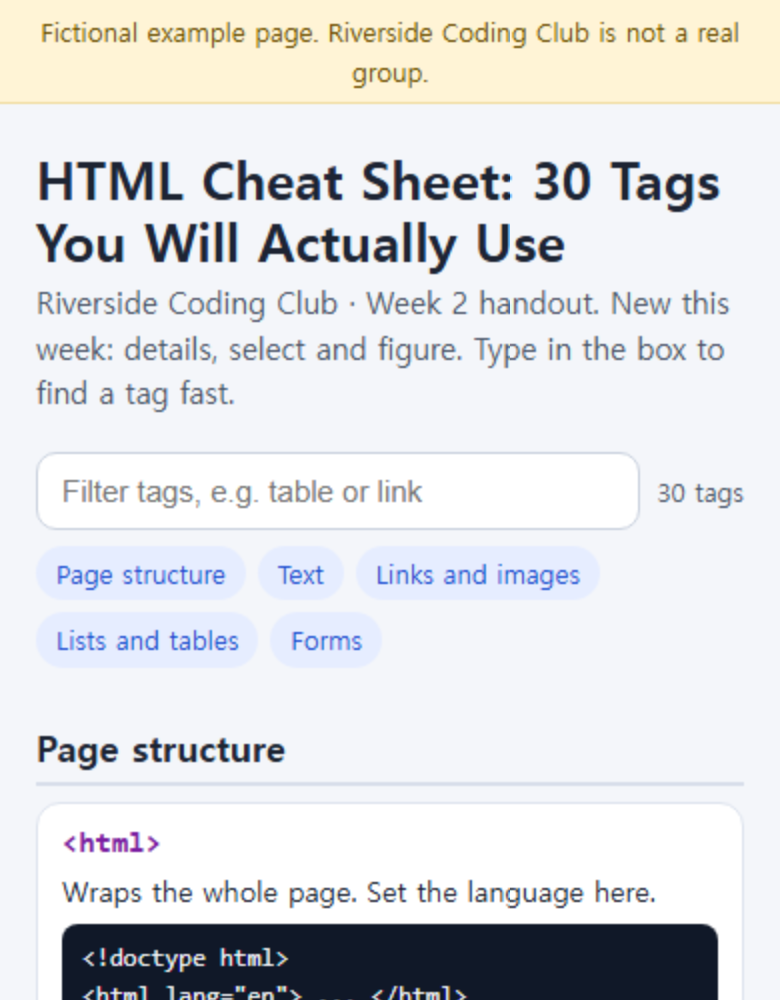
Edit mode is for words. To add a new card or change how the filter works, change the file in Code view instead.
Is there a printable HTML cheat sheet PDF?
You can make one from your own page. Our file has print rules that hide the filter box, the jump links and the Result boxes, and set the cards in three columns. To get a PDF, open the page in Chrome, choose Print, and pick Save as PDF as the destination (Chrome Help). We did not print a copy for this test. Look at Print preview before you hand it out, and check that no card splits across two pages.
When not to do this
- You need every tag and every attribute. Use MDN's reference. A one-page sheet is for the tags you type often, not for looking up rare ones.
- You want readers to save notes or ticks on the page. A shared page shows the same thing to everyone, and our filter forgets what you typed when you reload.
- The sheet is only ever printed. A doc or slide may be quicker. The link, the filter and the live Result boxes are the reasons to build it in HTML.
- Your class already uses a course site. Put the sheet there so students have one place to look.
Where NOS fits
NOS Workspace keeps an HTML page at a link that people open without an account. You paste or upload the file, share the link, and change text later in Edit mode. The Free plan allows 3 share links at once and 2 MB per document, and our cheat sheet file is about 15 KB. See current plans.
Want to start from ours? Download the 30-tag cheat sheet file and change the cards to fit your class. For sharing tips, read how to share an HTML file. For two of the cards in more depth, see code and pre and tr, td and th.