Use <code> for a bit of code inside a sentence, such as a function name. Use <pre> when spaces and line breaks must stay exactly as typed.
For a block of code, put one inside the other: <pre><code>...</code></pre>. The <pre> keeps the layout, and the <code> says the content is code.
Try it first. Type some code with extra spaces and line breaks, and watch each version render it.
<!doctype html>
<html lang="en">
<head>
<meta charset="utf-8">
<meta name="viewport" content="width=device-width, initial-scale=1">
<title>code vs pre vs pre + code</title>
<style>
body { margin: 0; padding: 14px; font-family: system-ui, sans-serif; background: #f4f5f7; color: #1d2330; }
label { font-size: 13px; font-weight: 600; }
textarea {
display: block; box-sizing: border-box; width: 100%; height: 86px; margin: 6px 0 8px;
font: 13px/1.45 ui-monospace, Consolas, monospace; tab-size: 4;
border: 1px solid #cfd4dc; border-radius: 8px; padding: 8px;
}
.opts { font-size: 13px; margin-bottom: 10px; }
.grid { display: grid; grid-template-columns: repeat(auto-fit, minmax(170px, 1fr)); gap: 10px; }
.panel { background: #fff; border: 1px solid #e1e4ea; border-radius: 10px; padding: 10px; min-width: 0; }
.panel h3 { margin: 0 0 6px; font: 700 13px ui-monospace, Consolas, monospace; color: #1d4ed8; }
.panel p.out { margin: 0; font-size: 14px; }
.panel pre { margin: 0; overflow-x: auto; font-size: 13px; line-height: 20px; }
.count { margin-top: 8px; font-size: 12px; color: #5b6270; }
code { background: #eef1f5; border-radius: 4px; padding: 1px 4px; }
pre code { background: none; padding: 0; } /* the pre box does the styling */
pre.boxed { background: #1f2430; color: #e6e9ef; padding: 10px; border-radius: 8px; }
</style>
</head>
<body>
<label for="src">Type or paste some code (spaces, tabs and line breaks count):</label>
<textarea id="src" spellcheck="false"></textarea>
<div class="opts"><label><input type="checkbox" id="dots"> Show spaces as · and line ends as ↵</label></div>
<div class="grid">
<div class="panel">
<h3><code></h3>
<p class="out">Run <code id="a"></code> now.</p>
<div class="count" id="ca"></div>
</div>
<div class="panel">
<h3><pre></h3>
<pre id="b"></pre>
<div class="count" id="cb"></div>
</div>
<div class="panel">
<h3><pre><code></h3>
<pre class="boxed"><code id="c"></code></pre>
<div class="count" id="cc"></div>
</div>
</div>
<script>
const src = document.getElementById('src');
src.value = 'if (a < b && ok) {\n total = a + b;\n}';
function render() {
const text = src.value;
const dots = document.getElementById('dots').checked;
// what an inline <code> keeps: each run of spaces, tabs and line breaks becomes one space
const inline = text.replace(/\s+/g, ' ');
const mark = (s) => s.replace(/ /g, '·').replace(/\t/g, '→').replace(/\n/g, '↵\n');
// textContent, not innerHTML: < and & show up as characters, nothing is parsed
document.getElementById('a').textContent = dots ? inline.replace(/ /g, '·') : text;
document.getElementById('b').textContent = dots ? mark(text) : text;
document.getElementById('c').textContent = dots ? mark(text) : text;
// rendered lines = content height / line height (20px, set in the CSS)
const count = (pre) => {
const n = Math.round((pre.clientHeight - parseFloat(getComputedStyle(pre).paddingTop) * 2) / 20);
return n + (n === 1 ? ' line' : ' lines');
};
const spaces = (s) => (s.match(/ /g) || []).length;
document.getElementById('ca').textContent = 'Collapsed: ' + spaces(inline) + ' spaces kept of ' + spaces(text);
document.getElementById('cb').textContent = count(document.getElementById('b')) + ', all ' + spaces(text) + ' spaces kept';
document.getElementById('cc').textContent = count(document.querySelector('pre.boxed')) + ', same spacing as <pre>';
}
src.addEventListener('input', render);
document.getElementById('dots').addEventListener('change', render);
render();
</script>
</body>
</html>
code, pre, and pre + code
The three versions differ in one thing: what happens to whitespace.
<code>is an inline element. It switches to a monospace font and changes nothing else. Runs of spaces, tabs and line breaks collapse into one space, as in any paragraph.<pre>is a block element withwhite-space: preby default. Every space and line break stays, and lines do not wrap.<pre><code>looks the same as<pre>on its own, but it tells readers, search engines and tools that the block is code. Highlighting scripts and CSS rules usually targetpre code.
<p>Call <code>render()</code> after the data loads.</p>

<pre><code>function render() {
  list.textContent = '';
}</code></pre>
| Markup | Whitespace | Wraps long lines | Use it for |
|---|---|---|---|
<code> |
Collapsed | Yes, like text | A name or short snippet in a sentence |
<pre> |
Kept | No | Any text where layout matters, such as ASCII art |
<pre><code> |
Kept | No | A block of code |
Escaping < and & inside code
<code> and <pre> do not switch off HTML parsing. A <div> written inside them is still read as a real tag, so it vanishes from the page instead of showing as text.
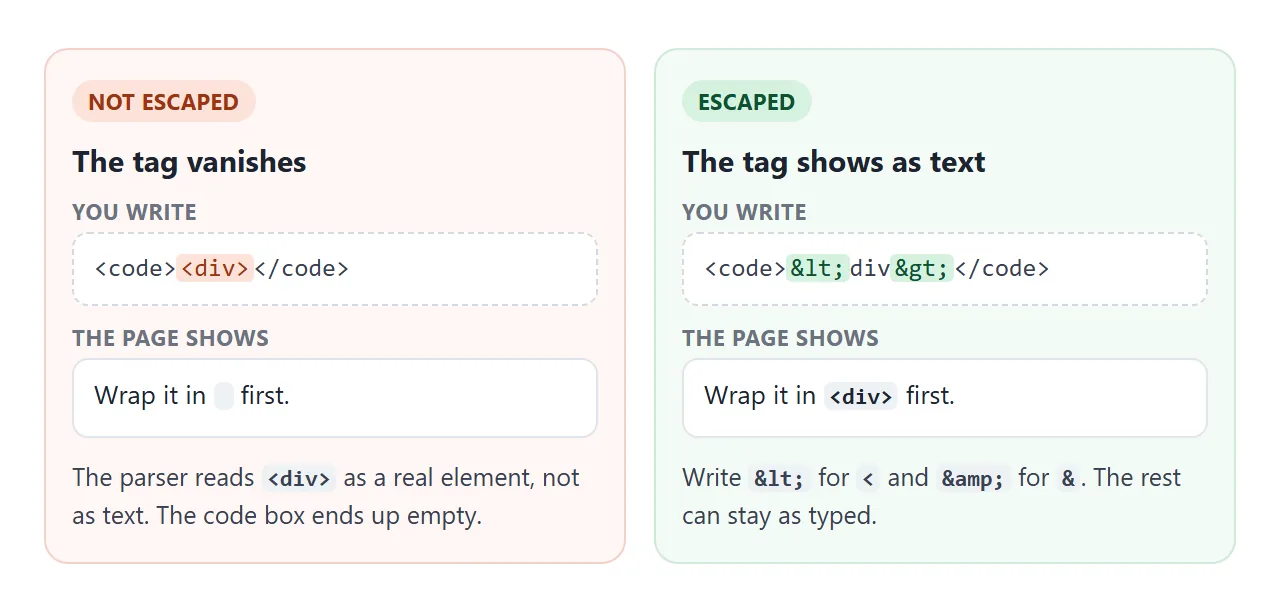
Two characters need escaping in code you paste into HTML:
<becomes<&becomes&
> can stay as typed, because a tag only starts at <. The HTML entities guide lists the rest, and has an encoder you can paste code into.
If a script puts code on the page, set textContent instead of innerHTML. textContent never parses anything, so no escaping is needed. The first example above works that way.
The first line is blank: the newline after <pre>
The HTML parser drops a single line break that comes right after the <pre> start tag. That lets you start the code on the next line. The rule covers only <pre>, not the <code> inside it.
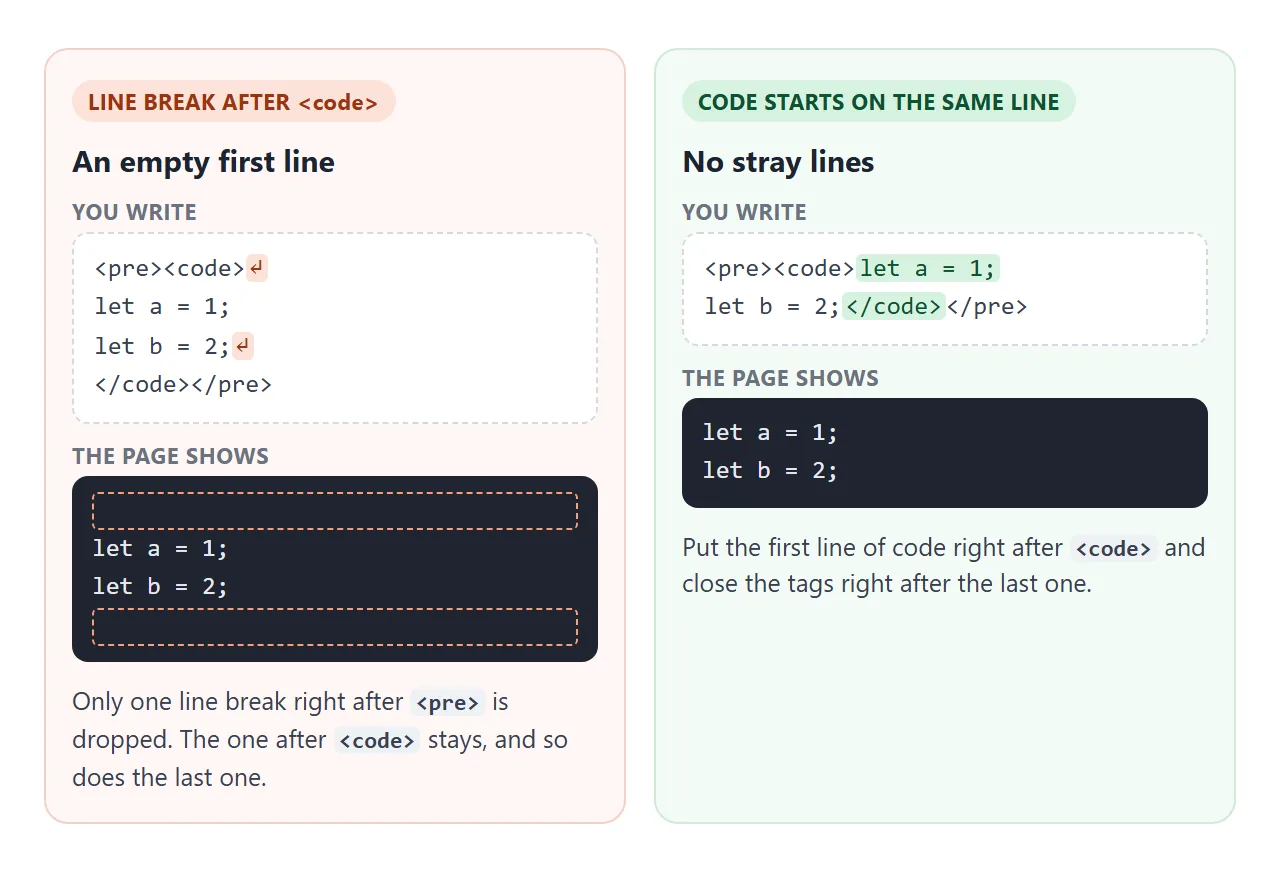
So write the first line of code directly after <code>, and close </code></pre> directly after the last line. Otherwise the block gets an empty line at the top, the bottom, or both.
kbd, samp and var
Three smaller tags sit next to <code>. Browsers show <kbd> and <samp> in a monospace font and <var> in italics.
| Tag | Meaning | Example |
|---|---|---|
<kbd> |
Something the user types or presses | Press <kbd>Ctrl</kbd>+<kbd>C</kbd> |
<samp> |
Output a program printed | <samp>File not found</samp> |
<var> |
A variable in maths or code | The width is <var>w</var> |
Long lines: scroll or wrap
A <pre> never wraps, so one long line makes the block wider than its box. On a phone, that can make the whole page scroll sideways. Switch between the options below and read the result under the code.
<!doctype html>
<html lang="en">
<head>
<meta charset="utf-8">
<meta name="viewport" content="width=device-width, initial-scale=1">
<title>Long lines in a pre block</title>
<style>
body { margin: 0; padding: 14px; font-family: system-ui, sans-serif; background: #f4f5f7; color: #1d2330; }
fieldset { border: 1px solid #d5d9e0; border-radius: 10px; padding: 8px 12px 10px; margin: 0 0 10px; background: #fff; }
legend { font-size: 13px; font-weight: 700; padding: 0 4px; }
fieldset label { display: inline-block; margin: 4px 14px 0 0; font-size: 13px; }
.box { max-width: 520px; }
pre {
margin: 0; padding: 12px 14px; border-radius: 10px;
background: #1f2430; color: #e6e9ef;
font: 13px/1.5 ui-monospace, Consolas, monospace;
}
/* the three ways to handle a line that is wider than the box */
pre.scroll { overflow-x: auto; } /* box scrolls, page does not */
pre.wrap { white-space: pre-wrap; overflow-wrap: anywhere; } /* long lines wrap */
/* pre.none: nothing set, the line spills out of the box */
#report { margin-top: 10px; font-size: 13px; padding: 8px 10px; border-radius: 8px; }
.ok { background: #d6f2df; color: #0f5132; }
.bad { background: #fde2da; color: #9a3412; }
</style>
</head>
<body>
<fieldset>
<legend>Long lines</legend>
<label><input type="radio" name="mode" value="scroll" checked> overflow-x: auto</label>
<label><input type="radio" name="mode" value="wrap"> white-space: pre-wrap</label>
<label><input type="radio" name="mode" value="none"> nothing</label>
</fieldset>
<fieldset>
<legend>tab-size (the code is indented with tabs)</legend>
<label><input type="radio" name="tab" value="8" checked> 8 (default)</label>
<label><input type="radio" name="tab" value="4"> 4</label>
<label><input type="radio" name="tab" value="2"> 2</label>
</fieldset>
<div class="box">
<pre id="code" class="scroll"><code>function load() {
const url = "https://example.com/api/v2/reports/quarterly?region=emea&format=json&include=totals&currency=eur&page=1&sort=desc";
if (!url) {
return null;
}
return url;
}</code></pre>
</div>
<div id="report"></div>
<script>
const pre = document.getElementById('code');
const report = document.getElementById('report');
function update() {
pre.className = document.querySelector('[name=mode]:checked').value;
pre.style.tabSize = document.querySelector('[name=tab]:checked').value;
// did the code push the page wider than the screen?
const pageWider = document.documentElement.scrollWidth > document.documentElement.clientWidth;
const boxScrolls = pre.scrollWidth > pre.clientWidth && getComputedStyle(pre).overflowX === 'auto';
report.className = pageWider ? 'bad' : 'ok';
report.textContent = pageWider
? 'The whole page now scrolls sideways. On a phone this drags the layout with it.'
: boxScrolls
? 'Only the code box scrolls sideways. The page stays put.'
: 'Every line fits. Long lines wrap inside the box.';
}
document.querySelectorAll('input').forEach((i) => i.addEventListener('change', update));
update();
</script>
</body>
</html>
overflow-x: autokeeps each line intact and gives the box its own scrollbar. The page stays put. This suits code people will copy, because the line structure stays visible.white-space: pre-wrapkeeps spaces and line breaks but wraps long lines. Addoverflow-wrap: anywhereas well, or an unbroken string such as a URL still sticks out.
pre { overflow-x: auto; }

/* or, to wrap instead */
pre { white-space: pre-wrap; overflow-wrap: anywhere; }
The same sideways-scroll problem shows up with wide tables. Making a table scroll uses the same wrapper idea.
tab-size
A tab character in <pre> is 8 spaces wide by default. Code indented with tabs then drifts far to the right. tab-size changes it:
pre { tab-size: 2; }
It changes only how wide a tab is drawn. The text still contains a tab, and a copy still pastes a tab.
A finished code block: file name, line numbers, copy button
This block adds four things to <pre><code>, with no external library.
<!doctype html>
<html lang="en">
<head>
<meta charset="utf-8">
<meta name="viewport" content="width=device-width, initial-scale=1">
<title>Code block with line numbers and a copy button</title>
<style>
body { margin: 0; padding: 14px; font-family: system-ui, sans-serif; background: #f4f5f7; }
.code-block { margin: 0 0 12px; border-radius: 10px; overflow: hidden; background: #1f2430; }
.code-block .bar {
display: flex; align-items: center; justify-content: space-between;
padding: 6px 8px 6px 14px; background: #2a3040; color: #aeb6c4;
font: 12px ui-monospace, Consolas, monospace;
}
.code-block button {
font: 600 12px system-ui, sans-serif; color: #e6e9ef; background: #3a4256;
border: 0; border-radius: 6px; padding: 6px 10px; cursor: pointer;
}
.code-block button:hover { background: #4a5470; }
.code-block pre {
margin: 0; padding: 12px 0; overflow-x: auto; /* long lines scroll inside the box */
color: #e6e9ef; font: 13px/1.6 ui-monospace, Consolas, monospace; tab-size: 2;
counter-reset: ln; /* line numbers start at 1 */
}
.code-block .line { display: block; padding-right: 14px; }
.code-block .line::before {
counter-increment: ln; content: counter(ln); /* the number is CSS, not text */
display: inline-block; width: 2.2em; margin-right: 14px; padding-right: 8px;
text-align: right; color: #6b7386; border-right: 1px solid #3a4256;
user-select: none;
}
.code-block .comment { color: #7fbf8e; font-style: italic; }
.code-block .status { font: 12px system-ui, sans-serif; color: #f0c674; padding: 0 14px 10px; }
.code-block .status:empty { display: none; }
</style>
</head>
<body>
<figure class="code-block">
<div class="bar"><span>greet.js</span><button type="button">Copy</button></div>
<pre><code>// Say hello to everyone on the list
const names = ["Ada", "Grace", "Linus"];
for (const name of names) {
if (name.length < 5 && name !== "") {
console.log("Hi, " + name); // short names
}
}</code></pre>
<div class="status" role="status"></div>
</figure>
<figure class="code-block">
<div class="bar"><span>page.html</span><button type="button">Copy</button></div>
<pre><code><!-- escape < and & inside code -->
<p>Use <code>&lt;div&gt;</code> here.</p></code></pre>
<div class="status" role="status"></div>
</figure>
<script>
// matches // comments (after a space or at line start) and <!-- --> comments
const COMMENT = /(^|\s)(\/\/.*|<!--.*?-->)/;
document.querySelectorAll('.code-block').forEach((block) => {
const code = block.querySelector('code');
const source = code.textContent; // keep the plain text for copying
// rebuild the code as one span per line, using textContent only (no innerHTML)
code.textContent = '';
source.split('\n').forEach((text) => {
const line = document.createElement('span');
line.className = 'line';
const m = text.match(COMMENT);
if (m) {
const at = m.index + m[1].length;
line.append(text.slice(0, at));
const c = document.createElement('span');
c.className = 'comment';
c.textContent = text.slice(at, at + m[2].length);
line.append(c, text.slice(at + m[2].length));
} else {
line.textContent = text || ' '; // keep empty lines one line tall
}
code.append(line);
});
const button = block.querySelector('button');
const status = block.querySelector('.status');
button.addEventListener('click', async () => {
try {
await navigator.clipboard.writeText(source); // copies the code, never the numbers
button.textContent = 'Copied';
status.textContent = '';
} catch {
// clipboard blocked here: select the code so Ctrl+C / Cmd+C works
getSelection().selectAllChildren(code);
button.textContent = 'Copy';
status.textContent = 'Copying is blocked on this page. The code is selected: press Ctrl+C (Cmd+C on a Mac).';
}
setTimeout(() => { button.textContent = 'Copy'; }, 1500);
});
});
</script>
</body>
</html>
- A header with the file name and a Copy button, in a
<figure>around the<pre>. - Line numbers: the script splits the code into one
<span class="line">per line. A CSS counter numbers them in::before, so the numbers are not part of the text. - Comment colour: a short regular expression finds
//and<!-- -->comments on each line. The script builds the spans withtextContent, neverinnerHTML, so nothing in the code can run as HTML. - Copy: the script keeps the original text and passes it to
navigator.clipboard.writeText(). If the page is not allowed to write to the clipboard, it selects the code and asks the reader to press Ctrl+C.
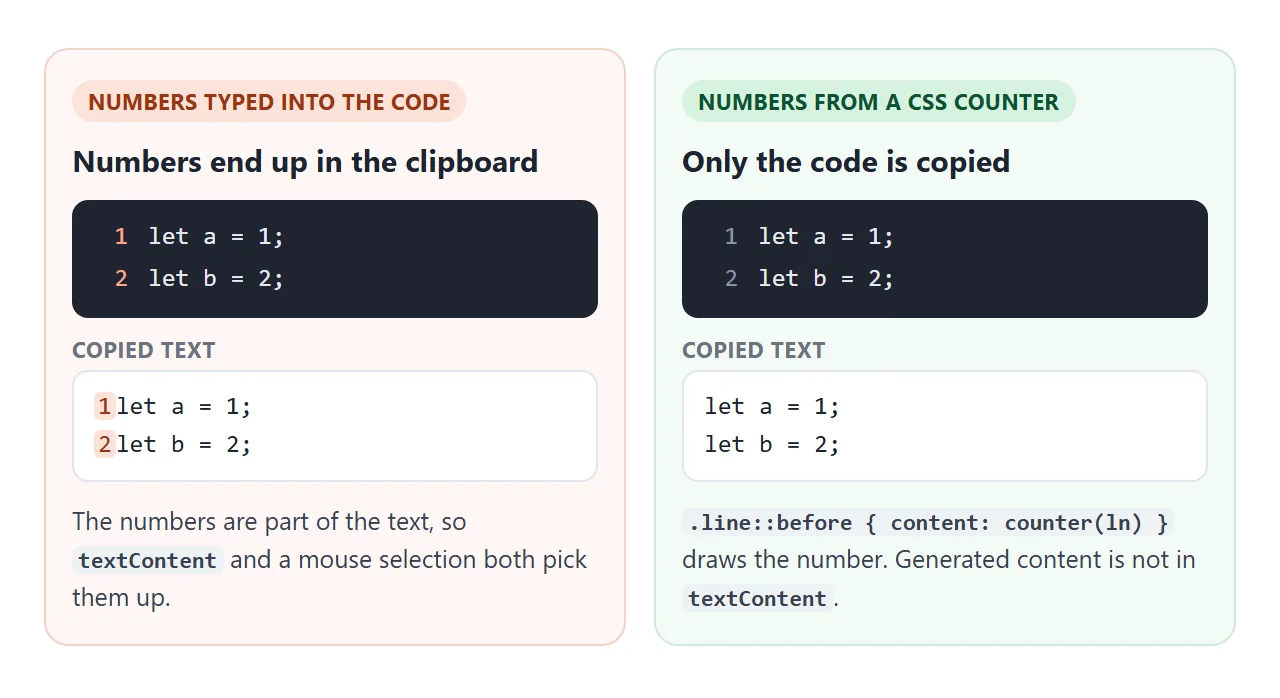
pre { counter-reset: ln; }
.line { display: block; }
.line::before {
  counter-increment: ln;
  content: counter(ln);
  user-select: none;
}
The HTML copy button guide covers the clipboard rules in more depth. Full syntax highlighting for many languages is a bigger job, and libraries exist for it. They work on the same <pre><code> markup, so you can add one later without changing the HTML.
For the font itself, coding fonts compares monospace options you can use in pre.
When it does not work
| What you see | Cause | Fix |
|---|---|---|
| Part of the code disappears | An unescaped < was read as a tag |
Write < and &, or set textContent from a script |
| Indentation and line breaks are gone | The code is in <code> or <p>, not <pre> |
Wrap it in <pre><code> |
| The page scrolls sideways on a phone | A long line in <pre> is wider than the screen |
overflow-x: auto or white-space: pre-wrap on the pre |
| An empty line at the top of the block | A line break right after <code> |
Start the code on the same line as <pre><code> |
| Tab-indented code is far to the right | Tabs are 8 spaces wide by default | tab-size: 2 or 4 |
| Copy also copies the line numbers | The numbers are typed into the text | Draw them with a CSS counter in ::before |
| Copy does nothing | The page may not write to the clipboard | Select the code and ask for Ctrl+C, as in the example |
Share it as a link
A code block is meant to be copied, and a screenshot of code cannot be. An .html file sent as an attachment may open as raw source on the other side.
If an AI chat gave you the page, ChatGPT HTML code preview explains why the chat's preview can differ from the real page.
To send the working version, paste the page into a NOS document and choose Create share link. HTML to link walks through it.
The page renders as written and its scripts run, so the people you send it to can scroll the code and press Copy themselves. If you change the code later, the same link shows the new version.