"Prism" here means Prism.js, the syntax highlighter that runs in the browser. It does not change your JSON. It wraps each key, string and number in a span, and a theme stylesheet gives those spans colours. The whole thing fits in one HTML file.
Try the smallest working page first. It is one stylesheet, two scripts and a block of JSON.
<!doctype html>
<html lang="en">
<head>
<meta charset="utf-8">
<meta name="viewport" content="width=device-width, initial-scale=1">
<title>Highlight JSON with Prism.js</title>
<!-- 1. the theme: colours for each token type -->
<link rel="stylesheet" href="https://cdn.jsdelivr.net/npm/prismjs@1.30.0/themes/prism.min.css">
<style>
  body { margin: 0; padding: 14px; font-family: system-ui, sans-serif; background: #fff; }
  h1 { font-size: 16px; margin: 0 0 8px; }
  pre { margin: 0; overflow: auto; }
</style>
</head>
<body>
<h1>order.json</h1>

<!-- 4. the code: language-json on the code element tells Prism what grammar to use -->
<pre><code class="language-json">{
  "id": 1042,
  "customer": "Mina Park",
  "paid": true,
  "items": [
    { "sku": "A-17", "qty": 2, "price": 9.5 },
    { "sku": "B-02", "qty": 1, "price": 24 }
  ],
  "note": null
}</code></pre>

<!-- 2. the core script: ships with markup, CSS, C-like and JavaScript only -->
<script src="https://cdn.jsdelivr.net/npm/prismjs@1.30.0/prism.min.js"></script>
<!-- 3. JSON is a separate language file, so load it too -->
<script src="https://cdn.jsdelivr.net/npm/prismjs@1.30.0/components/prism-json.min.js"></script>
</body>
</html>
The example pins version 1.30.0, the version jsDelivr listed as the latest release when this article was written. A pinned version means the page does not change colours or break when a new release appears.
What the three files do
Prism is split into small files so a page loads only what it needs.
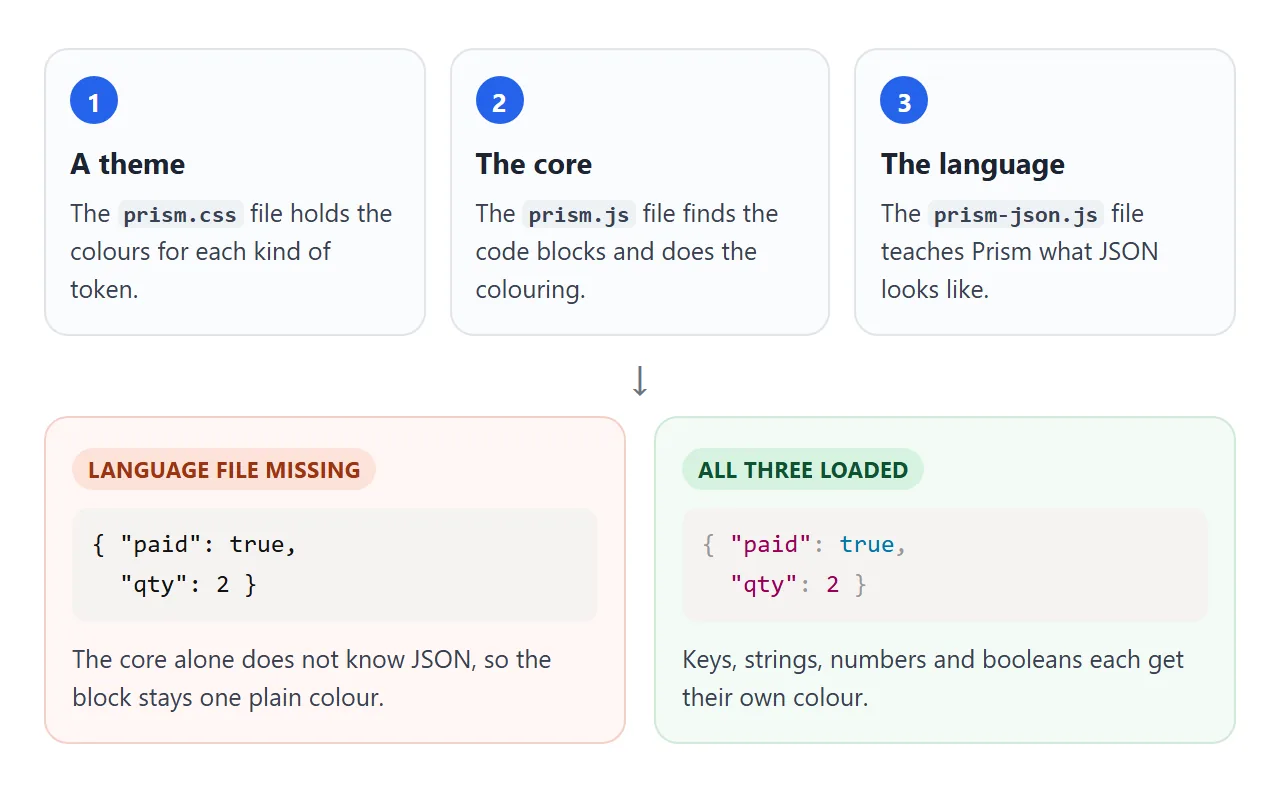
The block itself is ordinary HTML:
<pre><code class="language-json">{ "paid": true }</code></pre>
Prism looks for elements with a language-xxxx class and colours the text inside them. A pre around a code is the markup Prism's own instructions recommend, and it keeps your line breaks and indentation.
Why JSON needs its own file
The core script knows four languages: markup, CSS, C-like and JavaScript. JSON is a separate component. If you only load the core, the language-json block stays plain.
<link rel="stylesheet" href="https://cdn.jsdelivr.net/npm/prismjs@1.30.0/themes/prism.min.css">
<script src="https://cdn.jsdelivr.net/npm/prismjs@1.30.0/prism.min.js"></script>
<script src="https://cdn.jsdelivr.net/npm/prismjs@1.30.0/components/prism-json.min.js"></script>
Load the core first and the language file after it, because the language file adds its rules to the object the core creates.
What the colours mean
Prism sorts JSON into a few kinds of token. Each token becomes a span with a token class plus a name such as property or string.
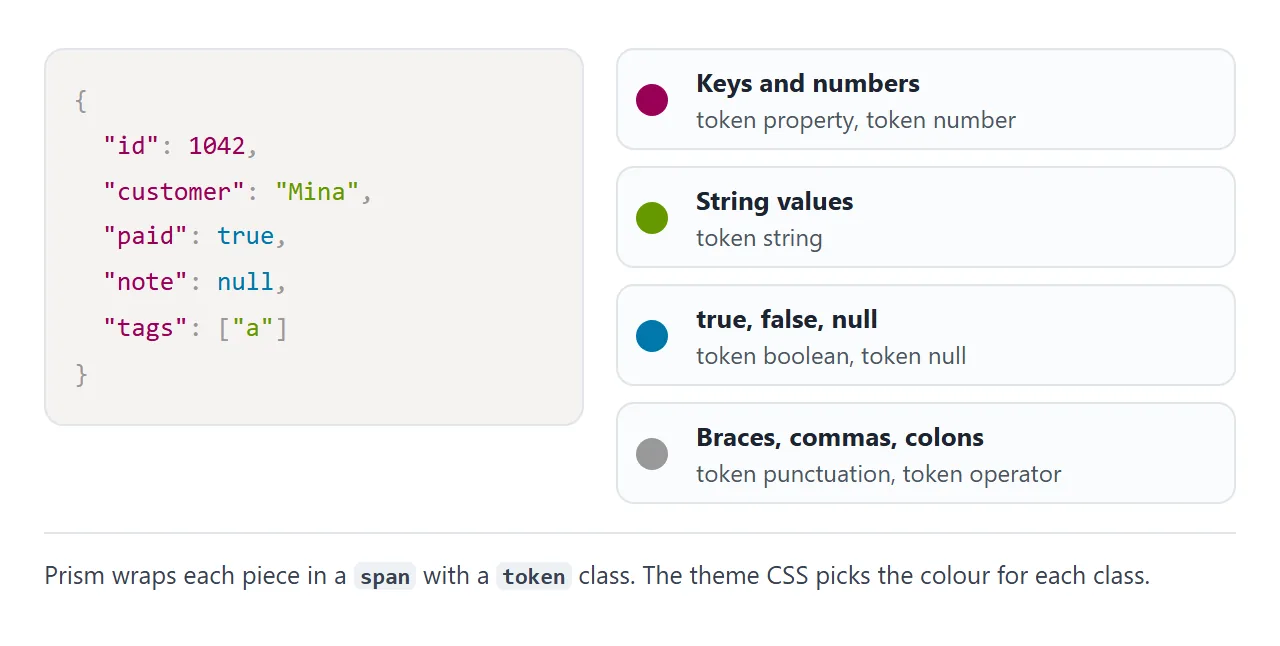
You can restyle a token yourself. A rule for .token.string in your own style tag, placed after the theme link, changes the colour of string values only.
Highlight JSON that JavaScript produces
Most real pages do not type the JSON by hand. They build an object, turn it into text and show it. Here you paste any JSON and the page formats it with two-space indentation.
<!doctype html>
<html lang="en">
<head>
<meta charset="utf-8">
<meta name="viewport" content="width=device-width, initial-scale=1">
<title>Highlight JSON that JavaScript produces</title>
<link rel="stylesheet" href="https://cdn.jsdelivr.net/npm/prismjs@1.30.0/themes/prism.min.css">
<style>
  body { margin: 0; padding: 14px; font-family: system-ui, sans-serif; background: #fff; color: #1d2330; }
  label { font-weight: 600; font-size: 14px; }
  textarea {
    display: block; width: 100%; box-sizing: border-box; height: 96px; margin: 6px 0 8px;
    font: 13px ui-monospace, Consolas, monospace; padding: 8px; border: 1px solid #c9ced8; border-radius: 8px;
  }
  button { font: inherit; padding: 7px 14px; border: 0; border-radius: 8px; background: #2563eb; color: #fff; cursor: pointer; }
  #msg { margin: 8px 0; font-size: 13px; min-height: 18px; }
  #msg.err { color: #b42318; }
  #msg.ok { color: #0f5132; }
  pre { margin: 0; overflow: auto; max-height: 250px; }
</style>
</head>
<body>
<label for="src">Paste JSON (any spacing)</label>
<textarea id="src">{"user":{"name":"Mina","tags":["a","b"],"active":true,"score":4.5,"manager":null}}</textarea>
<button id="go" type="button">Format and highlight</button>
<div id="msg"></div>

<pre><code id="out" class="language-json"></code></pre>

<script src="https://cdn.jsdelivr.net/npm/prismjs@1.30.0/prism.min.js"></script>
<script src="https://cdn.jsdelivr.net/npm/prismjs@1.30.0/components/prism-json.min.js"></script>
<script>
  const src = document.getElementById('src');
  const out = document.getElementById('out');
  const msg = document.getElementById('msg');

  function render() {
    let text;
    try {
      // Prism does not check validity, so parse first
      text = JSON.stringify(JSON.parse(src.value), null, 2);
      msg.className = 'ok';
      msg.textContent = 'Valid JSON.';
    } catch (err) {
      text = src.value;
      msg.className = 'err';
      msg.textContent = 'Not valid JSON: ' + err.message;
    }
    out.textContent = text;          // textContent: the text is never read as HTML
    Prism.highlightElement(out);     // the automatic pass already ran, so call it yourself
  }

  document.getElementById('go').addEventListener('click', render);
  render();
</script>
</body>
</html>
The important lines are these:
text = JSON.stringify(JSON.parse(src.value), null, 2);
out.textContent = text;
Prism.highlightElement(out);
JSON.parsethenJSON.stringifyreads the text and writes it back with indentation. The third argument, 2, is the spaces per level. JSON.parse in JavaScript covers the errors.textContentputs the text in as text. The browser does not read it as HTML.Prism.highlightElementcolours that one element. The automatic pass runs once after the page loads, so text added later stays plain until you call it.
Keep tags inside strings as text
JSON values often hold HTML, such as a note with a bold tag. If you set the block with innerHTML, the browser turns those tags into real elements and they disappear from the text.
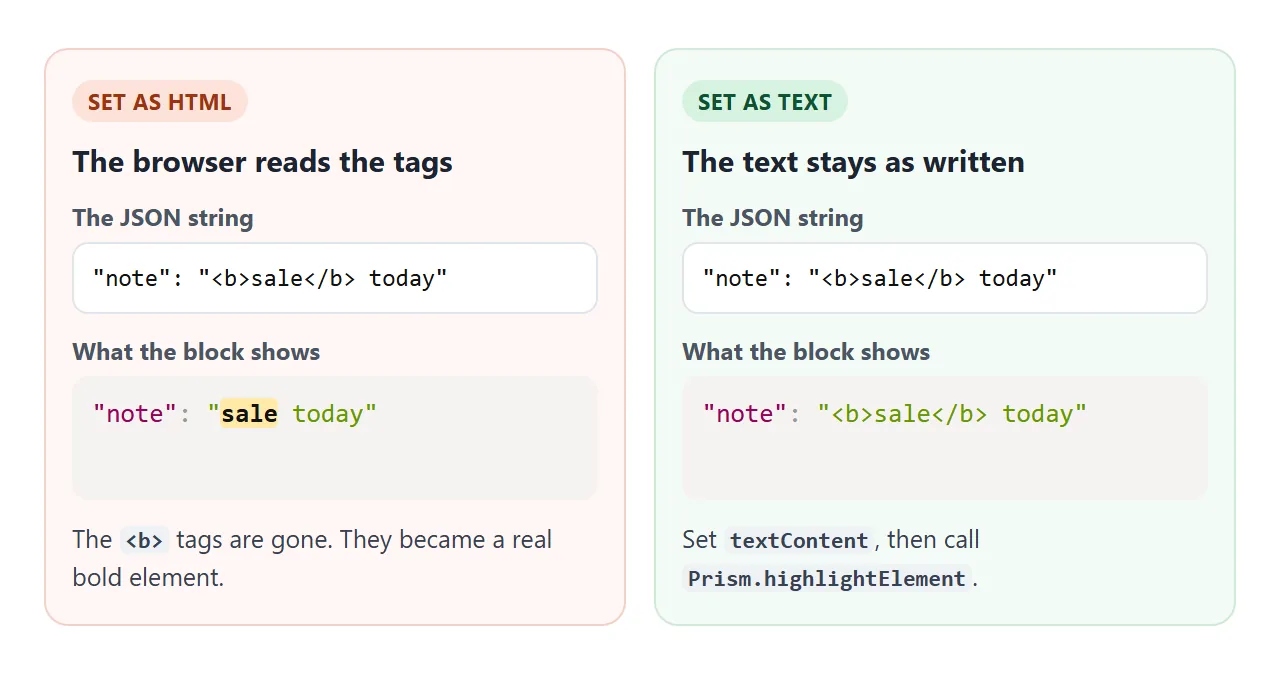
The same rule applies when you type JSON straight into the page. Prism's instructions say to escape < as < and & as & inside a code element. Setting textContent avoids the problem, and textContent in JavaScript explains why.
A finished example: a small JSON viewer
This version adds line numbers, three sample objects and a theme switch. The line numbers come from an official Prism plugin, which needs its own script, its own CSS and a line-numbers class on the pre element.
<!doctype html>
<html lang="en">
<head>
<meta charset="utf-8">
<meta name="viewport" content="width=device-width, initial-scale=1">
<title>JSON viewer with Prism.js</title>
<link id="theme" rel="stylesheet" href="https://cdn.jsdelivr.net/npm/prismjs@1.30.0/themes/prism.min.css">
<link rel="stylesheet" href="https://cdn.jsdelivr.net/npm/prismjs@1.30.0/plugins/line-numbers/prism-line-numbers.min.css">
<style>
  body { margin: 0; padding: 14px; font-family: system-ui, sans-serif; background: #fff; color: #1d2330; }
  .bar { display: flex; flex-wrap: wrap; gap: 8px; margin-bottom: 10px; }
  button {
    font: inherit; font-size: 14px; padding: 7px 12px; border-radius: 8px;
    border: 1px solid #c9ced8; background: #f4f5f7; color: #1d2330; cursor: pointer;
  }
  button[aria-pressed="true"] { background: #2563eb; border-color: #2563eb; color: #fff; }
  pre[class*="language-"] { margin: 0; max-height: 330px; overflow: auto; border-radius: 8px; }
  #meta { font-size: 13px; color: #4b5563; margin: 10px 0 0; }
</style>
</head>
<body>
<div class="bar" role="group" aria-label="Sample">
  <button type="button" data-sample="user" aria-pressed="true">User</button>
  <button type="button" data-sample="config" aria-pressed="false">Config</button>
  <button type="button" data-sample="list" aria-pressed="false">List</button>
  <button type="button" id="dark" aria-pressed="false">Dark theme</button>
</div>

<pre class="line-numbers"><code id="out" class="language-json"></code></pre>
<p id="meta"></p>

<script src="https://cdn.jsdelivr.net/npm/prismjs@1.30.0/prism.min.js"></script>
<script src="https://cdn.jsdelivr.net/npm/prismjs@1.30.0/components/prism-json.min.js"></script>
<script src="https://cdn.jsdelivr.net/npm/prismjs@1.30.0/plugins/line-numbers/prism-line-numbers.min.js"></script>
<script>
  const samples = {
    user: { id: 7, name: 'Mina Park', admin: false, roles: ['editor', 'reviewer'], address: null },
    config: { theme: 'light', retries: 3, timeout: 2.5, features: { search: true, beta: false } },
    list: [ { sku: 'A-17', qty: 2 }, { sku: 'B-02', qty: 1 }, { sku: 'C-90', qty: 12 } ]
  };
  const out = document.getElementById('out');
  const meta = document.getElementById('meta');

  function show(name) {
    const text = JSON.stringify(samples[name], null, 2);
    out.textContent = text;
    Prism.highlightElement(out);   // re-colours and redraws the line numbers
    meta.textContent = text.split('\n').length + ' lines, ' + text.length + ' characters';
    document.querySelectorAll('[data-sample]').forEach((b) =>
      b.setAttribute('aria-pressed', String(b.dataset.sample === name)));
  }

  document.querySelectorAll('[data-sample]').forEach((b) =>
    b.addEventListener('click', () => show(b.dataset.sample)));

  // swap the stylesheet to change the theme
  const base = 'https://cdn.jsdelivr.net/npm/prismjs@1.30.0/themes/';
  const dark = document.getElementById('dark');
  dark.addEventListener('click', () => {
    const on = dark.getAttribute('aria-pressed') !== 'true';
    document.getElementById('theme').href = base + (on ? 'prism-okaidia.min.css' : 'prism.min.css');
    dark.setAttribute('aria-pressed', String(on));
  });

  show('user');
</script>
</body>
</html>
- Line numbers: one plugin script, one plugin stylesheet, and
class="line-numbers"on thepre. - New text: after each change the page calls
Prism.highlightElement, which also redraws the numbers. - Theme switch: change the
hrefof the theme link. Nothing else in the page changes.
When it does not work
| What you see | Cause | Fix |
|---|---|---|
| JSON is one plain colour | The JSON language file is not loaded | Add prism-json after prism.js |
| No colours at all | The code element has no language class | Add language-json to the code element |
| Text set by script stays plain | The automatic pass already ran | Call Prism.highlightElement(el) |
| Tags inside a string vanish | The block was set with innerHTML, or < was not escaped |
Use textContent, or write < |
| Broken JSON still looks fine | Prism colours text and does not validate it | Check with JSON.parse in try and catch |
| Line numbers do not show | Plugin script or CSS is missing, or no line-numbers class |
Add all three |
Share it as a link
A highlighted block is easier to judge on a real screen than in a screenshot, and a colour theme is hard to describe in words. An .html attachment may also open as plain code on a phone.
To send the working version, paste the page into a NOS document and choose Create share link. HTML to link walks through it.
The page renders as written and its scripts run. Scripts and styles from cdn.jsdelivr.net load, so the colours appear for the people you send it to, and they can open the link without an account.
If you change the code later, the same link shows the new version. For more on raw versus rendered, see sharing HTML code as a link.