JSON.parse(text) takes a string of JSON and returns the JavaScript value it describes, usually an object or an array. JSON.stringify(value) does the reverse and returns a string. If the text breaks a JSON rule, JSON.parse throws a SyntaxError, so wrap it in try/catch.
const text = '{"name": "Ann", "age": 31}';
const user = JSON.parse(text);   // an object
user.name;                         // "Ann"
JSON.stringify(user);              // '{"name":"Ann","age":31}'
Try it with your own text. Paste any JSON below. Valid input comes back indented; broken input shows the error message and marks the character where parsing stopped.
<!doctype html>
<html lang="en">
<head>
<meta charset="utf-8">
<meta name="viewport" content="width=device-width, initial-scale=1">
<title>JSON validator</title>
<style>
  body { margin: 0; padding: 14px; font-family: system-ui, sans-serif; background: #f4f5f7; color: #1d2330; }
  textarea, pre {
    box-sizing: border-box; width: 100%; margin: 0;
    font: 13px/1.45 ui-monospace, Consolas, monospace;
    border: 1px solid #d5d9e0; border-radius: 8px; padding: 10px; background: #fff;
  }
  textarea { height: 140px; resize: vertical; }
  pre { min-height: 150px; max-height: 220px; overflow: auto; white-space: pre-wrap; word-break: break-word; }
  .bar { display: flex; gap: 8px; align-items: center; flex-wrap: wrap; margin: 10px 0; }
  button { font: inherit; padding: 7px 14px; border: 0; border-radius: 8px; background: #1d4ed8; color: #fff; cursor: pointer; }
  select { font: inherit; padding: 6px; border-radius: 8px; border: 1px solid #d5d9e0; }
  #status { font-weight: 600; }
  .ok { color: #0f5132; } .bad { color: #9a3412; }
  mark { background: #fde2da; color: #9a3412; outline: 2px solid #f97316; }
</style>
</head>
<body>
<textarea id="input" spellcheck="false">{"name": "Desk lamp", "price": 39.5, "tags": ["light", "office"], "inStock": true,}</textarea>
<div class="bar">
  <button id="check">Parse</button>
  <label>Indent <select id="indent">
    <option value="2">2 spaces</option><option value="4">4 spaces</option><option value="tab">Tab</option>
  </select></label>
  <span id="status"></span>
</div>
<pre id="output"></pre>

<script>
  const input = document.getElementById('input');
  const output = document.getElementById('output');
  const status = document.getElementById('status');
  const indent = document.getElementById('indent');

  // Chrome says "at position 7", Firefox says "line 1 column 8". Turn either into an index.
  function errorIndex(message, text) {
    const pos = message.match(/position (\d+)/);
    if (pos) return Number(pos[1]);
    const lc = message.match(/line (\d+) column (\d+)/);
    if (!lc) return -1;
    const before = text.split('\n').slice(0, lc[1] - 1);
    return before.reduce((n, line) => n + line.length + 1, 0) + Number(lc[2]) - 1;
  }

  function check() {
    const text = input.value;
    output.textContent = '';
    try {
      const data = JSON.parse(text);
      const space = indent.value === 'tab' ? '\t' : Number(indent.value);
      output.textContent = JSON.stringify(data, null, space);
      status.className = 'ok';
      status.textContent = 'Valid JSON (' + (Array.isArray(data) ? 'array' : typeof data) + ')';
    } catch (err) {
      status.className = 'bad';
      status.textContent = err.name + ': ' + err.message;
      const i = errorIndex(err.message, text);
      if (i < 0) { output.textContent = 'This message gives no position.'; return; }
      // Show the text around the error, with the bad character marked
      const mark = document.createElement('mark');
      mark.textContent = text[i] || ' ';
      output.append('Position ' + i + ':\n', text.slice(Math.max(0, i - 40), i), mark, text.slice(i + 1, i + 40));
    }
  }

  document.getElementById('check').addEventListener('click', check);
  indent.addEventListener('change', check);
  check();
</script>
</body>
</html>
Text in, object out
JSON is a text format. Whatever hands it to you, a file, a network response, a form field, a block in the page, hands you a string. You cannot read data.name from a string. JSON.parse turns it into a value you can use.
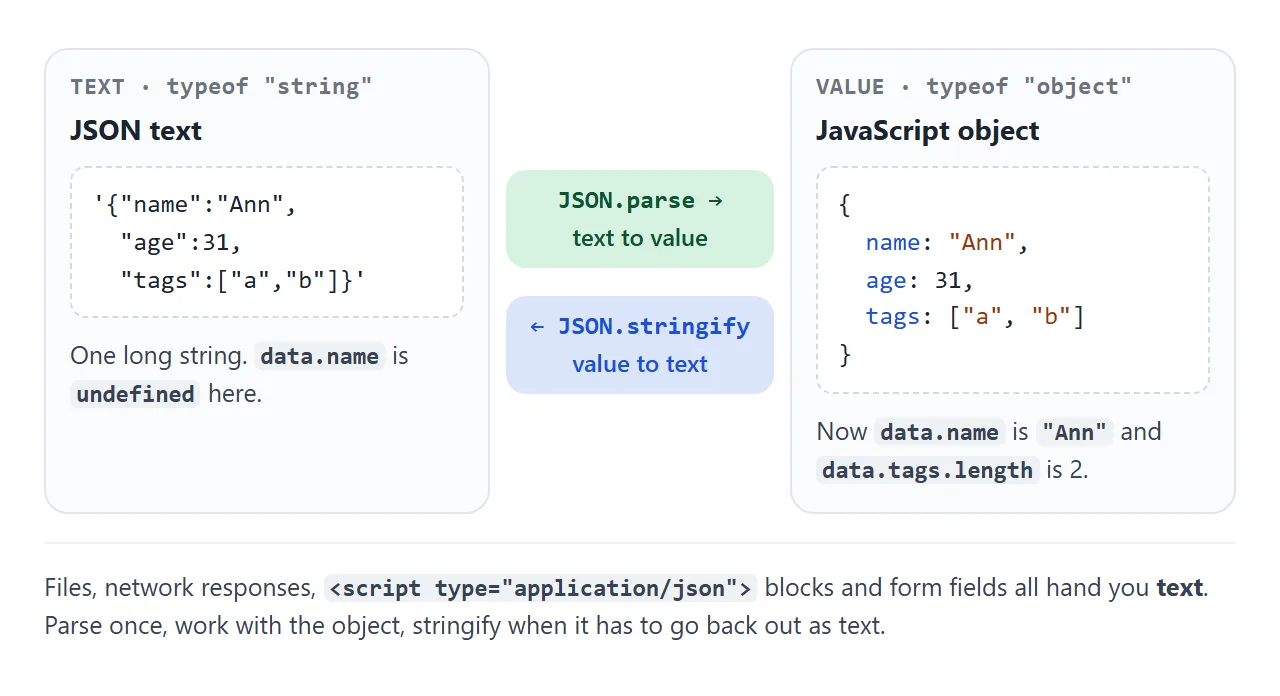
The result can be any JSON value, not only an object. JSON.parse('[1,2]') returns an array, JSON.parse('42') returns a number, and JSON.parse('"hi"') returns a string.
Parse once, as soon as the text arrives. Then work with the object, and only stringify when it has to leave the page as text again.
Catch bad JSON with try/catch
JSON.parse does not return null or false on bad input. It throws. An uncaught throw stops the rest of the script, so anything that comes from a user or another system should be parsed inside try:
function safeParse(text) {
  try {
    return { ok: true, value: JSON.parse(text) };
  } catch (err) {
    return { ok: false, error: err.message };
  }
}
Keep the catch for showing the problem, as the validator above does. Swallowing the error and carrying on with an empty object only moves the bug somewhere harder to find.
JSON is stricter than JavaScript
JSON looks like a JavaScript object literal, which is where most errors start. Code that is fine in a .js file is often not valid JSON.
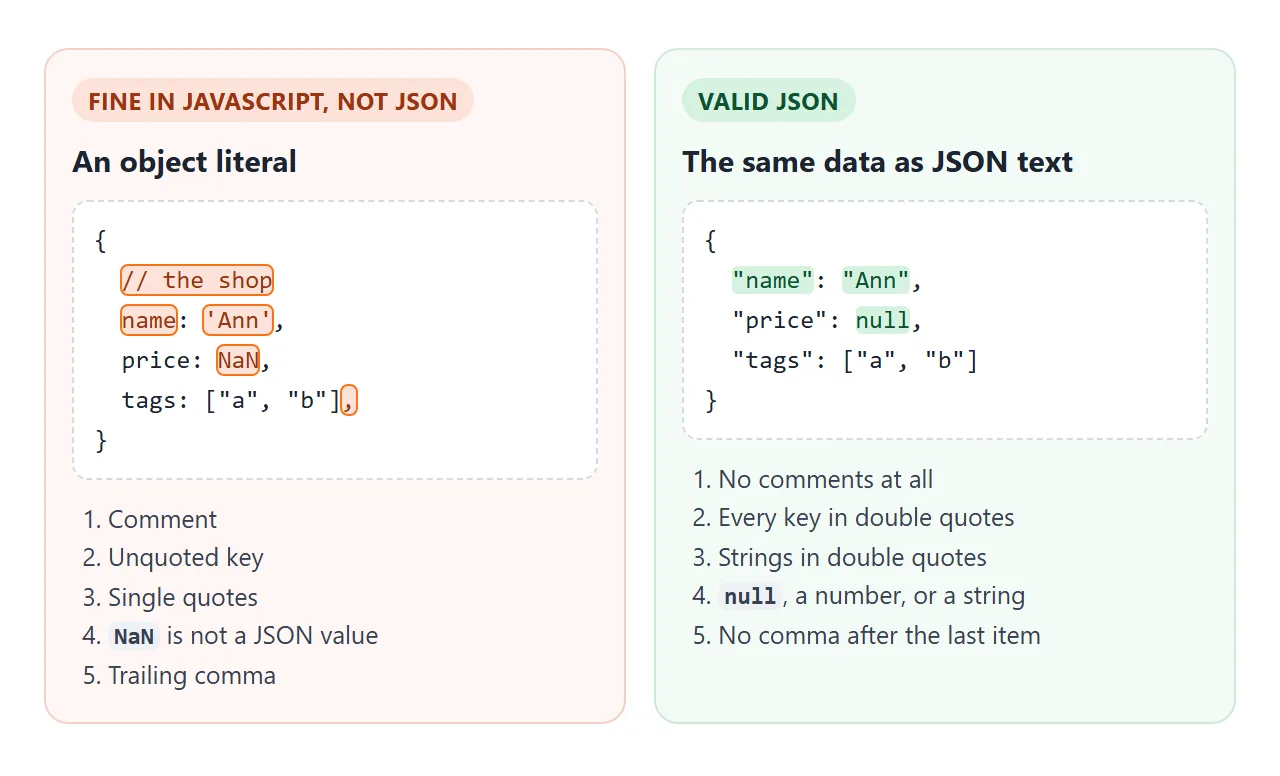
The rules that catch people:
- Keys must be in double quotes:
"name", notnameor'name'. - Strings use double quotes only.
- No trailing comma after the last item in an object or array.
- No comments, neither
//nor/* */. - Values are strings, numbers,
true,false,null, objects and arrays.NaN,Infinityandundefinedare not JSON.
Each button below loads one of these mistakes and shows the error this browser gives for it:
<!doctype html>
<html lang="en">
<head>
<meta charset="utf-8">
<meta name="viewport" content="width=device-width, initial-scale=1">
<title>Common JSON mistakes</title>
<style>
  body { margin: 0; padding: 14px; font-family: system-ui, sans-serif; background: #f4f5f7; color: #1d2330; }
  .buttons { display: flex; flex-wrap: wrap; gap: 6px; margin-bottom: 12px; }
  button { font: inherit; font-size: 14px; padding: 6px 11px; border: 1px solid #c7ccd6; border-radius: 99px; background: #fff; color: #1d2330; cursor: pointer; }
  button[aria-pressed="true"] { background: #1d4ed8; border-color: #1d4ed8; color: #fff; }
  table { width: 100%; border-collapse: collapse; background: #fff; border-radius: 10px; overflow: hidden; }
  th, td { text-align: left; vertical-align: top; padding: 9px 10px; border-bottom: 1px solid #e5e7eb; font-size: 14px; }
  th { width: 70px; color: #6b7280; font-weight: 600; }
  code { font: 13px/1.45 ui-monospace, Consolas, monospace; white-space: pre-wrap; word-break: break-word; }
  .bad { color: #9a3412; } .ok { color: #0f5132; }
</style>
</head>
<body>
<div class="buttons" id="buttons"></div>
<table>
  <tr><th>Text</th><td><code id="broken"></code></td></tr>
  <tr><th>Error</th><td><code id="error" class="bad"></code></td></tr>
  <tr><th>Fixed</th><td><code id="fixed"></code></td></tr>
  <tr><th>Result</th><td><code id="result" class="ok"></code></td></tr>
</table>

<script>
  // Each sample: the broken input and a corrected version
  const samples = {
    'Trailing comma': ['{"a": 1, "b": 2,}', '{"a": 1, "b": 2}'],
    'Single quotes': ["{'name': 'Ann'}", '{"name": "Ann"}'],
    'Unquoted key': ['{name: "Ann"}', '{"name": "Ann"}'],
    'Comment': ['{"a": 1 // one\n}', '{"a": 1}'],
    'NaN': ['{"score": NaN}', '{"score": null}'],
    'undefined': [undefined, '{}'],
    'Empty string': ['', '{}'],
  };

  function tryParse(text) {
    try { return { value: JSON.parse(text) }; }
    catch (err) { return { error: err.name + ': ' + err.message }; }
  }

  function show(name) {
    const [broken, fixed] = samples[name];
    const bad = tryParse(broken);
    const good = tryParse(fixed);
    document.getElementById('broken').textContent =
      broken === undefined ? '(the value undefined)' : (broken || '(empty string)');
    document.getElementById('error').textContent = bad.error || 'No error';
    document.getElementById('fixed').textContent = fixed;
    document.getElementById('result').textContent = good.error || JSON.stringify(good.value);
    for (const b of document.querySelectorAll('#buttons button')) {
      b.setAttribute('aria-pressed', b.textContent === name);
    }
  }

  for (const name of Object.keys(samples)) {
    const b = document.createElement('button');
    b.textContent = name;
    b.addEventListener('click', () => show(name));
    document.getElementById('buttons').append(b);
  }
  show('Trailing comma');
</script>
</body>
</html>
The wording differs between browsers. Chrome writes, for a trailing comma in an object: Expected double-quoted property name in JSON at position 7 (line 1 column 8). Firefox reports the same problem in its own words. Trust the position more than the wording.
| Mistake | Example | Chrome wording |
|---|---|---|
| Trailing comma in an object | {"a":1,} |
Expected double-quoted property name in JSON at position 7 |
| Trailing comma in an array | [1,2,] |
Unexpected token ']' ... is not valid JSON |
| Single quotes or bare key | {'a':1} |
Expected property name or '}' in JSON at position 1 |
| Comment | {"a":1 // x} |
Expected ',' or '}' after property value in JSON at position 7 |
NaN as a value |
{"a":NaN} |
Unexpected token 'N' ... is not valid JSON |
| Empty string | '' |
Unexpected end of JSON input |
Turn values back while parsing: the reviver
JSON.parse takes an optional second argument, a reviver function. It is called for every key and value, from the innermost values outward, and whatever it returns replaces the value. Returning undefined removes the key.
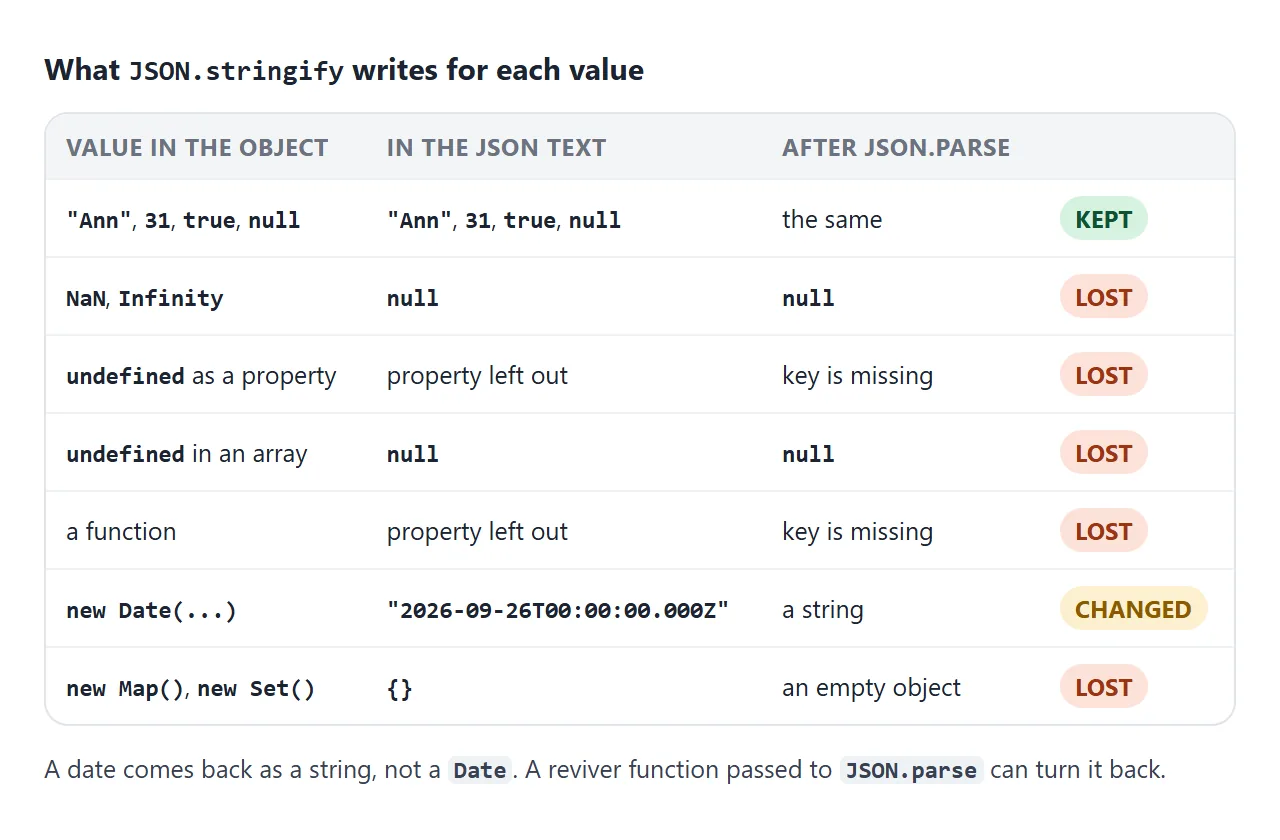
The common use is dates. JSON has no date type, so dates travel as strings like "2026-03-14". A reviver can turn them back into Date objects:
const data = JSON.parse(text, (key, value) =>
  typeof value === 'string' && /^\d{4}-\d{2}-\d{2}/.test(value)
    ? new Date(value)
    : value
);
Keep the test narrow. A pattern that matches any string with digits would turn product codes into dates too.
JSON.stringify: indentation and a replacer
JSON.stringify(value, replacer, space) has two optional arguments. The third, space, makes the output readable. Pass a number of spaces (up to 10) or a string such as '\t':
JSON.stringify({ a: 1, b: [1, 2] }, null, 2);
// {
//   "a": 1,
//   "b": [
//     1,
//     2
//   ]
// }
The second, replacer, filters what gets written. An array of key names keeps only those keys. A function works like a reviver in reverse: return a new value, or undefined to leave the key out.
const user = { name: 'Ann', email: 'ann@example.com', password: 'x' };
JSON.stringify(user, ['name', 'email']);
// '{"name":"Ann","email":"ann@example.com"}'
Not every value survives the trip. stringify quietly drops or converts some of them:
Read JSON from the page, no fetch needed
For data that belongs to one page, put it in the page itself. A <script> element with type="application/json" is not run by the browser. Its content stays as plain text you can read with textContent:
<script type="application/json" id="products">
  [{"name": "Desk lamp", "price": 39.5}]
</script>
<script>
  const products = JSON.parse(document.getElementById('products').textContent);
</script>
This works even when the page is opened straight from the disk, where browsers such as Chrome block fetch from loading a separate .json file. One catch: the text </script> inside the data would end the block early. Write it as <\/script>, which is still valid JSON.
The finished example below reads its rows from such a block, turns the dates into Date objects with a reviver, and sorts by any column. For more on sortable tables, see HTML table with sort and filter.
<!doctype html>
<html lang="en">
<head>
<meta charset="utf-8">
<meta name="viewport" content="width=device-width, initial-scale=1">
<title>Table from a JSON block</title>
<style>
  body { margin: 0; padding: 14px; font-family: system-ui, sans-serif; background: #f4f5f7; color: #1d2330; }
  p { margin: 0 0 10px; font-size: 14px; color: #4b5563; }
  table { width: 100%; border-collapse: collapse; background: #fff; border-radius: 10px; overflow: hidden; font-size: 14px; }
  th, td { padding: 9px 10px; border-bottom: 1px solid #e5e7eb; text-align: left; }
  th { background: #eef1f5; white-space: nowrap; }
  th button { all: unset; cursor: pointer; font-weight: 700; }
  th button::after { content: ' \2195'; color: #9aa3b2; }
  th[aria-sort="ascending"] button::after { content: ' \2191'; color: #1d4ed8; }
  th[aria-sort="descending"] button::after { content: ' \2193'; color: #1d4ed8; }
  .num { text-align: right; }
</style>
</head>
<body>
<p>The rows come from the JSON block in this page. Click a heading to sort.</p>
<table>
  <thead><tr>
    <th data-key="name"><button>Product</button></th>
    <th data-key="price" class="num"><button>Price</button></th>
    <th data-key="added"><button>Added</button></th>
  </tr></thead>
  <tbody id="rows"></tbody>
</table>

<!-- The browser does not run this block. It is only text for JSON.parse. -->
<script type="application/json" id="products">
[
  {"name": "USB-C cable <2 m>", "price": 9, "added": "2026-08-02"},
  {"name": "Desk lamp", "price": 39.5, "added": "2026-03-14"},
  {"name": "Monitor stand", "price": 54, "added": "2025-11-20"},
  {"name": "Notebook, dotted", "price": 6.25, "added": "2026-05-09"}
]
</script>

<script>
  // Reviver: turn "YYYY-MM-DD" strings into Date objects while parsing
  const products = JSON.parse(
    document.getElementById('products').textContent,
    (key, value) => typeof value === 'string' && /^\d{4}-\d{2}-\d{2}$/.test(value)
      ? new Date(value + 'T00:00:00') : value
  );

  const tbody = document.getElementById('rows');

  function render() {
    tbody.replaceChildren();
    for (const p of products) {
      const tr = tbody.insertRow();
      // textContent shows "<2 m>" as text; it is never read as HTML
      tr.insertCell().textContent = p.name;
      const price = tr.insertCell();
      price.textContent = '$' + p.price.toFixed(2);
      price.className = 'num';
      tr.insertCell().textContent =
        p.added.toLocaleDateString('en-US', { year: 'numeric', month: 'short', day: 'numeric' });
    }
  }

  for (const th of document.querySelectorAll('th')) {
    th.querySelector('button').addEventListener('click', () => {
      const key = th.dataset.key;
      const dir = th.getAttribute('aria-sort') === 'ascending' ? -1 : 1;
      document.querySelectorAll('th').forEach((h) => h.removeAttribute('aria-sort'));
      th.setAttribute('aria-sort', dir === 1 ? 'ascending' : 'descending');
      // Numbers and Dates subtract; strings use localeCompare
      products.sort((a, b) => {
        const x = a[key], y = b[key];
        return dir * (typeof x === 'string' ? x.localeCompare(y) : x - y);
      });
      render();
    });
  }

  render();
</script>
</body>
</html>
If the JSON does live at its own address, the loading step is one line. r.json() reads the response body and parses it for you:
fetch('/data/products.json')
  .then((r) => r.json())
  .then((products) => render(products));
The file then needs to be served from somewhere another page can read it. Host a JSON file covers that.
Put parsed data on the page safely
Parsed data is text someone else wrote. If you build HTML by joining strings and assigning them to innerHTML, a value such as <img src=x onerror=...> becomes real markup and can run script.
Set text with textContent instead. The table above has a product called USB-C cable <2 m>, and it shows up literally, because textContent never reads its value as HTML. innerHTML explains when each one is the right choice.
When it does not work
| What you see | Cause | Fix |
|---|---|---|
Unexpected token < |
The text is HTML, often an error page or a 404, not JSON | Log the raw text and check where it came from |
Unexpected token ' or / |
Single quotes or a comment | Double quotes only; remove comments |
| Expected double-quoted property name | Trailing comma, or a key without quotes | Remove the last comma; quote every key |
| "[object Object]" is not valid JSON | The value is already an object | Skip JSON.parse and use it directly |
| "undefined" is not valid JSON | The variable or storage key is empty | Check the value exists before parsing |
| Unexpected end of JSON input | Empty string or text cut off | Check for an empty value; look at the end of the text |
| Unexpected token with nothing visible in the quotes, in a file that looks fine | A byte order mark (an invisible character, U+FEFF) at the start | Save as UTF-8 without BOM, or strip \uFEFF first |
NaN or Infinity became null |
JSON has no such numbers | Store them as strings, or accept null |
| A key is missing after stringify | Its value was undefined or a function |
Use null for an empty value |
| A date is a string after parsing | JSON has no date type | Convert it with a reviver |
Spaces, tabs and line breaks around the JSON are allowed, so trailing newlines are not the problem. The byte order mark is different: it is not JSON whitespace, and JSON.parse rejects it.
Share it as a link
A JSON tool is easier to hand over than to explain. Send someone the validator or the sortable table as a working page, and they can paste their own data into it instead of reading a screenshot.
Paste the page into a NOS document and choose Create share link. HTML to link walks through it. The page renders as written and its scripts run, so the people you send it to can use it directly.
If you change the data block or the code later, the same link shows the new version.