An HTML copy button is a button plus one clipboard call: read the text, hand it to navigator.clipboard.writeText, and change the label so the reader can see it worked.
<pre id="snippet">npm install nothing</pre>
<button id="copy" data-target="snippet">Copy</button>

<script>
  const btn = document.getElementById('copy');
  btn.addEventListener('click', async () => {
    const text = document.getElementById(btn.dataset.target).innerText;
    await navigator.clipboard.writeText(text);
    const old = btn.textContent;
    btn.textContent = 'Copied';
    setTimeout(() => { btn.textContent = old; }, 1500);
  });
</script>
That is the whole feature. What follows is the four things that make it fail on somebody else's machine.
The rule that breaks it: secure context
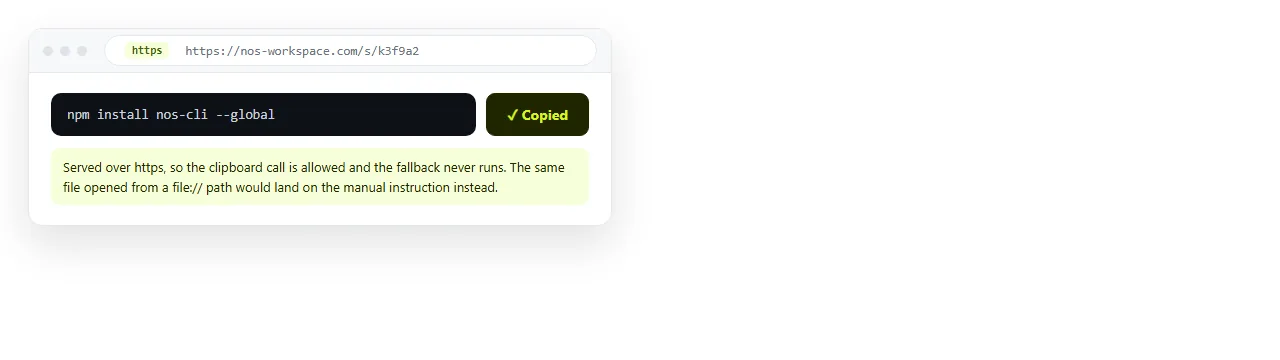
navigator.clipboard only exists in a secure context. In practice that means the page is on https, or on localhost during development.
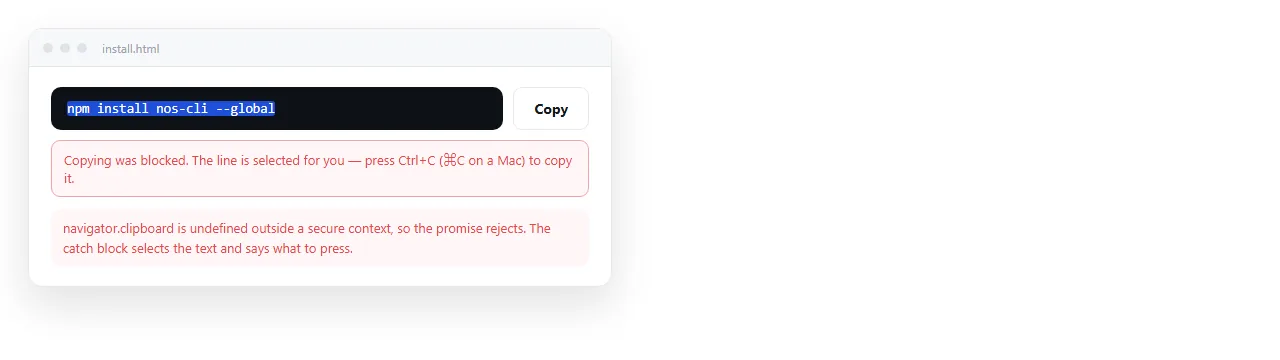
Open the same file by double-clicking it, and the address starts with file://. In most browsers that is not a secure context, so navigator.clipboard is undefined and the click throws with no visible sign.
| How the page is opened | Clipboard API | What you see |
|---|---|---|
https:// address |
Available | Works |
http://localhost |
Available | Works |
Plain http:// address |
Missing | Silent failure |
file:// double-click |
Usually missing | Silent failure |
| Inside a sandboxed iframe | Blocked unless allowed | Permission error |
This is why "it worked on my machine" is the standard first report. Your machine was localhost. Their machine was the file protocol.
The fallback that covers the rest
The old document.execCommand('copy') is deprecated but still implemented nearly everywhere, and it does not require a secure context. Keep it as the second branch.
<script>
  function copyText(text) {
    if (navigator.clipboard && window.isSecureContext) {
      return navigator.clipboard.writeText(text);
    }
    const ta = document.createElement('textarea');
    ta.value = text;
    ta.style.position = 'fixed';
    ta.style.opacity = '0';
    document.body.appendChild(ta);
    ta.select();
    document.execCommand('copy');
    ta.remove();
    return Promise.resolve();
  }
</script>
Two details in there are not decoration. position: fixed stops the page jumping as the textarea is inserted. opacity: 0 rather than display: none is required, because a hidden element cannot be selected.
Confirming the copy
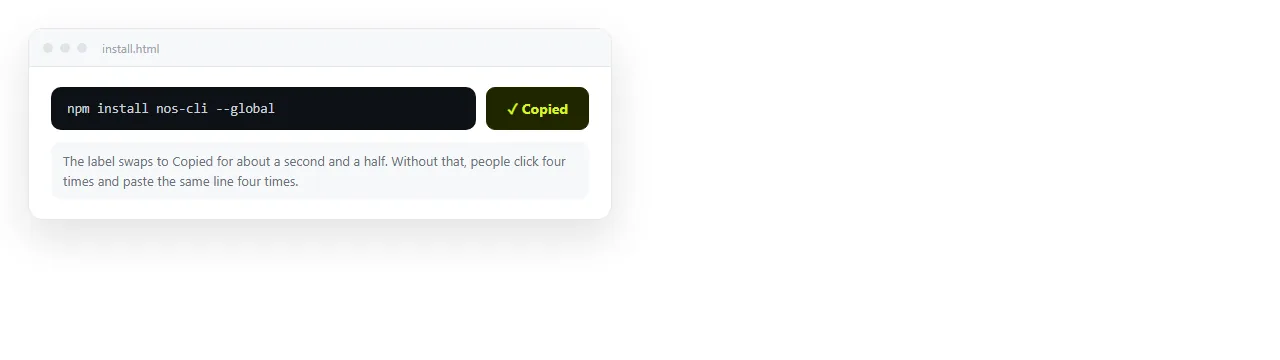
A copy that gives no feedback gets clicked repeatedly, and the reader ends up pasting the same line four times.
Swap the label, and announce the change for people who are not watching the button:
<button id="copy" aria-live="polite">Copy</button>
Three things worth doing, in order of how much they matter:
- Change the label to Copied, then restore it after about 1.5 seconds.
- Keep the button width fixed with
min-width, so the row does not shift as the word changes. - Handle the failure branch. If the promise rejects, say Press Ctrl+C rather than leaving the button silent.
Copying more than a code snippet
The same handler copies anything you can reach in the document. Three patterns cover most internal pages:
- A table row or column. Read the cells, join with tabs, and the paste lands in spreadsheet columns rather than one cell. An editable HTML table pairs naturally with this.
- A share address. Copy the current URL, which is what most Copy link buttons are doing.
- A generated block of text. An invoice line, a command with the reader's own values filled in, a formatted citation.
For the table case, tab-separated output is the important part. Commas paste into a single cell in most spreadsheet software, while tabs split into columns.
<script>
  function rowText(tr) {
    return Array.from(tr.cells).map(c => c.innerText.trim()).join('\t');
  }
</script>
Note innerText rather than textContent in that helper. innerText respects what is visible, so a hidden column stays out of the copy, which is usually what the reader expects.
One more decision belongs here: how much to copy. A button per row is precise but clutters the table. A single button that copies everything is simpler and covers most requests.
If you offer both, label them clearly. Copy row and Copy table are unambiguous. Two identical icons are not, and the reader finds out which is which by pasting.
Where to put the button
Placement decides whether the button gets used, and there are only really three sensible positions.
- Top right of the block, floating over the code. Standard on documentation sites, and it saves vertical space.
- Directly under the block. Easier to hit on a phone, and it never covers the first line.
- In the row, for table and list items, aligned to the right edge.
Whichever you pick, keep the target at least around 40 pixels tall on touch, and do not hide the button until hover. A control that only appears on hover does not exist on a phone at all.
Keeping the button alive after you share the page
A copy button is interactive, so it does not survive a screenshot or a PDF export. The page has to reach the reader as a page.
Paste the HTML, script tag included, into a NOS document. It renders as written at an address of its own, and that address is https, which is the condition the clipboard API needs.
Then Share, Share link, Create link, and send the line. Turning HTML into a link is that step on its own, and self-contained HTML explains why a script kept in a separate file next to the page will not travel with it.
Checklist before you send it
- Is the script inside the file, not linked from a neighbouring folder?
- Does the button show a Copied state, and restore itself?
- Is there a branch for when
navigator.clipboardis missing? - Have you clicked it once from the shared https address, not only locally?
- Does the button have a real label or an accessible name if it is icon-only?
Five checks, about a minute, and they remove the entire class of "the copy button does nothing" replies.