A WiFi password link is the network details at one address, with a QR code that joins the network in a tap and a typed password for everything that cannot scan.
Before any of the mechanics: this should be a guest network, separated from the machines you care about.
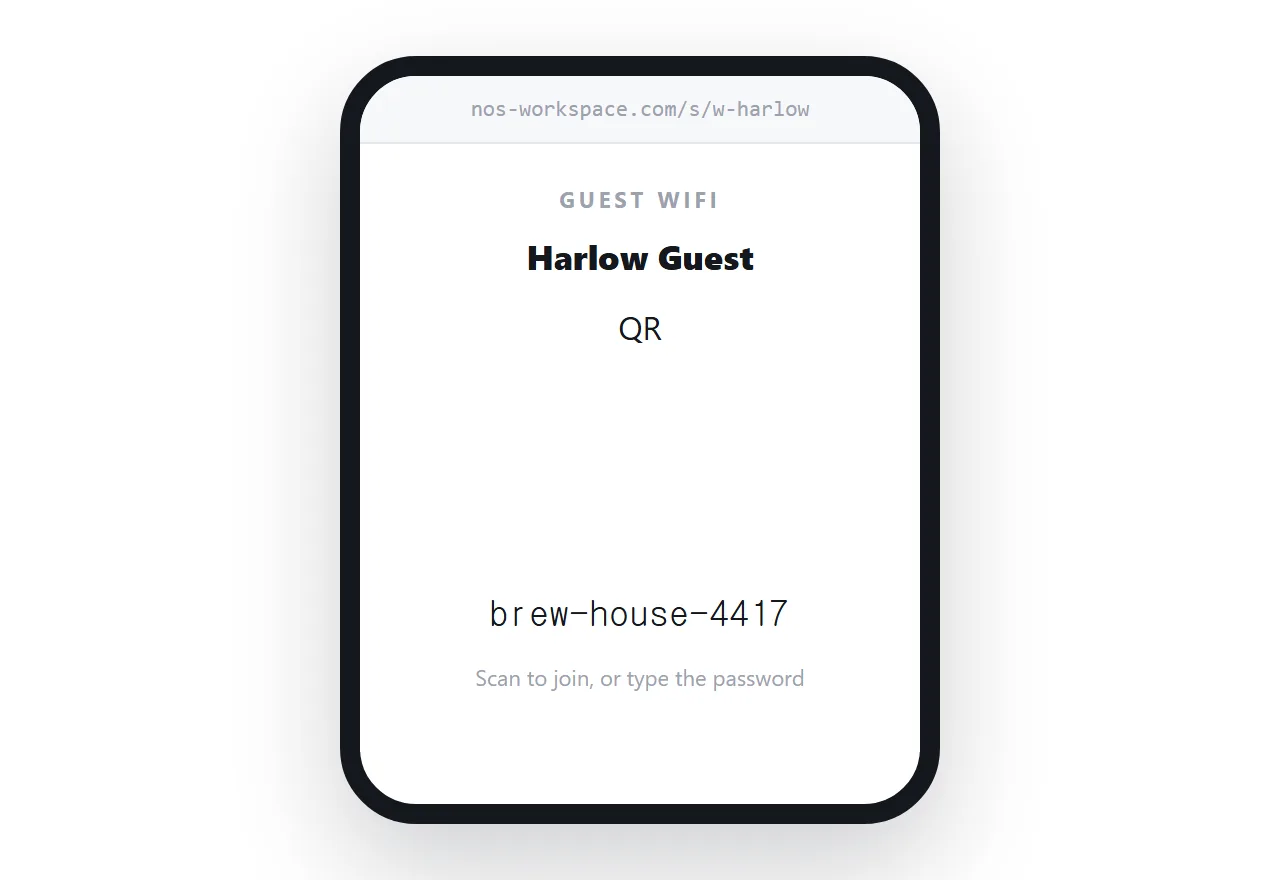
This guide covers the security decision, the QR format that joins networks, typography that prevents typos, and why the printed code should point at the page.
The security decision comes first
Any WiFi password you hand out is a password that will be photographed, forwarded and remembered by devices you do not control.
That is acceptable on a guest network, which is isolated from your own devices and offers nothing but internet access. It is not acceptable on the network your till, your file server or your laptop sits on.
If you do not have a guest network, set one up before worrying about how to share the password. Almost every business router supports it, and the isolation is the point rather than a nicety.
The QR format that joins networks
Phones recognise a specific text format as network credentials.
WIFI:T:WPA;S:Harlow Guest;P:brew-house-4417;;
Scanning that with a current phone camera offers to join the network. No app, no typing, no reading anything out.
The fields are the security type, the network name, and the password. Special characters in either name or password need escaping with a backslash, which is the usual cause of a code that scans but fails to connect.
Render it as an SVG so it stays sharp when printed. Notes on generation are in HTML file to QR code.
Keep the typed password as the fallback
Scanning covers most guests and not all of them.
Laptops generally cannot scan. Some older phones need a separate app. Codes fail in dim light or on a dirty screen. And some guests simply prefer to type.
So the password has to be readable, in a font where the ambiguous characters are distinguishable.
.wifi-pass {
  font-family: ui-monospace, "SF Mono", Menlo, Consolas, monospace;
  font-size: 1.4rem;
  letter-spacing: 0.06em;
  user-select: all;
}
A monospace face separates zero from capital O, and one from lowercase l. Those two confusions account for most failed attempts at a typed password.
The user-select rule means tapping it selects the whole string, so a guest on a phone can copy rather than retype.
Choose passwords that avoid the problem in the first place. Three ordinary words with hyphens is easier to read out, easier to type, and no weaker than a short string of symbols.
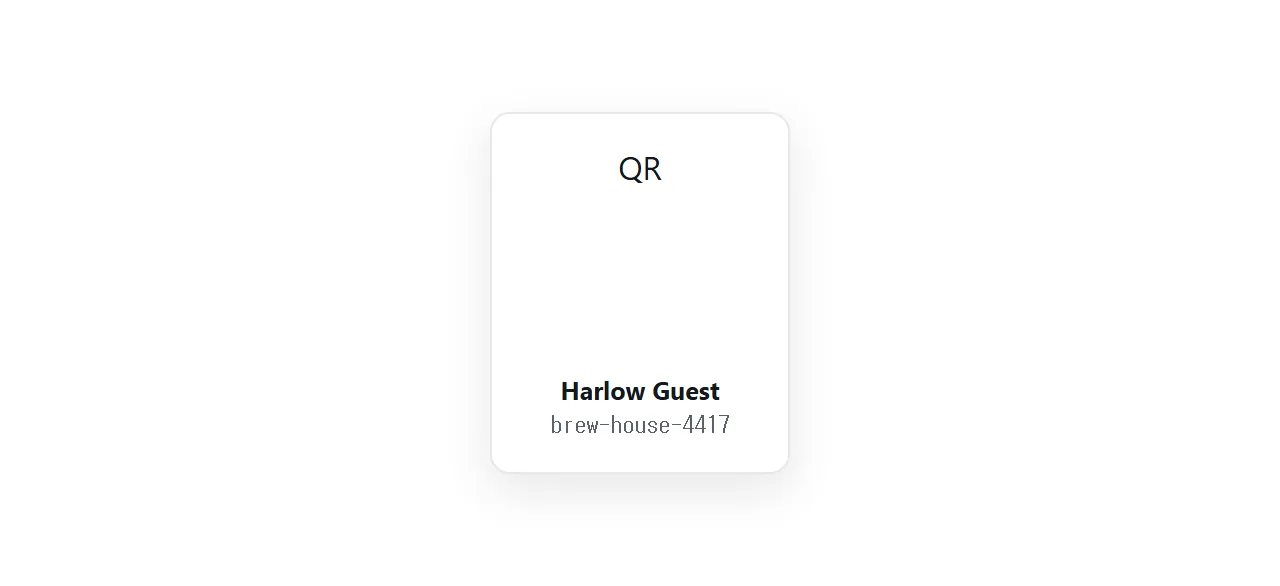
Point the printed code at the page
Here is the part that matters for anywhere handing out WiFi regularly.
A printed code that encodes the credentials directly is fixed. Change the password and every card, sign and table tent is wrong, which in practice means the password never gets changed.
A printed code pointing at your page shows whatever the page currently says. The password change becomes an edit, and every card in the building is correct.
That does mean the guest scans, lands on a page, and then taps the on-screen code to join. Two steps rather than one, in exchange for never reprinting.
| Printed code encodes | Password change |
|---|---|
| The credentials directly | Reprint everything |
| Your page address | Edit the page |
For a home, encode the credentials and be done. For a business that changes the password on a schedule, point it at the page.
What else belongs on the page
A few lines save a conversation.
- The network name, exactly as broadcast.
- Any time limit, if sessions expire.
- What to do when it fails, usually forgetting the network and rejoining.
- Who to ask, if there is someone.
Keep it to that. A WiFi page is read standing up, in about four seconds.
Put it at an address
Set up a guest network, write the details as a page with a joining code and a readable password, and point any printed codes at the page.
Then nobody reads a password out loud again.