element.textContent gives you the text inside an element as one plain string. Setting it replaces everything inside with that text. It ignores CSS and never parses HTML, which makes it the fastest and safest way to put text on a page.
const el = document.getElementById('status');
el.textContent = 'Saved at 10:42';     // replaces all children with one text node
console.log(el.textContent);           // "Saved at 10:42"
The catch is in reading. textContent and innerText often return different strings for the same element. Try it: tick the box to hide the staff note, and compare the three outputs.
<!doctype html>
<html lang="en">
<head>
<meta charset="utf-8">
<meta name="viewport" content="width=device-width, initial-scale=1">
<title>Read textContent vs innerText vs innerHTML</title>
<style>
  body { margin: 0; padding: 14px; font-family: system-ui, sans-serif; background: #f4f5f7; color: #1d2330; }
  #card { background: #fff; border-radius: 10px; padding: 10px 14px; box-shadow: 0 2px 8px rgba(0,0,0,.08); }
  #card p { margin: 4px 0; }
  .note { color: #b45309; }
  .up { text-transform: uppercase; }
  .bar { display: flex; flex-wrap: wrap; gap: 8px 14px; align-items: center; margin: 10px 0; font-size: 14px; }
  button { font: inherit; padding: 6px 12px; border-radius: 8px; border: 1px solid #c9ced8; background: #fff; cursor: pointer; }
  h3 { font-size: 13px; margin: 10px 0 3px; }
  pre { margin: 0; padding: 7px 9px; background: #1d2330; color: #e5e7eb; border-radius: 8px;
        font-size: 12px; white-space: pre-wrap; word-break: break-all; }
  #time { font-size: 13px; color: #374151; }
</style>
</head>
<body>
<div id="card">
  <p>Order   <b>#1042</b> is <span class="up">ready</span>.<br>Pick it up today.</p>
  <p class="note" id="note">Staff note: customer paid in cash.</p>
</div>

<div class="bar">
  <label><input type="checkbox" id="hide"> Hide the staff note</label>
  <button id="time-btn">Time 500 reads</button>
</div>
<div id="time"></div>

<h3>card.textContent</h3><pre id="tc"></pre>
<h3>card.innerText</h3><pre id="it"></pre>
<h3>card.innerHTML</h3><pre id="ih"></pre>

<script>
  const card = document.getElementById('card');
  const note = document.getElementById('note');

  function show() {
    // JSON.stringify makes spaces and line breaks (\n) visible
    document.getElementById('tc').textContent = JSON.stringify(card.textContent);
    document.getElementById('it').textContent = JSON.stringify(card.innerText);
    document.getElementById('ih').textContent = card.innerHTML.trim();
  }

  document.getElementById('hide').addEventListener('change', (e) => {
    note.style.display = e.target.checked ? 'none' : '';
    show();
  });

  // Change a style, then read: innerText must redo layout first, textContent does not
  function timeReads(prop) {
    const t0 = performance.now();
    for (let i = 0; i < 500; i++) {
      card.style.width = (i % 2 ? 90 : 91) + '%';
      card[prop];
    }
    card.style.width = '';
    return (performance.now() - t0).toFixed(1);
  }

  document.getElementById('time-btn').addEventListener('click', () => {
    const a = timeReads('textContent');
    const b = timeReads('innerText');
    document.getElementById('time').textContent =
      'On this device: textContent ' + a + ' ms, innerText ' + b + ' ms';
  });

  show();
</script>
</body>
</html>
For the basics of innerHTML itself, including += and inserted scripts, see innerHTML in JavaScript. This page stays with plain text.
Hidden text: textContent reads it, innerText does not
textContent walks every text node under the element and joins them. It does not ask whether the text is shown. innerText works from the rendered page, so text that is not on screen is left out.
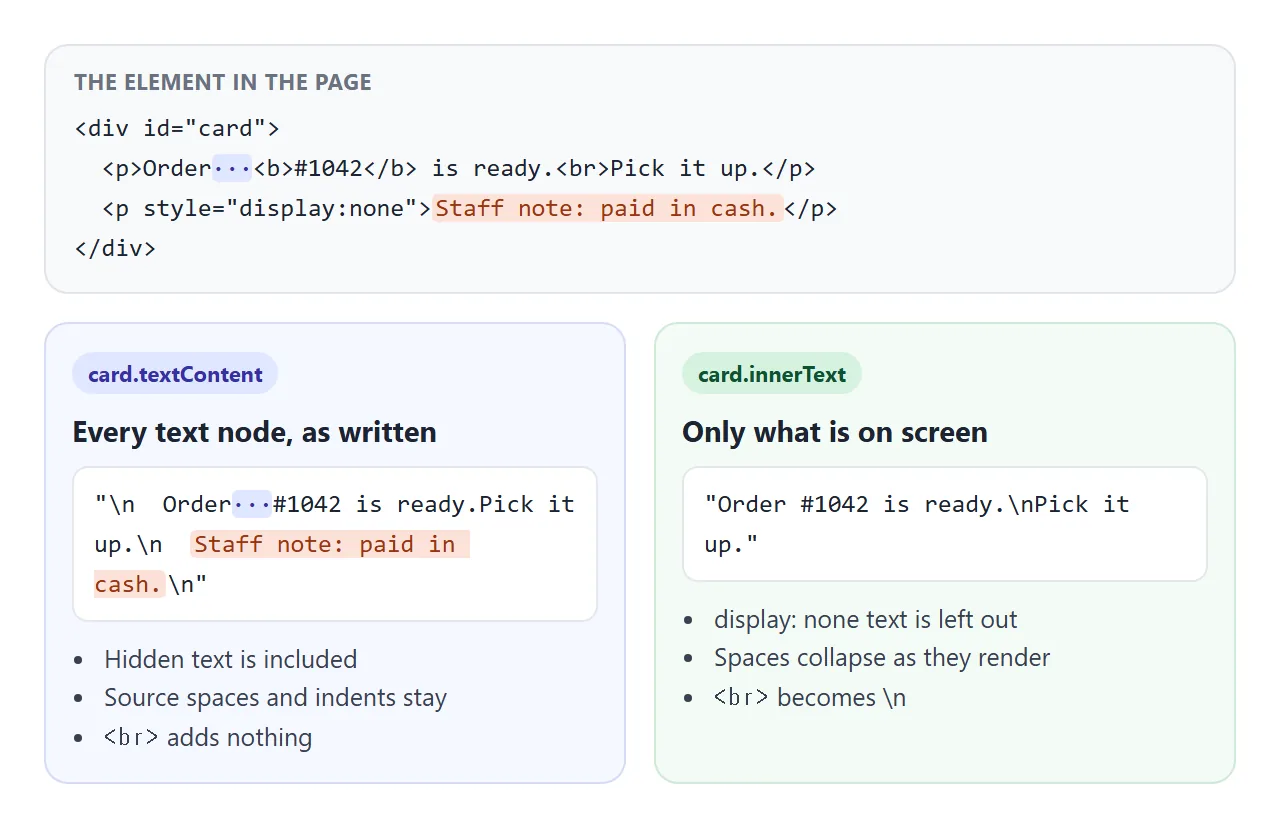
| Inside the element | textContent |
innerText |
|---|---|---|
Text in a display: none child |
Included | Left out |
Text in a visibility: hidden child |
Included | Left out |
Code inside <script> and <style> |
Included | Left out |
| Extra spaces and indents in the source | Kept as written | Collapsed like on screen |
A <br> |
Adds nothing | Becomes \n |
text-transform: uppercase |
Original letters | Uppercase letters |
This cuts both ways. textContent is right when you want the data, such as a price you stored in a hidden span. innerText is right when you want what the user sees, such as text for a copy button.
One edge case: if the element itself is display: none, nothing of it is laid out. The standard says innerText then returns the same as textContent.
Line breaks when you set text
Setting either property with a string that contains \n gives two different results in the page.
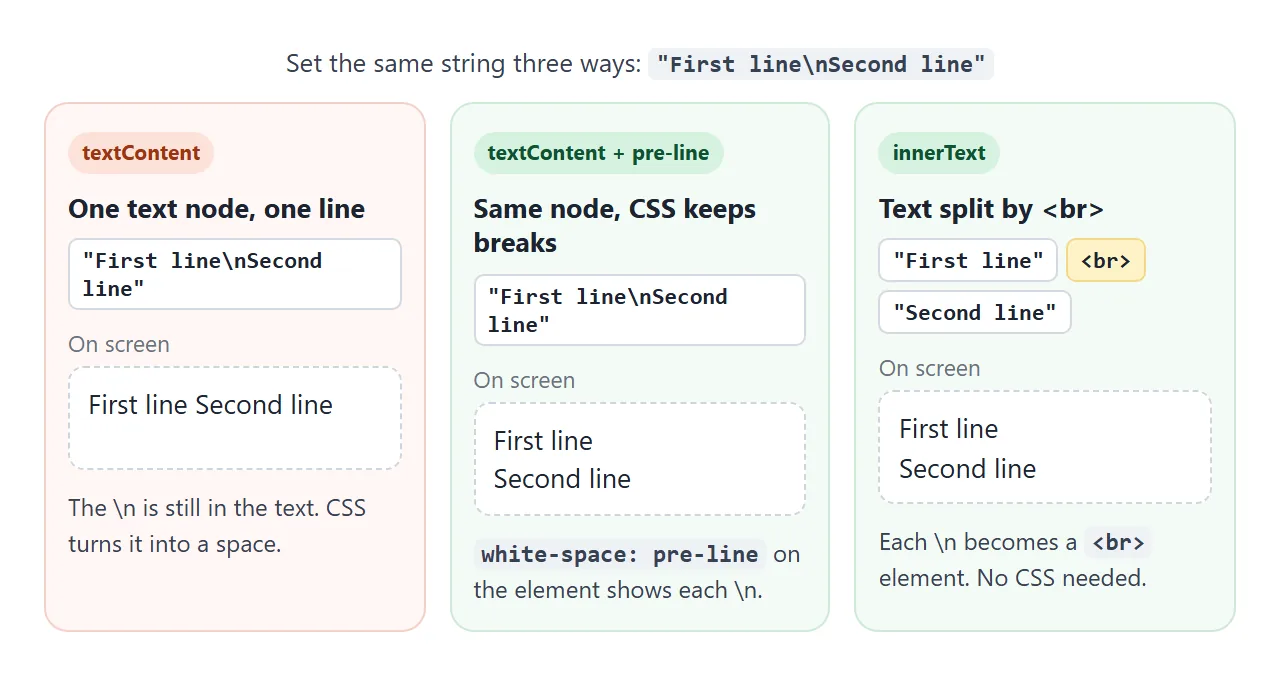
textContentmakes one text node. The\nis still in it, but with the defaultwhite-space: normalit shows as a space.innerTextmakes a text node for each line, with a<br>element between them. The breaks show with no CSS.
Type in the box below and watch the node list under each result.
<!doctype html>
<html lang="en">
<head>
<meta charset="utf-8">
<meta name="viewport" content="width=device-width, initial-scale=1">
<title>Setting text with line breaks</title>
<style>
  body { margin: 0; padding: 14px; font-family: system-ui, sans-serif; background: #f4f5f7; color: #1d2330; }
  label { font-size: 13px; font-weight: 600; }
  textarea { display: block; box-sizing: border-box; width: 100%; height: 76px; margin: 4px 0 10px;
             font: 14px/1.4 system-ui, sans-serif; padding: 8px; border-radius: 8px; border: 1px solid #c9ced8; }
  .grid { display: grid; grid-template-columns: repeat(auto-fit, minmax(170px, 1fr)); gap: 10px; }
  .box { background: #fff; border-radius: 10px; padding: 10px 12px; box-shadow: 0 2px 8px rgba(0,0,0,.08); }
  .box h3 { font-size: 12.5px; margin: 0 0 6px; color: #475569; }
  .out { min-height: 42px; font-size: 14px; line-height: 1.4; overflow-wrap: anywhere; }
  .pre-line { white-space: pre-line; }  /* keep \n as a line break */
  .nodes { margin-top: 6px; font: 11.5px ui-monospace, Consolas, monospace; color: #6b7280; }
</style>
</head>
<body>
<label for="src">Type several lines (tags too)</label>
<textarea id="src">First line
Second line with <b>tags</b></textarea>

<div class="grid">
  <div class="box"><h3>textContent</h3><div class="out" id="a"></div><div class="nodes" id="a-n"></div></div>
  <div class="box"><h3>textContent + pre-line</h3><div class="out pre-line" id="b"></div><div class="nodes" id="b-n"></div></div>
  <div class="box"><h3>innerText</h3><div class="out" id="c"></div><div class="nodes" id="c-n"></div></div>
</div>

<script>
  const src = document.getElementById('src');

  // List the child nodes, so you can see what each property created
  function describe(el) {
    return [...el.childNodes]
      .map((n) => n.nodeType === 3 ? 'text' : '<' + n.nodeName.toLowerCase() + '>')
      .join(', ');
  }

  function render() {
    const text = src.value;
    const a = document.getElementById('a');
    const b = document.getElementById('b');
    const c = document.getElementById('c');
    a.textContent = text;   // one text node; \n is kept but CSS collapses it
    b.textContent = text;   // same text node; white-space: pre-line shows the breaks
    c.innerText = text;     // each \n becomes a <br> element
    for (const el of [a, b, c]) {
      document.getElementById(el.id + '-n').textContent = 'nodes: ' + describe(el);
    }
  }

  src.addEventListener('input', render);
  render();
</script>
</body>
</html>
The middle box is usually the one you want. Keep textContent and add one CSS line to the element:
.message { white-space: pre-line; } /* \n shows as a line break */
pre-line keeps line breaks and still collapses runs of spaces. Use pre-wrap if spaces must stay too. CSS white-space compares all the values.
When reading, the rule flips. innerText returns line breaks where the page shows them, one for each <br> and at the edges of blocks such as <p>. The exact number of blank lines between paragraphs can differ between browsers.
Why textContent is faster
textContent only walks the element's nodes. innerText has to know what is hidden and where lines wrap, and that comes from styles and layout.
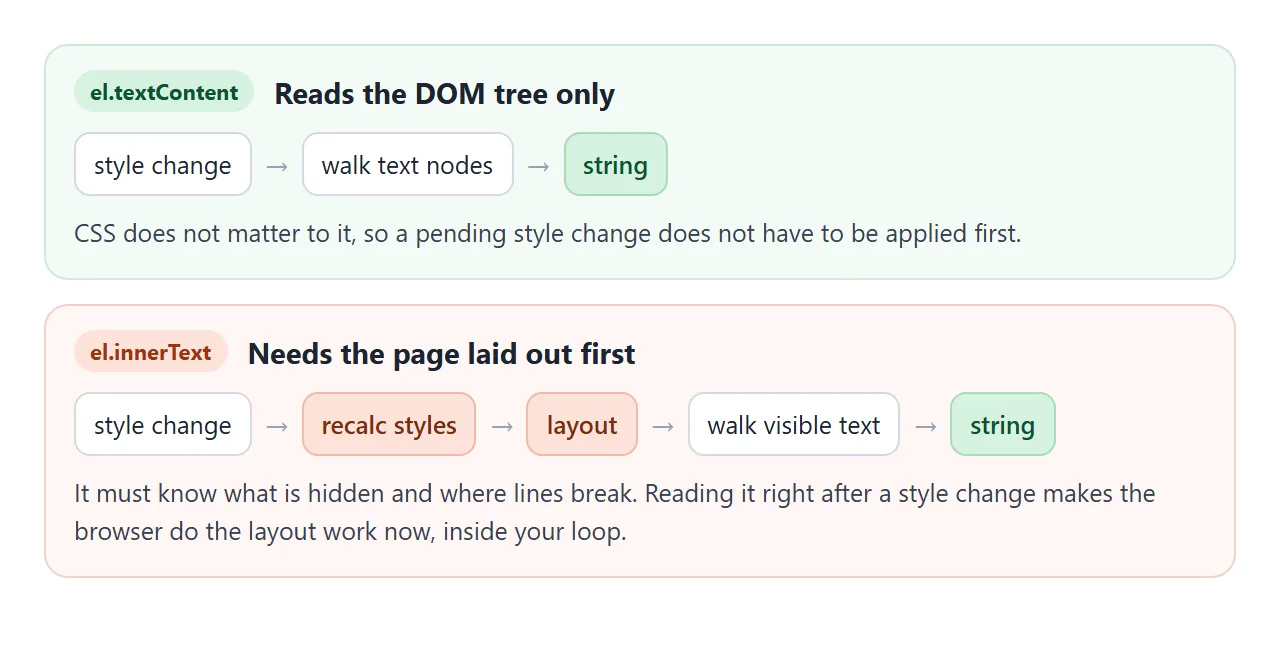
The cost shows up in loops that change a style and then read text. Each innerText read makes the browser redo layout before it can answer.
The first demo has a Time 500 reads button that runs exactly that loop and prints the milliseconds for your device.
Setting is similar. The browser does not parse a string given to textContent, so it skips the HTML parser that innerHTML needs. For plain text, it is the cheaper call.
Setting text safely
A value from a form, the address bar or another site can contain HTML. With innerHTML, the browser turns that HTML into elements, and attributes such as onerror can run code. With textContent, it stays characters on the screen.
const comment = '<img src=x onerror="alert(1)">';
box.innerHTML = comment;     // an <img> element, and alert(1) runs
box.textContent = comment;   // the characters < i m g ... on screen
When you need structure around user text, such as a bold name above a message, do not build an HTML string. Create the elements and fill each one with textContent:
const who = document.createElement('b');
who.textContent = user.name;
const msg = document.createElement('p');
msg.textContent = user.message;
card.append(who, msg);
append also accepts plain strings and adds them as text nodes, so card.append(user.name) is safe too.
Two places textContent does not protect:
- The text of
<script>and<style>elements. There, text is code. Never set it from user input. - Attributes.
textContentcovers the text between tags, nothreforsrc. A link built from user input needs its own check that the address starts withhttps:.
A finished example: a comment wall
Here is the whole pattern in one page. Each comment is built from elements, both fields go in with textContent, and white-space: pre-line keeps the writer's line breaks. The second comment is HTML with an onerror handler, and it shows as text.
<!doctype html>
<html lang="en">
<head>
<meta charset="utf-8">
<meta name="viewport" content="width=device-width, initial-scale=1">
<title>Safe comment wall</title>
<style>
  body { margin: 0; padding: 14px; font-family: system-ui, sans-serif; background: #f4f5f7; color: #1d2330; }
  form { display: grid; gap: 6px; background: #fff; padding: 12px; border-radius: 10px; box-shadow: 0 2px 8px rgba(0,0,0,.08); }
  input, textarea, button { font: inherit; font-size: 14px; padding: 7px 9px; border-radius: 8px; border: 1px solid #c9ced8; }
  textarea { height: 58px; resize: vertical; }
  button { background: #1d4ed8; color: #fff; border: 0; cursor: pointer; justify-self: start; padding: 7px 16px; }
  #count { font-size: 13px; color: #6b7280; margin: 12px 2px 6px; }
  ul { list-style: none; margin: 0; padding: 0; display: grid; gap: 8px; }
  li { background: #fff; border-radius: 10px; padding: 9px 12px; box-shadow: 0 1px 5px rgba(0,0,0,.07); }
  .who { font-weight: 700; font-size: 13px; }
  .msg { margin-top: 3px; font-size: 14px; white-space: pre-line; overflow-wrap: anywhere; }
</style>
</head>
<body>
<form id="form">
  <input id="name" placeholder="Your name" required maxlength="40">
  <textarea id="text" placeholder="Comment (try some HTML tags)" required maxlength="300"></textarea>
  <button>Post</button>
</form>
<div id="count"></div>
<ul id="list"></ul>

<script>
  const comments = [
    { name: 'Mina', text: 'Looks great!\nCan we move the button up?' },
    { name: 'Tester', text: '<img src=x onerror="alert(1)"> <b>bold?</b>' },
  ];
  const list = document.getElementById('list');

  function render() {
    // Build each row from elements; every visitor value goes in through textContent
    const rows = comments.map((c) => {
      const li = document.createElement('li');
      const who = document.createElement('div');
      const msg = document.createElement('div');
      who.className = 'who';
      msg.className = 'msg';      // CSS pre-line keeps the visitor's line breaks
      who.textContent = c.name;
      msg.textContent = c.text;
      li.append(who, msg);
      return li;
    });
    list.replaceChildren(...rows.reverse());   // newest first
    document.getElementById('count').textContent = comments.length + ' comments';
  }

  document.getElementById('form').addEventListener('submit', (e) => {
    e.preventDefault();  // stay on the page
    const name = document.getElementById('name');
    const text = document.getElementById('text');
    comments.push({ name: name.value.trim(), text: text.value.trim() });
    text.value = '';
    render();
  });

  render();
</script>
</body>
</html>
- Data first: comments live in an array, and
render()draws the list from it. - One call to redraw:
replaceChildren(...rows)swaps the old rows for new ones. - No reload: the
submithandler callspreventDefault(). Reading the typed values is covered in getting an input value.
When it does not work
| What you see | Cause | Fix |
|---|---|---|
Tags like <b> show on screen as characters |
You set textContent with HTML you wrote |
Use innerHTML for your own markup, or build elements |
| Line breaks show as spaces | white-space: normal collapses \n |
Add white-space: pre-line to the element |
| Read text includes a hidden label or script code | textContent reads all text nodes |
Read innerText for what is shown |
| Read text has extra spaces and line breaks | textContent keeps the source indents |
Call .trim(), or read innerText |
| Icons and child elements vanished | Setting textContent removes every child |
Put the text in its own <span> and set that |
document.textContent is null |
Defined as null for the document |
Read document.body.textContent |
| "Cannot set properties of null" | The element was not found | Check the id, or run the script after the element |
Characters such as & and < need no escaping when set through textContent. If you are writing them into HTML source instead, see HTML entities.
Share it as a link
Text handling is easier to show than to explain. Send a page like the comment wall as a link, and the other person can type tags into it and see them stay harmless.
Paste the page into a NOS document and choose Create share link. HTML to link walks through it.
The page renders as written and its scripts run, so the people you send it to can try it themselves. If you change the code later, the same link shows the new version.