To get what a user typed into an input, find the element and read its value property:
const name = document.getElementById('name').value;
That is the whole answer for a text box. Two details trip people up: value is always a string, and it only holds what the user typed if you read it after they typed. Try both below.
<!doctype html>
<html lang="en">
<head>
<meta charset="utf-8">
<meta name="viewport" content="width=device-width, initial-scale=1">
<title>Read an input value</title>
<style>
  body { margin: 0; padding: 18px; font-family: system-ui, sans-serif; background: #f4f5f7; color: #1d2330; }
  .box { max-width: 460px; background: #fff; border-radius: 12px; padding: 16px 18px; box-shadow: 0 4px 16px rgba(0, 0, 0, .08); }
  label { display: block; font-weight: 600; margin-bottom: 6px; }
  .row { display: flex; gap: 8px; }
  input { flex: 1; min-width: 0; font: inherit; padding: 8px 10px; border: 1px solid #c9ced6; border-radius: 8px; }
  button { font: inherit; padding: 8px 14px; border: 0; border-radius: 8px; background: #2563eb; color: #fff; cursor: pointer; }
  p { margin: 12px 0 0; font-size: 15px; }
  output { font-family: ui-monospace, Consolas, monospace; background: #eef1f5; border-radius: 4px; padding: 1px 5px; word-break: break-all; }
  .count { color: #4b5563; font-size: 14px; }
</style>
</head>
<body>
<div class="box">
  <label for="name">Your name</label>
  <div class="row">
    <input id="name" type="text" placeholder="Type here" autocomplete="off">
    <button id="read" type="button">Read value</button>
  </div>
  <p>Button read: <output id="out">(press the button)</output></p>
  <p>Live, on every keystroke: <output id="live"></output></p>
  <p class="count">input fired <b id="ni">0</b> times, change fired <b id="nc">0</b> times</p>
</div>

<script>
  const box = document.getElementById('name');
  let inputs = 0, changes = 0;

  // Read the value when something happens, not when the page loads
  document.getElementById('read').addEventListener('click', () => {
    document.getElementById('out').textContent = JSON.stringify(box.value); // always a string
  });

  // input: after every edit (each key, paste, delete)
  box.addEventListener('input', () => {
    document.getElementById('live').textContent = box.value;
    document.getElementById('ni').textContent = ++inputs;
  });

  // change: once, when the edit is committed (the box loses focus)
  box.addEventListener('change', () => {
    document.getElementById('nc').textContent = ++changes;
  });
</script>
</body>
</html>
Read the value inside an event, not at page load
A script at the bottom of the page runs once, as soon as the page loads. At that moment the box is empty, so a value read there is "", and it never updates by itself.
Put the read inside a listener. A button click, the input event, the change event and a form's submit event all work. addEventListener covers how listeners are attached.
If the script runs before the input exists in the page, getElementById returns null and reading .value throws. In Chrome the error reads:
Cannot read properties of null (reading 'value')
Move the <script> below the input, or add defer to it.
.value is always a string
Every input returns a string from value, even type="number" and type="range". Add two of them with + and JavaScript joins the text instead of adding.
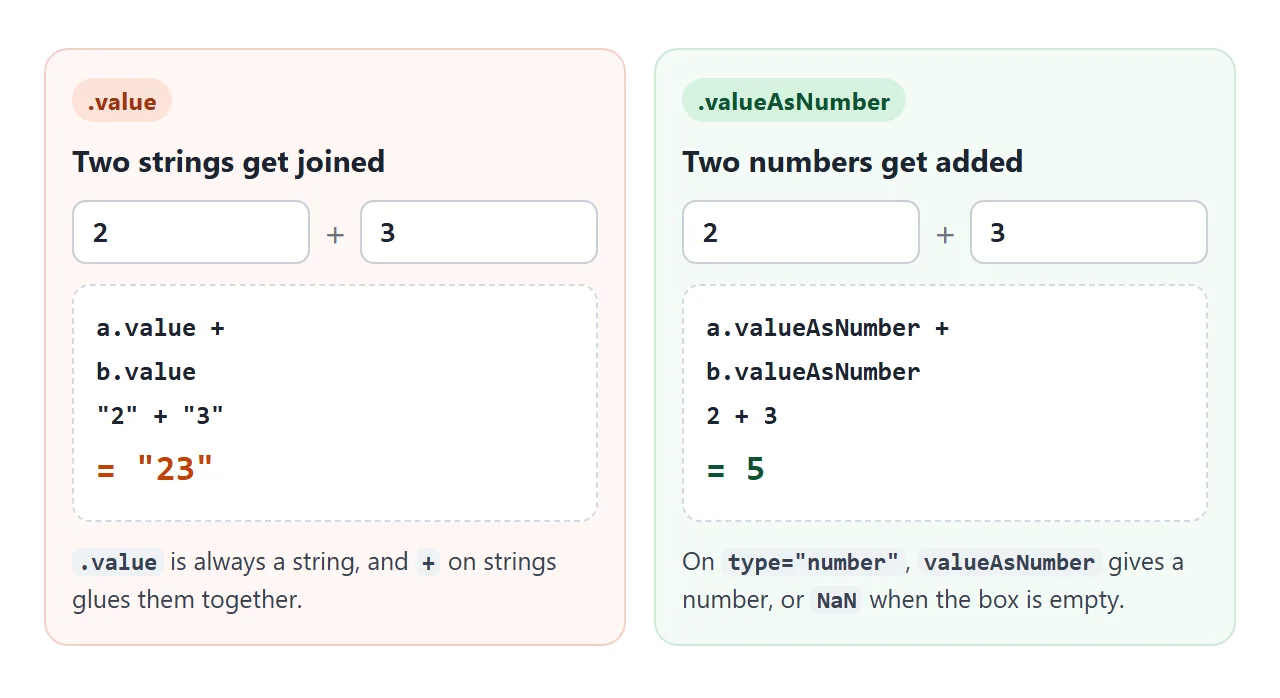
A number input has a property that skips the conversion. valueAsNumber returns a real number. When the box is empty, it returns NaN, which you can test with Number.isNaN().
| Box holds | value |
Number(value) |
valueAsNumber |
|---|---|---|---|
| 3 | "3" |
3 | 3 |
| 2.5 | "2.5" |
2.5 | 2.5 |
| nothing | "" |
0 | NaN |
| 1e (not a number yet) | "" |
0 | NaN |
The last two rows are the trap. Number("") is 0, so an empty box silently counts as zero. On a number input, text that is not a valid number also gives an empty value, not the text itself.
On a text input, valueAsNumber is always NaN. Convert with Number() or parseFloat() there, and check for an empty string first.
Dates: value or valueAsDate
A date input's value is a string in the form "2026-09-26", whatever format the browser shows on screen. That string sorts correctly and is often all you need.
valueAsDate returns a Date object set to midnight UTC on that day. In a time zone west of UTC, showing it with local methods gives the day before. Measured in a browser set to New York:
day.valueAsDate.toISOString();          // "2026-09-26T00:00:00.000Z"
day.valueAsDate.toLocaleDateString();   // "9/25/2026"
Use the UTC methods, such as getUTCDate(), or pass timeZone: 'UTC' when formatting. valueAsNumber on a date input gives the same moment in milliseconds. JavaScript date format covers formatting.
Checkboxes, selects and radio groups
These controls do not store what the user picked in the place you might expect. Change each one below and watch which property moves.
<!doctype html>
<html lang="en">
<head>
<meta charset="utf-8">
<meta name="viewport" content="width=device-width, initial-scale=1">
<title>Every control reads differently</title>
<style>
  body { margin: 0; padding: 14px; font-family: system-ui, sans-serif; background: #f4f5f7; color: #1d2330; }
  .wrap { display: grid; grid-template-columns: repeat(auto-fit, minmax(250px, 1fr)); gap: 12px; }
  form, .res { background: #fff; border-radius: 12px; padding: 14px 16px; box-shadow: 0 4px 16px rgba(0, 0, 0, .08); }
  .f { margin-bottom: 10px; }
  .f > label, legend { display: block; font-weight: 600; font-size: 14px; margin-bottom: 4px; }
  fieldset { border: 0; padding: 0; margin: 0; }
  fieldset label { margin-right: 12px; font-size: 15px; }
  input[type=number], input[type=date], select { font: inherit; padding: 6px 8px; border: 1px solid #c9ced6; border-radius: 8px; width: 100%; box-sizing: border-box; }
  .res { font-size: 13px; }
  .res div { padding: 5px 0; border-bottom: 1px solid #eef0f3; }
  code { font-family: ui-monospace, Consolas, monospace; color: #1d4ed8; }
  .v { display: block; font-family: ui-monospace, Consolas, monospace; margin-top: 2px; word-break: break-all; }
  .t { color: #6b7280; font-family: system-ui, sans-serif; }
</style>
</head>
<body>
<div class="wrap">
  <form id="f">
    <div class="f"><label for="qty">Quantity (number)</label><input id="qty" name="qty" type="number" value="3"></div>
    <div class="f"><label for="day">Day (date)</label><input id="day" name="day" type="date" value="2026-09-26"></div>
    <div class="f"><label><input id="agree" name="agree" type="checkbox"> I agree (checkbox)</label></div>
    <div class="f"><label for="plan">Plan (select)</label>
      <select id="plan" name="plan">
        <option value="free">Free plan</option>
        <option value="pro" selected>Pro plan</option>
        <option value="team">Team plan</option>
      </select></div>
    <fieldset><legend>Size (radio group)</legend>
      <label><input type="radio" name="size" value="S"> S</label>
      <label><input type="radio" name="size" value="M" checked> M</label>
      <label><input type="radio" name="size" value="L"> L</label>
    </fieldset>
  </form>
  <div class="res" id="res"></div>
</div>

<script>
  const form = document.getElementById('f');
  const qty = document.getElementById('qty');
  const day = document.getElementById('day');
  const agree = document.getElementById('agree');
  const plan = document.getElementById('plan');

  // Show a value with its type, so "3" and 3 look different
  function show(v) {
    if (v instanceof Date) return v.toISOString() + ' <span class="t">Date</span>';
    if (typeof v === 'string') return JSON.stringify(v) + ' <span class="t">string</span>';
    return String(v) + ' <span class="t">' + (v === null ? 'null' : typeof v) + '</span>';
  }

  function render() {
    const rows = [
      ['qty.value', qty.value],
      ['qty.valueAsNumber', qty.valueAsNumber],
      ['day.value', day.value],
      ['day.valueAsDate', day.valueAsDate],
      ['agree.checked', agree.checked],
      ['agree.value', agree.value],
      ['plan.value', plan.value],
      ['plan.selectedOptions[0].text', plan.selectedOptions[0].text],
      ['form.elements.size.value', form.elements.size.value],
    ];
    document.getElementById('res').innerHTML = rows
      .map(([code, v]) => '<div><code>' + code + '</code><span class="v">' + show(v) + '</span></div>')
      .join('');
  }

  form.addEventListener('input', render); // one listener for every control in the form
  render();
</script>
</body>
</html>
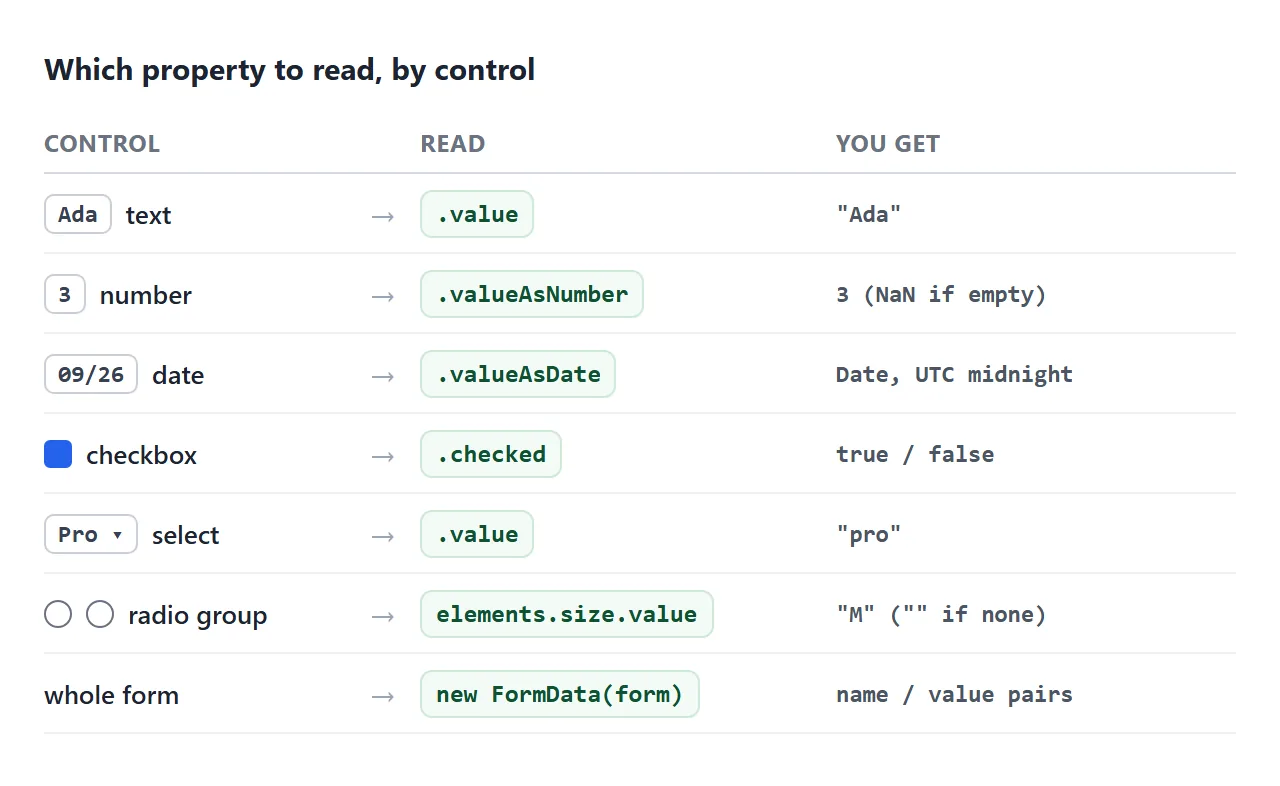
- Checkbox: read
checked, which istrueorfalse. Itsvalueis"on"unless you set a value attribute, and it stays the same whether the box is ticked or not. More in the checkbox guide. - Select:
valueis the value of the chosen option. If the option has no value attribute, you get its text. For the visible label, readselectedOptions[0].text. - Radio group: each radio is its own element, so no single element holds the answer. Ask the group instead:
form.elements.size.value; // "M", or "" when none is checked
Outside a form, find the checked one with a selector:
document.querySelector('input[name="size"]:checked')?.value;
The ?. stops an error when no radio is checked. Radio buttons in HTML covers groups in more depth.
input vs change: when to read
Both events tell you the value has changed. They differ in how often.
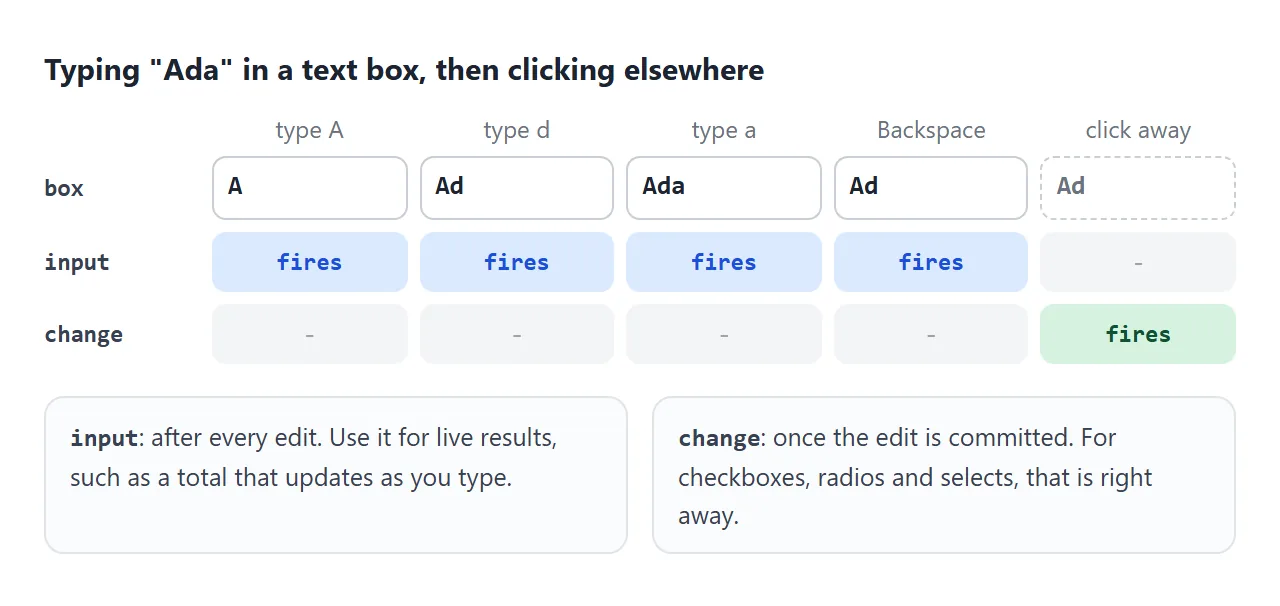
input |
change |
|
|---|---|---|
| Text and number boxes | After every keystroke, paste or delete | Once, when the box loses focus after an edit |
| Checkbox, radio, select | Right after the pick | Right after the pick, just after input |
| Good for | Live totals, search as you type, counters | Saving, validating a finished entry |
Both events bubble, so one listener on the <form> hears every control inside it. Setting value from your own code does not fire either event. If other code listens for it, call your update function directly after setting the value.
The text input guide also covers defaultValue, which keeps the value from the HTML while value follows the user.
Read the whole form with FormData
Reading fields one by one gets long as a form grows. new FormData(form) collects every named field in one step:
const data = new FormData(form);
data.get('plan');      // "pro"
data.has('agree');     // false when the checkbox is unticked
Object.fromEntries(data); // { qty: "3", plan: "pro", size: "M", ... }
It follows the same rules as a real form submission. Fields without a name are skipped, and so are disabled fields and unticked checkboxes. Empty text boxes are included as "". Every value is a string, so numbers still need converting.
FormData in JavaScript covers getAll, files and sending the data with fetch.
A finished example: a live calculator
This order form uses each technique once. valueAsNumber reads the price and quantity, FormData reads the tip, delivery and gift wrap, and one input listener on the form recomputes the total after every change.
<!doctype html>
<html lang="en">
<head>
<meta charset="utf-8">
<meta name="viewport" content="width=device-width, initial-scale=1">
<title>Live order calculator</title>
<style>
  body { margin: 0; padding: 14px; font-family: system-ui, sans-serif; background: #f4f5f7; color: #1d2330; }
  form { max-width: 460px; background: #fff; border-radius: 12px; padding: 16px 18px; box-shadow: 0 4px 16px rgba(0, 0, 0, .08); }
  .two { display: grid; grid-template-columns: 1fr 1fr; gap: 10px; }
  .f { margin-bottom: 12px; }
  .f > label, legend { display: block; font-weight: 600; font-size: 14px; margin-bottom: 4px; }
  fieldset { border: 0; padding: 0; margin: 0 0 12px; }
  fieldset label { margin-right: 10px; white-space: nowrap; }
  input[type=number], select { font: inherit; padding: 7px 9px; border: 1px solid #c9ced6; border-radius: 8px; width: 100%; box-sizing: border-box; }
  .total { margin-top: 4px; padding: 12px 14px; border-radius: 10px; background: #f4fbf6; border: 1px solid #cfe9d7; }
  .total b { font-size: 24px; }
  .total.err { background: #fff7f5; border-color: #f3d1c8; }
  .total.err b { font-size: 16px; }
  #lines { font-size: 13px; color: #4b5563; margin-top: 4px; }
</style>
</head>
<body>
<form id="order">
  <div class="two">
    <div class="f"><label for="price">Price ($)</label><input id="price" name="price" type="number" min="0" step="0.01" value="12.50"></div>
    <div class="f"><label for="qty">Quantity</label><input id="qty" name="qty" type="number" min="1" step="1" value="2"></div>
  </div>
  <fieldset><legend>Tip</legend>
    <label><input type="radio" name="tip" value="0"> 0%</label>
    <label><input type="radio" name="tip" value="10" checked> 10%</label>
    <label><input type="radio" name="tip" value="15"> 15%</label>
    <label><input type="radio" name="tip" value="20"> 20%</label>
  </fieldset>
  <div class="f"><label for="ship">Delivery</label>
    <select id="ship" name="ship">
      <option value="0">Pick up (free)</option>
      <option value="4.5">Standard ($4.50)</option>
      <option value="9">Express ($9.00)</option>
    </select></div>
  <div class="f"><label><input type="checkbox" name="wrap"> Gift wrap (+$3.00)</label></div>
  <div class="total" id="box"><b id="total"></b><div id="lines"></div></div>
</form>

<script>
  const form = document.getElementById('order');
  const money = (n) => '$' + n.toFixed(2);

  function update() {
    const price = form.elements.price.valueAsNumber; // NaN when empty or invalid
    const qty = form.elements.qty.valueAsNumber;
    const box = document.getElementById('box');

    if (Number.isNaN(price) || Number.isNaN(qty)) {
      box.classList.add('err');
      document.getElementById('total').textContent = 'Enter a price and a quantity';
      document.getElementById('lines').textContent = '';
      return;
    }

    const data = new FormData(form);        // radios, select and checkbox in one go
    const tipPct = Number(data.get('tip')); // "10" -> 10
    const ship = Number(data.get('ship'));
    const wrap = data.has('wrap') ? 3 : 0;  // an unticked checkbox is left out

    const items = price * qty;
    const tip = items * tipPct / 100;
    const total = items + tip + ship + wrap;

    box.classList.remove('err');
    document.getElementById('total').textContent = money(total);
    document.getElementById('lines').textContent =
      'Items ' + money(items) + ' + tip ' + money(tip) + ' + delivery ' + money(ship) + ' + wrap ' + money(wrap);
  }

  form.addEventListener('input', update);                     // every edit, every click
  form.addEventListener('submit', (e) => e.preventDefault()); // Enter does not reload the page
  update();
</script>
</body>
</html>
- One listener: an
inputlistener on the form covers the number boxes, the radios, the select and the checkbox. - Empty boxes:
Number.isNaN()catches a cleared field before it turns the total intoNaN. - Enter key: pressing Enter in a box would submit the form and reload the page, so the
submitlistener callspreventDefault().
For a longer walk through building one, see sharing a calculator as a link. For every input type and the value each one gives, see HTML input types.
When it does not work
| What you see | Cause | Fix |
|---|---|---|
| The value is always empty | Read once at page load | Read it inside an event listener |
Cannot read properties of null |
The script runs before the input exists, or the id is wrong | Move the script below, add defer, check the id |
| 2 + 3 shows 23 | value is a string |
Use valueAsNumber or Number() |
| An empty box counts as 0 | Number("") is 0 |
Check for "" or use valueAsNumber and Number.isNaN() |
| The total shows NaN | A number box is empty or invalid | Check Number.isNaN() before computing |
| A checkbox always says "on" | Reading value instead of checked |
Read checked |
| The radio value is undefined | Reading one radio, or none is checked | Use the group value, and handle "" |
| The date is one day off | valueAsDate is midnight UTC |
Use UTC methods, or keep the value string |
| The update runs only after clicking away | Listening to change on a text box |
Listen to input |
| A field is missing from FormData | No name, or it is disabled or unticked |
Add a name; use has() for checkboxes |
Share it as a link
A calculator or a form is easier to try than to describe. A screenshot shows one set of numbers, and an .html attachment may open as plain code on a phone.
To send the working version, paste the page into a NOS document and choose Create share link. HTML to link walks through it.
The page renders as written and its scripts run, so the people you send it to can type their own numbers and watch the total change. If you change the code later, the same link shows the new version.