In the web platform, TextEvent is a legacy interface that reports changes to text elements. It is the object behind the textInput event, and MDN marks it deprecated.
For the same job in today's HTML, listen for beforeinput (about to change) and input (has changed) on the text field.
Type in the box below to see every text event a field sends, in order. The orange line is the legacy textInput.
<!doctype html>
<html lang="en">
<head>
<meta charset="utf-8">
<meta name="viewport" content="width=device-width, initial-scale=1">
<title>Text events in order</title>
<style>
  body { margin: 0; padding: 14px; font-family: system-ui, sans-serif; background: #f4f5f7; color: #1d2330; }
  label { display: block; font-size: 14px; font-weight: 600; margin-bottom: 6px; }
  input { width: 100%; box-sizing: border-box; font-size: 16px; padding: 9px 11px; border: 1px solid #c9cdd4; border-radius: 8px; }
  #log { margin: 12px 0 0; padding: 0; list-style: none; height: 250px; overflow: auto; background: #fff; border: 1px solid #e1e4ea; border-radius: 8px; font: 13px/1.5 ui-monospace, Consolas, monospace; }
  #log li { padding: 2px 10px; border-bottom: 1px solid #f0f1f4; }
  #log li.sep { background: #f4f5f7; color: #6b7280; font-size: 12px; }
  .name { display: inline-block; min-width: 92px; font-weight: 700; }
  .keydown .name { color: #6b7280; }
  .beforeinput .name { color: #1d4ed8; }
  .textInput .name { color: #9a3412; }
  .input .name { color: #0f5132; }
  .change .name { color: #7c3aed; }
  #note { margin: 8px 0 0; font-size: 12.5px; color: #5b6270; }
</style>
</head>
<body>
<label for="f">Type here, then press Tab</label>
<input id="f" type="text" autocomplete="off" placeholder="Type a letter, paste, press Backspace">
<ul id="log"></ul>
<p id="note">Orange = legacy textInput. If it never appears, your browser does not send it.</p>

<script>
  const field = document.getElementById('f');
  const log = document.getElementById('log');

  function add(type, detail) {
    const li = document.createElement('li');
    li.className = type;
    li.innerHTML = '<span class="name">' + type + '</span>' + detail;
    log.prepend(li);                       // newest on top
    while (log.children.length > 40) log.lastChild.remove();
  }

  field.addEventListener('keydown', (e) => add('keydown', 'key: ' + JSON.stringify(e.key)));

  field.addEventListener('beforeinput', (e) =>
    add('beforeinput', 'inputType: ' + e.inputType + ', data: ' + JSON.stringify(e.data)));

  // Legacy event: the name is case-sensitive, "textInput" with a capital I.
  field.addEventListener('textInput', (e) =>
    add('textInput', 'data: ' + JSON.stringify(e.data)));

  field.addEventListener('input', (e) =>
    add('input', 'value is now ' + JSON.stringify(field.value)));

  field.addEventListener('change', () => {
    add('change', 'committed ' + JSON.stringify(field.value));
  });
</script>
</body>
</html>
The log shows what one field sends for one keystroke. Details can differ between browsers, so run it in the ones you care about.
What TextEvent and textInput are
MDN describes TextEvent as "a legacy UI event interface for reporting changes to text UI elements". It has one property, data, and one method, initTextEvent().
The UI Events specification lists textInput among its obsolete event types. It says those should only be implemented by browsers that need compatibility with legacy software.
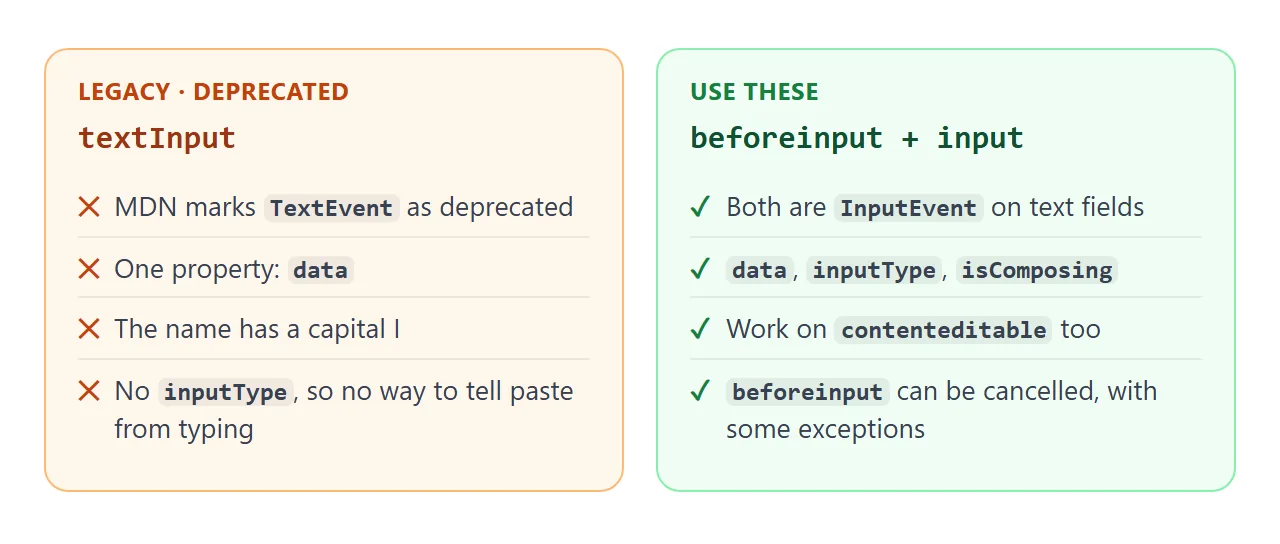
MDN's compatibility data lists TextEvent in Chrome 1, Safari 3, Edge 12 and Firefox 129. Support does not change the advice: the page is marked deprecated, and the events that replaced it do more.
The events to use instead
A text field sends a short chain of events for each change. Each one answers a different question.
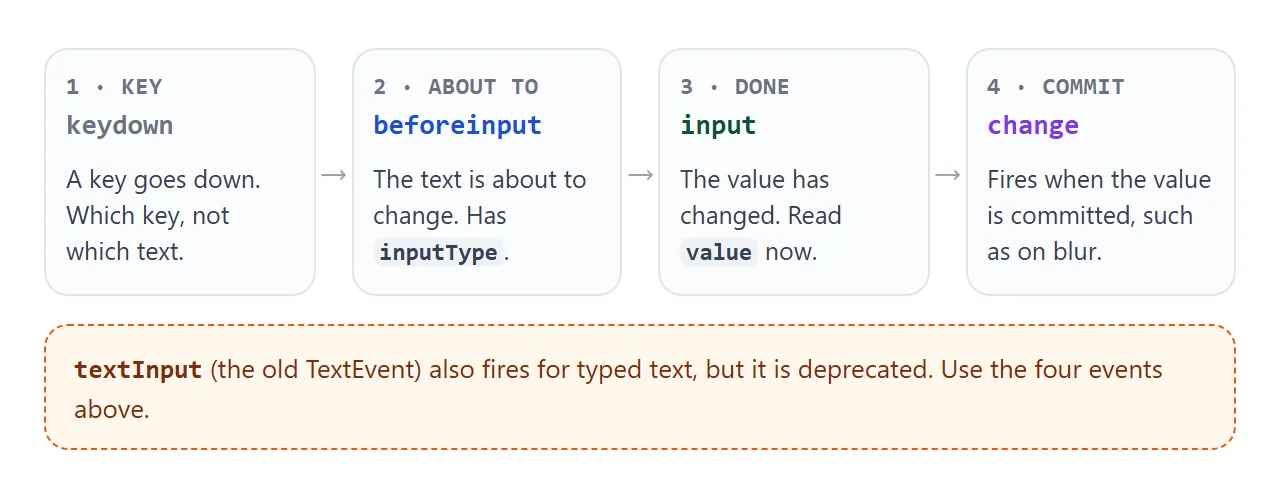
| Event | Fires | Use it to |
|---|---|---|
keydown |
A key goes down | Handle shortcuts and special keys |
beforeinput |
The value is about to change | Inspect or block the change |
input |
The value has changed | Read the new value, update a counter |
change |
The value is committed, such as on blur | Save once, after editing ends |
keypress |
Deprecated key event | Nothing: MDN says to use beforeinput or keydown |
If you only remember one: use input to follow what the user typed. addEventListener covers how to attach any of these.
Read what changed: data and inputType
Both beforeinput and input hand you an InputEvent. It has three useful properties, and TextEvent has none of them except data.
data– the characters being inserted.inputType– the kind of change, such asinsertText,insertFromPasteordeleteContentBackward.isComposing– true betweencompositionstartandcompositionend, which is how an input method editor builds a character.
MDN says data can be empty when a change inserts no text, such as deleting. In a Chromium test, Backspace gave null in beforeinput. Check it before you use it:
field.addEventListener('beforeinput', (e) => {
  if (e.data && e.inputType === 'insertText') {
    console.log('typed', e.data);
  }
});
The log also shows that Backspace sends beforeinput and input but no textInput in that test. That gap is one more reason not to build on the legacy event.
Block a character before it lands
beforeinput runs before the browser changes the value. Calling preventDefault() there stops the change. The left box below refuses letters this way. The right box lets everything in, then removes letters in input.
<!doctype html>
<html lang="en">
<head>
<meta charset="utf-8">
<meta name="viewport" content="width=device-width, initial-scale=1">
<title>Block letters: beforeinput vs input</title>
<style>
  body { margin: 0; padding: 14px; font-family: system-ui, sans-serif; background: #f4f5f7; color: #1d2330; }
  .grid { display: grid; grid-template-columns: 1fr 1fr; gap: 12px; }
  @media (max-width: 460px) { .grid { grid-template-columns: 1fr; } }
  .panel { background: #fff; border: 1px solid #e1e4ea; border-radius: 10px; padding: 12px; }
  h3 { margin: 0 0 4px; font-size: 14px; }
  .panel p { margin: 0 0 8px; font-size: 12.5px; color: #5b6270; }
  input { width: 100%; box-sizing: border-box; font-size: 16px; padding: 9px 11px; border: 1px solid #c9cdd4; border-radius: 8px; }
  .out { margin-top: 8px; font: 12.5px ui-monospace, Consolas, monospace; color: #374151; min-height: 18px; }
  .a h3 { color: #1d4ed8; } .b h3 { color: #0f5132; }
</style>
</head>
<body>
<div class="grid">
  <div class="panel a">
    <h3>Cancel in beforeinput</h3>
    <p>Typed letters never reach the box.</p>
    <input id="a" inputmode="numeric" autocomplete="off" placeholder="digits only">
    <div class="out" id="outA"></div>
  </div>
  <div class="panel b">
    <h3>Clean up in input</h3>
    <p>Anything goes in, then letters are removed. Paste works too.</p>
    <input id="b" inputmode="numeric" autocomplete="off" placeholder="digits only">
    <div class="out" id="outB"></div>
  </div>
</div>

<script>
  const a = document.getElementById('a');
  const b = document.getElementById('b');

  // A: stop a non-digit before it is inserted
  a.addEventListener('beforeinput', (e) => {
    if (e.inputType === 'insertText' && e.data && /\D/.test(e.data)) {
      e.preventDefault();
      document.getElementById('outA').textContent = 'blocked ' + JSON.stringify(e.data);
    }
  });

  // B: let anything in, then strip non-digits (also catches paste)
  b.addEventListener('input', () => {
    const clean = b.value.replace(/\D/g, '');
    if (clean !== b.value) {
      b.value = clean;
      document.getElementById('outB').textContent = 'removed non-digits';
    }
  });
</script>
</body>
</html>
Paste into the left box. The letters get through, because the guard only checks insertText, and a paste has a different inputType.
MDN also warns that not every change is cancelable. Autocomplete, spell-check corrections, password-manager autofill and IME may skip it.
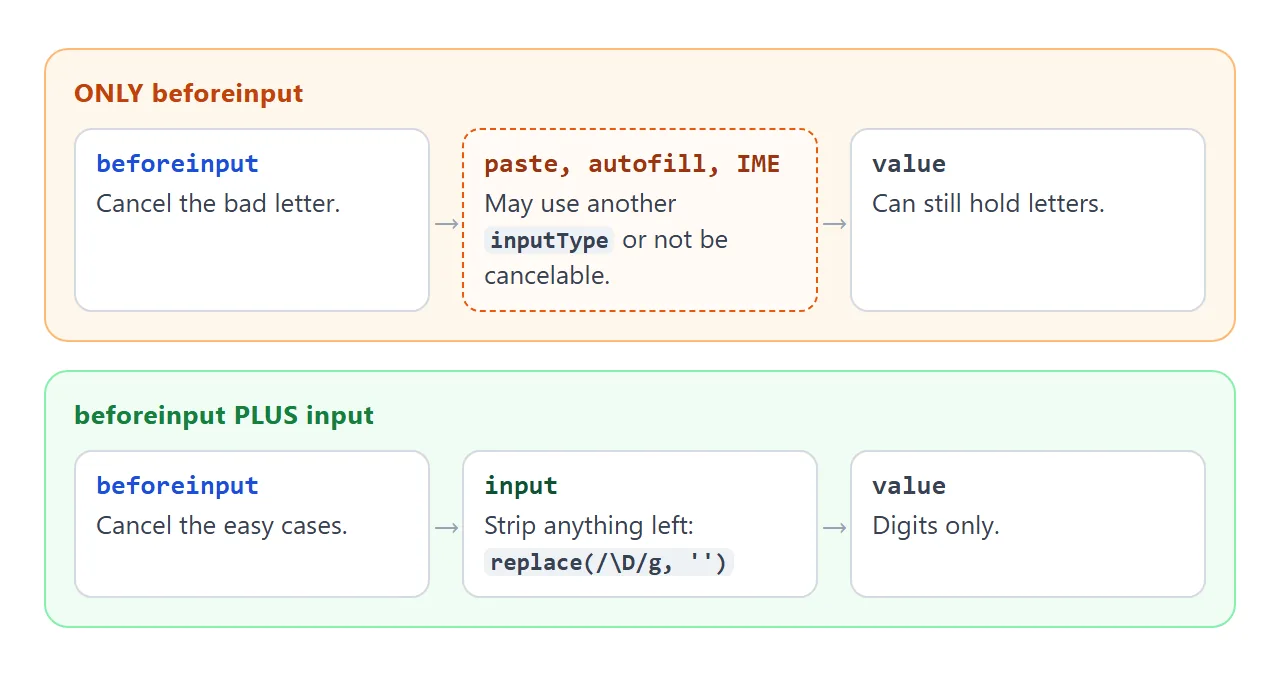
The reliable pattern is both. Cancel the easy cases in beforeinput, then make the value correct in input:
field.addEventListener('input', () => {
  field.value = field.value.replace(/\D/g, '');
});
For a number field, check the built-in options first. Text input in HTML covers type, inputmode and pattern.
A finished example: a live counter
The same input listener drives a character counter. It trims pasted overflow, fills a bar, and shows the inputType of the last change.
<!doctype html>
<html lang="en">
<head>
<meta charset="utf-8">
<meta name="viewport" content="width=device-width, initial-scale=1">
<title>Live counter with a limit</title>
<style>
  body { margin: 0; padding: 14px; font-family: system-ui, sans-serif; background: #f4f5f7; color: #1d2330; }
  .card { background: #fff; border: 1px solid #e1e4ea; border-radius: 12px; padding: 14px; box-shadow: 0 4px 14px rgba(0,0,0,.06); }
  label { display: block; font-size: 14px; font-weight: 600; margin-bottom: 6px; }
  textarea { width: 100%; box-sizing: border-box; height: 110px; resize: vertical; font: 16px/1.4 system-ui, sans-serif; padding: 9px 11px; border: 1px solid #c9cdd4; border-radius: 8px; }
  .bar { height: 6px; background: #e5e7eb; border-radius: 3px; margin: 10px 0 6px; overflow: hidden; }
  .fill { height: 100%; width: 0; background: #16a34a; transition: width .1s; }
  .fill.warn { background: #ea580c; }
  .row { display: flex; justify-content: space-between; gap: 10px; font-size: 13px; color: #374151; }
  #last { font-family: ui-monospace, Consolas, monospace; }
</style>
</head>
<body>
<div class="card">
  <label for="t">Short note (80 characters max)</label>
  <textarea id="t" placeholder="Type or paste here"></textarea>
  <div class="bar"><div class="fill" id="fill"></div></div>
  <div class="row"><span id="count">0 / 80</span><span id="last">last change: none</span></div>
</div>

<script>
  const MAX = 80;
  const t = document.getElementById('t');
  const fill = document.getElementById('fill');

  // input fires after every change: typing, paste, delete
  t.addEventListener('input', (e) => {
    if (t.value.length > MAX) t.value = t.value.slice(0, MAX);   // trim pasted overflow
    document.getElementById('count').textContent = t.value.length + ' / ' + MAX;
    fill.style.width = (t.value.length / MAX * 100) + '%';
    fill.classList.toggle('warn', t.value.length >= MAX - 10);
    document.getElementById('last').textContent = 'last change: ' + e.inputType;
  });
</script>
</body>
</html>
Three lines do the work:
- Trim: if
value.lengthis over the limit, cut it withslice(0, MAX). - Show: write
value.lengthinto the counter element. - Report: read
e.inputTypeto say what just happened.
To read the value in other ways, see get input value in JavaScript.
When it does not work
| What you see | Cause | Fix |
|---|---|---|
| The textInput listener never runs | The name is spelled textinput | Use textInput, or better, input |
| Old textInput code works in some browsers only | MDN's data lists Firefox support from version 129 | Switch to beforeinput and input |
| Letters still appear after preventDefault | The change was a paste, autofill or IME | Also clean the value in input |
| e.data is null | The change inserted no text, such as a delete | Test e.data before using it |
| The counter is one character behind | The value was read in keydown or beforeinput, before the change | Read it in input |
| The listener on a div never runs | The div is not editable | Add contenteditable, or listen on an input element |
| change does not fire while typing | It waits until the value is committed | Use input for live updates |
Share it as a link
Text events are easiest to understand by typing into them, and a screenshot of the log cannot be typed into. Typing, pasting and autofill also behave a little differently on every device, so it helps to let the other person try on theirs.
To send the working version, paste the page into a NOS document and choose Create share link. HTML to link walks through it.
The page renders as written and its scripts run, so the people you send it to can type into the fields themselves. If you change the code later, the same link shows the new version.