A <textarea> is the HTML element for text that runs over several lines: comments, messages, notes. Write <textarea name="message"></textarea>, size it with CSS rather than rows and cols, and read what the user typed from its .value property.
<label for="message">Message</label>
<textarea id="message" name="message" rows="4" maxlength="500"
          placeholder="What would you like to say?"></textarea>
Try the four common size settings side by side. Drag the corner handles and watch the numbers.
<!doctype html>
<html lang="en">
<head>
<meta charset="utf-8">
<meta name="viewport" content="width=device-width, initial-scale=1">
<title>Textarea size and resize</title>
<style>
  * { box-sizing: border-box; }
  body { margin: 0; padding: 14px; font-family: system-ui, sans-serif; background: #f4f5f7; color: #1d2330; }
  .grid { display: grid; grid-template-columns: 1fr 1fr; gap: 12px; }
  .cell { background: #fff; border-radius: 10px; padding: 10px 12px 12px; min-width: 0; }
  .cell h3 { margin: 0 0 2px; font: 600 13px ui-monospace, Consolas, monospace; }
  .cell p { margin: 0 0 8px; font-size: 12px; color: #5b6270; }
  textarea { font: 14px/1.4 system-ui, sans-serif; padding: 6px 8px; border: 1px solid #c9cdd4; border-radius: 6px; max-width: 100%; }
  .full { width: 100%; }                               /* CSS width beats cols */
  .none { width: 100%; height: 80px; resize: none; }   /* no handle */
  .vert { width: 100%; height: 80px; resize: vertical; max-height: 200px; } /* taller only */
  .size { margin-top: 6px; font: 12px ui-monospace, Consolas, monospace; color: #0f5132; }
  @media (max-width: 480px) {
    body { padding: 10px; }
    .grid { grid-template-columns: 1fr; gap: 8px; }
    .cell { padding: 8px 10px 10px; }
    .cell p { display: none; }
    .none, .vert { height: 64px; }
  }
</style>
</head>
<body>
<div class="grid">
  <div class="cell">
    <h3>rows="3" cols="20"</h3>
    <p>Size in lines and characters.</p>
    <textarea rows="3" cols="20">Drag the corner.</textarea>
    <div class="size"></div>
  </div>
  <div class="cell">
    <h3>width: 100%</h3>
    <p>Fills the box. rows still sets height.</p>
    <textarea class="full" rows="3">Drag the corner.</textarea>
    <div class="size"></div>
  </div>
  <div class="cell">
    <h3>resize: none</h3>
    <p>No handle. The size is fixed.</p>
    <textarea class="none">No corner handle here.</textarea>
    <div class="size"></div>
  </div>
  <div class="cell">
    <h3>resize: vertical</h3>
    <p>Taller or shorter, never wider.</p>
    <textarea class="vert">Drag the corner down.</textarea>
    <div class="size"></div>
  </div>
</div>

<script>
  // Show each textarea's size, and update it whenever the user resizes one
  const ro = new ResizeObserver((entries) => {
    entries.forEach(({ target: ta }) => {
      ta.nextElementSibling.textContent = ta.offsetWidth + ' x ' + ta.offsetHeight + ' px';
    });
  });
  document.querySelectorAll('textarea').forEach((ta) => ro.observe(ta));
</script>
</body>
</html>
For single-line fields such as a name or an email address, use <input> instead. A textarea exists for text that needs line breaks.
rows and cols vs CSS width and height
rows sets the visible height in lines of text and cols the width in average character widths. Without them, the HTML standard defaults to 2 rows and 20 columns, which is small for most uses.
CSS width and height override both attributes. A common pattern keeps rows as a sensible starting height and lets CSS control the width:
textarea {
  box-sizing: border-box;
  width: 100%;
  min-height: 6em;
  font: inherit;          /* textareas do not inherit the page font by default */
}
The last line matters. Browsers give form controls their own font, often a monospace one for textareas, so the box looks out of place until you set font: inherit.
The default value is the text between the tags
A textarea has no value attribute. Whatever sits between <textarea> and </textarea> becomes the starting text. It is read as plain text, so a tag written inside shows up as characters, not as markup.
Whitespace counts. If you indent the tags the way you indent other HTML, the spaces and line breaks become part of the value.
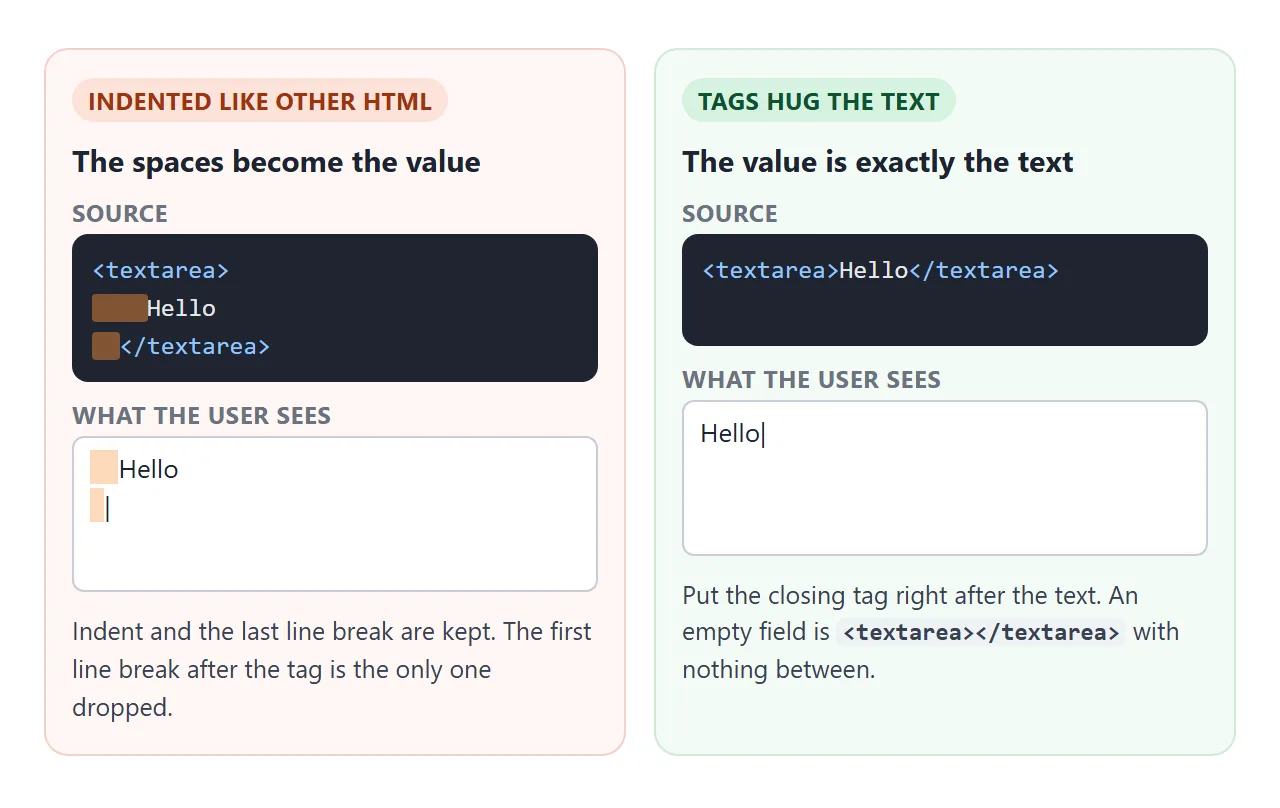
The parser drops exactly one line break: the one directly after the opening tag. Everything else is kept. Code formatters that reindent HTML can introduce this bug, so check the field after formatting a file.
The closing tag is required. <textarea /> does not close the element, and the rest of the page ends up inside the text box.
Resize: none, vertical, or both
The browser's default styles make a textarea resizable, which is why a grab handle appears in its corner. The CSS resize property controls it.
| Value | What the user can do | Good for |
|---|---|---|
both |
Drag wider and taller | Free-form writing areas with room around them |
vertical |
Drag taller or shorter only | Most forms: the layout width stays intact |
horizontal |
Drag wider or narrower only | Rarely useful |
none |
Nothing, no handle | Boxes that grow on their own, fixed layouts |
resize: vertical is usually the best choice. People can make room for long text, and the box cannot push past the edge of a card. Pair it with a max-height if the page has a fixed layout below it.
Auto height: grow with the text
A box that grows as the user types avoids an inner scrollbar. There are two ways to build it.
CSS field-sizing: content. This newer property makes a form control size itself to its content. Not every browser supports it yet, so treat it as an improvement, not the only mechanism.
textarea {
  field-sizing: content;
  min-height: 4.5em;      /* about 3 lines */
  max-height: 14em;       /* then scroll */
}
The JavaScript fallback. On every input event, set the height to auto so the box can shrink, then to its scrollHeight. scrollHeight is the height of the content, not counting borders, so add those back:
function fit(ta) {
  ta.style.height = 'auto';
  ta.style.height = ta.scrollHeight + (ta.offsetHeight - ta.clientHeight) + 'px';
}
ta.addEventListener('input', () => fit(ta));
The demo uses CSS when CSS.supports('field-sizing', 'content') is true, and the script otherwise. The note under the box says which one is running. The checkbox forces the fallback so you can compare.
<!doctype html>
<html lang="en">
<head>
<meta charset="utf-8">
<meta name="viewport" content="width=device-width, initial-scale=1">
<title>Auto-growing textarea</title>
<style>
  * { box-sizing: border-box; }
  body { margin: 0; padding: 16px; font-family: system-ui, sans-serif; background: #f4f5f7; color: #1d2330; }
  label { display: block; font-weight: 600; margin-bottom: 6px; }
  textarea {
    width: 100%; min-height: 4.5em; max-height: 14em;  /* grow between about 3 and 10 lines */
    padding: 8px 10px; border: 1px solid #c9cdd4; border-radius: 8px;
    font: 15px/1.45 system-ui, sans-serif; resize: none;
  }
  /* Newer CSS: the box follows its content */
  .css-grow { field-sizing: content; }
  .note { margin: 10px 0 0; padding: 8px 10px; border-radius: 8px; font-size: 13px; }
  .note.css { background: #d6f2df; color: #0f5132; }
  .note.js { background: #fff1d6; color: #7a4b00; }
  .opt { display: flex; gap: 6px; align-items: center; margin-top: 10px; font-size: 13px; font-weight: 400; color: #5b6270; }
</style>
</head>
<body>
<label for="msg">Message</label>
<textarea id="msg" placeholder="Type or paste several lines. The box grows with the text."></textarea>
<p class="note" id="note"></p>
<label class="opt"><input type="checkbox" id="forceJs"> Use the JavaScript fallback even if CSS can do it</label>

<script>
  const ta = document.getElementById('msg');
  const note = document.getElementById('note');
  const forceJs = document.getElementById('forceJs');
  const cssCan = CSS.supports('field-sizing', 'content');

  // Fallback: shrink to auto, then set the height from scrollHeight (+ borders)
  function fit() {
    ta.style.height = 'auto';
    ta.style.height = ta.scrollHeight + (ta.offsetHeight - ta.clientHeight) + 'px';
  }

  function setMode() {
    const useCss = cssCan && !forceJs.checked;
    ta.classList.toggle('css-grow', useCss);
    if (useCss) {
      ta.style.height = '';
      note.className = 'note css';
      note.textContent = 'Active: CSS field-sizing: content. No script is resizing the box.';
    } else {
      fit();
      note.className = 'note js';
      note.textContent = cssCan
        ? 'Active: JavaScript fallback (forced by the checkbox).'
        : 'Active: JavaScript fallback. This browser does not support field-sizing.';
    }
  }

  ta.addEventListener('input', () => { if (!ta.classList.contains('css-grow')) fit(); });
  forceJs.addEventListener('change', setMode);
  setMode();
</script>
</body>
</html>
Reading and setting the value in JavaScript
What the user types lives in the value property. Read it, and set it, with .value:
const text = ta.value;         // what is in the box right now
ta.value = '';                 // clear it
ta.value = 'Line one\nLine two';  // \n is a line break
innerHTML and textContent reflect the text between the tags, which is the default value. They do not follow typing. Once the user has typed, writing innerHTML changes the default but leaves the visible text alone. innerHTML in JavaScript explains the property in general.
In .value, every line break is a single \n, whatever system the user is on. When a form is submitted, the browser sends line breaks as \r\n. The wrap attribute changes one more thing:
wrap="soft"(the default) sends only the line breaks the user typed.wrap="hard"also inserts line breaks where the text visually wrapped. It needscolsto know where that is.
Placeholder, maxlength and a character counter
placeholder shows grey hint text while the box is empty. It disappears as soon as the user types and is never submitted. It does not replace a <label>, because the hint is gone exactly when the user might need it.
maxlength="280" stops the user typing past 280 characters. Show the limit before they hit it, with a counter that updates on input:
ta.addEventListener('input', () => {
  count.textContent = ta.value.length + ' / ' + ta.maxLength;
});
Both maxlength and .length count UTF-16 code units, so some emoji count as two. For required fields and minimum lengths, see HTML form validation.
The Tab key
In a textarea, Tab does what it does everywhere else on the page: it moves focus to the next control. It does not type a tab character. That is the right behaviour for forms, because keyboard users rely on Tab to leave the field.
For a code editor you can insert a tab yourself:
ta.addEventListener('keydown', (e) => {
  if (e.key !== 'Tab' || e.shiftKey) return;
  e.preventDefault();
  ta.setRangeText('\t', ta.selectionStart, ta.selectionEnd, 'end');
});
This handler lets Shift+Tab through, so keyboard users can still leave the field backwards. Say so in a short note next to the box, because it is not what they expect.
Showing the text with its line breaks
The value keeps line breaks, but a normal <div> or <p> collapses them into spaces. The fix is one CSS line on the element that displays the text.
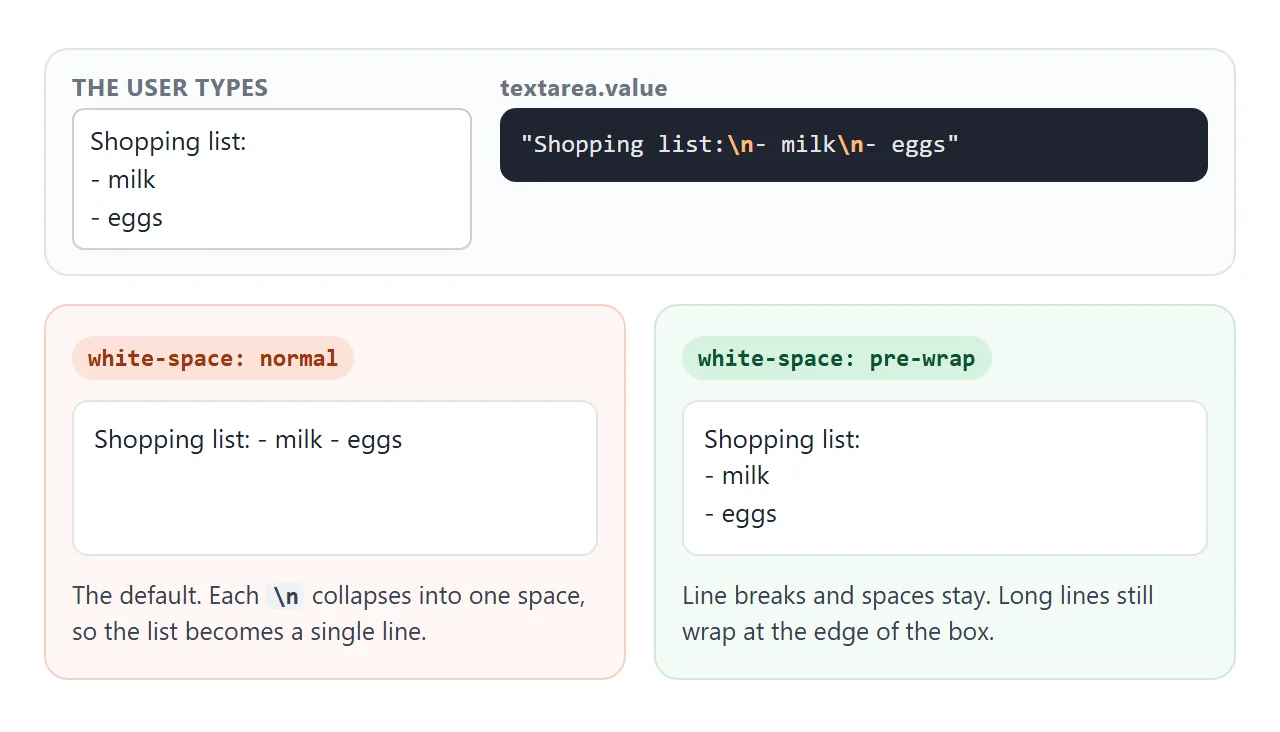
.comment { white-space: pre-wrap; overflow-wrap: anywhere; }
pre-wrap keeps line breaks and spaces and still wraps long lines. overflow-wrap: anywhere breaks a long unbroken string, such as a URL, instead of letting it overflow.
Insert the text with textContent, not innerHTML. With textContent, a user who types <b> or <img> sees those characters, and nothing runs. Building HTML from user text needs escaping, and textContent does it for you.
A finished example: a comment box
This one puts it together: a maxlength counter that turns amber near the limit, a live preview that keeps line breaks, and a Post button that adds the comment to the list with textContent.
<!doctype html>
<html lang="en">
<head>
<meta charset="utf-8">
<meta name="viewport" content="width=device-width, initial-scale=1">
<title>Comment box</title>
<style>
  * { box-sizing: border-box; }
  body { margin: 0; padding: 14px; font-family: system-ui, sans-serif; background: #f4f5f7; color: #1d2330; }
  form { background: #fff; border-radius: 12px; padding: 12px; }
  label { display: block; font-weight: 600; margin-bottom: 6px; }
  textarea {
    width: 100%; height: 6.5em; max-height: 14em;
    padding: 8px 10px; border: 1px solid #c9cdd4; border-radius: 8px;
    font: 15px/1.45 system-ui, sans-serif; resize: vertical;
  }
  .bar { display: flex; justify-content: space-between; align-items: center; margin-top: 8px; }
  .count { font: 13px ui-monospace, Consolas, monospace; color: #5b6270; }
  .count.near { color: #b45309; font-weight: 700; }
  button { padding: 8px 16px; border: 0; border-radius: 8px; background: #1d4ed8; color: #fff; font: 600 14px system-ui, sans-serif; cursor: pointer; }
  button:disabled { background: #a8b0bd; cursor: default; }
  h4 { margin: 14px 0 6px; font-size: 13px; color: #5b6270; }
  /* pre-wrap keeps the user's line breaks and spaces, and still wraps long lines */
  .text { white-space: pre-wrap; overflow-wrap: anywhere; line-height: 1.45; }
  .preview { min-height: 2.6em; padding: 8px 10px; border: 1px dashed #c9cdd4; border-radius: 8px; background: #fafbfc; color: #374151; }
  ul { list-style: none; margin: 0; padding: 0; }
  li { background: #fff; border-radius: 10px; padding: 10px 12px; margin-top: 8px; }
</style>
</head>
<body>
<form id="form">
  <label for="comment">Your comment</label>
  <textarea id="comment" maxlength="280" placeholder="Line breaks are kept. Try typing <b>tags</b> too."></textarea>
  <div class="bar">
    <span class="count" id="count">0 / 280</span>
    <button id="post" disabled>Post</button>
  </div>
  <h4>Preview</h4>
  <div class="preview text" id="preview"></div>
</form>
<h4>Comments</h4>
<ul id="list"></ul>

<script>
  const ta = document.getElementById('comment');
  const count = document.getElementById('count');
  const post = document.getElementById('post');
  const preview = document.getElementById('preview');
  const list = document.getElementById('list');
  const max = ta.maxLength;

  function update() {
    const n = ta.value.length;            // read .value, not innerHTML
    count.textContent = n + ' / ' + max;
    count.classList.toggle('near', n >= max - 20);
    post.disabled = ta.value.trim() === '';
    preview.textContent = ta.value;       // textContent: tags stay plain text
  }

  document.getElementById('form').addEventListener('submit', (e) => {
    e.preventDefault();                   // demo only: nothing is sent
    const li = document.createElement('li');
    li.className = 'text';
    li.textContent = ta.value.trim();
    list.prepend(li);
    ta.value = '';
    update();
    ta.focus();
  });

  ta.addEventListener('input', update);
  update();
</script>
</body>
</html>
Post stays disabled while the box is empty or holds only spaces.
The form's
submitevent callspreventDefault(), so the page does not reload. A real site sendsta.valueto its server here.After posting, the box is cleared through
.valueand gets focus back.
When it does not work
| What you see | Cause | Fix |
|---|---|---|
| The field starts with spaces or an empty line | Whitespace between the tags is part of the default value | Write <textarea> and </textarea> with nothing, or only the text, between them |
| Setting the text from JavaScript does nothing | You set innerHTML or textContent, which changes only the default |
Set ta.value |
| Reading the text returns the old default | You read innerHTML |
Read ta.value |
| The textarea sticks out of its container | width: 100% plus padding and border under content-box |
box-sizing: border-box |
| The rest of the page appears inside the box | <textarea /> does not close the element |
Write </textarea> |
| The displayed text is one long line | HTML collapses the \n characters |
white-space: pre-wrap on the element that shows it |
| Users drag the box wider and break the layout | The default resize allows both directions |
resize: vertical plus max-width: 100% |
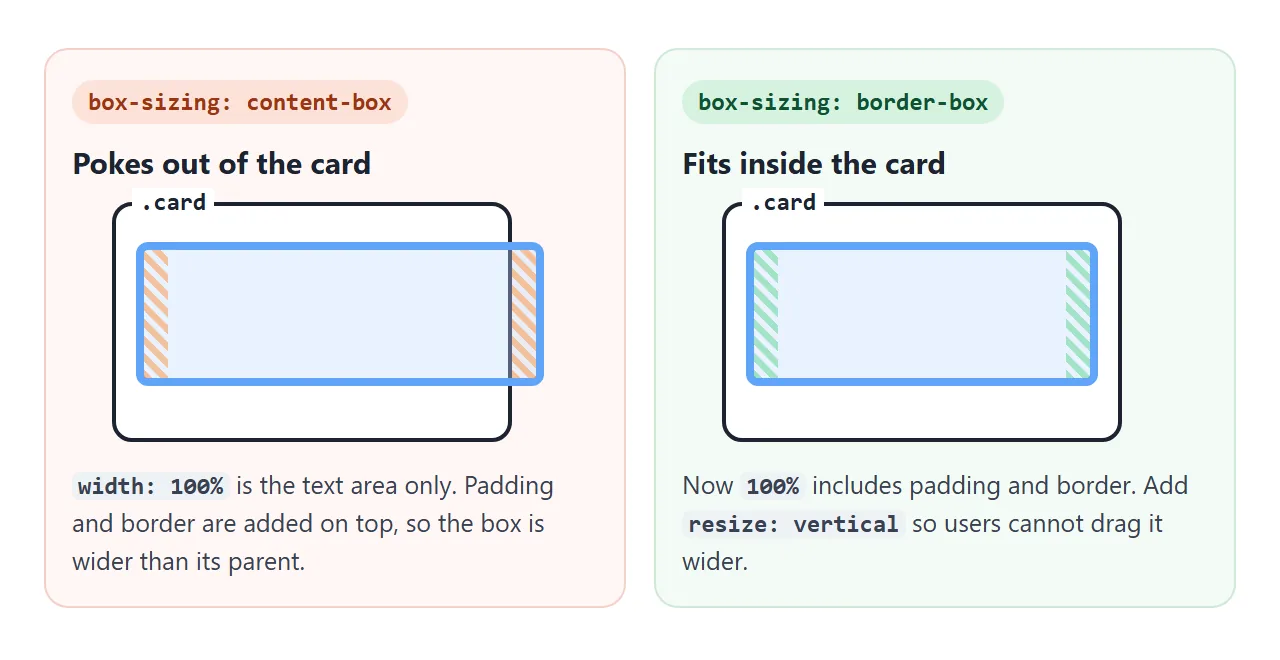
The overflow is a sizing rule, not a textarea bug. box-sizing: border-box explains why so many stylesheets set it on every element.
Share it as a link
A comment box is easier to judge by typing into it than by reading its code. A screenshot cannot be typed into, and an .html attachment may open as plain code on a phone.
To send the working version, paste the page into a NOS document and choose Create share link. HTML to link walks through it.
The page renders as written and its scripts run, so the people you send it to can type, resize and post comments themselves. If you change the code later, the same link shows the new version.