The <br> tag ends the current line and starts the next one, inside the same block of text. Use it when the line break is part of the content: the lines of an address, a poem, song lyrics.
Do not use it for space between paragraphs. For that, use <p> elements and set their margin in CSS.
<address>
  Northgate Studio<br>
  27 Canal Street<br>
  Manchester M1 3HE
</address>
<br> is a void element: it has no content and no closing tag. Try the difference between the three ways of spacing paragraphs below. Move the slider and watch which gap follows it.
<!doctype html>
<html lang="en">
<head>
<meta charset="utf-8">
<meta name="viewport" content="width=device-width, initial-scale=1">
<title>br vs p vs margin</title>
<style>
body { margin: 0; padding: 14px; font-family: system-ui, sans-serif; background: #eceef1; color: #1d2330; }
.controls { max-width: 760px; margin: 0 auto 12px; background: #fff; border-radius: 12px; padding: 10px 14px; font-size: 14px; }
.controls input { width: 100%; }
.grid { max-width: 760px; margin: 0 auto; display: grid; grid-template-columns: repeat(auto-fit, minmax(200px, 1fr)); gap: 10px; }
.panel { background: #fff; border-radius: 12px; padding: 12px 14px; font-size: 14px; line-height: 1.45; }
.panel h2 { margin: 0 0 2px; font-size: 13px; font-family: ui-monospace, Consolas, monospace; }
.panel .how { margin: 0 0 10px; font-size: 12px; color: #6b7280; }
.text { border-left: 3px solid #d1d5db; padding-left: 10px; }
.gap { margin-top: 10px; font-size: 12px; font-weight: 600; }
.fixed { color: #9a3412; }
.follows { color: #0f5132; }
/* B: paragraphs with the browser's default margin (1em top and bottom) */
.b p { margin: 1em 0; }
.b p:first-child { margin-top: 0; }
/* C: paragraphs whose gap you set in CSS */
.c p { margin: 0 0 var(--gap, 24px); }
.c p:last-child { margin-bottom: 0; }
</style>
</head>
<body>
<div class="controls">
<label for="gap">Gap you want between paragraphs: <b id="want">24px</b></label>
<input id="gap" type="range" min="0" max="48" value="24">
</div>
<div class="grid">
<section class="panel a">
<h2><br><br></h2>
<p class="how">One text block, two line breaks between paragraphs.</p>
<div class="text" id="textA">The parcel left the warehouse this morning.<br><br>It should arrive on Friday between 9 and 12.<br><br>Reply to this message to change the time.</div>
<div class="gap fixed">Measured gap: <span id="gapA"></span></div>
</section>
<section class="panel b">
<h2><p> default</h2>
<p class="how">Three paragraphs, browser margins.</p>
<div class="text" id="textB"><p>The parcel left the warehouse this morning.</p><p>It should arrive on Friday between 9 and 12.</p><p>Reply to this message to change the time.</p></div>
<div class="gap fixed">Measured gap: <span id="gapB"></span></div>
</section>
<section class="panel c">
<h2><p> + margin</h2>
<p class="how">Three paragraphs, gap set in CSS.</p>
<div class="text" id="textC"><p>The parcel left the warehouse this morning.</p><p>It should arrive on Friday between 9 and 12.</p><p>Reply to this message to change the time.</p></div>
<div class="gap follows">Measured gap: <span id="gapC"></span></div>
</section>
</div>
<script>
const slider = document.getElementById('gap');
// Gap = empty space between the end of paragraph 1 and the start of paragraph 2.
function measureRange(el) {
// For the br version, measure the text nodes on either side of the br pair.
const nodes = [...el.childNodes].filter((n) => n.nodeType === 3);
const r1 = document.createRange(); r1.selectNodeContents(nodes[0]);
const r2 = document.createRange(); r2.selectNodeContents(nodes[1]);
return Math.round(r2.getBoundingClientRect().top - r1.getBoundingClientRect().bottom);
}
function measureParagraphs(el) {
const ps = el.querySelectorAll('p');
return Math.round(ps[1].getBoundingClientRect().top - ps[0].getBoundingClientRect().bottom);
}
function update() {
document.getElementById('want').textContent = slider.value + 'px';
document.documentElement.style.setProperty('--gap', slider.value + 'px');
document.getElementById('gapA').textContent = measureRange(document.getElementById('textA')) + 'px';
document.getElementById('gapB').textContent = measureParagraphs(document.getElementById('textB')) + 'px';
document.getElementById('gapC').textContent = measureParagraphs(document.getElementById('textC')) + 'px';
}
slider.addEventListener('input', update);
window.addEventListener('resize', update);
update();
</script>
</body>
</html>
When br is the right tag
Ask one question: if the line breaks disappeared, would the text read wrong? An address run into one line is harder to read. A poem without its line breaks loses its shape. In those cases the break is content, and <br> is the right tag.
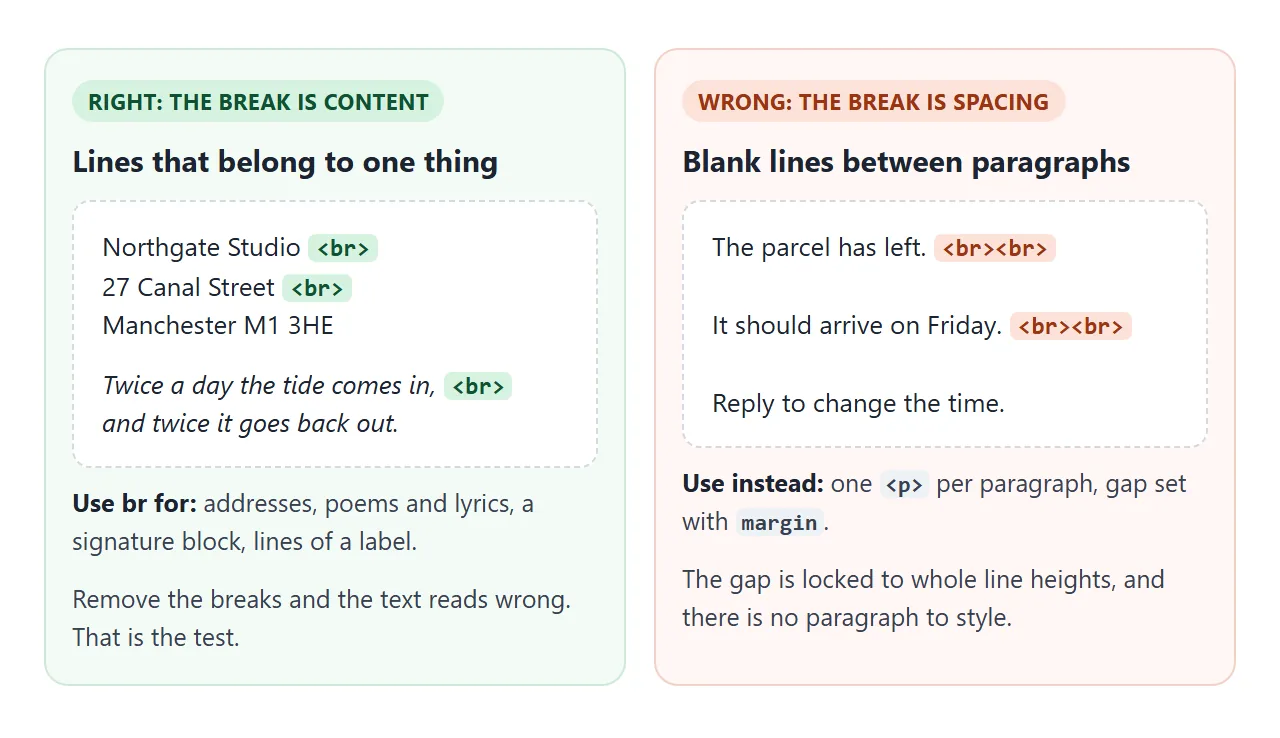
Good uses of <br>:
- Addresses, inside an
<address>element or a plain<p>. - Poems and lyrics, a
<br>per line and a<p>per stanza. - Signature blocks, such as a name, role and phone number.
- Short labels that need a fixed line split, like a two-line button.
When br is the wrong tag
The common misuse is <br><br> to make a gap between paragraphs. It looks fine at first. The trouble starts when you want to change it.
- The gap is always a whole number of empty lines. You cannot make it 12px.
- There is no paragraph element, so you cannot style, select or link to one paragraph.
- The HTML says one paragraph where the reader sees three.
Wrap each paragraph in <p> instead. The browser gives it a top and bottom margin of 1em by default, and one rule changes every gap:
p { margin: 0 0 24px; }
For a horizontal line between sections rather than white space, see the hr tag.
br vs br/ (and br vs p)
In an HTML page, <br>, <br/> and <br /> all produce the same element. The parser ignores the slash on void elements. It matters only in XHTML served as XML, or in JSX, which requires every tag to be closed.
<br> |
<p> |
|
|---|---|---|
| What it is | A line break inside text | A paragraph, a block of its own |
| Closing tag | None (void element) | </p> |
| Space around it | None, it only ends the line | 1em margin top and bottom by default |
| Can you style the gap | No, it is one line height per br | Yes, with margin |
| Use it for | Addresses, poems, lyrics | Separate paragraphs |
Why stacked brs make odd spacing
Each extra <br> adds one empty line. Two brs give one blank line, three give two. The size of that blank line is the current line-height, so the gap grows when the font grows and cannot be set on its own.
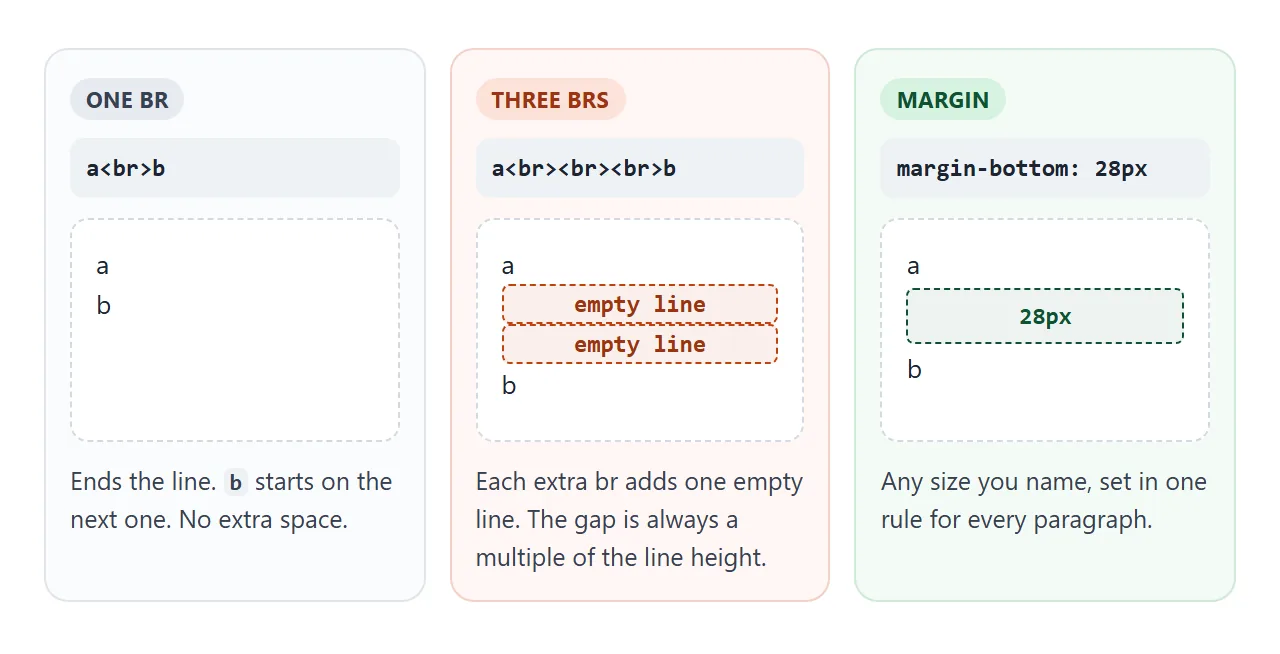
Styling the br itself is not a fix either. In Chromium, a margin or height on a <br> changed nothing in our test. If you inherited a page full of <br><br>, replace each pair with a paragraph boundary and set the gap in CSS.
CSS alternatives to br
Three CSS tools cover most of the cases where <br> gets used for layout:
marginorgapfor space between blocks.margin-bottomon paragraphs, orgapon a flex or grid container.display: blockto put an inline element on its own line. A<span class="name">withdisplay: blockstarts a new line without any br in the HTML.white-space: pre-lineto keep the line breaks already in the text. Newlines show as breaks, while runs of spaces still collapse and long lines still wrap.
white-space: pre-wrap also keeps runs of spaces. The textarea guide uses it to show what a user typed exactly as typed.
Line breaks in JavaScript strings
A newline in a JavaScript string, \n, is not a <br>. Put 'Line one\nLine two' into an element with textContent and you get one line, because HTML turns newlines into spaces by default.
<!doctype html>
<html lang="en">
<head>
<meta charset="utf-8">
<meta name="viewport" content="width=device-width, initial-scale=1">
<title>Show typed line breaks</title>
<style>
body { margin: 0; padding: 14px; font-family: system-ui, sans-serif; background: #eceef1; color: #1d2330; }
.wrap { max-width: 640px; margin: 0 auto; }
label { display: block; font-size: 14px; font-weight: 600; margin-bottom: 6px; }
textarea { box-sizing: border-box; width: 100%; height: 104px; font: 14px/1.45 system-ui, sans-serif; padding: 8px 10px; border: 1px solid #cfd4dc; border-radius: 10px; resize: vertical; }
.out { background: #fff; border-radius: 12px; padding: 10px 14px; margin-top: 10px; }
.out h2 { margin: 0 0 6px; font-size: 13px; font-family: ui-monospace, Consolas, monospace; }
.out h2 span { font-family: system-ui, sans-serif; font-weight: 600; font-size: 12px; }
.bad span { color: #9a3412; }
.good span { color: #0f5132; }
.box { font-size: 14px; line-height: 1.45; border-left: 3px solid #d1d5db; padding-left: 10px; min-height: 20px; overflow-wrap: anywhere; }
/* Way 2: keep the typed line breaks, still collapse runs of spaces */
#pre { white-space: pre-line; }
</style>
</head>
<body>
<div class="wrap">
<label for="input">Type a few lines (press Enter between them)</label>
<textarea id="input">Mira Holt
14 Station Road
Leeds <b>LS1 4DY</b></textarea>
<div class="out bad">
<h2>textContent <span>(line breaks collapse)</span></h2>
<div class="box" id="plain"></div>
</div>
<div class="out good">
<h2>white-space: pre-line <span>(CSS keeps the breaks)</span></h2>
<div class="box" id="pre"></div>
</div>
<div class="out good">
<h2>text nodes + <br> <span>(<b id="count">0</b> br elements)</span></h2>
<div class="box" id="nodes"></div>
</div>
</div>
<script>
const input = document.getElementById('input');
// Build text nodes with a <br> between lines. The text never goes
// through innerHTML, so "<b>" stays as typed characters.
function linesToBr(target, text) {
target.replaceChildren();
text.split('\n').forEach((line, i) => {
if (i > 0) target.append(document.createElement('br'));
target.append(line); // append() with a string adds a text node
});
}
function render() {
const text = input.value;
document.getElementById('plain').textContent = text;
document.getElementById('pre').textContent = text;
const nodes = document.getElementById('nodes');
linesToBr(nodes, text);
document.getElementById('count').textContent = nodes.querySelectorAll('br').length;
}
input.addEventListener('input', render);
render();
</script>
</body>
</html>
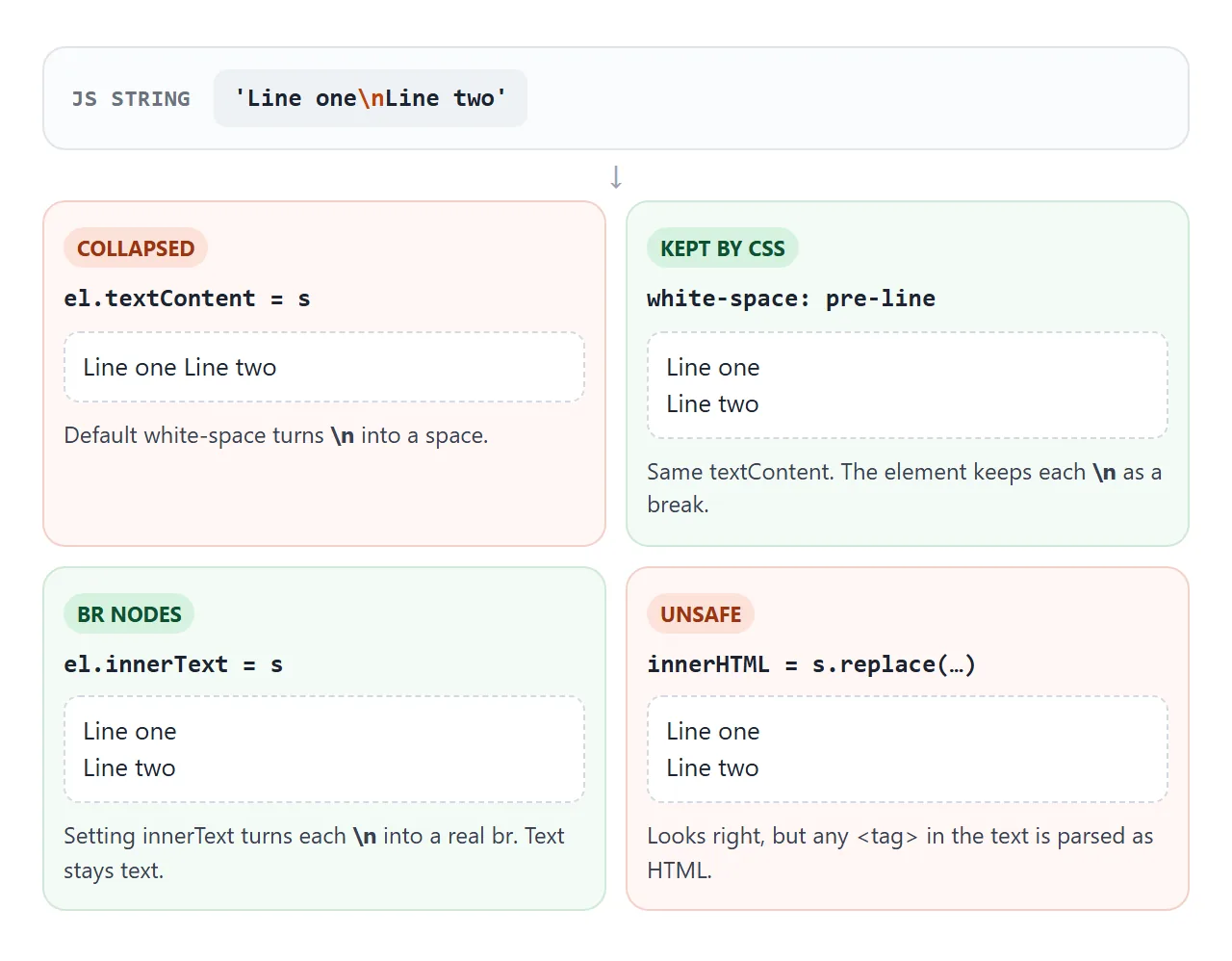
Three safe ways to keep the breaks:
- Keep
textContentand addwhite-space: pre-lineto the element. No markup changes. - Set
el.innerText = text. Setting innerText converts each newline into a<br>element and keeps everything else as text. - Build the nodes yourself: split on
\n, append each line as text and a<br>between them, as in the demo.
text.split('\n').forEach((line, i) => {
  if (i > 0) box.append(document.createElement('br'));
  box.append(line);  // a string becomes a text node
});
Avoid innerHTML = text.replace(/\n/g, '<br>') for text a user typed. Any <tag> in the text is then parsed as HTML. innerHTML explains the risk.
A finished example: address, poem and a long URL
This page puts the good uses together. The address is one <address> element with a br after each line. The poem uses a <p> per stanza, so the stanza gap is a margin, and a br per line.
<!doctype html>
<html lang="en">
<head>
<meta charset="utf-8">
<meta name="viewport" content="width=device-width, initial-scale=1">
<title>Address, poem and a long URL</title>
<style>
body { margin: 0; padding: 14px; font-family: system-ui, sans-serif; background: #eceef1; color: #1d2330; }
.wrap { max-width: 640px; margin: 0 auto; display: grid; gap: 12px; }
.card { background: #fff; border-radius: 12px; padding: 14px 16px; }
.card h2 { margin: 0 0 10px; font-size: 12px; text-transform: uppercase; letter-spacing: .06em; color: #6b7280; }
/* Address: one element, a br at the end of each line */
address { font-style: normal; font-size: 15px; line-height: 1.5; }
address a { color: #1d4ed8; }
/* Poem: a p per stanza (margin between stanzas), a br per line */
.poem { font-family: Georgia, "Times New Roman", serif; font-size: 16px; line-height: 1.55; }
.poem h3 { margin: 0 0 10px; font-size: 18px; }
.poem p { margin: 0 0 14px; }
.poem p:last-child { margin-bottom: 0; }
.poem .indent { padding-left: 1.5em; }
/* Long URL: box width controlled by the slider */
.controls { font-size: 14px; margin-bottom: 10px; }
.controls input { width: 100%; }
.url { width: var(--w, 220px); max-width: 100%; box-sizing: border-box; border: 1px dashed #cfd4dc; border-radius: 8px; padding: 8px 10px; margin-top: 8px; font: 13px/1.45 ui-monospace, Consolas, monospace; }
.url b { display: block; font: 600 12px system-ui, sans-serif; margin-bottom: 2px; }
.url.plain b { color: #9a3412; }
.url.plain { overflow-x: auto; } /* keeps the overflow inside the box in this demo */
.url.soft b { color: #0f5132; }
.status { font-size: 12px; margin-top: 4px; color: #6b7280; }
</style>
</head>
<body>
<div class="wrap">
<section class="card">
<h2>Address</h2>
<address>
Northgate Studio<br>
Unit 4, 27 Canal Street<br>
Manchester M1 3HE<br>
<a href="mailto:hello@northgate.example">hello@northgate.example</a>
</address>
</section>
<section class="card poem">
<h2>Poem</h2>
<h3>Tide Table</h3>
<p>The water keeps its own appointments,<br>
<span class="indent">twice a day, and never late;</span><br>
it leaves the harbour wall to dry<br>
<span class="indent">and comes back for it anyway.</span></p>
<p>I set my clock by lesser things,<br>
<span class="indent">a bus, a bell, the kettle's shout;</span><br>
the sea just checks the moon again<br>
<span class="indent">and lets the whole bay out.</span></p>
</section>
<section class="card">
<h2>Long URL</h2>
<div class="controls">
<label for="width">Box width: <b id="wlabel">220px</b></label>
<input id="width" type="range" min="140" max="600" value="220">
</div>
<div class="url plain" id="plain"><b>No break points</b>https://docs.example.com/guides/GettingStarted/InstallOnWindows</div>
<div class="status" id="plainStatus"></div>
<div class="url soft" id="soft"><b>With <wbr> after each slash</b>https://<wbr>docs.example.com/<wbr>guides/<wbr>GettingStarted/<wbr>InstallOnWindows</div>
<div class="status" id="softStatus"></div>
</section>
</div>
<script>
const slider = document.getElementById('width');
// Does the text stick out of its box?
function describe(box) {
return box.scrollWidth > box.clientWidth ? 'Overflows the box' : 'Fits inside the box';
}
function update() {
document.documentElement.style.setProperty('--w', slider.value + 'px');
document.getElementById('wlabel').textContent = slider.value + 'px';
document.getElementById('plainStatus').textContent = describe(document.getElementById('plain'));
document.getElementById('softStatus').textContent = describe(document.getElementById('soft'));
}
slider.addEventListener('input', update);
window.addEventListener('resize', update);
update();
</script>
</body>
</html>
The last card shows <wbr>, the word break opportunity. It marks a place where the browser may break a long word if the line runs out of room.
When the text fits, nothing changes and no character is added, so copying the URL still gives the exact address.
https://<wbr>docs.example.com/<wbr>guides/<wbr>install
For long text where you cannot place break points by hand, CSS overflow-wrap does it for you. Word break in HTML compares the options.
When it does not work
| What you see | Cause | Fix |
|---|---|---|
| Items still sit side by side after a br | The parent is display: flex or inline-flex, and the br is a flex item of its own between elements |
Wrap the text and its br in one element, or use flex-wrap: wrap with a flex-basis: 100% spacer |
| Too much space between lines | Stacked <br><br> each add an empty line |
Use <p> and set margin |
\n shows as a space |
Default white-space collapses newlines |
white-space: pre-line or set innerText |
| br does nothing at all | A rule such as br { display: none } hides it, sometimes inside a media query |
Search the CSS for br and remove or scope the rule |
br in a table cell ignores nowrap |
A br is a forced break, and white-space: nowrap does not stop it |
Remove the br and let the cell width or nowrap decide |
| A long URL pushes the layout wide | No break point inside the word | Add <wbr> after slashes, or overflow-wrap: anywhere |
In a table, a br in a cell is fine for content like a two-line address. For column widths and wrapping, CSS is the better control, because one rule covers every cell.
Share it as a link
Line breaks are easy to get wrong on a screen you did not test. The address that looks right on your monitor may wrap oddly on a phone, and a screenshot cannot show how the long URL behaves at other widths.
To send the working page, paste it into a NOS document and choose Create share link. HTML to link walks through it.
The page renders as written and its scripts run, so the people you send it to can resize and type in it themselves. If you change the code later, the same link shows the new version.