A paragraph in HTML is a <p> element: <p>Your text here.</p>. The browser shows it as a block with an empty line of margin above and below. Put only text and inline elements inside it, and use CSS for spacing and width.
That second rule is where paragraphs go wrong. Pick a preset below, or type your own HTML, and see what the browser actually builds.
<!doctype html>
<html lang="en">
<head>
<meta charset="utf-8">
<meta name="viewport" content="width=device-width, initial-scale=1">
<title>What the browser does with your p tags</title>
<style>
body { margin: 0; padding: 16px; font-family: system-ui, sans-serif; background: #f4f5f7; color: #1d2330; }
.presets { display: flex; flex-wrap: wrap; gap: 6px; margin-bottom: 10px; }
button { font: inherit; font-size: 14px; padding: 6px 10px; border: 1px solid #c9ced8; border-radius: 8px; background: #fff; cursor: pointer; }
button.on { background: #1d2330; color: #fff; border-color: #1d2330; }
label { font-size: 13px; font-weight: 600; display: block; margin: 8px 0 4px; }
textarea { width: 100%; box-sizing: border-box; height: 70px; font: 14px/1.4 ui-monospace, Consolas, monospace; padding: 8px; border: 1px solid #c9ced8; border-radius: 8px; }
pre { margin: 0; padding: 10px; background: #fff; border: 1px solid #e1e4ea; border-radius: 8px; font: 14px/1.5 ui-monospace, Consolas, monospace; white-space: pre-wrap; word-break: break-word; min-height: 60px; }
.p { color: #0f5132; font-weight: 700; }
.empty { background: #fde2da; color: #9a3412; font-weight: 700; border-radius: 3px; }
#verdict { margin-top: 10px; padding: 10px 12px; border-radius: 8px; font-size: 14px; }
#verdict.ok { background: #d6f2df; color: #0f5132; }
#verdict.bad { background: #fde2da; color: #9a3412; }
</style>
</head>
<body>
<div class="presets" id="presets">
<button data-src="<p>Hello <span>world</span></p>">span in p</button>
<button data-src="<p>Intro <div>Box</div> end</p>">div in p</button>
<button data-src="<p>Intro <ul><li>Item</li></ul> end</p>">ul in p</button>
<button data-src="<p>One<p>Two<p>Three">no </p></button>
</div>
<label for="src">What you wrote</label>
<textarea id="src" spellcheck="false"></textarea>
<label>What the browser built</label>
<pre id="out"></pre>
<div id="verdict"></div>
<script>
const src = document.getElementById('src');
const out = document.getElementById('out');
const verdict = document.getElementById('verdict');
function show() {
// Parse the text the way a page with a doctype is parsed
const doc = new DOMParser().parseFromString('<!doctype html>' + src.value, 'text/html');
const html = doc.body.innerHTML;
const esc = html.replace(/&/g, '&').replace(/</g, '<');
// Mark p tags green, and an empty <p></p> orange
out.innerHTML = esc.replace(/<p><\/p>|<\/?p>/g, (m) =>
'<span class="' + (m.includes('><') ? 'empty' : 'p') + '">' + m + '</span>');
const count = doc.querySelectorAll('p').length;
const empty = [...doc.querySelectorAll('p')].filter(p => p.innerHTML === '').length;
verdict.className = empty ? 'bad' : 'ok';
verdict.textContent = count + ' paragraph(s). ' + (empty
? empty + ' empty p came from a stray </p>: something inside closed the paragraph early.'
: 'Nothing was moved.');
}
document.getElementById('presets').addEventListener('click', (e) => {
const b = e.target.closest('button');
if (!b) return;
document.querySelectorAll('#presets button').forEach(x => x.classList.toggle('on', x === b));
src.value = b.dataset.src;
show();
});
src.addEventListener('input', show);
document.querySelector('#presets button:nth-child(2)').click(); // start on the surprising one
</script>
</body>
</html>
What can go inside a p
The HTML standard says a paragraph holds phrasing content: text and the elements that sit inside a line of text.
| Fits inside p | Does not fit inside p |
|---|---|
Text, <a>, <em>, <strong> |
<div>, <section>, <article> |
<span>, <code>, <br> |
<ul>, <ol>, <dl> |
<img>, <button>, <input> |
<table>, <pre>, <blockquote> |
<abbr>, <time>, <mark> |
<h1> to <h6>, another <p> |
The limit is about the tag name, not about CSS. A span with display: block inside a paragraph stays inside it, because the parser never looks at styles. For more on choosing elements by meaning, see semantic HTML.
Why a div inside p splits the paragraph
When the parser reads a <div> start tag and a paragraph is still open, it closes the paragraph first. The div is placed after it, and so is the rest of the text.
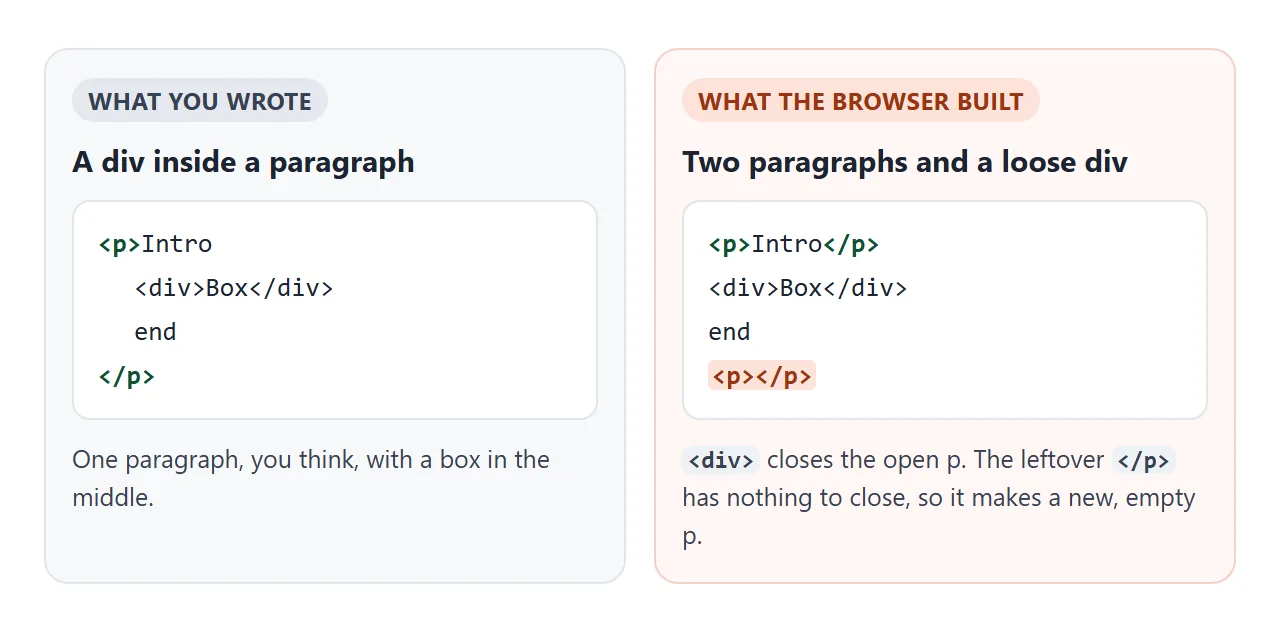
Then the parser reaches your </p>. No paragraph is open any more, so it creates a new, empty <p></p> on the spot.
Lists, tables and headings do the same thing, which is why a ul inside a paragraph ends up outside it.
The visible result is odd spacing: the text after the block loses its paragraph styling, and the empty paragraph adds a margin. The fix is to close the paragraph before the block and open a new one after it:
<p>Intro text.</p>
<ul>
  <li>Item</li>
</ul>
<p>Text after the list.</p>
Two details catch people out. JavaScript can put a div inside a p, because appendChild and innerHTML on the p itself skip this rule. Save that page as HTML and reload it, and the parser splits it again.
Also, a page without <!doctype html> runs in quirks mode. There, a <table> does not close the paragraph, so the same source builds a different page.
When the closing is optional
The rule above has a friendly side. The standard lets you leave out </p> when the next thing is a block that would close the paragraph anyway:
- another
<p>, a<div>,<ul>,<ol>or<table> - a heading,
<hr>,<pre>,<blockquote>or<section> - the end of the parent element, such as
</div>or</article>
So <p>One<p>Two is two paragraphs, and it is valid HTML. Try the last preset in the example above.
Writing the end tag is still the safer habit, because it makes mistakes like the div case visible when you read the code. An HTML validator reports stray </p> tags.
Space paragraphs with margin, not br
Each paragraph gets margin: 1em 0 from the browser. The bottom margin of one and the top margin of the next touch, and touching vertical margins collapse into one. The gap is 1em, not 2em.
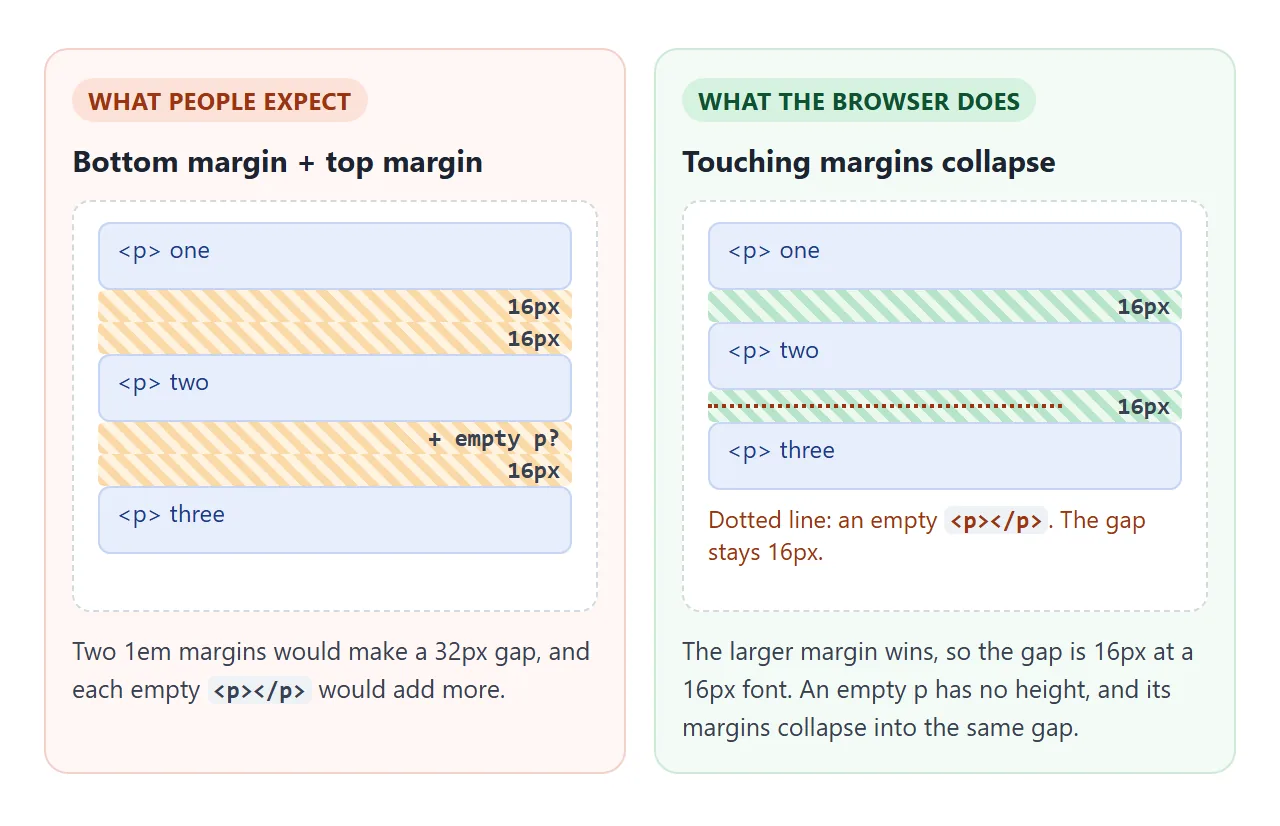
That is also why an empty <p></p> is a poor spacer: it adds nothing. A paragraph holding only does add space, but as a line of invisible text. Try the four styles here:
<!doctype html>
<html lang="en">
<head>
<meta charset="utf-8">
<meta name="viewport" content="width=device-width, initial-scale=1">
<title>Paragraph spacing with CSS</title>
<style>
  body { margin: 0; padding: 16px; font-family: system-ui, sans-serif; background: #f4f5f7; color: #1d2330; }
  .modes { display: flex; flex-wrap: wrap; gap: 6px; margin-bottom: 10px; }
  button { font: inherit; font-size: 14px; padding: 6px 10px; border: 1px solid #c9ced8; border-radius: 8px; background: #fff; cursor: pointer; }
  button.on { background: #1d2330; color: #fff; border-color: #1d2330; }
  code { display: block; font: 13px/1.5 ui-monospace, Consolas, monospace; background: #fff; border: 1px solid #e1e4ea; border-radius: 8px; padding: 8px 10px; white-space: pre-wrap; margin-bottom: 10px; }
  #box { background: #fff; border: 1px dashed #a8b0bd; border-radius: 8px; padding: 0 14px; line-height: 1.5; }
  #gap { margin-top: 8px; font-size: 14px; }

  /* The four spacing styles */
  #box.gap-only p { margin: 0; }
  #box.gap-only p + p { margin-top: 1em; }
  #box.indent p { margin: 0; }
  #box.indent p + p { text-indent: 1.5em; }
  #box.empty-p p { margin: 0; }
</style>
</head>
<body>
<div class="modes" id="modes">
  <button data-mode="">Default margins</button>
  <button data-mode="gap-only">Gap between only</button>
  <button data-mode="indent">Book indent</button>
  <button data-mode="empty-p">Empty p as spacer</button>
</div>
<code id="css"></code>
<div id="box">
  <p>A paragraph is one idea. The browser gives each p a margin of 1em above and below.</p>
  <p>Two margins that touch collapse into one, so the gap between paragraphs is 1em, not 2em.</p>
  <p>Change the style above and watch the gap and the space at the top of the box.</p>
</div>
<div id="gap"></div>

<script>
  const box = document.getElementById('box');
  const css = {
    '': 'p { margin: 1em 0; }  /* browser default */',
    'gap-only': 'p { margin: 0; }\np + p { margin-top: 1em; }',
    'indent': 'p { margin: 0; }\np + p { text-indent: 1.5em; }',
    'empty-p': 'p { margin: 0; }\n<p></p> between paragraphs  /* adds nothing */'
  };
  // Spacer paragraphs for the last mode
  const spacers = [];

  function measure() {
    const ps = [...box.querySelectorAll('p')].filter(p => p.textContent);
    const gap = ps[1].getBoundingClientRect().top - ps[0].getBoundingClientRect().bottom;
    const top = ps[0].getBoundingClientRect().top - box.getBoundingClientRect().top - 1;  // minus border
    document.getElementById('gap').textContent =
      'Gap between paragraphs: ' + Math.round(gap) + 'px. Space above the first: ' + Math.round(top) + 'px.';
  }

  document.getElementById('modes').addEventListener('click', (e) => {
    const b = e.target.closest('button');
    if (!b) return;
    document.querySelectorAll('#modes button').forEach(x => x.classList.toggle('on', x === b));
    box.className = b.dataset.mode;
    document.getElementById('css').textContent = css[b.dataset.mode];

    spacers.splice(0).forEach(s => s.remove());
    if (b.dataset.mode === 'empty-p') {
      box.querySelectorAll('p + p').forEach(p => {
        const s = document.createElement('p');  // an empty paragraph has no height
        p.before(s); spacers.push(s);
      });
    }
    measure();
  });

  document.querySelector('#modes button').click();
</script>
</body>
</html>
| Style | CSS | Gap between | Space above the first |
|---|---|---|---|
| Browser default | margin: 1em 0 |
1em | 1em |
| Gap between only | p + p with margin-top |
1em | 0 |
| Book indent | p + p with text-indent |
0 | 0 |
| Empty p as spacer | margin: 0 plus <p></p> |
0 | 0 |
The book style marks a new paragraph with a first-line indent instead of a gap. Text indent in CSS covers it in depth.
For when a line break inside a paragraph is the right tool, see the br tag.
Line length: max-width in ch
A paragraph with no width limit is as wide as its container. On a wide screen every line gets long, and the eye has a long trip back to the start of the next line.
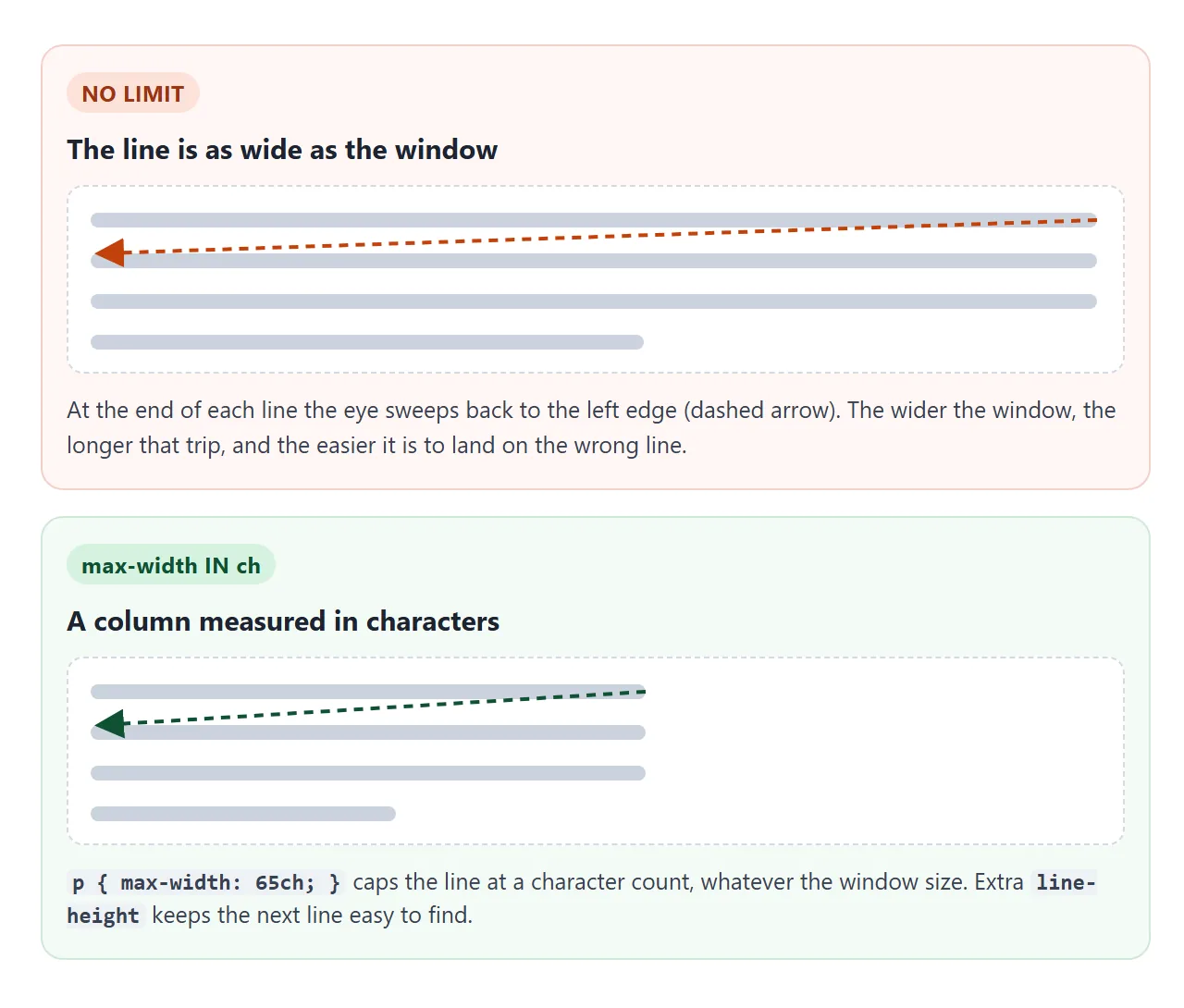
The ch unit is the width of the "0" in the current font, so a width in ch follows the text size:
article {
  max-width: 65ch;
  margin: 0 auto;
}
A 65ch column can hold more than 65 characters, because many letters and spaces are narrower than a zero. In the finished example below, it holds 77 on the first line in Chromium with Segoe UI, and the count depends on the font.
Max width in CSS compares ch, px and percentages.
A finished example: readable paragraphs
Width, line height and spacing work together. This version sets all three on an article. Move the text size slider, then switch to the browser default and compare the characters per line.
<!doctype html>
<html lang="en">
<head>
<meta charset="utf-8">
<meta name="viewport" content="width=device-width, initial-scale=1">
<title>Readable paragraphs</title>
<style>
  body { margin: 0; padding: 14px; font-family: system-ui, sans-serif; background: #f4f5f7; color: #1d2330; }
  .bar { display: flex; flex-wrap: wrap; align-items: center; gap: 8px; margin-bottom: 10px; font-size: 14px; }
  button { font: inherit; padding: 6px 12px; border: 1px solid #1d2330; border-radius: 8px; background: #1d2330; color: #fff; cursor: pointer; }
  #stats { color: #374151; }
  .page { background: #fff; border-radius: 10px; padding: 16px; font-size: 15px; }
  #stats { flex-basis: 100%; }

  /* The readable version: this is the part to copy */
  .readable article {
    max-width: 65ch;       /* line length in characters, not pixels */
    margin: 0 auto;        /* center the column */
    line-height: 1.6;
  }
  .readable article h2 { line-height: 1.25; margin: 0 0 .5em; }
  .readable article p { margin: 0 0 1.25em; }
  .readable article p:last-child { margin-bottom: 0; }
</style>
</head>
<body>
<div class="bar">
  <button id="toggle">Show browser default</button>
  <label>Text size <input id="size" type="range" min="13" max="18" value="15"></label>
  <span id="stats"></span>
</div>
<div class="page readable" id="page">
  <article>
    <h2>Why short lines read faster</h2>
    <p id="first">When a line runs too long, the eye has to travel a long way back to find the start of the next one, and it sometimes lands on the wrong line.</p>
    <p>A column around 65 characters wide keeps that return trip short. The ch unit measures width in characters of the current font, so the column grows with the text size.</p>
    <p>Extra line height gives each line room to breathe. The margin after each paragraph marks where one idea ends and the next begins.</p>
  </article>
</div>

<script>
  const page = document.getElementById('page');
  const first = document.getElementById('first');

  // Count the characters on the first line of a paragraph
  function firstLineChars(p) {
    const text = p.firstChild, range = document.createRange();
    let top = null;
    for (let i = 0; i < text.length; i++) {
      range.setStart(text, i); range.setEnd(text, i + 1);
      const r = range.getClientRects()[0];
      if (!r) continue;
      if (top === null) top = r.top;
      else if (r.top > top + 2) return i;  // this character starts line 2
    }
    return text.length;
  }

  function update() {
    const art = page.querySelector('article');
    document.getElementById('stats').textContent =
      'Column ' + Math.round(art.getBoundingClientRect().width) + 'px wide, ' +
      firstLineChars(first) + ' characters on line 1.';
  }

  document.getElementById('toggle').addEventListener('click', (e) => {
    const on = page.classList.toggle('readable');
    e.target.textContent = on ? 'Show browser default' : 'Show readable version';
    update();
  });
  document.getElementById('size').addEventListener('input', (e) => {
    page.style.fontSize = e.target.value + 'px';
    update();
  });
  addEventListener('resize', update);
  update();
</script>
</body>
</html>
The CSS to copy:
article {
  max-width: 65ch;
  margin: 0 auto;
  line-height: 1.6;
}
article p { margin: 0 0 1.25em; }
article p:last-child { margin-bottom: 0; }
- Width: 65ch keeps the line length steady at any text size. On a phone the screen is narrower than that, so the text fills it.
- Line height: 1.6 is a unitless number, so every child scales it to its own font size. Line height in CSS explains why the unit matters.
- Spacing: a bottom margin only, with none after the last paragraph, so the article has no extra space at its end.
When it does not work
| What you see | Cause | Fix |
|---|---|---|
| An extra gap after a list or box | A block inside p split it, and the stray </p> made an empty p |
Close the p before the block |
| Text after a div has no paragraph styling | It is no longer inside any p | Wrap it in its own p |
CSS such as p > div never matches |
The parser moved the div out of the p | Use a div wrapper instead of p |
Stacked <p></p> adds no space |
Empty paragraphs have no height and their margins collapse | Set margin on the real paragraphs |
| The first paragraph has a gap above it | The default top margin of 1em | Use p + p for the gap, or margin-top: 0 |
| Lines run across the whole screen | No width limit on the text | max-width: 65ch on the column |
| Lines feel cramped | Default line height | line-height: 1.6 on the text |
Share it as a link
Paragraph problems are hard to show in a screenshot, because the cause is in the page structure, not in the picture. Sending the page itself lets the other person inspect it, resize it and read it at their own screen width.
Paste the page into a NOS document and choose Create share link. HTML to link walks through it.
The page renders as written and its scripts run, so the examples above work for whoever opens the link. If you fix the code later, the same link shows the new version.