An HTML <input> becomes a different control depending on its type attribute. There are 22 types. text is the default, email checks for an address, date opens a date picker, checkbox draws a box to tick, and hidden draws nothing but still sends a value.
Try all of them below. Each row prints the field's live .value, which is exactly what your JavaScript reads and what the form sends.
<!doctype html>
<html lang="en">
<head>
<meta charset="utf-8">
<meta name="viewport" content="width=device-width, initial-scale=1">
<title>Every HTML input type</title>
<style>
  body { margin: 0; padding: 14px; font-family: system-ui, sans-serif; background: #f4f5f7; color: #1d2330; }
  p.tip { margin: 0 0 12px; font-size: 14px; color: #4b5563; }
  form { display: grid; grid-template-columns: repeat(auto-fill, minmax(220px, 1fr)); gap: 10px; }
  .row { background: #fff; border-radius: 10px; padding: 10px 12px; box-shadow: 0 1px 3px rgba(0, 0, 0, .08); }
  .row label { display: block; font: 600 13px ui-monospace, Consolas, monospace; color: #1d4ed8; margin-bottom: 6px; }
  .row input:not([type=checkbox]):not([type=radio]):not([type=image]) { width: 100%; box-sizing: border-box; font-size: 16px; }
  output { display: block; margin-top: 6px; font: 12px ui-monospace, Consolas, monospace; color: #0f5132; word-break: break-all; }
</style>
</head>
<body>
<p class="tip">Use each field. The green line is its live <code>.value</code>.</p>
<form id="f" novalidate>  <!-- novalidate: submit even with invalid values, so every button can be tried -->
  <div class="row"><label for="t1">text</label><input id="t1" type="text" value="Hello"><output></output></div>
  <div class="row"><label for="t2">email</label><input id="t2" type="email" placeholder="you@example.com"><output></output></div>
  <div class="row"><label for="t3">password</label><input id="t3" type="password"><output></output></div>
  <div class="row"><label for="t4">number</label><input id="t4" type="number" min="0" max="10" step="1"><output></output></div>
  <div class="row"><label for="t5">tel</label><input id="t5" type="tel"><output></output></div>
  <div class="row"><label for="t6">url</label><input id="t6" type="url" placeholder="https://"><output></output></div>
  <div class="row"><label for="t7">search</label><input id="t7" type="search"><output></output></div>
  <div class="row"><label for="t8">date</label><input id="t8" type="date"><output></output></div>
  <div class="row"><label for="t9">time</label><input id="t9" type="time"><output></output></div>
  <div class="row"><label for="t10">datetime-local</label><input id="t10" type="datetime-local"><output></output></div>
  <div class="row"><label for="t11">month</label><input id="t11" type="month"><output></output></div>
  <div class="row"><label for="t12">week</label><input id="t12" type="week"><output></output></div>
  <div class="row"><label for="t13">color</label><input id="t13" type="color" value="#2563eb"><output></output></div>
  <div class="row"><label for="t14">range</label><input id="t14" type="range" min="0" max="100"><output></output></div>
  <div class="row"><label for="t15">checkbox</label><input id="t15" type="checkbox"><output></output></div>
  <div class="row"><label>radio</label>
    <input type="radio" name="size" value="S" aria-label="S"> S
    <input type="radio" name="size" value="M" aria-label="M"> M<output></output></div>
  <div class="row"><label for="t17">file</label><input id="t17" type="file"><output></output></div>
  <div class="row"><label>hidden (not drawn)</label><input type="hidden" name="source" value="gallery"><output></output></div>
  <div class="row"><label>submit / reset / button</label>
    <input type="submit" value="Submit"> <input type="reset" value="Reset"> <input type="button" value="Button"><output id="clicks">No clicks yet</output></div>
  <div class="row"><label>image (a picture that submits)</label>
    <input type="image" name="pic" alt="Go" width="96" height="32"
      src="data:image/svg+xml,%3Csvg xmlns='http://www.w3.org/2000/svg' width='96' height='32'%3E%3Crect width='96' height='32' rx='6' fill='%230f766e'/%3E%3Ctext x='48' y='21' font-size='14' fill='white' text-anchor='middle' font-family='sans-serif'%3EGo%3C/text%3E%3C/svg%3E"><output>Clicking it submits the form</output></div>
  <div class="row"><label for="t21">type="banana" (unknown)</label><input id="t21" type="banana"><output id="unknown"></output></div>
</form>

<script>
  const form = document.getElementById('f');

  // Show one field's value in the <output> of its row
  function show(input) {
    const out = input.closest('.row').querySelector('output');
    if (input.type === 'radio') {
      const picked = form.querySelector('input[name=size]:checked');
      out.textContent = 'value: ' + JSON.stringify(picked ? picked.value : null);
    } else if (input.type === 'checkbox') {
      out.textContent = 'value: ' + JSON.stringify(input.value) + ', checked: ' + input.checked;
    } else if (!['submit', 'reset', 'button', 'image'].includes(input.type)) {
      out.textContent = 'value: ' + JSON.stringify(input.value);  // always a string
    }
  }

  form.querySelectorAll('input').forEach(show);
  document.getElementById('unknown').textContent += '  .type: "' + document.getElementById('t21').type + '"';

  form.addEventListener('input', (e) => show(e.target));
  form.addEventListener('change', (e) => show(e.target));

  // Buttons: nothing is sent anywhere, we only report what happened
  const clicks = document.getElementById('clicks');
  form.addEventListener('submit', (e) => {
    e.preventDefault();
    clicks.textContent = 'submit event from ' + (e.submitter ? e.submitter.type : '?');
  });
  form.addEventListener('reset', () => {
    clicks.textContent = 'reset: fields back to their starting values';
    setTimeout(() => form.querySelectorAll('input').forEach(show));  // values change after the event
  });
  form.querySelector('[type=button]').addEventListener('click', () => {
    clicks.textContent = 'button: does nothing unless your script does';
  });
</script>
</body>
</html>
Two things show up quickly. Every value is a string, even for number and range. And the last field, type="banana", is a normal text box: a type the browser does not know falls back to text.
All 22 input types at a glance
| Type | What it shows | Value your script gets |
|---|---|---|
text |
One-line text box | What was typed |
email |
Text box that checks the address shape | "anna@example.com" |
password |
Text box with the characters hidden | What was typed |
number |
Box that accepts numbers, often with arrows | "42" |
tel |
Plain text box, phone keypad on touch screens | What was typed, any format |
url |
Text box that checks for a full address | "https://example.com" |
search |
Text box styled for search; some browsers add a clear button | What was typed |
date |
Date picker | "2026-09-26" |
time |
Time picker | "14:30" |
datetime-local |
Date and time picker, no time zone | "2026-09-26T14:30" |
month |
Month and year picker | "2026-09" |
week |
Week number picker | "2026-W39" |
color |
Colour swatch that opens a picker | "#2563eb" |
range |
Slider | "50" (the middle, by default) |
checkbox |
Tick box | "on" unless you set value; read .checked |
radio |
One choice from a group sharing a name |
The value of the picked one |
file |
File chooser button | "C:\fakepath\photo.png"; use .files |
hidden |
Nothing | The value you set |
submit |
Button that sends the form | Its value is the button label |
reset |
Button that restores starting values | Not sent |
button |
Button that does nothing by itself | Not sent |
image |
Picture that sends the form | Click position as name.x and name.y |
A few of these deserve a closer look. The file value is a fake path on purpose: the browser never tells a page where a file lives on the reader's disk.
Read the actual file through input.files. The hidden type has its own article, HTML form hidden field.
Which keyboard each type brings up on a phone
On a touch screen, the type also picks the on-screen keyboard. The browser only asks for a kind of keyboard. The exact layout comes from the phone and its keyboard app, so treat the sketch below as the idea, not a promise.
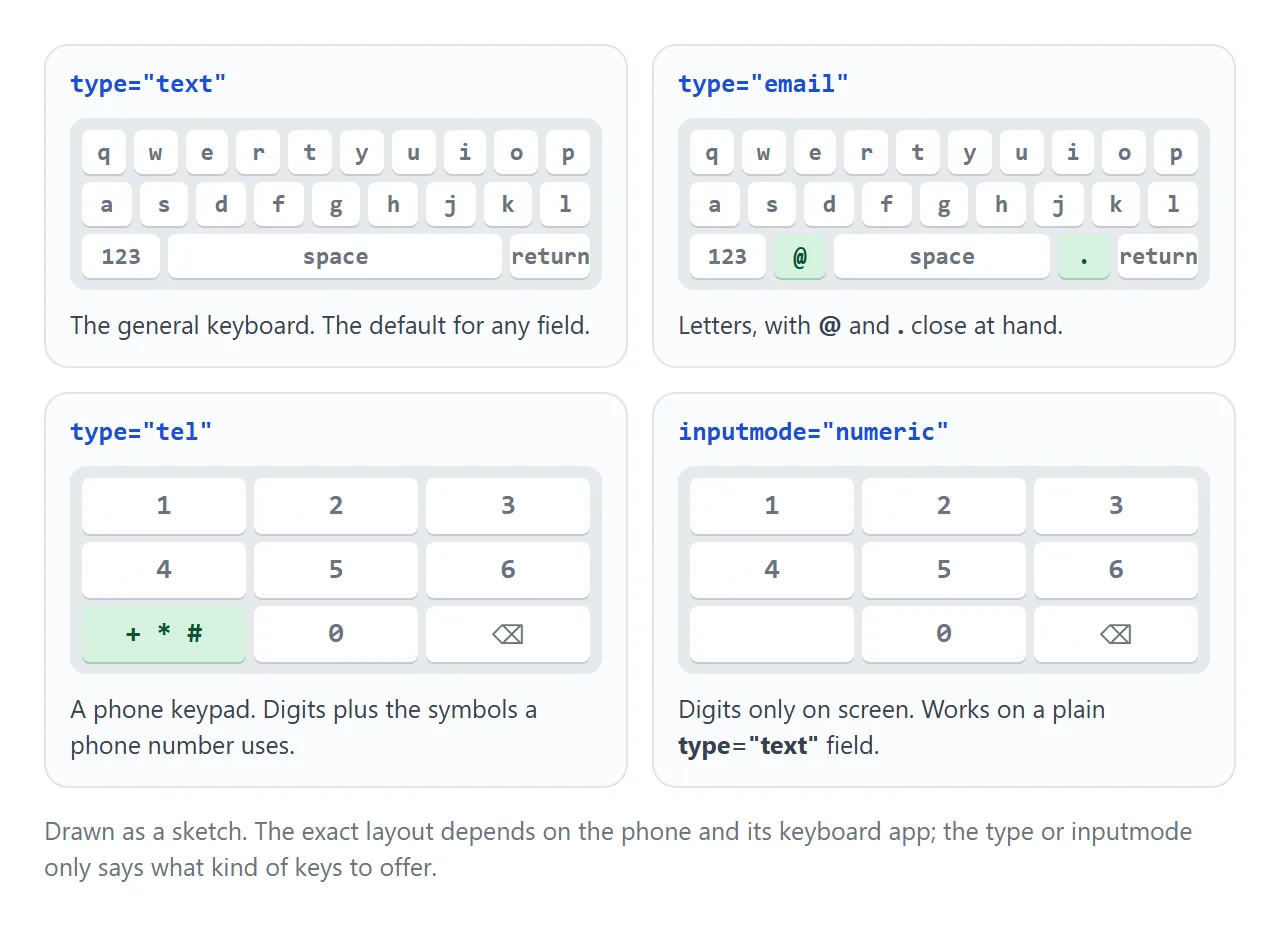
email: a letter keyboard with@and.easy to reach.tel: a phone keypad with digits and the symbols phone numbers use.url: a letter keyboard with/and.close by.number: a keyboard with digits.search: a letter keyboard whose enter key may be labelled for search.date,time,color,file: no keyboard; the browser shows its own picker.
When the data is digits but not a number, keep type="text" and add inputmode. It changes the keyboard and nothing else. The values are numeric, decimal, tel, email, url, search, text and none.
Built-in validation that comes with the type
Some types check the value before a form is sent. email wants something shaped like an address. url wants an absolute address with a scheme such as https://. number, date and range respect min, max and step.
Press Check below. Each field runs checkValidity() and prints which validity flag failed, next to the browser's own message from validationMessage.
<!doctype html>
<html lang="en">
<head>
<meta charset="utf-8">
<meta name="viewport" content="width=device-width, initial-scale=1">
<title>Built-in validation by input type</title>
<style>
  body { margin: 0; padding: 14px; font-family: system-ui, sans-serif; background: #f4f5f7; color: #1d2330; }
  .field { background: #fff; border-radius: 10px; padding: 10px 12px; margin-bottom: 8px; box-shadow: 0 1px 3px rgba(0, 0, 0, .08); }
  label { display: block; font-size: 14px; font-weight: 600; margin-bottom: 4px; }
  label code { font-weight: 400; color: #1d4ed8; font-size: 12px; }
  input { width: 100%; box-sizing: border-box; font-size: 16px; padding: 6px 8px; }
  .msg { font-size: 13px; margin-top: 6px; min-height: 18px; }
  .ok { color: #0f5132; } .bad { color: #9a3412; }
  button { font-size: 16px; padding: 8px 18px; border: 0; border-radius: 8px; background: #1d4ed8; color: #fff; cursor: pointer; }
</style>
</head>
<body>
<div class="field">
  <label for="email">Email <code>type="email"</code></label>
  <input id="email" type="email" value="anna@">
  <div class="msg"></div>
</div>
<div class="field">
  <label for="url">Website <code>type="url"</code></label>
  <input id="url" type="url" value="example.com">
  <div class="msg"></div>
</div>
<div class="field">
  <label for="qty">Quantity <code>type="number" min="1" max="10" step="1"</code></label>
  <input id="qty" type="number" min="1" max="10" step="1" value="12">
  <div class="msg"></div>
</div>
<div class="field">
  <label for="code">Order code <code>pattern="[A-Z]{3}-[0-9]{3}"</code></label>
  <input id="code" type="text" pattern="[A-Z]{3}-[0-9]{3}" value="abc-123">
  <div class="msg"></div>
</div>
<button id="check" type="button">Check</button>

<script>
  // The validity flags the browser keeps on every input
  const FLAGS = ['valueMissing', 'typeMismatch', 'patternMismatch', 'rangeUnderflow',
                 'rangeOverflow', 'stepMismatch', 'badInput'];

  document.getElementById('check').addEventListener('click', () => {
    document.querySelectorAll('.field input').forEach((input) => {
      const msg = input.parentElement.querySelector('.msg');
      if (input.checkValidity()) {
        msg.className = 'msg ok';
        msg.textContent = 'Valid. value = ' + JSON.stringify(input.value);
      } else {
        const failed = FLAGS.filter((f) => input.validity[f]).join(', ');
        msg.className = 'msg bad';
        msg.textContent = failed + ': ' + input.validationMessage;  // the browser's own wording
      }
    });
  });
</script>
</body>
</html>
The flags are the useful part for scripts. typeMismatch means the value does not fit the type, patternMismatch means pattern failed.
rangeUnderflow and rangeOverflow come from min and max, and stepMismatch from step. badInput means the browser could not turn what was typed into a value at all.
The message text comes from the browser and follows the reader's language, so its wording differs between browsers.
Custom messages, styling invalid fields and the rest of the constraint rules are covered in HTML form validation. The check runs in the reader's browser only; a server must check again.
The attributes that matter per type
The type sets the control. A handful of attributes set its limits and help the browser fill it in.
| Attribute | Works on | What it does |
|---|---|---|
min, max |
number, range, date, time, month, week, datetime-local | Lowest and highest allowed value |
step |
the same types | Allowed increments; step="any" allows any decimal |
pattern |
text, search, tel, url, email, password | A regular expression the whole value must match |
minlength, maxlength |
the text-like types | Length limits in characters |
inputmode |
any text-like field | Which on-screen keyboard to show |
autocomplete |
most fields | What the field holds, so the browser can fill it |
required |
all except range, color, hidden and the buttons | The field must not be empty |
autocomplete takes names such as name, email, tel, postal-code, bday, username, current-password, new-password and one-time-code. The right one lets the browser or a password manager fill the field in one tap. To stop suggestions instead, see HTML input with no autocomplete.
Reading values in JavaScript
input.value is always a string, whatever the type. The date types also always use one fixed format, whatever the reader sees on screen.
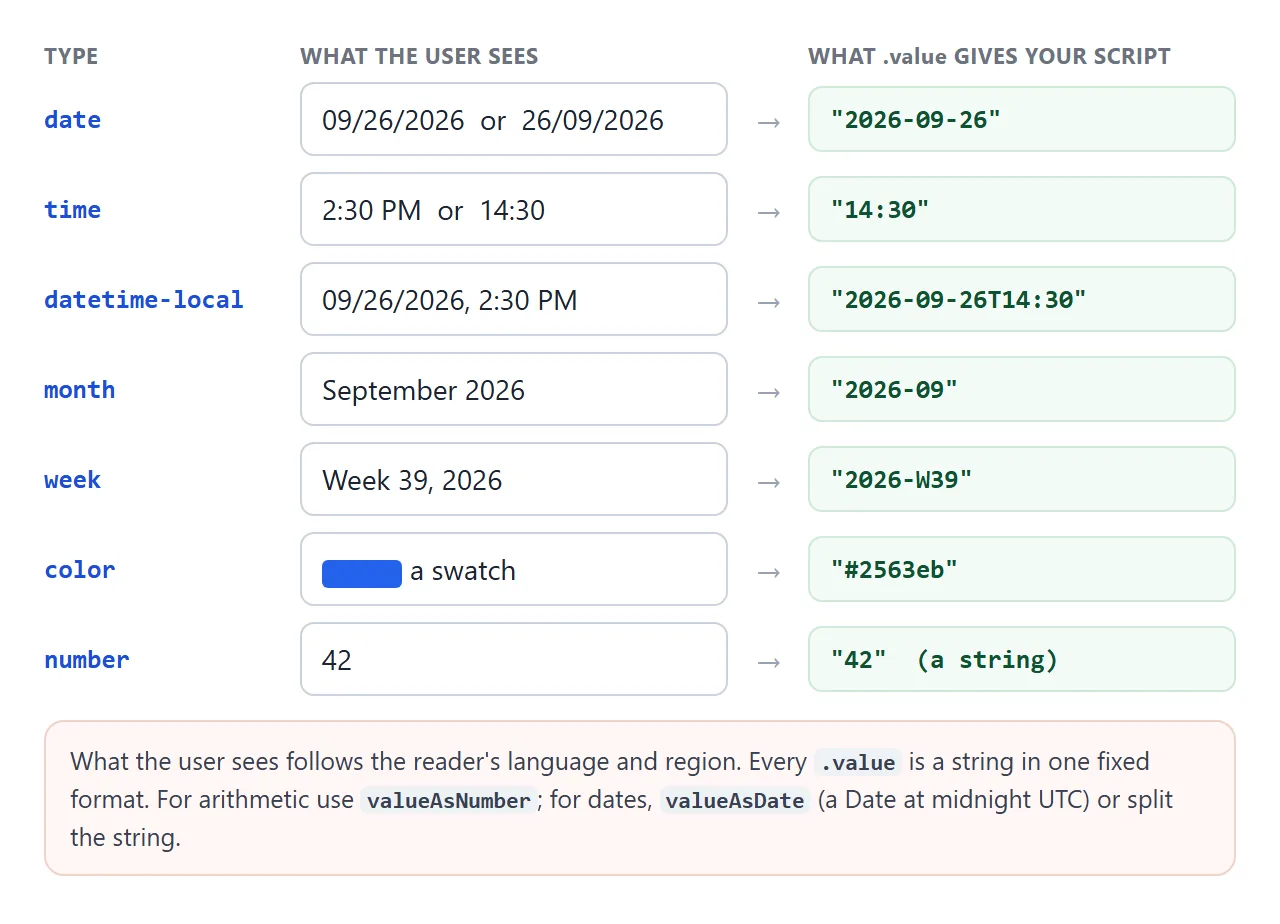
Two helpers save conversions:
const qty = document.querySelector('#qty');
qty.valueAsNumber;   // 3, or NaN when empty or invalid

const day = document.querySelector('#day');
day.valueAsDate;     // a Date at midnight UTC, or null
day.value;           // "2026-09-26"
For a checkbox, read .checked, not .value. For a radio group, find the checked one with form.querySelector('input[name=size]:checked'). For a file, read input.files[0]. Setting a starting date has its own pitfalls, covered in HTML date input default value.
A finished example: a sign-up form
Here every field uses the type, inputmode and autocomplete that fit its data. Submit is intercepted, so the panel shows what the form would send instead of sending it.
<!doctype html>
<html lang="en">
<head>
<meta charset="utf-8">
<meta name="viewport" content="width=device-width, initial-scale=1">
<title>Sign-up form with the right input types</title>
<style>
  body { margin: 0; padding: 14px; font-family: system-ui, sans-serif; background: #f4f5f7; color: #1d2330; }
  form, .result { max-width: 460px; margin: 0 auto 12px; background: #fff; border-radius: 12px; padding: 16px; box-shadow: 0 2px 8px rgba(0, 0, 0, .08); }
  h2 { margin: 0 0 12px; font-size: 18px; }
  label { display: block; font-size: 14px; font-weight: 600; margin: 10px 0 4px; }
  input:not([type=checkbox]) { width: 100%; box-sizing: border-box; font-size: 16px; padding: 8px 10px; border: 1px solid #cbd2dc; border-radius: 8px; }
  input:user-invalid { border-color: #c2410c; }  /* red only after the user has touched it */
  .hint { font-size: 12px; color: #6b7280; }
  .check { display: flex; gap: 8px; align-items: center; margin: 14px 0; font-size: 14px; }
  button { width: 100%; font-size: 16px; padding: 10px; border: 0; border-radius: 8px; background: #0f766e; color: #fff; cursor: pointer; }
  .result pre { margin: 0; font: 13px/1.5 ui-monospace, Consolas, monospace; white-space: pre-wrap; word-break: break-all; }
</style>
</head>
<body>
<form id="signup">
  <h2>Create an account</h2>

  <label for="name">Full name</label>
  <input id="name" name="name" type="text" autocomplete="name" required>

  <label for="email">Email</label>
  <input id="email" name="email" type="email" autocomplete="email" required>

  <label for="phone">Phone</label>
  <input id="phone" name="phone" type="tel" autocomplete="tel">
  <div class="hint">tel: phone keypad, any format accepted</div>

  <label for="zip">Postal code</label>
  <input id="zip" name="zip" type="text" inputmode="numeric" autocomplete="postal-code"
         pattern="[0-9]{5}" maxlength="5">
  <div class="hint">text + inputmode="numeric": digits keyboard, leading zeros kept</div>

  <label for="bday">Date of birth</label>
  <input id="bday" name="bday" type="date" autocomplete="bday" min="1900-01-01">

  <label for="pw">Password</label>
  <input id="pw" name="password" type="password" autocomplete="new-password" minlength="8" required>
  <div class="hint">new-password: lets a password manager offer a new one</div>

  <input type="hidden" name="plan" value="free">

  <label class="check"><input type="checkbox" name="terms" value="yes" required> I accept the terms</label>
  <button type="submit">Sign up</button>
</form>

<div class="result"><b>What the form would send</b><pre id="out">Fill in the form and press Sign up.</pre></div>

<script>
  const form = document.getElementById('signup');
  const out = document.getElementById('out');

  // The browser checks required, type, pattern, min and minlength before this runs.
  form.addEventListener('submit', (e) => {
    e.preventDefault();  // nothing leaves the page
    const lines = [];
    for (const [key, value] of new FormData(form)) {
      lines.push(key + ' = ' + JSON.stringify(key === 'password' ? '*'.repeat(value.length) : value));
    }
    out.textContent = lines.join('\n');
  });
</script>
</body>
</html>
- Name:
type="text"withautocomplete="name". - Email:
type="email", so the address shape is checked and a phone offers@. - Phone:
type="tel". It does no format check, because phone formats differ between countries. - Postal code:
type="text"withinputmode="numeric"andpattern="[0-9]{5}". Leading zeros survive. - Date of birth:
type="date"withautocomplete="bday". - Password:
type="password"withautocomplete="new-password"andminlength="8".
The same form posting to a real server only needs an action, a method, and no preventDefault():
<form action="/signup" method="post">
  <input name="email" type="email" autocomplete="email" required>
  <button>Sign up</button>
</form>
What the browser then sends, and how to catch it in JavaScript, is in HTML form submit.
Picking a type for numbers that are not numbers
type="number" is for quantities: an amount, an age, a count. Postal codes, phone numbers, card numbers and IDs are codes written with digits. A number field treats them as quantities, and that breaks them in small ways.
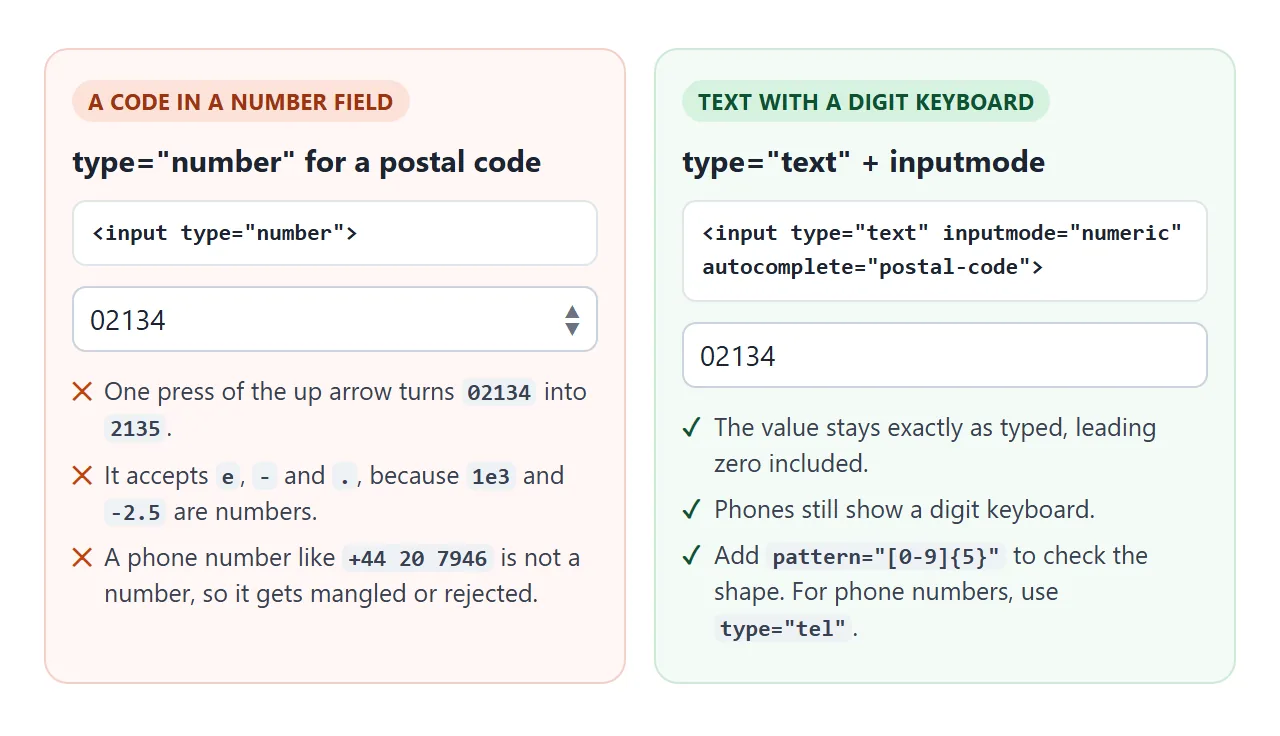
Pressing the up arrow in a number field holding 02134 makes it 2135. Use type="text" with inputmode="numeric" for codes, and type="tel" for phone numbers.
When it does not work
| What you see | Cause | Fix |
|---|---|---|
A number field accepts the letter e |
1e3 is a valid number (1000), so e is allowed |
Check the value in script, or use text with inputmode="numeric" and pattern |
qty.value + 1 gives "31" |
.value is always a string |
Use valueAsNumber or Number() |
A number field reads "" while showing text |
What was typed is not a valid number | Check validity.badInput |
The date shows 26/09/2026 but the value is 2026-09-26 |
The display follows the locale; the value is always yyyy-mm-dd | Read and set value in yyyy-mm-dd |
Setting value="09/26/2026" leaves the date empty |
The value must be yyyy-mm-dd | Set "2026-09-26" |
pattern is ignored |
pattern only applies to text, search, tel, url, email and password |
Use min, max and step on the other types |
| A postal code loses its leading zero | It is in a type="number" field |
type="text" + inputmode="numeric" |
A phone number with + or spaces is rejected |
It is in a type="number" field |
type="tel" |
| An unknown type shows a plain box | The browser does not know it and uses text |
Check the spelling; input.type shows what the browser uses |
type="url" rejects example.com |
It requires an absolute address | Ask for https://, or use text with a placeholder |
Share it as a link
Input types are easiest to judge on the device people will use. A screenshot does not open a keyboard, and an emailed .html file may open as code on a phone.
To send the working version, paste the page into a NOS document and choose Create share link. HTML to link walks through it.
The page renders as written and its scripts run, so the people you send it to can tap each field on their own phone. If you change the code later, the same link shows the new version.