To get an HTML input with no autocomplete, set autocomplete="off" on the field, or on the form to cover everything inside it.
<input type="text" name="ref" autocomplete="off">

<form autocomplete="off">
  <input name="code">
  <input name="batch">
</form>
That is the whole syntax. Whether the browser obeys is a separate question, and it depends on what the field looks like.
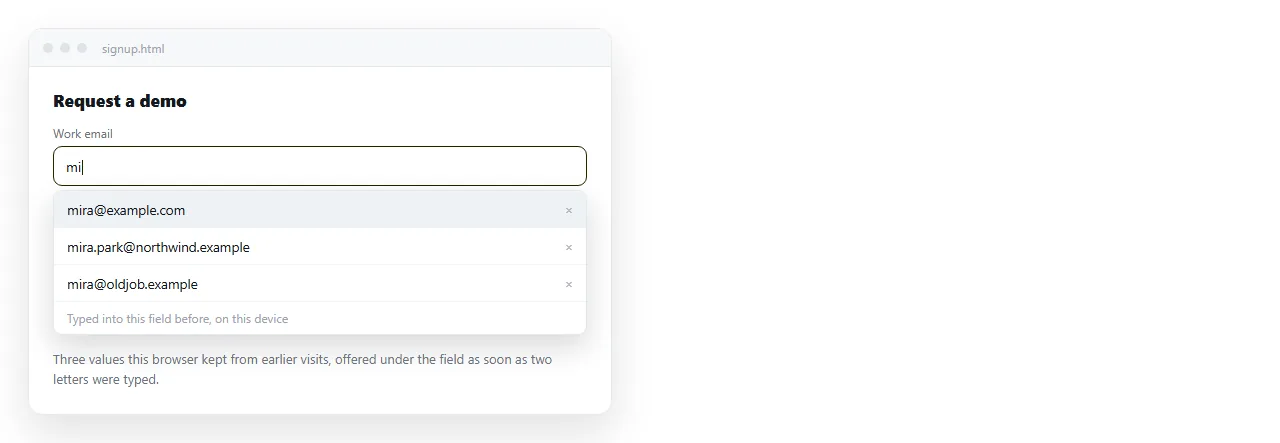
What no autocomplete covers on an HTML input
| Field | Does off work |
Notes |
|---|---|---|
| Plain text, one-off codes | Yes | The history dropdown stops appearing |
| Search and reference boxes | Yes | Most common legitimate use |
| Email, name, phone | Usually | Address autofill may still offer to fill the group |
| Password | Often ignored | The password manager takes priority |
| Credit card fields | Often ignored | Same reasoning |
| New password on a signup form | Use new-password |
off produces the old password instead |
The pattern is consistent once you see it. Browsers respect off for values only you care about, and override it where a user's saved credentials are involved.
Why browsers override you
The decision is documented and deliberate. When sites blocked password managers, people responded by choosing passwords they could retype, which were shorter and reused.
Browser vendors judged that the harm from that outweighed the harm from an unwanted suggestion, so autocomplete="off" on a credential field became advisory.
Fighting it with random field names, invisible decoy inputs or scripts that clear the value is a losing position. Those tricks break on the next browser release and break screen readers immediately.
The tokens worth knowing
Instead of switching autocomplete off, tell the browser what the field is. It then fills the right thing rather than guessing.
<input name="user" autocomplete="username">
<input type="password" name="pass" autocomplete="current-password">

<!-- on a signup or change-password form -->
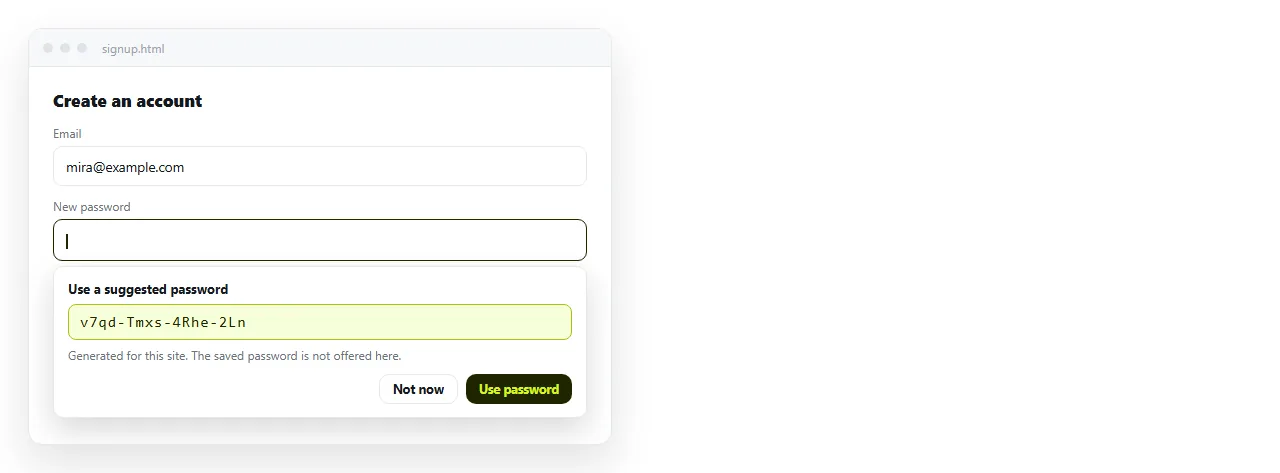
<input type="password" name="new" autocomplete="new-password">

<!-- for a code from SMS or an authenticator -->
<input name="otp" inputmode="numeric" autocomplete="one-time-code">
new-password is the one that solves the most complaints. It stops the browser inserting the existing password into a field meant for a new one, and lets the manager offer to generate a strong value.
one-time-code lets a phone offer the code straight from the message, which removes the most error-prone step in two-factor sign-in.
When turning it off is genuinely right
There are real cases, and they share a shape: the value is different every time and the history is noise or a leak.
- Reference and batch numbers. A dropdown of last week's codes is only ever in the way.
- Shared or kiosk machines. Anything typed there should not be offered to the next person.
- Fields holding someone else's data. A caseworker typing a client's details should not see the previous client's.
- Honeypot fields. A decoy input in a hidden part of the form that a real person never fills in.
Outside those, autocomplete is doing the reader a favour. Forms with it switched off across the board take measurably longer to complete.
The neighbouring attributes. Autocomplete gets blamed for behaviour that belongs to other attributes, particularly on phones.
spellcheck="false"removes the red underline from codes and identifiers.autocapitalize="off"stops a phone keyboard capitalising the first letter, which matters for usernames.autocorrect="off"stops a mobile keyboard rewriting an unfamiliar string.inputmode="numeric"brings up a number pad without making the field anumberinput.
A reference code field usually wants all of these together:
<input name="ref" autocomplete="off" spellcheck="false"
       autocapitalize="off" autocorrect="off">
What the browser is matching on
Autocomplete is not keyed to the field you think it is. Browsers build their suggestion history around the name attribute and the form's origin, then layer heuristics on top for autofill.
That has two practical consequences. A field named email inherits every email you have ever typed into a field of that name on that site, even if this form is unrelated. And renaming a field wipes its history, which is occasionally the fastest fix available.
The heuristics look at more than the name. Label text, placeholder text, surrounding fields and the input type all feed the guess about whether this is an address block or a sign-in form.
So a field labelled "Contact address" inside a form that also has a postcode box will be treated as part of an address group, and offered the reader's saved address, regardless of what you called it.
If you are fighting unwanted autofill, change what the field looks like to the browser before you change the attribute. A more specific label and an explicit token usually settle it in one pass.
Checking it before you ship
Test in a profile that has actually filled the form before. A fresh browser has no history, so every field looks correctly suppressed whether it is or not.
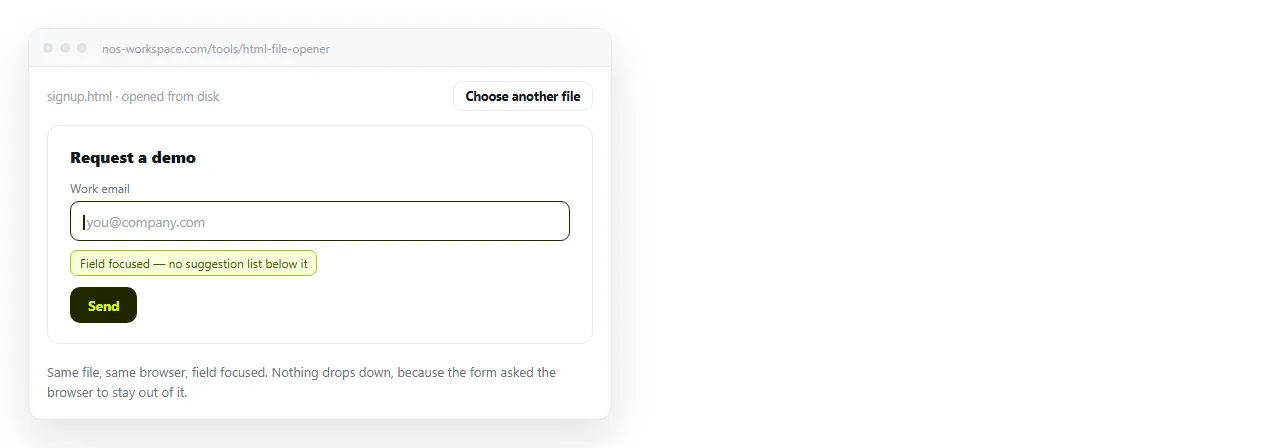
Paste the page into the HTML file opener, fill it in, reload, and focus each field again. Anything that still offers a value is a field where the attribute is missing or being overridden.
If a password field is autofilling on a form that is not a sign-in form, the fix is nearly always new-password rather than off.
Getting the form in front of people
Once the behaviour is right, the page still has to reach the people using it. An .html file containing a form and a script is the exact shape mail gateways strip, so the attachment often never lands.
Paste the HTML into a NOS document. It renders as written at its own address, attributes and all. Share, then Share link, then Create link, and send the link.
Edits happen in place, so adding a field later does not invalidate the address you already sent. Turning a form into a link walks through it, and sending the results to a spreadsheet covers where the answers go.