To send HTML form data to Google Sheets, deploy a Google Apps Script web app bound to the sheet and post your form to the URL it gives you.
There is no server to rent and no database to configure. Each submission becomes a row.
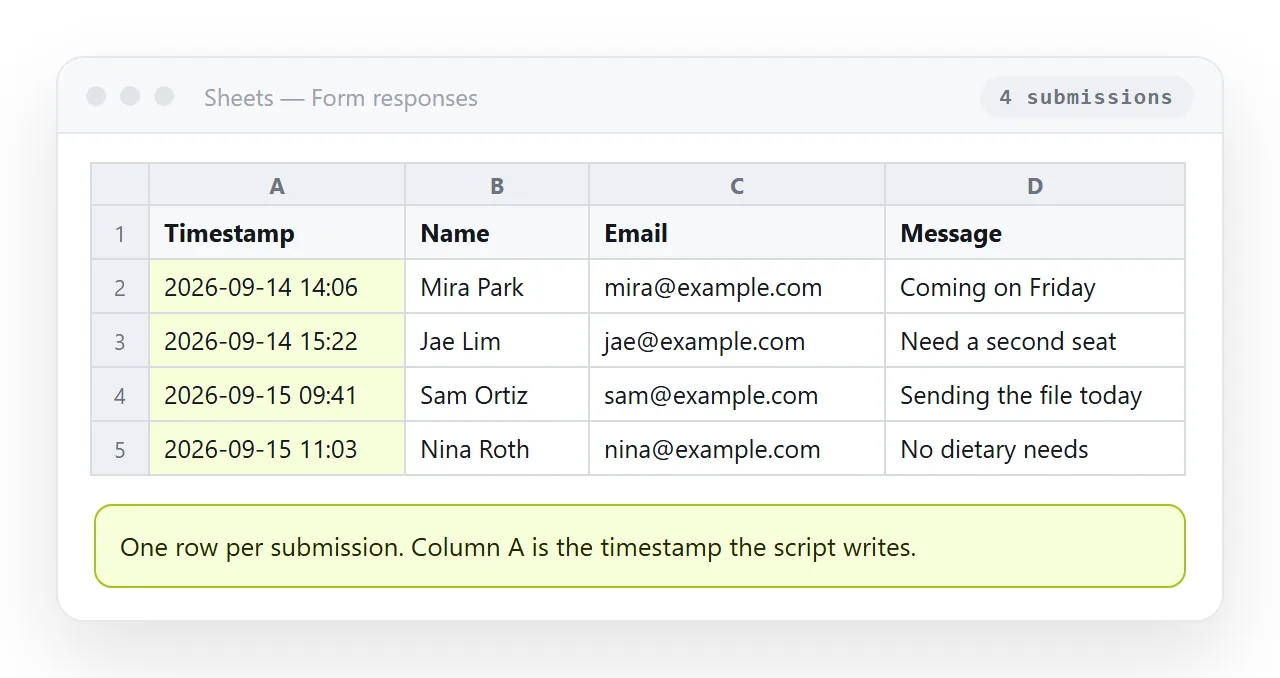
The whole thing is about fifteen lines of script and one deployment screen. The deployment screen is where nearly every failure comes from.
The script
Open the destination spreadsheet, then Extensions, then Apps Script. The script created this way is bound to that sheet, so getActiveSpreadsheet resolves without you pasting an ID.
function doPost(e) {
  const sheet = SpreadsheetApp.getActiveSpreadsheet().getActiveSheet();
  const data = e.parameter;
  sheet.appendRow([
    new Date(),
    data.name || '',
    data.email || '',
    data.message || ''
  ]);
  return ContentService
    .createTextOutput(JSON.stringify({ ok: true }))
    .setMimeType(ContentService.MimeType.JSON);
}
e.parameter holds the posted fields by name. Column order is decided by the array you pass to appendRow, not by the header row, so those two have to agree by hand.
Add a header row to the sheet first. Without one, the first submission looks like data with no labels.
Deploying it
This is the step that decides whether the form works for anyone other than you.
| Setting | Choose | Why |
|---|---|---|
| Type | Web app | The other types have no URL |
| Execute as | Me | The script writes with your access to the sheet |
| Who has access | Anyone | Otherwise visitors get a Google sign-in page |
| After every code edit | New version, same deployment | The URL keeps working, the code updates |
Deploy, then New deployment, then the gear icon, then Web app. Google will ask you to authorise the script the first time and will show an unverified-app warning. That warning is about your own script, and you continue through Advanced.
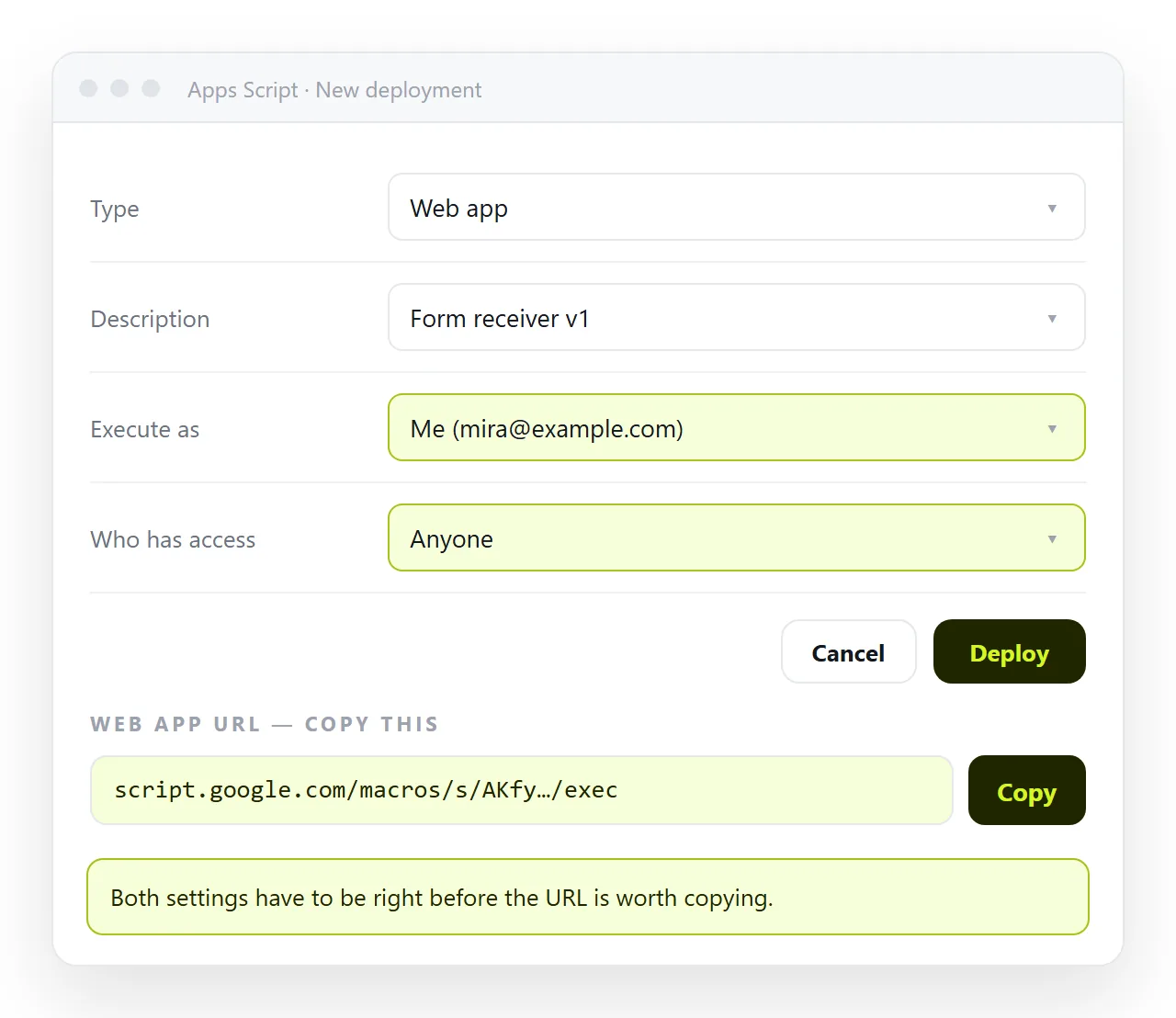
Copy the URL that ends in /exec. The /dev URL only works while you are signed in, which is why a form that works for you fails for everybody else.
"Execute as me" is worth understanding rather than just selecting. The script runs with your Google account's access to the sheet, so visitors never need an account of their own and never see the spreadsheet.
The trade is that anyone holding the URL can write rows as you. There is no per-submitter identity unless you collect one in the form, and a field asking for a name is a claim, not a verified fact.
Wiring the form
The plainest version needs no JavaScript at all.
<form method="post" action="https://script.google.com/macros/s/AKfy.../exec">
  <input name="name" required>
  <input name="email" type="email" required>
  <textarea name="message"></textarea>
  <button>Send</button>
</form>
The submission works, but the browser navigates to the script's response, and the reader is left staring at a line of JSON. Acceptable for an internal form, poor for anything else.
To stay on the page, cancel the submit event and post with fetch.
<script>
  document.querySelector('form').addEventListener('submit', async (e) => {
    e.preventDefault();
    await fetch(e.target.action, { method: 'POST', body: new FormData(e.target) });
    e.target.reset();
    document.getElementById('done').hidden = false;
  });
</script>
Sending a FormData object is deliberate. It produces a request the browser treats as simple, so no preflight is sent, so the Apps Script CORS problem never appears. Cancelling the event is the same technique as a form with no action.
The CORS error, and how to avoid it
Posting JSON with Content-Type: application/json makes the browser send an OPTIONS preflight first. Apps Script web apps do not answer preflights usefully, so the request fails before it is ever sent.
Three ways around it, in order of preference:
- Send
FormData. No preflight, fields arrive ine.parameter, nothing to parse. - Send JSON as
text/plain. Also no preflight. Read it in the script withJSON.parse(e.postData.contents). - Use
mode: 'no-cors'. The post goes through, you cannot read the response, and every failure looks like a success.
The third option hides errors, so use it only when a silent failure is genuinely acceptable.
What this setup is good for, and what it is not
A sheet is an excellent destination for low-volume, human-read submissions, and a poor one for anything else.
It suits event sign-ups, internal requests, feedback forms, stock counts and any case where the next step is a person scanning rows. Sorting, filtering and charts are already there, and the people who need the data already have access.
It does not suit anything that needs to be immediately consistent, anything with personal data under a retention rule, or anything expecting sustained traffic. Apps Script runs under daily quotas, and concurrent submissions can interleave awkwardly during a spike.
The honest test is what happens if two hundred rows arrive in an hour. If the answer is fine, the sheet is the right call. If the answer involves deduplication, notifications and a state machine, you wanted a database.
Things worth adding before you ship
- A timestamp in the script, not in the form. A field the browser supplies can be edited.
- A hidden field naming the source page, so one sheet can serve several forms.
- A shared secret checked at the top of
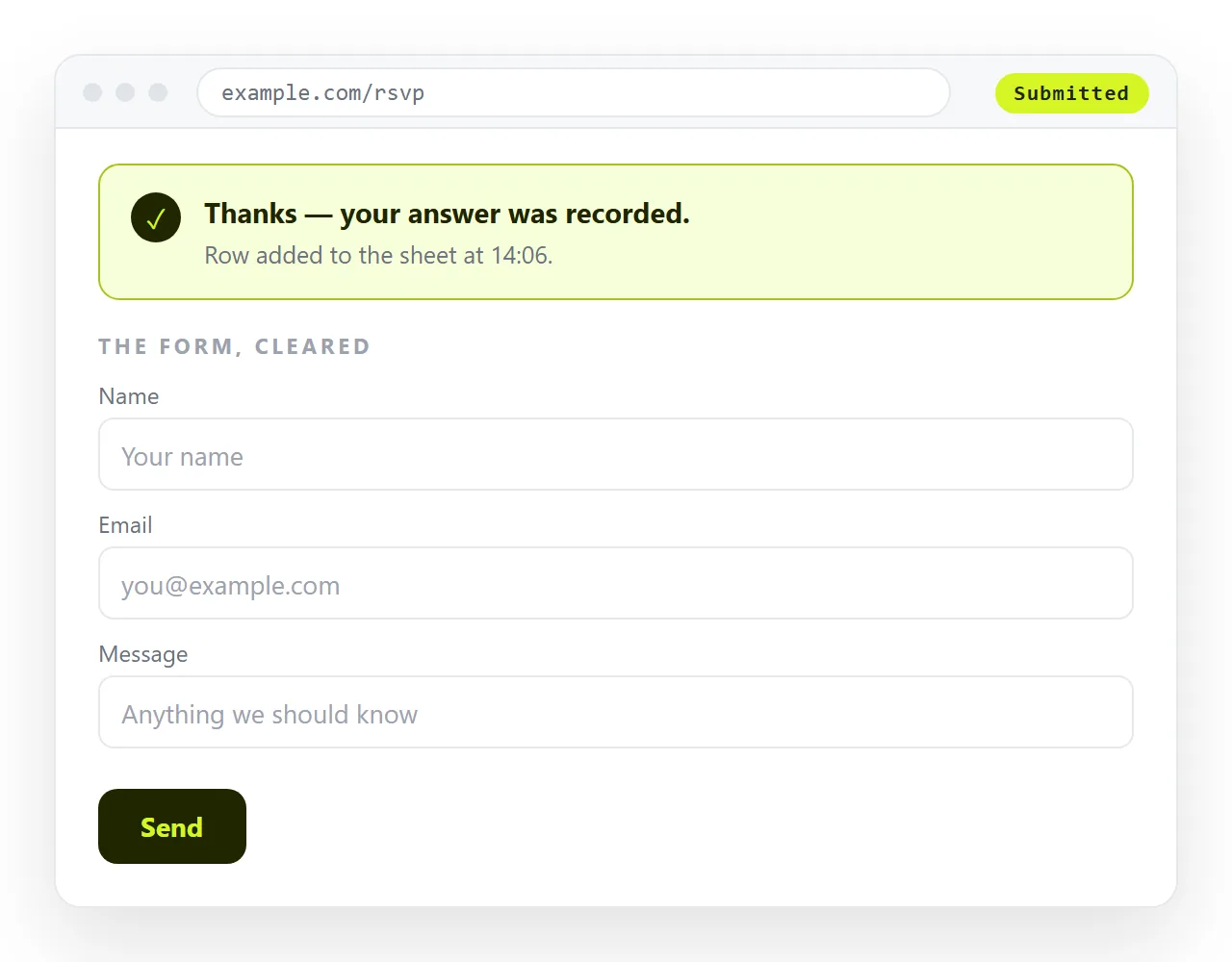
doPost, returning early if it does not match. - A visible confirmation on the page. Without it people submit two or three times.
Putting the form page somewhere people can open it
The script is only half the job. The HTML page still has to reach the people filling it in, and an .html attachment containing a form is close to the definition of what mail gateways strip.
Paste the finished HTML into a NOS document. It renders as written, script and all, at its own address. Share, then Share link, then Create link, and send the link.
Corrections happen in place. Change a label or add a field and the address does not move, so the link you circulated last month still points at the current form. Turning a form into a link goes through that route in detail.