To add suggestions to a text box, write a <datalist> with an id, put <option> elements inside it, and give the <input> a list attribute with the same id.
The browser offers the options as the user types, and the user can still type something that is not on the list.
<input list="cities">
<datalist id="cities">
  <option value="Berlin">
  <option value="Paris">
</datalist>
Try it below. The left box has a datalist. The right one is a <select>, so you can feel the difference.
<!doctype html>
<html lang="en">
<head>
<meta charset="utf-8">
<meta name="viewport" content="width=device-width, initial-scale=1">
<title>datalist vs select</title>
<style>
  body { margin: 0; padding: 16px; font-family: system-ui, sans-serif; background: #f4f5f7; color: #1d2330; }
  .row { display: grid; grid-template-columns: repeat(auto-fit, minmax(200px, 1fr)); gap: 12px; }
  .box { background: #fff; border-radius: 12px; padding: 14px; box-shadow: 0 3px 12px rgba(0, 0, 0, .08); }
  label { display: block; font-weight: 600; margin-bottom: 6px; }
  small { display: block; color: #5b6270; margin-bottom: 10px; }
  input, select { width: 100%; box-sizing: border-box; font: inherit; padding: 8px 10px; border: 1px solid #c9cdd4; border-radius: 8px; }
  output { display: block; margin-top: 10px; font-size: 14px; color: #0f5132; }
</style>
</head>
<body>
<div class="row">
  <div class="box">
    <label for="city">datalist</label>
    <small>Suggestions, but any text is allowed.</small>
    <!-- list="cities" points at the datalist's id -->
    <input id="city" list="cities" placeholder="Type a city">
    <datalist id="cities">
      <option value="Berlin">
      <option value="Lisbon">
      <option value="London">
      <option value="Paris">
      <option value="Seoul">
    </datalist>
    <output id="cityOut">Value: (empty)</output>
  </div>
  <div class="box">
    <label for="pick">select</label>
    <small>Only the options below can be chosen.</small>
    <select id="pick">
      <option>Berlin</option>
      <option>Lisbon</option>
      <option>London</option>
      <option>Paris</option>
      <option>Seoul</option>
    </select>
    <output id="pickOut">Value: Berlin</output>
  </div>
</div>

<script>
  const city = document.getElementById('city');
  const pick = document.getElementById('pick');
  // picking a suggestion fires the same input event as typing
  city.addEventListener('input', () => {
    document.getElementById('cityOut').textContent = 'Value: ' + (city.value || '(empty)');
  });
  pick.addEventListener('change', () => {
    document.getElementById('pickOut').textContent = 'Value: ' + pick.value;
  });
</script>
</body>
</html>
The <datalist> element draws nothing by itself. It is hidden, and the browser uses its options only for inputs that point to it.
How list and id connect
The link is one string. The input's list attribute must equal the datalist's id, letter for letter and in the same case. The datalist can sit anywhere in the page, and several inputs can share one datalist.
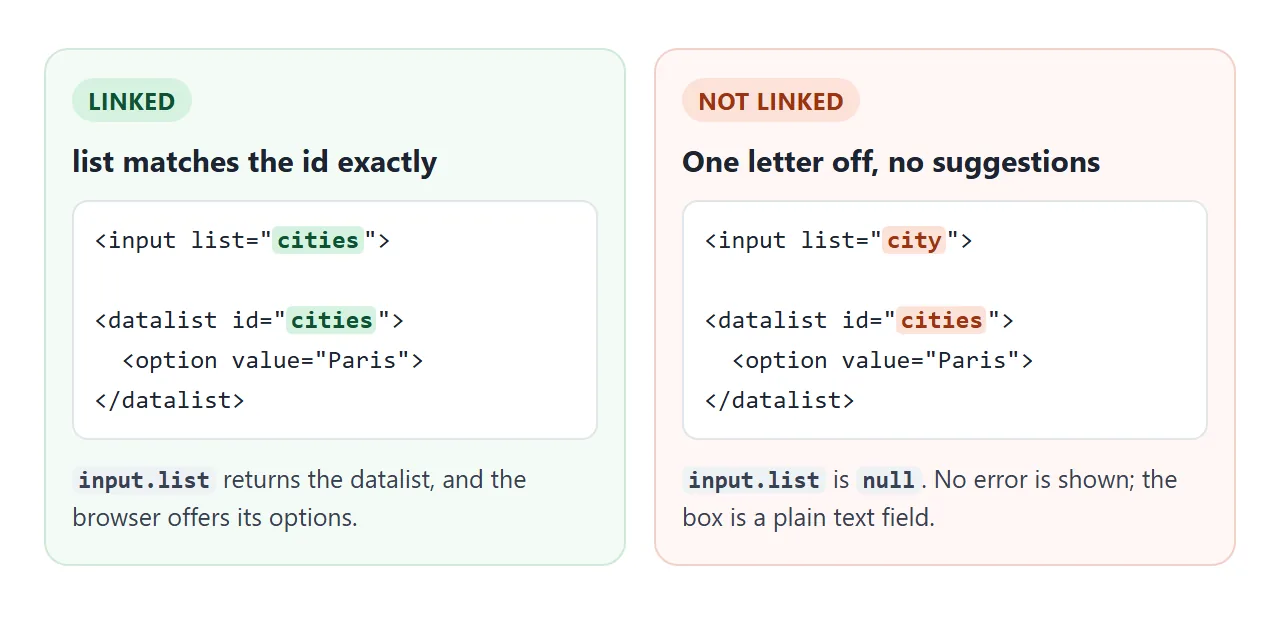
If the link is broken, nothing warns you. A quick check in the browser console is input.list: it returns the datalist when the link works and null when it does not.
Browsers also differ in when the list opens. Some show all options when you click an empty field or press the Down arrow key; others wait for the first letter. How the list is filtered as you type is up to the browser as well.
datalist vs select: free text or fixed choice
Both show a list, but they answer different questions. A <select> says "choose one of these". A datalist says "here are some common answers, or write your own".
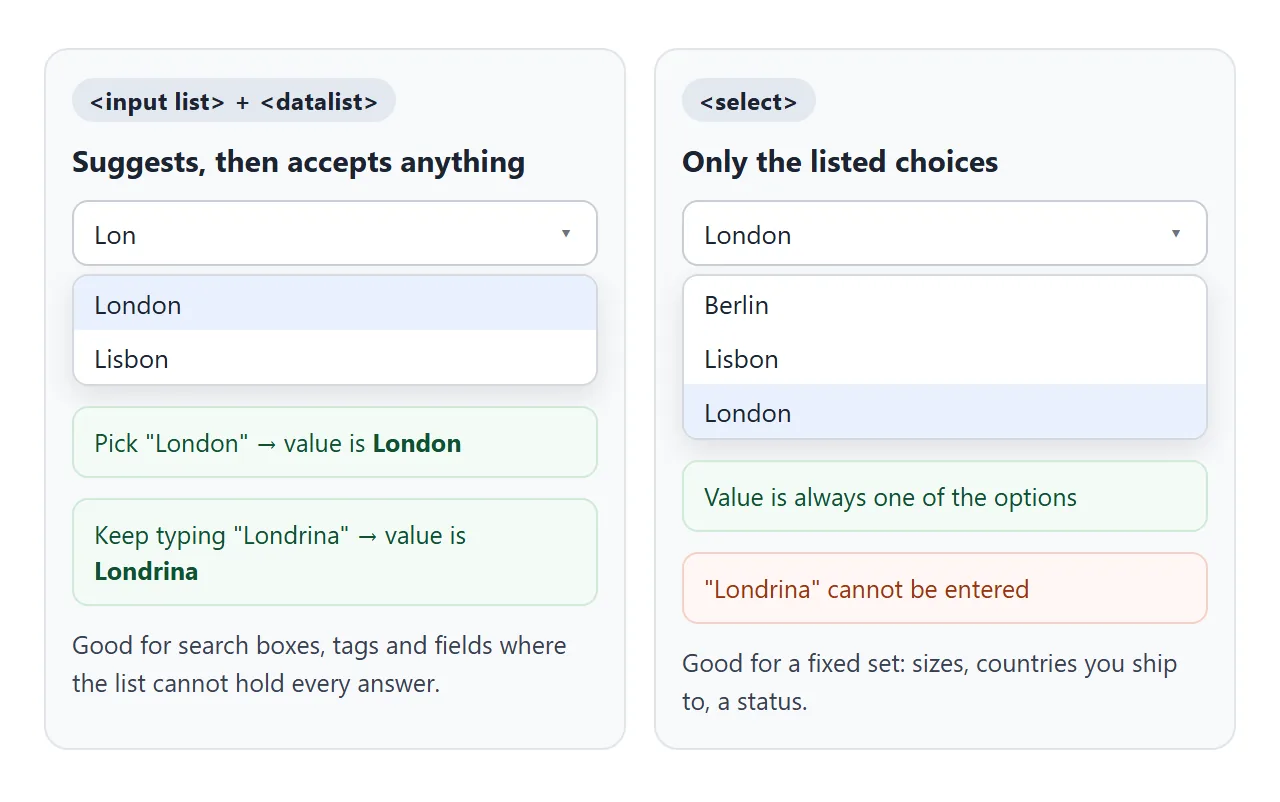
<input list> + <datalist> |
<select> |
|
|---|---|---|
| Other text allowed | Yes | No |
| Typing filters the list | Yes | No |
| Empty value possible | Yes, unless required |
Only with an empty option |
| Style the open list with CSS | No | Only in limited ways |
| Good for | Search, tags, cities, models | Sizes, statuses, fixed sets |
If you use a <select> and need a starting option, HTML dropdown default selected covers which option shows first and why.
Option value vs label: what goes into the box
An option can carry two pieces of text. The value attribute is what the input receives. A label attribute, or text inside the option, is extra description shown in the list.
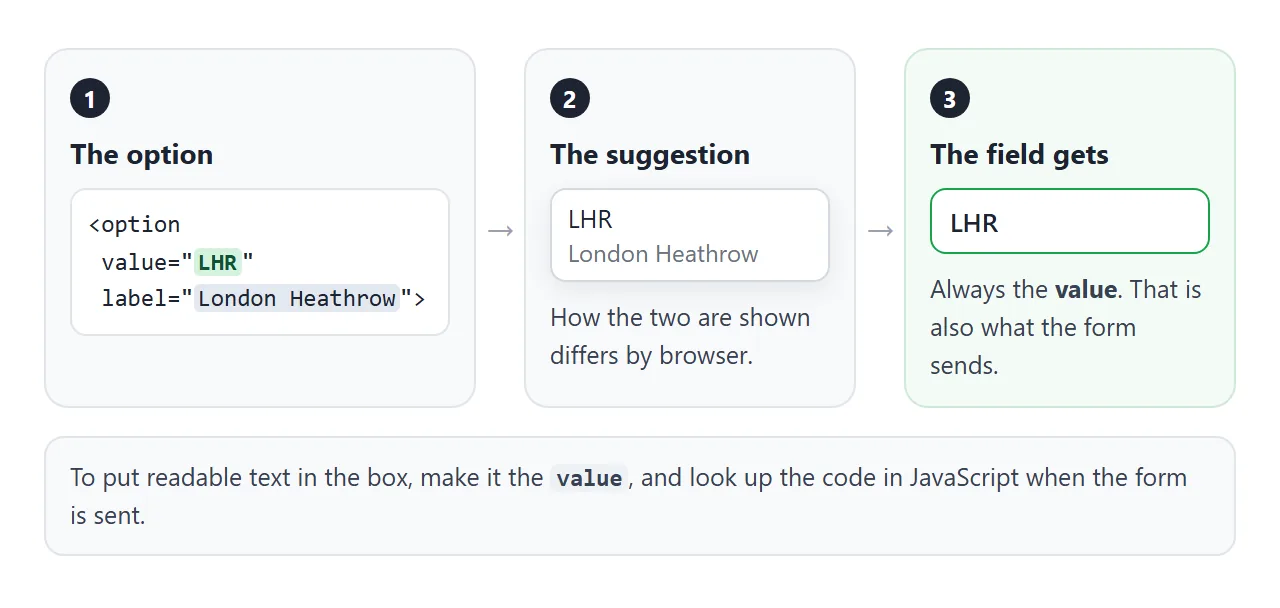
<option value="LHR" label="London Heathrow">
Picking this option puts LHR in the box, and the form sends LHR.
Whether the label appears next to the value, or instead of it, differs between browsers. If you want people to see and type readable names, make the readable name the value and translate it to a code in your script.
Which input types take a list
The list attribute is not only for plain text. In Chromium, input.list finds the datalist for these types: text, search, url, tel, email, number, range, color, date, month, week, time and datetime-local. It is null for password, checkbox, radio, file, hidden and buttons.
What each type does with the list is less uniform:
- range: Chromium draws a tick mark under the slider at each option value. Other browsers may not draw ticks, so treat them as a bonus.
- color, date, time: the attribute is accepted, but how the suggestions appear varies by browser. Test them in the browsers your users have before relying on them.
- email, url, search, tel: these behave like text, with suggestions shown as you type.
For what each type does without a list, see input types in HTML.
Fill a datalist from JavaScript and require a listed value
Long lists usually live in data, not in HTML. Create one <option> per item and append it to the datalist. The input picks up new options without any extra step.
Because a datalist accepts any text, a "must be from the list" rule is your job. setCustomValidity does it with the browser's own form checks: set a message when the value is not in the array, and an empty string when it is.
<!doctype html>
<html lang="en">
<head>
<meta charset="utf-8">
<meta name="viewport" content="width=device-width, initial-scale=1">
<title>datalist from an array</title>
<style>
  body { margin: 0; padding: 16px; font-family: system-ui, sans-serif; background: #f4f5f7; color: #1d2330; }
  form { max-width: 420px; background: #fff; border-radius: 12px; padding: 16px; box-shadow: 0 3px 12px rgba(0, 0, 0, .08); }
  label { display: block; font-weight: 600; margin-bottom: 6px; }
  input { width: 100%; box-sizing: border-box; font: inherit; padding: 8px 10px; border: 1px solid #c9cdd4; border-radius: 8px; }
  input.bad { border-color: #c2410c; }
  button { margin-top: 12px; font: inherit; padding: 8px 16px; border: 0; border-radius: 8px; background: #2563eb; color: #fff; cursor: pointer; }
  #msg { margin-top: 12px; font-size: 14px; min-height: 1.4em; }
</style>
</head>
<body>
<form id="form">
  <label for="lang">Programming language</label>
  <input id="lang" name="lang" list="langs" placeholder="Start typing, e.g. Py">
  <datalist id="langs"></datalist>
  <button>Save</button>
  <div id="msg"></div>
</form>

<script>
  const langs = ['C', 'C#', 'C++', 'Go', 'Java', 'JavaScript', 'Kotlin', 'PHP', 'Python', 'Ruby', 'Rust', 'Swift', 'TypeScript'];
  const input = document.getElementById('lang');
  const list = document.getElementById('langs');
  const msg = document.getElementById('msg');

  // one <option> per array item
  for (const name of langs) {
    const opt = document.createElement('option');
    opt.value = name;
    list.append(opt);
  }

  // datalist accepts any text, so check the value ourselves
  function check() {
    const ok = langs.includes(input.value);
    input.setCustomValidity(ok ? '' : 'Pick a language from the list.');
    input.classList.toggle('bad', !ok && input.value !== '');
  }
  input.addEventListener('input', check);
  check();

  // runs only when the value is valid
  document.getElementById('form').addEventListener('submit', (e) => {
    e.preventDefault();  // demo: show the value instead of sending it
    msg.textContent = 'Saved: ' + new FormData(e.target).get('lang');
    msg.style.color = '#0f5132';
  });

  // runs instead of submit when the value is not in the list
  input.addEventListener('invalid', () => {
    msg.textContent = input.value ? '"' + input.value + '" is not in the list.' : 'Pick a language first.';
    msg.style.color = '#9a3412';
  });
</script>
</body>
</html>
const ok = langs.includes(input.value);
input.setCustomValidity(ok ? '' : 'Pick a language from the list.');
While the message is set, the form will not submit and the browser shows the message near the field. The required attribute alone only checks that the box is not empty. More on these checks in HTML form validation.
A finished example: product search
In a search box, suggestions and results should come from the same data. This example builds the datalist from a product array, then filters product cards on every input event. Typing and picking a suggestion both fire that event, so one listener covers both.
<!doctype html>
<html lang="en">
<head>
<meta charset="utf-8">
<meta name="viewport" content="width=device-width, initial-scale=1">
<title>Product search with datalist</title>
<style>
  body { margin: 0; padding: 16px; font-family: system-ui, sans-serif; background: #f4f5f7; color: #1d2330; }
  .search { display: flex; gap: 8px; max-width: 520px; }
  input { flex: 1; min-width: 0; font: inherit; padding: 10px 12px; border: 1px solid #c9cdd4; border-radius: 10px; }
  button { font: inherit; padding: 0 14px; border: 1px solid #c9cdd4; border-radius: 10px; background: #fff; cursor: pointer; }
  #count { margin: 12px 0 8px; font-size: 13px; color: #5b6270; }
  #results { display: grid; grid-template-columns: repeat(auto-fill, minmax(150px, 1fr)); gap: 10px; }
  .item { background: #fff; border-radius: 10px; padding: 10px 12px; box-shadow: 0 2px 8px rgba(0, 0, 0, .07); border: 2px solid transparent; }
  .item.exact { border-color: #16a34a; }
  .item b { display: block; font-size: 14px; }
  .item span { font-size: 12px; color: #5b6270; }
  .item i { display: block; font-style: normal; margin-top: 4px; font-weight: 600; }
</style>
</head>
<body>
<div class="search">
  <input id="q" type="search" list="names" placeholder="Search products" aria-label="Search products">
  <button id="clear" type="button">Clear</button>
</div>
<datalist id="names"></datalist>
<div id="count"></div>
<div id="results"></div>

<script>
  const products = [
    { name: 'Desk lamp', cat: 'Lighting', price: 39 },
    { name: 'Floor lamp', cat: 'Lighting', price: 89 },
    { name: 'Standing desk', cat: 'Furniture', price: 420 },
    { name: 'Desk chair', cat: 'Furniture', price: 210 },
    { name: 'Monitor arm', cat: 'Accessories', price: 65 },
    { name: 'Cable tray', cat: 'Accessories', price: 24 },
    { name: 'Wool rug', cat: 'Textiles', price: 150 },
    { name: 'Linen curtain', cat: 'Textiles', price: 58 }
  ];
  const q = document.getElementById('q');
  const results = document.getElementById('results');

  // suggestions come from the same data as the results
  document.getElementById('names').append(...products.map((p) => {
    const o = document.createElement('option');
    o.value = p.name;   // goes into the box
    o.label = p.cat;    // extra hint; browsers differ in whether they show it
    return o;
  }));

  function render() {
    const text = q.value.trim().toLowerCase();
    const hits = products.filter((p) =>
      p.name.toLowerCase().includes(text) || p.cat.toLowerCase().includes(text));
    results.innerHTML = '';
    for (const p of hits) {
      const card = document.createElement('div');
      card.className = 'item' + (p.name.toLowerCase() === text ? ' exact' : '');
      card.innerHTML = '<b></b><span></span><i></i>';
      card.querySelector('b').textContent = p.name;
      card.querySelector('span').textContent = p.cat;
      card.querySelector('i').textContent = '$' + p.price;
      results.append(card);
    }
    document.getElementById('count').textContent = hits.length + ' of ' + products.length + ' products';
  }

  q.addEventListener('input', render);  // typing and picking a suggestion both land here
  document.getElementById('clear').addEventListener('click', () => { q.value = ''; render(); q.focus(); });
  render();
</script>
</body>
</html>
- One source of truth: the
productsarray feeds both the datalist and the results. - Label as a hint: each option has the category as its
label; some browsers show it in the list. - Safe output: product names go in with
textContent, not raw HTML strings.
For the basics of the box itself, such as labels and sizing, see text input in HTML.
When it does not work
| What you see | Cause | Fix |
|---|---|---|
| No suggestions at all | list does not match the datalist id |
Make them identical, same case |
| No suggestions on a password field | password ignores list |
Use a type that accepts it |
| List appears only after typing | The browser opens the list at its own time | Hint in the placeholder, such as "Start typing" |
| The box shows a code, not the name | The option value is the code; label is only a hint |
Put the readable text in value |
| Users submit text not on the list | datalist never restricts input | Check in JavaScript with setCustomValidity |
| CSS does not change the dropdown | The browser draws the list | Style the input, or build a custom list |
| No ticks on a range slider | Tick marks are drawn by some browsers only | Show the steps as labels under the slider |
Share it as a link
A datalist is easier to judge by typing into it than by looking at a screenshot. A screenshot shows the list frozen in one browser's style, and it cannot be typed into.
To send the working version, paste the page into a NOS document and choose Create share link. HTML to link walks through it.
The page renders as written and its scripts run, so the people you send it to can type, pick suggestions and see the results themselves. If you change the options or the code later, the same link shows the new version.