When an HTML form is submitted, the browser collects every field that has a name, turns the names and values into a list of pairs, and sends that list to the address in the form's action.
With method="get" the list goes into the URL. With method="post" it goes into the request body. Then the browser loads the reply as a new page.
Try it below. Change the fields, then press one of the buttons, or press Enter in the name field.
<!doctype html>
<html lang="en">
<head>
<meta charset="utf-8">
<meta name="viewport" content="width=device-width, initial-scale=1">
<title>What a form sends</title>
<style>
  body { margin: 0; padding: 16px; font: 15px/1.4 system-ui, sans-serif; background: #f4f5f7; color: #1d2330; }
  form, .out { background: #fff; border-radius: 12px; padding: 14px 16px; box-shadow: 0 2px 10px rgba(0,0,0,.08); }
  label { display: block; margin-bottom: 10px; font-size: 13px; color: #4b5563; }
  label input, label select { display: block; width: 100%; box-sizing: border-box; margin-top: 3px; padding: 7px 9px; font: inherit; color: #1d2330; border: 1px solid #cfd4dc; border-radius: 7px; }
  label.check { display: flex; gap: 8px; align-items: center; }
  label.check input { width: auto; margin: 0; }
  .buttons { display: flex; gap: 8px; }
  button { padding: 8px 14px; font: inherit; border: 0; border-radius: 7px; background: #e5e7eb; cursor: pointer; }
  button[value="publish"] { background: #2563eb; color: #fff; }
  .out { margin-top: 12px; font-size: 13px; }
  .out b { display: block; margin-top: 8px; color: #6b7280; font-weight: 600; }
  .out b:first-child { margin-top: 0; }
  code { display: block; font: 13px/1.45 ui-monospace, Consolas, monospace; word-break: break-all; }
  .sent { color: #0f5132; } .gone { color: #9a3412; }
</style>
</head>
<body>
<form id="form" action="/signup" method="get">
  <label>Name <input name="name" value="Ana Kim"></label>
  <label>Email (this input has no name) <input type="email" value="ana@example.com"></label>
  <label>Plan
    <select name="plan"><option>free</option><option>pro</option></select>
  </label>
  <label>Coupon (disabled) <input name="coupon" value="SAVE10" disabled></label>
  <label class="check"><input type="checkbox" name="news" value="yes"> Send me the newsletter</label>
  <div class="buttons">
    <button name="action" value="save">Save draft</button>
    <button name="action" value="publish">Publish</button>
  </div>
</form>

<div class="out" id="out"></div>

<script>
  const form = document.getElementById('form');
  const out = document.getElementById('out');

  function show(submitter) {
    // The same list the browser would send. The second argument adds the clicked button.
    const data = new FormData(form, submitter);
    const query = new URLSearchParams(data).toString();
    const pairs = [...data].map(([k, v]) => `<code class="sent">${k} = ${v}</code>`).join('');
    // Anything the form holds that did not make it into the list
    const gone = [...form.elements]
      .filter((el) => el.tagName !== 'BUTTON' && !data.has(el.name))
      .map((el) => `<code class="gone">${el.name || '(no name) ' + el.value}${el.disabled ? ' - disabled' : ''}${el.type === 'checkbox' && !el.checked ? ' - unchecked' : ''}</code>`)
      .join('');
    out.innerHTML =
      `<b>Sent as ${submitter ? 'pressed: ' + submitter.textContent : 'no button pressed yet'}</b>${pairs}` +
      `<b>Left out</b>${gone}` +
      `<b>method="get" puts it in the URL</b><code>${form.getAttribute('action')}?${query}</code>` +
      `<b>method="post" puts the same text in the body</b><code>${query}</code>`;
  }

  form.addEventListener('submit', (e) => {
    e.preventDefault();   // stay on this page instead of loading /signup
    show(e.submitter);    // the button that was pressed, or the default one on Enter
  });
  form.addEventListener('input', () => show(null));
  show(null);
</script>
</body>
</html>
The email is on screen and filled in, but it is missing from every line of output. The coupon is missing too. Neither is a bug. They are the rules of form submission, and they are covered one by one below.
action and method: where the data goes
Two attributes on <form> decide the destination. action is the address that receives the data.
Leave it out and the form sends to the current page, which is why a bare form seems to reload itself. HTML form without an action covers that case in detail.
method decides where the pairs travel. The pairs themselves are the same text either way.
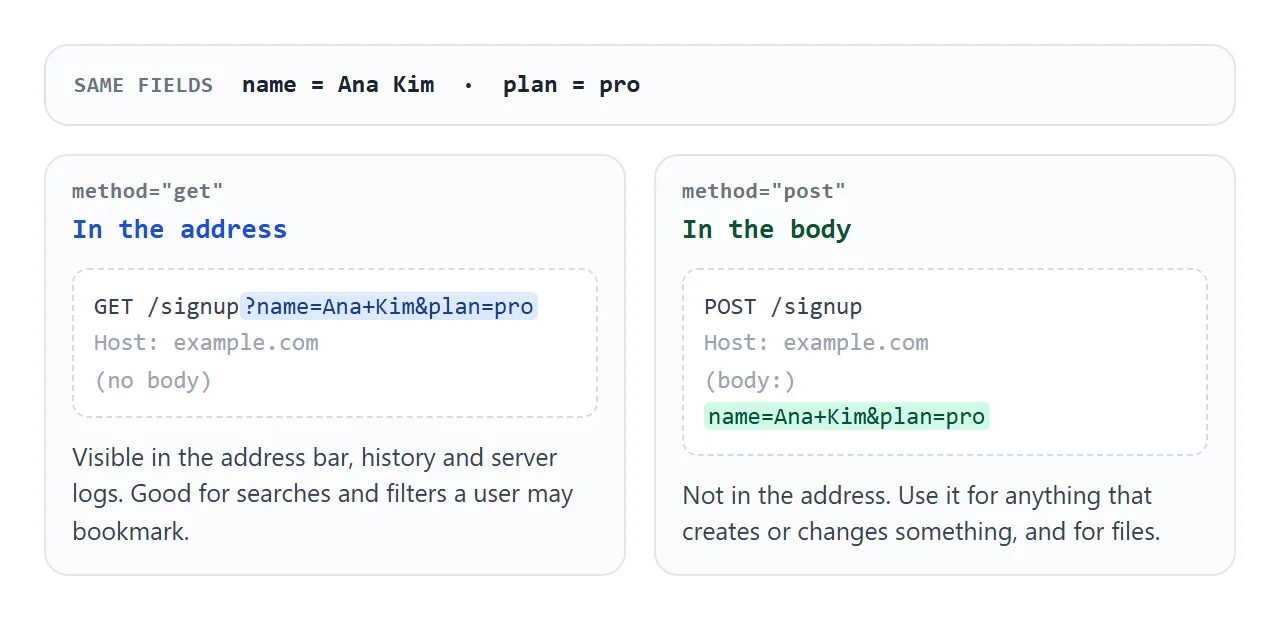
method="get" (the default) |
method="post" |
|
|---|---|---|
| Where the data goes | After ? in the URL |
In the request body |
| Visible in address bar and history | Yes | No |
| Can be bookmarked or shared | Yes | No |
| File uploads | No, only the file name | Yes, with enctype="multipart/form-data" |
| Typical use | Search boxes, filters | Sign-ups, orders, messages |
In the encoded text, spaces become + and pairs are joined with &. A server reads it back into names and values.
Which fields are sent, and which are not
The browser does not send "the form". It walks through the form's controls and keeps only some of them. The demo above shows each rule in action.
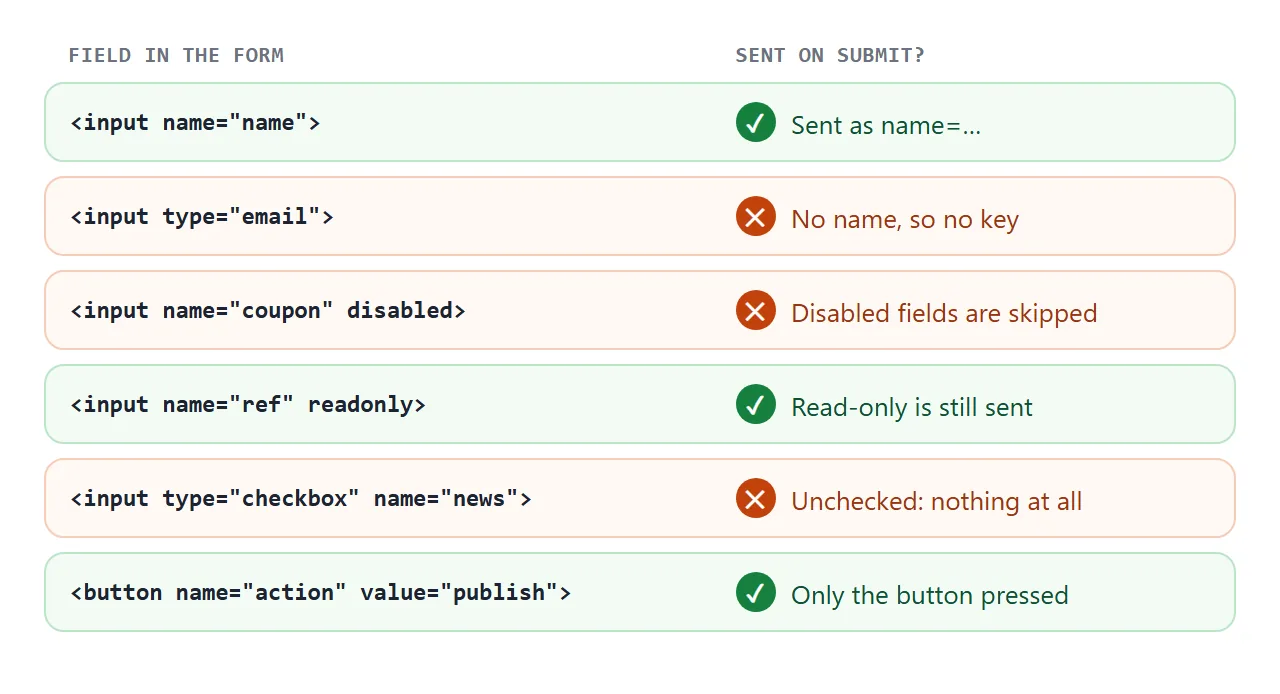
- No
name, no data. The name is the key. Aniddoes not count. disabledfields are skipped. If you need a value sent but not edited, usereadonlyinstead, or a hidden field.- Unchecked checkboxes send nothing. Not
false, not an empty value. The key is simply absent, so the server must treat "missing" as "off". - Only the pressed button counts. A submit button with a
nameadds its own pair, but only when it is the one that sent the form. That is how one form can have Save draft and Publish.
The submit event, preventDefault and FormData
Right before sending, the browser fires a submit event on the form. That is the hook for taking over. The pattern has five steps:
- Give every field a
name. - Listen for
submiton the form, notclickon the button, so Enter is covered too. - Call
event.preventDefault()so the browser does not load the action address. - Read the fields with
new FormData(form). - Send the data yourself with
fetch, then update the page.
form.addEventListener('submit', async (event) => {
  event.preventDefault();                 // stay on this page
  const data = new FormData(form);        // same pairs the browser would send
  const res = await fetch(form.action, { method: 'POST', body: data });
  // show a message based on res.ok
});
A FormData body is sent as multipart/form-data. If the server expects the classic encoded text, pass new URLSearchParams(data) instead.
event.submitter tells you which button sent the form. new FormData(form) leaves the buttons out, so pass the submitter as a second argument, new FormData(form, event.submitter), to get exactly what the browser would have sent. The first demo does that.
requestSubmit() vs submit()
Sometimes code has to submit the form, for example after a step in a wizard. There are two methods for that, and they behave very differently.
<!doctype html>
<html lang="en">
<head>
<meta charset="utf-8">
<meta name="viewport" content="width=device-width, initial-scale=1">
<title>submit() vs requestSubmit()</title>
<style>
  body { margin: 0; padding: 16px; font: 15px/1.4 system-ui, sans-serif; background: #f4f5f7; color: #1d2330; }
  form { background: #fff; border-radius: 12px; padding: 14px 16px; box-shadow: 0 2px 10px rgba(0,0,0,.08); }
  label { display: block; font-size: 13px; color: #4b5563; }
  input { display: block; width: 100%; box-sizing: border-box; margin-top: 3px; padding: 7px 9px; font: inherit; border: 1px solid #cfd4dc; border-radius: 7px; }
  .buttons { display: flex; flex-wrap: wrap; gap: 8px; margin: 12px 0; }
  .buttons button { padding: 8px 12px; font: 600 13px ui-monospace, Consolas, monospace; border: 0; border-radius: 7px; cursor: pointer; background: #1d4ed8; color: #fff; }
  .buttons button.old { background: #9a3412; }
  .buttons button.plain { background: #e5e7eb; color: #1d2330; }
  ol { margin: 0; padding: 10px 14px 10px 32px; min-height: 90px; max-height: 190px; overflow: auto; background: #fff; border-radius: 12px; font: 13px/1.6 ui-monospace, Consolas, monospace; box-shadow: 0 2px 10px rgba(0,0,0,.08); }
  .ok { color: #0f5132; } .bad { color: #9a3412; }
  iframe { display: none; }
</style>
</head>
<body>
<!-- target="sink": when submit() really sends, the hidden frame loads instead of this page -->
<form id="form" action="about:blank" target="sink">
  <label>Email (required) <input type="email" name="email" required placeholder="Leave empty, then try each button"></label>
</form>
<iframe name="sink" title="receives the submission"></iframe>

<div class="buttons">
  <button type="button" id="req">form.requestSubmit()</button>
  <button type="button" id="old" class="old">form.submit()</button>
  <button type="button" id="clear" class="plain">Clear log</button>
</div>
<ol id="log"></ol>

<script>
  const form = document.getElementById('form');
  const log = document.getElementById('log');
  let fired;

  function note(text, cls) {
    const li = document.createElement('li');
    li.textContent = text;
    li.className = cls;
    log.append(li);
  }

  form.addEventListener('invalid', () => { fired = true; note('invalid event: validation stopped it', 'bad'); }, true);
  form.addEventListener('submit', (e) => {
    fired = true;
    e.preventDefault();
    note('submit event fired, preventDefault() kept us here', 'ok');
  });

  document.getElementById('req').addEventListener('click', () => {
    fired = false;
    note('requestSubmit() called');
    form.requestSubmit();  // validates, then fires submit, like clicking a submit button
  });

  document.getElementById('old').addEventListener('click', () => {
    fired = false;
    note('submit() called');
    form.submit();         // no validation, no submit event: it sends right away
    if (!fired) note('no validation, no submit event, sent as is', 'bad');
  });

  document.getElementById('clear').addEventListener('click', () => { log.textContent = ''; });
</script>
</body>
</html>
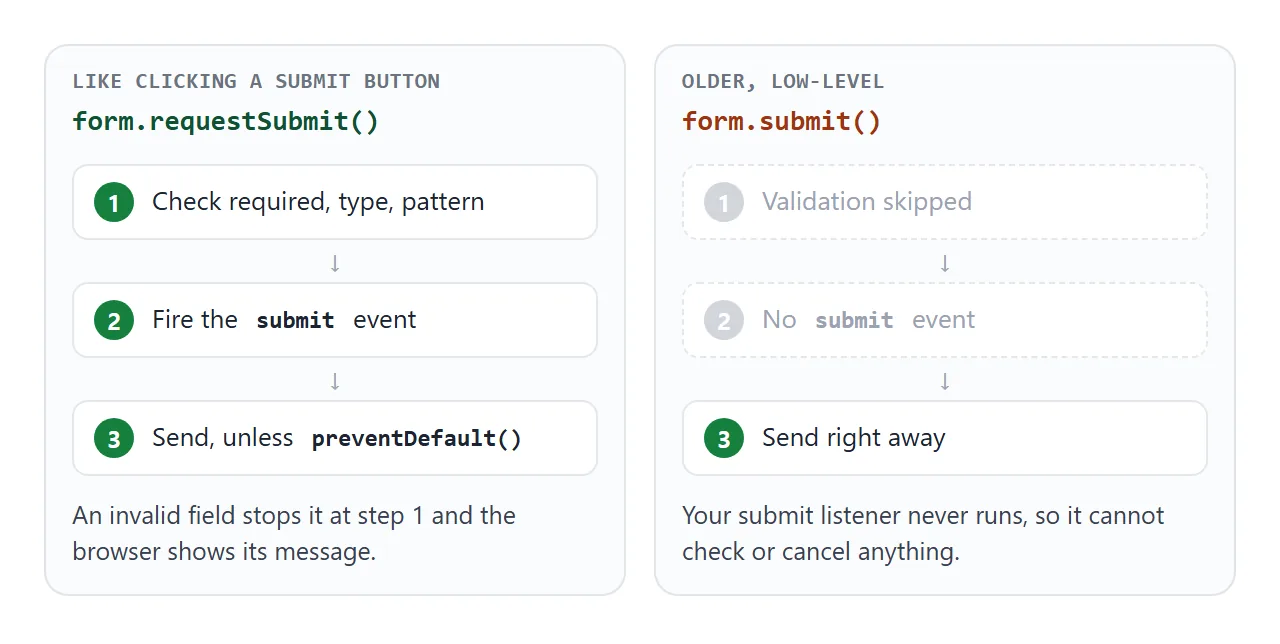
form.requestSubmit() |
form.submit() |
|
|---|---|---|
Checks required, type, pattern |
Yes | No |
Fires the submit event |
Yes | No |
Can be cancelled with preventDefault() |
Yes | No |
| Tells your handler which button | Pass it: requestSubmit(button) |
Not applicable |
Use requestSubmit() unless you deliberately want to bypass your own checks. The built-in checks themselves are covered in HTML form validation.
Enter, and buttons that submit by accident
Pressing Enter in a single-line field submits the form. The browser treats it as a click on the form's first submit button, so that button becomes event.submitter. If the first button is disabled, Enter does nothing. A <textarea> is different: Enter adds a new line.
A <button> inside a form is a submit button unless it says otherwise. The default type is submit. A Show password or Add row button written as plain <button> will send the form every time it is clicked. Write it like this:
<button type="button" id="toggle">Show password</button>
A finished example: a contact form
This one puts the pieces together. Each field is checked when you leave it, the button is disabled while sending so a double click cannot send twice, and a thank-you replaces the form. Nothing leaves the page; a timer stands in for the network.
<!doctype html>
<html lang="en">
<head>
<meta charset="utf-8">
<meta name="viewport" content="width=device-width, initial-scale=1">
<title>Contact form</title>
<style>
  body { margin: 0; padding: 16px; font: 15px/1.45 system-ui, sans-serif; background: #f4f5f7; color: #1d2330; }
  .card { max-width: 440px; margin: 0 auto; background: #fff; border-radius: 14px; padding: 18px 20px; box-shadow: 0 4px 18px rgba(0,0,0,.08); }
  h2 { margin: 0 0 12px; font-size: 19px; }
  .field { margin-bottom: 12px; }
  label { display: block; font-size: 13px; font-weight: 600; margin-bottom: 4px; }
  input, textarea { width: 100%; box-sizing: border-box; padding: 9px 10px; font: inherit; border: 1px solid #cfd4dc; border-radius: 8px; }
  textarea { min-height: 90px; resize: vertical; }
  .field.bad input, .field.bad textarea { border-color: #c2410c; background: #fff7f3; }
  .err { min-height: 18px; margin-top: 3px; font-size: 13px; color: #c2410c; }
  button { width: 100%; padding: 11px; font: 600 15px system-ui, sans-serif; color: #fff; background: #2563eb; border: 0; border-radius: 8px; cursor: pointer; }
  button:disabled { background: #93a8d8; cursor: wait; }
  .done { padding: 24px 6px; text-align: center; }
  .done b { display: block; font-size: 18px; color: #0f5132; margin-bottom: 6px; }
</style>
</head>
<body>
<div class="card">
  <!-- novalidate: we show our own messages under each field instead of the browser bubbles -->
  <form id="form" action="/contact" method="post" novalidate>
    <h2>Contact us</h2>
    <div class="field">
      <label for="name">Name</label>
      <input id="name" name="name" required autocomplete="name">
      <div class="err" aria-live="polite"></div>
    </div>
    <div class="field">
      <label for="email">Email</label>
      <input id="email" name="email" type="email" required autocomplete="email">
      <div class="err" aria-live="polite"></div>
    </div>
    <div class="field">
      <label for="message">Message</label>
      <textarea id="message" name="message" required minlength="10"></textarea>
      <div class="err" aria-live="polite"></div>
    </div>
    <button id="send">Send message</button>
  </form>
  <div class="done" id="done" hidden>
    <b>Thanks, your message is in.</b>
    <span id="echo"></span><br><br>
    <a href="#" id="again">Send another</a>
  </div>
</div>

<script>
  const form = document.getElementById('form');
  const send = document.getElementById('send');

  // Put the browser's own check result under the field, in plain words
  function check(el) {
    const box = el.closest('.field');
    let msg = '';
    if (el.validity.valueMissing) msg = 'Please fill this in.';
    else if (el.validity.typeMismatch) msg = 'That does not look like an email address.';
    else if (el.validity.tooShort) msg = `At least ${el.minLength} characters, please.`;
    box.classList.toggle('bad', msg !== '');
    box.querySelector('.err').textContent = msg;
    return msg === '';
  }

  // Check a field when the user leaves it, and again while they fix it
  form.querySelectorAll('input, textarea').forEach((el) => {
    el.addEventListener('blur', () => check(el));
    el.addEventListener('input', () => { if (el.closest('.bad')) check(el); });
  });

  form.addEventListener('submit', async (e) => {
    e.preventDefault();
    const fields = [...form.querySelectorAll('input, textarea')];
    const bad = fields.filter((el) => !check(el));
    if (bad.length) { bad[0].focus(); return; }

    const data = new FormData(form);
    send.disabled = true;               // stops a second click sending twice
    send.textContent = 'Sending...';
    // A real page would send here: await fetch(form.action, { method: 'POST', body: data });
    await new Promise((r) => setTimeout(r, 1200));

    document.getElementById('echo').textContent = `We will reply to ${data.get('email')}.`;
    form.hidden = true;
    document.getElementById('done').hidden = false;
  });

  document.getElementById('again').addEventListener('click', (e) => {
    e.preventDefault();
    form.reset();
    send.disabled = false;
    send.textContent = 'Send message';
    form.hidden = false;
    document.getElementById('done').hidden = true;
  });
</script>
</body>
</html>
novalidateon the form turns off the browser's message bubbles, so the messages under each field are the only ones. Thevalidityobject still reports what is wrong.- Focus the first bad field so a keyboard or screen reader user lands where the fix is needed.
- Disable the button, not the fields. Disabled fields are left out of
FormData, so disabling them before reading the data would empty it.
For where the answers can actually go when there is no server of your own, see HTML form to email.
When it does not work
| What you see | Cause | Fix |
|---|---|---|
| The page reloads and your JavaScript result flashes and vanishes | The form really submitted and loaded a new page | Call event.preventDefault() in the submit handler |
| A field is missing from the data | It has no name, or it is disabled |
Add a name; use readonly instead of disabled |
| A checkbox is missing when unchecked | Unchecked boxes are never sent | Treat a missing key as "off" on the server |
| A button meant for something else sends the form | <button> defaults to type="submit" |
Add type="button" |
The submit handler never runs and required is ignored |
Code calls form.submit() |
Call form.requestSubmit() |
| Fields after a certain point are not sent, or the inner form does nothing | A <form> nested inside another <form> |
Use one form, or put the second outside and link fields with the form attribute |
| A click handler on the button misses Enter | Listening to click on the button |
Listen to submit on the form |
Nested forms are not allowed in HTML. The parser ignores the inner <form> tag, so its fields join the outer form, and the inner </form> can end the outer form early.
When two forms have to sit next to each other in the layout, keep them separate and point a field at the right one:
<form id="search" action="/search"></form>
<input name="q" form="search">
<button form="search">Search</button>
Share it as a link
A form is easier to review by using it than by reading its code. A screenshot cannot be typed into, and an .html attachment with a form is often blocked by mail filters or opens as plain text on a phone.
To send the working version, paste the page into a NOS document and choose Create share link. HTML to link walks through it.
The page renders as written and its scripts run, so the people you send it to can fill in the fields and see your checks react. If you change the code later, the same link shows the new version.