element.addEventListener(type, handler) tells the browser to run handler every time an event of that type happens on the element. The handler receives an event object describing what happened. You can attach as many listeners as you like, and remove each one later.
const button = document.querySelector('#save');

button.addEventListener('click', (e) => {
  console.log('clicked', e.target);
});
That is the whole API for most pages. The rest of this guide is about where the event goes after it fires, and about the options. Start by clicking the boxes below.
<!doctype html>
<html lang="en">
<head>
<meta charset="utf-8">
<meta name="viewport" content="width=device-width, initial-scale=1">
<title>Event phases: capture, target, bubble</title>
<style>
  body { margin: 0; padding: 12px; font-family: system-ui, sans-serif; background: #f4f5f7; color: #1d2330; }
  .opts { display: flex; flex-wrap: wrap; gap: 6px 16px; font-size: 13px; margin-bottom: 10px; }
  .box { border-radius: 10px; padding: 12px; font: 600 13px system-ui; cursor: pointer; user-select: none; }
  #outer { background: #dbeafe; }
  #middle { background: #bfdbfe; margin-top: 6px; }
  #inner { background: #fff; margin-top: 6px; text-align: center; padding: 16px; }
  #log { margin: 10px 0 0; padding: 10px; height: 170px; overflow: auto; background: #111827; color: #e5e7eb;
         border-radius: 10px; font: 12.5px/1.55 ui-monospace, Consolas, monospace; white-space: pre-wrap; }
  .cap { color: #93c5fd; } .tgt { color: #fde68a; } .bub { color: #86efac; } .stop { color: #fca5a5; }
</style>
</head>
<body>
<div class="opts">
  <label><input type="checkbox" id="useCapture"> Log capture listeners</label>
  <label><input type="checkbox" id="useStop"> middle calls stopPropagation()</label>
</div>

<div class="box" id="outer">outer
  <div class="box" id="middle">middle
    <div class="box" id="inner">inner: click me</div>
  </div>
</div>
<pre id="log">Click any box.</pre>

<script>
  const log = document.getElementById('log');
  const useCapture = document.getElementById('useCapture');
  const useStop = document.getElementById('useStop');
  const phaseName = { 1: 'capture', 2: 'target ', 3: 'bubble ' };
  const phaseClass = { 1: 'cap', 2: 'tgt', 3: 'bub' };

  function write(e) {
    const line = document.createElement('span');
    line.className = phaseClass[e.eventPhase];
    // currentTarget = the element this listener is on; target = what was clicked
    line.textContent = phaseName[e.eventPhase] + '  currentTarget: ' + e.currentTarget.id +
                       '  target: ' + e.target.id + '\n';
    log.append(line);
  }

  function maybeStop(e) {
    if (useStop.checked && e.currentTarget.id === 'middle') {
      e.stopPropagation();
      log.insertAdjacentHTML('beforeend', '<span class="stop">stopPropagation() at middle\n</span>');
    }
  }

  for (const id of ['outer', 'middle', 'inner']) {
    const el = document.getElementById(id);
    // capture listener: runs on the way down
    el.addEventListener('click', (e) => {
      if (!useCapture.checked) return;
      write(e);
      maybeStop(e);
    }, { capture: true });
    // normal (bubble) listener: runs on the way up
    el.addEventListener('click', (e) => {
      write(e);
      maybeStop(e);
    });
  }

  // clear the log at the start of each click (a capture listener on window runs first)
  window.addEventListener('click', (e) => {
    if (e.target.closest('.box')) log.textContent = '';
  }, { capture: true });
</script>
</body>
</html>
addEventListener vs onclick
There are three ways to react to a click. The first two share one slot per element; the third keeps a list.
onclick="..." attribute |
el.onclick = fn |
addEventListener |
|
|---|---|---|---|
| Where it lives | In the HTML | In a script | In a script |
| Handlers per event | One | One, the last assignment wins | Any number, run in the order added |
| Options | None | None | once, passive, capture, signal |
| Remove it | Delete the attribute | el.onclick = null |
removeEventListener or abort() |
The single slot is the trap. If two scripts both set button.onclick, the second silently replaces the first. With addEventListener both run. For small pages the attribute is fine; for anything with more than one script, use listeners.
The event object: target, currentTarget and this
The first argument of the handler is the event. For a click it holds the pointer position, which modifier keys were down, and two properties that are easy to mix up.
e.targetis where the event started: the innermost element under the pointer. That may be a<span>or an icon inside your button.e.currentTargetis the element whose listener is running now. It is always the element you calledaddEventListeneron.
In the example above, clicking inner logs target: inner on every line, while currentTarget changes as the event passes through each box. When you want the button and got its icon, use e.currentTarget or e.target.closest('button').
this in arrow functions and normal functions
Inside a listener written as a normal function, this is the element the listener is on, the same as e.currentTarget. Inside an arrow function, this comes from the surrounding code instead, often undefined or window.
button.addEventListener('click', function () {
  this.classList.add('done');   // this === button
});

button.addEventListener('click', (e) => {
  e.currentTarget.classList.add('done');  // arrow: use currentTarget
});
Using e.currentTarget works in both styles, so it is the safer habit.
Common events
What else the event object holds depends on the type. A keydown event carries e.key; a pointer event carries e.clientX and e.clientY.
| Event | Fires when | Notes |
|---|---|---|
click |
A button or element is activated | Also fires for Enter or Space on a focused button |
input |
The value of a field changes, on every keystroke | For live previews and counters |
change |
A value is committed | Text fields: on leaving the field. Checkboxes and selects: at once |
submit |
A form is sent | Listen on the <form>, not the button |
keydown |
A key is pressed | Read e.key, plus e.ctrlKey, e.metaKey, e.shiftKey |
pointerdown, pointermove, pointerup |
Mouse, pen or finger | One set of code for all three |
scroll |
An element or the page scrolls | Cannot be cancelled |
DOMContentLoaded |
The HTML has been parsed | Listen on document |
Bubbling and capture: where the event travels
A click does not fire on one element only. It travels in three phases:
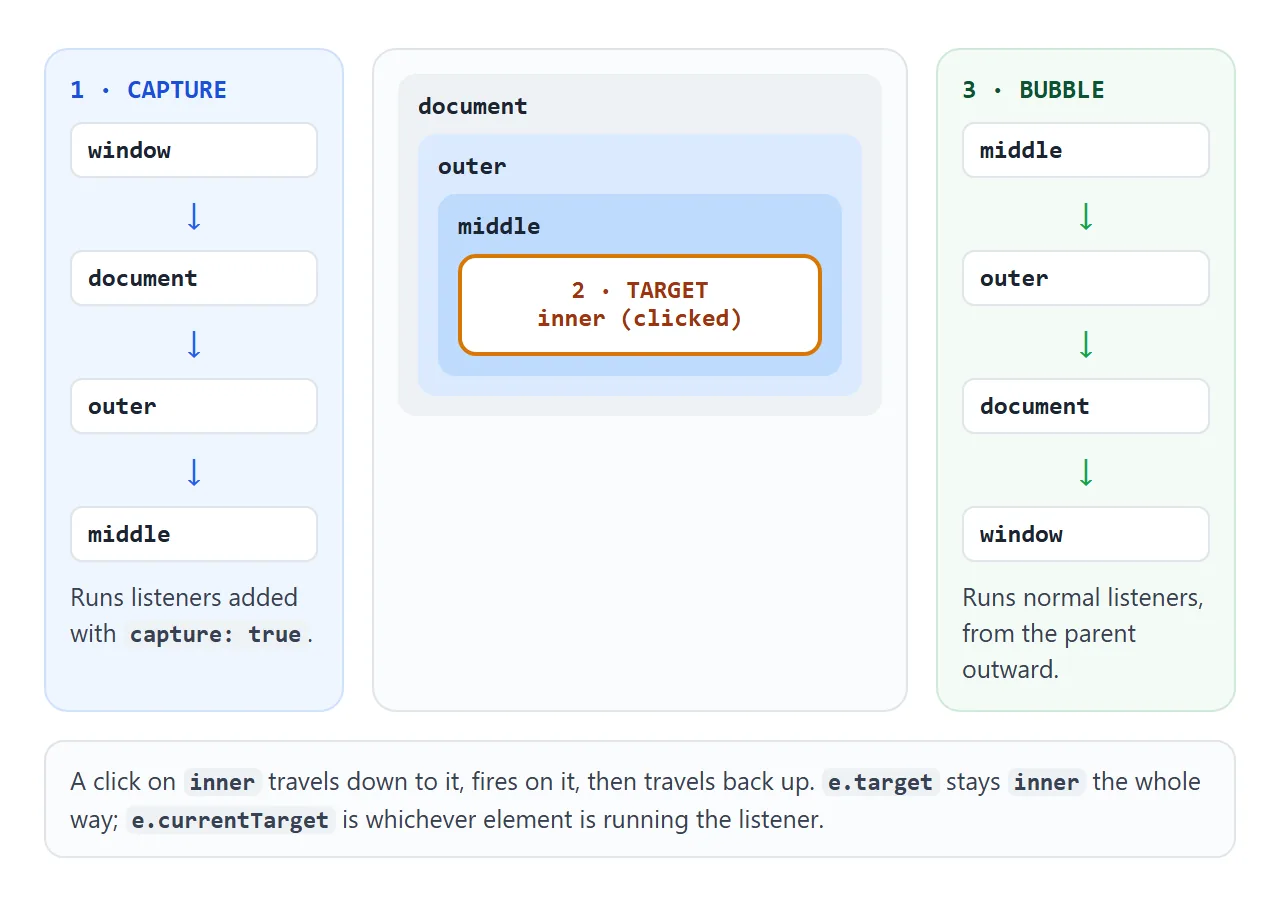
- Capture: from
windowdown to the clicked element's parent. Only listeners added with{ capture: true }run here. - Target: on the clicked element itself.
- Bubble: back up through every ancestor to
window. Normal listeners run here.
Most events bubble, including click, input, change, submit and keydown. A few do not, such as focus, blur, mouseenter and load. For focus, the bubbling versions are focusin and focusout.
Bubbling is what makes event delegation work: one listener on a list handles clicks on every item, including items added later. DOM in HTML and JavaScript explains the pattern step by step, and the finished example below uses it.
preventDefault vs stopPropagation
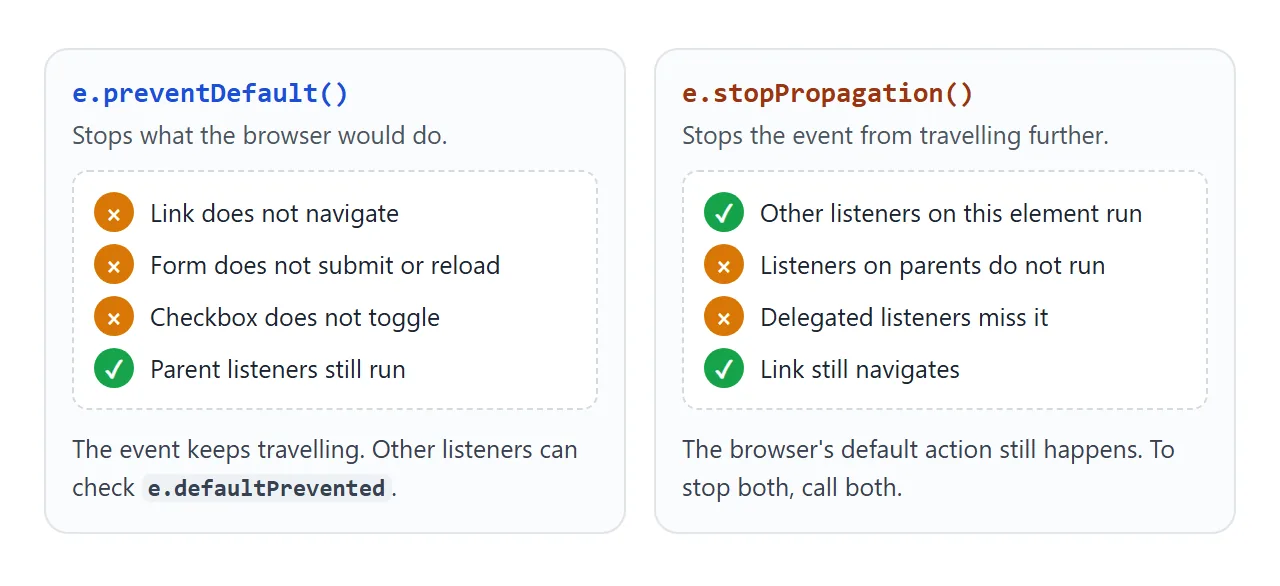
These two methods sound alike and do unrelated things. Tick stopPropagation in the first example to see the second one cut the log short.
link.addEventListener('click', (e) => {
  e.preventDefault();     // don't follow the link
  openPreview(link.href);
});
Use preventDefault() to keep a link from navigating or a form from reloading the page. Form submit in HTML shows the submit case in full.
Use stopPropagation() rarely. It also hides the event from delegated listeners and from code that closes menus on outside clicks, which makes bugs hard to trace. Checking e.target in the parent is usually the cleaner fix.
The options object: once, passive, capture, signal
The third argument is an object of options. Each one changes how the listener behaves.
| Option | What it does | Use it for |
|---|---|---|
once: true |
Removes the listener after its first run | A welcome message, a first-click setup |
passive: true |
Promises not to call preventDefault(); the call is ignored if made |
touchstart, touchmove and wheel listeners that only read |
capture: true |
Runs the listener in the capture phase | Seeing an event before children handle it |
signal |
Removes the listener when its AbortController aborts |
Removing many listeners in one call |
passive exists because the browser cannot start scrolling until touch and wheel listeners finish, in case one calls preventDefault(). Marking them passive lets scrolling start at once. Some browsers make these listeners passive by default when they are attached to window, document or body.
signal is the tidy way to clean up. Pass the same signal to several listeners, then call abort() once:
const controller = new AbortController();
const { signal } = controller;

window.addEventListener('resize', onResize, { signal });
document.addEventListener('keydown', onKey, { signal });

controller.abort();  // both listeners are gone
removeEventListener needs the same function
removeEventListener finds the listener to remove by its type, its capture setting and the function object. Not the function's code: the object itself.
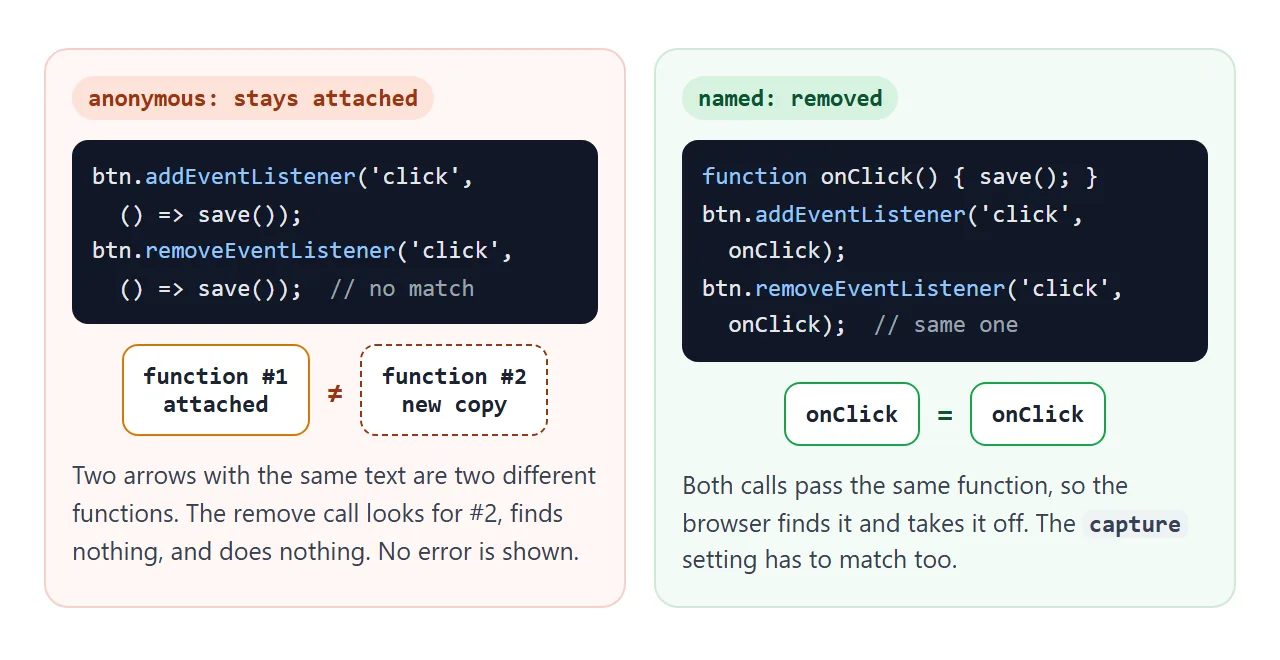
Every time JavaScript evaluates () => save(), it creates a new function. So an inline arrow passed to removeEventListener never matches the one you added. The call finds nothing and gives no error. Try both in the example below.
<!doctype html>
<html lang="en">
<head>
<meta charset="utf-8">
<meta name="viewport" content="width=device-width, initial-scale=1">
<title>Adding and removing listeners</title>
<style>
  body { margin: 0; padding: 12px; font-family: system-ui, sans-serif; background: #f4f5f7; color: #1d2330; }
  #target { display: block; width: 100%; padding: 14px; font: 700 16px system-ui; border: 0; border-radius: 10px;
            background: #2563eb; color: #fff; cursor: pointer; }
  .grid { display: grid; grid-template-columns: 1fr 1fr; gap: 6px; margin: 10px 0; }
  .grid button { padding: 8px 6px; font: 13px system-ui; color: #1d2330; border: 1px solid #cfd4dc; border-radius: 8px; background: #fff; cursor: pointer; }
  .grid .bad { border-color: #f3c3b3; background: #fff7f5; }
  .grid .good { border-color: #b9e2c6; background: #f4fbf6; }
  #log { margin: 0; padding: 10px; height: 190px; overflow: auto; background: #111827; color: #e5e7eb;
         border-radius: 10px; font: 12.5px/1.55 ui-monospace, Consolas, monospace; white-space: pre-wrap; }
  .fired { color: #fde68a; } .note { color: #9ca3af; }
</style>
</head>
<body>
<button id="target">Click me</button>

<div class="grid">
  <button class="bad" id="addAnon">Add anonymous</button>
  <button class="bad" id="removeAnon">Remove anonymous</button>
  <button class="good" id="addNamed">Add named</button>
  <button class="good" id="removeNamed">Remove named</button>
  <button id="addOnce">Add once: true</button>
  <button id="addSignal">Add 3 with a signal</button>
  <button id="abort">controller.abort()</button>
  <button id="clear">Clear log</button>
</div>
<pre id="log"></pre>

<script>
  const target = document.getElementById('target');
  const log = document.getElementById('log');
  const say = (text, cls) => {
    log.insertAdjacentHTML('beforeend', '<span class="' + cls + '">' + text + '\n</span>');
    log.scrollTop = log.scrollHeight;
  };
  const on = (id, fn) => document.getElementById(id).addEventListener('click', fn);

  // 1. Anonymous: each arrow is a new function, so remove never finds a match
  on('addAnon', () => {
    target.addEventListener('click', () => say('anonymous handler ran', 'fired'));
    say('added an anonymous function', 'note');
  });
  on('removeAnon', () => {
    target.removeEventListener('click', () => say('anonymous handler ran', 'fired'));
    say('removeEventListener with a new arrow: nothing removed', 'note');
  });

  // 2. Named: the same reference can be removed, and adding it twice is ignored
  function handleClick() { say('named handler ran', 'fired'); }
  on('addNamed', () => {
    target.addEventListener('click', handleClick);
    say('added handleClick (a second add is ignored)', 'note');
  });
  on('removeNamed', () => {
    target.removeEventListener('click', handleClick);
    say('removed handleClick', 'note');
  });

  // 3. once: the listener removes itself after its first run
  on('addOnce', () => {
    target.addEventListener('click', () => say('once handler ran, now gone', 'fired'), { once: true });
    say('added a once listener', 'note');
  });

  // 4. signal: one abort() removes every listener added with that signal
  let controller = new AbortController();
  on('addSignal', () => {
    for (const n of [1, 2, 3]) {
      target.addEventListener('click', () => say('signal handler ' + n + ' ran', 'fired'),
                              { signal: controller.signal });
    }
    say('added 3 listeners with one signal', 'note');
  });
  on('abort', () => {
    controller.abort();
    controller = new AbortController();  // an aborted signal cannot be reused
    say('abort(): all signal listeners removed', 'note');
  });

  on('clear', () => { log.textContent = ''; });
  target.addEventListener('click', () => say('-- click --', 'note'), { capture: true });
</script>
</body>
</html>
The same rule explains a friendly side effect: adding the same named function twice with the same capture setting is ignored, so it still runs once. Adding an inline arrow twice gives two listeners.
A finished example: shortcuts and a delegated list
This example puts the pieces together. One keydown listener on document handles shortcuts, and one click listener on the list handles every row, including rows you add.
<!doctype html>
<html lang="en">
<head>
<meta charset="utf-8">
<meta name="viewport" content="width=device-width, initial-scale=1">
<title>Keyboard shortcuts and a delegated list</title>
<style>
body { margin: 0; padding: 12px; font-family: system-ui, sans-serif; background: #f4f5f7; color: #1d2330; }
form { display: flex; gap: 6px; }
#text { flex: 1; min-width: 0; padding: 9px 10px; font: 15px system-ui; border: 1px solid #cfd4dc; border-radius: 8px; }
form button { padding: 9px 14px; font: 600 14px system-ui; border: 0; border-radius: 8px; background: #2563eb; color: #fff; }
ul { list-style: none; margin: 10px 0; padding: 0; }
li { display: flex; align-items: center; gap: 8px; padding: 8px 10px; margin-bottom: 5px;
background: #fff; border: 2px solid transparent; border-radius: 8px; font-size: 14px; }
li.selected { border-color: #2563eb; }
li.done span { text-decoration: line-through; color: #9aa3b2; }
li span { flex: 1; }
li button { padding: 4px 8px; font: 12px system-ui; color: #1d2330; border: 1px solid #cfd4dc; border-radius: 6px; background: #fff; cursor: pointer; }
.keys { font-size: 12.5px; color: #4b5563; line-height: 1.8; }
kbd { font: 600 11.5px ui-monospace, Consolas, monospace; background: #fff; border: 1px solid #cfd4dc; border-radius: 4px; padding: 0 4px; }
#status { font-size: 12.5px; color: #0f5132; min-height: 1.4em; margin-top: 4px; }
</style>
</head>
<body>
<form id="add">
<input id="text" placeholder="New task, then Enter" autocomplete="off">
<button>Add</button>
</form>
<ul id="list">
<li><span>Write the brief</span><button data-action="done">Done</button><button data-action="delete">Delete</button></li>
<li><span>Send the link</span><button data-action="done">Done</button><button data-action="delete">Delete</button></li>
<li><span>Check it on a phone</span><button data-action="done">Done</button><button data-action="delete">Delete</button></li>
</ul>
<div class="keys">
<kbd>/</kbd> type a task <kbd>j</kbd> <kbd>k</kbd> move <kbd>x</kbd> done
<kbd>Shift</kbd>+<kbd>D</kbd> delete <kbd>Esc</kbd> leave the box
</div>
<div id="status"></div>
<script>
const form = document.getElementById('add');
const text = document.getElementById('text');
const list = document.getElementById('list');
const status = document.getElementById('status');
let selected = 0;
const items = () => [...list.children];
function select(i) {
const all = items();
selected = Math.max(0, Math.min(i, all.length - 1));
all.forEach((li, n) => li.classList.toggle('selected', n === selected));
}
// Adding: submit fires for the button and for Enter in the box
form.addEventListener('submit', (e) => {
e.preventDefault(); // stay on the page
if (!text.value.trim()) return;
const li = document.createElement('li');
li.innerHTML = '<span></span><button data-action="done">Done</button><button data-action="delete">Delete</button>';
li.querySelector('span').textContent = text.value.trim();
list.append(li); // no listener to attach: the list handles it
text.value = '';
status.textContent = 'Added. Its buttons already work.';
});
// One listener on the list handles every row, old and new
list.addEventListener('click', (e) => {
const li = e.target.closest('li');
if (!li) return;
select(items().indexOf(li));
const btn = e.target.closest('button[data-action]');
if (!btn) return;
if (btn.dataset.action === 'done') li.classList.toggle('done');
if (btn.dataset.action === 'delete') { li.remove(); select(selected); }
});
// Keyboard shortcuts for the whole page
document.addEventListener('keydown', (e) => {
if (e.target.closest('input, textarea, select, [contenteditable]')) {
if (e.key === 'Escape') e.target.blur(); // the only key we take while typing
return;
}
if (e.ctrlKey || e.metaKey || e.altKey) return; // leave browser shortcuts alone
const li = items()[selected];
if (e.key === '/') { e.preventDefault(); text.focus(); } // don't type the "/"
else if (e.key === 'j') select(selected + 1);
else if (e.key === 'k') select(selected - 1);
else if (e.key === 'x' && li) li.classList.toggle('done');
else if (e.key === 'D' && e.shiftKey && li) { li.remove(); select(selected); }
else return;
status.textContent = 'Shortcut: ' + e.key;
});
select(0);
</script>
</body>
</html>
What each part does:
- Ignore typing: the keydown listener returns early when
e.targetis an input, so pressing j in the box types a j. - Leave browser shortcuts alone: if Ctrl, Cmd or Alt is held, the listener does nothing.
- Modifier keys:
e.shiftKeytogether withe.key === 'D'makes Shift+D different from a plain d. - Delegation: new rows need no listener of their own.
e.target.closest('button[data-action]')finds the clicked button.
To pick the elements in the first place, querySelector covers selectors and closest().
When it does not work
| What you see (Chrome wording) | Cause | Fix |
|---|---|---|
Cannot read properties of null (reading 'addEventListener') |
The script ran before the element existed, or the selector matched nothing | Move the script to the end of body, add defer, and check the selector |
| The handler runs once on page load, then never on click | handler() was passed, so its return value became the listener |
Pass handler without the parentheses |
removeEventListener does nothing |
The listener was an inline anonymous function | Keep a named reference, or use signal |
preventDefault() is ignored and the page still scrolls |
The listener is passive, by option or by default | Add { passive: false } to that listener |
| The event fires twice | The listener was added twice, often by setup code that runs again | Add it once, or use a named function so a repeat add is ignored |
| Clicking an icon inside a button gives the wrong element | e.target is the icon |
Use e.currentTarget or closest('button') |
For scripts that do not run at all, HTML JavaScript not working goes through the causes one by one.
Share it as a link
Event listeners only show their worth when someone clicks. A screenshot of the shortcut panel cannot be tried, and an .html attachment may open as plain code on a phone.
To send the working version, paste the page into a NOS document and choose Create share link. HTML to link walks through it.
The page renders as written and its scripts run, so the people you send it to can press the keys and click the buttons themselves. If you change the code later, the same link shows the new version.