In browser JavaScript, an API (Application Programming Interface) is a set of objects and functions you can call to get something done without writing it yourself. The browser gives every page a large set of them, called Web APIs.
Three you will meet first: document for the page, navigator for the browser and device, and fetch for the network.
A second meaning is a server API: another program on the internet that answers requests with data, often JSON. In the browser you reach those with fetch, which is itself a Web API. This guide covers both.
Try the first one. Press the button, then resize the window.
<!doctype html>
<html lang="en">
<head>
<meta charset="utf-8">
<meta name="viewport" content="width=device-width, initial-scale=1">
<title>Web APIs in one page</title>
<style>
  body { margin: 0; padding: 18px; font-family: system-ui, sans-serif; background: #f4f5f7; color: #1d2330; }
  button { font: inherit; padding: 9px 16px; border: 0; border-radius: 8px; background: #2563eb; color: #fff; cursor: pointer; }
  table { margin-top: 14px; width: 100%; max-width: 460px; border-collapse: collapse; background: #fff; border-radius: 10px; overflow: hidden; }
  td { padding: 8px 10px; border-bottom: 1px solid #eceef2; font-size: 14px; }
  td code { font-size: 12.5px; color: #6b7280; }
  td:last-child { font-weight: 600; text-align: right; }
</style>
</head>
<body>
<button id="ask">Ask the browser</button>

<table>
  <tr><td>Language<br><code>navigator.language</code></td><td id="lang">?</td></tr>
  <tr><td>Window width<br><code>window.innerWidth</code></td><td id="width">?</td></tr>
  <tr><td>Online<br><code>navigator.onLine</code></td><td id="online">?</td></tr>
  <tr><td>Page title<br><code>document.title</code></td><td id="title">?</td></tr>
</table>

<script>
  // document, navigator and window are objects the browser gives every page
  const show = (id, value) => document.getElementById(id).textContent = value;

  function ask() {
    show('lang', navigator.language);
    show('width', window.innerWidth + 'px');
    show('online', navigator.onLine ? 'yes' : 'no');
    show('title', document.title);
  }

  document.getElementById('ask').addEventListener('click', ask);
  // APIs also send events: update the width when the window is resized
  window.addEventListener('resize', () => show('width', window.innerWidth + 'px'));
</script>
</body>
</html>
Nothing here was installed. navigator, window and document exist in every page, ready to use.
JavaScript and Web APIs are not the same thing
JavaScript the language gives you things like Math, JSON, Date and Promise. Everything that touches the page, the device or the network comes from the browser. MDN calls browser APIs constructs that "sit on top of the JavaScript language".
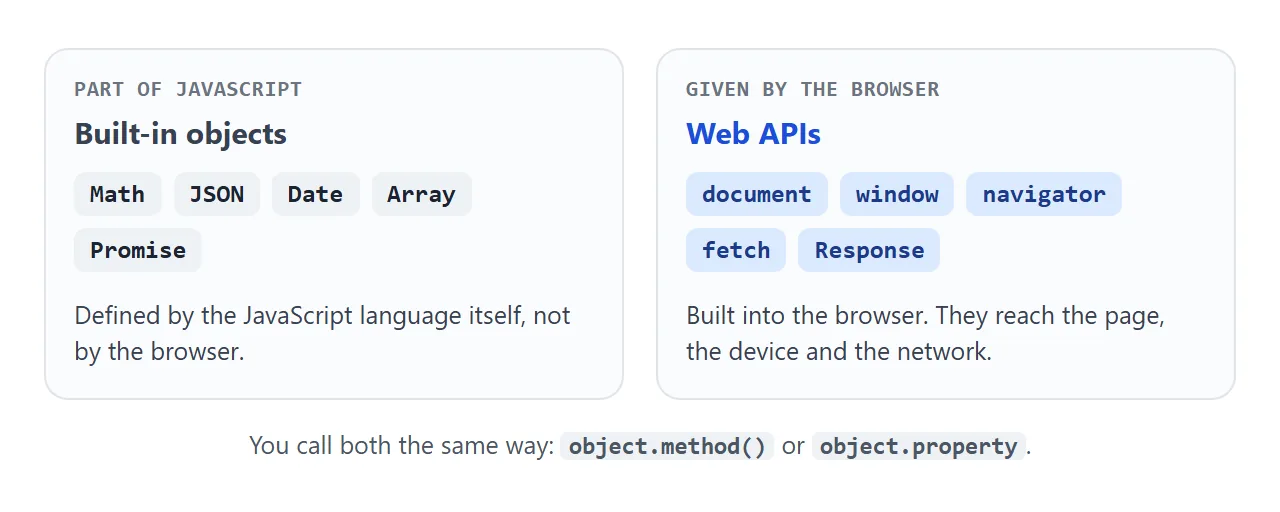
This matters when you search for help. A question about changing text on the page is a DOM question, not a JavaScript syntax question.
How every API is shaped
Browser APIs follow the same pattern, so once you can use one, the next is familiar.
- An entry point. An object you start from:
document,navigator.geolocation, a canvas'sgetContext(). - Properties you read, such as
navigator.language. - Methods you call, such as
document.getElementById(). - Events the API sends you, such as
resize. You listen with addEventListener.
Some newer APIs only run on pages served over HTTPS, and some ask the user for permission first. The Notifications API, for example, shows a permission prompt.
| Kind | Where it lives | Example | Needs |
|---|---|---|---|
| Browser API | Inside the browser | document, navigator |
Nothing; it is built in |
| Browser API with permission | Inside the browser | Notifications, Geolocation | The user says yes |
| Server API | Another program, reached over HTTP | fetch('/api/products') |
A URL; sometimes a key |
Check that an API exists before using it
Not every browser has every API. Calling one that is missing throws an error and stops the rest of your script. MDN's answer is feature detection: check whether the property exists on its parent object.
if ('geolocation' in navigator) {
  navigator.geolocation.getCurrentPosition(show);
} else {
  showManualForm();
}
This page runs eight such checks in your browser:
<!doctype html>
<html lang="en">
<head>
<meta charset="utf-8">
<meta name="viewport" content="width=device-width, initial-scale=1">
<title>Feature detection</title>
<style>
  body { margin: 0; padding: 18px; font-family: system-ui, sans-serif; background: #f4f5f7; color: #1d2330; }
  p { margin: 0 0 12px; font-size: 14px; }
  ul { list-style: none; margin: 0; padding: 0; max-width: 460px; background: #fff; border-radius: 10px; }
  li { display: flex; justify-content: space-between; gap: 10px; padding: 8px 12px; border-bottom: 1px solid #eceef2; font-size: 14px; }
  li code { font-size: 13px; }
  .yes { color: #0f5132; font-weight: 600; }
  .no { color: #9a3412; font-weight: 600; }
</style>
</head>
<body>
<p>Secure context: <b id="secure"></b></p>
<ul id="list"></ul>

<script>
  // Each check asks: does this object have this property?
  const checks = [
    ['fetch', 'fetch' in window],
    ['navigator.geolocation', 'geolocation' in navigator],
    ['navigator.clipboard', 'clipboard' in navigator],
    ['navigator.share', 'share' in navigator],
    ['navigator.vibrate', 'vibrate' in navigator],
    ['navigator.serviceWorker', 'serviceWorker' in navigator],
    ['Notification', 'Notification' in window],
    ['IntersectionObserver', 'IntersectionObserver' in window],
  ];

  const list = document.getElementById('list');
  for (const [name, ok] of checks) {
    const li = document.createElement('li');
    li.innerHTML = '<code>' + name + '</code><span class="' + (ok ? 'yes">available' : 'no">missing') + '</span>';
    list.append(li);
  }
  document.getElementById('secure').textContent = window.isSecureContext ? 'yes' : 'no';
</script>
</body>
</html>
In our tests with the Chromium, Firefox and WebKit engines, navigator.vibrate was available only in Chromium. That is why the check belongs in your code. Geolocation in HTML shows a full example of one permission-based API.
Calling a server API with fetch
A server API is a URL that returns data. fetch(url) returns a Promise that resolves to a Response. You then check it and read the body.
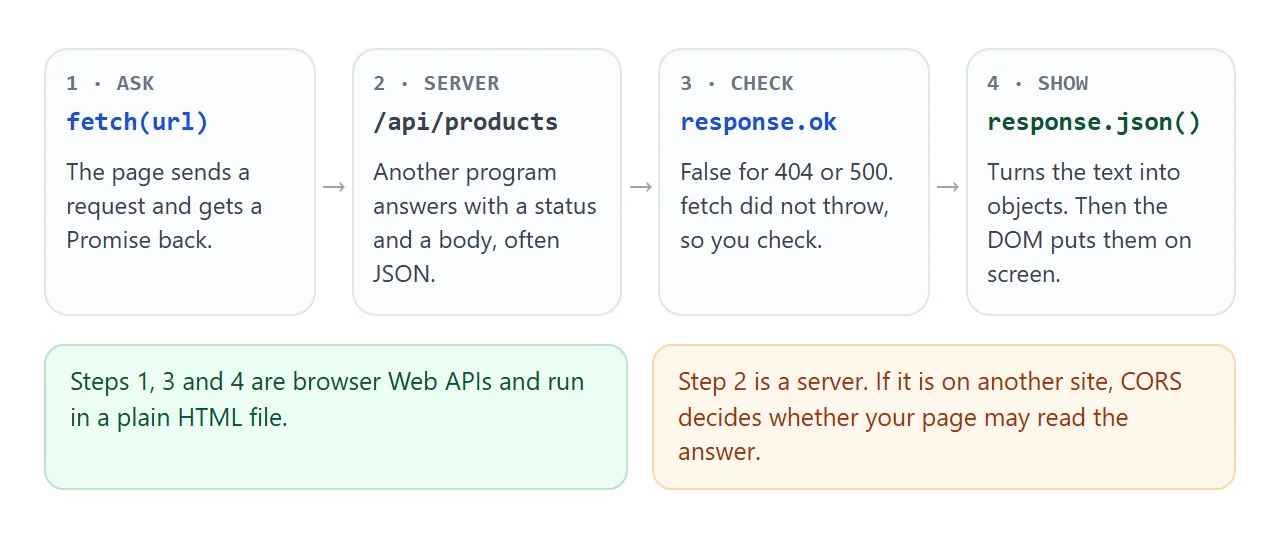
async function loadProducts() {
  const response = await fetch('/api/products');
  if (!response.ok) throw new Error('Server answered ' + response.status);
  const products = await response.json();
  // put products on the page
}
Two keywords do the waiting. await pauses until the Promise settles; async and await explains them. response.json() parses the body, the same job as JSON.parse.
Always check response.ok
fetch rejects on errors such as a network failure or an invalid URL. If the server answers 404 or 500, fetch still succeeds, and the error page arrives as the body.
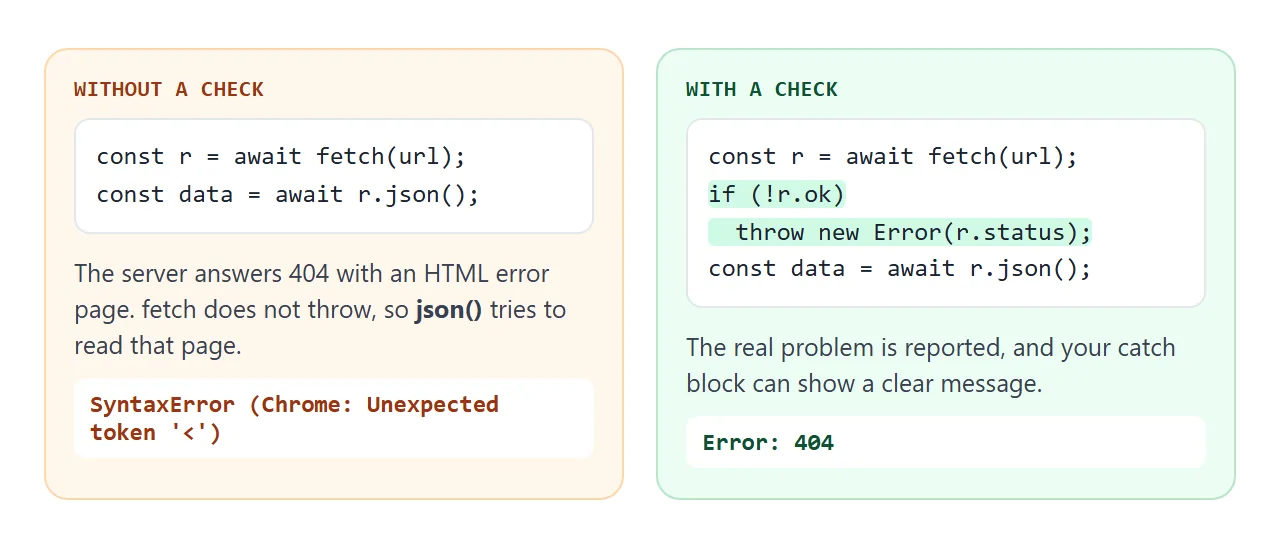
Without a check, json() then tries to parse an HTML error page and throws a SyntaxError. One if (!response.ok) line turns that into a clear message.
A finished example: load, fail, retry
This version has a loading message, a list and a readable error for each failure. A stand-in replaces the network: fakeFetch returns a real Response object, so the code after it is exactly what you would write with fetch.
<!doctype html>
<html lang="en">
<head>
<meta charset="utf-8">
<meta name="viewport" content="width=device-width, initial-scale=1">
<title>Show API data</title>
<style>
  body { margin: 0; padding: 18px; font-family: system-ui, sans-serif; background: #f4f5f7; color: #1d2330; }
  .bar { display: flex; flex-wrap: wrap; gap: 8px; }
  button { font: inherit; font-size: 14px; padding: 8px 12px; border: 1px solid #d5d9e0; border-radius: 8px; background: #fff; cursor: pointer; }
  button.main { background: #2563eb; border-color: #2563eb; color: #fff; }
  #status { margin: 12px 0 8px; font-size: 14px; color: #6b7280; }
  #status.error { color: #9a3412; font-weight: 600; }
  ul { list-style: none; margin: 0; padding: 0; max-width: 460px; }
  li { display: flex; justify-content: space-between; padding: 9px 12px; margin-bottom: 6px; background: #fff; border-radius: 8px; font-size: 14px; }
</style>
</head>
<body>
<div class="bar">
  <button class="main" data-case="ok">Load products</button>
  <button data-case="404">Server says 404</button>
  <button data-case="offline">Network fails</button>
</div>
<p id="status">Press a button.</p>
<ul id="list"></ul>

<script>
  // Stand-in for fetch(url): it returns a real Response object, without the network.
  // On your own site, replace fakeFetch(...) with fetch('/api/products').
  function fakeFetch(kind) {
    return new Promise((resolve, reject) => setTimeout(() => {
      if (kind === 'offline') reject(new TypeError('Failed to fetch'));
      else if (kind === '404') resolve(new Response('Not found', { status: 404 }));
      else resolve(new Response(JSON.stringify([
        { name: 'Notebook', price: 4.5 },
        { name: 'Pen set', price: 7 },
        { name: 'Desk lamp', price: 24.99 },
      ]), { headers: { 'Content-Type': 'application/json' } }));
    }, 600));
  }

  const status = document.getElementById('status');
  const list = document.getElementById('list');

  async function load(kind) {
    status.className = '';
    status.textContent = 'Loading...';
    list.innerHTML = '';
    try {
      const response = await fakeFetch(kind);
      // a 404 or 500 does not throw by itself, so check ok
      if (!response.ok) throw new Error('Server answered ' + response.status);
      const products = await response.json();  // text -> objects
      for (const p of products) {
        const li = document.createElement('li');
        li.innerHTML = '<span></span><b></b>';
        li.firstChild.textContent = p.name;  // textContent: data is never run as HTML
        li.lastChild.textContent = '$' + p.price.toFixed(2);
        list.append(li);
      }
      status.textContent = products.length + ' products loaded.';
    } catch (err) {
      status.className = 'error';
      status.textContent = 'Could not load: ' + err.message;
    }
  }

  document.querySelectorAll('[data-case]').forEach((btn) =>
    btn.addEventListener('click', () => load(btn.dataset.case)));
</script>
</body>
</html>
- Loading state: set the status text before the
await. - Errors: one
try...catchhandles both a bad status and a network failure. - Safe output:
textContentputs API data on the page as text, so it is never run as HTML.
To use a real server, replace fakeFetch(kind) with fetch('/api/products'). Two things then depend on the server, not your page:
CORS:  a server on another site must send Access-Control-Allow-Origin
       for your page, or the browser hides the answer from your script.
Keys:  if the API needs a secret key, call it from your own server.
       MDN warns never to embed API keys in front-end code
       unless the API vendor explicitly allows it.
CORS explained covers the first one in detail.
When it does not work
| What you see | Cause | Fix |
|---|---|---|
| Cannot read properties of null | The script ran before the element existed | Put the script after the element, at the end of body |
[object Promise] instead of data |
A missing await |
await the call inside an async function |
SyntaxError from json() |
The server sent an HTML error page | Check response.ok before json() |
| CORS error in the console | The other site does not allow your page | Use an API that allows it, or call it from your server |
... is not a function or undefined |
This browser lacks the API, or the page is not HTTPS | Feature-detect, and serve the page over HTTPS |
| Sound does not start on load | Autoplay policy | Start audio from a button click |
If nothing at all runs, work through HTML JavaScript not working in order.
Share it as a link
A page that calls browser APIs is easier to try than to describe. A screenshot cannot be clicked, and the values it shows belong to your browser, not the reader's.
To send the working version, paste the page into a NOS document and choose Create share link. HTML to link walks through it.
The page renders as written and its scripts run, so anyone with the link can press the buttons in their own browser, without an account. If you change the code later, the same link shows the new version.
One limit: on a shared NOS page, fetch calls to other sites are blocked. Browser APIs such as the DOM work, which is why the finished example uses a stand-in Response instead of a live server.