The wheel event fires when the user turns a mouse wheel or moves two fingers on a trackpad. deltaY is positive when the gesture scrolls down and negative when it scrolls up. deltaX does the same sideways.
Call preventDefault() to stop the browser from scrolling, and your code decides what happens instead.
Try it. Put the pointer on the dashed box and scroll, then try Shift, Ctrl and a pinch.
<!doctype html>
<html lang="en">
<head>
<meta charset="utf-8">
<meta name="viewport" content="width=device-width, initial-scale=1">
<title>Wheel event inspector</title>
<style>
  body { margin: 0; padding: 14px; font-family: system-ui, sans-serif; background: #f4f5f7; }
  #pad {
    height: 120px; border-radius: 12px; border: 2px dashed #9aa3b2;
    display: grid; place-items: center; text-align: center;
    background: #fff; color: #4b5563; font-size: 14px; user-select: none;
  }
  #pad.on { border-color: #2563eb; background: #eff6ff; }
  table { width: 100%; margin-top: 12px; border-collapse: collapse; font-size: 14px; }
  td { padding: 5px 8px; border-bottom: 1px solid #e3e6eb; }
  td:first-child { font-family: ui-monospace, Consolas, monospace; color: #374151; width: 45%; }
  td:last-child { font-weight: 600; }
</style>
</head>
<body>
<div id="pad">Scroll the wheel or swipe the trackpad here.<br>Try it with Ctrl or Shift held, and pinch.</div>
<table>
  <tr><td>deltaY</td><td id="dy">-</td></tr>
  <tr><td>deltaX</td><td id="dx">-</td></tr>
  <tr><td>deltaMode</td><td id="mode">-</td></tr>
  <tr><td>ctrlKey / shiftKey</td><td id="keys">-</td></tr>
  <tr><td>events so far</td><td id="count">0</td></tr>
</table>

<script>
  const pad = document.getElementById('pad');
  const MODES = ['0 (pixels)', '1 (lines)', '2 (pages)'];
  let count = 0, timer;

  pad.addEventListener('wheel', (e) => {
    e.preventDefault();  // keep the page from scrolling while the pointer is on the pad
    document.getElementById('dy').textContent = e.deltaY.toFixed(1) + (e.deltaY > 0 ? '  (down)' : e.deltaY < 0 ? '  (up)' : '');
    document.getElementById('dx').textContent = e.deltaX.toFixed(1) + (e.deltaX > 0 ? '  (right)' : e.deltaX < 0 ? '  (left)' : '');
    document.getElementById('mode').textContent = MODES[e.deltaMode];
    document.getElementById('keys').textContent = e.ctrlKey + ' / ' + e.shiftKey;
    document.getElementById('count').textContent = ++count;

    pad.classList.add('on');  // highlight while events keep coming
    clearTimeout(timer);
    timer = setTimeout(() => pad.classList.remove('on'), 150);
  }, { passive: false });
</script>
</body>
</html>
The listener is short:
box.addEventListener('wheel', (e) => {
  e.preventDefault();          // do not scroll the page
  console.log(e.deltaY, e.deltaMode, e.ctrlKey);
}, { passive: false });
It is not the same as the scroll event. wheel and scroll answer different questions:
wheel |
scroll |
|
|---|---|---|
| Fires when | A wheel turns or fingers move on a trackpad | A scroll position changes |
| Fires if nothing can scroll | Yes | No |
| Keyboard and scrollbar dragging | Not fired | Fired |
| Can be cancelled | Yes, if not passive | No |
Use scroll to react to where the page is, such as a progress bar. Use wheel when you need the gesture itself, such as zoom or custom scrolling. The older mousewheel and DOMMouseScroll events are non-standard; use wheel.
What deltaY, deltaX and deltaMode mean
deltaY and deltaX say how far the gesture wants to scroll, and in which direction. They describe the input, not your page, so they arrive even when nothing on the page can scroll.
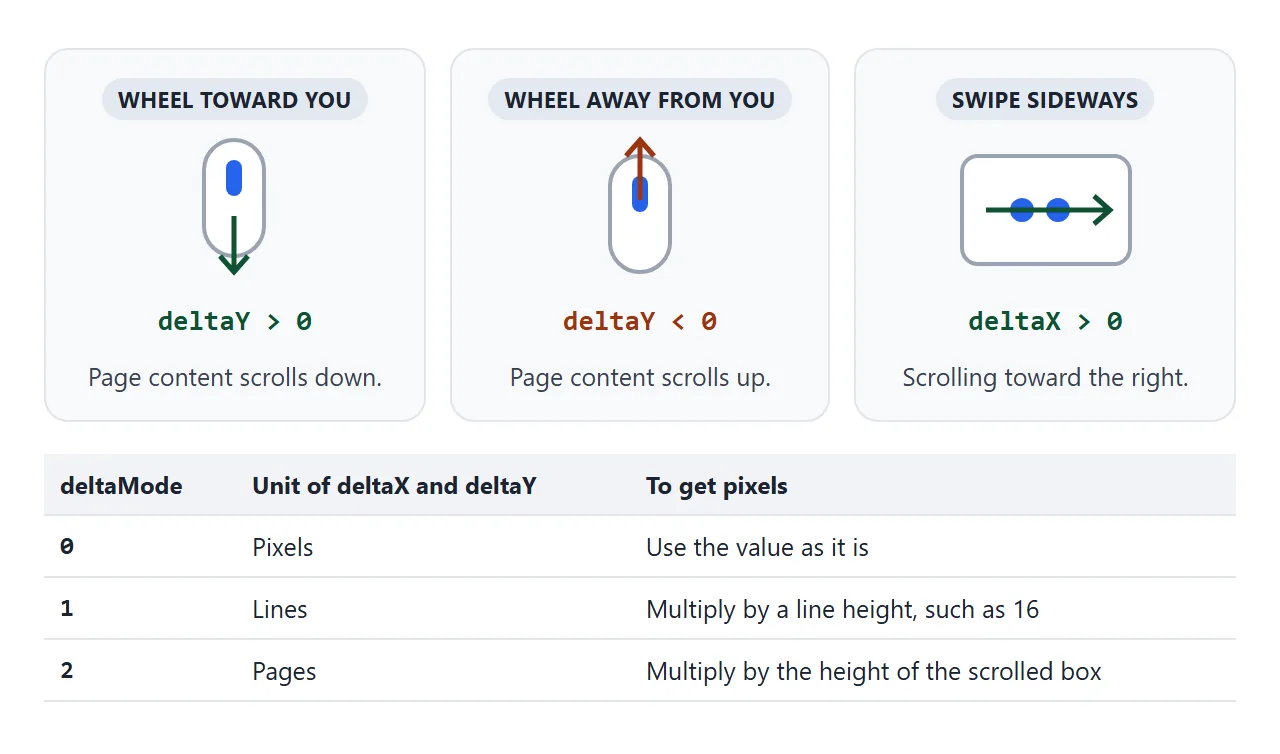
The unit is the part people miss. deltaMode tells you what the numbers count:
| deltaMode | Constant | Unit |
|---|---|---|
| 0 | DOM_DELTA_PIXEL |
Pixels |
| 1 | DOM_DELTA_LINE |
Lines |
| 2 | DOM_DELTA_PAGE |
Pages |
Which unit you get depends on the browser, the operating system and the device. Code that assumes pixels will crawl when it receives lines. Convert first:
const unit = e.deltaMode === 1 ? 16 : e.deltaMode === 2 ? box.clientHeight : 1;
const dy = e.deltaY * unit;   // now in pixels
The size of each event also differs by device. A mouse wheel usually sends a few large steps.
A trackpad sends a stream of small values, often followed by a tail of momentum events after the fingers lift. Code that treats every event as one fixed step will feel far too fast on a trackpad.
preventDefault and passive listeners
If preventDefault() does nothing and the page keeps scrolling, the listener is passive. A passive listener promises the browser it will never cancel the event, so the browser can scroll at once without waiting for your script.
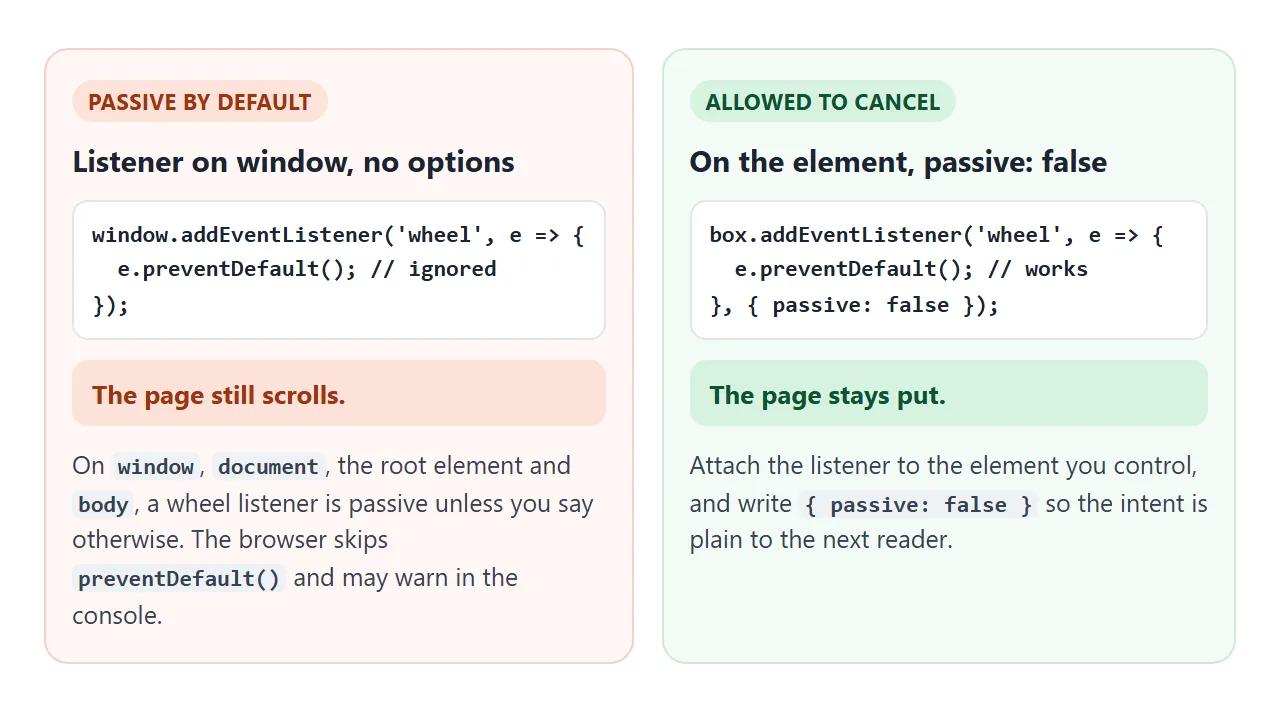
Browsers make wheel listeners on window, document, the <html> element and <body> passive by default.
In a test in Chromium, calling preventDefault() there left the page scrolling and logged a console warning about a passive listener. The same call in a listener on an ordinary <div> stopped the scroll.
Two habits avoid the problem:
- Attach the listener to the element you are taking over, not to the whole page.
- Pass
{ passive: false }whenever the handler callspreventDefault(). It makes the intent visible and works on any target.
Cancel only when you need to. A passive listener, which is the right choice when you only read the deltas, keeps scrolling smooth. The addEventListener guide covers the options object in full.
Scroll a row sideways with the mouse wheel
A plain mouse wheel sends only deltaY, and turning it over a horizontal strip does not move the strip sideways. Map deltaY onto scrollLeft:
<!doctype html>
<html lang="en">
<head>
<meta charset="utf-8">
<meta name="viewport" content="width=device-width, initial-scale=1">
<title>Horizontal scroll with the wheel</title>
<style>
  body { margin: 0; padding: 14px; font-family: system-ui, sans-serif; background: #f4f5f7; }
  p { margin: 0 0 10px; font-size: 13px; color: #4b5563; }
  .strip {
    display: flex; gap: 12px; overflow-x: auto;
    padding-bottom: 10px; overscroll-behavior-x: contain;
  }
  .strip div {
    flex: 0 0 150px; height: 120px; border-radius: 12px;
    display: grid; place-items: center; color: #fff; font-weight: 700; font-size: 20px;
  }
  #pos { font-size: 13px; color: #374151; margin-top: 6px; }
</style>
</head>
<body>
<p>Turn the mouse wheel over the strip. It scrolls sideways until the end, then the page takes over.</p>
<div class="strip" id="strip"></div>
<div id="pos">scrollLeft: 0</div>

<script>
  const strip = document.getElementById('strip');
  for (let i = 1; i <= 10; i++) {  // ten coloured cards
    const d = document.createElement('div');
    d.textContent = i;
    d.style.background = 'hsl(' + (i * 33) + ' 65% 50%)';
    strip.appendChild(d);
  }

  strip.addEventListener('wheel', (e) => {
    // a trackpad already sends deltaX for sideways swipes: leave those alone
    if (Math.abs(e.deltaX) >= Math.abs(e.deltaY)) return;

    const max = strip.scrollWidth - strip.clientWidth;
    const atStart = strip.scrollLeft <= 0 && e.deltaY < 0;
    const atEnd = strip.scrollLeft >= max - 1 && e.deltaY > 0;
    if (atStart || atEnd) return;  // nothing left to scroll: let the page scroll

    e.preventDefault();
    strip.scrollLeft += e.deltaY;
  }, { passive: false });

  strip.addEventListener('scroll', () => {
    document.getElementById('pos').textContent = 'scrollLeft: ' + Math.round(strip.scrollLeft);
  });
</script>
</body>
</html>
strip.addEventListener('wheel', (e) => {
  if (Math.abs(e.deltaX) >= Math.abs(e.deltaY)) return; // trackpad swipe
  const max = strip.scrollWidth - strip.clientWidth;
  if (strip.scrollLeft <= 0 && e.deltaY < 0) return;    // at the start
  if (strip.scrollLeft >= max - 1 && e.deltaY > 0) return; // at the end
  e.preventDefault();
  strip.scrollLeft += e.deltaY;
}, { passive: false });
Three details make this pleasant rather than a trap:
- Leave trackpad swipes alone. A trackpad already sends
deltaXfor sideways swipes, and the browser scrolls the strip natively. - Let go at the ends. When the strip cannot move further, return without cancelling so the page scrolls. Otherwise the pointer gets stuck over the strip.
- Shift + wheel. Depending on the browser and system, it may arrive as
deltaX, or asdeltaYwithshiftKeyset. The code above handles the first case through the native scroll, and the second throughscrollLeft.
For cards that stop in place after the scroll, add CSS scroll snap to the strip.
Pinch on a trackpad arrives as ctrlKey
There is no separate pinch event for trackpads in the standard.
Chrome, Edge and Firefox report a trackpad pinch as a series of wheel events with ctrlKey set to true, even though no key is pressed. Holding Ctrl and turning a mouse wheel produces the same events.
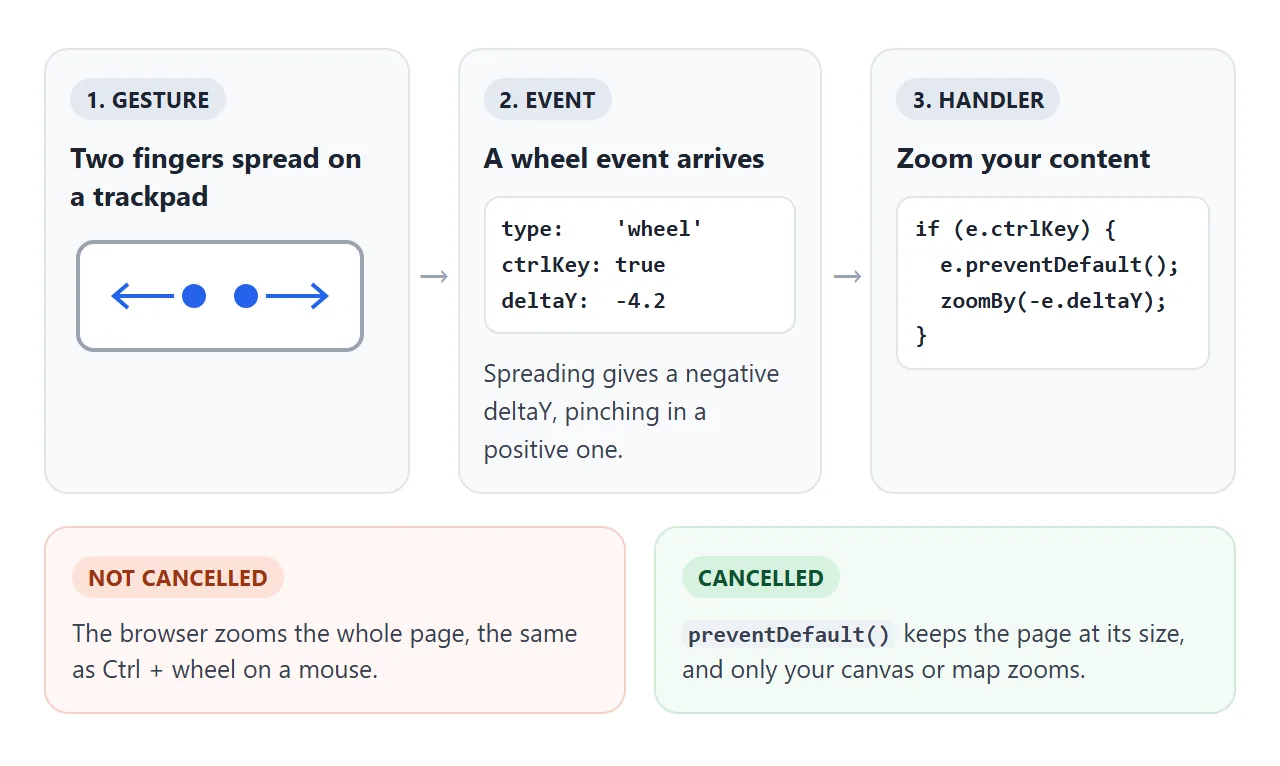
Spreading the fingers gives a negative deltaY, which reads as zoom in. Pinching them together gives a positive one. If you do not cancel these events, the browser zooms the whole page, which is its normal response to Ctrl + wheel.
Pinch deltas are usually small compared with a wheel step, so give them a stronger factor than plain scrolling. Pinch gestures on a phone touch screen are a different path and come as pointer or touch events; see touch events in JavaScript.
Zoom a canvas with the wheel
Everything above fits in one handler: convert the unit, pick a factor for pinch or wheel, clamp the scale, and keep the point under the cursor fixed.
<!doctype html>
<html lang="en">
<head>
<meta charset="utf-8">
<meta name="viewport" content="width=device-width, initial-scale=1">
<title>Zoom a canvas with the wheel</title>
<style>
  body { margin: 0; padding: 12px; font-family: system-ui, sans-serif; background: #f4f5f7; }
  .bar { display: flex; align-items: center; gap: 10px; margin-bottom: 8px; font-size: 13px; color: #374151; }
  button { font: inherit; padding: 5px 12px; border-radius: 8px; border: 1px solid #c9cdd4; background: #fff; cursor: pointer; }
  canvas { display: block; width: 100%; height: 300px; background: #fff; border-radius: 10px; box-shadow: 0 2px 10px rgba(0, 0, 0, .08); }
</style>
</head>
<body>
<div class="bar"><button id="reset">Reset</button><span id="zoom">100%</span><span>Wheel, or pinch on a trackpad</span></div>
<canvas id="c"></canvas>

<script>
  const canvas = document.getElementById('c');
  const ctx = canvas.getContext('2d');
  const view = { x: 0, y: 0, scale: 1 };

  function draw() {
    const r = window.devicePixelRatio || 1;
    canvas.width = canvas.clientWidth * r;
    canvas.height = canvas.clientHeight * r;
    ctx.setTransform(r * view.scale, 0, 0, r * view.scale, r * view.x, r * view.y);
    ctx.clearRect(-1e5, -1e5, 2e5, 2e5);
    for (let i = 0; i < 12; i++) {  // a small grid of labelled tiles
      for (let j = 0; j < 6; j++) {
        ctx.fillStyle = 'hsl(' + (i * 30 + j * 12) + ' 60% 60%)';
        ctx.fillRect(i * 60 + 10, j * 50 + 10, 50, 40);
        ctx.fillStyle = '#1d2330';
        ctx.font = '12px system-ui';
        ctx.fillText(i + ',' + j, i * 60 + 18, j * 50 + 34);
      }
    }
    document.getElementById('zoom').textContent = Math.round(view.scale * 100) + '%';
  }

  canvas.addEventListener('wheel', (e) => {
    e.preventDefault();  // no page scroll, and no browser zoom on Ctrl + wheel or pinch

    // turn lines and pages into pixels so every device moves at a similar speed
    const unit = e.deltaMode === 1 ? 16 : e.deltaMode === 2 ? canvas.clientHeight : 1;
    const dy = e.deltaY * unit;

    // a pinch (ctrlKey) sends small deltas, so it gets a stronger factor
    const k = e.ctrlKey ? 0.01 : 0.002;
    const next = Math.min(8, Math.max(0.25, view.scale * Math.exp(-dy * k)));

    // keep the point under the pointer in place
    const rect = canvas.getBoundingClientRect();
    const px = e.clientX - rect.left, py = e.clientY - rect.top;
    view.x = px - (px - view.x) * next / view.scale;
    view.y = py - (py - view.y) * next / view.scale;
    view.scale = next;
    draw();
  }, { passive: false });

  document.getElementById('reset').addEventListener('click', () => {
    view.x = 0; view.y = 0; view.scale = 1;
    draw();
  });
  window.addEventListener('resize', draw);
  draw();
</script>
</body>
</html>
const k = e.ctrlKey ? 0.01 : 0.002;          // pinch vs wheel
const next = clamp(view.scale * Math.exp(-dy * k), 0.25, 8);
view.x = px - (px - view.x) * next / view.scale;
view.y = py - (py - view.y) * next / view.scale;
view.scale = next;
Math.exp(-dy * k) turns any delta into a smooth factor. Small trackpad deltas give small changes, a large wheel step gives a larger one, and two opposite gestures cancel out exactly. The last three lines keep the canvas point under the pointer in place.
For panning with a drag, sharp redraws and converting clicks back into canvas coordinates, see HTML canvas zoom and pan.
When it does not work
| What you see | Cause | Fix |
|---|---|---|
The page scrolls despite preventDefault() |
The listener is passive (on window or body) |
Listen on the element with { passive: false } |
| A console warning about a passive listener | Same cause | Same fix |
| Zoom crawls in one browser and races in another | deltaMode is lines in one of them |
Convert lines and pages to pixels |
| Trackpad zoom is far too fast | Each small event is treated as a full step | Scale by the delta, as with Math.exp |
| Pinch zooms the whole page | The ctrlKey events are not cancelled |
preventDefault() when ctrlKey is true |
| The pointer gets stuck over a sideways strip | The handler cancels even at the ends | Return early when the strip cannot move |
| Nothing happens with the keyboard | Keys do not fire wheel |
Handle keydown or listen to scroll |
Share it as a link
Wheel and pinch behaviour has to be felt, and a video of a zooming canvas cannot be zoomed. A shared page lets people try the gesture with their own mouse or trackpad.
To send the working version, paste the page into a NOS document and choose Create share link. HTML to link walks through it.
The page renders as written and its scripts run, so the people you send it to can scroll and pinch it themselves. If you change the code later, the same link shows the new version.