JavaScript has two sets of events for fingers on a screen. Touch events (touchstart, touchmove, touchend, touchcancel) fire only for touch, and each event carries a list of every finger.
Pointer events (pointerdown, pointermove, pointerup, pointercancel) fire once per finger, and also for a mouse and a pen.
Try both side by side. Touch the pad with one finger, then two, or click it with a mouse.
<!doctype html>
<html lang="en">
<head>
<meta charset="utf-8">
<meta name="viewport" content="width=device-width, initial-scale=1">
<title>Touch and pointer event log</title>
<style>
  body { margin: 0; padding: 12px; font-family: system-ui, sans-serif; background: #f4f5f7; color: #1d2330; }
  .pad {
    height: 130px; border-radius: 12px; display: grid; place-items: center;
    background: #fff; border: 2px dashed #b8c0cc; font-size: 15px; color: #4b5563;
    touch-action: none;  /* keep the browser from scrolling or zooming here */
    user-select: none;
  }
  .cols { display: grid; grid-template-columns: 1fr 1fr; gap: 10px; margin-top: 10px; }
  h3 { margin: 0 0 4px; font-size: 13px; }
  .t h3 { color: #9a3412; } .p h3 { color: #0f5132; }
  ol {
    margin: 0; padding: 6px 8px; list-style: none; height: 220px; overflow: auto;
    background: #fff; border-radius: 8px; font: 12px/1.5 ui-monospace, Consolas, monospace;
  }
  li { padding: 2px 0; border-bottom: 1px solid #eef0f3; overflow-wrap: anywhere; }
  button { margin-top: 10px; font: inherit; padding: 6px 14px; border-radius: 8px; border: 1px solid #c9ced6; background: #fff; }
</style>
</head>
<body>
<div class="pad" id="pad">Touch here with one or two fingers, or click</div>
<div class="cols">
  <div class="t"><h3>Touch events</h3><ol id="tlog"></ol></div>
  <div class="p"><h3>Pointer events</h3><ol id="plog"></ol></div>
</div>
<button id="clear" type="button">Clear</button>

<script>
  const pad = document.getElementById('pad');
  const tlog = document.getElementById('tlog');
  const plog = document.getElementById('plog');

  // Add a line; repeated move events update the last line instead of flooding the list
  function log(list, type, text) {
    const last = list.lastElementChild;
    if (type.endsWith('move') && last && last.dataset.type === type) {
      last.textContent = text;
      return;
    }
    const li = document.createElement('li');
    li.dataset.type = type;
    li.textContent = text;
    list.append(li);
    list.scrollTop = list.scrollHeight;
  }

  // Touch events: one event carries every finger, in three lists
  ['touchstart', 'touchmove', 'touchend', 'touchcancel'].forEach((type) => {
    pad.addEventListener(type, (e) => {
      const t = e.changedTouches[0];
      log(tlog, type, type + ' touches=' + e.touches.length +
        ' changed=' + e.changedTouches.length +
        ' ' + Math.round(t.clientX) + ',' + Math.round(t.clientY));
    });
  });

  // Pointer events: one event per pointer, the same for mouse, pen and touch
  ['pointerdown', 'pointermove', 'pointerup', 'pointercancel', 'click'].forEach((type) => {
    pad.addEventListener(type, (e) => {
      if (type === 'pointermove' && e.pointerType === 'mouse' && e.buttons === 0) return;  // skip mouse hovering
      log(plog, type, type + ' ' + (e.pointerType || '') + ' id=' + (e.pointerId ?? '') +
        ' ' + Math.round(e.clientX) + ',' + Math.round(e.clientY));
    });
  });

  document.getElementById('clear').addEventListener('click', () => {
    tlog.textContent = '';
    plog.textContent = '';
  });
</script>
</body>
</html>
On a phone, one finger produces both columns. A mouse click fills only the pointer column, because touch events never fire for a mouse. Two fingers give touches=2 on the left and two different pointer ids on the right.
Touch events: touches, targetTouches and changedTouches
A touch event is one object for all fingers. Each finger is a Touch with its own identifier, clientX and clientY, and the event holds three lists of them.
| List | What it holds | Use it for |
|---|---|---|
e.touches |
Every finger on the screen right now | Counting fingers |
e.targetTouches |
Fingers that started on this element | Ignoring fingers elsewhere |
e.changedTouches |
Fingers that caused this event | The finger that just landed, moved or lifted |
The common mistake is reading e.touches[0] in touchend. The lifted finger is no longer on the screen, so touches can be empty. Read e.changedTouches[0] instead:
el.addEventListener('touchstart', (e) => {
  const t = e.changedTouches[0];
  console.log('down at', t.clientX, t.clientY, 'fingers:', e.touches.length);
});
el.addEventListener('touchend', (e) => {
  const t = e.changedTouches[0];  // e.touches no longer has this finger
  console.log('up at', t.clientX, t.clientY);
});
After a short tap, the browser also sends compatibility mouse events and a click. That is why plain click handlers work on phones without any touch code.
Touch vs pointer events: use one code path
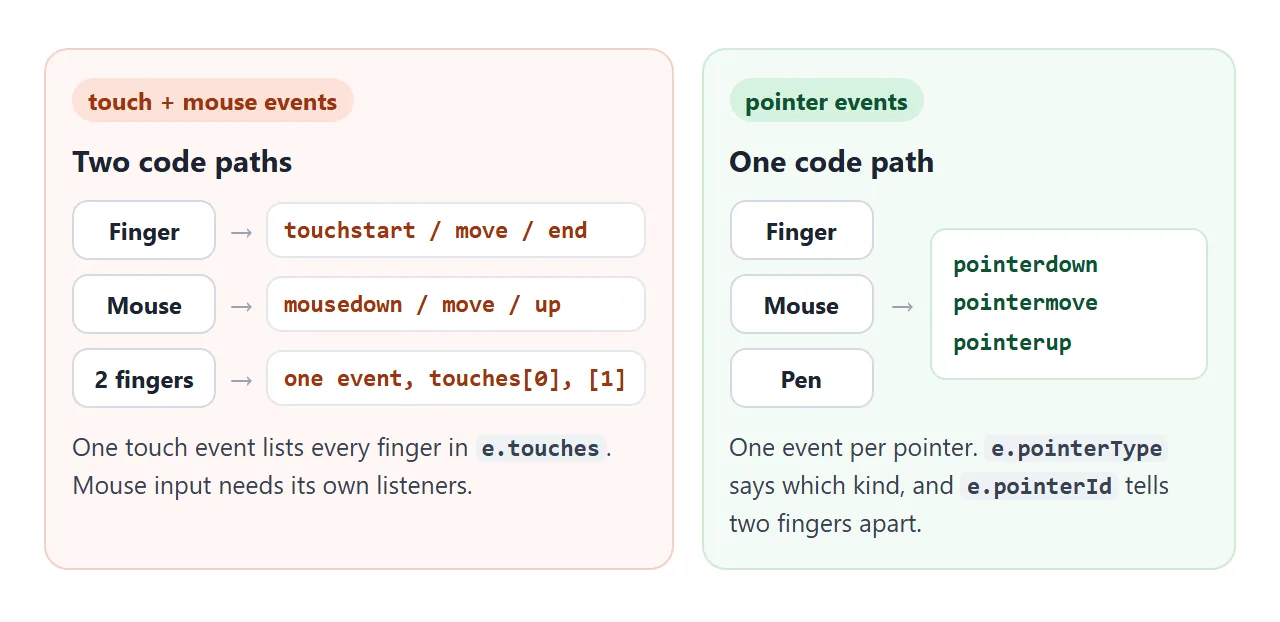
With touch events, a swipe that should also work with a mouse needs two sets of listeners and two ways of reading coordinates. Pointer events remove that split. Every pointer gets its own pointerdown, pointermove and pointerup, with clientX and clientY on the event itself.
e.pointerTypeis'mouse','pen'or'touch', if you need to treat them differently.e.pointerIdstays the same for one finger from down to up, so two fingers never get mixed.setPointerCapture(e.pointerId)keeps the moves coming to your element even when the finger slides off it.
The rest of this guide uses pointer events. The same pattern moves an element around in the draggable div guide, and addEventListener covers the listener options used below.
Detect a swipe: distance, speed and direction
A swipe is a press, a move and a release, judged at the release. Store where and when it started, then measure on pointerup.
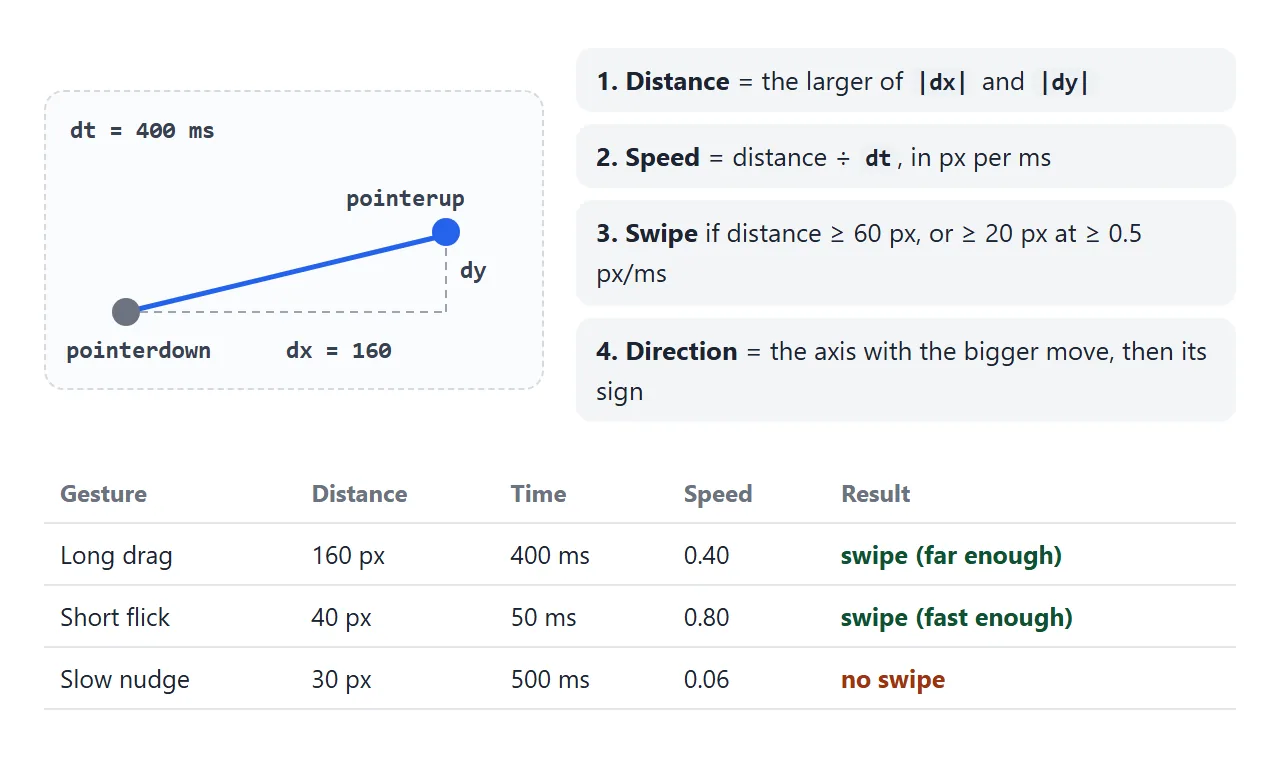
let start = null;
card.addEventListener('pointerdown', (e) => {
  start = { x: e.clientX, y: e.clientY, t: e.timeStamp };
  card.setPointerCapture(e.pointerId);
});
card.addEventListener('pointerup', (e) => {
  const dx = e.clientX - start.x, dy = e.clientY - start.y;
  const dist = Math.max(Math.abs(dx), Math.abs(dy));
  const speed = dist / (e.timeStamp - start.t);   // px per ms
  if (dist >= 60 || (dist >= 20 && speed >= 0.5)) {
    const dir = Math.abs(dx) > Math.abs(dy)
      ? (dx > 0 ? 'right' : 'left')
      : (dy > 0 ? 'down' : 'up');
    console.log('swipe', dir);
  }
});
The numbers 60, 20 and 0.5 are starting points, not rules. Try the detector with different minimum distances, and switch touch-action to see what the browser does with each value:
<!doctype html>
<html lang="en">
<head>
<meta charset="utf-8">
<meta name="viewport" content="width=device-width, initial-scale=1">
<title>Swipe detector</title>
<style>
  body { margin: 0; padding: 12px; font-family: system-ui, sans-serif; background: #f4f5f7; color: #1d2330; }
  .opts { display: flex; flex-wrap: wrap; gap: 8px 16px; font-size: 14px; align-items: center; }
  select, input { font: inherit; }
  .stage { height: 200px; display: grid; place-items: center; margin: 12px 0; }
  .card {
    width: 200px; height: 150px; border-radius: 16px; display: grid; place-items: center;
    background: linear-gradient(135deg, #6366f1, #06b6d4); color: #fff;
    font-size: 26px; font-weight: 700; user-select: none; cursor: grab;
  }
  .card.back { transition: transform .2s; }
  .out { font: 13px/1.6 ui-monospace, Consolas, monospace; background: #fff; border-radius: 8px; padding: 8px 10px; }
  .out b { font-size: 15px; }
</style>
</head>
<body>
<div class="opts">
  <label>touch-action on card
    <select id="ta">
      <option>none</option>
      <option>pan-y</option>
      <option>auto</option>
    </select>
  </label>
  <label>Min distance <input id="min" type="range" min="20" max="150" value="60"> <span id="minv">60</span>px</label>
</div>
<div class="stage"><div class="card" id="card">Swipe me</div></div>
<div class="out" id="out">Swipe the card left, right, up or down.</div>

<script>
  const card = document.getElementById('card');
  const out = document.getElementById('out');
  const ta = document.getElementById('ta');
  const min = document.getElementById('min');
  const FAST = 0.5;       // px per ms: a quick flick counts even if it is short
  let start = null;       // { id, x, y, t } while a swipe is in progress

  card.style.touchAction = ta.value;
  ta.addEventListener('change', () => { card.style.touchAction = ta.value; });
  min.addEventListener('input', () => { document.getElementById('minv').textContent = min.value; });

  card.addEventListener('pointerdown', (e) => {
    if (start) return;                  // ignore a second finger
    start = { id: e.pointerId, x: e.clientX, y: e.clientY, t: e.timeStamp };
    card.setPointerCapture(e.pointerId);
    card.classList.remove('back');
  });

  card.addEventListener('pointermove', (e) => {
    if (!start || e.pointerId !== start.id) return;
    card.style.transform = `translate(${e.clientX - start.x}px, ${e.clientY - start.y}px)`;
  });

  card.addEventListener('pointerup', (e) => {
    if (!start || e.pointerId !== start.id) return;
    const dx = e.clientX - start.x, dy = e.clientY - start.y;
    const ms = Math.max(1, e.timeStamp - start.t);
    const dist = Math.max(Math.abs(dx), Math.abs(dy));
    const speed = dist / ms;
    let dir = 'none';
    if (dist >= +min.value || (dist >= 20 && speed >= FAST)) {
      dir = Math.abs(dx) > Math.abs(dy) ? (dx > 0 ? 'right' : 'left') : (dy > 0 ? 'down' : 'up');
    }
    out.innerHTML = `<b>Swipe: ${dir}</b><br>dx ${Math.round(dx)}px, dy ${Math.round(dy)}px, ` +
      `${Math.round(ms)} ms, ${speed.toFixed(2)} px/ms`;
    reset();
  });

  // The browser took the gesture (scroll or zoom): no pointerup will come
  card.addEventListener('pointercancel', (e) => {
    if (!start || e.pointerId !== start.id) return;
    out.innerHTML = '<b>pointercancel</b><br>The browser took this gesture. Try touch-action: none.';
    reset();
  });

  function reset() {
    start = null;
    card.classList.add('back');
    card.style.transform = '';
  }
</script>
</body>
</html>
The speed check is what makes a short flick feel right. Without it, a quick 40 px flick would count as nothing, even though the user clearly meant to swipe.
touch-action: stop the browser from scrolling and zooming
A finger on a touch screen already means something to the browser: scroll, or pinch to zoom. When the browser decides the gesture is its own, it sends pointercancel and no more moves reach your code.
In the detector, set touch-action to auto and the readout says so.
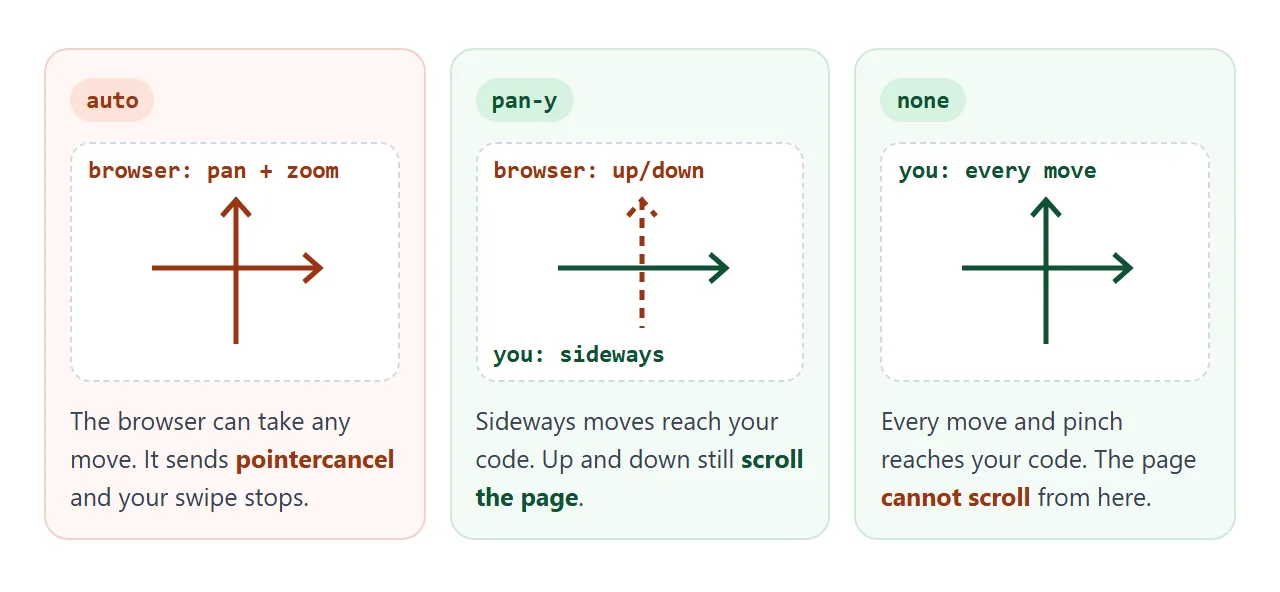
| Value | The browser still handles | Good for |
|---|---|---|
auto |
Scrolling and zooming | Normal content |
pan-y |
Vertical scrolling only | Sideways swipes in a scrolling page |
pan-x |
Horizontal scrolling only | Vertical swipes inside a sideways row |
manipulation |
Scrolling and pinch zoom, not double-tap zoom | Buttons tapped quickly in a row |
none |
Nothing | Drawing, pinch zoom, drag handles |
Put it on the element you swipe, not on body. The browser reads touch-action when the finger first touches, so changing it in the middle of a gesture has no effect.
Passive listeners and preventDefault
The script way to stop scrolling is preventDefault() in a touchmove listener. It still works on an element listener. It does not work on a listener attached to window, document or body, because browsers make touchstart and touchmove listeners there passive by default.
A passive listener has promised not to cancel, so scrolling can start at once. Its preventDefault() call is ignored.
// ignored: document-level touchmove listeners are passive by default
document.addEventListener('touchmove', (e) => e.preventDefault());

// works: an element listener that says it is not passive
canvas.addEventListener('touchmove', (e) => e.preventDefault(), { passive: false });
Prefer touch-action in CSS. The browser knows the rule before any script runs, and scrolling elsewhere on the page stays fast.
Pinch to zoom with two pointers
Pointer events have no pinch event. Keep a Map of the pointers that are down. When there are two, compare the distance between them now with the distance when the second finger landed.
const pts = new Map();
let startDist = 0, startScale = 1, scale = 1;
const gap = () => { const [a, b] = [...pts.values()]; return Math.hypot(a.x - b.x, a.y - b.y); };

view.addEventListener('pointerdown', (e) => {
  view.setPointerCapture(e.pointerId);
  pts.set(e.pointerId, { x: e.clientX, y: e.clientY });
  if (pts.size === 2) { startDist = gap(); startScale = scale; }
});
view.addEventListener('pointermove', (e) => {
  if (!pts.has(e.pointerId)) return;
  pts.set(e.pointerId, { x: e.clientX, y: e.clientY });
  if (pts.size === 2) scale = startScale * gap() / startDist;
});
['pointerup', 'pointercancel'].forEach((t) =>
  view.addEventListener(t, (e) => pts.delete(e.pointerId)));
The zoomed element needs touch-action: none, otherwise the browser zooms the whole page instead. To zoom around the point between the fingers and pan a canvas, see canvas zoom and pan.
A finished example: swipe deck and pinch zoom
Both widgets use pointer events only, so a mouse works the same way as a finger. Each also has buttons, and the deck answers the arrow keys, so nobody needs a touch screen or a steady hand.
<!doctype html>
<html lang="en">
<head>
<meta charset="utf-8">
<meta name="viewport" content="width=device-width, initial-scale=1">
<title>Swipe deck and pinch zoom</title>
<style>
body { margin: 0; padding: 12px; font-family: system-ui, sans-serif; background: #f4f5f7; color: #1d2330; }
.wrap { display: grid; grid-template-columns: repeat(auto-fit, minmax(260px, 1fr)); gap: 14px; }
h3 { margin: 0 0 8px; font-size: 14px; }
.deck { position: relative; height: 190px; }
.c {
position: absolute; inset: 0 20px; border-radius: 16px; padding: 16px;
color: #fff; font-size: 22px; font-weight: 700; user-select: none; cursor: grab;
touch-action: pan-y; /* vertical drags still scroll the page; horizontal ones are ours */
box-shadow: 0 6px 18px rgba(0, 0, 0, .15);
}
.c.fly { transition: transform .3s, opacity .3s; }
.row { display: flex; gap: 8px; align-items: center; margin-top: 10px; font-size: 14px; flex-wrap: wrap; }
button { font: inherit; padding: 7px 14px; border-radius: 8px; border: 1px solid #c9ced6; background: #fff; color: #1d2330; }
/* hover only where a real hover exists, so it does not stick after a tap */
@media (hover: hover) { button:hover { background: #eef2ff; } }
.view {
height: 190px; border-radius: 12px; overflow: hidden; background: #fff;
touch-action: none; /* we handle pan and pinch ourselves */
}
.view svg { width: 100%; height: 100%; transform-origin: center; }
</style>
</head>
<body>
<div class="wrap">
<section>
<h3>Swipe right to like, left to skip</h3>
<div class="deck" id="deck"></div>
<div class="row">
<button id="skip" type="button">← Skip</button>
<button id="like" type="button">Like →</button>
<span id="score">Liked 0, skipped 0</span>
</div>
</section>
<section>
<h3>Pinch to zoom, drag to pan</h3>
<div class="view" id="view">
<svg id="pic" viewBox="0 0 200 120" aria-label="Mountain scene">
<rect width="200" height="120" fill="#bfe3ff"/>
<circle cx="160" cy="28" r="12" fill="#fcd34d"/>
<path d="M0 120 L60 40 L100 90 L130 55 L200 120 Z" fill="#475569"/>
<path d="M60 40 L72 56 L48 56 Z M130 55 L140 67 L120 67 Z" fill="#fff"/>
<text x="100" y="112" font-size="6" text-anchor="middle" fill="#fff">tiny text: zoom in to read</text>
</svg>
</div>
<div class="row">
<button id="out" type="button">−</button>
<button id="in" type="button">+</button>
<button id="fit" type="button">Reset</button>
<span id="zoom">100%</span>
</div>
</section>
</div>
<script>
/* Swipe deck: one pointer at a time, buttons and arrow keys do the same thing */
const deck = document.getElementById('deck');
const names = ['Lisbon', 'Kyoto', 'Oslo', 'Lima', 'Cairo'];
const colors = ['#6366f1', '#0891b2', '#16a34a', '#ea580c', '#db2777'];
let liked = 0, skipped = 0, drag = null;
function deal() {
deck.textContent = '';
names.forEach((n, i) => {
const c = document.createElement('div');
c.className = 'c';
c.textContent = n;
c.style.background = colors[i];
deck.prepend(c); // first name ends up on top
});
}
const topCard = () => [...deck.children].filter((c) => !c.classList.contains('fly')).pop();
function decide(like) {
const c = topCard();
if (!c) return;
like ? liked++ : skipped++;
document.getElementById('score').textContent = `Liked ${liked}, skipped ${skipped}`;
c.classList.add('fly');
c.style.transform = `translateX(${like ? 400 : -400}px) rotate(${like ? 20 : -20}deg)`;
c.style.opacity = 0;
setTimeout(() => { c.remove(); if (!topCard()) deal(); }, 300);
}
deck.addEventListener('pointerdown', (e) => {
const c = topCard();
if (drag || e.target !== c) return; // only the top card, only one pointer
drag = { id: e.pointerId, x: e.clientX, t: e.timeStamp, dx: 0 };
c.setPointerCapture(e.pointerId);
});
deck.addEventListener('pointermove', (e) => {
if (!drag || e.pointerId !== drag.id) return;
drag.dx = e.clientX - drag.x;
topCard().style.transform = `translateX(${drag.dx}px) rotate(${drag.dx / 20}deg)`;
});
function release(e) {
if (!drag || e.pointerId !== drag.id) return;
const speed = Math.abs(drag.dx) / Math.max(1, e.timeStamp - drag.t);
const far = Math.abs(drag.dx) > deck.clientWidth * 0.3;
if (e.type === 'pointerup' && (far || (speed > 0.5 && Math.abs(drag.dx) > 20))) decide(drag.dx > 0);
else topCard().style.transform = ''; // not far or fast enough: snap back
drag = null;
}
deck.addEventListener('pointerup', release);
deck.addEventListener('pointercancel', release);
document.getElementById('like').addEventListener('click', () => decide(true));
document.getElementById('skip').addEventListener('click', () => decide(false));
document.addEventListener('keydown', (e) => {
if (e.key === 'ArrowRight') decide(true);
if (e.key === 'ArrowLeft') decide(false);
});
deal();
/* Pinch zoom: keep every pointer that is down, and zoom by the change in distance */
const view = document.getElementById('view');
const pic = document.getElementById('pic');
const pts = new Map(); // pointerId -> { x, y }
let scale = 1, x = 0, y = 0, pinch = null;
function draw() {
pic.style.transform = `translate(${x}px, ${y}px) scale(${scale})`;
document.getElementById('zoom').textContent = Math.round(scale * 100) + '%';
}
const clamp = (s) => Math.min(4, Math.max(1, s));
const gap = () => { const [a, b] = [...pts.values()]; return Math.hypot(a.x - b.x, a.y - b.y); };
view.addEventListener('pointerdown', (e) => {
view.setPointerCapture(e.pointerId);
pts.set(e.pointerId, { x: e.clientX, y: e.clientY });
if (pts.size === 2) pinch = { dist: gap(), scale };
});
view.addEventListener('pointermove', (e) => {
const p = pts.get(e.pointerId);
if (!p) return;
if (pts.size === 1) { x += e.clientX - p.x; y += e.clientY - p.y; } // one finger or mouse: pan
p.x = e.clientX; p.y = e.clientY;
if (pts.size === 2 && pinch) scale = clamp(pinch.scale * gap() / pinch.dist);
draw();
});
function lift(e) {
pts.delete(e.pointerId);
pinch = null; // the next pinch starts fresh
}
view.addEventListener('pointerup', lift);
view.addEventListener('pointercancel', lift);
document.getElementById('in').addEventListener('click', () => { scale = clamp(scale * 1.25); draw(); });
document.getElementById('out').addEventListener('click', () => { scale = clamp(scale / 1.25); draw(); });
document.getElementById('fit').addEventListener('click', () => { scale = 1; x = 0; y = 0; draw(); });
</script>
</body>
</html>
- One finger per card: the deck stores the first
pointerIdand ignores any other pointer until it is released. - pan-y on the cards: a sideways drag moves the card, an up-and-down drag still scrolls the page.
- Cancel means snap back:
pointercancelputs the card back without counting it. - Hover only with a real hover: the button hover style sits inside
@media (hover: hover).
Hover and the tap delay on touch screens
A finger cannot hover. On a touch screen, a tap can leave an element in the :hover state until the user taps somewhere else, so a hover colour looks stuck.
Wrap hover-only styles in a media query that checks for a real hover:
@media (hover: hover) {
  .btn:hover { background: #eef2ff; }
}
@media (hover: none) {
  .menu { display: block; }  /* show what hover would reveal */
}
Older mobile browsers waited a moment after each tap to see whether a second tap for double-tap zoom followed.
Current mobile browsers skip that wait on pages with a viewport meta tag set to width=device-width, so clicks already feel immediate and no tap library is needed.
When it does not work
| What you see | Cause | Fix |
|---|---|---|
| The page scrolls instead of swiping | The browser took the gesture and sent pointercancel |
touch-action: pan-y or none on the element |
preventDefault() is ignored |
The listener is passive (default on window, document, body) |
Use touch-action, or { passive: false } on the element |
| Works on a phone, not with a mouse | Only touch events are handled | Switch to pointer events |
| A second finger makes the card jump | The handler reads whichever pointer moved | Store the first pointerId and ignore the rest |
touchend has no coordinates |
Reading e.touches, which no longer has the finger |
Read e.changedTouches |
| A hover colour stays after a tap | :hover applied by the tap |
Wrap it in @media (hover: hover) |
| Pinch zooms the whole page | No touch-action on the zoom area |
touch-action: none on it |
Share it as a link
Touch code has to be tried on a real phone, and a screenshot cannot be swiped. An .html file sent to a phone may open as plain code, or not at all.
To test it on your own phone or send it to someone, paste the page into a NOS document and choose Create share link. HTML to link walks through it.
The page renders as written and its scripts run, so people can swipe the cards and pinch the picture themselves. If you change the code later, the same link shows the new version.