touch-action is a CSS property that says which finger gestures the browser may handle itself: scrolling (panning) and pinch zoom. Anything the browser is not allowed to take goes to your pointer events.
touch-action: none on a draggable element is the usual fix for a drag that scrolls the page instead.
Try each value below with a finger, on a phone or in touch emulation. The readout shows whether your code kept the drag or the browser took it.
<!doctype html>
<html lang="en">
<head>
<meta charset="utf-8">
<meta name="viewport" content="width=device-width, initial-scale=1">
<title>touch-action values</title>
<style>
  body { margin: 0; padding: 12px; font-family: system-ui, sans-serif; background: #f4f5f7; }
  .vals { display: flex; flex-wrap: wrap; gap: 6px; }
  .vals button {
    font: 600 13px ui-monospace, Consolas, monospace; padding: 6px 9px;
    border: 1px solid #c9cdd4; border-radius: 8px; background: #fff; color: #1d2330; cursor: pointer;
  }
  .vals button.on { background: #1d4ed8; border-color: #1d4ed8; color: #fff; }
  /* a box that scrolls both ways, so the browser has something to pan */
  .scroller {
    margin-top: 10px; height: 230px; overflow: auto; border-radius: 12px; border: 1px solid #d5d9e0;
    background: repeating-linear-gradient(45deg, #eceff3 0 12px, #f7f8fa 12px 24px);
  }
  .inner { position: relative; width: 900px; height: 700px; }
  .pad {
    position: absolute; left: 24px; top: 24px; width: 230px; height: 160px;
    border-radius: 12px; background: #fff; box-shadow: 0 6px 20px rgba(0, 0, 0, .12);
    touch-action: auto; /* the buttons change this */
    user-select: none;
  }
  .pad p { margin: 12px; font-size: 13px; color: #5b6270; }
  .dot {
    position: absolute; left: -11px; top: -11px; width: 22px; height: 22px; border-radius: 50%;
    background: #2563eb; pointer-events: none; display: none;
  }
  #out { margin: 8px 2px 0; font: 13px/1.5 ui-monospace, Consolas, monospace; color: #1d2330; }
  #out b { color: #9a3412; }
  #out i { font-style: normal; color: #0f5132; font-weight: 700; }
</style>
</head>
<body>
<div class="vals" id="vals">
  <button class="on">auto</button><button>none</button><button>pan-x</button>
  <button>pan-y</button><button>manipulation</button><button>pinch-zoom</button>
</div>

<div class="scroller" id="scroller">
  <div class="inner">
    <div class="pad" id="pad"><p>Drag a finger across this card, then try another value.</p><div class="dot" id="dot"></div></div>
  </div>
</div>
<div id="out">Waiting for a drag.</div>

<script>
  const pad = document.getElementById('pad');
  const dot = document.getElementById('dot');
  const out = document.getElementById('out');
  const scroller = document.getElementById('scroller');
  let moves = 0, sx = 0, sy = 0;

  // switch the touch-action value on the card
  document.getElementById('vals').addEventListener('click', (e) => {
    if (e.target.tagName !== 'BUTTON') return;
    document.querySelectorAll('.vals button').forEach((b) => b.classList.toggle('on', b === e.target));
    pad.style.touchAction = e.target.textContent;
    scroller.scrollTo(0, 0);
    out.textContent = 'touch-action: ' + e.target.textContent + '. Waiting for a drag.';
  });

  pad.addEventListener('pointerdown', (e) => {
    moves = 0; sx = scroller.scrollLeft; sy = scroller.scrollTop;
    pad.setPointerCapture(e.pointerId);
    dot.style.display = 'block';
  });

  pad.addEventListener('pointermove', (e) => {
    if (!pad.hasPointerCapture(e.pointerId)) return;
    moves++;
    const r = pad.getBoundingClientRect();
    dot.style.transform = `translate(${e.clientX - r.left}px, ${e.clientY - r.top}px)`;
  });

  function report(how) {
    dot.style.display = 'none';
    out.innerHTML = 'touch-action: ' + (pad.style.touchAction || 'auto') +
      '<br>pointermove events: ' + moves +
      '<br>ended with: ' + (how === 'pointercancel' ? '<b>pointercancel</b> (the browser took the gesture)' : '<i>pointerup</i> (your code kept it)');
    // the box scroll is read a moment later, after the browser has panned it
    setTimeout(() => {
      out.innerHTML += '<br>box scrolled: x ' + Math.round(scroller.scrollLeft - sx) + ', y ' + Math.round(scroller.scrollTop - sy);
    }, 150);
  }
  pad.addEventListener('pointerup', () => report('pointerup'));
  pad.addEventListener('pointercancel', () => report('pointercancel'));
</script>
</body>
</html>
A second property, overscroll-behavior, handles a related problem: a scroll that reaches the end of a box and carries on into the page. Both are covered below.
Why a finger drag scrolls the page
On a touch screen, a finger that moves already means something to the browser: scroll the page. When your script listens for pointermove to drag a card, the browser and your code both want the same finger.
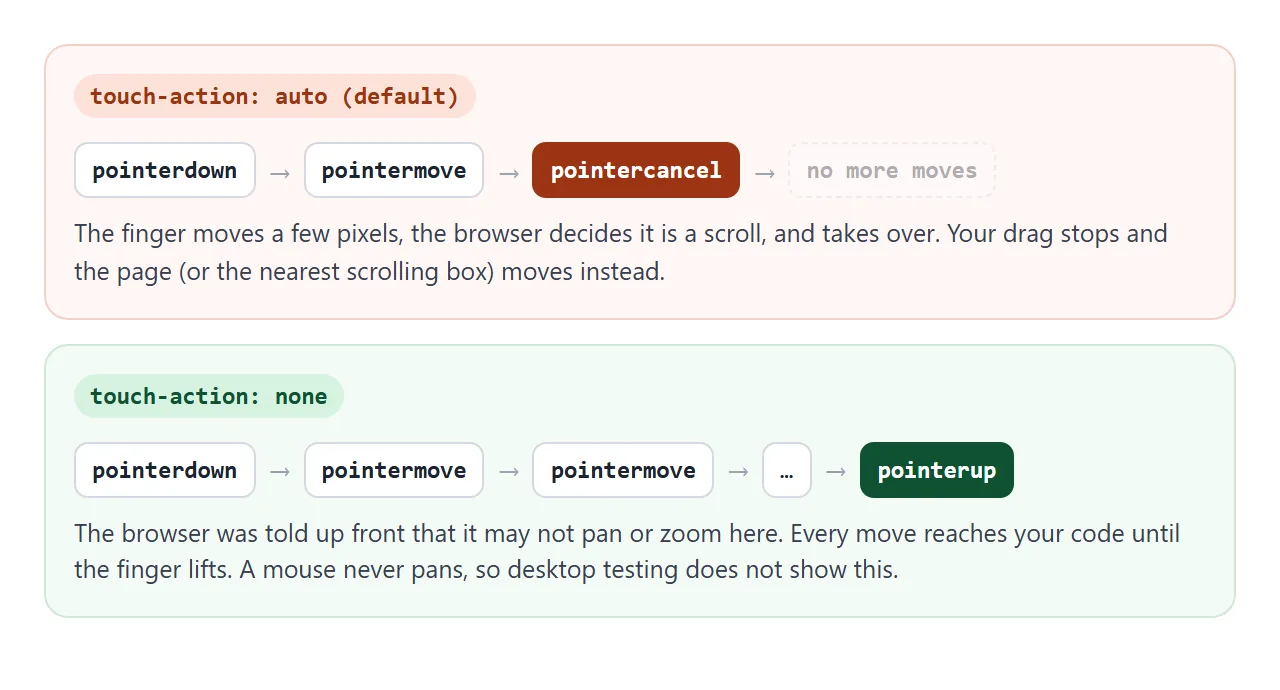
With the default touch-action: auto, the browser wins. After the first few pixels it decides the gesture is a scroll, fires pointercancel and sends your code no more moves. The card stops and the page moves instead.
A mouse never pans the page, so the same drag works perfectly on a desktop. That is why this bug usually shows up only after the page reaches a phone.
The fix takes four steps:
- Find the element the finger starts on: the card, canvas or handle.
- Decide which gestures the browser may keep there.
- Set
touch-actionon that element in CSS. - Add
overscroll-behaviorto any inner scrolling box, covered further down.
.card   { touch-action: none; }   /* drag in any direction */
.slider { touch-action: pan-y; }  /* sideways drag is yours, vertical still scrolls */
The touch-action values
Each value lists what the browser may still do. Whatever is not listed goes to your code.
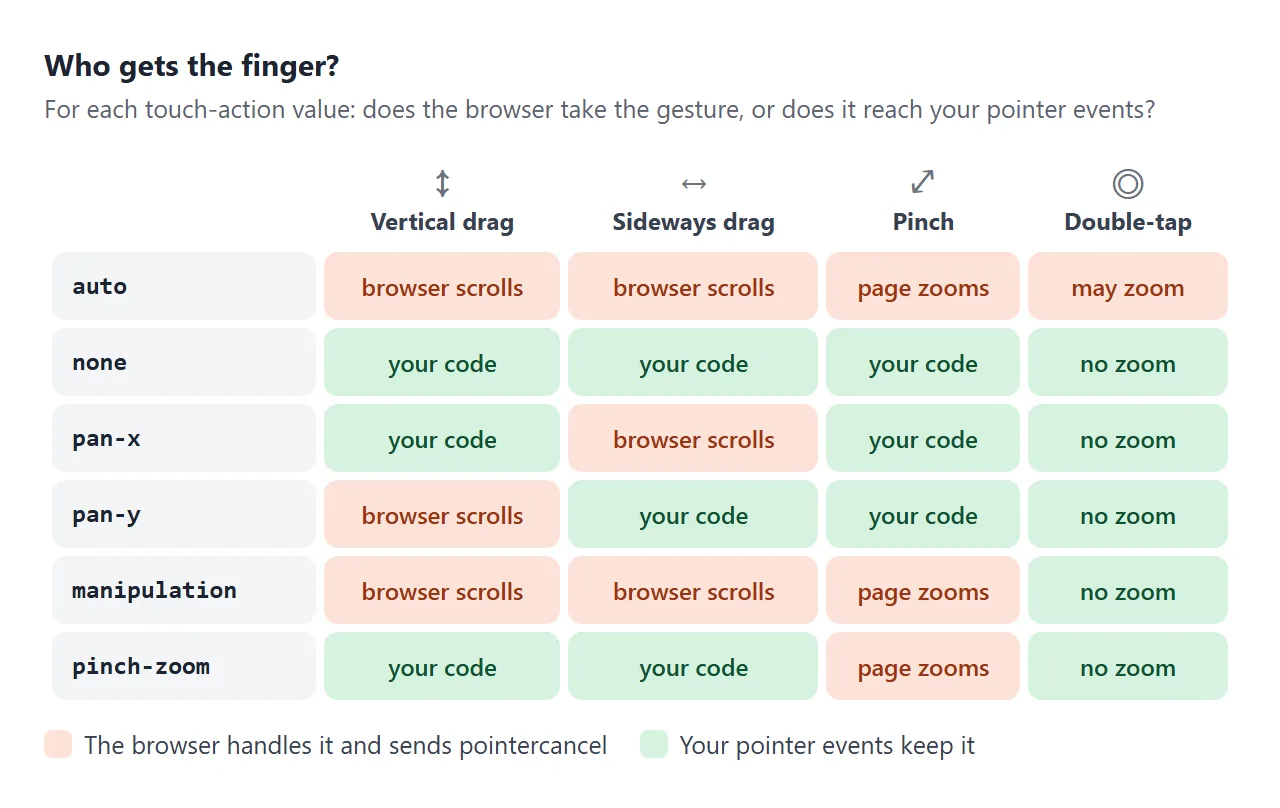
| Value | The browser still does | Your code gets | Good for |
|---|---|---|---|
auto |
Scrolling, pinch zoom, double-tap zoom | Taps, and moves until the browser takes over | Normal content |
none |
Nothing | Every drag and pinch | Drawing, drag handles, games |
pan-x |
Sideways scrolling | Vertical drags, pinch | Pull-down panels inside a sideways row |
pan-y |
Vertical scrolling | Sideways drags, pinch | Carousels and sliders in a scrolling page |
manipulation |
Scrolling and pinch zoom | Taps without double-tap zoom | Buttons tapped quickly in a row |
pinch-zoom |
Pinch zoom only | One-finger drags in any direction | Drag areas where visitors may still zoom |
There are also one-direction values: pan-left, pan-right, pan-up and pan-down. They allow scrolling that starts in one direction only.
Any value other than auto turns off double-tap zoom on that element.
Combining values, and how parents limit children
The pan values and pinch-zoom can be listed together, separated by spaces. none, auto and manipulation stand alone.
.map    { touch-action: pan-x pinch-zoom; }  /* sideways scroll and zoom stay with the browser */
.broken { touch-action: none pan-x; }        /* invalid: the whole declaration is dropped */
The property is not inherited: a child of a pan-y element computes to auto. But when a touch starts, the browser checks the touched element and each ancestor up to the nearest scrolling box. It only allows a gesture that every one of them allows.
So touch-action: none on a wrapper stops panning on everything inside it. A child cannot switch scrolling back on with auto. A scrolling box inside the wrapper is the exception: the check stops at that box, so it still scrolls.
Two more rules catch people out:
- Inline elements ignore it. On a plain
<span>the value has no effect. Give itdisplay: inline-blockorblockfirst. - Table rows ignore it too, as do column groups. Set it on the table or on the cells.
- It is read when the finger lands. Setting it from a
pointerdownortouchstartlistener is too late for that gesture. Put it in the stylesheet.
manipulation: keep scrolling, drop double-tap zoom
manipulation is the gentle value. The page still scrolls and pinch-zooms as usual, and only double-tap zoom is turned off.
Use it on buttons and controls that people tap several times quickly, such as a counter or a keypad. Without it, two quick taps on the same spot can zoom the page instead of counting twice.
button, .key { touch-action: manipulation; }
The touch events guide covers tap handling, swipes and pinch detection in JavaScript.
overscroll-behavior: stop scroll chaining
Scroll a list to its last item and keep going. By default the scroll does not stop there: it carries on into the next scrolling box outside, usually the page. This is called scroll chaining.
<!doctype html>
<html lang="en">
<head>
<meta charset="utf-8">
<meta name="viewport" content="width=device-width, initial-scale=1">
<title>overscroll-behavior: scroll chaining</title>
<style>
  body { margin: 0; font-family: system-ui, sans-serif; background: #f4f5f7; }
  /* this box plays the part of the page */
  .page { height: 360px; overflow-y: auto; padding: 0 12px; box-sizing: border-box; }
  .page > p { margin: 12px 2px; font-size: 13px; color: #5b6270; line-height: 1.5; }
  .row { display: grid; grid-template-columns: 1fr 1fr; gap: 10px; }
  .list {
    height: 170px; overflow-y: auto; border-radius: 10px; background: #fff;
    border: 1px solid #d5d9e0; font-size: 13px;
  }
  .list h4 {
    position: sticky; top: 0; margin: 0; padding: 7px 9px; background: #fff;
    font: 700 12px ui-monospace, Consolas, monospace; border-bottom: 1px solid #e5e7eb;
  }
  .list div { padding: 7px 9px; border-bottom: 1px solid #f0f1f4; }
  #a h4 { color: #9a3412; }
  #b h4 { color: #0f5132; }
  #b { overscroll-behavior: contain; } /* the only difference between the two lists */
  .tall { height: 520px; border-radius: 10px; margin-bottom: 12px;
    background: repeating-linear-gradient(#e8ebf0 0 10px, transparent 10px 28px); }
  #out {
    position: sticky; top: 0; z-index: 1; margin: 0 -12px; padding: 8px 14px;
    background: #1d2330; color: #fff; font: 13px ui-monospace, Consolas, monospace;
  }
</style>
</head>
<body>
<div class="page" id="page">
  <div id="out">Page scrolled: 0 px</div>
  <p>Scroll each list to its end, then keep going. Watch the page counter.</p>
  <div class="row">
    <div class="list" id="a"><h4>auto</h4></div>
    <div class="list" id="b"><h4>contain</h4></div>
  </div>
  <p>The rest of the page.</p>
  <div class="tall"></div>
</div>

<script>
  // fill both lists with rows
  for (const id of ['a', 'b']) {
    const list = document.getElementById(id);
    for (let i = 1; i <= 12; i++) list.insertAdjacentHTML('beforeend', '<div>Item ' + i + '</div>');
  }
  const page = document.getElementById('page');
  const out = document.getElementById('out');
  page.addEventListener('scroll', () => {
    out.textContent = 'Page scrolled: ' + Math.round(page.scrollTop) + ' px';
  });
</script>
</body>
</html>
It is annoying in chat panels, dropdown menus, side drawers and modals, where the page behind jumps while the visitor is still reading the list.
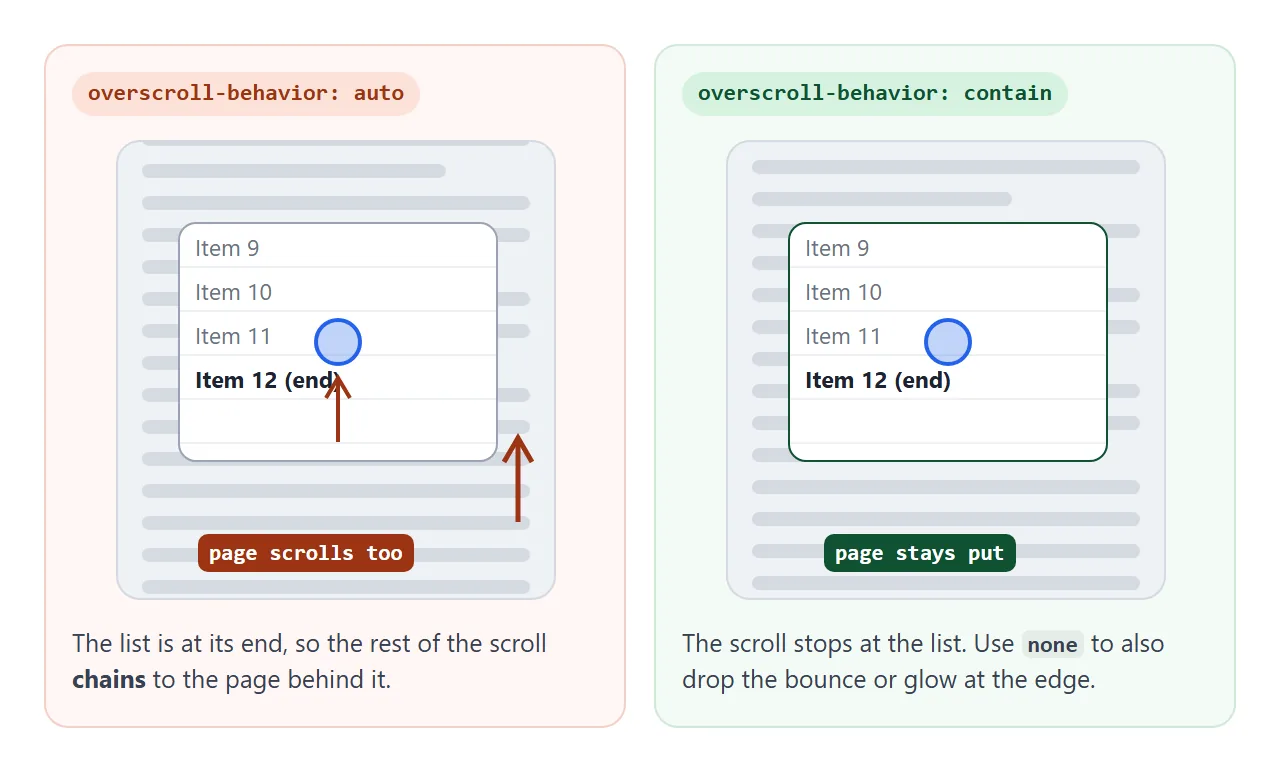
One line on the inner scrolling box fixes it:
.list {
  overflow-y: auto;
  overscroll-behavior: contain;  /* stop at the end of the list */
}
| Value | Scroll chaining | Edge effect in this box |
|---|---|---|
auto |
Yes, the scroll continues outside | Yes |
contain |
No | Yes, the box can still bounce or glow |
none |
No | No |
overscroll-behavior sets both directions. overscroll-behavior-x and overscroll-behavior-y set one each, so a sideways row of chips can stop at its last chip while vertical scrolling still passes through.
The property only acts on a box that scrolls, so the box needs overflow: auto or scroll. CSS overflow explains those values.
Stop pull-to-refresh and the page bounce
On the root element, overscroll-behavior controls the whole page. Mobile browsers that refresh the page when you pull down at the top treat that pull as overscroll, so the same property turns it off.
html {
  overscroll-behavior-y: contain;  /* no pull-to-refresh, page still scrolls */
}
Use none instead of contain to also remove the bounce or glow at the top and bottom of the page. Set it on html, the root element. The browser uses the root's value for the page scroll.
Do this in web apps with their own pull gesture, such as a chat view or a drawing canvas. On an ordinary article page, visitors expect pull-to-refresh to work.
touch-action or overscroll-behavior?
The two sound alike, and they do different jobs.
touch-action |
overscroll-behavior |
|
|---|---|---|
| Question it answers | May the browser pan or zoom this finger gesture? | Where does a scroll go after it reaches the end? |
| Put it on | The element the finger touches | The scrolling box |
| Affects the mouse and wheel | No | Yes |
| Typical fix | A drag that scrolls the page | A list that scrolls the page behind it |
Many touch interfaces need both. A drag handle wants touch-action, and the list next to it wants overscroll-behavior.
A finished example: a bottom sheet
This sheet uses each property once. The handle has touch-action: none, so dragging it resizes the sheet. The list has overscroll-behavior-y: contain, and the chip row has overscroll-behavior-x: contain.
<!doctype html>
<html lang="en">
<head>
<meta charset="utf-8">
<meta name="viewport" content="width=device-width, initial-scale=1">
<title>Bottom sheet with touch-action and overscroll-behavior</title>
<style>
  body { margin: 0; font-family: system-ui, sans-serif; background: #f4f5f7; color: #1d2330; }
  .app { position: relative; height: 420px; overflow: hidden; }
  /* the page behind the sheet, with its own scroll */
  .page { height: 100%; overflow-y: auto; padding: 14px; box-sizing: border-box; }
  .page p { margin: 0 0 12px; height: 90px; border-radius: 12px; background: linear-gradient(135deg, #dbe7f7, #e3f1e4); }
  .sheet {
    position: absolute; left: 0; right: 0; bottom: 0; height: 240px;
    display: flex; flex-direction: column;
    background: #fff; border-radius: 16px 16px 0 0; box-shadow: 0 -6px 24px rgba(0, 0, 0, .15);
  }
  .handle {
    padding: 10px 0 8px; cursor: grab; user-select: none;
    touch-action: none;  /* a finger on the handle resizes the sheet, never scrolls */
  }
  .handle::before { content: ''; display: block; width: 44px; height: 5px; margin: 0 auto; border-radius: 3px; background: #c4c9d2; }
  .chips {
    display: flex; gap: 6px; padding: 0 12px 8px; overflow-x: auto;
    overscroll-behavior-x: contain;  /* sideways swipes stop at the last chip */
  }
  .chips span { flex: none; padding: 6px 12px; border-radius: 99px; background: #eef1f5; font-size: 14px; }
  .list {
    flex: 1; overflow-y: auto;
    overscroll-behavior-y: contain;  /* reaching the end does not move anything behind */
  }
  .list div { padding: 12px 14px; border-top: 1px solid #eef0f3; font-size: 15px; }
</style>
</head>
<body>
<div class="app" id="app">
  <div class="page" id="page"><p></p><p></p><p></p><p></p><p></p><p></p><p></p><p></p></div>
  <div class="sheet" id="sheet">
    <div class="handle" id="handle"></div>
    <div class="chips" id="chips"></div>
    <div class="list" id="list"></div>
  </div>
</div>

<script>
  const sheet = document.getElementById('sheet');
  const handle = document.getElementById('handle');
  ['Coffee', 'Bakery', 'Parks', 'Books', 'Music', 'Pharmacy', 'Hardware', 'Market']
    .forEach((c) => document.getElementById('chips').insertAdjacentHTML('beforeend', `<span>${c}</span>`));
  for (let i = 1; i <= 20; i++)
    document.getElementById('list').insertAdjacentHTML('beforeend', `<div>Place ${i}</div>`);

  let startY = 0, startH = 0;
  handle.addEventListener('pointerdown', (e) => {
    startY = e.clientY;
    startH = sheet.offsetHeight;
    handle.setPointerCapture(e.pointerId);
  });
  handle.addEventListener('pointermove', (e) => {
    if (!handle.hasPointerCapture(e.pointerId)) return;
    const max = document.getElementById('app').clientHeight - 30;
    const h = Math.min(max, Math.max(90, startH + startY - e.clientY));  // drag up = taller
    sheet.style.height = h + 'px';
  });
</script>
</body>
</html>
- Handle:
touch-action: noneplussetPointerCapture. - Same pattern: the handle code is a draggable div that changes height instead of position.
- List: scrolls on its own and never moves the page behind it.
- Chips: a sideways row that stops at the last chip.
- Page behind: a finger outside the sheet still scrolls it, because nothing there sets either property.
When it does not work
| What you see | Cause | Fix |
|---|---|---|
| A drag works with a mouse but stops on a phone | The browser took the finger as a scroll | touch-action: none (or pan-y) on the dragged element |
pointercancel fires after a few moves |
Same cause | Same fix |
touch-action has no effect |
It is on an inline element such as a <span> |
Make it inline-block or block |
| It works on the second try, not the first | It is set in a pointerdown listener |
Set it in the stylesheet |
A child with auto still cannot scroll |
A parent has none or a pan value |
Change the parent, or make the child its own scrolling box |
| Visitors cannot pinch-zoom the page | none is on body or a page-sized wrapper |
Move it to the small element that needs it |
overscroll-behavior does nothing |
The box does not scroll | Give the box overflow: auto and a height |
| Pull-to-refresh still fires | The property is on an inner element | Put overscroll-behavior-y on html |
Share it as a link
Touch behaviour is hard to judge from a screenshot or a desktop browser. The person reviewing it has to put a finger on it.
Paste the page into a NOS document and choose Create share link. HTML to link walks through it.
The page renders as written and its scripts run, so the people you send it to can drag and scroll on their own phones. If you change the code later, the same link shows the new version.