To pinch zoom an image or a map inside a page, put it in a frame with touch-action: none, track the two fingers with pointer events, and set a CSS transform on the content.
The scale is the distance between the fingers divided by the distance when the pinch started. The offset keeps the spot between the fingers still.
Try it on a phone, or drag it with a mouse:
<!doctype html>
<html lang="en">
<head>
<meta charset="utf-8">
<meta name="viewport" content="width=device-width, initial-scale=1">
<title>Pinch zoom with pointer events</title>
<style>
  body { margin: 0; padding: 12px; font-family: system-ui, sans-serif; background: #f4f5f7; }
  .frame {
    position: relative; height: 280px; overflow: hidden;
    border-radius: 12px; background: #fff; border: 1px solid #dde1e7;
    touch-action: none;   /* fingers go to the script, not to page scroll or zoom */
    user-select: none; cursor: grab;
  }
  .content { transform-origin: 0 0; }  /* scale from the top-left, then translate */
  .content svg { display: block; width: 100%; height: 280px; }
  p { margin: 8px 2px 0; font-size: 13px; color: #5b6270; }
</style>
</head>
<body>
<div class="frame" id="frame">
  <div class="content" id="content">
    <svg viewBox="0 0 400 280" preserveAspectRatio="xMidYMid slice">
      <rect width="400" height="280" fill="#e8f1ea"/>
      <path d="M0 190 C120 160 230 230 400 170" stroke="#7fb3e6" stroke-width="22" fill="none"/>
      <path d="M60 0 L90 280 M0 80 L400 110 M250 0 L300 280" stroke="#fff" stroke-width="9"/>
      <rect x="120" y="120" width="70" height="46" rx="6" fill="#f3c969"/>
      <circle cx="275" cy="60" r="7" fill="#e4572e"/>
      <text x="126" y="148" font-size="13" font-family="system-ui">Park</text>
      <text x="286" y="64" font-size="11" font-family="system-ui">Cafe</text>
    </svg>
  </div>
</div>
<p>Pinch with two fingers. Drag with one finger or the mouse.</p>

<script>
  const frame = document.getElementById('frame');
  const content = document.getElementById('content');
  let s = 1, x = 0, y = 0;     // current scale and offset
  const pts = new Map();       // pointerId -> {x, y} inside the frame
  let start;                   // view and pointers when the gesture (re)started

  const local = (e) => {
    const r = frame.getBoundingClientRect();
    return { x: e.clientX - r.left, y: e.clientY - r.top };
  };
  const mid = (p) => p.length > 1
    ? { x: (p[0].x + p[1].x) / 2, y: (p[0].y + p[1].y) / 2 } : p[0];
  const dist = (p) => Math.hypot(p[0].x - p[1].x, p[0].y - p[1].y);

  function begin() {  // call whenever a finger lands or lifts
    const p = [...pts.values()];
    start = { s, x, y, mid: p.length ? mid(p) : null, dist: p.length > 1 ? dist(p) : 0 };
  }

  frame.addEventListener('pointerdown', (e) => {
    frame.setPointerCapture(e.pointerId);
    pts.set(e.pointerId, local(e));
    begin();
  });

  frame.addEventListener('pointermove', (e) => {
    if (!pts.has(e.pointerId)) return;
    pts.set(e.pointerId, local(e));
    const p = [...pts.values()];
    const m = mid(p);
    const k = p.length > 1 && start.dist ? dist(p) / start.dist : 1;
    s = Math.min(6, Math.max(1, start.s * k));
    // the content point that sat under the start midpoint stays under the fingers
    const cx = (start.mid.x - start.x) / start.s;
    const cy = (start.mid.y - start.y) / start.s;
    x = m.x - cx * s;
    y = m.y - cy * s;
    content.style.transform = `translate(${x}px, ${y}px) scale(${s})`;
  });

  const end = (e) => { pts.delete(e.pointerId); begin(); };
  frame.addEventListener('pointerup', end);
  frame.addEventListener('pointercancel', end);
</script>
</body>
</html>
The browser already pinch-zooms the whole page. This is for zooming one element while the page around it stays as it is: a floor plan, a product photo, a diagram, a map.
The setup: a frame and a transform
Two elements do the work. The frame is a fixed window with overflow: hidden. The content inside it gets a transform that scales and moves it.
.frame   { overflow: hidden; touch-action: none; }
.content { transform-origin: 0 0; }
With transform-origin: 0 0, the transform translate(x, y) scale(s) means one simple thing. A point at c inside the content appears at x + c × s inside the frame. Every zoom below is just a new s and a new x and y.
Tracking two pointers
Pointer events give each finger its own pointerId. Keep the current position of every finger in a Map, add it on pointerdown and delete it on pointerup and pointercancel.
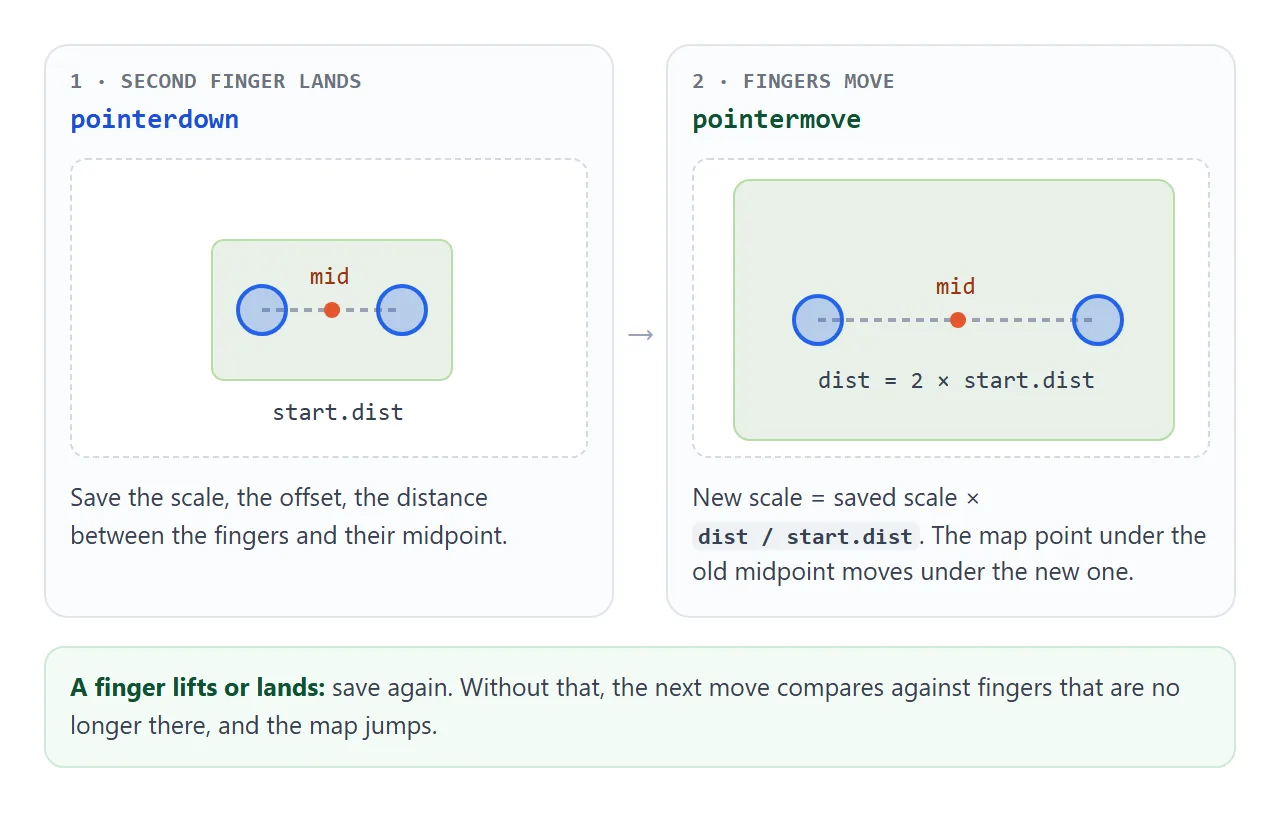
pointerdown– store the finger, callsetPointerCaptureso its moves keep coming even outside the frame, and save the starting state.pointermove– update the finger. With two fingers, the new scale is the saved scale timesdist / start.dist.pointerupandpointercancel– remove the finger and save the starting state again.
Saving again is the step that is easy to miss. When the second finger lifts, the remaining finger becomes a pan. Without a fresh start, the next move compares one finger against a distance from two, and the image jumps.
Zoom around the midpoint
Changing only the scale makes the content grow from the frame's top-left corner. Whatever the fingers were on slides toward the bottom-right, often out of view.
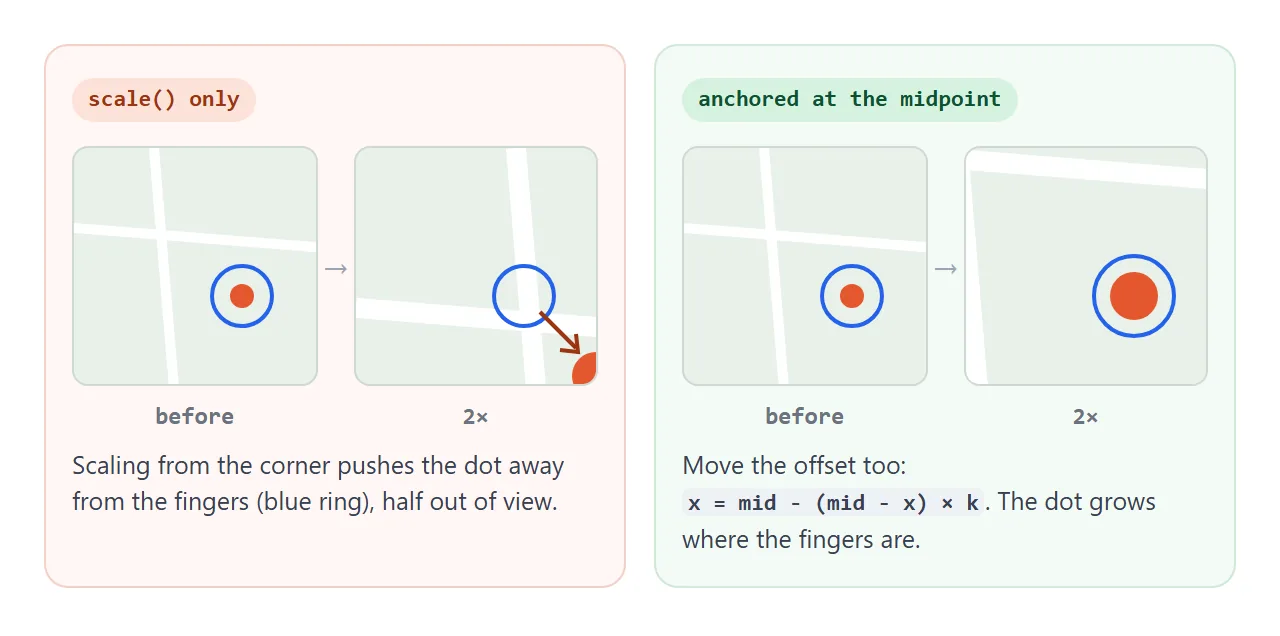
The fix is to find the content point under the fingers before the pinch, and put it back under the fingers after. At the start, that point is:
const cx = (start.mid.x - start.x) / start.s;
const cy = (start.mid.y - start.y) / start.s;
On each move, set x = mid.x - cx * s and y = mid.y - cy * s, where mid is the current midpoint. If the fingers also slide while they pinch, the midpoint moves, and the image follows. One formula handles zoom and two-finger pan together.
With one finger down, mid is just that finger and the scale does not change. The same code becomes a drag, so a mouse can pan too.
Ctrl + wheel and trackpads on desktop
A desktop has no second finger, so add the wheel. In Chrome, Edge and Firefox, a pinch on a laptop trackpad arrives as a wheel event with ctrlKey set to true. Holding Ctrl and turning a mouse wheel gives the same event.
frame.addEventListener('wheel', (e) => {
  if (!e.ctrlKey) return;      // plain wheel: let the page scroll
  e.preventDefault();          // stop the browser zooming the page
  const r = frame.getBoundingClientRect();
  const px = e.clientX - r.left, py = e.clientY - r.top;
  zoomAt(px, py, s * Math.exp(-e.deltaY * 0.003));
}, { passive: false });

function zoomAt(px, py, ns) {   // keep frame point (px, py) still
  x = px - (px - x) * (ns / s);
  y = py - (py - y) * (ns / s);
  s = ns;
  content.style.transform = `translate(${x}px, ${y}px) scale(${s})`;
}
zoomAt is the midpoint idea again, with the pointer as the fixed point. Math.exp turns the small deltas from a trackpad and the larger steps from a mouse wheel into matching zoom factors. Scrolling up gives a negative deltaY, so the image grows.
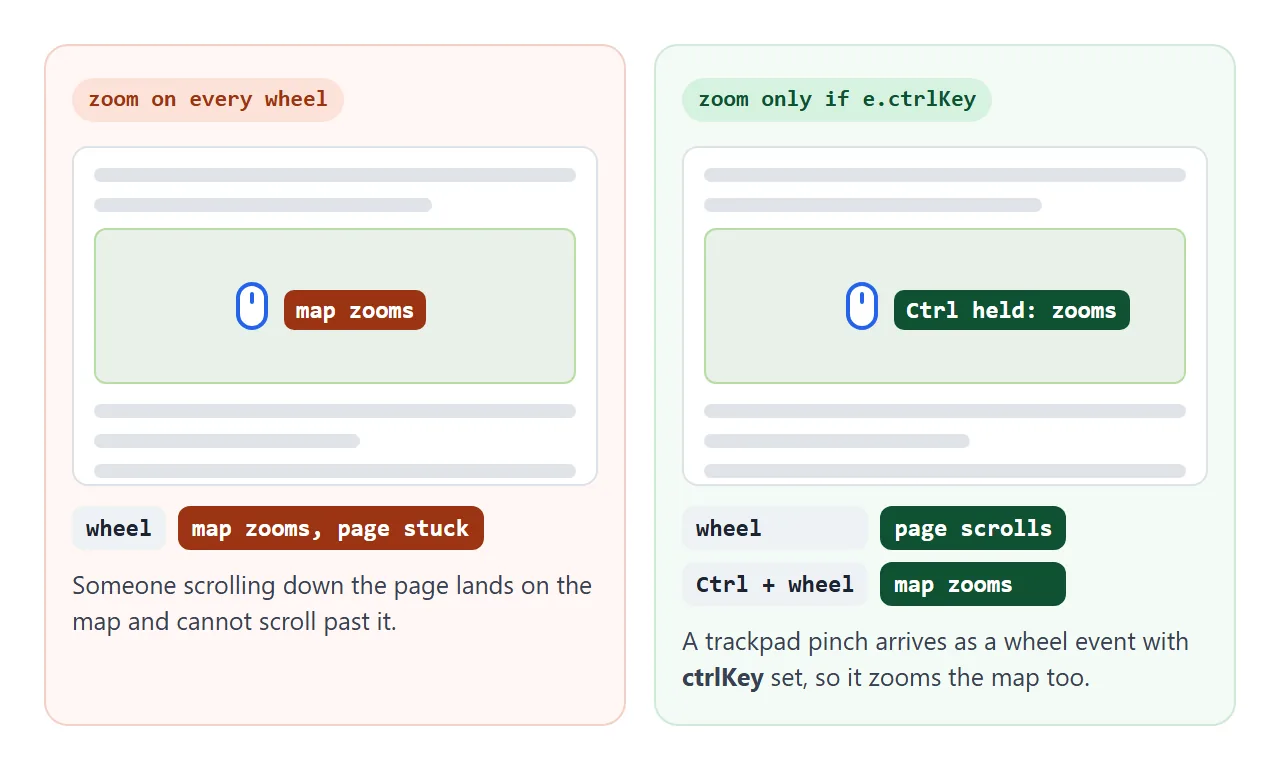
Checking ctrlKey first means a visitor scrolling down the page is not stopped by the map. A plain wheel turn passes straight through to the page.
The other detail is preventDefault. It only works if the listener is not passive. The DOM standard makes wheel listeners on window, document, <html> and <body> passive by default, so attach this one to the frame and pass passive: false to be explicit.
Compare the two zooms here. Aim at the red dot and use Ctrl + scroll, a trackpad pinch, or two fingers:
<!doctype html>
<html lang="en">
<head>
<meta charset="utf-8">
<meta name="viewport" content="width=device-width, initial-scale=1">
<title>Zoom around the corner vs around the fingers</title>
<style>
  body {
    margin: 0; padding: 10px; font-family: system-ui, sans-serif; background: #f4f5f7;
    display: grid; grid-template-columns: 1fr 1fr; gap: 10px;
  }
  h3 { margin: 0 0 2px; font-size: 14px; }
  .bad h3 { color: #9a3412; } .good h3 { color: #0f5132; }
  p { margin: 0 0 6px; font-size: 12px; color: #5b6270; min-height: 30px; }
  .frame {
    height: 200px; overflow: hidden; border-radius: 10px;
    background: #fff; border: 1px solid #dde1e7;
    touch-action: none; user-select: none;
  }
  .content { transform-origin: 0 0; }
  .content svg { display: block; width: 100%; height: 200px; }
  .foot { grid-column: 1 / -1; margin: 0; font-size: 13px; color: #374151; }
  kbd { font: 12px ui-monospace, Consolas, monospace; background: #fff; border: 1px solid #cfd4db; border-radius: 4px; padding: 0 4px; }
</style>
</head>
<body>
<div class="bad">
  <h3>Scale only</h3>
  <p>The target slides away toward the corner.</p>
  <div class="frame" data-anchor="no"><div class="content"></div></div>
</div>
<div class="good">
  <h3>Anchored</h3>
  <p>The target stays under the pointer or fingers.</p>
  <div class="frame" data-anchor="yes"><div class="content"></div></div>
</div>
<p class="foot">Aim at the red dot, then <kbd>Ctrl</kbd> + scroll, pinch the trackpad, or pinch with two fingers.</p>

<template id="map">
  <svg viewBox="0 0 200 200" preserveAspectRatio="xMidYMid slice">
    <rect width="200" height="200" fill="#e8f1ea"/>
    <path d="M0 60 L200 80 M40 0 L60 200 M140 0 L150 200" stroke="#fff" stroke-width="7"/>
    <circle cx="150" cy="140" r="6" fill="#e4572e"/>
  </svg>
</template>

<script>
  document.querySelectorAll('.frame').forEach((frame) => {
    const content = frame.querySelector('.content');
    content.append(document.getElementById('map').content.cloneNode(true));
    const anchored = frame.dataset.anchor === 'yes';
    let s = 1, x = 0, y = 0;

    // zoom to scale ns, keeping frame point (px, py) fixed if anchored
    function zoomAt(px, py, ns) {
      ns = Math.min(6, Math.max(1, ns));
      if (anchored) { x = px - (px - x) * (ns / s); y = py - (py - y) * (ns / s); }
      s = ns;
      content.style.transform = `translate(${x}px, ${y}px) scale(${s})`;
    }
    const local = (e) => {
      const r = frame.getBoundingClientRect();
      return [e.clientX - r.left, e.clientY - r.top];
    };

    // desktop: Ctrl + wheel, and trackpad pinch, which arrives as a wheel event with ctrlKey
    frame.addEventListener('wheel', (e) => {
      if (!e.ctrlKey) return;          // plain wheel still scrolls the page
      e.preventDefault();              // stop the browser zooming the whole page
      const [px, py] = local(e);
      zoomAt(px, py, s * Math.exp(-e.deltaY * 0.003));
    }, { passive: false });

    // touch: two fingers, zoom step by step around their midpoint
    const pts = new Map();
    let last = 0;
    frame.addEventListener('pointerdown', (e) => {
      frame.setPointerCapture(e.pointerId);
      pts.set(e.pointerId, local(e)); last = 0;
    });
    frame.addEventListener('pointermove', (e) => {
      if (!pts.has(e.pointerId)) return;
      pts.set(e.pointerId, local(e));
      if (pts.size < 2) return;
      const [a, b] = [...pts.values()];
      const d = Math.hypot(a[0] - b[0], a[1] - b[1]);
      if (last) zoomAt((a[0] + b[0]) / 2, (a[1] + b[1]) / 2, s * d / last);
      last = d;
    });
    const end = (e) => { pts.delete(e.pointerId); last = 0; };
    frame.addEventListener('pointerup', end);
    frame.addEventListener('pointercancel', end);
  });
</script>
</body>
</html>
Limits, buttons and a reset
Pinching is not discoverable for everyone, and not everyone can pinch. Buttons give the same zoom to a mouse, a keyboard and a switch device.
<!doctype html>
<html lang="en">
<head>
<meta charset="utf-8">
<meta name="viewport" content="width=device-width, initial-scale=1">
<title>Map viewer with pinch zoom</title>
<style>
body { margin: 0; padding: 12px; font-family: system-ui, sans-serif; background: #f4f5f7; }
.viewer { position: relative; }
.frame {
height: 340px; overflow: hidden; border-radius: 12px;
background: #fff; border: 1px solid #dde1e7;
touch-action: none; user-select: none; cursor: grab;
}
.frame:active { cursor: grabbing; }
.content { transform-origin: 0 0; }
.content svg { display: block; width: 100%; height: 340px; }
.tools {
position: absolute; right: 10px; top: 10px; display: flex; gap: 6px;
}
.tools button, .tools output {
min-width: 36px; height: 36px; border: 1px solid #cfd4db; border-radius: 8px;
background: #fff; font: 600 15px system-ui, sans-serif; color: #1d2330;
}
.tools output { display: grid; place-items: center; padding: 0 6px; font-size: 13px; }
.tools button:disabled { color: #aab0b9; }
p { margin: 8px 2px 0; font-size: 13px; color: #5b6270; }
kbd { font: 12px ui-monospace, Consolas, monospace; background: #fff; border: 1px solid #cfd4db; border-radius: 4px; padding: 0 4px; }
</style>
</head>
<body>
<div class="viewer">
<div class="frame" id="frame">
<div class="content" id="content">
<svg viewBox="0 0 600 340" preserveAspectRatio="xMidYMid slice" role="img" aria-label="Town map">
<rect width="600" height="340" fill="#e8f1ea"/>
<path d="M0 250 C160 210 330 300 600 220" stroke="#7fb3e6" stroke-width="26" fill="none"/>
<path d="M80 0 L110 340 M0 90 L600 120 M330 0 L380 340 M500 0 L470 340" stroke="#fff" stroke-width="10"/>
<rect x="150" y="140" width="110" height="60" rx="8" fill="#b9dca5"/>
<text x="172" y="175" font-size="15" font-family="system-ui">Park</text>
<circle cx="400" cy="70" r="7" fill="#e4572e"/>
<text x="412" y="75" font-size="12" font-family="system-ui">Cafe</text>
<circle cx="520" cy="180" r="7" fill="#2563eb"/>
<text x="496" y="203" font-size="12" font-family="system-ui">Library</text>
<text x="352" y="165" font-size="6" font-family="system-ui">Bakery, open 7-15</text>
<circle cx="348" cy="163" r="2.5" fill="#9a3412"/>
</svg>
</div>
</div>
<div class="tools">
<button id="out" aria-label="Zoom out">−</button>
<output id="level">100%</output>
<button id="in" aria-label="Zoom in">+</button>
<button id="reset">Reset</button>
</div>
</div>
<p>Pinch, drag, <kbd>Ctrl</kbd> + scroll, or the buttons. Find the small print near the middle.</p>
<script>
const frame = document.getElementById('frame');
const content = document.getElementById('content');
const level = document.getElementById('level');
const MIN = 1, MAX = 8;
let s = 1, x = 0, y = 0;
function apply() {
// keep the map covering the frame: no empty gaps at the edges
const w = frame.clientWidth, h = frame.clientHeight;
x = Math.min(0, Math.max(w - w * s, x));
y = Math.min(0, Math.max(h - h * s, y));
content.style.transform = `translate(${x}px, ${y}px) scale(${s})`;
level.textContent = Math.round(s * 100) + '%';
document.getElementById('out').disabled = s <= MIN;
document.getElementById('in').disabled = s >= MAX;
}
function zoomAt(px, py, ns) { // keep frame point (px, py) still
ns = Math.min(MAX, Math.max(MIN, ns));
x = px - (px - x) * (ns / s);
y = py - (py - y) * (ns / s);
s = ns;
apply();
}
const local = (e) => {
const r = frame.getBoundingClientRect();
return { x: e.clientX - r.left, y: e.clientY - r.top };
};
// pinch and pan: same logic as the first example
const pts = new Map();
let start;
const mid = (p) => p.length > 1
? { x: (p[0].x + p[1].x) / 2, y: (p[0].y + p[1].y) / 2 } : p[0];
const dist = (p) => Math.hypot(p[0].x - p[1].x, p[0].y - p[1].y);
function begin() {
const p = [...pts.values()];
start = { s, x, y, mid: p.length ? mid(p) : null, dist: p.length > 1 ? dist(p) : 0 };
}
frame.addEventListener('pointerdown', (e) => {
if (e.button !== 0) return;
frame.setPointerCapture(e.pointerId);
pts.set(e.pointerId, local(e));
begin();
});
frame.addEventListener('pointermove', (e) => {
if (!pts.has(e.pointerId)) return;
pts.set(e.pointerId, local(e));
const p = [...pts.values()], m = mid(p);
const k = p.length > 1 && start.dist ? dist(p) / start.dist : 1;
s = Math.min(MAX, Math.max(MIN, start.s * k));
x = m.x - (start.mid.x - start.x) / start.s * s;
y = m.y - (start.mid.y - start.y) / start.s * s;
apply();
});
const end = (e) => { pts.delete(e.pointerId); begin(); };
frame.addEventListener('pointerup', end);
frame.addEventListener('pointercancel', end);
// desktop: Ctrl + wheel and trackpad pinch
frame.addEventListener('wheel', (e) => {
if (!e.ctrlKey) return;
e.preventDefault();
const p = local(e);
zoomAt(p.x, p.y, s * Math.exp(-e.deltaY * 0.003));
}, { passive: false });
// buttons zoom around the centre of the frame
const centre = (f) => zoomAt(frame.clientWidth / 2, frame.clientHeight / 2, s * f);
document.getElementById('in').addEventListener('click', () => centre(1.5));
document.getElementById('out').addEventListener('click', () => centre(1 / 1.5));
document.getElementById('reset').addEventListener('click', () => { s = 1; x = 0; y = 0; apply(); });
apply();
</script>
</body>
</html>
What the finished viewer adds:
- Limits: clamp the scale, here between 1 and 8. Below 1, the frame shows empty space around the map.
- Edges: clamp the offset between 0 and the frame size minus the scaled size, so no gap appears at any edge.
- Buttons: + and - zoom around the centre of the frame. They are real
<button>elements, so they work with Tab and Enter. - Reset: sets scale 1 and offset 0. Put it where people look when they get lost, next to the zoom level.
| Input | Event | What it changes |
|---|---|---|
| Two fingers | pointermove with two pointers |
Scale and offset |
| One finger or mouse drag | pointermove with one pointer |
Offset only |
| Trackpad pinch | wheel with ctrlKey |
Scale, around the pointer |
| Ctrl + mouse wheel | wheel with ctrlKey |
Scale, around the pointer |
| + and - buttons | click |
Scale, around the centre |
| Reset button | click |
Scale 1, offset 0 |
Do not turn off page zoom
It is tempting to stop the page zooming by editing the viewport meta tag. Leave it alone. Values such as user-scalable=no and maximum-scale=1 turn off pinch zoom for the whole page, and people who enlarge text to read it lose that.
<!-- keep this: zoom stays available -->
<meta name="viewport" content="width=device-width, initial-scale=1">

<!-- avoid: turns off page zoom for everyone -->
<meta name="viewport" content="width=device-width, initial-scale=1, maximum-scale=1, user-scalable=no">
touch-action: none on the frame is enough. A pinch that starts on the map goes to your script, and a pinch anywhere else still zooms the page.
The touch-action guide lists the other values, such as pan-y for a frame that should still let the page scroll vertically.
Related approaches
- A click that opens a bigger version of the image is simpler than pinch, and often enough. See image zoom on click.
- For a drawing on
<canvas>, zoom the drawing itself instead of the element. Canvas zoom and pan covers that, including redrawing sharply at every scale. - Moving one element with a pointer, without zoom, is covered in draggable div.
When it does not work
| What you see | Cause | Fix |
|---|---|---|
| The whole page zooms instead of the image | The browser handled the pinch | touch-action: none on the frame |
| The zoom stops after a few pixels on a phone | pointercancel from the browser taking the gesture |
touch-action: none, and remove the finger on pointercancel |
| The image jumps when a finger lifts | The start state was not saved again | Call the save step on pointerup and pointercancel too |
| The image grows from its corner | Only the scale changes | Move the offset with the midpoint formula |
| A faded copy of the image follows the mouse | <img> is draggable by default |
Add draggable="false" to the image |
| Ctrl + wheel zooms the whole page | The listener is passive, or on window |
Put it on the frame with passive: false |
| The page will not scroll past the map | The wheel zooms without Ctrl | Return early unless e.ctrlKey |
| The image is blurry when zoomed | A bitmap scaled past its pixel size | Larger source image, or SVG |
Share it as a link
Pinch zoom is something people need to try with their own fingers. A screenshot cannot be pinched, and an .html attachment may open as plain code, or not at all, on a phone.
To send the working version, paste the page into a NOS document and choose Create share link. HTML to link walks through it.
The page renders as written and its scripts run, so the people you send it to can pinch and pan the map themselves. If you change the code later, the same link shows the new version.