To zoom and pan an HTML canvas, hold a scale value and an x and y offset in one state object, apply them with setTransform at the top of every render, and redraw the whole scene.
const view = { scale: 1, x: 0, y: 0 };

function render() {
  ctx.setTransform(1, 0, 0, 1, 0, 0);
  ctx.clearRect(0, 0, canvas.width, canvas.height);
  ctx.setTransform(view.scale, 0, 0, view.scale, view.x, view.y);
  drawScene(ctx);
}
The first setTransform resets to identity so the clear covers the real bitmap. Skip it and the cleared region moves with the view, leaving trails.
Why not CSS transform
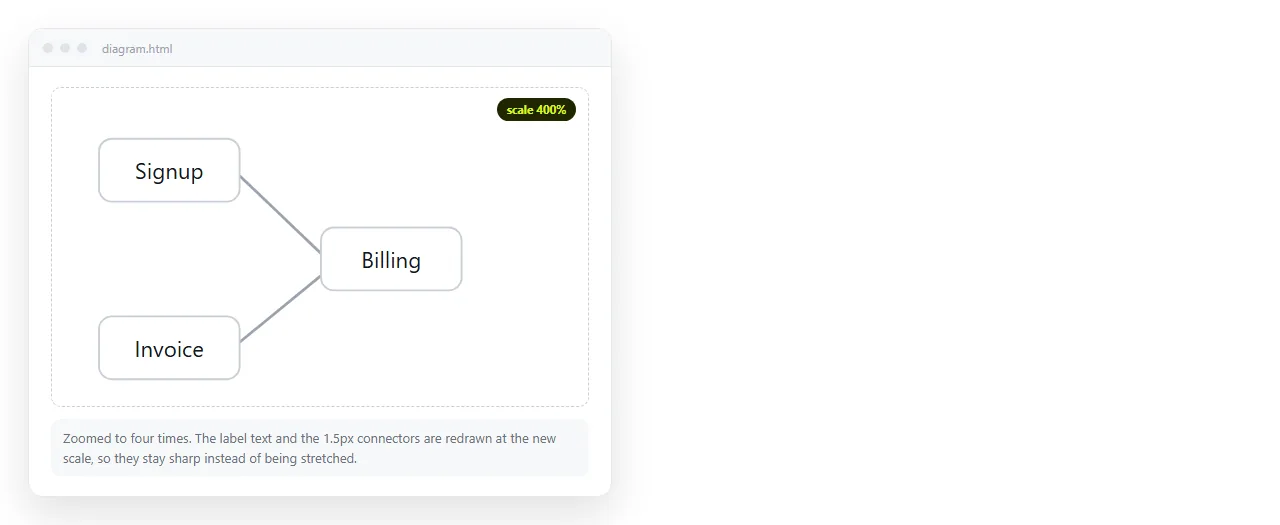
transform: scale(3) on the canvas element is one line and it works for a moment. It scales the bitmap you already drew, so every line thickens and every label softens.
| Approach | Stays sharp | Cost |
|---|---|---|
CSS transform on the element |
No | One line, no redraw |
| Context transform plus redraw | Yes | Redraw on every change |
| Larger bitmap, no zoom | Yes, up to its size | Memory grows with the square |
Context transform is the only one that holds at arbitrary zoom. It costs a redraw per frame, which is cheap for a few thousand shapes.
Panning with pointer events
Use pointer events rather than mouse events, and you get touch and stylus without a second code path.
let dragging = false, lastX = 0, lastY = 0;

canvas.addEventListener('pointerdown', e => {
  dragging = true;
  lastX = e.clientX; lastY = e.clientY;
  canvas.setPointerCapture(e.pointerId);
});

canvas.addEventListener('pointermove', e => {
  if (!dragging) return;
  view.x += e.clientX - lastX;
  view.y += e.clientY - lastY;
  lastX = e.clientX; lastY = e.clientY;
  render();
});

canvas.addEventListener('pointerup', e => {
  dragging = false;
  canvas.releasePointerCapture(e.pointerId);
});
setPointerCapture is what stops the drag dying when the pointer leaves the canvas. Without it, a fast drag out of the element leaves the view stuck mid move.
Add canvas { touch-action: none; } in CSS, or a drag on a phone scrolls the page instead of moving the scene.
Zooming toward the pointer
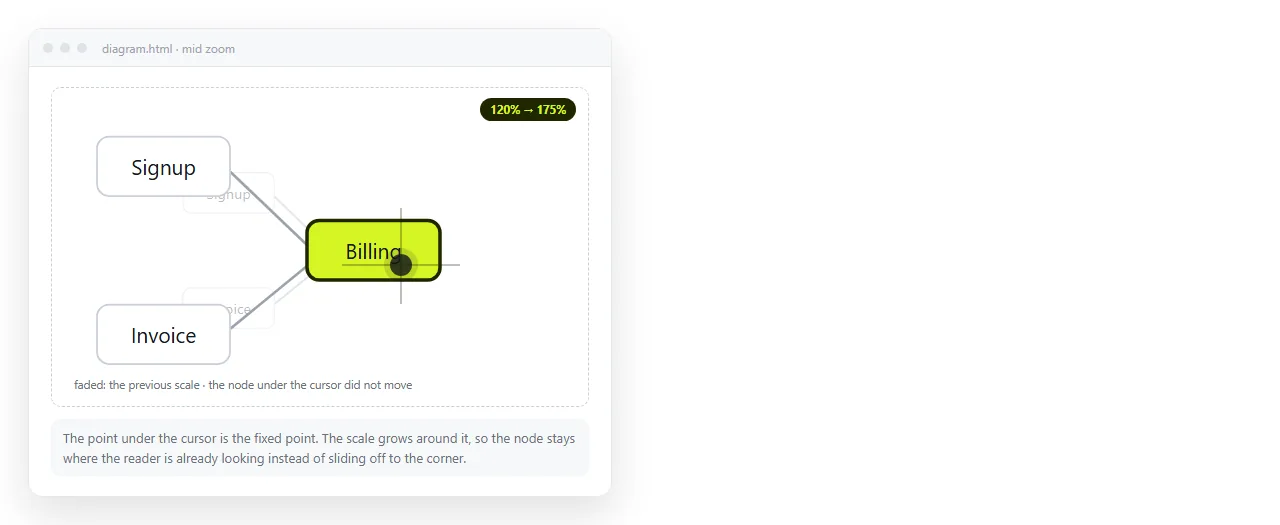
Scaling around the origin feels wrong, because the thing under the cursor slides away. Anchor it instead.
canvas.addEventListener('wheel', e => {
  e.preventDefault();
  const rect = canvas.getBoundingClientRect();
  const px = e.clientX - rect.left;
  const py = e.clientY - rect.top;

  const wx = (px - view.x) / view.scale;
  const wy = (py - view.y) / view.scale;

  const factor = e.deltaY < 0 ? 1.1 : 1 / 1.1;
  view.scale = Math.min(40, Math.max(0.1, view.scale * factor));

  view.x = px - wx * view.scale;
  view.y = py - wy * view.scale;
  render();
}, { passive: false });
Read it as four steps. Find the world point under the pointer. Change the scale. Put that world point back under the pointer. Redraw.
{ passive: false } is required. Wheel listeners default to passive on many browsers, and preventDefault is then ignored, so the page scrolls underneath.
Converting screen coordinates back
Any click handling needs the inverse of the transform. Keep it as one function and reuse it everywhere.
function toWorld(clientX, clientY) {
  const rect = canvas.getBoundingClientRect();
  return {
    x: (clientX - rect.left - view.x) / view.scale,
    y: (clientY - rect.top  - view.y) / view.scale,
  };
}
Hit testing then compares world coordinates against your shape data, since the canvas itself keeps no shapes to ask.
Keep the tolerance in screen pixels rather than world units. A five pixel grab radius divided by the scale stays five pixels to the reader at every zoom level, which is what a pointer actually needs.
const tol = 5 / view.scale;
const hit = nodes.find(n => Math.hypot(n.x - p.x, n.y - p.y) < n.r + tol);
Things that should not scale
Some elements need to stay the same size on screen no matter the zoom. Labels, grid lines, handles.
ctx.lineWidth = 1 / view.scale;      // one screen pixel at any zoom
ctx.font = (12 / view.scale) + 'px system-ui';
Dividing by the scale cancels the transform for that property. For text, resetting the transform and drawing labels in screen space is often cleaner than fighting the division.
ctx.setTransform(1, 0, 0, 1, 0, 0);
nodes.forEach(n => {
  const sx = n.x * view.scale + view.x;
  const sy = n.y * view.scale + view.y;
  ctx.fillText(n.label, sx, sy - 10);
});
Labels drawn this way stay legible at every zoom and never end up mirrored or stretched, which is a risk once non uniform scaling enters the code.
Pinch zoom on touch
Two pointers, and the same anchoring maths applied to the midpoint between them.
const pointers = new Map();
let startDist = 0, startScale = 1;

canvas.addEventListener('pointerdown', e => pointers.set(e.pointerId, e));
canvas.addEventListener('pointerup',   e => pointers.delete(e.pointerId));

canvas.addEventListener('pointermove', e => {
  if (!pointers.has(e.pointerId)) return;
  pointers.set(e.pointerId, e);
  if (pointers.size !== 2) return;
  const [a, b] = [...pointers.values()];
  const dist = Math.hypot(a.clientX - b.clientX, a.clientY - b.clientY);
  if (!startDist) { startDist = dist; startScale = view.scale; return; }
  view.scale = startScale * (dist / startDist);
  render();
});
Reset startDist to zero when a pointer lifts, or the next pinch begins from a stale reference and the scene jumps.
Keeping the scene in view
Unlimited panning lets a reader lose the drawing entirely, with no indication of which direction to drag back. Clamp the offset against the scene bounds.
function clamp() {
  const w = sceneWidth * view.scale;
  const h = sceneHeight * view.scale;
  const margin = 80;
  view.x = Math.min(margin, Math.max(canvas.clientWidth  - w - margin, view.x));
  view.y = Math.min(margin, Math.max(canvas.clientHeight - h - margin, view.y));
}
Call it after every pan and zoom, before render. The margin leaves a little slack so the edges do not feel glued to the frame.
Keeping it responsive
- Redraw inside
requestAnimationFrame, one frame at most per event burst. - Clamp the scale, as in the wheel handler above. Unbounded zoom produces coordinates large enough to lose precision.
- Set a keyboard route too. Plus and minus keys, arrow keys for pan, and a key to reset.
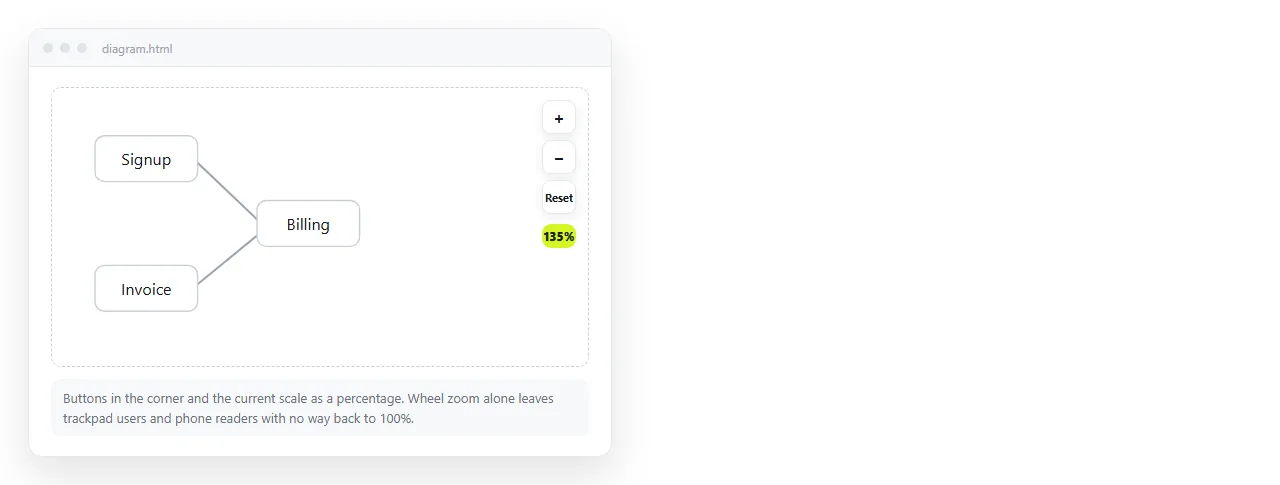
- Add a reset control. Two numbers back to their defaults and a redraw.
Common failures and what causes them
| Symptom | Cause |
|---|---|
| Old drawing smears across the view | Transform not reset before clearRect |
| Page scrolls while zooming | Wheel listener registered as passive |
| Drag stops when leaving the canvas | No setPointerCapture |
| Nothing moves on a phone | Missing touch-action: none |
| Zoom drifts away from the cursor | Scaling around the origin instead of the pointer |
| Lines thicken as you zoom in | Line width not divided by the scale |
Each of these has a single line fix, and each one is invisible until someone other than you uses the page.
Sharing the result
A zoomable canvas cannot be sent as a screenshot without losing the only thing that makes it useful. It needs to be a live page.
Paste the HTML into a NOS document. The scripts run, so the reader can zoom and pan the same way you do, and the share link opens it in one click.
That is the same route as any other interactive chart or dashboard. If you also need a fixed picture of one view, HTML to image captures the rendered page.