To draw on an HTML canvas you get a 2d context from the element, set a style, then call a drawing method. Three lines gets a rectangle on the screen.
<canvas id="c" width="600" height="300"></canvas>
<script>
  const ctx = document.getElementById('c').getContext('2d');
  ctx.fillStyle = '#38bdf8';
  ctx.fillRect(20, 20, 160, 80);
</script>
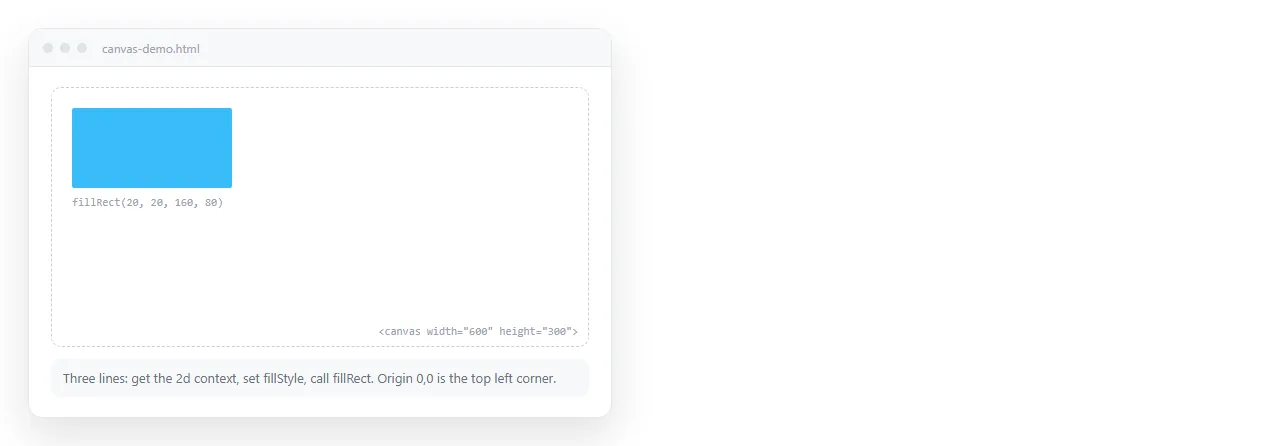
The coordinate system
Origin is the top left. X increases to the right, Y increases downward. Units are bitmap pixels, which are not necessarily CSS pixels, and that gap is the next section.
Everything is drawn in the order you call it. A later shape covers an earlier one. There is no z-index and no way to reorder afterwards.
The sizing trap
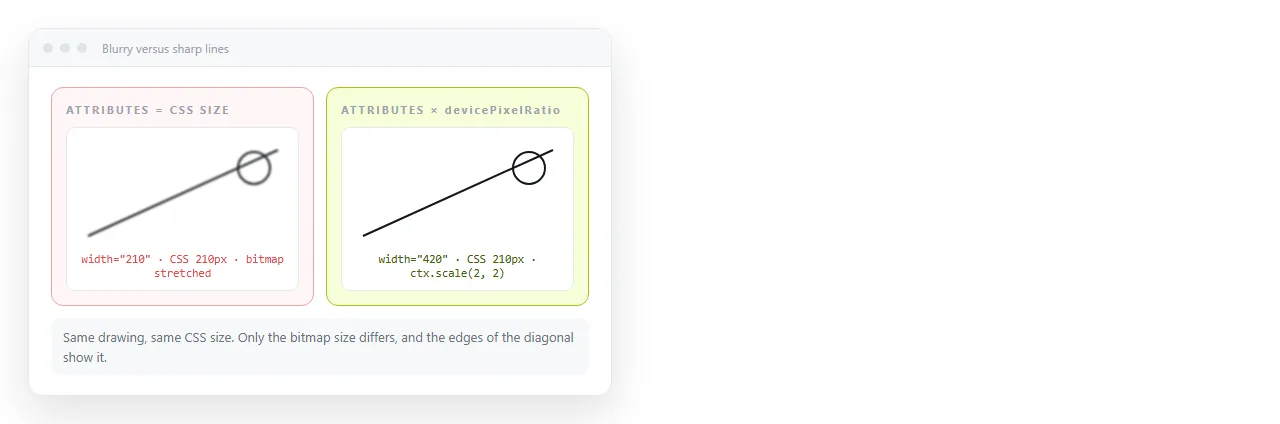
A canvas has two sizes. The width and height attributes set the bitmap. CSS sets the display box. If they disagree the bitmap is stretched, and text and lines go soft.
canvas { width: 600px; height: 300px; } /* display size */
<canvas width="600" height="300"></canvas> <!-- bitmap size -->
Those match, so it is sharp on a standard display. On a screen with devicePixelRatio of 2 it is still soft, because one CSS pixel is two device pixels.
function fit(canvas) {
  const dpr = window.devicePixelRatio || 1;
  const rect = canvas.getBoundingClientRect();
  canvas.width  = Math.round(rect.width  * dpr);
  canvas.height = Math.round(rect.height * dpr);
  const ctx = canvas.getContext('2d');
  ctx.scale(dpr, dpr);
  return ctx;
}
After scale, you keep writing coordinates in CSS pixels and the browser handles the rest. Note that setting width or height clears the canvas, so call this before you draw, not after.
The methods worth memorising
| Call | Draws |
|---|---|
fillRect(x, y, w, h) |
A filled rectangle, no path needed |
strokeRect(x, y, w, h) |
Its outline |
clearRect(x, y, w, h) |
Erases back to transparent |
beginPath() then moveTo, lineTo |
A line or polygon, then stroke() |
arc(x, y, r, 0, Math.PI * 2) |
A full circle, then fill() |
fillText(s, x, y) |
Text at a baseline point |
drawImage(img, x, y) |
An image, once it has loaded |
Two rules behind that table. A path is not visible until stroke() or fill() is called. And beginPath() starts a new one, without which the previous path is re stroked every time, which is why lines sometimes darken as you draw.
A small complete example
const ctx = fit(document.querySelector('#chart'));

ctx.strokeStyle = '#475569';
ctx.lineWidth = 1;
ctx.beginPath();
ctx.moveTo(40, 10);
ctx.lineTo(40, 260);
ctx.lineTo(580, 260);
ctx.stroke();

const data = [40, 90, 60, 140, 110, 180];
ctx.strokeStyle = '#38bdf8';
ctx.lineWidth = 2;
ctx.beginPath();
data.forEach((v, i) => {
  const x = 60 + i * 100;
  const y = 260 - v;
  i === 0 ? ctx.moveTo(x, y) : ctx.lineTo(x, y);
});
ctx.stroke();

ctx.fillStyle = '#e2e8f0';
ctx.font = '12px system-ui, sans-serif';
ctx.textAlign = 'center';
data.forEach((v, i) => ctx.fillText(String(v), 60 + i * 100, 250 - v));
font takes a CSS font shorthand string, and the size must be included or the property is ignored. textAlign and textBaseline save you from measuring.
Lines that look one pixel off
Canvas strokes straddle the coordinate. A 1px line at y = 100 covers half of 99 and half of 100, and the browser blends it across both.
Offset by half a pixel for crisp thin lines:
ctx.beginPath();
ctx.moveTo(40.5, 100.5);
ctx.lineTo(580.5, 100.5);
ctx.stroke();
Thick lines and fills do not need this. It matters for grid rules and borders.
The same idea applies to text. Rounding the baseline coordinate to a whole number keeps small labels from being rendered across two rows of pixels, which is what makes canvas text look muddier than the HTML beside it.
Layering without a z-index
Drawing order is the only stacking control there is. Structure the render function to reflect that.
- Background fill or clear.
- Grid and axes.
- Data, in whatever order they should overlap.
- Labels and annotations.
- Hover or selection highlights, last so nothing covers them.
Written as five small functions called in order, the file stays readable and a change to one layer cannot disturb another.
Canvas keeps pixels, not shapes
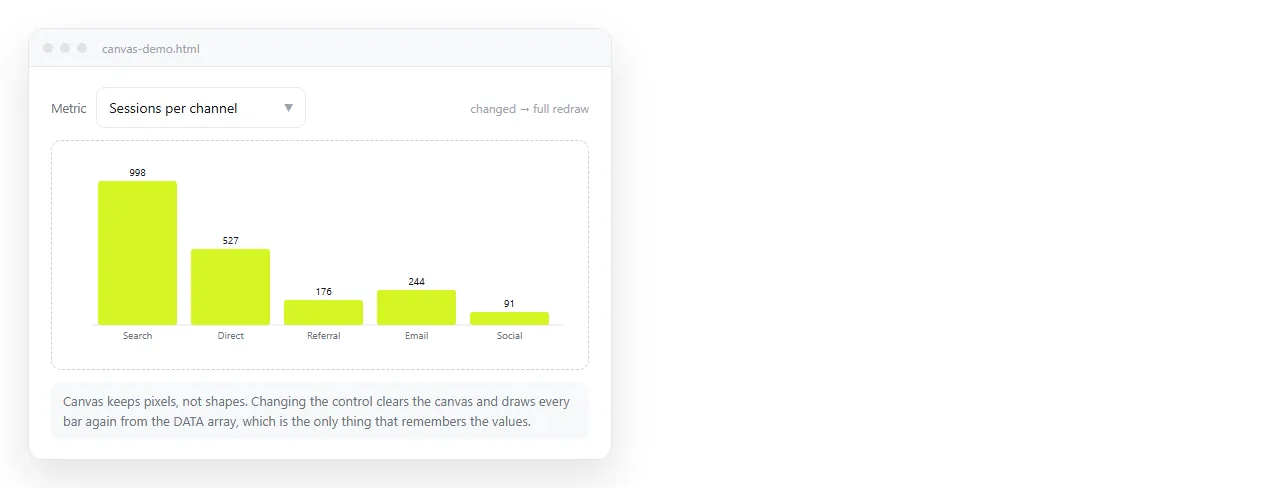
Once drawn, a rectangle is not an object. You cannot move it, restyle it, or attach a click handler to it. To change anything you clear and redraw from your own data.
function render(state) {
  ctx.clearRect(0, 0, canvas.width, canvas.height);
  // draw everything from state
}
That function is also what zoom and pan needs, since both are transforms applied before a full redraw. If you want selectable, hoverable, printable shapes instead, SVG stores elements and canvas does not. Canvas to SVG covers going the other way.
Styles that persist and how to contain them
The context is stateful. Set fillStyle once and every later fill uses it until something changes it, including code somewhere else in the file.
save() and restore() push and pop the whole style and transform state, which keeps a helper function from leaking settings into its caller.
function drawBadge(ctx, x, y) {
  ctx.save();
  ctx.translate(x, y);
  ctx.fillStyle = '#f59e0b';
  ctx.globalAlpha = 0.9;
  ctx.fillRect(0, 0, 60, 20);
  ctx.restore();
}
Without the pair, the caller's next fill is amber at ninety percent opacity and the bug is hard to locate, because the cause is in a function that appeared to finish cleanly.
translate inside the save block is also the cleanest way to draw a repeated component. Write it once at the origin and move the origin for each copy.
Waiting for images
drawImage silently does nothing if the image has not loaded. This is the second most common cause of a blank canvas after the script running too early.
const img = new Image();
img.onload = () => ctx.drawImage(img, 0, 0, 200, 120);
img.src = 'logo.png';
Set src after onload, not before, or a cached image can fire the event before the handler exists. If the image comes from another domain, reading pixels back with getImageData or toDataURL will fail unless CORS headers allow it.
Sharing a canvas page
A canvas is a script result, so it draws nothing in a screenshot heavy workflow and nothing in a PDF export at full fidelity. Send the page, not a picture of it.
Paste the HTML into a NOS document and it renders with scripts running, so the canvas draws for the reader exactly as it does for you. Copy the share link and send that.
If you need a still image after all, HTML to image captures the rendered page at the size you ask for.