A particle effect in HTML is a <canvas> and a loop. Each particle is a small object with a position, a velocity and an age. Every frame the loop moves each one a little, draws it, and throws it away when it gets too old.
Try it. Drag on the dark area to move the fountain, and change the spawn rate and gravity below it.
<!doctype html>
<html lang="en">
<head>
<meta charset="utf-8">
<meta name="viewport" content="width=device-width, initial-scale=1">
<title>Particle fountain</title>
<style>
  body { margin: 0; font-family: system-ui, sans-serif; background: #0f172a; color: #e2e8f0; }
  canvas { display: block; width: 100%; height: 300px; touch-action: none; cursor: crosshair; }
  .controls { display: flex; flex-wrap: wrap; gap: 8px 18px; align-items: center; padding: 10px 14px; font-size: 14px; background: #111827; }
  label { display: flex; align-items: center; gap: 6px; }
  input[type=range] { width: 110px; }
  output { min-width: 3ch; font-variant-numeric: tabular-nums; color: #fbbf24; }
</style>
</head>
<body>
<canvas id="c"></canvas>
<div class="controls">
  <label>Per second <input id="rate" type="range" min="10" max="600" value="150"><output id="rateOut">150</output></label>
  <label>Gravity <input id="grav" type="range" min="0" max="1200" value="500"><output id="gravOut">500</output></label>
  <span>Alive: <output id="alive">0</output></span>
</div>

<script>
  const canvas = document.getElementById('c');
  const ctx = canvas.getContext('2d');
  const rate = document.getElementById('rate'), grav = document.getElementById('grav');
  const particles = [];
  const emitter = { x: 0, y: 0 };

  // Match the drawing buffer to the CSS size times devicePixelRatio (sharp on phones)
  function resize() {
    const dpr = window.devicePixelRatio || 1;
    canvas.width = Math.round(canvas.clientWidth * dpr);
    canvas.height = Math.round(canvas.clientHeight * dpr);
    ctx.setTransform(dpr, 0, 0, dpr, 0, 0);  // draw in CSS pixels
    emitter.x = canvas.clientWidth / 2;
    emitter.y = canvas.clientHeight - 20;
  }
  new ResizeObserver(resize).observe(canvas);

  // Press or drag on the canvas to move the emitter
  canvas.addEventListener('pointermove', (e) => {
    if (e.buttons || e.pointerType === 'touch') { emitter.x = e.offsetX; emitter.y = e.offsetY; }
  });
  canvas.addEventListener('pointerdown', (e) => { emitter.x = e.offsetX; emitter.y = e.offsetY; });

  function spawn() {
    const angle = -Math.PI / 2 + (Math.random() - 0.5) * 0.6;  // mostly upward
    const speed = 250 + Math.random() * 150;                   // CSS px per second
    particles.push({
      x: emitter.x, y: emitter.y,
      vx: Math.cos(angle) * speed, vy: Math.sin(angle) * speed,
      life: 0, maxLife: 1.2 + Math.random() * 0.8,             // seconds
      size: 2 + Math.random() * 3,
      hue: 30 + Math.random() * 30
    });
  }

  let last = performance.now(), debt = 0;
  function frame(now) {
    const dt = Math.min((now - last) / 1000, 0.05);  // seconds, capped after a long pause
    last = now;

    // Spawn by time, not by frame, so 60 Hz and 120 Hz screens look the same
    debt += rate.value * dt;
    while (debt >= 1) { spawn(); debt--; }

    ctx.clearRect(0, 0, canvas.clientWidth, canvas.clientHeight);
    for (let i = particles.length - 1; i >= 0; i--) {
      const p = particles[i];
      p.life += dt;
      if (p.life >= p.maxLife) { particles.splice(i, 1); continue; }  // remove dead particles
      p.vy += grav.value * dt;   // gravity changes velocity
      p.x += p.vx * dt;          // velocity changes position
      p.y += p.vy * dt;
      ctx.globalAlpha = 1 - p.life / p.maxLife;  // fade out over its life
      ctx.fillStyle = `hsl(${p.hue} 95% 60%)`;
      ctx.beginPath();
      ctx.arc(p.x, p.y, p.size, 0, Math.PI * 2);
      ctx.fill();
    }
    ctx.globalAlpha = 1;

    document.getElementById('alive').value = particles.length;
    requestAnimationFrame(frame);
  }
  requestAnimationFrame(frame);

  rate.addEventListener('input', () => document.getElementById('rateOut').value = rate.value);
  grav.addEventListener('input', () => document.getElementById('gravOut').value = grav.value);
</script>
</body>
</html>
There is no library in that example. It uses the 2D canvas context, requestAnimationFrame and plain arrays. The rest of this guide goes through its parts, then adds lines between particles and a confetti burst.
What a particle is
A particle is only data. The canvas does not remember it; it just holds pixels. So each particle lives in an array as an ordinary object:
particles.push({
  x: 200, y: 280,          // position, CSS px
  vx: 40, vy: -320,        // velocity, px per second
  life: 0, maxLife: 1.5,   // age and lifespan, seconds
  size: 3, hue: 40         // how it looks
});
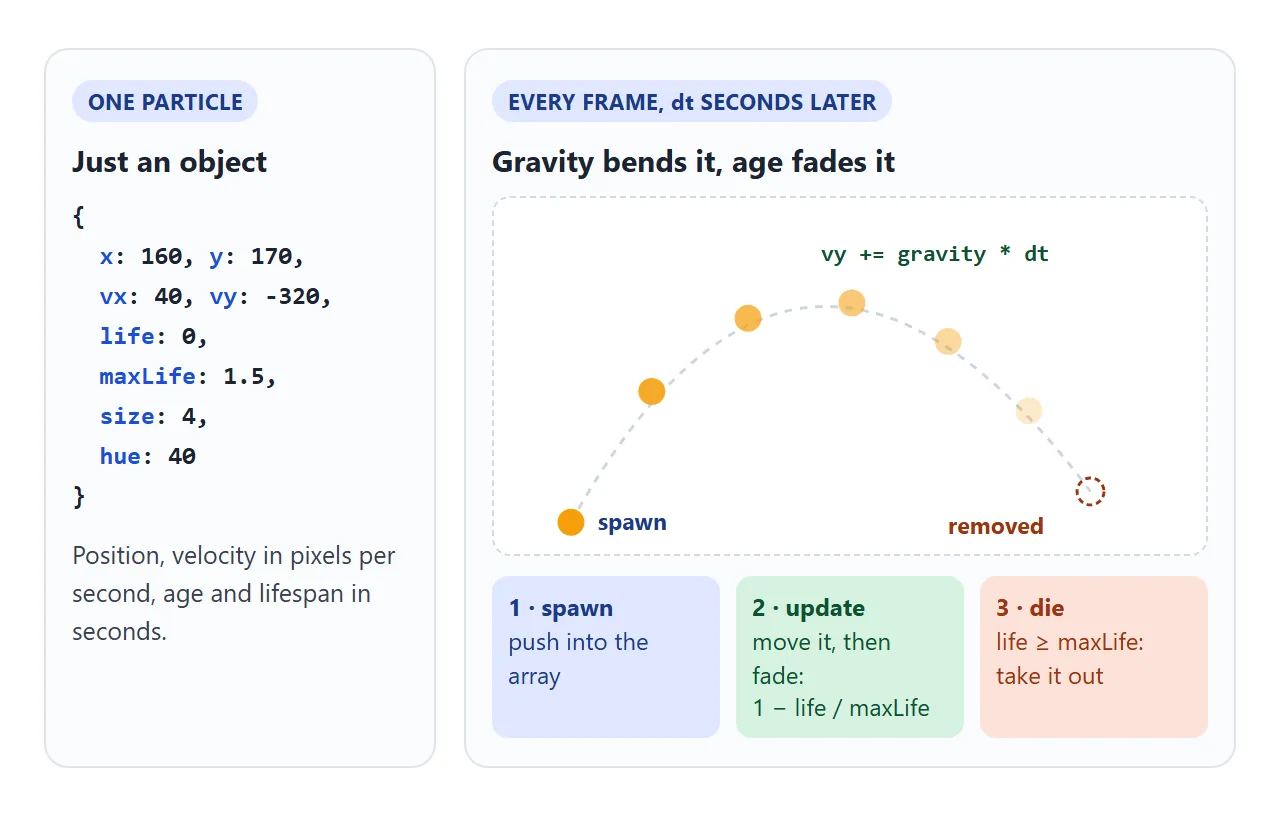
Spawning can happen at a fixed point, at the pointer, or at an element on the page. The fountain uses a point that follows the pointer while you press. The confetti below uses the centre of a button.
The loop: requestAnimationFrame and delta time
requestAnimationFrame calls your function before the next repaint, and passes it a timestamp in milliseconds. It usually runs at the display's refresh rate, so a 120 Hz screen gets twice as many calls as a 60 Hz one.
That is why every speed in the examples is per second, not per frame. Each frame works out how much time has passed and scales the movement by it:
let last = performance.now();
function frame(now) {
  const dt = Math.min((now - last) / 1000, 0.05);  // seconds, capped
  last = now;
  for (const p of particles) {
    p.x += p.vx * dt;
    p.y += p.vy * dt;
  }
  draw();
  requestAnimationFrame(frame);
}
requestAnimationFrame(frame);
The cap stops a long pause, such as a background tab, from turning into one giant jump. requestAnimationFrame in JavaScript covers the loop itself in more depth, including pausing and fps counters.
Gravity, friction and fading
Forces change velocity, and velocity changes position. Gravity is a constant added to vy every second. Friction, or air drag, shrinks both velocity parts a little:
p.vy += gravity * dt;              // e.g. gravity = 500 px/s²
p.vx *= Math.pow(0.35, dt);        // keeps 35% of its speed per second
p.vy *= Math.pow(0.35, dt);
ctx.globalAlpha = 1 - p.life / p.maxLife;   // 1 when born, 0 when it dies
A factor such as p.vx *= 0.98 per frame looks similar, but it slows particles faster on a faster screen. Raising a factor to the power dt gives the same slowdown per second at any refresh rate.
Fading with globalAlpha is the cheapest way to make a particle disappear gently. Reset it to 1 after the loop, because it stays set for every later drawing call.
Removing dead particles
If the loop only adds particles, the array grows forever. Finished particles become invisible, but they are still updated every frame and still hold memory.
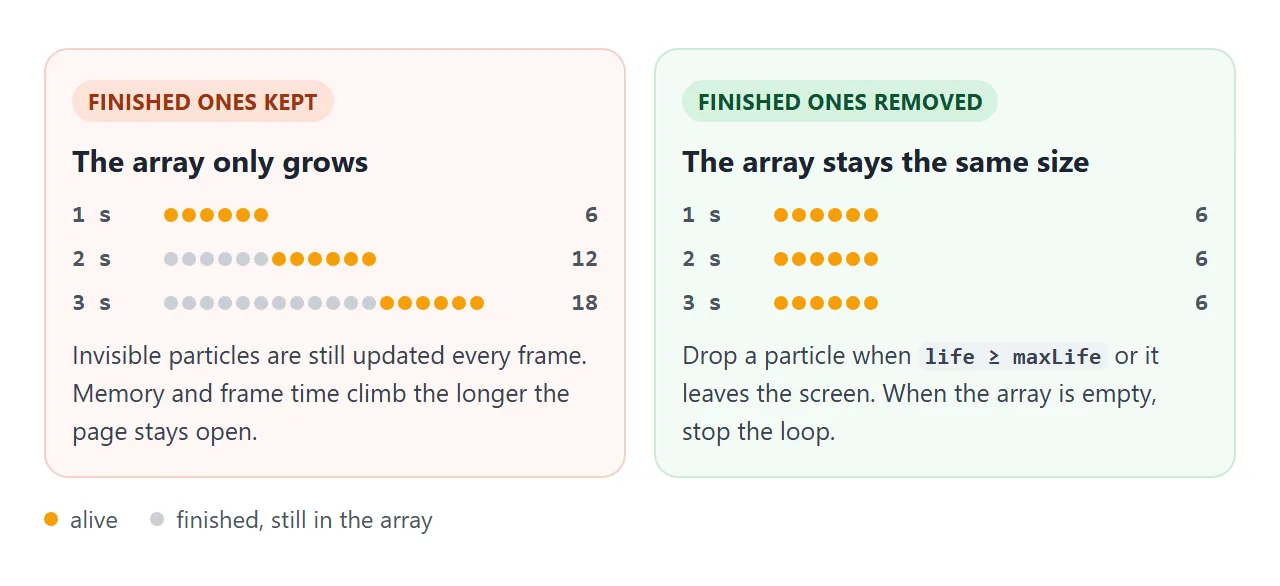
Two common ways to remove them:
- Loop backwards and
splicea particle out whenlife >= maxLife. Going backwards keeps the index correct after a removal. - Or rebuild the array once per frame with
particles = particles.filter(p => p.life < p.maxLife).
Also drop particles that have left the visible area for good. For one-off effects such as confetti, stop calling requestAnimationFrame when the array is empty, so an idle page does no work at all.
Lines between nearby particles
The "network" background is the same loop plus one extra step: for every pair of dots closer than some distance, draw a line whose opacity falls as the gap grows.
Move the pointer over it to push the dots away and link them to the pointer.
<!doctype html>
<html lang="en">
<head>
<meta charset="utf-8">
<meta name="viewport" content="width=device-width, initial-scale=1">
<title>Particle network background</title>
<style>
  body { margin: 0; font-family: system-ui, sans-serif; background: #0b1020; color: #e2e8f0; }
  .hero { position: relative; height: 330px; overflow: hidden; }
  .hero canvas { position: absolute; inset: 0; width: 100%; height: 100%; }
  .hero h1 { position: relative; margin: 0; padding: 120px 20px 0; text-align: center; font-size: 26px; pointer-events: none; }
  .stats { position: absolute; left: 10px; top: 10px; font: 12px/1.4 ui-monospace, Consolas, monospace; background: rgba(0,0,0,.55); padding: 6px 8px; border-radius: 6px; }
  .controls { display: flex; gap: 10px; align-items: center; padding: 10px 14px; font-size: 14px; background: #111827; }
  output { color: #7dd3fc; font-variant-numeric: tabular-nums; }
</style>
</head>
<body>
<div class="hero">
  <canvas id="c"></canvas>
  <h1>Move the pointer here</h1>
  <div class="stats" id="stats">fps -</div>
</div>
<div class="controls">
  <label>Dots <input id="n" type="range" min="20" max="400" value="80"></label> <output id="nOut">80</output>
</div>

<script>
  const canvas = document.getElementById('c');
  const ctx = canvas.getContext('2d');
  const LINK = 110;                 // max distance for a line, CSS px
  const pointer = { x: -9999, y: -9999 };
  let dots = [], w = 0, h = 0;

  function resize() {
    const dpr = window.devicePixelRatio || 1;
    w = canvas.clientWidth; h = canvas.clientHeight;
    canvas.width = Math.round(w * dpr);
    canvas.height = Math.round(h * dpr);
    ctx.setTransform(dpr, 0, 0, dpr, 0, 0);
  }
  new ResizeObserver(resize).observe(canvas);
  resize();

  function setCount(n) {
    while (dots.length < n) dots.push({
      x: Math.random() * w, y: Math.random() * h,
      vx: (Math.random() - 0.5) * 40, vy: (Math.random() - 0.5) * 40, size: 1.5 + Math.random() * 1.5
    });
    dots.length = n;
  }
  const slider = document.getElementById('n');
  slider.addEventListener('input', () => { setCount(+slider.value); document.getElementById('nOut').value = slider.value; });
  setCount(+slider.value);

  const hero = canvas.parentElement;
  hero.addEventListener('pointermove', (e) => { const r = canvas.getBoundingClientRect(); pointer.x = e.clientX - r.left; pointer.y = e.clientY - r.top; });
  hero.addEventListener('pointerleave', () => { pointer.x = pointer.y = -9999; });

  let last = performance.now(), frames = 0, fpsStart = last, fps = 0;
  function frame(now) {
    const dt = Math.min((now - last) / 1000, 0.05);
    last = now;
    ctx.clearRect(0, 0, w, h);

    for (const d of dots) {
      // gentle push away from the pointer
      const px = d.x - pointer.x, py = d.y - pointer.y, pd = px * px + py * py;
      if (pd < 100 * 100 && pd > 1) { const dist = Math.sqrt(pd), f = (100 - dist) * 30 * dt; d.vx += px / dist * f; d.vy += py / dist * f; }
      d.vx *= 1 - 0.8 * dt; d.vy *= 1 - 0.8 * dt;         // friction
      d.vx += (Math.random() - 0.5) * 20 * dt; d.vy += (Math.random() - 0.5) * 20 * dt; // drift
      d.x += d.vx * dt; d.y += d.vy * dt;
      if (d.x < 0 || d.x > w) { d.vx *= -1; d.x = Math.max(0, Math.min(w, d.x)); }
      if (d.y < 0 || d.y > h) { d.vy *= -1; d.y = Math.max(0, Math.min(h, d.y)); }
    }

    // Every pair once: n * (n - 1) / 2 distance checks per frame
    let lines = 0;
    ctx.lineWidth = 1;
    for (let i = 0; i < dots.length; i++) {
      for (let j = i + 1; j < dots.length; j++) {
        const dx = dots[i].x - dots[j].x, dy = dots[i].y - dots[j].y;
        const d2 = dx * dx + dy * dy;           // squared: no Math.sqrt for far pairs
        if (d2 > LINK * LINK) continue;
        ctx.strokeStyle = `rgba(125, 211, 252, ${1 - Math.sqrt(d2) / LINK})`;
        ctx.beginPath(); ctx.moveTo(dots[i].x, dots[i].y); ctx.lineTo(dots[j].x, dots[j].y); ctx.stroke();
        lines++;
      }
    }
    // The pointer is one more point: link it to every dot in range
    ctx.strokeStyle = 'rgba(251, 191, 36, .6)';
    for (const d of dots) {
      if ((d.x - pointer.x) ** 2 + (d.y - pointer.y) ** 2 > LINK * LINK) continue;
      ctx.beginPath(); ctx.moveTo(pointer.x, pointer.y); ctx.lineTo(d.x, d.y); ctx.stroke();
    }
    ctx.fillStyle = '#e0f2fe';
    for (const d of dots) { ctx.beginPath(); ctx.arc(d.x, d.y, d.size, 0, Math.PI * 2); ctx.fill(); }

    frames++;  // frames counted over each half second
    if (now - fpsStart >= 500) { fps = Math.round(frames * 1000 / (now - fpsStart)); frames = 0; fpsStart = now; }
    const pairs = dots.length * (dots.length - 1) / 2;
    document.getElementById('stats').textContent = `fps ${fps} | dots ${dots.length} | pairs checked ${pairs} | lines ${lines}`;
    raf = requestAnimationFrame(frame);
  }

  // Stop the loop while the tab is hidden, and restart without a time jump
  let raf = requestAnimationFrame(frame);
  document.addEventListener('visibilitychange', () => {
    if (document.hidden) { cancelAnimationFrame(raf); }
    else { last = fpsStart = performance.now(); frames = 0; raf = requestAnimationFrame(frame); }
  });
</script>
</body>
</html>
Checking every pair means n × (n − 1) / 2 distance checks per frame. That grows with the square of the dot count, often written O(n²).
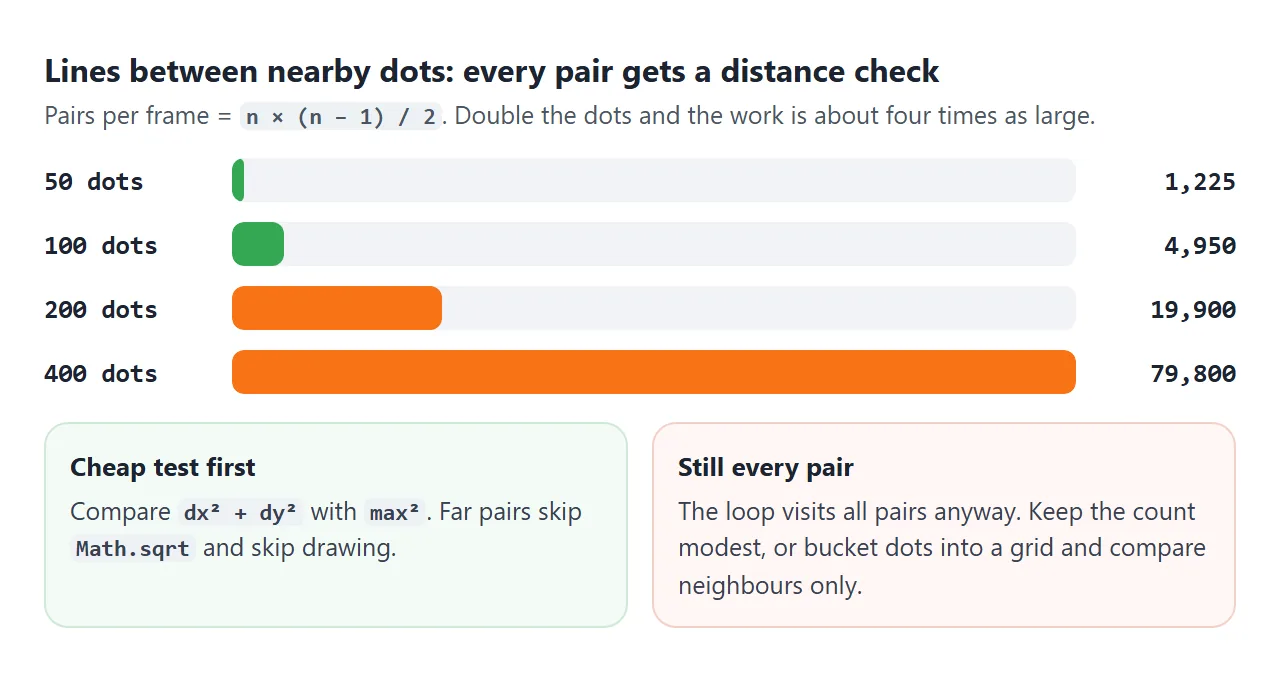
| Dots | Pair checks per frame |
|---|---|
| 50 | 1,225 |
| 100 | 4,950 |
| 200 | 19,900 |
| 400 | 79,800 |
Two habits keep it affordable. Compare squared distances, dx * dx + dy * dy against max * max, so far pairs skip Math.sqrt.
And keep the count modest, or scale it with the canvas area. For much larger counts, sort the dots into grid cells and compare only neighbouring cells.
A sharp canvas that follows its box
A canvas has two sizes: the pixel buffer set by width and height, and the box set by CSS. If the buffer is smaller than the box times devicePixelRatio, particles look soft on phones and high-density screens.
function resize() {
  const dpr = window.devicePixelRatio || 1;
  canvas.width = Math.round(canvas.clientWidth * dpr);
  canvas.height = Math.round(canvas.clientHeight * dpr);
  ctx.setTransform(dpr, 0, 0, dpr, 0, 0);   // keep drawing in CSS px
}
new ResizeObserver(resize).observe(canvas);
Setting width or height clears the canvas and resets the context, including its transform. That is why setTransform runs inside resize, every time.
A ResizeObserver catches size changes that do not come from the window, such as a sidebar opening. HTML canvas blurry explains the two sizes in detail.
Pause when hidden, and respect reduced motion
Browsers may pause requestAnimationFrame in a background tab. You can also stop the loop yourself on visibilitychange, and reset the timestamp when the page comes back:
document.addEventListener('visibilitychange', () => {
  if (document.hidden) cancelAnimationFrame(raf);
  else { last = performance.now(); raf = requestAnimationFrame(frame); }
});
Some people set their system to reduce motion. The prefers-reduced-motion media query reports it, and matchMedia reads it from JavaScript. For a decorative background, draw one still frame or skip it. For confetti, show the success message without the burst.
A finished example: confetti on success
This is the moment particles are most often wanted: a burst when a form is sent or an order completes. Press the button.
<!doctype html>
<html lang="en">
<head>
<meta charset="utf-8">
<meta name="viewport" content="width=device-width, initial-scale=1">
<title>Confetti burst</title>
<style>
  body { margin: 0; min-height: 100vh; display: grid; place-items: center; font-family: system-ui, sans-serif; background: #f4f5f7; color: #1f2937; }
  .card { width: min(320px, 86vw); padding: 22px; border-radius: 14px; background: #fff; box-shadow: 0 6px 20px rgba(0,0,0,.1); text-align: center; }
  button { font: 600 16px system-ui, sans-serif; padding: 12px 22px; border: 0; border-radius: 10px; background: #16a34a; color: #fff; cursor: pointer; }
  button:active { transform: scale(.97); }
  .msg { height: 22px; margin-top: 12px; font-weight: 600; color: #15803d; }
  .small { font-size: 13px; color: #6b7280; margin-top: 10px; }
  /* The canvas covers the page but never blocks clicks */
  #fx { position: fixed; inset: 0; width: 100%; height: 100%; pointer-events: none; }
</style>
</head>
<body>
<div class="card">
  <p style="margin-top:0">Order #1042 is ready to send.</p>
  <button id="go">Complete order</button>
  <div class="msg" id="msg" aria-live="polite"></div>
  <div class="small">Live particles: <span id="count">0</span> · loop <span id="loop">stopped</span></div>
  <label class="small" style="display:block"><input type="checkbox" id="rm"> Pretend reduced motion is on</label>
</div>
<canvas id="fx"></canvas>

<script>
  const canvas = document.getElementById('fx');
  const ctx = canvas.getContext('2d');
  const colors = ['#f43f5e', '#f59e0b', '#10b981', '#3b82f6', '#a855f7'];
  const reduce = matchMedia('(prefers-reduced-motion: reduce)');
  let pieces = [], running = false, last = 0;

  function resize() {
    const dpr = window.devicePixelRatio || 1;
    canvas.width = Math.round(innerWidth * dpr);
    canvas.height = Math.round(innerHeight * dpr);
    ctx.setTransform(dpr, 0, 0, dpr, 0, 0);
  }
  addEventListener('resize', resize);
  resize();

  function burst(x, y, n) {
    for (let i = 0; i < n; i++) {
      const a = Math.random() * Math.PI * 2, s = 200 + Math.random() * 450;
      pieces.push({
        x, y, vx: Math.cos(a) * s, vy: Math.sin(a) * s - 250,
        w: 6 + Math.random() * 6, h: 4 + Math.random() * 4,
        rot: Math.random() * 6, spin: (Math.random() - 0.5) * 12,
        life: 0, maxLife: 1.6 + Math.random() * 0.8,
        color: colors[i % colors.length]
      });
    }
    if (!running) { running = true; last = performance.now(); requestAnimationFrame(tick); }
  }

  function tick(now) {
    const dt = Math.min((now - last) / 1000, 0.05);
    last = now;
    ctx.clearRect(0, 0, innerWidth, innerHeight);

    for (const p of pieces) {
      p.life += dt;
      p.vy += 900 * dt;                  // gravity
      p.vx *= Math.pow(0.35, dt);        // air drag, frame-rate independent
      p.vy *= Math.pow(0.35, dt);
      p.x += p.vx * dt; p.y += p.vy * dt;
      p.rot += p.spin * dt;
      ctx.save();
      ctx.globalAlpha = Math.max(0, 1 - Math.max(0, p.life - p.maxLife + 0.5) / 0.5);  // fade in the last half second
      ctx.translate(p.x, p.y); ctx.rotate(p.rot);
      ctx.fillStyle = p.color;
      ctx.fillRect(-p.w / 2, -p.h / 2, p.w, p.h * Math.abs(Math.cos(p.rot * 1.5)));  // flip effect
      ctx.restore();
    }
    // Clean up: keep only pieces that are alive and still on screen
    pieces = pieces.filter(p => p.life < p.maxLife && p.y < innerHeight + 40);

    document.getElementById('count').textContent = pieces.length;
    if (pieces.length) requestAnimationFrame(tick);
    else { running = false; ctx.clearRect(0, 0, innerWidth, innerHeight); }  // nothing left: stop the loop
    document.getElementById('loop').textContent = running ? 'running' : 'stopped';
  }

  document.getElementById('go').addEventListener('click', (e) => {
    const msg = document.getElementById('msg');
    msg.textContent = 'Order complete ✓';
    if (reduce.matches || document.getElementById('rm').checked) return;  // no motion, the message is enough
    const r = e.currentTarget.getBoundingClientRect();
    burst(r.left + r.width / 2, r.top + r.height / 2, 120);
  });
</script>
</body>
</html>
- Over the page, not in the way: the canvas is
position: fixedover the whole page withpointer-events: none, so clicks go through to the content. - Pieces, not dots: each piece is a small rectangle with a rotation and spin. Scaling its height by
Math.cosof the rotation makes it look like it flips. - The message comes first: the text "Order complete" is set before the burst and sits in an
aria-liveregion, so it works with or without motion. - Clean up: pieces are filtered out when they expire or fall off screen, and the loop stops at zero. The live count under the button shows it.
When it does not work
| What you see | Cause | Fix |
|---|---|---|
| Particles look blurry or soft | Canvas buffer smaller than its box times devicePixelRatio |
Size the buffer from clientWidth × dpr and call setTransform |
| Animation runs faster on some screens | Movement is per frame, and refresh rates differ | Speeds in px per second, multiplied by dt |
| Everything jumps after switching tabs | A huge dt after the pause |
Cap dt, or reset last on visibilitychange |
| Slows down as you add particles | Lines check every pair each frame | Fewer dots, squared distances, or a grid |
| Gets slower the longer the page is open | Dead particles never leave the array | splice or filter them out every frame |
| Drawing stretches when the box changes size | Buffer only set once, on load | Resize from a ResizeObserver |
| Everything drawn later is faint | globalAlpha left below 1 |
Reset it after the particle loop, or use save and restore |
| Buttons under the effect stop working | The canvas covers them and takes the clicks | pointer-events: none on the canvas |
Share it as a link
Motion is hard to judge from a screenshot or a video clip. Someone reviewing a confetti moment or a hero background needs to click and move the pointer themselves, ideally on their own phone.
To send the working version, paste the page into a NOS document and choose Create share link. HTML to link walks through it.
The page renders as written and its scripts run, so the people you send it to can press the button and watch the particles themselves. If you change the code later, the same link shows the new version.