requestAnimationFrame(callback) asks the browser to run callback once, just before it paints the next frame. The callback receives a timestamp. Call requestAnimationFrame again inside the callback and you have an animation loop that runs in step with the screen.
The one rule that matters most: move things by elapsed time, not by a fixed step per frame. Try both side by side, then turn on slow frames.
<!doctype html>
<html lang="en">
<head>
<meta charset="utf-8">
<meta name="viewport" content="width=device-width, initial-scale=1">
<title>Frame-based vs time-based motion</title>
<style>
body { margin: 0; padding: 16px; font-family: system-ui, sans-serif; background: #f4f5f7; color: #1d2330; }
.lane { position: relative; height: 44px; margin: 6px 0 2px; border-radius: 22px; background: #fff; box-shadow: inset 0 0 0 1px #e1e4ea; }
.ball { position: absolute; top: 6px; left: 6px; width: 32px; height: 32px; border-radius: 50%; }
#frameBall { background: #ea580c; }
#timeBall { background: #16a34a; }
.label { display: flex; justify-content: space-between; font-size: 14px; margin-top: 12px; }
.label b { font-weight: 600; }
.num { font-variant-numeric: tabular-nums; color: #4b5563; }
.controls { margin-top: 16px; display: flex; flex-wrap: wrap; gap: 10px 18px; align-items: center; font-size: 14px; }
button { font: inherit; padding: 6px 14px; border-radius: 8px; border: 1px solid #c9ced8; background: #fff; cursor: pointer; }
</style>
</head>
<body>
<div class="label"><b>Frame-based: x += 2 per frame</b><span class="num" id="frameOut">0 px</span></div>
<div class="lane"><div class="ball" id="frameBall"></div></div>
<div class="label"><b>Time-based: x += 120 px/s × elapsed</b><span class="num" id="timeOut">0 px</span></div>
<div class="lane"><div class="ball" id="timeBall"></div></div>
<div class="controls">
<label><input type="checkbox" id="slow"> Simulate slow frames (draw 1 in 3)</label>
<button id="reset">Reset</button>
<span class="num" id="fps">- fps</span>
</div>
<script>
const frameBall = document.getElementById('frameBall');
const timeBall = document.getElementById('timeBall');
const slow = document.getElementById('slow');
const SPEED = 120; // pixels per second
let frameDist = 0, timeDist = 0;
let last = null; // timestamp of the last frame we drew
let skip = 0, frames = 0, fpsStart = 0;
function place(ball, dist) {
const track = ball.parentElement.clientWidth - 44; // room for the ball to travel
ball.style.transform = 'translateX(' + (dist % track) + 'px)';
}
function frame(now) {
requestAnimationFrame(frame); // ask for the next frame first
// "slow frames": only draw every third frame, like a busy or slow device
if (slow.checked && (skip++ % 3 !== 0)) return;
if (last === null) last = now;
const dt = (now - last) / 1000; // seconds since the last drawn frame
last = now;
frameDist += 2; // same step, however long the frame took
timeDist += SPEED * dt; // step scaled by the time that passed
place(frameBall, frameDist);
place(timeBall, timeDist);
document.getElementById('frameOut').textContent = Math.round(frameDist) + ' px';
document.getElementById('timeOut').textContent = Math.round(timeDist) + ' px';
frames++; // frames drawn in the last second
if (now - fpsStart >= 1000) {
document.getElementById('fps').textContent = frames + ' fps drawn';
frames = 0; fpsStart = now;
}
}
requestAnimationFrame(frame);
document.getElementById('reset').addEventListener('click', () => {
frameDist = 0; timeDist = 0;
});
</script>
</body>
</html>
The frame rate is not fixed. It usually follows the display's refresh rate, and it drops when the device is busy. Code that assumes 60 frames per second runs at the wrong speed everywhere else.
The smallest loop
function frame(now) {
  // now: milliseconds, same clock as performance.now()
  box.style.transform = 'translateX(' + (now / 10 % 300) + 'px)';
  requestAnimationFrame(frame);   // ask for the next frame
}
requestAnimationFrame(frame);
Three things to notice:
- It runs once. Each call schedules one callback. The loop exists only because the callback requests the next frame.
- Pass the function, not a call.
requestAnimationFrame(frame)hands over the function.requestAnimationFrame(frame())runs it immediately, with no timestamp, and passes its return value, which throws a TypeError. - The timestamp is shared. Every callback that runs in the same frame receives the same
now, so several animations stay in sync.
The timer basics behind setTimeout and setInterval are covered in setTimeout and setInterval. This guide goes further into the frame loop.
Frame-rate independent motion: distance = speed × time
Store every speed in units per second. On each frame, work out how many seconds have passed since the previous frame, and move by speed times that.
let last = null;
function frame(now) {
  if (last === null) last = now;       // first frame: no time has passed
  const dt = (now - last) / 1000;      // seconds since the last frame
  last = now;
  x += 120 * dt;                       // 120 pixels per second
  requestAnimationFrame(frame);
}
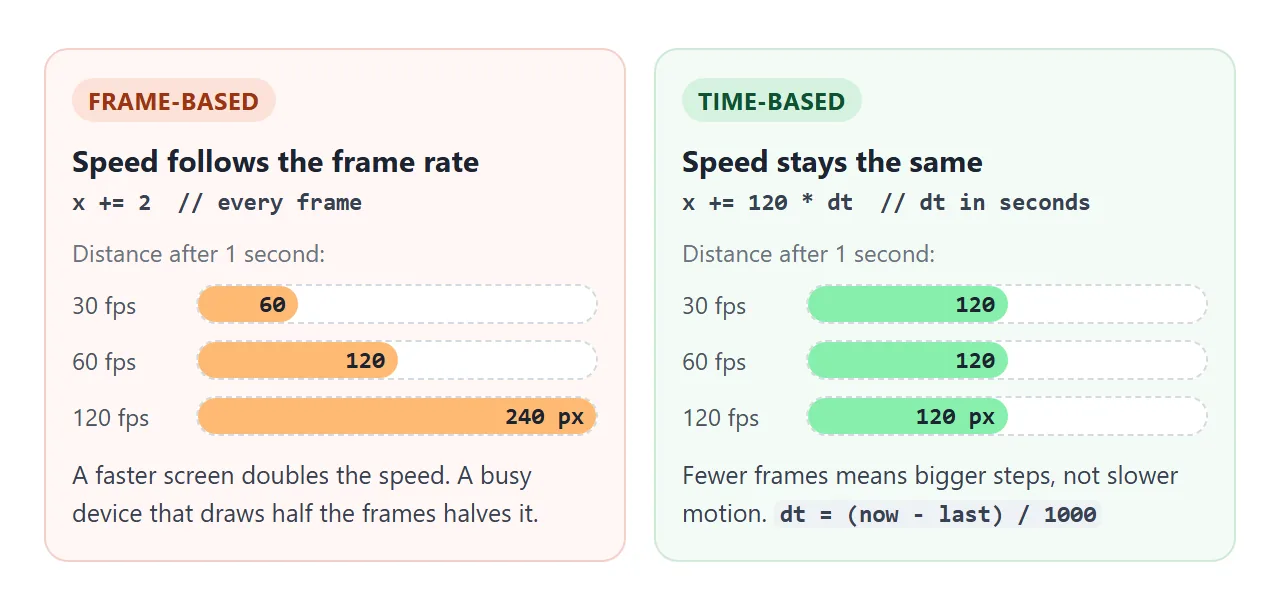
With x += 2 per frame, a 120 Hz screen moves the ball twice as fast as a 60 Hz one.
With x += 120 * dt, a slow frame simply produces a bigger step, and the ball arrives on time. The motion looks less smooth at low frame rates, but the speed is right.
requestAnimationFrame vs setInterval
requestAnimationFrame |
setInterval(fn, 16) |
|
|---|---|---|
| When it runs | Right before the next repaint | On its own timer, whether a repaint is coming or not |
| Rate | Follows the screen, usually its refresh rate | The delay you ask for, at best |
| Argument | A timestamp for the frame | None |
| Hidden tab | Paused or heavily slowed | Keeps running, throttled |
| Stop it | cancelAnimationFrame(id) |
clearInterval(id) |
| Use it for | Anything that moves or redraws every frame | Work on a clock, such as polling or a countdown |
An interval of 16 ms does not line up with a 60 Hz screen. Some frames get two updates and some get none, which shows up as stutter. On a 120 Hz screen it only updates every other frame.
For motion that needs no logic, CSS animations and transitions run without a script at all. If one refuses to move, CSS animation not working lists the usual causes.
Throttle scroll and pointer handlers to one update per frame
Input events can arrive faster than the screen redraws, and several event types can land in the same frame. Doing DOM work in every handler wastes work that never reaches the screen.
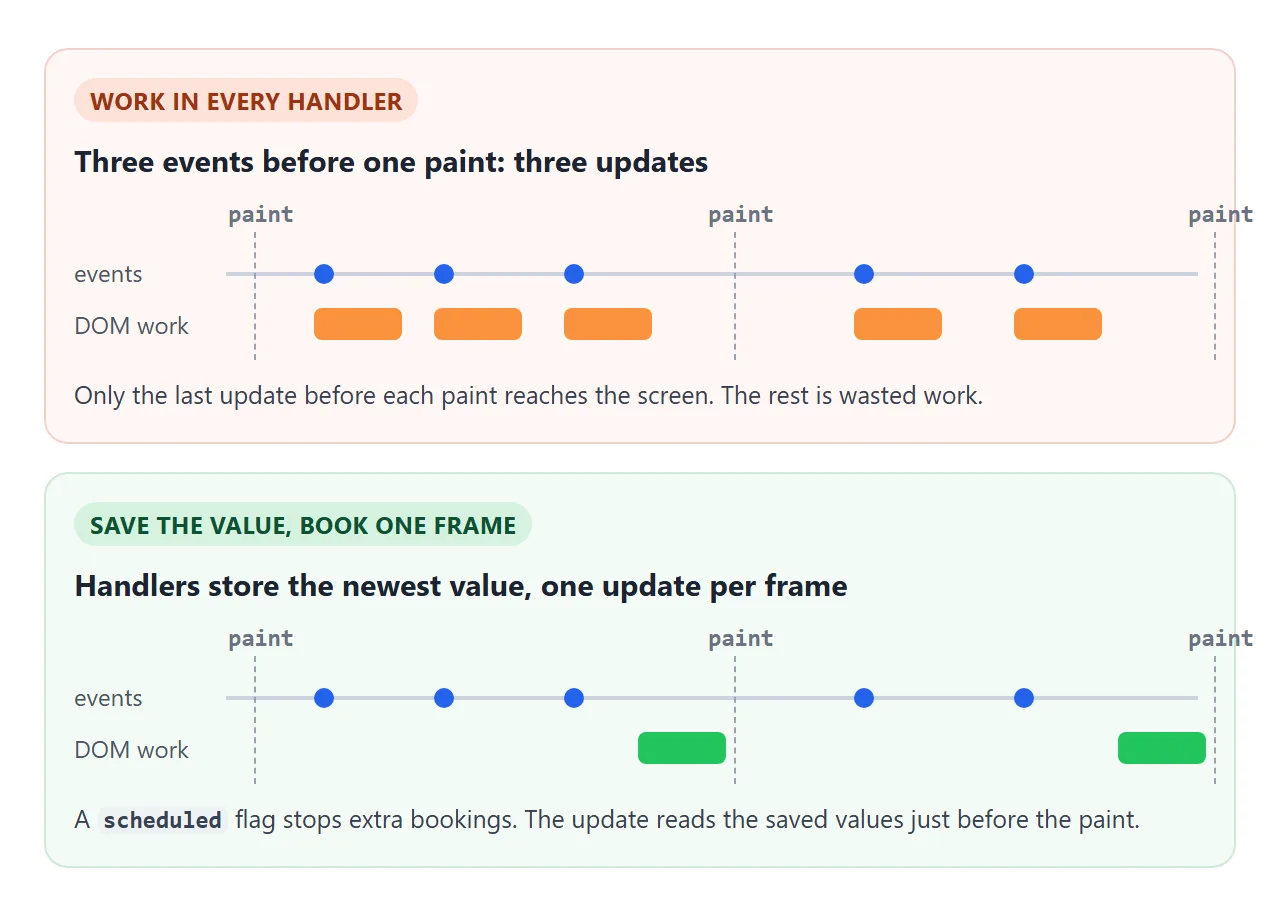
The fix is small. Handlers save the latest values and book one frame. The frame callback does the DOM work and clears the flag.
let scheduled = false;
function onInput(e) {
  latestX = e.clientX;                 // just remember the value
  if (scheduled) return;               // an update is already booked
  scheduled = true;
  requestAnimationFrame(() => {
    scheduled = false;
    dot.style.transform = 'translateX(' + latestX + 'px)';
  });
}
Scroll the list with a mouse wheel below. Each wheel step and each scroll event counts as an event, and the page still updates once per frame.
<!doctype html>
<html lang="en">
<head>
<meta charset="utf-8">
<meta name="viewport" content="width=device-width, initial-scale=1">
<title>One update per frame</title>
<style>
  body { margin: 0; padding: 14px 16px; font-family: system-ui, sans-serif; background: #f4f5f7; color: #1d2330; }
  .wrap { display: grid; grid-template-columns: 1fr 1fr; gap: 12px; }
  .pad, .list { position: relative; height: 200px; border-radius: 12px; background: #fff; box-shadow: inset 0 0 0 1px #e1e4ea; }
  .pad { touch-action: none; overflow: hidden; }
  .pad p, .list p { margin: 10px 12px; font-size: 13px; color: #6b7280; }
  .dot { position: absolute; left: 0; top: 0; width: 18px; height: 18px; margin: -9px 0 0 -9px; border-radius: 50%; background: #2563eb; }
  .list { overflow-y: auto; }
  .list div { margin: 0 12px 8px; padding: 10px; border-radius: 8px; background: #eef1f5; font-size: 13px; }
  .bar { height: 6px; margin-top: 12px; border-radius: 3px; background: #e1e4ea; overflow: hidden; }
  .bar i { display: block; height: 100%; width: 0; background: #16a34a; }
  .stats { display: flex; flex-wrap: wrap; gap: 6px 22px; margin-top: 12px; font-size: 14px; font-variant-numeric: tabular-nums; }
  .stats b { font-weight: 600; }
  button { font: inherit; padding: 4px 12px; border-radius: 8px; border: 1px solid #c9ced8; background: #fff; cursor: pointer; }
  @media (max-width: 420px) { .wrap { grid-template-columns: 1fr; } .pad, .list { height: 120px; } }
</style>
</head>
<body>
<div class="wrap">
  <div class="pad" id="pad"><p>Move the pointer or a finger here</p><div class="dot" id="dot"></div></div>
  <div class="list" id="list"><p>Scroll this list</p></div>
</div>
<div class="bar"><i id="progress"></i></div>
<div class="stats">
  <span>Events: <b id="events">0</b></span>
  <span>Updates (frames): <b id="updates">0</b></span>
  <button id="zero">Reset counts</button>
</div>

<script>
  const pad = document.getElementById('pad');
  const list = document.getElementById('list');
  for (let i = 1; i <= 40; i++) list.insertAdjacentHTML('beforeend', '<div>Row ' + i + '</div>');

  let events = 0, updates = 0;
  let pointerX = 20, pointerY = 60;   // latest input, saved by the handlers
  let scheduled = false;              // is an update already booked for this frame?

  // Handlers only save the newest values and book one update.
  function schedule() {
    events++;
    if (scheduled) return;
    scheduled = true;
    requestAnimationFrame(update);
  }

  pad.addEventListener('pointermove', (e) => {
    const r = pad.getBoundingClientRect();
    pointerX = e.clientX - r.left;
    pointerY = e.clientY - r.top;
    schedule();
  });
  list.addEventListener('scroll', schedule);
  list.addEventListener('wheel', schedule, { passive: true });

  // All the DOM work happens here, at most once per frame.
  function update() {
    scheduled = false;
    updates++;
    const max = list.scrollHeight - list.clientHeight;             // read first
    document.getElementById('dot').style.transform =
      'translate(' + pointerX + 'px,' + pointerY + 'px)';           // then write
    document.getElementById('progress').style.width = (list.scrollTop / max * 100) + '%';
    document.getElementById('events').textContent = events;
    document.getElementById('updates').textContent = updates;
  }
  update();

  document.getElementById('zero').addEventListener('click', () => {
    events = 0; updates = 0;
    document.getElementById('events').textContent = 0;
    document.getElementById('updates').textContent = 0;
  });
</script>
</body>
</html>
Some browsers already deliver scroll and pointer-move events about once per frame. The pattern costs nothing there and still helps when several sources feed one update. Handlers are attached with addEventListener, and the same pattern drives parallax effects.
Avoid layout thrashing: read, then write
Reading a size or position, such as offsetWidth or getBoundingClientRect(), right after changing a style forces the browser to recalculate layout on the spot. Doing that in a loop recalculates it once per element.
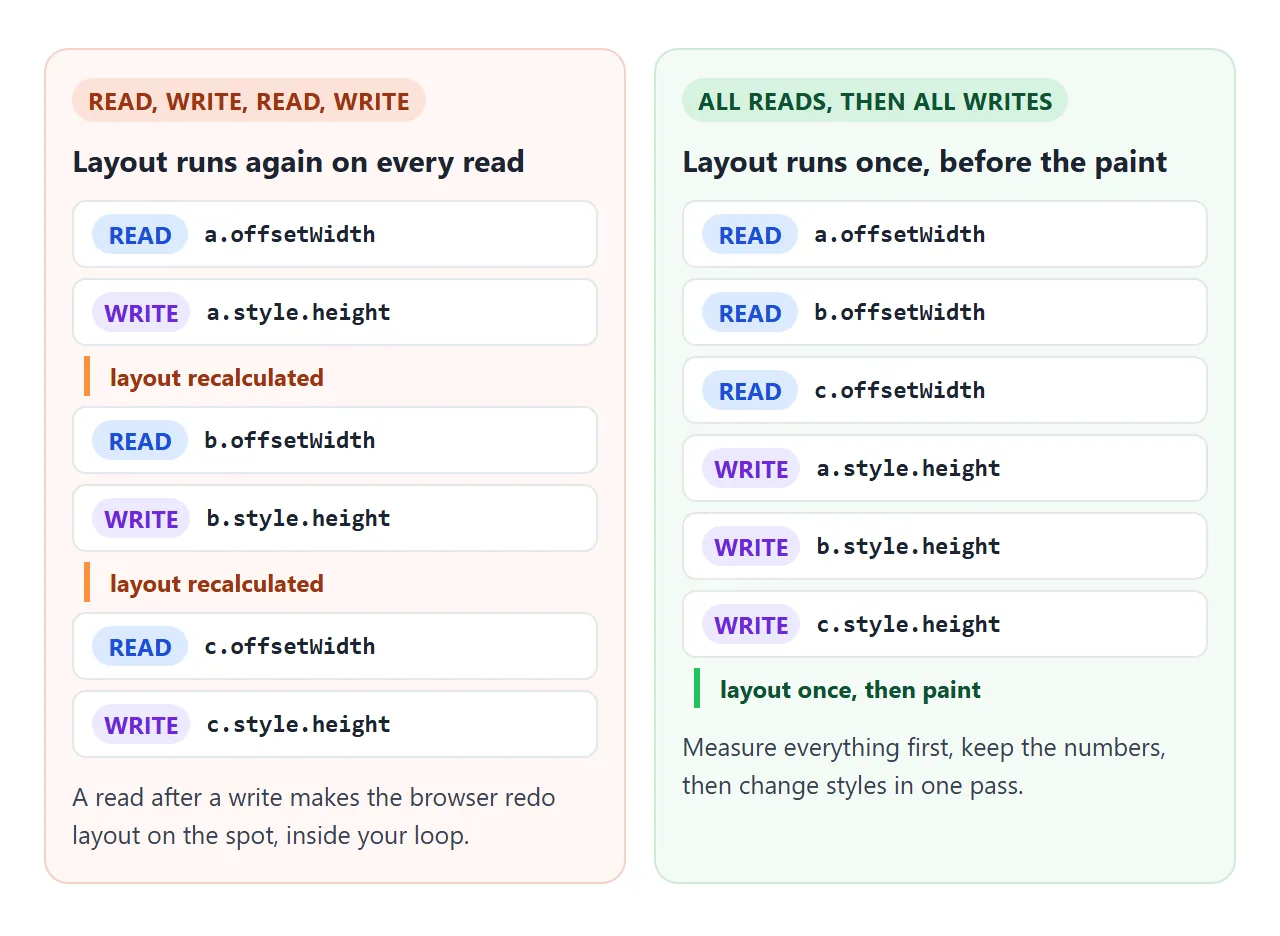
// Slow: each read comes after a write
items.forEach(el => { el.style.height = el.offsetWidth / 2 + 'px'; });

// Better: all reads, then all writes
const widths = items.map(el => el.offsetWidth);
items.forEach((el, i) => { el.style.height = widths[i] / 2 + 'px'; });
Inside a requestAnimationFrame callback, do all measuring first, then change styles. The browser then lays out once before it paints.
A simple game loop with pause, fps and a delta cap
The finished example puts it together on a canvas. Each ball has a speed in pixels per second. The loop updates, draws, counts frames for the fps readout and requests the next frame.
<!doctype html>
<html lang="en">
<head>
<meta charset="utf-8">
<meta name="viewport" content="width=device-width, initial-scale=1">
<title>Bouncing balls game loop</title>
<style>
  body { margin: 0; padding: 12px 16px; font-family: system-ui, sans-serif; background: #f4f5f7; color: #1d2330; }
  canvas { display: block; width: 100%; height: 260px; border-radius: 12px; background: #fff; box-shadow: inset 0 0 0 1px #e1e4ea; }
  .controls { display: flex; flex-wrap: wrap; gap: 8px 14px; align-items: center; margin-top: 12px; font-size: 14px; }
  button { font: inherit; padding: 6px 14px; border-radius: 8px; border: 1px solid #c9ced8; background: #fff; cursor: pointer; }
  .num { font-variant-numeric: tabular-nums; color: #4b5563; }
</style>
</head>
<body>
<canvas id="c"></canvas>
<div class="controls">
  <button id="toggle">Pause</button>
  <button id="away">Pretend the tab was hidden 3 s</button>
  <label><input type="checkbox" id="clamp" checked> Clamp delta to 0.1 s</label>
  <span class="num" id="fps">- fps</span>
</div>

<script>
  const canvas = document.getElementById('c');
  const ctx = canvas.getContext('2d');
  const colors = ['#16a34a', '#2563eb', '#ea580c', '#9333ea', '#0891b2', '#ca8a04'];
  let W = 0, H = 0;

  function resize() {                        // sharp canvas on any screen
    const dpr = window.devicePixelRatio || 1;
    W = canvas.clientWidth; H = canvas.clientHeight;
    canvas.width = W * dpr; canvas.height = H * dpr;
    ctx.setTransform(dpr, 0, 0, dpr, 0, 0);
  }
  resize();
  window.addEventListener('resize', resize);

  // speeds are in pixels per second, not per frame
  const balls = colors.map((color, i) => ({
    x: 30 + i * 40, y: 40 + (i % 3) * 60, r: 14,
    vx: 90 + i * 25, vy: 70 + i * 20, color,
  }));

  let id = 0;          // the id from requestAnimationFrame, needed to cancel
  let last = null;     // timestamp of the previous frame
  let extra = 0;       // demo only: fake time added by the "hidden" button
  let frames = 0, fpsStart = 0;

  function update(dt) {
    for (const b of balls) {
      b.x += b.vx * dt;
      b.y += b.vy * dt;
      // bounce: flip the speed and keep the ball inside the walls
      if (b.x < b.r) { b.x = b.r; b.vx = Math.abs(b.vx); }
      if (b.x > W - b.r) { b.x = W - b.r; b.vx = -Math.abs(b.vx); }
      if (b.y < b.r) { b.y = b.r; b.vy = Math.abs(b.vy); }
      if (b.y > H - b.r) { b.y = H - b.r; b.vy = -Math.abs(b.vy); }
    }
  }

  function draw() {
    ctx.clearRect(0, 0, W, H);
    for (const b of balls) {
      ctx.beginPath();
      ctx.arc(b.x, b.y, b.r, 0, Math.PI * 2);
      ctx.fillStyle = b.color;
      ctx.fill();
    }
  }

  function loop(now) {
    if (last === null) last = now;            // first frame after start or resume
    let dt = (now - last + extra) / 1000;     // seconds since the last frame
    last = now; extra = 0;
    if (document.getElementById('clamp').checked) dt = Math.min(dt, 0.1);

    update(dt);
    draw();

    frames++;
    if (now - fpsStart >= 1000) {
      document.getElementById('fps').textContent = frames + ' fps';
      frames = 0; fpsStart = now;
    }
    id = requestAnimationFrame(loop);         // keep the newest id
  }

  function start() { last = null; id = requestAnimationFrame(loop); }
  function stop() { cancelAnimationFrame(id); id = 0; }

  document.getElementById('toggle').addEventListener('click', (e) => {
    if (id) { stop(); e.target.textContent = 'Resume'; }
    else { start(); e.target.textContent = 'Pause'; }
  });
  document.getElementById('away').addEventListener('click', () => { extra = 3000; });

  start();
</script>
</body>
</html>
let id = 0, last = null;
function loop(now) {
  if (last === null) last = now;
  const dt = Math.min((now - last) / 1000, 0.1);  // cap long gaps
  last = now;
  update(dt);
  draw();
  id = requestAnimationFrame(loop);               // keep the newest id
}
function start() { last = null; id = requestAnimationFrame(loop); }
function stop()  { cancelAnimationFrame(id); id = 0; }
- Pause and resume:
cancelAnimationFrameneeds the id from the latest call, so store it every frame. Resettinglaston resume stops the paused time from counting as one huge frame. - Background tabs: browsers pause or heavily slow
requestAnimationFramein hidden tabs. When the user comes back, the firstdtcan be many seconds. TheMath.mincap turns that into one normal-sized step. - fps readout: count frames and show the count each time a second of timestamps has passed. That is how the "requestAnimationFrame fps" number is usually measured.
- Lower frame rate: to draw at 30 fps, skip callbacks until at least
1000 / 30ms have passed since the last drawn frame. Keep usingdtfor movement.
Drawing on the canvas itself is covered in HTML canvas draw.
When it does not work
| What you see | Cause | Fix |
|---|---|---|
| Animation is faster on one screen and slower on another | Movement is a fixed step per frame | Move by speed × dt |
| TypeError "not of type Function", or "Maximum call stack size exceeded" | requestAnimationFrame(frame()) calls the function instead of passing it |
requestAnimationFrame(frame) |
| The loop runs only one frame | The callback never requests the next frame | Call requestAnimationFrame at the end of the callback |
| The loop never stops | cancelAnimationFrame got an old id, or the loop was started twice |
Store the id every frame, and stop before starting again |
| Things jump after returning to the tab | The first dt includes all the time the tab was hidden |
Cap dt, for example Math.min(dt, 0.1) |
| Stutter and dropped frames | Heavy work inside the callback, or reads and writes mixed | Keep per-frame work small, read first then write, move heavy work out of the loop |
At 60 Hz a frame lasts about 16.7 ms, and the browser still needs part of that for layout and paint. Work that takes longer than the frame pushes the paint back, and frames are skipped.
Share it as a link
An animation is the one thing a screenshot cannot show. An .html attachment may open as plain code on a phone, or not open at all.
To send the working version, paste the page into a NOS document and choose Create share link. HTML to link walks through it.
The page renders as written and its scripts run, so the people you send it to see the loop running and can press pause themselves. If you change the code later, the same link shows the new version.