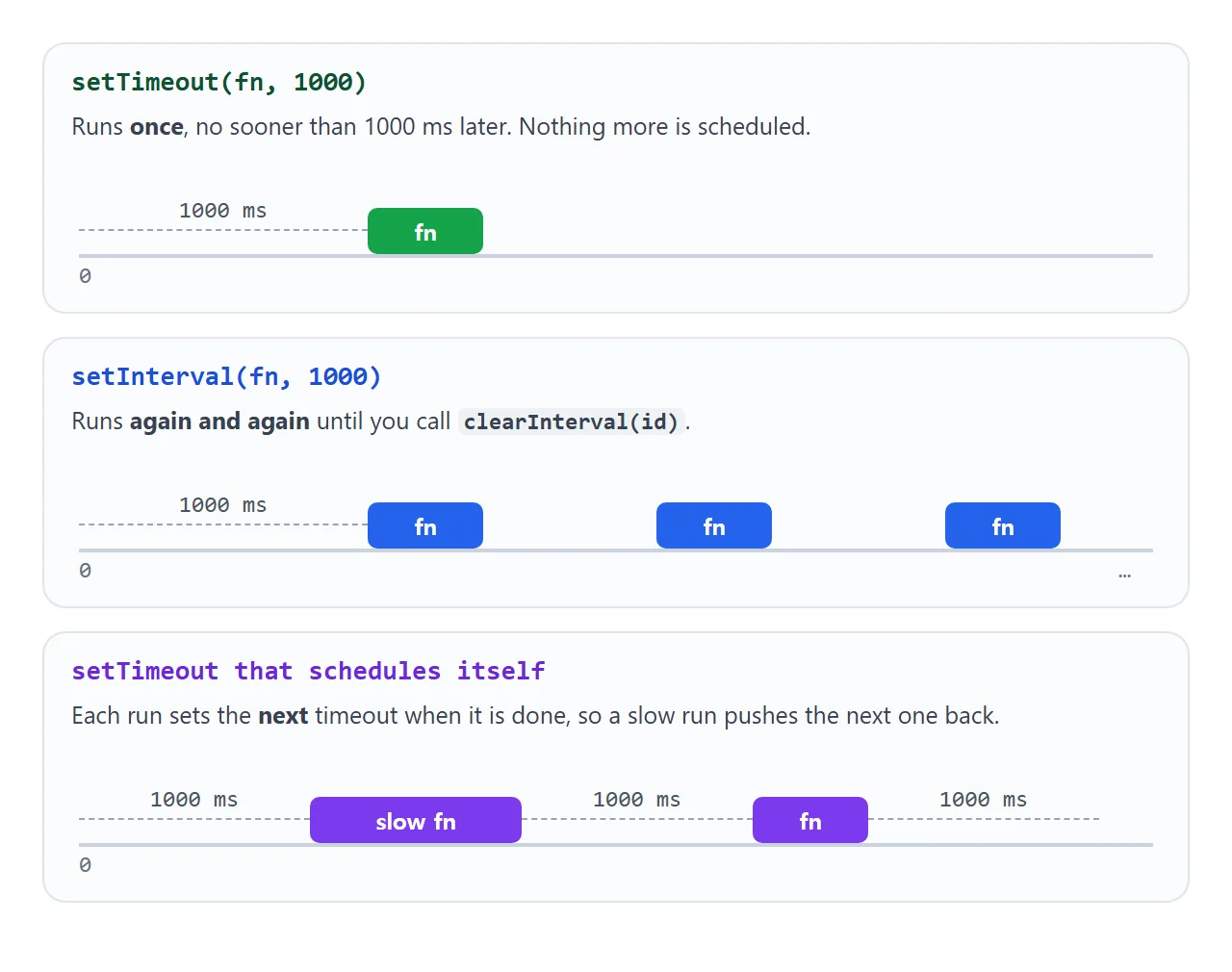
setInterval runs a function every so many milliseconds until you stop it. setTimeout runs a function once, after a delay. Both return a number, the timer id, and that id is the only way to stop the timer: clearInterval(id) or clearTimeout(id).
const id = setInterval(() => console.log('tick'), 1000); // every 1000 ms
setTimeout(() => clearInterval(id), 5000);               // stop it after 5 s
Try both below. Each button logs the id it got back. Start the interval twice, then press clearInterval, and watch one interval keep going.
<!doctype html>
<html lang="en">
<head>
<meta charset="utf-8">
<meta name="viewport" content="width=device-width, initial-scale=1">
<title>Timer lab</title>
<style>
body { margin: 0; padding: 14px; font-family: system-ui, sans-serif; background: #f4f5f7; color: #1d2330; }
.row { display: flex; flex-wrap: wrap; gap: 8px; margin-bottom: 8px; }
button {
font: inherit; font-size: 14px; padding: 8px 12px; border-radius: 8px;
border: 1px solid #c9ced6; background: #fff; cursor: pointer;
}
button.go { border-color: #16a34a; color: #0f5132; }
button.stop { border-color: #ea580c; color: #9a3412; }
.status { font-size: 14px; margin: 6px 0 8px; }
.status b { font-variant-numeric: tabular-nums; }
#log {
height: 230px; overflow-y: auto; margin: 0; padding: 10px 12px;
background: #fff; border: 1px solid #e1e4ea; border-radius: 10px;
font: 13px/1.5 ui-monospace, Consolas, monospace; white-space: pre-wrap;
}
</style>
</head>
<body>
<div class="row">
<button class="go" id="once">setTimeout 2 s</button>
<button class="stop" id="cancelOnce">clearTimeout</button>
</div>
<div class="row">
<button class="go" id="start">setInterval 1 s</button>
<button class="stop" id="stop">clearInterval</button>
<button class="stop" id="all">Clear all</button>
</div>
<div class="status">Running intervals: <b id="count">0</b> · saved id: <b id="saved">none</b></div>
<pre id="log"></pre>
<script>
const log = document.getElementById('log');
let timeoutId = null; // id from the last setTimeout
let intervalId = null; // id from the last setInterval
let running = []; // every interval started, to show the "lost id" bug
function write(text) {
log.textContent += text + '\n';
log.scrollTop = log.scrollHeight;
}
function show() {
document.getElementById('count').textContent = running.length;
document.getElementById('saved').textContent = intervalId ?? 'none';
}
document.getElementById('once').addEventListener('click', () => {
timeoutId = setTimeout(() => {
write('timeout ' + timeoutId + ' ran once');
timeoutId = null;
}, 2000);
write('setTimeout returned id ' + timeoutId);
});
document.getElementById('cancelOnce').addEventListener('click', () => {
if (timeoutId === null) return write('no pending timeout to clear');
clearTimeout(timeoutId);
write('clearTimeout(' + timeoutId + '): it will not run');
timeoutId = null;
});
document.getElementById('start').addEventListener('click', () => {
// No guard on purpose: a second click starts a second interval
// and overwrites intervalId, so the first id is lost.
let n = 0;
const id = setInterval(() => write('interval ' + id + ' tick ' + (++n)), 1000);
intervalId = id;
running.push(id);
write('setInterval returned id ' + id);
show();
});
document.getElementById('stop').addEventListener('click', () => {
if (intervalId === null) return write('no saved id: ' + running.length + ' still running');
clearInterval(intervalId);
running = running.filter((id) => id !== intervalId);
write('clearInterval(' + intervalId + ')');
intervalId = null;
if (running.length) write('still running: ' + running.join(', ') + ' (their ids were overwritten)');
show();
});
// The fix for lost ids: keep every id, clear every one.
document.getElementById('all').addEventListener('click', () => {
running.forEach((id) => clearInterval(id));
write('cleared ' + (running.length || 'no') + ' interval(s)');
running = [];
intervalId = null;
show();
});
write('Click a green button. Try starting the interval twice.');
</script>
</body>
</html>
Syntax and the delay in milliseconds
Both functions take the same arguments:
setTimeout(callback, delayMs, arg1, arg2);
setInterval(callback, delayMs, arg1, arg2);
- callback is a function. Pass the function itself,
update, notupdate(). With the brackets, it runs right away and the timer gets its return value instead. - delayMs is in milliseconds:
1000is one second,60000one minute. Leave it out and it counts as0. - Extra arguments after the delay are passed to the callback.
setTimeout(search, 300, text)callssearch(text).
You can also pass a string of code instead of a function. It works like eval, and pages with a strict Content Security Policy block it, so pass a function.
The id, clearTimeout and clearInterval
Every call returns a new positive integer. Keep it in a variable that the stop code can see, usually one declared outside the click handlers.
let timer = null;

function start() {
  clearInterval(timer);            // never run two at once
  timer = setInterval(update, 1000);
}

function stop() {
  clearInterval(timer);
  timer = null;
}
Passing an id that is not running, or null, does nothing and throws no error. That is why the first line of start() is safe, and why a wrong id fails silently.
Timers are not exact
The delay is a minimum, not a promise. A timer runs only when the page is free, so a slow script, a long loop or a busy page makes it late.
The HTML standard also sets a floor of 4 ms once timers are nested more than five levels deep.
Browsers also slow down timers in tabs that are hidden or in the background, to save power. An interval set to one second can run much less often there.
So a clock that adds 1 on every tick goes wrong. Press Freeze the page below and compare the two clocks.
<!doctype html>
<html lang="en">
<head>
<meta charset="utf-8">
<meta name="viewport" content="width=device-width, initial-scale=1">
<title>Counting ticks vs reading the clock</title>
<style>
  body { margin: 0; padding: 14px; font-family: system-ui, sans-serif; background: #f4f5f7; color: #1d2330; }
  .clocks { display: grid; grid-template-columns: 1fr 1fr; gap: 10px; }
  .clock { background: #fff; border-radius: 12px; padding: 12px; border: 2px solid #e1e4ea; }
  .clock.bad { border-color: #fdba74; }
  .clock.good { border-color: #86efac; }
  .clock h3 { margin: 0 0 4px; font-size: 14px; }
  .clock code { font-size: 12px; color: #4b5563; }
  .time { font: 700 40px/1.2 ui-monospace, Consolas, monospace; margin: 8px 0 0; font-variant-numeric: tabular-nums; }
  .row { display: flex; flex-wrap: wrap; gap: 8px; margin: 12px 0 8px; }
  button { font: inherit; font-size: 14px; padding: 8px 12px; border-radius: 8px; border: 1px solid #c9ced6; background: #fff; cursor: pointer; }
  #gap { font-size: 14px; margin: 0; }
  #gap b { font-variant-numeric: tabular-nums; }
</style>
</head>
<body>
<div class="clocks">
  <div class="clock bad">
    <h3>Counts ticks</h3>
    <code>seconds += 1</code>
    <div class="time" id="counted">0 s</div>
  </div>
  <div class="clock good">
    <h3>Reads Date.now()</h3>
    <code>now - start</code>
    <div class="time" id="measured">0 s</div>
  </div>
</div>
<div class="row">
  <button id="block">Freeze the page for 2.5 s</button>
  <button id="reset">Reset</button>
</div>
<p id="gap">Behind by <b id="behind">0</b> s. Freeze the page and watch the left clock fall behind.</p>

<script>
  let start = Date.now();
  let seconds = 0;

  // Wrong: assumes every tick arrives, exactly 1000 ms apart.
  setInterval(() => {
    seconds += 1;
    document.getElementById('counted').textContent = seconds + ' s';
  }, 1000);

  // Right: the timer only says "update now"; the time comes from the clock.
  setInterval(() => {
    const real = Math.floor((Date.now() - start) / 1000);
    document.getElementById('measured').textContent = real + ' s';
    document.getElementById('behind').textContent = Math.max(0, real - seconds);
  }, 200);

  // Busy work that blocks the page, like a slow script or a background tab.
  document.getElementById('block').addEventListener('click', () => {
    const until = Date.now() + 2500;
    while (Date.now() < until) { /* no timer can run during this loop */ }
  });

  document.getElementById('reset').addEventListener('click', () => {
    start = Date.now();
    seconds = 0;
    document.getElementById('counted').textContent = '0 s';
  });
</script>
</body>
</html>
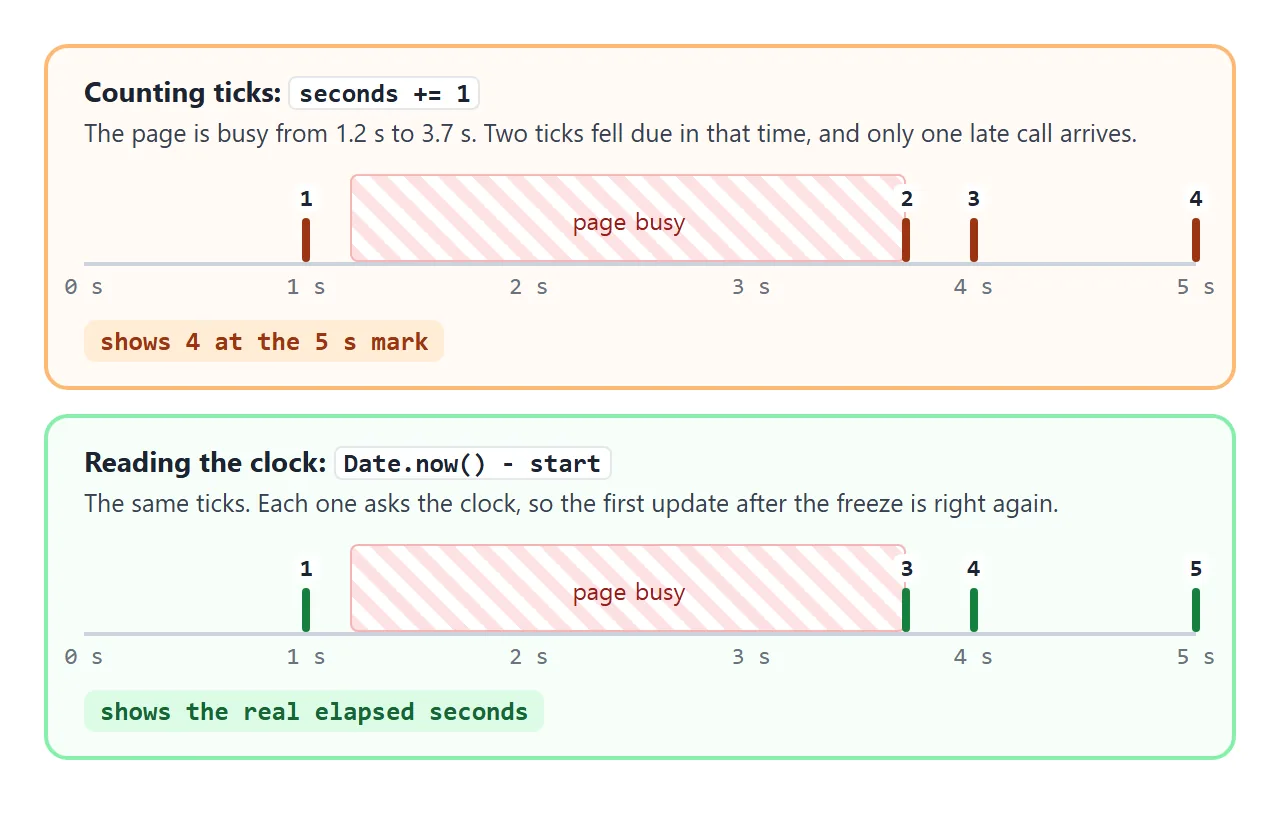
The fix is to use the timer only as a reminder to repaint, and to read the real time each time:
const start = Date.now();
setInterval(() => {
  const seconds = Math.floor((Date.now() - start) / 1000);
  clock.textContent = seconds + ' s';
}, 250);
A shorter interval such as 250 ms makes the display change close to the real second. For a countdown to a date, the same idea is built out in the HTML countdown timer guide.
setInterval or a setTimeout that calls itself
A setTimeout can schedule the next run at the end of each run:
function poll() {
  checkForUpdates().then(() => {
    timer = setTimeout(poll, 5000); // next check 5 s after this one finished
  });
}
poll();
| setInterval | setTimeout that calls itself | |
|---|---|---|
| Next run | Keeps its schedule, even if the last run started async work that is still going | Scheduled when the last run finishes |
| Slow or async work | Runs can overlap, such as two requests at once | Never overlaps |
| Change the delay | Clear and start again | Pass a new delay each time |
| Stop it | clearInterval(id) |
clearTimeout(id), or just do not schedule the next one |
For a display that repaints, setInterval is fine. For work that waits on the network, the self-scheduling setTimeout is safer.
The this problem
When you pass a method, only the function goes to the timer, not the object it belongs to:
const player = {
  name: 'Ada',
  hello() { console.log(this.name); },
};

setTimeout(player.hello, 1000);          // this is not player
setTimeout(() => player.hello(), 1000);  // logs "Ada"
setTimeout(player.hello.bind(player), 1000); // also "Ada"
Wrap the call in an arrow function, or use bind. The same applies to class methods passed as callbacks.
setTimeout(fn, 0) runs after the current code
A zero delay does not mean "now". The callback waits until the code that is running finishes. Promise callbacks that are already queued also go first.
setTimeout(() => console.log('3: timeout'), 0);
Promise.resolve().then(() => console.log('2: promise'));
console.log('1: now');
This prints 1, 2, 3. It is a way to run something after the current work finishes, not a way to make it faster.
Debounce: wait until typing stops
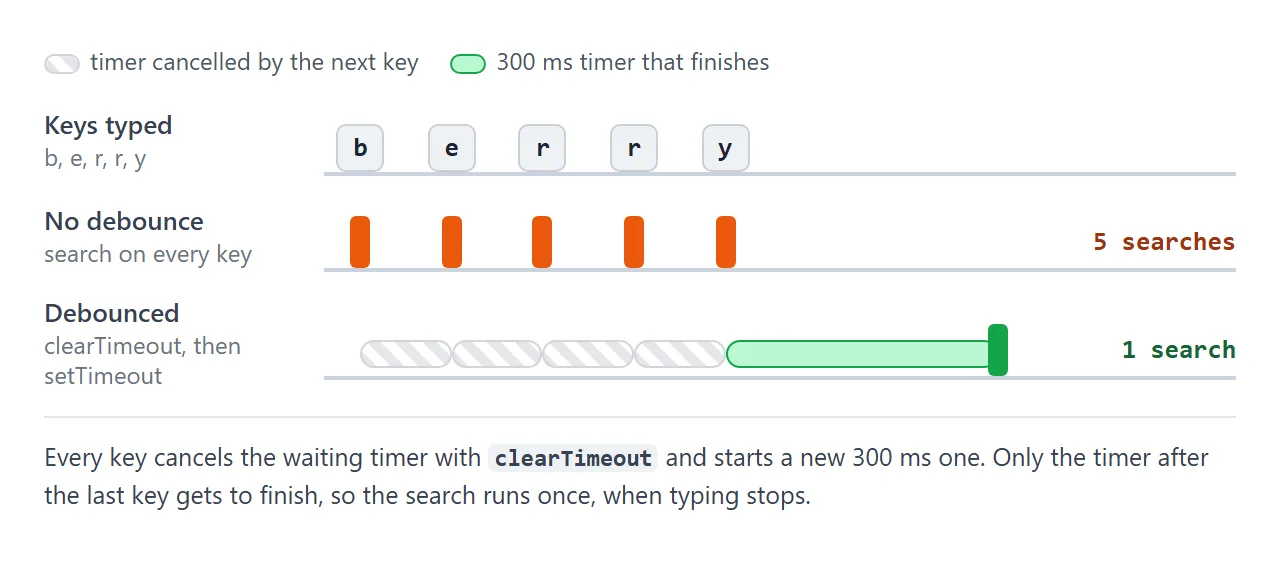
A search box that searches on every key does five searches for "berry". A debounce waits until the typing pauses:
let searchTimer;
input.addEventListener('input', () => {
  clearTimeout(searchTimer);                      // cancel the last plan
  searchTimer = setTimeout(search, 300, input.value);
});
The same setTimeout and clearTimeout pair also works for saving drafts, resizing charts after the window stops changing size, and hiding a tooltip after a short pause.
A finished example: debounced search and a focus timer
The search box below runs one search after you stop typing. The focus timer is a Pomodoro-style timer that pauses and resumes. It never counts ticks. It stores the moment it should end and paints whatever is left:
<!doctype html>
<html lang="en">
<head>
<meta charset="utf-8">
<meta name="viewport" content="width=device-width, initial-scale=1">
<title>Debounced search and focus timer</title>
<style>
body { margin: 0; padding: 14px; font-family: system-ui, sans-serif; background: #f4f5f7; color: #1d2330; }
section { background: #fff; border: 1px solid #e1e4ea; border-radius: 12px; padding: 12px 14px; margin-bottom: 12px; }
h3 { margin: 0 0 8px; font-size: 15px; }
input { width: 100%; box-sizing: border-box; font: inherit; font-size: 16px; padding: 8px 10px; border: 1px solid #c9ced6; border-radius: 8px; }
.meta { font-size: 13px; color: #4b5563; margin: 6px 0; }
.meta b { color: #1d2330; font-variant-numeric: tabular-nums; }
ul { margin: 0; padding-left: 18px; font-size: 14px; min-height: 60px; max-height: 110px; overflow-y: auto; }
.time { font: 700 48px/1.1 ui-monospace, Consolas, monospace; text-align: center; margin: 4px 0 10px; font-variant-numeric: tabular-nums; }
.time.done { color: #16a34a; }
.row { display: flex; flex-wrap: wrap; gap: 8px; justify-content: center; }
button { font: inherit; font-size: 14px; padding: 8px 14px; border-radius: 8px; border: 1px solid #c9ced6; background: #fff; cursor: pointer; }
button.main { background: #16a34a; border-color: #16a34a; color: #fff; min-width: 90px; }
</style>
</head>
<body>
<section>
<h3>Search, debounced</h3>
<input id="q" type="search" placeholder="Type a fruit, e.g. berry" autocomplete="off">
<p class="meta">Keystrokes: <b id="keys">0</b> · searches run: <b id="runs">0</b></p>
<ul id="results"></ul>
</section>
<section>
<h3>Focus timer</h3>
<div class="time" id="time">25:00</div>
<div class="row">
<button class="main" id="toggle">Start</button>
<button id="reset">Reset</button>
<button data-min="25">25 min</button>
<button data-min="5">5 min</button>
</div>
</section>
<script>
/* 1. Debounce: wait until typing pauses for 300 ms, then search once. */
const fruits = ['apple', 'apricot', 'banana', 'blackberry', 'blueberry', 'cherry',
'cranberry', 'grape', 'lemon', 'lime', 'mango', 'orange', 'peach', 'pear', 'raspberry', 'strawberry'];
const q = document.getElementById('q');
let keys = 0, runs = 0, searchTimer;
function show(text) {
const hits = fruits.filter((f) => f.includes(text.trim().toLowerCase()));
document.getElementById('results').innerHTML = hits.map((f) => '<li>' + f + '</li>').join('');
}
function search(text) {
document.getElementById('runs').textContent = ++runs;
show(text);
}
q.addEventListener('input', () => {
document.getElementById('keys').textContent = ++keys;
clearTimeout(searchTimer); // cancel the search planned by the last key
searchTimer = setTimeout(search, 300, q.value); // extra argument is passed to search()
});
/* 2. Focus timer: the interval only repaints; the time comes from Date.now(). */
const time = document.getElementById('time');
const toggle = document.getElementById('toggle');
let length = 25 * 60 * 1000; // chosen length in ms
let remaining = length; // ms left while paused
let endAt = null; // timestamp when the timer finishes, null when paused
let tick = null;
function paint() {
const ms = endAt ? Math.max(0, endAt - Date.now()) : remaining;
const s = Math.ceil(ms / 1000);
time.textContent = String(Math.floor(s / 60)).padStart(2, '0') + ':' + String(s % 60).padStart(2, '0');
time.classList.toggle('done', ms === 0);
if (endAt && ms === 0) pause();
}
function start() {
if (remaining === 0) return;
endAt = Date.now() + remaining;
clearInterval(tick); // never keep two intervals
tick = setInterval(paint, 250);
toggle.textContent = 'Pause';
}
function pause() {
if (endAt) remaining = Math.max(0, endAt - Date.now());
endAt = null;
clearInterval(tick);
tick = null;
toggle.textContent = remaining === 0 ? 'Done' : 'Resume';
paint();
}
toggle.addEventListener('click', () => (endAt ? pause() : start()));
document.getElementById('reset').addEventListener('click', () => {
pause();
remaining = length;
toggle.textContent = 'Start';
paint();
});
document.querySelectorAll('[data-min]').forEach((b) => b.addEventListener('click', () => {
length = b.dataset.min * 60 * 1000;
document.getElementById('reset').click();
}));
show('');
</script>
</body>
</html>
- Start: save
endAt = Date.now() + remainingand start an interval that only repaints. - Each tick: show
endAt - Date.now(), rounded up to whole seconds. - Pause: save
remaining = endAt - Date.now()and callclearInterval. - Before starting again: clear the old interval so two never run at once.
Because the time comes from the clock, a slow tab only delays the repaint. The number is right as soon as it draws. The ids and elements used here are found with querySelector and getElementById.
requestAnimationFrame for animation
For movement on screen, an interval such as setInterval(move, 16) is not tied to when the screen actually redraws. requestAnimationFrame calls your function right before the next paint and passes a timestamp:
function frame(now) {
  box.style.transform = 'translateX(' + (now / 10 % 300) + 'px)';
  requestAnimationFrame(frame);
}
requestAnimationFrame(frame);
Compute the position from the timestamp, as with the clock, so the speed stays the same whatever the frame rate. Stop it with cancelAnimationFrame(id). For simple movement, a CSS animation needs no script at all.
When it does not work
| What you see | Cause | Fix |
|---|---|---|
| The interval never stops | It was started twice and the first id was overwritten | clearInterval(timer) before every new setInterval |
| clearInterval does nothing | The id lives in a local variable the stop code cannot see | Declare let timer outside both functions |
| The function runs at once, then never again | setTimeout(update(), 1000) passes the result, not the function |
setTimeout(update, 1000) |
| The clock falls behind | It adds 1 per tick, and late or missed ticks add up | Compute from Date.now() |
| Timers are slow in a background tab | The browser throttles hidden tabs | Compute from timestamps and repaint when the tab is visible again |
this is undefined or the wrong object in the callback |
The method was passed without its object | Arrow function or bind |
| Requests pile up | setInterval starts a new request before the last one ends | A setTimeout that schedules itself |
If nothing runs at all, the script itself may not be loading. HTML JavaScript not working covers those causes.
Share it as a link
A timer is hard to show in a screenshot. The point is that it moves, pauses and resumes. An .html attachment may open as plain code on a phone, or not at all.
To send the working version, paste the page into a NOS document and choose Create share link. HTML to link walks through it.
The page renders as written and its scripts run, so the people you send it to can start and pause the timer themselves. If you change the code later, the same link shows the new version.