document.querySelector() finds an element with a CSS selector, the same text you would write in a stylesheet. It returns the first element that matches, or null if none does. document.querySelectorAll() returns every match as a NodeList.
const title = document.querySelector('#intro');       // by id
const firstDone = document.querySelector('.done');     // first element with class "done"
const allDone = document.querySelectorAll('.done');    // every one of them
Try it. Type a selector, or tap one of the chips, and the matching elements in the small page light up.
<!doctype html>
<html lang="en">
<head>
<meta charset="utf-8">
<meta name="viewport" content="width=device-width, initial-scale=1">
<title>querySelector playground</title>
<style>
  body { margin: 0; padding: 14px; font-family: system-ui, sans-serif; background: #f4f5f7; color: #1d2330; }
  .bar { display: flex; gap: 8px; }
  #sel {
    flex: 1; min-width: 0; padding: 10px 12px; font: 15px ui-monospace, Consolas, monospace;
    border: 1px solid #c9ced6; border-radius: 8px;
  }
  #out { margin: 8px 0; min-height: 40px; font-size: 14px; line-height: 1.4; }
  #out.err { color: #9a3412; }
  .chips { display: flex; flex-wrap: wrap; gap: 6px; margin-top: 8px; }
  .chips button {
    font: 13px ui-monospace, Consolas, monospace; padding: 5px 9px; border-radius: 99px;
    border: 1px solid #c9ced6; background: #fff; cursor: pointer;
  }
  /* the sample page the selector runs against */
  #sample { background: #fff; border-radius: 10px; padding: 12px 14px; font-size: 14px; }
  #sample h2 { margin: 0 0 6px; font-size: 17px; }
  #sample ul { margin: 6px 0; padding-left: 20px; }
  #sample li, #sample p, #sample label, #sample a, #sample h2 { padding: 2px 4px; border-radius: 4px; }
  #sample .done { text-decoration: line-through; color: #6b7280; }
  .hit { outline: 2px solid #16a34a; background: #dcfce7; }
</style>
</head>
<body>
<div class="bar">
  <input id="sel" value=".done" spellcheck="false" autocomplete="off" aria-label="CSS selector">
</div>
<div class="chips">
  <button>#intro</button><button>.done</button><button>li:not(.done)</button>
  <button>input:checked</button><button>[data-price]</button><button>ul a</button>
  <button>#2024</button><button>.done li</button>
</div>
<div id="out"></div>

<div id="sample">
  <h2 id="intro">Weekly list</h2>
  <ul>
    <li class="done">Order paper</li>
    <li>Call the printer <a href="#p">details</a></li>
    <li class="done">Book the room</li>
    <li data-price="12">Buy snacks</li>
  </ul>
  <p id="2024">Notes for 2024</p>
  <label><input type="checkbox" checked> Email the team</label>
  <label><input type="checkbox"> Print badges</label>
</div>

<script>
  const input = document.querySelector('#sel');
  const out = document.querySelector('#out');
  const sample = document.querySelector('#sample');

  function run() {
    // clear old highlights
    sample.querySelectorAll('.hit').forEach((el) => el.classList.remove('hit'));
    out.className = '';
    const selector = input.value.trim();
    if (!selector) { out.textContent = 'Type a selector.'; return; }

    let found;
    try {
      found = sample.querySelectorAll(selector);   // search only inside #sample
    } catch (err) {
      // an invalid selector throws a SyntaxError
      out.className = 'err';
      out.textContent = err.name + ': ' + err.message;
      return;
    }
    found.forEach((el) => el.classList.add('hit'));
    const first = sample.querySelector(selector);   // null when nothing matches
    out.textContent = found.length + ' match' + (found.length === 1 ? '' : 'es') +
      '. querySelector returns ' + (first ? '<' + first.tagName.toLowerCase() + '> "' + first.textContent.trim() + '"' : 'null') + '.';
  }

  input.addEventListener('input', run);
  sample.addEventListener('change', run);          // ticking a box changes :checked
  document.querySelectorAll('.chips button').forEach((b) => {
    b.addEventListener('click', () => { input.value = b.textContent; run(); });
  });
  run();
</script>
</body>
</html>
querySelector vs querySelectorAll
The two methods take the same selector and differ only in what they return.
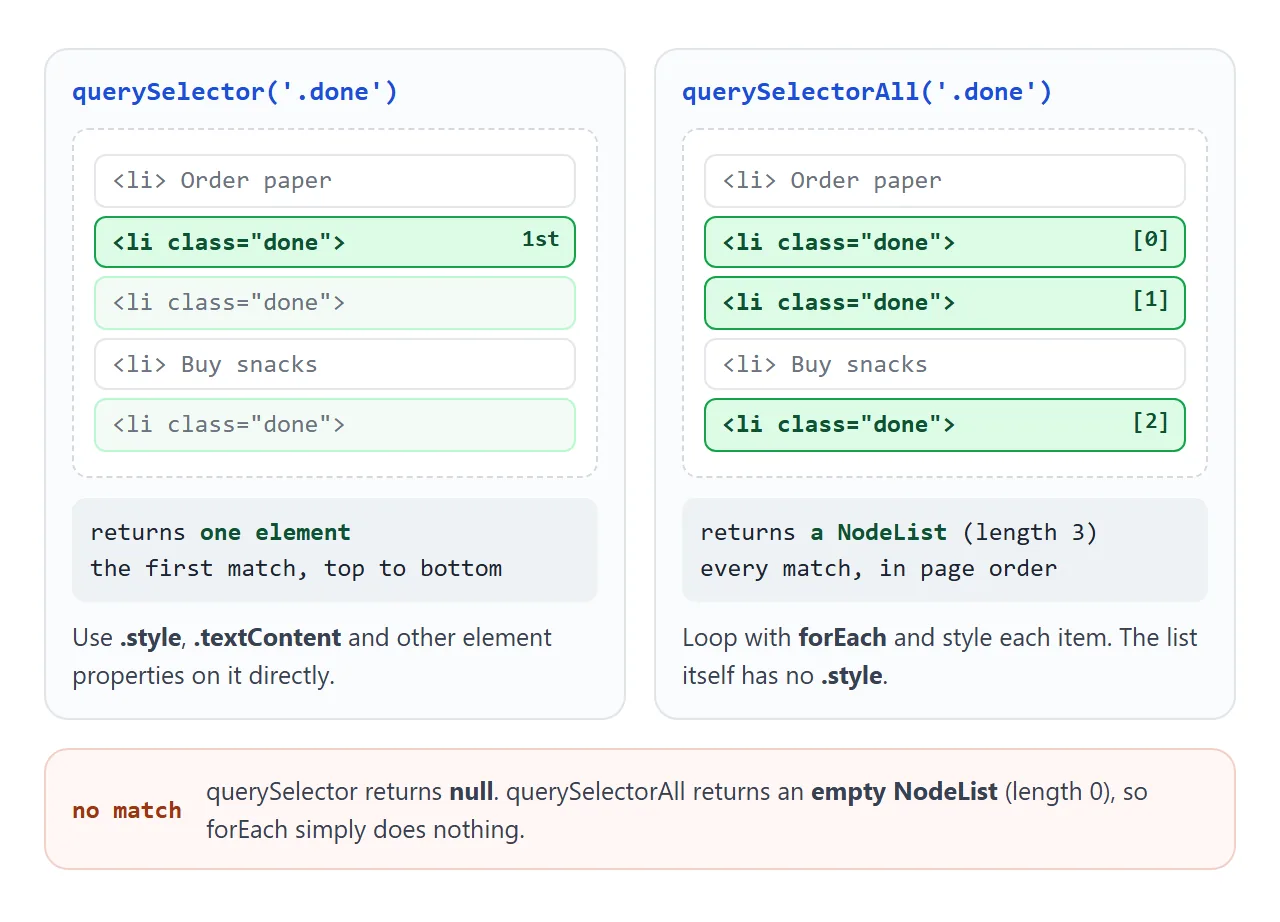
querySelectorreturns one element. You can use.textContent,.styleor.classListon it straight away. When nothing matches, it returnsnull.querySelectorAllreturns a NodeList. It haslength, index access such aslist[0], andforEach. When nothing matches, the list is empty, and looping over it does nothing.
"First" means first in page order: the element whose opening tag appears earliest in the HTML.
Selectors you can pass
Any selector that works in a stylesheet works here. These cover most day-to-day lookups:
| Selector | Finds |
|---|---|
#menu |
The element with id="menu" |
.card |
Elements with class card |
button |
Every <button> |
[data-price] |
Elements that have a data-price attribute |
input[type="email"] |
Inputs whose type is email |
ul a |
Links anywhere inside a <ul> (descendant) |
ul > li |
List items that are direct children of a <ul> |
li:not(.done) |
List items without class done |
input:checked |
Checkboxes and radio buttons that are ticked right now |
.card, .note |
Elements matching either selector |
State selectors such as :checked are read when the method runs. In the playground above, tick a box while input:checked is typed and the count changes, because the demo runs the query again on every change.
querySelectorAll gives a static list
A NodeList from querySelectorAll is a snapshot. Elements added to the page after the call are not in it, and elements you remove stay in it.
<!doctype html>
<html lang="en">
<head>
<meta charset="utf-8">
<meta name="viewport" content="width=device-width, initial-scale=1">
<title>querySelectorAll is not live</title>
<style>
  body { margin: 0; padding: 14px; font-family: system-ui, sans-serif; background: #f4f5f7; color: #1d2330; }
  .btns { display: flex; flex-wrap: wrap; gap: 8px; margin-bottom: 12px; }
  button { font: 14px system-ui, sans-serif; padding: 8px 12px; border-radius: 8px; border: 1px solid #c9ced6; background: #fff; cursor: pointer; }
  ul { list-style: none; margin: 0 0 12px; padding: 0; display: grid; gap: 6px; }
  li { background: #fff; border-radius: 8px; padding: 8px 12px; border-left: 4px solid #d5d9e0; }
  li.painted { border-left-color: #16a34a; background: #f0fdf4; }
  .nums { display: grid; grid-template-columns: repeat(3, 1fr); gap: 8px; }
  .num { background: #fff; border-radius: 8px; padding: 8px; text-align: center; font-size: 12.5px; line-height: 1.3; }
  .num b { display: block; font-size: 26px; }
  .num code { font-size: 11.5px; }
</style>
</head>
<body>
<div class="btns">
  <button id="add">Add an item</button>
  <button id="paint">Paint the saved list</button>
</div>
<ul id="list">
  <li>Item 1</li>
  <li>Item 2</li>
  <li>Item 3</li>
</ul>
<div class="nums">
  <div class="num"><b id="saved">3</b>saved NodeList<br><code>saved.length</code></div>
  <div class="num"><b id="fresh">3</b>asked again<br><code>querySelectorAll</code></div>
  <div class="num"><b id="live">3</b>live collection<br><code>getElementsByTagName</code></div>
</div>

<script>
  const list = document.querySelector('#list');

  // taken once, when the page loads: a snapshot of the 3 items
  const saved = document.querySelectorAll('#list li');
  // a live HTMLCollection, for comparison
  const live = list.getElementsByTagName('li');

  function show() {
    document.querySelector('#saved').textContent = saved.length;                              // stays 3
    document.querySelector('#fresh').textContent = document.querySelectorAll('#list li').length; // new query
    document.querySelector('#live').textContent = live.length;                                // updates itself
  }

  document.querySelector('#add').addEventListener('click', () => {
    const li = document.createElement('li');
    li.textContent = 'Item ' + (list.children.length + 1);
    list.append(li);
    show();
  });

  // forEach works on a NodeList, but only reaches the items it saved
  document.querySelector('#paint').addEventListener('click', () => {
    saved.forEach((li) => li.classList.add('painted'));
  });
</script>
</body>
</html>
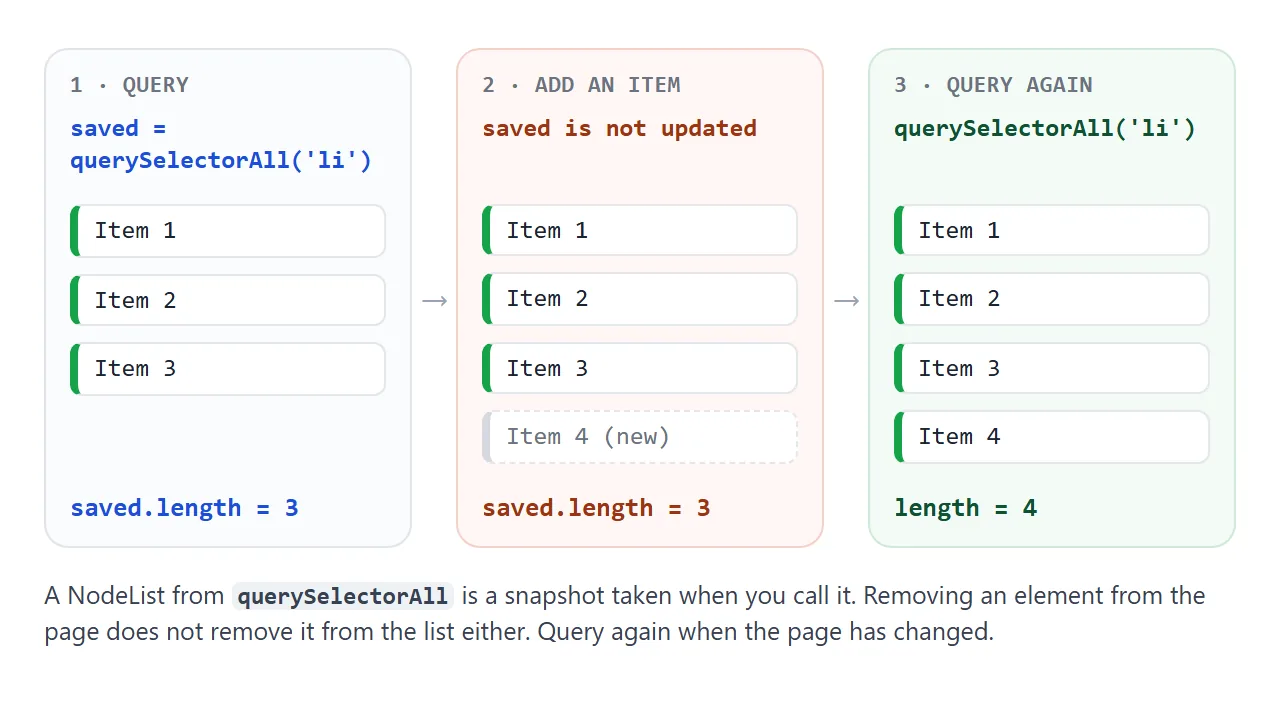
The third number in the demo is getElementsByTagName, which returns a live collection that updates itself.
For querySelectorAll, the fix is simple: call it again when you need the current state, for example inside the click handler rather than once at the top of the script.
A NodeList has forEach but not map or filter. Turn it into an array when you need those:
const names = Array.from(document.querySelectorAll('li'), (li) => li.textContent);
const done = [...document.querySelectorAll('li')].filter((li) => li.classList.contains('done'));
Search inside an element, and walk up with closest()
querySelector also exists on every element. Called on an element, it only returns that element's descendants. This is how each card on a page finds its own button or price.
const card = document.querySelector('.product');
const price = card.querySelector('.price');   // only inside this card
closest() goes the other way. It starts at the element itself, checks each ancestor upward, and returns the first one that matches, or null.
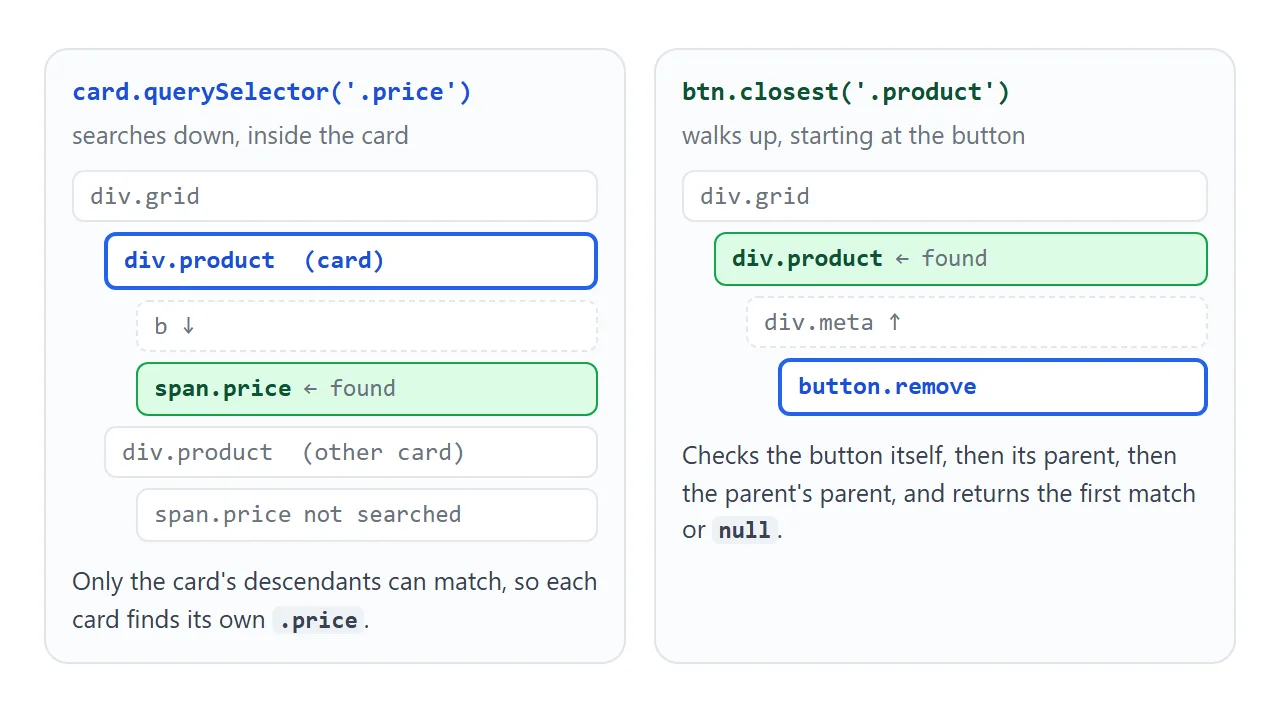
One detail about searching inside an element: the whole selector is still matched against the full page.
card.querySelectorAll('div p') can return a paragraph whose matching div is outside the card. To anchor the selector to the element itself, start it with :scope, as in card.querySelectorAll(':scope > p').
IDs that start with a number
In CSS, an id selector cannot start with a digit. document.querySelector('#2024') does not return null; it throws a SyntaxError, and the rest of the script stops. The playground has a #2024 chip so you can see the message.
Escape the id with CSS.escape(), or skip selectors for this case:
document.querySelector('#' + CSS.escape('2024'));   // works
document.getElementById('2024');                    // also works, no # and no escaping
CSS.escape is also the safe choice whenever the id or class comes from user input or data, since it may contain characters that have a meaning in selectors.
querySelector vs getElementById
For a single id, both return the same element, or null.
getElementById('menu') |
querySelector('#menu') |
|
|---|---|---|
| What you pass | The bare id, no # |
A CSS selector |
| Id starts with a digit | Works as is | Needs CSS.escape |
| Called on | document |
document or any element |
| Can find classes, attributes | No | Yes |
Use whichever reads better in your code. The getElementById guide covers that method on its own.
A finished example: a product filter
This list is driven by checkboxes. On every change, querySelectorAll('input[name="cat"]:checked') reads the ticked categories, and a fresh querySelectorAll('.product') hides the cards that do not fit. The Remove buttons share one click listener that uses closest() to find their card.
<!doctype html>
<html lang="en">
<head>
<meta charset="utf-8">
<meta name="viewport" content="width=device-width, initial-scale=1">
<title>Product filter</title>
<style>
  body { margin: 0; padding: 14px; font-family: system-ui, sans-serif; background: #f4f5f7; color: #1d2330; }
  .filters { display: flex; flex-wrap: wrap; gap: 6px 14px; background: #fff; border-radius: 10px; padding: 10px 12px; font-size: 14px; }
  .filters label { white-space: nowrap; }
  #count { margin: 10px 2px; font-size: 14px; color: #374151; }
  .grid { display: grid; grid-template-columns: repeat(auto-fill, minmax(150px, 1fr)); gap: 10px; }
  .product { background: #fff; border-radius: 10px; padding: 10px; font-size: 14px; }
  .product[hidden] { display: none; }
  .pic { height: 54px; border-radius: 7px; margin-bottom: 8px; }
  .product b { display: block; }
  .meta { display: flex; justify-content: space-between; align-items: center; margin-top: 6px; color: #6b7280; font-size: 13px; }
  .remove { font-size: 12px; border: 0; background: #f1f2f4; border-radius: 6px; padding: 4px 8px; cursor: pointer; }
  .out { color: #9a3412; }
</style>
</head>
<body>
<div class="filters" id="filters">
  <label><input type="checkbox" name="cat" value="desk" checked> Desk</label>
  <label><input type="checkbox" name="cat" value="light" checked> Light</label>
  <label><input type="checkbox" name="cat" value="bag" checked> Bag</label>
  <label><input type="checkbox" id="stock"> In stock only</label>
</div>
<div id="count"></div>

<div class="grid" id="grid">
  <div class="product" data-cat="desk" data-stock="yes">
    <div class="pic" style="background: linear-gradient(135deg, #fde68a, #f59e0b)"></div>
    <b>Oak desk</b><div class="meta"><span>$240</span><button class="remove">Remove</button></div>
  </div>
  <div class="product" data-cat="light" data-stock="no">
    <div class="pic" style="background: linear-gradient(135deg, #bfdbfe, #3b82f6)"></div>
    <b>Arc lamp</b><div class="meta"><span class="out">Sold out</span><button class="remove">Remove</button></div>
  </div>
  <div class="product" data-cat="bag" data-stock="yes">
    <div class="pic" style="background: linear-gradient(135deg, #bbf7d0, #16a34a)"></div>
    <b>Tote bag</b><div class="meta"><span>$35</span><button class="remove">Remove</button></div>
  </div>
  <div class="product" data-cat="light" data-stock="yes">
    <div class="pic" style="background: linear-gradient(135deg, #e9d5ff, #9333ea)"></div>
    <b>Desk light</b><div class="meta"><span>$58</span><button class="remove">Remove</button></div>
  </div>
  <div class="product" data-cat="desk" data-stock="no">
    <div class="pic" style="background: linear-gradient(135deg, #fecaca, #ef4444)"></div>
    <b>Standing desk</b><div class="meta"><span class="out">Sold out</span><button class="remove">Remove</button></div>
  </div>
  <div class="product" data-cat="bag" data-stock="yes">
    <div class="pic" style="background: linear-gradient(135deg, #cffafe, #0891b2)"></div>
    <b>Laptop sleeve</b><div class="meta"><span>$29</span><button class="remove">Remove</button></div>
  </div>
</div>

<script>
  const grid = document.querySelector('#grid');

  function update() {
    // the ticked categories, read fresh every time
    const cats = Array.from(document.querySelectorAll('input[name="cat"]:checked'), (box) => box.value);
    const stockOnly = document.querySelector('#stock').checked;

    let shown = 0;
    // query again so removed cards are not counted
    grid.querySelectorAll('.product').forEach((card) => {
      const ok = cats.includes(card.dataset.cat) && (!stockOnly || card.dataset.stock === 'yes');
      card.hidden = !ok;
      if (ok) shown++;
    });
    document.querySelector('#count').textContent = 'Showing ' + shown + ' of ' + grid.querySelectorAll('.product').length;
  }

  document.querySelector('#filters').addEventListener('change', update);

  // one listener for every Remove button: closest() walks up to the card
  grid.addEventListener('click', (e) => {
    const btn = e.target.closest('.remove');
    if (!btn) return;
    btn.closest('.product').remove();
    update();
  });

  update();
</script>
</body>
</html>
- Read the state:
:checkedin the selector returns only the ticked boxes. - Loop the cards:
forEachsetshiddenon each one. - One listener for many buttons:
e.target.closest('.remove')finds the button that was clicked, and.closest('.product')finds its card.
The same pattern sorts and filters rows in a table with sort and filter.
When it does not work
| What you see (Chrome wording) | Cause | Fix |
|---|---|---|
Cannot read properties of null |
The script ran before the HTML it looks for | Script at the end of body, defer, or DOMContentLoaded |
null for an element that exists |
Missing # or . in the selector |
'#menu' for an id, '.card' for a class |
Cannot set properties of undefined |
.style used on a NodeList |
Loop with forEach, or use querySelector |
| New items are not changed | They were added after the NodeList was made | Call querySelectorAll again |
SyntaxError: ... is not a valid selector |
A typo, such as an unclosed [ or ( |
Fix the selector; test it in the playground |
SyntaxError with an id like #1st |
The id starts with a digit | CSS.escape or getElementById |
The first row is the most common. The browser runs a script as soon as it reaches it, so a script in the <head> cannot see elements further down. Three ways to wait:
<!-- 1. put the script last in body -->
<script>document.querySelector('#menu')</script>
</body>

<!-- 2. defer an external script (defer does nothing on inline scripts) -->
<script src="app.js" defer></script>

<!-- 3. wait for the page to be parsed -->
<script>
  document.addEventListener('DOMContentLoaded', () => {
    document.querySelector('#menu');
  });
</script>
For other reasons a script does nothing, see HTML JavaScript not working.
Share it as a link
A filter or a selector playground is easier to try than to describe. A screenshot cannot be clicked, and an .html attachment may open as plain code on a phone.
To send the working version, paste the page into a NOS document and choose Create share link. HTML to link walks through it.
The page renders as written and its scripts run, so the people you send it to can tick the boxes themselves. If you change the code later, the same link shows the new version.