When an HTML button is not clickable, right click it and choose Inspect. Watch which element the inspector selects.
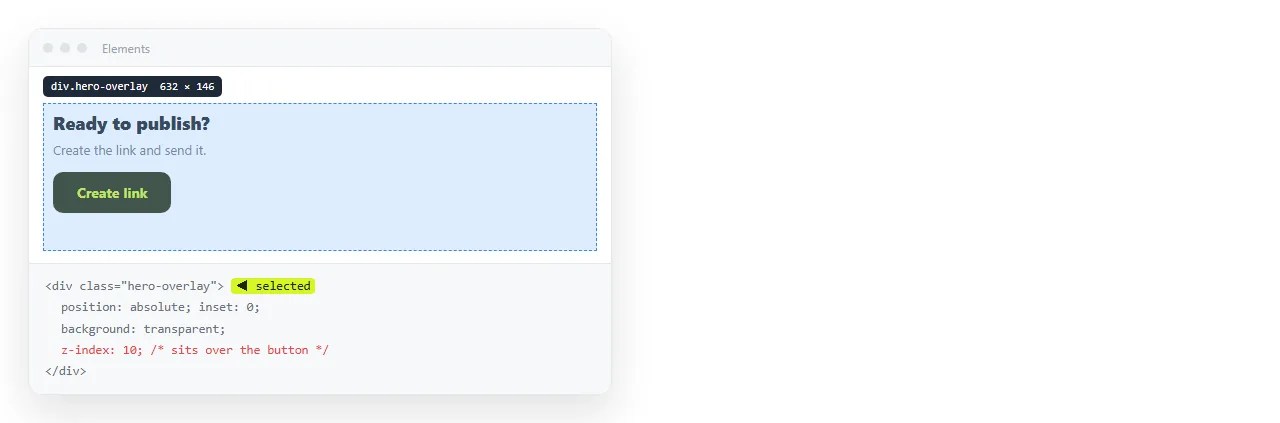
If it selects something other than your button, an element is covering it. That element receives the click and your button never hears about it.
This is the single most common cause, and it is invisible by definition, since the covering element is usually transparent.
The causes, in order of frequency
| Check | Symptom | Fix |
|---|---|---|
| Something on top | Inspector selects another element | pointer-events: none on the overlay, or fix z-index |
disabled attribute |
No hover state either | Remove it, or remove it in script when ready |
| Handler never attached | Console.log inside never prints | Run the script after the element exists |
| Wrong element queried | Handler attached to the wrong node | Check the selector and for duplicate ids |
| Form submit | Page reloads instead | Add type="button" |
pointer-events: none on the button |
Cursor does not change on hover | Remove the rule |
Finding the invisible overlay
A decorative element with position: absolute; inset: 0 sits above everything below it in the stacking order, whether or not it has a visible background.
So does a modal backdrop that was hidden by setting opacity: 0 rather than display: none. It is invisible and still catching every click on the page.
Two fixes depending on intent:
/* the overlay is decorative and should never catch clicks */
.gradient-veil { pointer-events: none; }

/* the overlay is a closed modal and should not be in the way */
.modal[hidden] { display: none; }
pointer-events: none makes an element transparent to the mouse while keeping it visible. It is the right tool for gradients, glows and watermarks.
Note that applying it to a button makes that button unclickable, which is the sixth row of the table above.
disabled does more than grey it out
A disabled button fires no events at all. Not click, not mouseover, not focus. Nothing bubbles from it either.
<button id="save" disabled>Save</button>
If the attribute is being set by script when a form is incomplete, check the condition that clears it. A validation rule that never becomes true leaves the button permanently dead.
Also note that you cannot attach a tooltip by hovering a disabled button, since hover events do not fire. Wrap it in a container if you need to explain why it is off.
Did the handler ever attach
One line settles it:
document.getElementById('save').addEventListener('click', function () {
  console.log('handler ran');
  save();
});
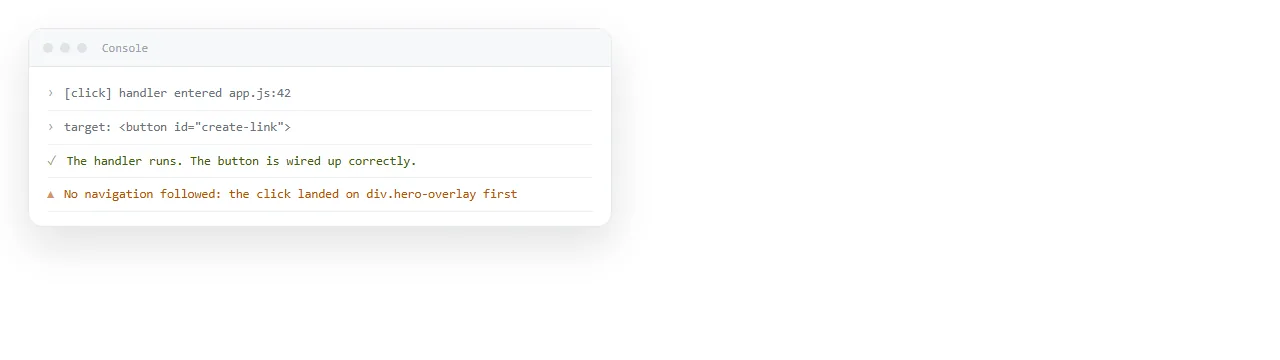
Nothing printed means the click did not arrive or the listener was never added. Something printed means the click is fine and the problem is inside save().
The usual attachment failure is a script in the <head> running before the button exists. getElementById returns null, addEventListener throws, and everything after it in that script stops.
HTML JavaScript not working covers the ordering and how the console reports it.
Buttons added after page load
A listener attaches to the elements that exist at that moment. Rows rendered later have no handler.
Delegate to a parent that was always there:
document.getElementById('table').addEventListener('click', function (e) {
  var btn = e.target.closest('button[data-id]');
  if (!btn) return;
  remove(btn.dataset.id);
});
One listener, and it covers rows that do not exist yet. This is worth doing by default in any table with per row actions.
The button that reloads the page
Inside a <form>, a button with no type defaults to submit. Clicking it posts the form and navigates.
Your handler may well run, and then the page reloads and you never see the result.
<form>
  <button type="button" onclick="preview()">Preview</button>
  <button type="submit">Send</button>
</form>
Set type explicitly on every button inside a form. The default is a common source of confusing behaviour.
Keyboard and touch
A <div> with a click handler looks like a button and is not one. It cannot be reached with Tab, does not respond to Enter or Space, and is announced as nothing by a screen reader.
Use a real <button>. If you cannot, you owe it three things: role="button", tabindex of 0, and key handlers for Enter and Space.
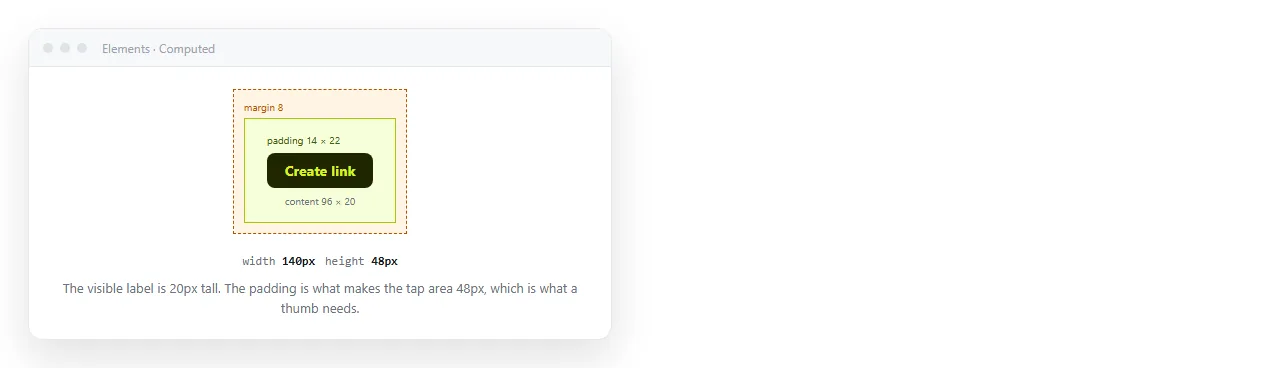
On touch, check the target size. A control under about 40 by 40 CSS pixels is hard to hit accurately, and a neighbouring element can take the tap instead.
Buttons in a page you send to someone else
If the button works for you and does nothing for the reader, the script probably did not travel with the file.
A <script src="app.js"> tag is a reference to a neighbouring file. Email the HTML alone and the reader gets a page with dead controls and a 404 in their console.
Paste the page into a NOS document instead. It renders exactly as written with scripts running, at an address of its own, so the controls behave for the reader as they do for you. Turning HTML into a link is that step.
Checklist
- Inspector selects the button itself, not something above it.
- No
disabledattribute lingering. - A log inside the handler prints on click.
type="button"on anything in a form that does not submit.- Real
<button>element, reachable with Tab. - Script arrives with the page, not as a separate file.