HTML not displaying correctly in Outlook has two separate versions: an HTML email that renders wrong in the message body, and an attached .html file that Outlook shows as source code. The causes are different and so are the fixes.
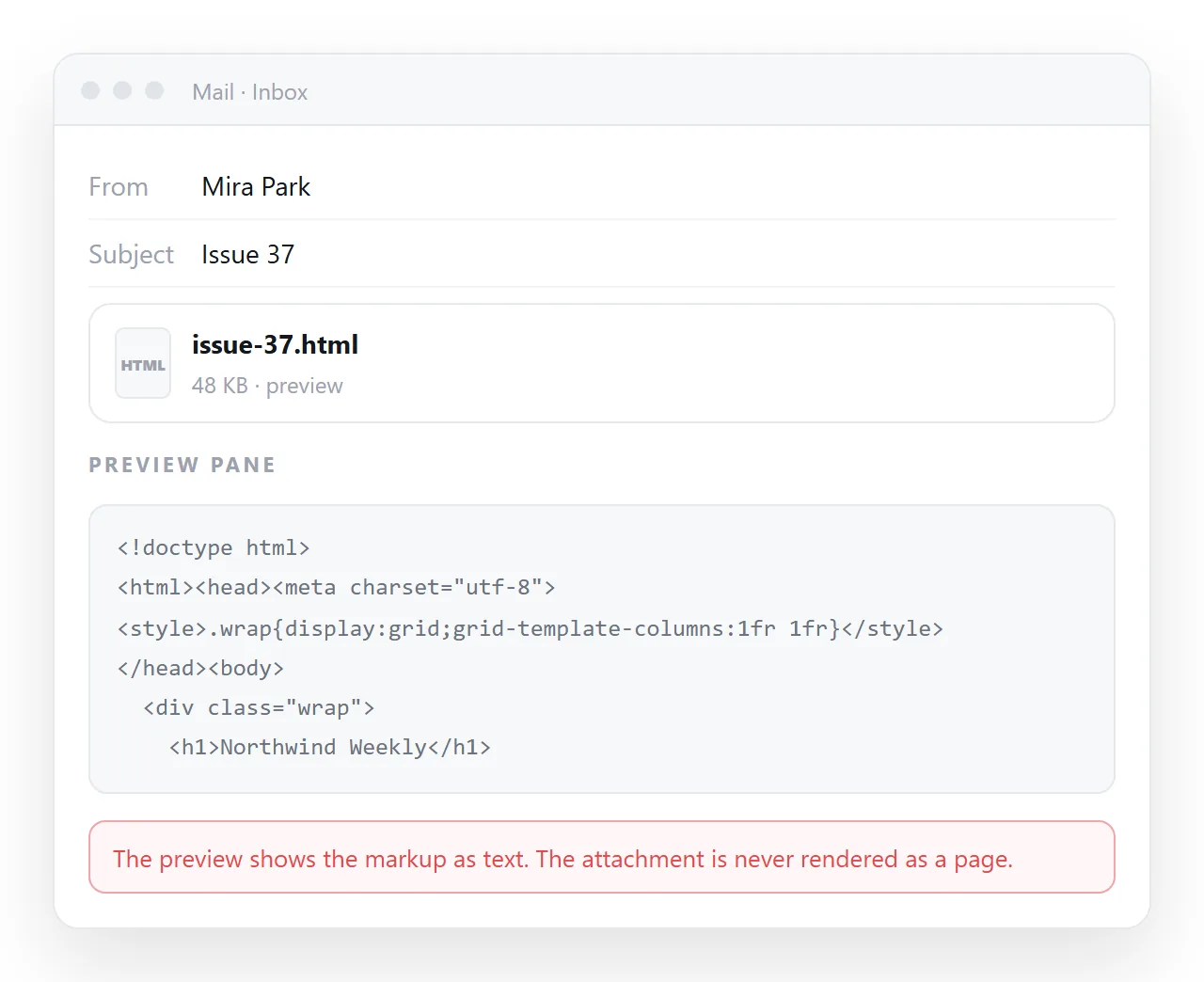
Work out which one you have first. If the recipient sees tags, it is the attachment case. If they see a mangled layout, it is the rendering case.
HTML not displaying correctly in Outlook: two failures
| What the recipient sees | Cause | Fix |
|---|---|---|
| Raw tags and angle brackets | An .html attachment previewed as text |
Send a link to the page |
| Nothing, the attachment vanished | Gateway stripped the file | Send a link |
| Layout collapsed into stacked blocks | Modern CSS ignored by the mail engine | Tables and inline styles, or a link |
| Empty boxes where images were | Remote images blocked by default | Alt text, and do not rely on images |
| Fonts different from the design | Web fonts not loaded in mail | Name a real fallback |
| Spacing wrong between sections | Margins handled differently in mail | Padding on table cells |
Why mail rendering differs from browser rendering
Outlook on Windows does not use a browser engine for the message body. It uses the layout engine that comes with the office suite, which predates most of the CSS people write today.
The practical effect is a short list of things that do not apply.
- Flexbox and grid. Ignored, so a row of columns becomes a stack.
position,floatin places, and negative margins. Unreliable.- Background images on most elements. Dropped.
max-widthon many elements. Partially honoured at best.- External and embedded stylesheets. Often stripped entirely.
None of that is a bug in your file. It is a different target with different rules, the way print is a different target.
If you must send a designed HTML email
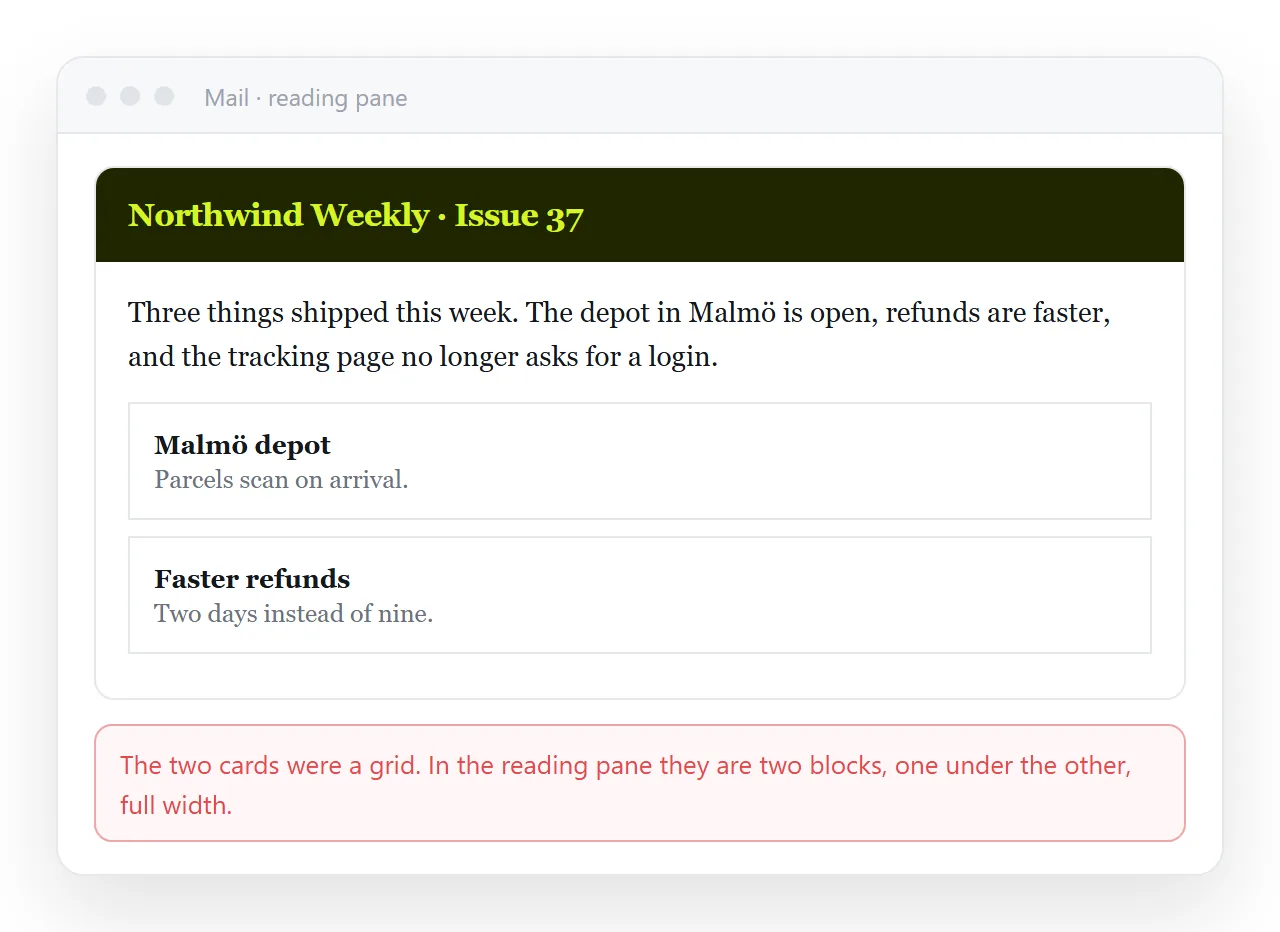
Build it the way mail is built, not the way pages are built.
- Lay it out with tables. Nested tables with fixed widths, which is the one layout mechanism every mail client honours.
- Put every style on the element. Inline CSS on each tag, because external stylesheets and
<style>blocks are frequently removed. - Use padding, not margin, on table cells for spacing.
- Keep the body under about 600 pixels wide, which is the historical safe width for a reading pane.
- Write real alt text, because images start blocked.
- Test on the actual client, not in a browser. A browser will make a broken email look fine.
That is a real discipline with its own tooling, and it is worth it only when you are sending to thousands of people.
The simpler route for everything else
For a report, a proposal, a dashboard or an invitation, send a short message with a link.
The page then renders in a browser, where the CSS you wrote actually applies, charts draw and tables sort. The email only has to carry one line of text, so nothing can be stripped.
- Check the page survives outside your folder using the HTML file opener.
- Paste the HTML into a document. It renders as its own page, dark theme and scripts included.
- Share, then Share link, then Create link. Leave it unlisted.
- Send a two line email with the link.
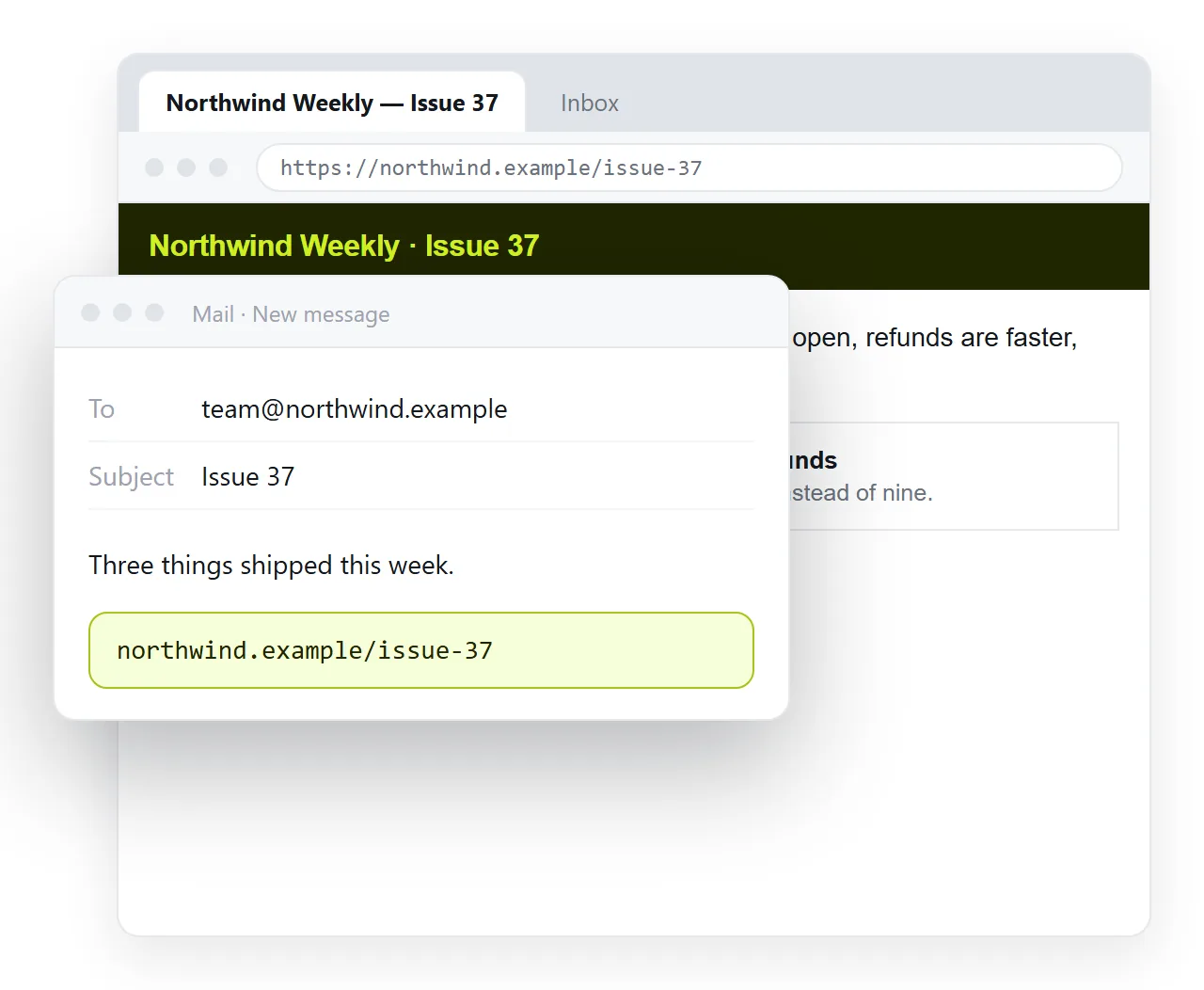
Why links beat attachments sets out the full comparison, and sharing an HTML file by email covers the attachment filters specifically.
Why the attachment is shown as code
An HTML file with a form and a script is the standard construction of a fake sign-in page. Mail software therefore refuses to render attached HTML, and many company gateways remove the attachment before it arrives.
You cannot configure your way around a filter that runs on the recipient's side. The file was never going to render for them.
The same reasoning explains the browser warning on downloaded HTML files.
This is the quiet advantage of the link. A figure changes, you click the text in the rendered document and fix it, and the message you already sent now points at the corrected page.
With an email body or an attachment, every copy is frozen, so the correction is a second email and two versions are circulating.
For the decision between the two in general, see email versus a link for documents. The same failures in a different client are covered in HTML email not displaying properly in Gmail.
Testing without guessing
You cannot judge an email by opening the HTML in a browser. The browser applies everything the mail client will discard.
Send the message to yourself and read it in the client your recipients use, on both desktop and phone. A layout that holds on one and collapses on the other is the normal result of a first attempt.
Keep a short list of what broke, because the same three or four properties break every time and the list becomes your house rules.
A related complaint is content pasted into a message body arriving with the wrong spacing or fonts.
Pasting from a browser or a word processor carries markup that the mail client then rewrites. Paste as plain text and restyle in the client, or send the link and skip the round trip.
What to send for each case
- A one off report or proposal. A link, with a two line message.
- An internal update read by a team. A link, same address each week.
- A transactional notice or a newsletter to a list. A properly built HTML email through a sending platform.
- Anything with a chart, a sortable table, or a script. A link, because none of those survive a mail client.