HTML email not displaying properly in Gmail is usually Gmail doing what it is designed to do: sanitising the markup, dropping unsupported CSS, clipping long messages and holding images until the reader allows them.
None of that is a fault in your file. It is a different rendering target, and building for it is a separate discipline from building a web page.
HTML email not displaying properly in Gmail: what changes on the way in
| What you sent | What Gmail does | Consequence |
|---|---|---|
<style> block in the head |
Often removed | The message renders unstyled |
| External stylesheet | Not loaded | Same |
| Flexbox or grid layout | Ignored | Columns collapse into a stack |
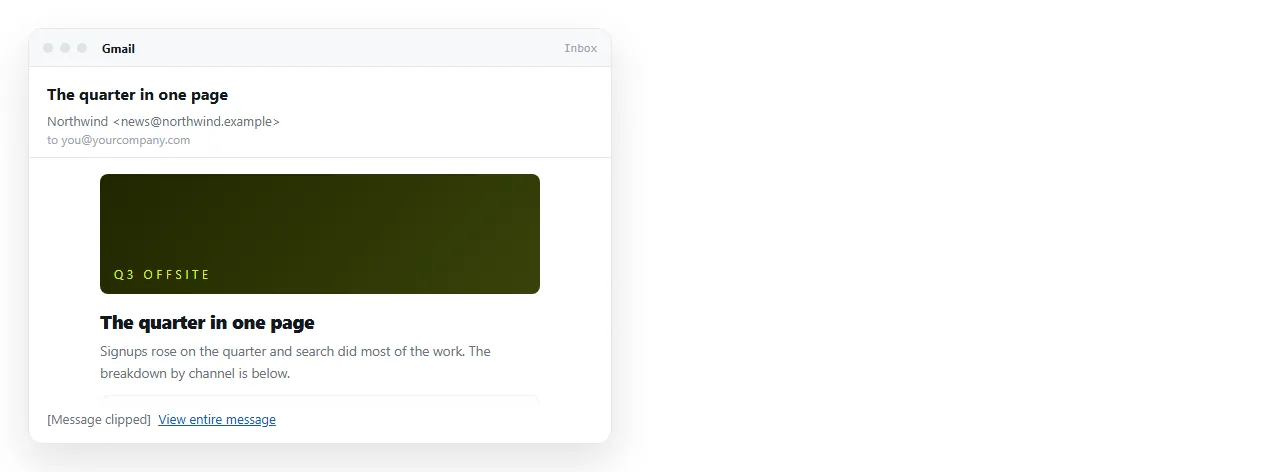
| Long HTML body | Clipped past a size threshold | The end of the message is hidden |
| Remote images | Proxied, and may stay blocked | Empty boxes without alt text |
| Web fonts | Not loaded | Falls back to a default face |
An attached .html file |
Previewed as source | Recipient sees markup |
The clipping row is the one that surprises people, because the message looks complete in the sender's own sent folder.
Cause one: styles stripped
Gmail sanitises incoming HTML, and a <style> block is among the first things removed in several contexts.
The mail industry's answer is to put every declaration on the element itself.
<td style="padding:16px 24px;font:16px/1.5 Arial,sans-serif;color:#1a1a1a">
  Quarterly summary
</td>
That is inline CSS, and it is the only styling that survives reliably. It is also unpleasant to maintain by hand, which is why bulk senders generate it.
Cause two: the message is clipped
Past a size threshold, Gmail truncates the HTML and appends a View entire message link.
Everything after the cut is unseen by most readers. If your unsubscribe line, your footer or your call to action is down there, it effectively does not exist.
Two mitigations. Keep the HTML small by removing comments, repeated inline declarations and unused markup, which is what minification does. And put what matters in the first screen rather than the last.
Cause three: images held back
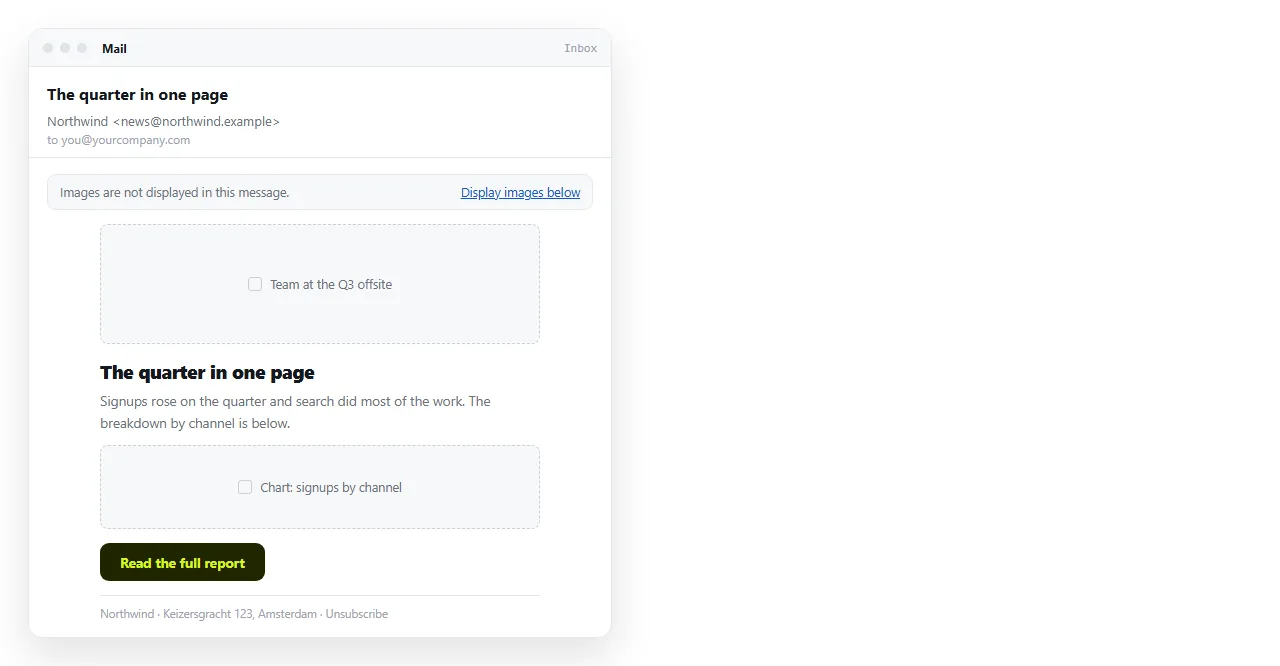
Gmail serves images through its own proxy and may hold them until the reader chooses to display them. Some corporate setups never display them.
Write real alt text on every image, and make sure the message reads correctly with all images missing. A design that puts the headline inside an image disappears entirely.
Embedding pictures as base64 data URIs is not a way around this either. Support for data URIs in mail is inconsistent and it inflates the message toward the clipping threshold.
Cause four: it was an attachment, not a message body
If the recipient sees tags, you attached an .html file rather than sending HTML as the body.
Mail clients preview attached HTML as text, because an HTML file with a form and a script is the standard shape of a fake sign-in page. Many gateways remove the attachment before it arrives at all.
Sharing an HTML file by email covers this case on its own.
The route that avoids all four
For a report, a dashboard, a proposal or an invitation, send a short message with a link.
- Check the page survives outside your folder. Drop it into the HTML file opener.
- Paste the HTML into a document. It renders as a page of its own, scripts and charts included.
- Create the share link. Share, then Share link, then Create link. Unlisted by default.
- Send two lines and the link.
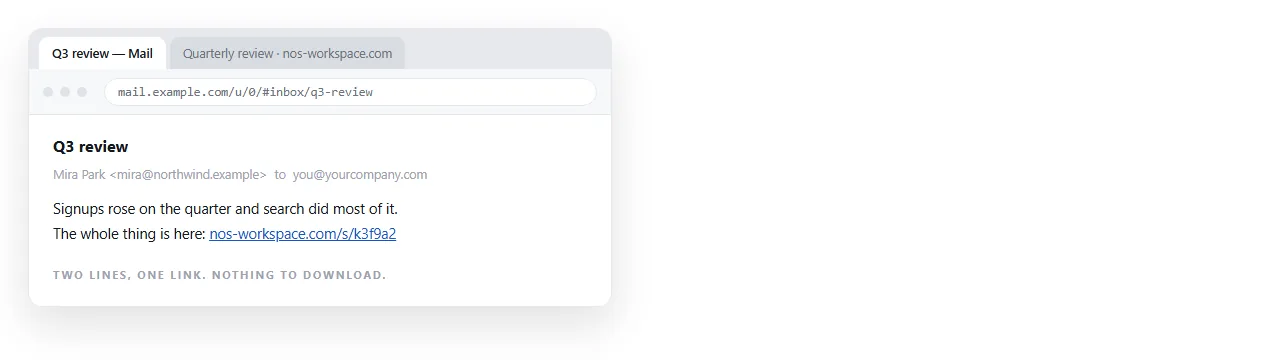
Nothing is stripped, because the mail carries no styling. Nothing is clipped, because the mail is short. Images appear, because they are on the page rather than in the message.
Marketing sends to a list, transactional receipts and newsletters genuinely belong in the inbox, and for those the table based, inline styled discipline is the price of entry.
Use a platform that generates that markup and tests it against real clients. Hand writing it for a one off internal message is effort spent on the wrong target.
For the decision in general, see email versus a link for documents and why links beat attachments. The same problems in a different client are in HTML not displaying correctly in Outlook.
Testing the message, not the file
Opening the HTML in a browser tells you nothing about how Gmail will render it, because the browser applies everything Gmail removes.
Send the message to yourself and read it in the web interface and in the phone app. Those two differ from each other often enough to be worth checking separately.
Then read it once with images turned off, which is the state a meaningful share of your recipients are in.
Gmail applies its own colour treatment in dark contexts, and a message that sets a background without setting a text colour can end up unreadable.
Set both together on every element that sets either. Do not rely on a light background being there.
Logos saved as flat images on white will show as white blocks, so use a transparent background or accept the box.
Everything above is effort spent on a rendering target you do not control. A link moves the content back into a browser, which you do.
Keep designed email for lists and receipts. For a report, a dashboard or an update to a handful of people, a two line message with an address is more reliable and stays correctable afterwards.