z-index sets which element paints in front when two overlap: the higher number is closer to you.
It only works on positioned elements (any position except static) and on flex or grid items. And the number only competes inside its stacking context, so a z-index: 9999 can still end up behind a z-index: 1.
Try the first rule. Change the numbers, then switch between static and relative.
<!doctype html>
<html lang="en">
<head>
<meta charset="utf-8">
<meta name="viewport" content="width=device-width, initial-scale=1">
<title>z-index needs a positioned element</title>
<style>
  body { margin: 0; padding: 14px; font-family: system-ui, sans-serif; background: #f4f5f7; color: #1d2330; }
  .controls { display: flex; flex-wrap: wrap; gap: 8px 14px; font-size: 14px; margin-bottom: 12px; }
  .controls label { display: inline-flex; align-items: center; gap: 5px; }
  .controls input[type=number] { width: 52px; font: inherit; padding: 3px 5px; }
  .stage { padding: 10px 0 0 10px; }
  .box {
    width: 150px; height: 90px; padding: 10px; box-sizing: border-box;
    border-radius: 10px; color: #fff; font-weight: 700;
    box-shadow: 0 4px 14px rgba(0, 0, 0, .18);
  }
  /* Negative margins make the boxes overlap */
  .box + .box { margin-top: -50px; margin-left: 60px; }
  .a { background: #2563eb; } .b { background: #16a34a; } .c { background: #ea580c; }
  /* The mode buttons below switch these classes on the stage */
  .relative .box { position: relative; }
  .flex { display: flex; flex-direction: column; align-items: flex-start; }
  .note { font-size: 14px; margin-top: 14px; min-height: 40px; }
</style>
</head>
<body>
<div class="controls">
  <label>Blue <input type="number" id="za" value="3"></label>
  <label>Green <input type="number" id="zb" value="2"></label>
  <label>Orange <input type="number" id="zc" value="1"></label>
</div>
<div class="controls">
  <label><input type="radio" name="mode" value="static" checked> position: static</label>
  <label><input type="radio" name="mode" value="relative"> position: relative</label>
  <label><input type="radio" name="mode" value="flex"> static, inside a flex parent</label>
</div>

<div class="stage" id="stage">
  <div class="box a" id="a">Blue</div>
  <div class="box b" id="b">Green</div>
  <div class="box c" id="c">Orange</div>
</div>
<p class="note" id="note"></p>

<script>
  const stage = document.getElementById('stage');
  const note = document.getElementById('note');

  function update() {
    ['a', 'b', 'c'].forEach((id) => {
      document.getElementById(id).style.zIndex = document.getElementById('z' + id).value;
    });
    const mode = document.querySelector('input[name=mode]:checked').value;
    stage.className = 'stage ' + mode;
    note.textContent = mode === 'static'
      ? 'z-index is ignored. The boxes stack in source order: Orange, the last one, is on top.'
      : 'z-index applies. The highest number is on top.';
  }

  document.querySelectorAll('input').forEach((el) => el.addEventListener('input', update));
  update();
</script>
</body>
</html>
With position: static, the boxes stack in HTML order: the last one is on top, whatever the numbers say.
Which elements z-index applies to
The default value of z-index is auto. A number takes effect in two cases:
- The element has
positionset torelative,absolute,fixedorsticky. - The element is a child of a
display: flexordisplay: gridcontainer, even withposition: static.
Everything else ignores the property. That is the first thing to check when z-index "does nothing".
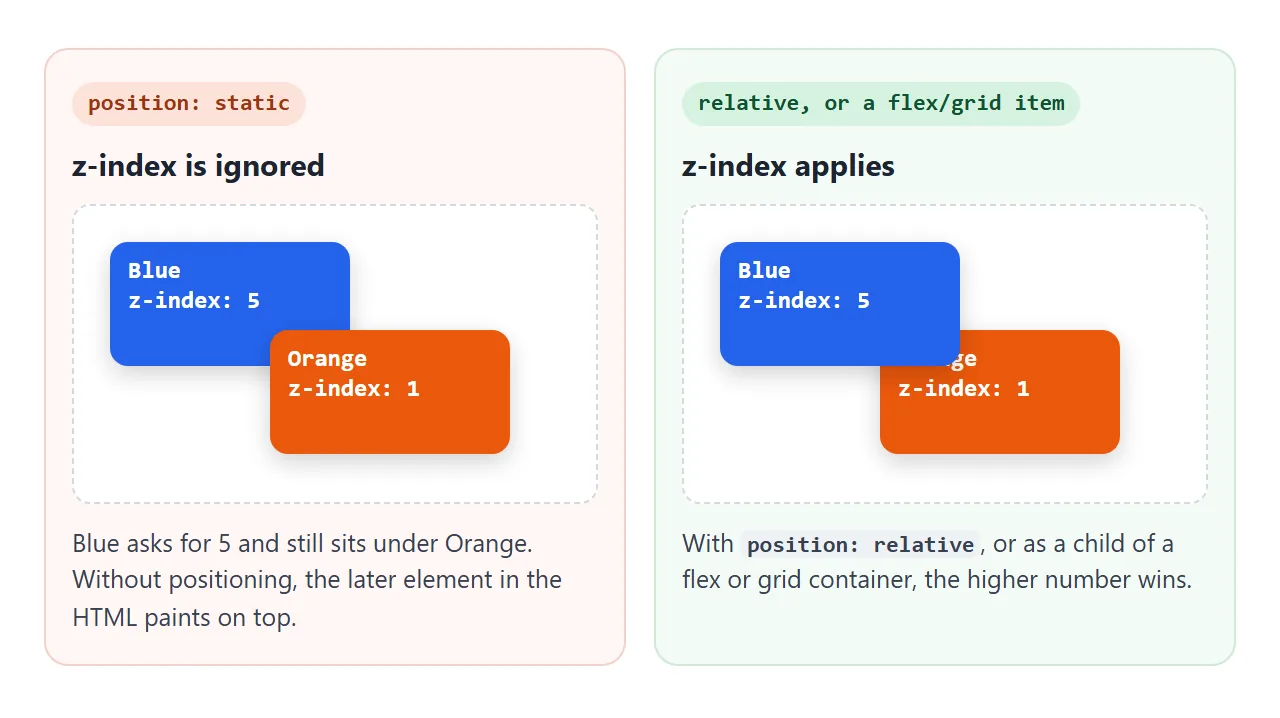
When z-index is not in play, overlapping elements paint in source order: an element later in the HTML covers an earlier one. Two elements with the same z-index follow the same rule.
Stacking contexts: why 9999 loses
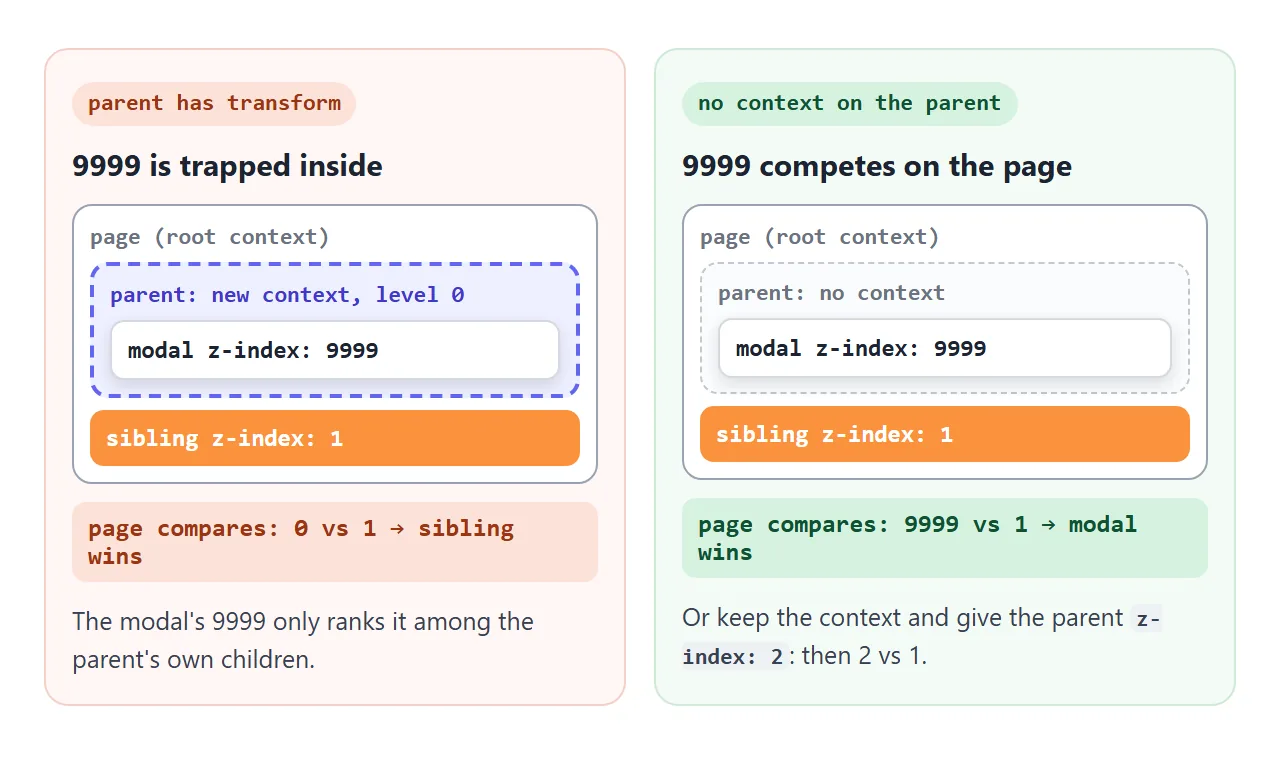
A stacking context is a group that is stacked as one unit. Inside it, children are ordered by their z-index. From the outside, the whole group has a single level, set by the element that created the context.
So a child's z-index is only compared with other elements in the same context. The page never sees the child's 9999. It sees the parent's level.
<!doctype html>
<html lang="en">
<head>
<meta charset="utf-8">
<meta name="viewport" content="width=device-width, initial-scale=1">
<title>The stacking context trap</title>
<style>
  body { margin: 0; padding: 14px; font-family: system-ui, sans-serif; background: #f4f5f7; color: #1d2330; }
  .controls { font-size: 14px; margin-bottom: 12px; display: grid; gap: 6px; }
  select { font: inherit; padding: 4px; max-width: 100%; }

  .parent {
    position: relative;               /* no z-index yet */
    padding: 12px; border-radius: 10px;
    background: #e0e7ff; border: 2px dashed #6366f1;
    height: 40px;
  }
  .modal {
    position: absolute; left: 24px; top: 34px;
    z-index: 9999;                    /* the "always on top" attempt */
    width: 210px; padding: 12px 14px; border-radius: 10px;
    background: #fff; box-shadow: 0 10px 30px rgba(0, 0, 0, .25);
  }
  .sibling {
    position: relative; z-index: 1;   /* a modest z-index */
    margin-top: 12px; height: 90px; padding: 12px; border-radius: 10px;
    background: #fb923c; color: #fff; font-weight: 700;
    display: flex; align-items: flex-end; justify-content: flex-end;
  }

  /* Each option adds one property to the parent */
  .transform { transform: translateX(0); }
  .opacity   { opacity: .99; }
  .filter    { filter: blur(0); }
  .isolate   { isolation: isolate; }
  .raised    { transform: translateX(0); z-index: 2; }

  .note { font-size: 14px; margin-top: 14px; }
  .note b.bad { color: #c2410c; } .note b.good { color: #15803d; }
</style>
</head>
<body>
<div class="controls">
  <label for="mode">Add to the parent:</label>
  <select id="mode">
    <option value="transform" selected>transform: translateX(0)</option>
    <option value="opacity">opacity: 0.99</option>
    <option value="filter">filter: blur(0)</option>
    <option value="isolate">isolation: isolate</option>
    <option value="none">nothing (remove it)</option>
    <option value="raised">transform, plus z-index: 2 on the parent</option>
  </select>
</div>

<div class="parent" id="parent">
  Parent
  <div class="modal" id="modal"><b>Modal</b><br>z-index: 9999<br>Should be on top</div>
</div>
<div class="sibling" id="sibling">Sibling, z-index: 1</div>

<p class="note" id="note"></p>

<script>
  const parent = document.getElementById('parent');
  const note = document.getElementById('note');
  const mode = document.getElementById('mode');

  function update() {
    parent.className = 'parent ' + mode.value;
    // Which element is actually painted where the modal and sibling overlap?
    const r = document.getElementById('sibling').getBoundingClientRect();
    const hit = document.elementFromPoint(r.left + 60, r.top + 20);
    const onTop = document.getElementById('modal').contains(hit);
    note.innerHTML = onTop
      ? '<b class="good">Modal on top.</b> ' + (mode.value === 'none'
          ? 'The parent makes no stacking context, so 9999 is compared with 1.'
          : 'The parent\'s context is compared with the sibling: 2 beats 1.')
      : '<b class="bad">Modal stuck under the sibling.</b> The parent is a stacking context at level 0, and the sibling\'s 1 beats it. The 9999 only counts inside the parent.';
  }

  mode.addEventListener('change', update);
  update();
</script>
</body>
</html>
In the example, transform on the parent creates a context at level 0. The sibling has level 1, so the whole parent group, modal included, paints under it. Remove the transform and the modal competes on the page directly, where 9999 beats 1.
What creates a stacking context
The root <html> element is one. A new one is created by any of these:
| Property on the element | Creates a context when |
|---|---|
position: relative or absolute |
z-index is a number, not auto |
position: fixed or sticky |
Always |
| Flex or grid item | z-index is a number, not auto |
opacity |
Below 1 |
transform, translate, rotate, scale |
Anything other than none |
filter, backdrop-filter |
Anything other than none |
clip-path, mask |
Anything other than none |
mix-blend-mode |
Anything other than normal |
isolation |
isolate |
will-change |
Names one of the properties above |
contain |
paint, layout, strict or content |
The trap is that most of these are added for other reasons: a fade-in with opacity, a hover lift with transform, a blur with filter. Each one quietly seals its children into a group.
The order inside one context
Inside a stacking context, the browser paints in a fixed order. Negative z-index goes near the back, positive z-index at the front, and everything without a number sits in between.
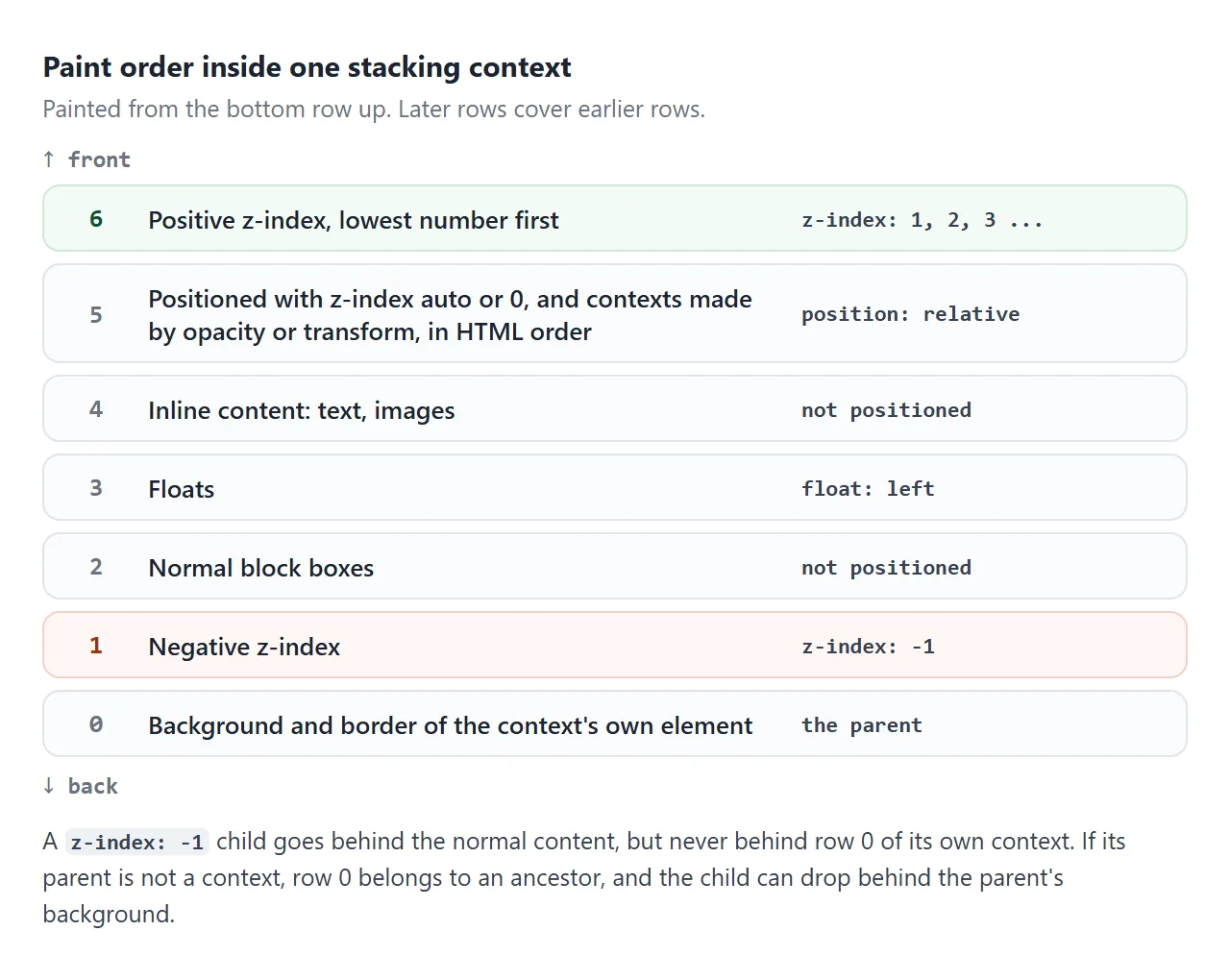
A negative z-index sends an element behind the normal content of its context. It cannot go behind the context's own background.
If the parent is not a context, the child's context is some ancestor, and the child can slip behind the parent's background entirely. Adding isolation: isolate to the parent keeps it in front of that background.
Fixing it: raise the context, not the child
Raising the child's number never helps once it is trapped. There are three fixes that do:
- Remove what creates the context, if the parent does not need that
transformoropacity. - Put the z-index on the ancestor that creates the context, so the whole group rises. That is the "plus z-index: 2" option in the demo.
- Move the element out. A modal can live at the end of
<body>.
For modals and menus there is a fourth way. Use <dialog> with showModal(), or the popover attribute; both paint in the browser's top layer, above every z-index. The HTML and CSS modal guide covers it.
Keep the numbers small. A short scale such as 1 for raised cards, 10 for a sticky header and 20 for overlays is easier to reason about than 9999.
A finished example: a menu above the next card
Card lists are where this bites. Each card is its own context, so an open menu inside card one is painted under card two.
<!doctype html>
<html lang="en">
<head>
<meta charset="utf-8">
<meta name="viewport" content="width=device-width, initial-scale=1">
<title>Dropdown menu above the next card</title>
<style>
body { margin: 0; font-family: system-ui, sans-serif; background: #f4f5f7; color: #1d2330; }
header {
position: sticky; top: 0; z-index: 10; /* page layer: above the whole card list */
padding: 12px 14px; background: #1d2330; color: #fff; font-weight: 700;
}
.cards {
display: grid; gap: 12px; padding: 14px;
isolation: isolate; /* the list is one layer; z-index values inside stay inside */
}
.card {
position: relative; z-index: 0; /* each card is its own stacking context */
padding: 14px 16px; border-radius: 12px; background: #fff;
box-shadow: 0 3px 10px rgba(0, 0, 0, .08);
transition: transform .15s;
}
.card:hover { transform: translateY(-2px); } /* hover lift, harmless now */
.card.open { z-index: 1; } /* the card with the open menu goes above its neighbours */
.card h3 { margin: 0 0 4px; font-size: 16px; }
.card p { margin: 0; font-size: 14px; color: #6b7280; }
.more {
position: absolute; top: 10px; right: 10px;
width: 34px; height: 34px; border: 0; border-radius: 8px;
background: #eef1f5; font-size: 18px; cursor: pointer;
}
.menu {
position: absolute; top: 48px; right: 10px;
z-index: 1; /* above this card's own content; 1 is enough */
width: 160px; margin: 0; padding: 6px; list-style: none;
border-radius: 10px; background: #fff; box-shadow: 0 12px 30px rgba(0, 0, 0, .2);
}
.menu[hidden] { display: none; }
.menu button {
width: 100%; padding: 9px 10px; border: 0; border-radius: 6px;
background: none; font: inherit; text-align: left; cursor: pointer;
}
.menu button:hover { background: #eef1f5; }
#log { margin: 0 14px 14px; font-size: 14px; color: #374151; }
</style>
</head>
<body>
<header>Projects</header>
<div class="cards">
<div class="card"><h3>Launch plan</h3><p>Due Friday</p>
<button class="more" aria-expanded="false" aria-label="More">⋮</button>
<ul class="menu" hidden><li><button>Rename</button></li><li><button>Duplicate</button></li><li><button>Archive</button></li></ul>
</div>
<div class="card"><h3>Copy review</h3><p>2 comments</p>
<button class="more" aria-expanded="false" aria-label="More">⋮</button>
<ul class="menu" hidden><li><button>Rename</button></li><li><button>Duplicate</button></li><li><button>Archive</button></li></ul>
</div>
<div class="card"><h3>Pricing page</h3><p>Draft</p>
<button class="more" aria-expanded="false" aria-label="More">⋮</button>
<ul class="menu" hidden><li><button>Rename</button></li><li><button>Duplicate</button></li><li><button>Archive</button></li></ul>
</div>
</div>
<p id="log">Open a menu on the first card. It covers the second card.</p>
<script>
const log = document.getElementById('log');
function closeAll() {
document.querySelectorAll('.card.open').forEach((card) => {
card.classList.remove('open');
card.querySelector('.menu').hidden = true;
card.querySelector('.more').setAttribute('aria-expanded', 'false');
});
}
document.querySelectorAll('.card').forEach((card) => {
const btn = card.querySelector('.more');
const menu = card.querySelector('.menu');
btn.addEventListener('click', (e) => {
e.stopPropagation();
const wasOpen = card.classList.contains('open');
closeAll();
if (wasOpen) return;
card.classList.add('open'); // raise the whole card, not just the menu
menu.hidden = false;
btn.setAttribute('aria-expanded', 'true');
});
menu.addEventListener('click', (e) => {
e.stopPropagation();
log.textContent = e.target.textContent + ': ' + card.querySelector('h3').textContent;
closeAll();
});
});
// Click outside or press Escape to close
document.addEventListener('click', closeAll);
document.addEventListener('keydown', (e) => { if (e.key === 'Escape') closeAll(); });
</script>
</body>
</html>
The layering in this example:
.cards { isolation: isolate; }          /* the list is one layer */
.card { position: relative; z-index: 0; } /* each card is a context */
.card.open { z-index: 1; }              /* raise the card with the open menu */
.menu { position: absolute; z-index: 1; }
The menu's own z-index: 1 only lifts it above its own card's content. The JavaScript that opens it adds .open to the card, and that is what beats the neighbours.
isolation: isolate on the list keeps those small numbers from competing with the sticky header, which uses z-index: 10 on the page. For the menu itself, see the HTML dropdown menu guide.
When it does not work
| What you see | Cause | Fix |
|---|---|---|
| Changing z-index has no effect at all | The element is position: static and not a flex or grid item |
Add position: relative |
| z-index 9999 stays under z-index 1 | The parent creates a stacking context | Put the z-index on the parent, or move the element out |
| Two numbers seem to compare wrongly | They sit in different contexts | Compare the ancestors that create those contexts |
| The menu is cut off at the card's edge | overflow: hidden (or auto) on an ancestor clips it; z-index does not change clipping |
Remove the overflow, or place the menu outside that box |
| A fixed header or modal scrolls away or sits too low | A transform or filter on an ancestor makes it the containing block for position: fixed, and a stacking context |
Remove the transform from the ancestor, or move the element to <body> |
| An element with z-index -1 vanishes | It went behind its parent's background | isolation: isolate on the parent |
z-index: 1.5 does nothing |
Not an integer, so the declaration is ignored | Use a whole number |
Clipping is often mistaken for a z-index bug. An element with overflow: hidden clips its descendants' painting, and no z-index lifts them out.
An absolutely positioned child escapes the clip only when its containing block is outside the clipping box. The CSS transform guide covers the other side effects of transform.
Share it as a link
Layering bugs are easier to show than to describe. A screenshot shows the menu hidden, but not why, and nobody can click it.
Paste the page into a NOS document and choose Create share link. HTML to link walks through it.
The page renders as written and its scripts run, so the people you send it to can open the menus and toggle the properties themselves. If you change the code later, the same link shows the new version.