document.getElementById('name') returns the one element whose id attribute is exactly name. Pass the id without a #. You get the element itself, so you can read what is typed in it, change its text, restyle it or switch its classes.
When no element matches, it returns null.
Try it first. Each button runs one line on elements it found by id, and prints that line underneath.
<!doctype html>
<html lang="en">
<head>
<meta charset="utf-8">
<meta name="viewport" content="width=device-width, initial-scale=1">
<title>getElementById: read and change elements</title>
<style>
  body { margin: 0; padding: 14px; font-family: system-ui, sans-serif; background: #f4f5f7; color: #1d2330; }
  .card { background: #fff; border-radius: 12px; padding: 14px; box-shadow: 0 4px 14px rgba(0, 0, 0, .08); }
  label { font-size: 13px; color: #5b6270; }
  input { display: block; width: 100%; box-sizing: border-box; margin: 4px 0 10px; padding: 8px 10px;
          font: inherit; border: 1px solid #c9cdd4; border-radius: 8px; }
  #greeting { margin: 0; padding: 10px; border-radius: 8px; background: #eef1f5; font-weight: 600; }
  #greeting.highlight { background: #fde68a; }
  .buttons { display: flex; flex-wrap: wrap; gap: 6px; margin: 12px 0; }
  button { font: inherit; font-size: 13px; padding: 7px 10px; border: 0; border-radius: 8px;
           background: #1d4ed8; color: #fff; cursor: pointer; }
  #code { margin: 0; padding: 10px; border-radius: 8px; background: #1d2330; color: #d1fae5;
          font: 12.5px/1.5 ui-monospace, Consolas, monospace; white-space: pre-wrap; min-height: 38px; }
</style>
</head>
<body>
<div class="card">
  <label for="name">Your name</label>
  <input id="name" value="Sam">
  <p id="greeting">Hello!</p>

  <div class="buttons">
    <button id="read">Read .value</button>
    <button id="text">Set .textContent</button>
    <button id="style">Set .style</button>
    <button id="toggle">Toggle a class</button>
    <button id="clear">Clear .value</button>
  </div>

  <pre id="code">Press a button to see the line it runs.</pre>
</div>

<script>
  // Grab each element once, by its id (no '#')
  const nameInput = document.getElementById('name');
  const greeting = document.getElementById('greeting');
  const code = document.getElementById('code');

  // Show the line that ran and what it returned
  function show(line, result) {
    code.textContent = line + (result === undefined ? '' : '\n// → ' + result);
  }

  document.getElementById('read').addEventListener('click', () => {
    show("document.getElementById('name').value", JSON.stringify(nameInput.value));
  });

  document.getElementById('text').addEventListener('click', () => {
    greeting.textContent = 'Hello, ' + nameInput.value + '!';
    show("greeting.textContent = 'Hello, ' + nameInput.value + '!';");
  });

  document.getElementById('style').addEventListener('click', () => {
    const next = greeting.style.color ? '' : '#b91c1c';  // toggle red on and off
    greeting.style.color = next;
    show("greeting.style.color = '" + next + "';");
  });

  document.getElementById('toggle').addEventListener('click', () => {
    const on = greeting.classList.toggle('highlight');
    show("greeting.classList.toggle('highlight');", on);
  });

  document.getElementById('clear').addEventListener('click', () => {
    nameInput.value = '';
    nameInput.focus();
    show("nameInput.value = '';");
  });
</script>
</body>
</html>
The return value is the element object, the same thing the browser draws on screen. Change a property on it and the page updates at once. There is no copy to save back.
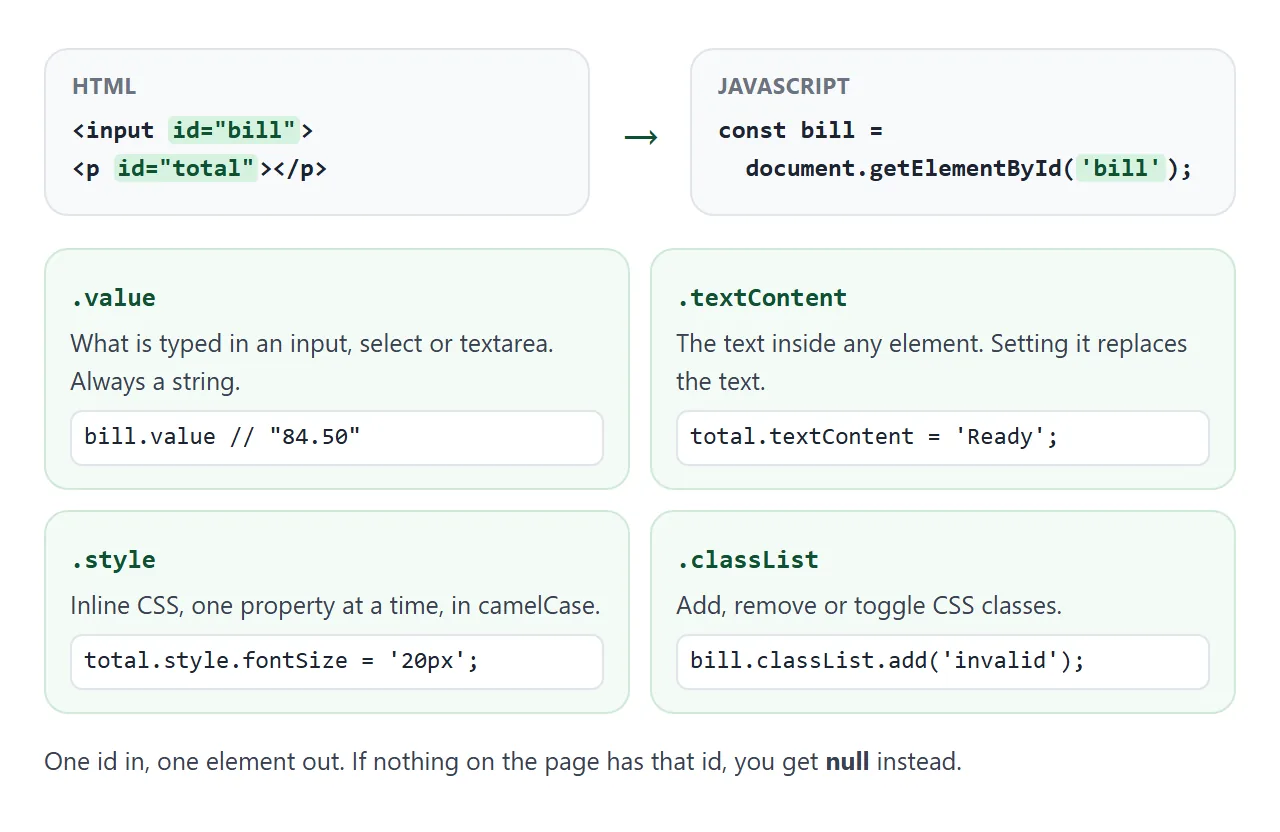
Store the result in a const once and reuse it. Calling getElementById again every time works, but a named variable is easier to read.
Reading .value and changing text, style and classes
Form fields keep their current content in .value. That covers <input>, <textarea> and <select>.
const bill = document.getElementById('bill');
console.log(bill.value);   // what the user typed, as a string
bill.value = '0';          // replace it
.value is always a string, even on type="number". '10' + 5 gives '105', so wrap it in Number() before any math.
The value attribute in the HTML only sets the starting content. Once the user types, .value has the new text and the attribute stays as it was.
Most elements are not form fields. The table puts .value next to the three properties that work on any element.
| Property | Use it for | Example |
|---|---|---|
.value |
Content of input, textarea, select | bill.value |
.textContent |
Plain text inside any element | total.textContent = '12.50' |
.style |
One inline CSS property | total.style.color = 'red' |
.classList |
Adding and removing classes | bill.classList.toggle('invalid') |
.textContenttreats what you give it as text. A<b>in the string shows up as the characters, which is what you want for anything a user typed..styleuses camelCase names:fontSize, notfont-size. It only reads inline styles, not rules from a stylesheet..classListkeeps the look in CSS. Define.invalidonce in the stylesheet and toggle it from JavaScript.
Prefer classList over many style lines. The design stays in one place and is easy to change later.
Why getElementById returns null
null means nothing with that id existed when the line ran. The most common reason is timing. A script in <head> runs while the browser is still reading the page, before the body has been built.
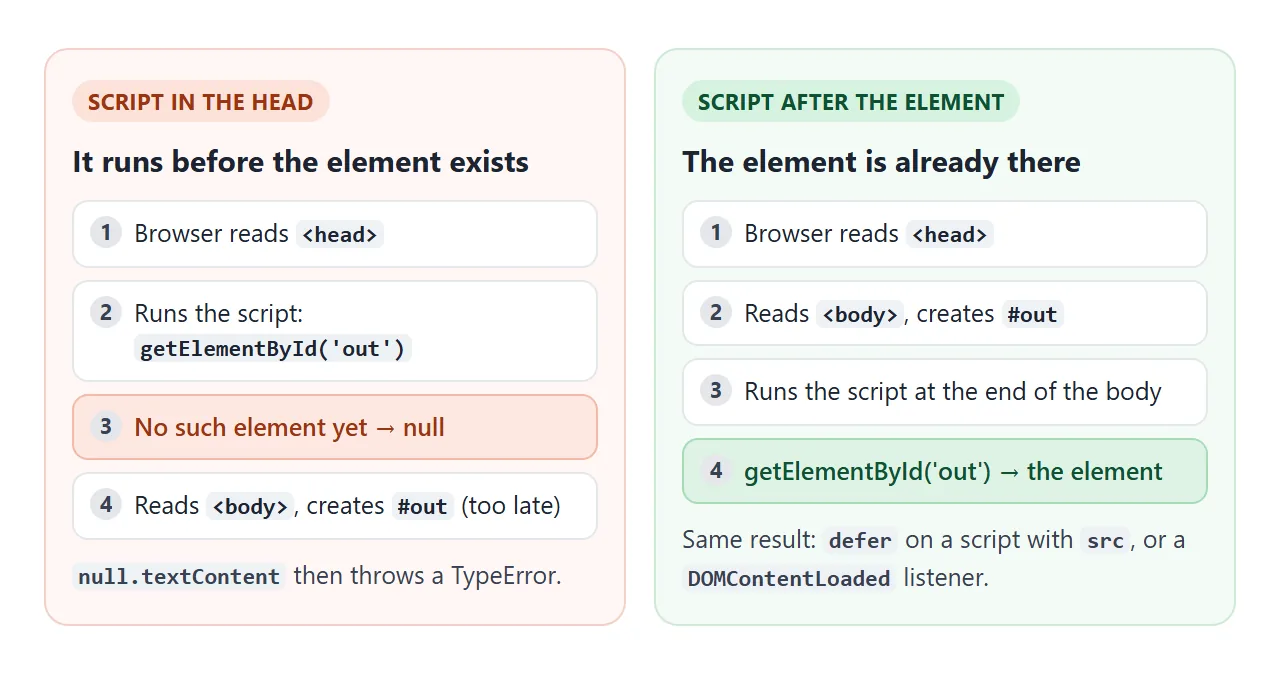
The next line that touches the result then throws a TypeError.
In Chrome it reads Cannot read properties of null when you read a property, and Cannot set properties of null when you assign one. Other browsers word it differently, but it is the same problem.
This page runs the same lookup from four places and catches the error, so you can see which ones fail:
<!doctype html>
<html lang="en">
<head>
<meta charset="utf-8">
<meta name="viewport" content="width=device-width, initial-scale=1">
<title>Why getElementById returns null</title>
<style>
body { margin: 0; padding: 14px; font-family: system-ui, sans-serif; background: #f4f5f7; color: #1d2330; }
#target { margin: 0 0 12px; padding: 10px; border-radius: 8px; background: #fff; border: 1px dashed #9aa3b2; font-size: 14px; }
.row { background: #fff; border-radius: 10px; padding: 10px 12px; margin-bottom: 8px;
border-left: 5px solid #9aa3b2; font-size: 13px; }
.row.bad { border-left-color: #c2410c; background: #fff7f5; }
.row.good { border-left-color: #15803d; background: #f4fbf6; }
.row b { display: block; margin-bottom: 3px; }
.row code { font: 12px/1.45 ui-monospace, Consolas, monospace; word-break: break-word; }
</style>
<script>
// Each test reports here. The list is drawn once the page has a place for it.
const results = [];
function report(where, el, error) {
results.push({ where, el, error });
const out = document.getElementById('out');
if (out) draw(out);
}
function draw(out) {
out.innerHTML = '';
results.sort((a, b) => a.where.localeCompare(b.where)); // show 1-4 in order
for (const r of results) {
const row = document.createElement('div');
row.className = 'row ' + (r.el ? 'good' : 'bad');
const title = document.createElement('b');
title.textContent = r.where;
const line = document.createElement('code');
line.textContent = r.el
? 'Found <' + r.el.tagName.toLowerCase() + ' id="target">'
: 'null → ' + r.error;
row.append(title, line);
out.append(row);
}
}
</script>
<!-- 1. Plain script in the head: the element does not exist yet -->
<script>
try {
const el = document.getElementById('target');
el.textContent = 'changed'; // throws, because el is null
report('1. <script> in <head>', el);
} catch (e) {
report('1. <script> in <head>', null, e.name + ': ' + e.message);
}
</script>
<!-- 2. defer on an inline script is ignored: still null -->
<script defer>
try {
const el = document.getElementById('target');
el.textContent = 'changed';
report('2. <script defer> in <head>, inline', el);
} catch (e) {
report('2. <script defer> in <head>, inline', null, e.name + ': ' + e.message);
}
</script>
<!-- 3. Wait for the page to be parsed -->
<script>
document.addEventListener('DOMContentLoaded', () => {
const el = document.getElementById('target');
report('3. <head> + DOMContentLoaded', el);
});
</script>
</head>
<body>
<p id="target">I am <p id="target">, written after the head scripts.</p>
<div id="out"></div>
<!-- 4. Script placed after the element -->
<script>
report('4. <script> after the element', document.getElementById('target'));
</script>
</body>
</html>
There are three fixes:
- Move the script to the end of
<body>, after the elements it uses. - Add
deferto an external script:<script src="app.js" defer></script>. It runs after the page is parsed. - Wait for
DOMContentLoadedif inline code must stay in the head.
Note case 2 in the demo. defer does nothing on an inline script without src, so it still gets null. The wider list of script problems is in HTML JavaScript not working.
Mistakes in the id itself
When the timing is right and the result is still null, check the argument character by character.
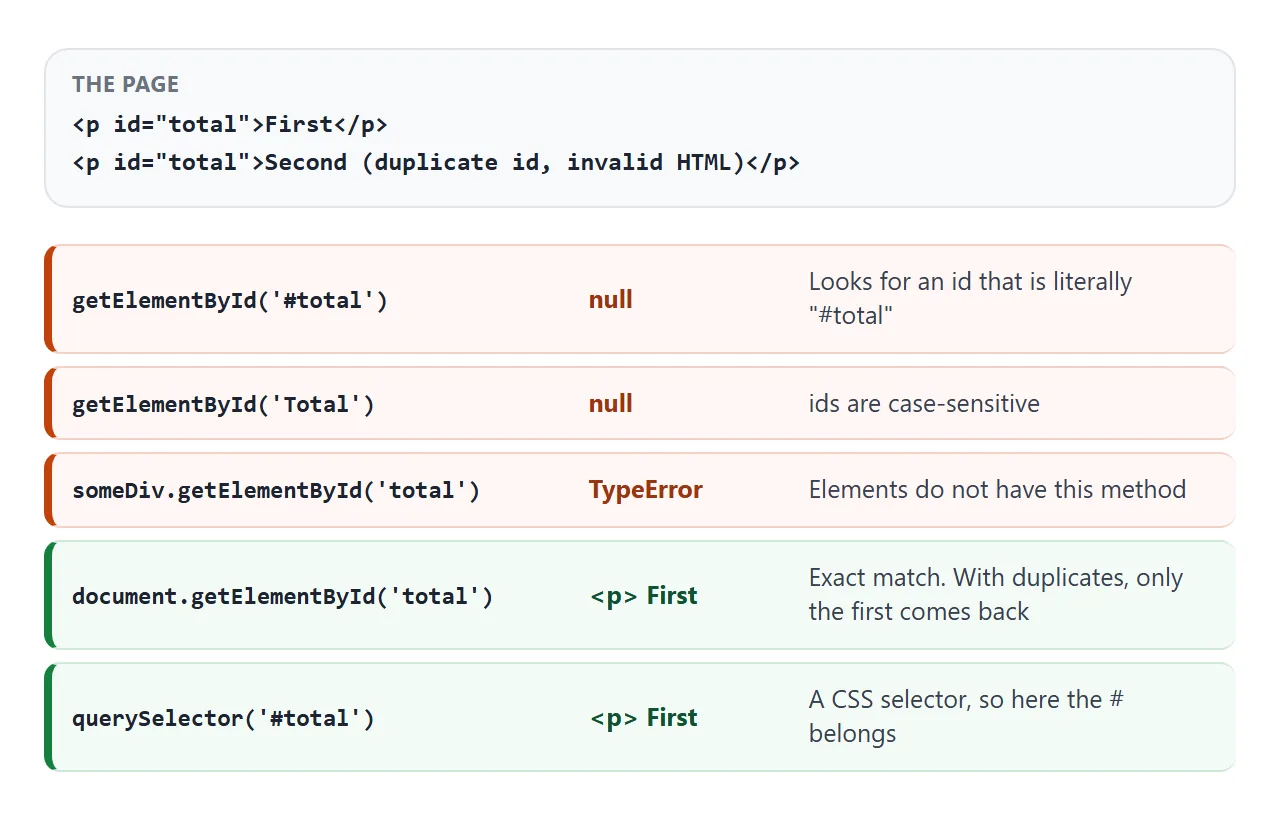
- A
#in the argument.getElementById('#total')searches for an id that literally starts with#. The#belongs to CSS selectors only. - Letter case.
Totalandtotalare different ids. - Duplicate ids. Only the first element in the page comes back. The second one never changes, which looks like the code "half works".
- Wrong object. The method lives on
document.someDiv.getElementByIdis not a function, because elements do not have it.
getElementById vs querySelector('#id')
For a plain id, both lines return the same element:
document.getElementById('total');
document.querySelector('#total');
The difference is the argument. getElementById takes the raw id. querySelector takes a CSS selector, so it needs the #, and it can also find by class, attribute or position.
Pick getElementById when you are fetching one known element by id.
Some ids are valid HTML but not valid CSS, such as an id that starts with a digit: querySelector('#2col') throws a SyntaxError, while getElementById('2col') just works. Reach for querySelector when you need anything other than an id.
A finished example: a tip calculator
Everything above in one small tool. Every input is looked up by id once. An input listener reads the values, does the math and writes the results with textContent.
<!doctype html>
<html lang="en">
<head>
<meta charset="utf-8">
<meta name="viewport" content="width=device-width, initial-scale=1">
<title>Tip calculator</title>
<style>
  body { margin: 0; padding: 14px; font-family: system-ui, sans-serif; background: #f4f5f7; color: #1d2330; }
  .calc { max-width: 380px; margin: 0 auto; background: #fff; border-radius: 14px; padding: 16px;
          box-shadow: 0 6px 20px rgba(0, 0, 0, .08); }
  h2 { margin: 0 0 12px; font-size: 18px; }
  label { display: block; font-size: 13px; color: #5b6270; margin-top: 10px; }
  input[type=number] { width: 100%; box-sizing: border-box; margin-top: 4px; padding: 9px 10px;
                       font: inherit; font-size: 16px; border: 1px solid #c9cdd4; border-radius: 8px; }
  input[type=number].invalid { border-color: #c2410c; background: #fff7f5; }
  input[type=range] { width: 100%; margin-top: 6px; }
  .out { margin-top: 14px; border-radius: 10px; background: #f4fbf6; padding: 12px; display: grid;
         grid-template-columns: 1fr auto; gap: 6px; font-size: 14px; }
  .out b { text-align: right; }
  .out .big { font-size: 20px; color: #0f5132; }
</style>
</head>
<body>
<div class="calc">
  <h2>Tip calculator</h2>

  <label for="bill">Bill</label>
  <input id="bill" type="number" min="0" step="0.01" value="84.50" inputmode="decimal">

  <label for="tip">Tip: <span id="tipLabel">15</span>%</label>
  <input id="tip" type="range" min="0" max="30" value="15">

  <label for="people">People</label>
  <input id="people" type="number" min="1" step="1" value="3" inputmode="numeric">

  <div class="out">
    <span>Tip</span><b id="tipAmount"></b>
    <span>Total</span><b id="total"></b>
    <span>Each person pays</span><b id="each" class="big"></b>
  </div>
</div>

<script>
  // Look up every element once
  const bill = document.getElementById('bill');
  const tip = document.getElementById('tip');
  const people = document.getElementById('people');
  const tipLabel = document.getElementById('tipLabel');
  const tipAmount = document.getElementById('tipAmount');
  const total = document.getElementById('total');
  const each = document.getElementById('each');

  const money = (n) => n.toFixed(2);

  function update() {
    // .value is always a string, so turn it into a number first
    const b = Number(bill.value);
    const pct = Number(tip.value);
    const n = Math.floor(Number(people.value));

    tipLabel.textContent = pct;

    const ok = bill.value !== '' && b >= 0 && n >= 1;
    bill.classList.toggle('invalid', !(bill.value !== '' && b >= 0));
    people.classList.toggle('invalid', !(n >= 1));
    if (!ok) {
      tipAmount.textContent = total.textContent = each.textContent = '-';
      return;
    }

    const t = b * pct / 100;
    tipAmount.textContent = money(t);
    total.textContent = money(b + t);
    each.textContent = money((b + t) / n);
  }

  // 'input' fires on every keystroke and every slider move
  for (const el of [bill, tip, people]) el.addEventListener('input', update);
  update();
</script>
</body>
</html>
- Numbers from strings:
Number(bill.value)before multiplying. - Live update: the
inputevent fires on every key and every slider move, unlikechange. - Invalid input:
classList.toggle('invalid', ...)marks the field red and the results show a dash.
For more calculators built this way, see HTML calculator code.
When it does not work
| What you see (Chrome wording) | Cause | Fix |
|---|---|---|
Cannot read properties of null |
Script runs before the element exists | Script at the end of <body>, defer with src, or DOMContentLoaded |
| Always null, script placement is fine | # in the argument |
Pass the bare id: 'total' |
| Null for one id only | Letter case or a typo differs from the HTML | Copy the id from the HTML |
| Only the first of two elements changes | Two elements share the id | Make ids unique, or use a class with querySelectorAll |
getElementById is not a function |
Called on an element, not document |
Use document.getElementById, or el.querySelector('#id') |
.value is undefined or setting it shows nothing |
<div>, <p> and <span> have no value |
Use .textContent |
Math gives '105' instead of 15 |
.value is a string |
Wrap it in Number() |
Share it as a link
A calculator is easier to try than to describe. A screenshot cannot take input, and an .html attachment often opens as code on a phone.
To send the working version, paste the page into a NOS document and choose Create share link. HTML to link walks through it.
The page renders as written and its scripts run, so the people you send it to can type into the fields themselves. If you change the code later, the same link shows the new version.