An id names one element, and it must be unique in the page. A class is a label for as many elements as you like, and one element can carry several.
So style with classes, and use an id only when something needs to point at exactly one element.
The practical difference shows up when two rules disagree. The paragraph below has one id and three classes. Switch rules on and off and watch which colour the browser uses.
<!doctype html>
<html lang="en">
<head>
<meta charset="utf-8">
<meta name="viewport" content="width=device-width, initial-scale=1">
<title>id vs class: specificity battle</title>
<style>
body { margin: 0; padding: 16px; font-family: system-ui, sans-serif; background: #f4f5f7; color: #1d2330; }
.stage { background: #fff; border-radius: 12px; padding: 14px 16px; margin-bottom: 12px; box-shadow: 0 2px 8px rgba(0,0,0,.06); }
.stage code { font-size: 12px; color: #6b7280; word-break: break-all; }
#target-wrap p { margin: 8px 0 0; font-size: 22px; font-weight: 700; }
.rules { display: grid; gap: 6px; }
.rule { display: grid; grid-template-columns: auto 1fr auto; align-items: center; gap: 10px;
background: #fff; border: 2px solid transparent; border-radius: 10px; padding: 8px 12px; cursor: pointer; }
.rule code { font: 600 14px ui-monospace, Consolas, monospace; }
.rule .score { font: 700 13px ui-monospace, Consolas, monospace; color: #6b7280; }
.rule.winner { border-color: #16a34a; background: #f0fbf3; }
.rule.winner .score { color: #15803d; }
.swatch { display: inline-block; width: 12px; height: 12px; border-radius: 3px; vertical-align: -1px; margin-right: 6px; }
#verdict { margin: 12px 2px 0; font-size: 14px; line-height: 1.5; }
</style>
<!-- the rules you switch on are written into this style element -->
<style id="live"></style>
</head>
<body>
<div class="stage" id="target-wrap">
<code><p id="hero" class="msg promo big"></code>
<p id="hero" class="msg promo big">Which colour wins?</p>
</div>
<div class="rules" id="rules"></div>
<p id="verdict"></p>
<script>
// selector, colour, specificity as (ids, classes, tags)
const rules = [
{ sel: 'p', color: '#6b7280', spec: [0, 0, 1], on: true },
{ sel: '.msg', color: '#2563eb', spec: [0, 1, 0], on: true },
{ sel: '.msg.promo.big', color: '#9333ea', spec: [0, 3, 0], on: true },
{ sel: '#hero', color: '#ea580c', spec: [1, 0, 0], on: true },
{ sel: '[id="hero"]', color: '#0d9488', spec: [0, 1, 0], on: false },
];
const box = document.getElementById('rules');
const live = document.getElementById('live');
const hero = document.getElementById('hero');
rules.forEach((r, i) => {
const row = document.createElement('label');
row.className = 'rule';
row.innerHTML = `<input type="checkbox" ${r.on ? 'checked' : ''}>
<code><span class="swatch" style="background:${r.color}"></span>${r.sel} { color }</code>
<span class="score">${r.spec.join(',')}</span>`;
row.querySelector('input').addEventListener('change', (e) => { r.on = e.target.checked; apply(); });
box.appendChild(row);
r.row = row;
});
function apply() {
live.textContent = rules.filter(r => r.on).map(r => `${r.sel} { color: ${r.color}; }`).join('\n');
// ask the browser which colour it actually used, then find the rule that set it
const used = getComputedStyle(hero).color;
const probe = document.createElement('i');
let winner = null;
rules.forEach(r => {
probe.style.color = r.color;
document.body.appendChild(probe);
const same = getComputedStyle(probe).color === used;
probe.remove();
r.row.classList.toggle('winner', r.on && same);
if (r.on && same) winner = r;
});
document.getElementById('verdict').innerHTML = winner
? `The browser used <b>${winner.sel}</b> (specificity ${winner.spec.join(',')}). Compare left to right: ids first, then classes, then tags.`
: 'No rule is on, so the text uses the inherited colour.';
}
apply();
</script>
</body>
</html>
With #hero on, it wins every time, even against three classes. That one rule is the main reason to put styles on classes.
id vs class at a glance
Both are attributes you write in HTML. They differ in how many elements can share the name, and in who reads it.
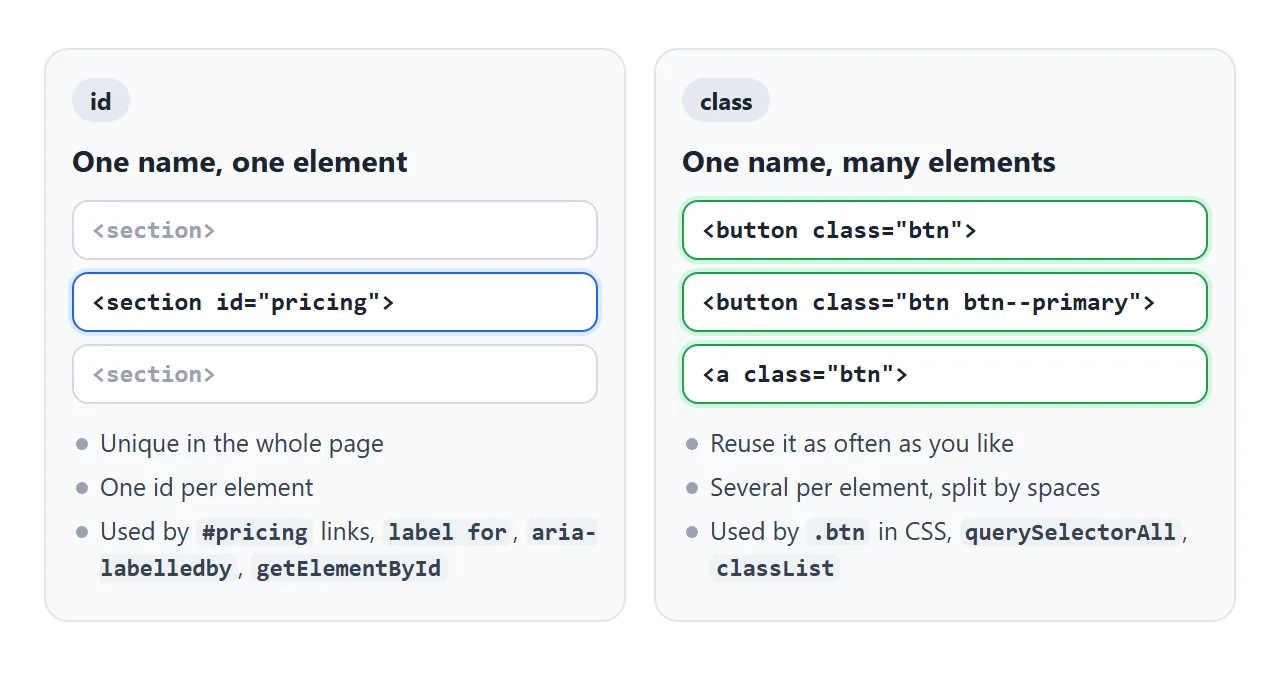
| id | class | |
|---|---|---|
| Per page | One element per value | Any number of elements |
| Per element | One id | Several, split by spaces |
| CSS selector | #pricing |
.btn |
| Specificity | 1,0,0 | 0,1,0 |
| Used by | #links, label for, aria-labelledby, getElementById |
CSS, querySelectorAll, classList |
Why an id is hard to override
When two rules set the same property, the browser compares specificity: how many ids, then classes, then tags each selector uses. It compares column by column, left to right, and the first column with a difference decides.
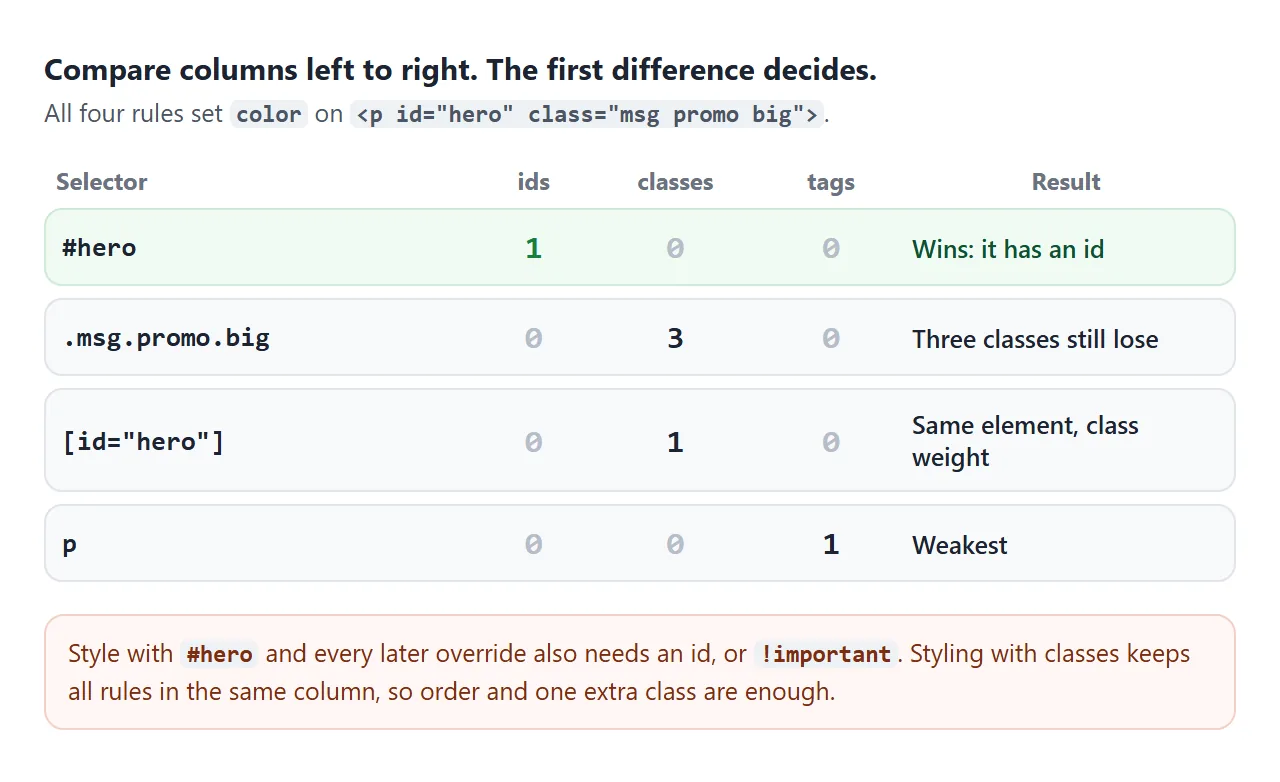
So #hero (1,0,0) beats .msg.promo.big (0,3,0). A later rule does not help either, because source order only breaks ties. To restyle that element you need another id or !important, and the next change needs even more.
#hero { color: orange; }          /* 1,0,0 */
.msg.promo.big { color: purple; } /* 0,3,0: loses, even though it comes later */
If you have to target an element by its id but want class weight, use an attribute selector. [id="hero"] matches the same element and counts as 0,1,0, like one class. The first example has this rule to try.
The order rules and the style attribute are covered in the HTML style tag.
When to use an id
A few HTML features take an id as their input. That is where ids belong.
- Style with a class. Put every visual style on a class, even if only one element uses it today.
- Add an id only for a unique target. A link to a spot on the page, a label, an aria attribute or a script needs exactly one element.
- Check the id is unique. Copied markup is the usual way a second copy sneaks in.
- Select groups with querySelectorAll.
getElementByIdreturns one element; a class selector returns all of them.
The features that read an id are:
- Links to a section:
<a href="#pricing">scrolls toid="pricing". See linking to an anchor on the same page. - Labels:
<label for="email">connects to<input id="email">, so clicking the text focuses the field. See the label element. - Accessibility references:
aria-labelledbyandaria-describedbytake a list of ids. - Scripts:
document.getElementById('email')finds the one element directly.
What a duplicate id breaks
Browsers do not refuse a page with two identical ids. They render it, and most of it looks fine. The damage appears only where something looks up the id.
<!doctype html>
<html lang="en">
<head>
<meta charset="utf-8">
<meta name="viewport" content="width=device-width, initial-scale=1">
<title>Duplicate ids vs classes</title>
<style>
  body { margin: 0; padding: 14px; font-family: system-ui, sans-serif; background: #f4f5f7; color: #1d2330; font-size: 14px; }
  .cols { display: grid; grid-template-columns: 1fr 1fr; gap: 10px; }
  @media (max-width: 480px) { .cols { grid-template-columns: 1fr; } }
  .col { background: #fff; border-radius: 12px; padding: 12px; }
  .col.bad { border-top: 4px solid #ea580c; }
  .col.good { border-top: 4px solid #16a34a; }
  h3 { margin: 0 0 8px; font-size: 15px; }
  .box { border: 1px solid #e1e4ea; border-radius: 8px; padding: 6px 8px; margin: 6px 0; }
  .box.hit { background: #fef3c7; border-color: #f59e0b; }
  .row { display: flex; flex-wrap: wrap; gap: 6px; margin: 8px 0; }
  button { font: inherit; padding: 6px 10px; border-radius: 8px; border: 1px solid #cbd2dc; background: #fff; cursor: pointer; }
  label { cursor: pointer; text-decoration: underline dotted; }
  .log { margin-top: 10px; font: 12.5px/1.5 ui-monospace, Consolas, monospace; background: #1d2330; color: #e5e7eb; border-radius: 8px; padding: 8px 10px; min-height: 60px; white-space: pre-wrap; }
  .scroller { height: 64px; overflow: auto; border: 1px dashed #cbd2dc; border-radius: 8px; padding: 0 8px; }
  .scroller .box { margin: 40px 0; }
  .scroller .box:first-child { margin-top: 6px; }
  /* an id selector in CSS still matches every element with that id */
  #note { font-weight: 700; }
</style>
</head>
<body>
<div class="cols">
  <!-- LEFT: the same id twice -->
  <div class="col bad">
    <h3>id="note" used twice</h3>
    <div class="box" id="note">Note A <input type="checkbox" id="agree"></div>
    <div class="box" id="note">Note B <input type="checkbox" id="agree"></div>
    <div class="row">
      <button id="byId">getElementById('note')</button>
      <button id="allId">querySelectorAll('#note')</button>
    </div>
    <p style="margin:6px 0"><label for="agree">Click this label</label> (for="agree")</p>
    <div class="scroller" id="scrollA">
      <div class="box">top of the list</div>
      <div class="box" id="jump">Target A</div>
      <div class="box" id="jump">Target B</div>
    </div>
    <p style="margin:6px 0"><a href="#jump">Link to #jump</a></p>
  </div>

  <!-- RIGHT: the same class many times -->
  <div class="col good">
    <h3>class="note" used twice</h3>
    <div class="box note">Note A</div>
    <div class="box note">Note B</div>
    <div class="row">
      <button id="byClass">querySelectorAll('.note')</button>
      <button id="clear">Clear</button>
    </div>
    <p style="margin:6px 0">A class can be on any number of elements, and the code gets all of them back.</p>
  </div>
</div>
<div class="log" id="log">Press a button or click the label.</div>

<script>
  const log = document.getElementById('log');
  const show = (list, text) => {
    document.querySelectorAll('.box').forEach(b => b.classList.remove('hit'));
    list.forEach(el => el.classList.add('hit'));
    log.textContent = text;
  };

  document.getElementById('byId').addEventListener('click', () => {
    const el = document.getElementById('note');  // always one element: the first in the page
    show([el], `getElementById('note') returned 1 element: "${el.firstChild.textContent.trim()}"`);
  });
  document.getElementById('allId').addEventListener('click', () => {
    const els = document.querySelectorAll('#note');
    show(els, `querySelectorAll('#note') returned ${els.length} elements. The page is still invalid HTML.`);
  });
  document.getElementById('byClass').addEventListener('click', () => {
    const els = document.querySelectorAll('.note');
    show(els, `querySelectorAll('.note') returned ${els.length} elements, as intended.`);
  });
  document.getElementById('clear').addEventListener('click', () => show([], 'Cleared.'));

  // report which checkbox the label actually toggled
  document.querySelectorAll('#note input').forEach((box, i) => {
    box.addEventListener('change', () => {
      log.textContent = `Checkbox in Note ${i ? 'B' : 'A'} is now ${box.checked ? 'checked' : 'unchecked'}. ` +
        (i ? '' : 'The label only ever reaches this first one.');
    });
  });
</script>
</body>
</html>
Every lookup that expects one element stops at the first match in the page. The label ticks only the first checkbox, the link scrolls only to the first target, and getElementById returns only the first element.
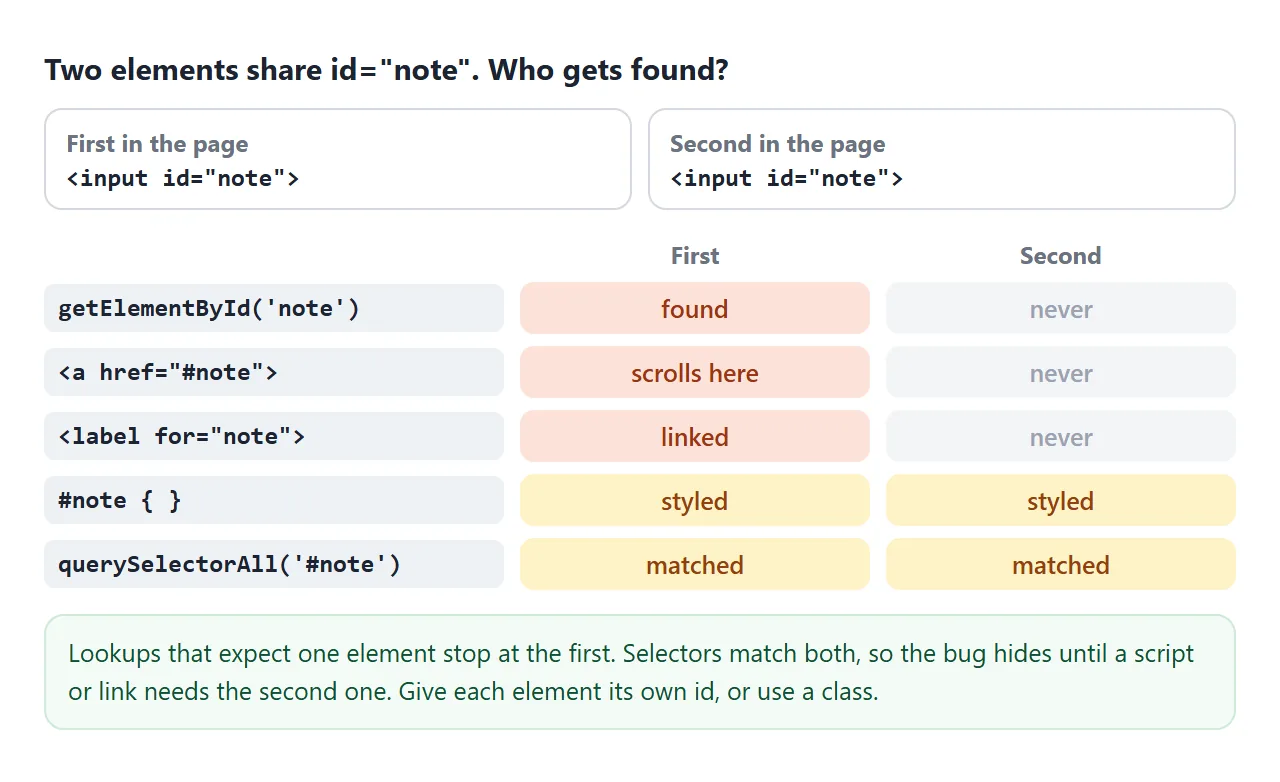
CSS is the confusing part: #note { } styles both elements, and querySelectorAll('#note') returns both. So the page looks right until a script or a link needs the second one.
The fix is always the same: give each element its own id, or switch to a class.
Selecting ids and classes in JavaScript
Use the method that matches the attribute:
const form = document.getElementById('signup');          // one element or null
const cards = document.querySelectorAll('.card');        // every match, as a NodeList
cards.forEach(card => card.classList.add('card--ready'));
getElementById takes the id without #. querySelector and querySelectorAll take a CSS selector, so they need # or . in front. getElementById and querySelector cover each one in depth.
To change what an element looks like from a script, add or remove a class with classList instead of writing styles inline. The CSS stays in one place.
Naming rules, and attribute selectors as a third way
An id value must contain at least one character and no spaces. A class attribute is a list: class="btn primary" is two classes, btn and primary, not one class with a space in it.
- Use lowercase and hyphens:
main-nav,card-title. In a page that starts with<!doctype html>, class and id matching is case-sensitive, so.Carddoes not matchclass="card". Old pages without a doctype match them loosely, which is one more reason to keep names lowercase. - Start ids with a letter.
id="1st"is valid HTML, but#1stis an invalid CSS selector. Escape it as#\31 stor build it withCSS.escape('1st'). - BEM is one common convention for class names:
block__element--modifier, as incard__titleorbtn--primary. The name shows where the class belongs.
A third hook is the attribute selector. [data-state="open"] or [aria-expanded="true"] style an element by an attribute you already set, with the same weight as one class. It suits states that scripts change.
A finished example: components styled only with classes
This small library has buttons, cards and a checkbox. Every style uses a class. Ids appear only where HTML needs a unique name: two anchor targets, a label, two aria-labelledby references and a few script hooks.
<!doctype html>
<html lang="en">
<head>
<meta charset="utf-8">
<meta name="viewport" content="width=device-width, initial-scale=1">
<title>Class-only components with an id lint</title>
<style>
  /* every style below uses classes; no #id selectors */
  body { margin: 0; padding: 14px; font-family: system-ui, sans-serif; background: #f4f5f7; color: #1d2330; font-size: 14px; }
  .nav { display: flex; gap: 12px; margin-bottom: 10px; }
  .nav a { color: #2563eb; }
  .section { background: #fff; border-radius: 12px; padding: 12px; margin-bottom: 10px; }
  .section__title { margin: 0 0 10px; font-size: 15px; }
  .btn { font: inherit; padding: 8px 14px; border-radius: 8px; border: 1px solid #cbd2dc; background: #fff; cursor: pointer; }
  .btn--primary { background: #2563eb; border-color: #2563eb; color: #fff; }
  .btn--danger { background: #fff; border-color: #dc2626; color: #b91c1c; }
  .btn--small { padding: 4px 9px; font-size: 13px; }
  .btn-row { display: flex; flex-wrap: wrap; gap: 8px; }
  .cards { display: grid; grid-template-columns: repeat(auto-fill, minmax(150px, 1fr)); gap: 8px; }
  .card { border: 1px solid #e1e4ea; border-radius: 10px; padding: 10px; }
  .card--featured { border-color: #2563eb; box-shadow: 0 0 0 2px #dbeafe; }
  .card--compact { padding: 4px 8px; font-size: 12.5px; }
  .card__title { font-weight: 700; margin-bottom: 4px; }
  .field { display: flex; align-items: center; gap: 8px; margin-top: 8px; }
  .lint { background: #1d2330; color: #e5e7eb; border-radius: 12px; padding: 10px 12px; font: 12.5px/1.5 ui-monospace, Consolas, monospace; }
  .lint__ok { color: #86efac; }
  .lint__bad { color: #fdba74; }
  .lint .btn { font-family: system-ui, sans-serif; margin: 8px 6px 0 0; }
</style>
</head>
<body>
<nav class="nav">
  <a href="#buttons">Buttons</a>
  <a href="#cards">Cards</a>
</nav>

<!-- ids only where a unique name is needed: anchor targets, label for, aria-labelledby, script hooks -->
<section class="section" id="buttons" aria-labelledby="buttons-title">
  <h2 class="section__title" id="buttons-title">Buttons</h2>
  <div class="btn-row">
    <button class="btn">Default</button>
    <button class="btn btn--primary">Save</button>
    <button class="btn btn--danger">Delete</button>
    <button class="btn btn--primary btn--small">Small save</button>
  </div>
</section>

<section class="section" id="cards" aria-labelledby="cards-title">
  <h2 class="section__title" id="cards-title">Cards</h2>
  <div class="cards">
    <div class="card"><div class="card__title">Basic</div>Uses .card</div>
    <div class="card card--featured"><div class="card__title">Featured</div>.card plus .card--featured</div>
    <div class="card"><div class="card__title">Basic</div>Same class, again</div>
  </div>
  <div class="field">
    <input type="checkbox" id="compact">
    <label for="compact">Compact cards</label>
  </div>
</section>

<div class="lint">
  <div id="lint-out"></div>
  <button class="btn btn--small" id="break">Add a card with a duplicate id</button>
  <button class="btn btn--small" id="undo">Remove it</button>
</div>

<script>
  // the checkbox toggles a class on every card at once
  document.getElementById('compact').addEventListener('change', (e) => {
    document.querySelectorAll('.card').forEach(c => c.classList.toggle('card--compact', e.target.checked));
  });

  function lint() {
    const lines = [];
    const seen = {};
    document.querySelectorAll('[id]').forEach(el => { seen[el.id] = (seen[el.id] || 0) + 1; });
    const dupes = Object.keys(seen).filter(id => seen[id] > 1);
    dupes.forEach(id => lines.push(`<span class="lint__bad">duplicate id "${id}" x${seen[id]}</span>`));

    // every reference must point at an id that exists
    const refs = [
      ...[...document.querySelectorAll('label[for]')].map(l => ['label for', l.htmlFor]),
      ...[...document.querySelectorAll('[aria-labelledby]')].map(e => ['aria-labelledby', e.getAttribute('aria-labelledby')]),
      ...[...document.querySelectorAll('a[href^="#"]')].map(a => ['href', a.getAttribute('href').slice(1)]),
    ];
    refs.forEach(([kind, id]) => {
      if (!seen[id]) lines.push(`<span class="lint__bad">${kind}="${id}" points at nothing</span>`);
    });
    const head = `${Object.keys(seen).length} ids, ${refs.length} references checked`;
    document.getElementById('lint-out').innerHTML = lines.length
      ? head + '<br>' + lines.join('<br>')
      : head + '<br><span class="lint__ok">OK: every id is unique and every reference resolves</span>';
  }

  document.getElementById('break').addEventListener('click', () => {
    const card = document.createElement('div');
    card.className = 'card';
    card.id = 'compact';  // the mistake: this id is already on the checkbox
    card.innerHTML = '<div class="card__title">Copied card</div>id="compact" by mistake';
    document.querySelector('.cards').appendChild(card);
    lint();
  });
  document.getElementById('undo').addEventListener('click', () => {
    document.querySelectorAll('.card[id="compact"]').forEach(c => c.remove());
    lint();
  });
  lint();
</script>
</body>
</html>
- Modifiers stack:
class="btn btn--primary btn--small"combines three classes without any new CSS. - One class toggles many: the checkbox adds
card--compactto every card throughquerySelectorAll('.card'). - The lint panel counts each id, then checks that every
label for,aria-labelledbyand#linkpoints at an id that exists. Press the button to add a card that repeatsid="compact"and watch it get flagged.
When it does not work
| What you see | Cause | Fix |
|---|---|---|
| A class rule is ignored | An #id rule sets the same property and outranks it |
Move the style to a class, or target the element with [id="..."] |
| Only the first element changes | Two elements share the id; getElementById returns the first |
Make ids unique, or use a class with querySelectorAll |
| Clicking a label ticks the wrong box | The for value matches a duplicated id |
Give each control its own id |
| A style never applies | Typo or wrong case in the class name | Match the name exactly, including case |
querySelector throws a SyntaxError |
The id starts with a digit | Escape it with CSS.escape, or rename the id |
.btn primary matches nothing |
class="btn primary" is two classes, and a space in a selector means "inside" |
Chain them as .btn.primary |
Share it as a link
A page like the component library above is easier to try than to describe. A screenshot cannot be clicked, and an .html attachment may open as plain code on a phone.
To send the working version, paste the page into a NOS document and choose Create share link. HTML to link walks through it.
The page renders as written and its scripts run, so the people you send it to can toggle the rules and break the ids themselves. If you change the code later, the same link shows the new version.