A sortable list needs a little JavaScript: HTML has draggable="true", but nothing that moves the item to a new spot.
There are two ways to write it. The HTML Drag and Drop API is built in and short. Pointer events take more code but work with a mouse and a finger alike.
Here is the Drag and Drop API version. Drag a row with a mouse. The blue line shows where it will land.
<!doctype html>
<html lang="en">
<head>
<meta charset="utf-8">
<meta name="viewport" content="width=device-width, initial-scale=1">
<title>Sortable list with the HTML Drag and Drop API</title>
<style>
  body { margin: 0; padding: 16px; font-family: system-ui, sans-serif; background: #f4f5f7; }
  h3 { margin: 0 0 10px; font-size: 15px; }
  .wrap { position: relative; max-width: 360px; }  /* the drop line is placed inside this */
  #list { list-style: none; margin: 0; padding: 0; }
  #list li {
    margin-bottom: 8px; padding: 12px 14px; border-radius: 10px;
    background: #fff; box-shadow: 0 2px 8px rgba(0, 0, 0, .08);
    cursor: grab; user-select: none;
  }
  #list li.dragging { opacity: .4; }
  #line {
    position: absolute; left: 0; right: 0; height: 3px; margin-top: -2px;
    border-radius: 2px; background: #2563eb; display: none; pointer-events: none;
  }
</style>
</head>
<body>
<h3>Drag a row to reorder</h3>
<div class="wrap">
<ul id="list">
  <li draggable="true">Apples</li>
  <li draggable="true">Bread</li>
  <li draggable="true">Coffee</li>
  <li draggable="true">Eggs</li>
  <li draggable="true">Milk</li>
</ul>
<div id="line"></div>
</div>

<script>
  const list = document.getElementById('list');
  const line = document.getElementById('line');
  let dragged = null;
  let before = null;  // the item the dragged one will go in front of (null = end)

  list.addEventListener('dragstart', (e) => {
    dragged = e.target.closest('li');
    e.dataTransfer.effectAllowed = 'move';
    e.dataTransfer.setData('text/plain', dragged.textContent);  // give the drag some data
    dragged.classList.add('dragging');
  });

  // First item whose middle is below the pointer. Skip the dragged one.
  function itemAfter(y) {
    for (const li of list.querySelectorAll('li:not(.dragging)')) {
      const r = li.getBoundingClientRect();
      if (y < r.top + r.height / 2) return li;
    }
    return null;
  }

  list.addEventListener('dragenter', (e) => e.preventDefault());

  list.addEventListener('dragover', (e) => {
    e.preventDefault();  // without this, drop never fires
    if (!dragged) return;  // something from outside the list
    before = itemAfter(e.clientY);
    const items = list.querySelectorAll('li:not(.dragging)');
    const last = items[items.length - 1];
    // draw the line at the top of "before", or under the last item
    line.style.top = (before ? before.offsetTop - 4 : last.offsetTop + last.offsetHeight + 4) + 'px';
    line.style.display = 'block';
  });

  list.addEventListener('drop', (e) => {
    e.preventDefault();
    if (dragged) list.insertBefore(dragged, before);  // before = null puts it at the end
  });

  // dragend fires on the dragged item whether or not the drop happened
  list.addEventListener('dragend', () => {
    if (!dragged) return;
    dragged.classList.remove('dragging');
    line.style.display = 'none';
    dragged = null;
  });
</script>
</body>
</html>
Version 1: the HTML Drag and Drop API
Put draggable="true" on each <li>, then listen on the list. Events from the rows bubble up, so one set of listeners covers every item, including ones you add later.
dragstart– remember which row is being dragged and give it a faded style.dragover– work out where the row would go and draw the line there. CallpreventDefault(), or the list refuses the drop.drop– move the row withinsertBefore.dragend– remove the faded style and hide the line. It fires whether or not the drop happened.
list.addEventListener('dragover', (e) => {
  e.preventDefault();               // allow dropping here
  before = itemAfter(e.clientY);    // null means "at the end"
});
list.addEventListener('drop', (e) => {
  e.preventDefault();
  list.insertBefore(dragged, before);
});
Finding where the item goes
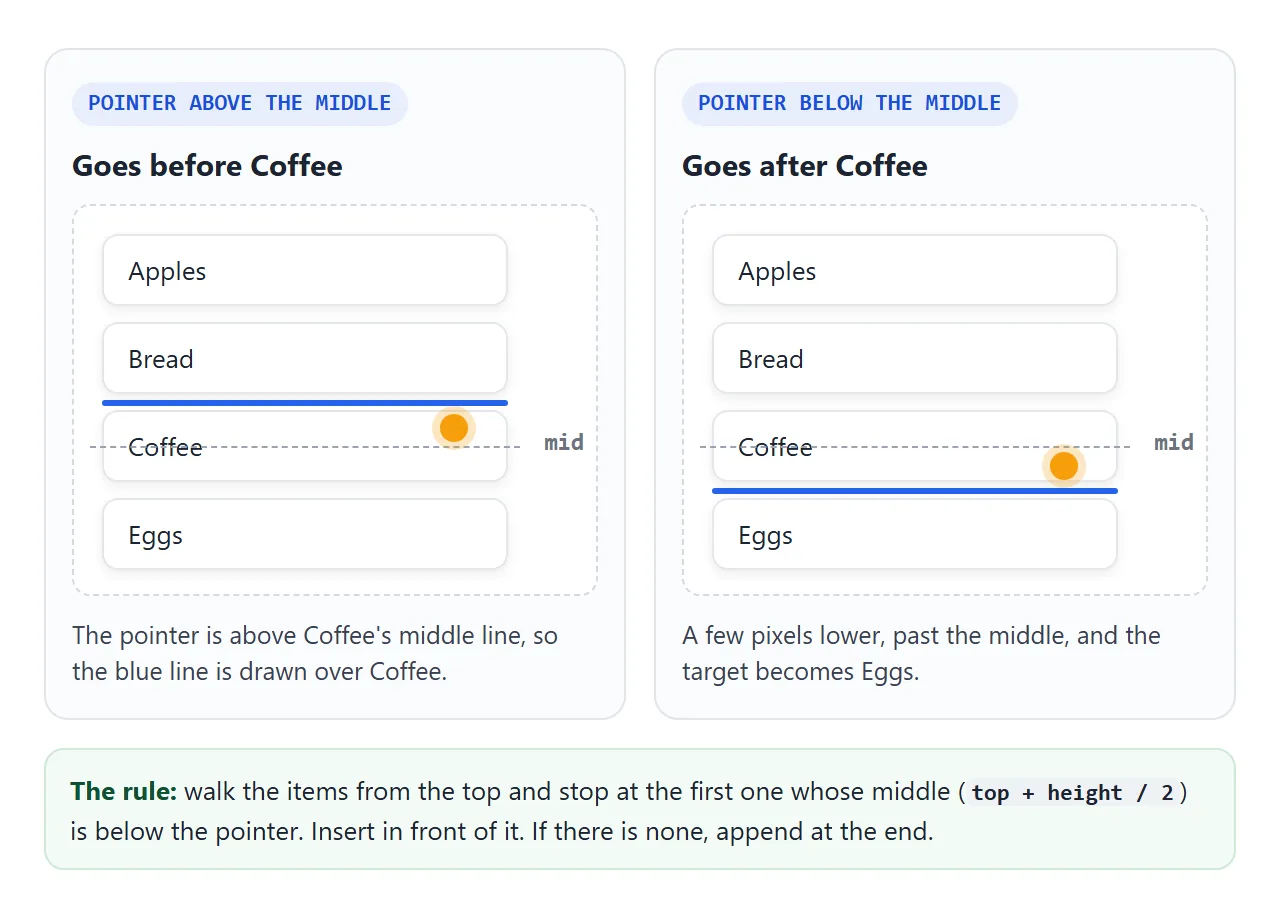
Both versions use the same rule. Walk the rows from the top and stop at the first one whose middle is below the pointer. The dragged row goes in front of that one. If no row qualifies, it goes at the end.
function itemAfter(y) {
  for (const li of list.querySelectorAll('li:not(.dragging)')) {
    const r = li.getBoundingClientRect();
    if (y < r.top + r.height / 2) return li;
  }
  return null;
}
Comparing with the middle, rather than the top edge, is what makes the line flip at a natural point. Skip the dragged row itself, or it can end up as its own target.
Version 2: pointer events, for mouse and touch
On phones, touch support for the Drag and Drop API is limited and inconsistent between browsers. If the list has to work with a finger, drag it yourself with pointer events, the same technique as a draggable div. Try this one on a phone.
<!doctype html>
<html lang="en">
<head>
<meta charset="utf-8">
<meta name="viewport" content="width=device-width, initial-scale=1">
<title>Sortable list with pointer events</title>
<style>
body { margin: 0; padding: 16px; font-family: system-ui, sans-serif; background: #f4f5f7; }
h3 { margin: 0 0 10px; font-size: 15px; }
#list { position: relative; list-style: none; margin: 0; padding: 0; max-width: 360px; }
#list li {
display: flex; align-items: center; gap: 10px;
margin-bottom: 8px; padding: 10px 12px; border-radius: 10px;
background: #fff; box-shadow: 0 2px 8px rgba(0, 0, 0, .08);
}
.handle {
padding: 4px 6px; color: #8a919e; cursor: grab; user-select: none;
touch-action: none; /* on a phone, the finger drags the row instead of scrolling */
}
#list li.lifted {
position: fixed; z-index: 10; margin: 0;
box-shadow: 0 12px 28px rgba(0, 0, 0, .22);
}
#list li.placeholder {
background: transparent; box-shadow: none;
border: 2px dashed #b8c0cc; box-sizing: border-box;
}
</style>
</head>
<body>
<h3>Drag the ≡ handle (mouse or finger)</h3>
<ul id="list">
<li><span class="handle">≡</span>Apples</li>
<li><span class="handle">≡</span>Bread</li>
<li><span class="handle">≡</span>Coffee</li>
<li><span class="handle">≡</span>Eggs</li>
<li><span class="handle">≡</span>Milk</li>
</ul>
<script>
const list = document.getElementById('list');
let item = null, ph = null, dy = 0;
list.addEventListener('pointerdown', (e) => {
const handle = e.target.closest('.handle');
if (!handle) return;
item = handle.closest('li');
const r = item.getBoundingClientRect();
dy = e.clientY - r.top; // grab point, so the row does not jump
ph = document.createElement('li'); // the gap that shows where it will land
ph.className = 'placeholder';
ph.style.height = r.height + 'px';
item.before(ph);
// lift the row out of the list, exactly where it was
Object.assign(item.style, { left: r.left + 'px', top: r.top + 'px', width: r.width + 'px' });
item.classList.add('lifted');
handle.setPointerCapture(e.pointerId);
});
list.addEventListener('pointermove', (e) => {
if (!item) return;
item.style.top = (e.clientY - dy) + 'px';
// first row whose middle is below the pointer (layout positions, not animated ones)
const y = e.clientY - list.getBoundingClientRect().top;
const rows = [...list.querySelectorAll('li:not(.lifted):not(.placeholder)')];
const target = rows.find((li) => y < li.offsetTop + li.offsetHeight / 2) || null;
let next = ph.nextElementSibling;
if (next === item) next = next.nextElementSibling;
if (next === target) return; // the gap is already there
slide(() => list.insertBefore(ph, target));
});
// Move rows, then animate each one from its old spot to its new one.
function slide(change) {
const rows = [...list.querySelectorAll('li:not(.lifted)')];
const old = rows.map((li) => li.offsetTop);
change();
rows.forEach((li, i) => {
const d = old[i] - li.offsetTop;
if (d) li.animate([{ transform: `translateY(${d}px)` }, { transform: 'none' }],
{ duration: 150, easing: 'ease-out' });
});
}
// fires on release and when the browser cancels the gesture
list.addEventListener('lostpointercapture', () => {
if (!item) return;
const from = item.getBoundingClientRect().top;
ph.replaceWith(item);
item.removeAttribute('style');
item.classList.remove('lifted');
const d = from - item.getBoundingClientRect().top;
item.animate([{ transform: `translateY(${d}px)` }, { transform: 'none' }], { duration: 120 });
item = ph = null;
});
</script>
</body>
</html>
The sequence is:
pointerdownon the handle: store the grab offset, put a placeholder<li>of the same height where the row was, then make the rowposition: fixedat its current spot and callsetPointerCapture.pointermove: set the row'stopfrom the pointer, then move the placeholder with the same midpoint rule.lostpointercapture: swap the placeholder for the row and clear the row's inline styles.
The placeholder and smooth movement
Without a placeholder, lifting the row takes it out of the flow and everything below jumps up. The gap keeps the list the same height, so the rows only move when the gap passes them.
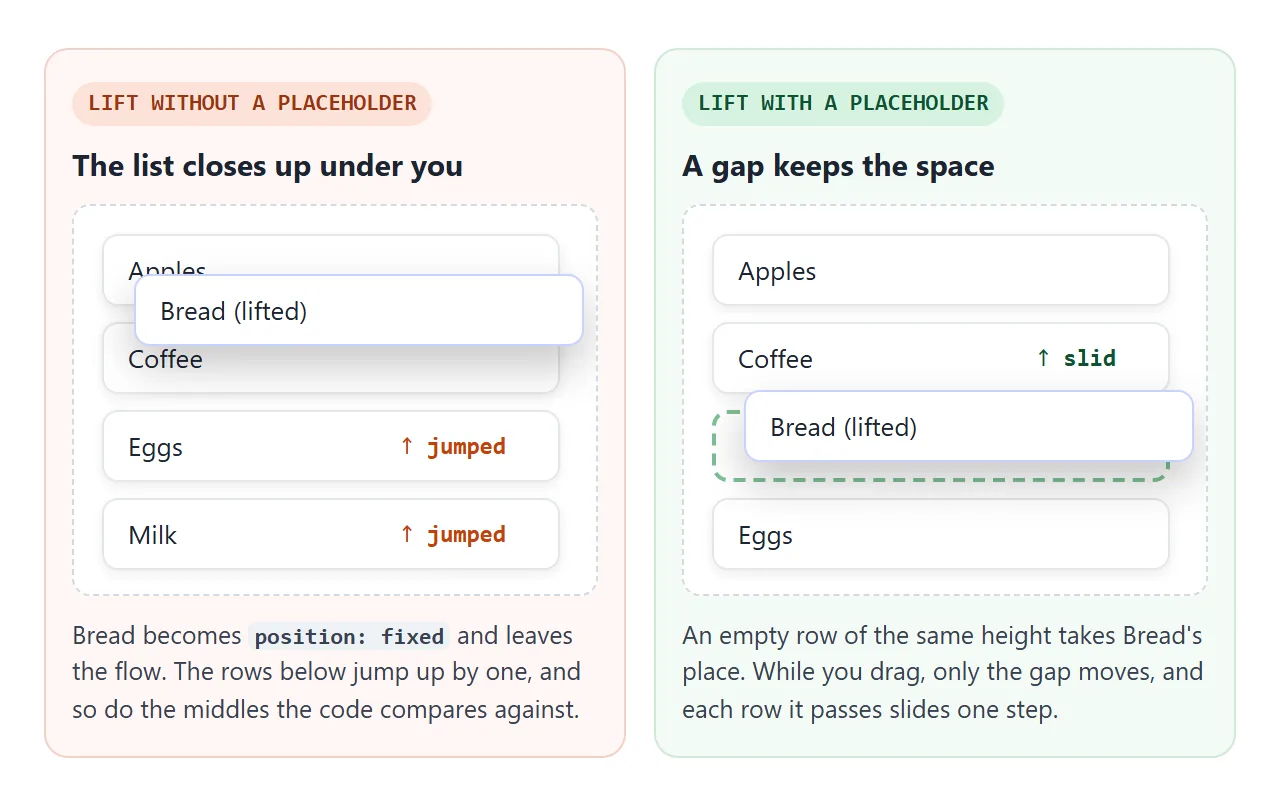
To make the rows slide instead of jump, record each row's offsetTop, move the placeholder, then animate each row from its old position to its new one:
const old = rows.map((li) => li.offsetTop);
list.insertBefore(ph, target);
rows.forEach((li, i) => {
  const d = old[i] - li.offsetTop;
  if (d) li.animate([{ transform: `translateY(${d}px)` }, { transform: 'none' }], 150);
});
Use offsetTop for the midpoint test too. It ignores transforms, so a row that is still sliding does not confuse the next calculation.
Which version to use
| Drag and Drop API | Pointer events | |
|---|---|---|
| Code | Shorter | Longer: lift, placeholder, drop |
| Touch | Limited, differs by browser | Works with mouse, pen and touch |
| What follows the pointer | A see-through copy made by the browser | The row itself, styled by you |
| Drag between windows or apps | Possible | No |
| Drop files from the desktop | Yes, see drag and drop file upload | No |
For a list people will reorder on phones, use pointer events. The Drag and Drop API earns its place when data has to cross boundaries, such as files from the desktop.
Keyboard moves and announcing the new position
Dragging needs a pointer and eyes on the screen. Add a second way in: move up and move down buttons on each row, and optionally a shortcut on a focused row.
This example uses Alt + Up / Down, because plain arrow keys already scroll the page.
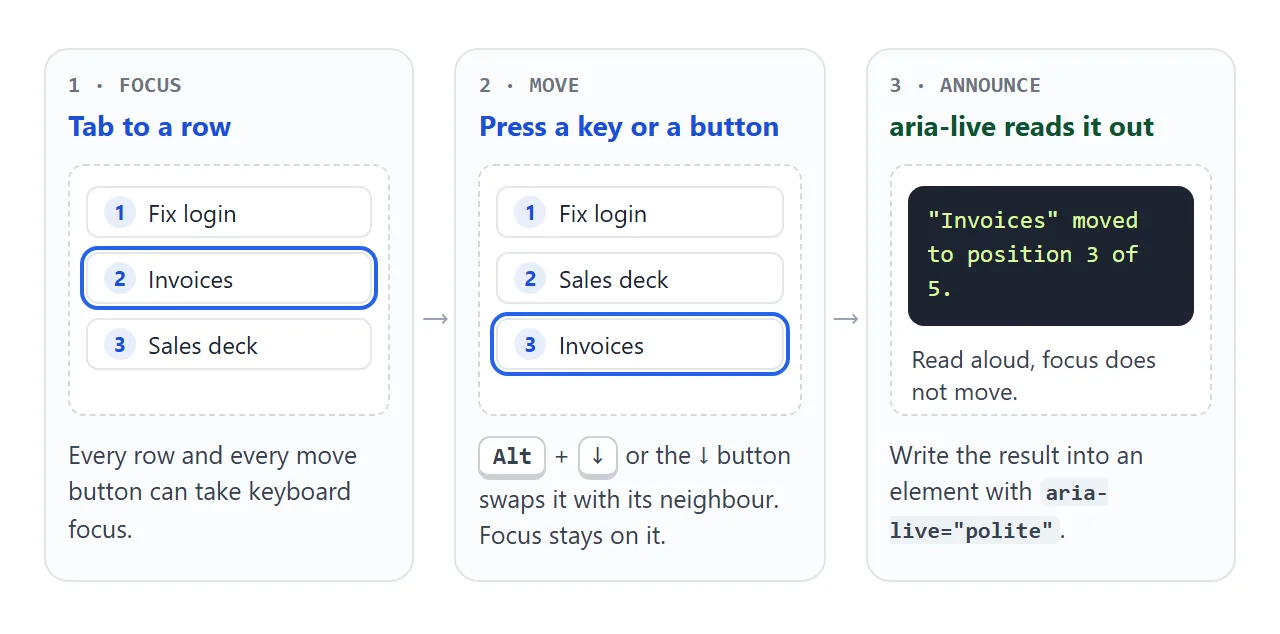
The buttons need an accessible name, since an arrow character alone says little. See aria-label for that. After each move, write a sentence into a live region:
<p id="status" aria-live="polite"></p>
live.textContent = `"${name}" moved to position ${index + 1} of ${count}.`;
One detail keeps focus steady. To move a row up, move its previous neighbour below it with li.after(prev). The focused row never leaves the page, so focus stays on the button that was pressed.
A finished example: a priority list
This list combines all of it: pointer dragging by the handle, up and down buttons, Alt + Up / Down, spoken announcements and a live readout of the order.
<!doctype html>
<html lang="en">
<head>
<meta charset="utf-8">
<meta name="viewport" content="width=device-width, initial-scale=1">
<title>Priority list: drag, keyboard and announcements</title>
<style>
body { margin: 0; padding: 16px; font-family: system-ui, sans-serif; background: #f4f5f7; color: #1d2330; }
h3 { margin: 0 0 4px; font-size: 16px; }
.hint { margin: 0 0 12px; font-size: 13px; color: #5b6270; }
#list { position: relative; list-style: none; margin: 0; padding: 0; max-width: 420px; counter-reset: n; }
#list li {
display: flex; align-items: center; gap: 8px;
margin-bottom: 8px; padding: 8px 10px; border-radius: 10px;
background: #fff; box-shadow: 0 2px 8px rgba(0, 0, 0, .08);
}
#list li:focus-visible { outline: 2px solid #2563eb; outline-offset: 2px; }
#list li::before { /* live rank number; the gap shows where the row will land */
counter-increment: n; content: counter(n);
width: 22px; height: 22px; border-radius: 50%; flex: none;
display: grid; place-items: center; font-size: 12px; font-weight: 700;
background: #e8eefc; color: #1d4ed8;
}
.text { flex: 1; font-size: 14px; }
.handle { padding: 4px 6px; color: #8a919e; cursor: grab; user-select: none; touch-action: none; }
li button {
width: 32px; height: 32px; border: 1px solid #d5d9e0; border-radius: 8px;
background: #fff; font-size: 14px; cursor: pointer;
}
#list li.lifted { position: fixed; z-index: 10; margin: 0; box-shadow: 0 12px 28px rgba(0, 0, 0, .22); }
#list li.lifted::before { counter-increment: none; content: '\2195'; }
#list li.placeholder { background: transparent; box-shadow: none; border: 2px dashed #b8c0cc; box-sizing: border-box; }
#status { min-height: 20px; margin: 4px 0 10px; font-size: 13px; color: #0f5132; }
#order {
margin: 0; padding: 10px 12px; border-radius: 8px; background: #1d2330; color: #d9f99d;
font: 12px/1.5 ui-monospace, Consolas, monospace; white-space: pre-wrap; max-width: 420px; box-sizing: border-box;
}
</style>
</head>
<body>
<h3>This week's priorities</h3>
<p class="hint">Drag ≡, use the arrow buttons, or focus a row and press Alt + Up / Down.</p>
<ul id="list" aria-label="Priorities">
<li tabindex="0" data-id="login"><span class="text">Fix the login error</span><span class="handle" aria-hidden="true">≡</span><button class="up" aria-label="Move up">↑</button><button class="down" aria-label="Move down">↓</button></li>
<li tabindex="0" data-id="invoice"><span class="text">Send March invoices</span><span class="handle" aria-hidden="true">≡</span><button class="up" aria-label="Move up">↑</button><button class="down" aria-label="Move down">↓</button></li>
<li tabindex="0" data-id="deck"><span class="text">Update the sales deck</span><span class="handle" aria-hidden="true">≡</span><button class="up" aria-label="Move up">↑</button><button class="down" aria-label="Move down">↓</button></li>
<li tabindex="0" data-id="hire"><span class="text">Review job applicants</span><span class="handle" aria-hidden="true">≡</span><button class="up" aria-label="Move up">↑</button><button class="down" aria-label="Move down">↓</button></li>
<li tabindex="0" data-id="backup"><span class="text">Test the backups</span><span class="handle" aria-hidden="true">≡</span><button class="up" aria-label="Move up">↑</button><button class="down" aria-label="Move down">↓</button></li>
</ul>
<p id="status" aria-live="polite"></p>
<pre id="order"></pre>
<script>
const list = document.getElementById('list');
const live = document.getElementById('status');
const order = document.getElementById('order');
// Read the order: this array is what you would save.
function showOrder() {
const ids = [...list.querySelectorAll('li[data-id]')].map((li) => li.dataset.id);
order.textContent = 'order = ' + JSON.stringify(ids);
}
// Tell screen reader users (and everyone else) where the row ended up.
function announce(li) {
const rows = [...list.querySelectorAll('li[data-id]')];
const name = li.querySelector('.text').textContent;
live.textContent = `"${name}" moved to position ${rows.indexOf(li) + 1} of ${rows.length}.`;
showOrder();
}
// Keyboard and buttons: move the neighbour instead of the row,
// so the focused button or row keeps its focus.
function move(li, dir) {
const other = dir < 0 ? li.previousElementSibling : li.nextElementSibling;
if (!other) { live.textContent = 'Already at the ' + (dir < 0 ? 'top.' : 'bottom.'); return; }
dir < 0 ? li.after(other) : li.before(other);
announce(li);
}
list.addEventListener('click', (e) => {
const btn = e.target.closest('button');
if (btn) move(btn.closest('li'), btn.classList.contains('up') ? -1 : 1);
});
list.addEventListener('keydown', (e) => {
if (!e.altKey || (e.key !== 'ArrowUp' && e.key !== 'ArrowDown')) return;
e.preventDefault();
move(e.target.closest('li'), e.key === 'ArrowUp' ? -1 : 1);
});
// Pointer dragging: same technique as the second example.
let item = null, ph = null, dy = 0, startIndex = 0;
list.addEventListener('pointerdown', (e) => {
const handle = e.target.closest('.handle');
if (!handle) return;
item = handle.closest('li');
startIndex = [...list.children].indexOf(item);
const r = item.getBoundingClientRect();
dy = e.clientY - r.top;
ph = document.createElement('li');
ph.className = 'placeholder';
ph.style.height = r.height + 'px';
item.before(ph);
Object.assign(item.style, { left: r.left + 'px', top: r.top + 'px', width: r.width + 'px' });
item.classList.add('lifted');
handle.setPointerCapture(e.pointerId);
});
list.addEventListener('pointermove', (e) => {
if (!item) return;
item.style.top = (e.clientY - dy) + 'px';
const y = e.clientY - list.getBoundingClientRect().top;
const rows = [...list.querySelectorAll('li[data-id]:not(.lifted)')];
const target = rows.find((li) => y < li.offsetTop + li.offsetHeight / 2) || null;
let next = ph.nextElementSibling;
if (next === item) next = next.nextElementSibling;
if (next !== target) slide(() => list.insertBefore(ph, target));
});
function slide(change) {
const rows = [...list.querySelectorAll('li:not(.lifted)')];
const old = rows.map((li) => li.offsetTop);
change();
rows.forEach((li, i) => {
const d = old[i] - li.offsetTop;
if (d) li.animate([{ transform: `translateY(${d}px)` }, { transform: 'none' }],
{ duration: 150, easing: 'ease-out' });
});
}
list.addEventListener('lostpointercapture', () => {
if (!item) return;
const from = item.getBoundingClientRect().top;
ph.replaceWith(item);
item.removeAttribute('style');
item.classList.remove('lifted');
const d = from - item.getBoundingClientRect().top;
item.animate([{ transform: `translateY(${d}px)` }, { transform: 'none' }], { duration: 120 });
if ([...list.children].indexOf(item) !== startIndex) announce(item);
item = ph = null;
});
showOrder();
</script>
</body>
</html>
Reading the order is one line. Each <li> carries a data-id, and the DOM order is the new order:
const order = [...list.querySelectorAll('li[data-id]')].map((li) => li.dataset.id);
// ["login", "invoice", "deck", "hire", "backup"]
Save that array wherever the list lives. For a list that also adds and ticks off items, a simple to-do list covers that part.
When it does not work
| What you see | Cause | Fix |
|---|---|---|
| The drop event never fires | dragover does not call preventDefault() |
Cancel dragover, and dragenter too |
| Nothing drags with a finger | The Drag and Drop API has limited touch support | Use the pointer-events version |
| The row jumps when you grab it | No grab offset | Store clientY - rect.top on press and subtract it |
| The page scrolls on a phone instead of dragging | The browser takes the gesture as a scroll | touch-action: none on the handle |
| Rows below jump when one is lifted | No placeholder | Insert a same-height placeholder |
| The row flickers between two spots | The midpoint test reads animated positions | Use offsetTop, not getBoundingClientRect() |
| Keyboard and screen reader users cannot reorder | Dragging is the only way | Add move buttons and an aria-live message |
Put touch-action: none on the handle only. The page still scrolls when a finger starts anywhere else on the row.
Share it as a link
A sortable list is something people need to try, not look at.
Send it as a shared link and the scripts run, so the people you send it to can drag rows and press the buttons themselves. If you change the code later, the same link shows the new version.
To make one, paste the page into a NOS document and choose Create share link. HTML to link walks through it.